
Howtoguide Business international payments 1 Internet Banking IBR
How-to-guide - Business international payments 1
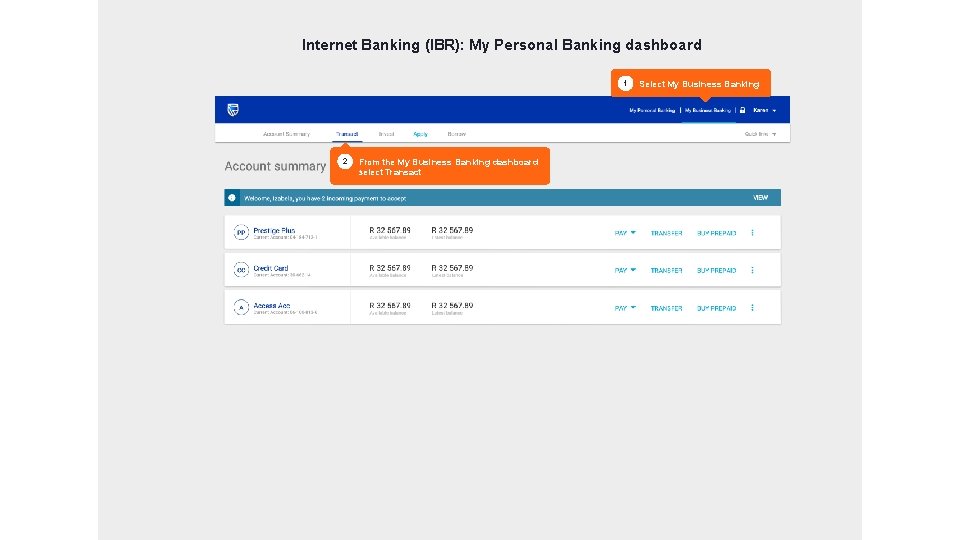
Internet Banking (IBR): My Personal Banking dashboard 1 2 Select My Business Banking From the My Business Banking dashboard select Transact 2
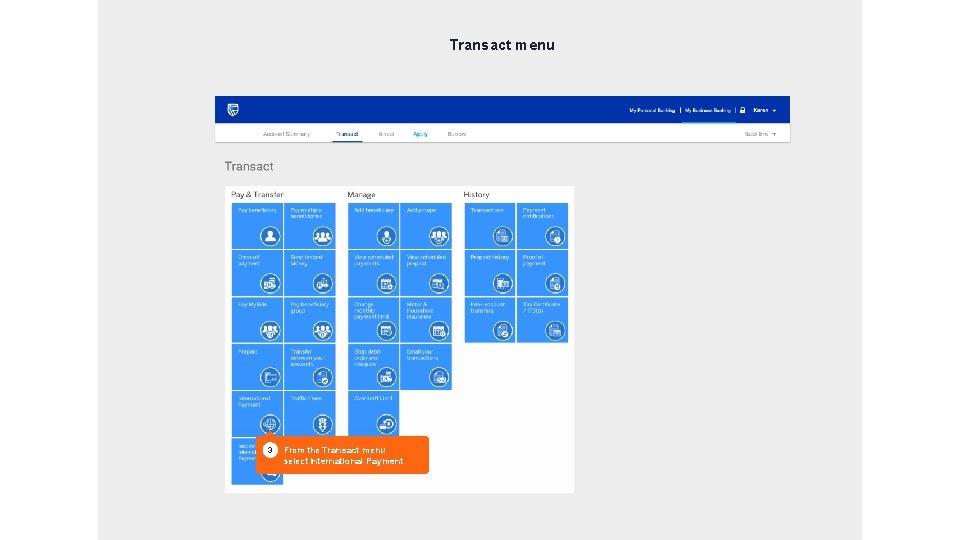
Transact menu 3 From the Transact menu select International Payment 3
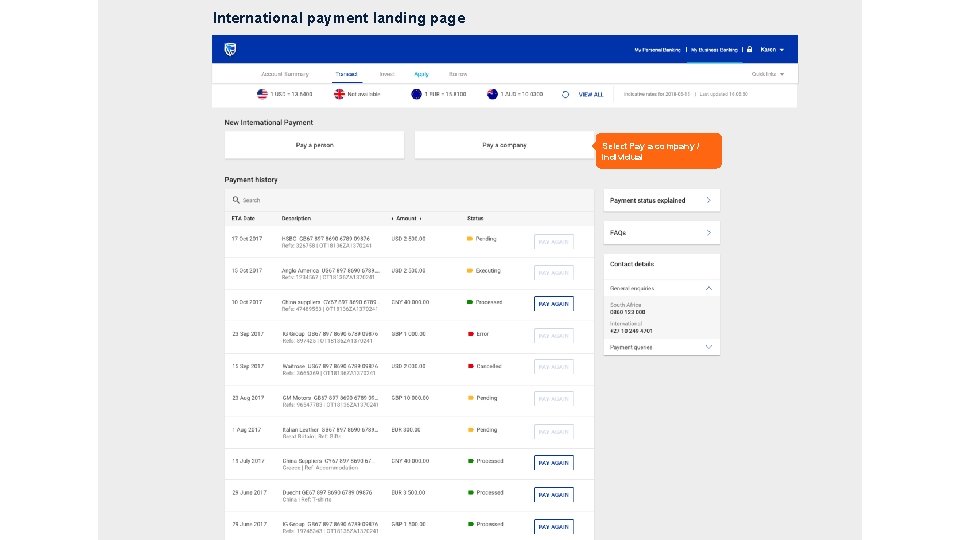
International payment landing page Select Pay a company / individual
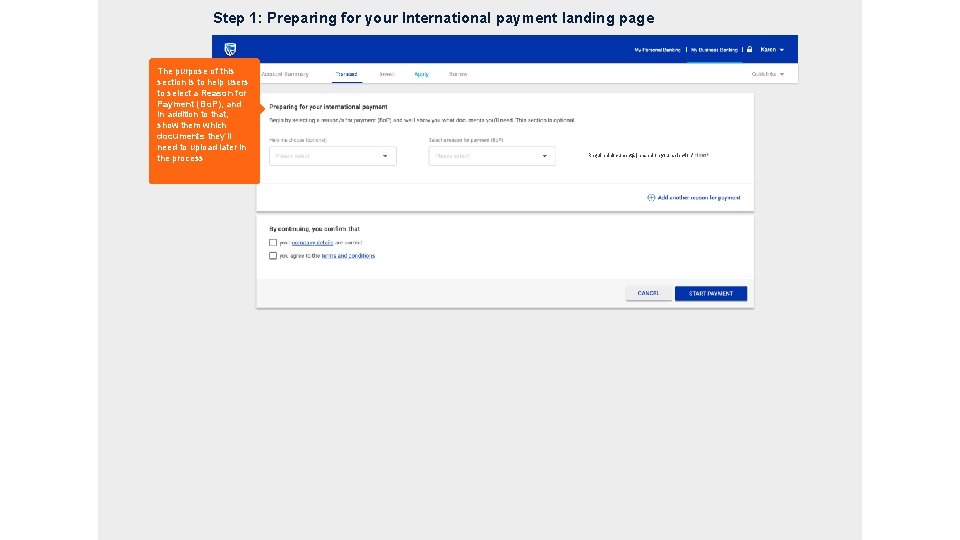
Step 1: Preparing for your International payment landing page The purpose of this section is to help users to select a Reason for Payment (Bo. P), and in addition to that, show them which documents they’ll need to upload later in the process Required document(s) based on your selection* 5
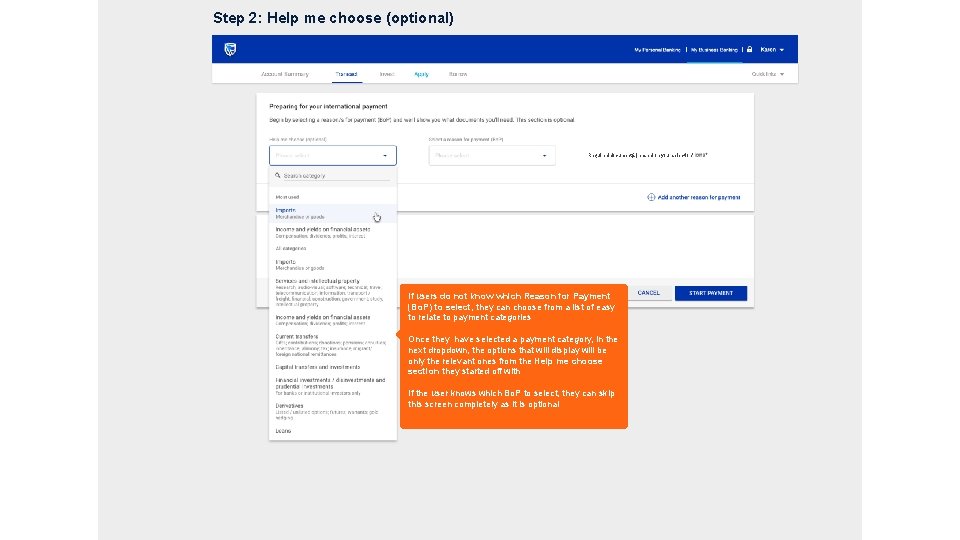
Step 2: Help me choose (optional) Required document(s) based on your selection* If users do not know which Reason for Payment (Bo. P) to select, they can choose from a list of easy to relate to payment categories Once they have selected a payment category, in the next dropdown, the options that will display will be only the relevant ones from the Help me choose section they started off with If the user knows which Bo. P to select, they can skip this screen completely as it is optional 6
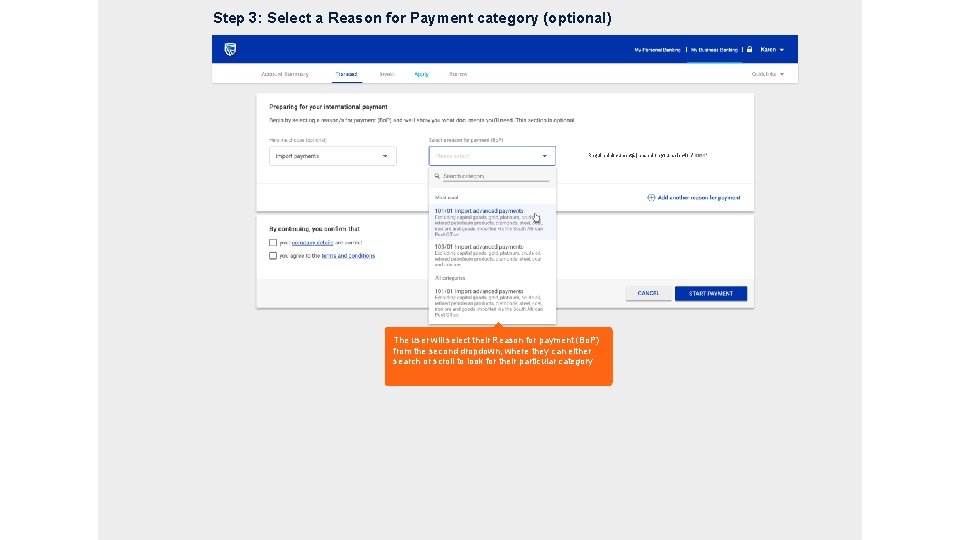
Step 3: Select a Reason for Payment category (optional) Required document(s) based on your selection* The user will select their Reason for payment (Bo. P) from the second dropdown, where they can either search or scroll to look for their particular category 7
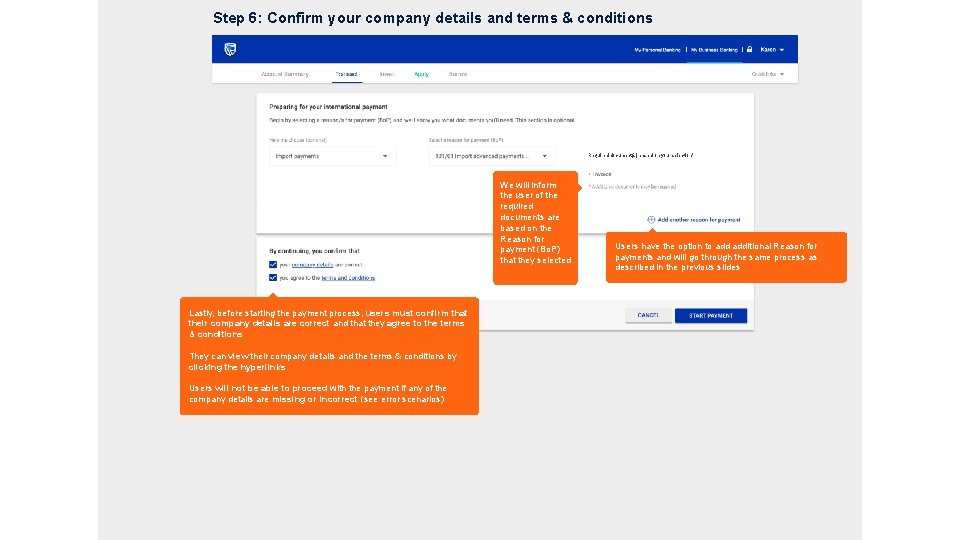
Step 6: Confirm your company details and terms & conditions Required document(s) based on your selection* We will inform the user of the required documents are based on the Reason for payment (Bo. P) that they selected Users have the option to additional Reason for payments and will go through the same process as described in the previous slides Lastly, before starting the payment process, users must confirm that their company details are correct and that they agree to the terms & conditions They can view their company details and the terms & conditions by clicking the hyperlinks Users will not be able to proceed with the payment if any of the company details are missing or incorrect (see error scenarios) 8
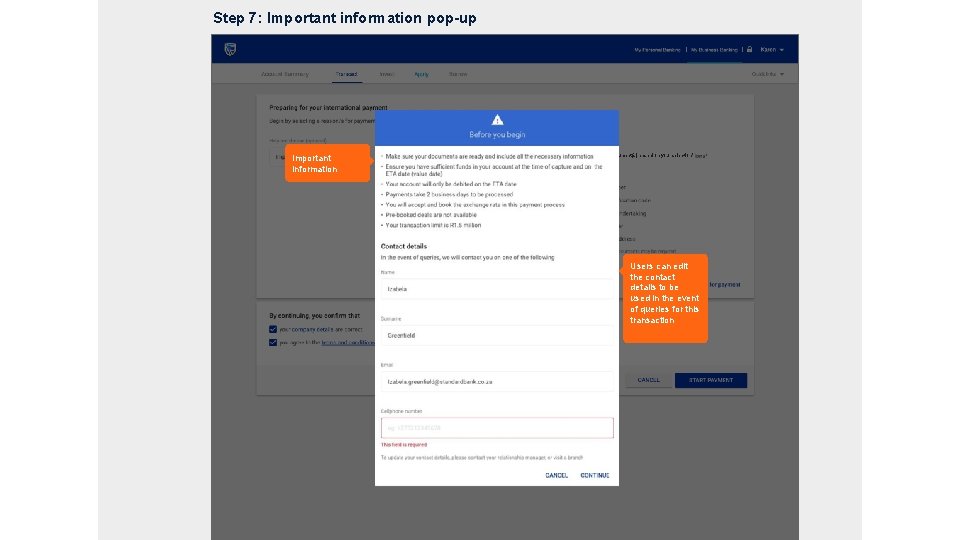
Step 7: Important information pop-up Important information Required document(s) based on your selection* Users can edit the contact details to be used in the event of queries for this transaction 9
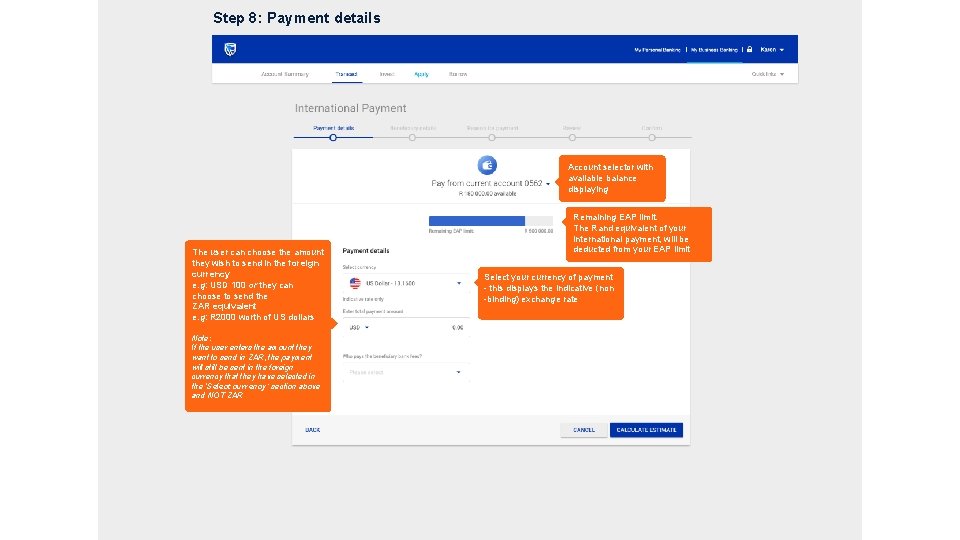
Step 8: Payment details Account selector with available balance displaying The user can choose the amount they wish to send in the foreign currency e. g: USD 100 or they can choose to send the ZAR equivalent e. g: R 2000 worth of US dollars Remaining EAP limit. The Rand equivalent of your international payment, will be deducted from your EAP limit Select your currency of payment - this displays the indicative (non -binding) exchange rate Note: If the user enters the amount they want to send in ZAR, the payment will still be sent in the foreign currency that they have selected in the ‘Select currency’ section above and NOT ZAR 10
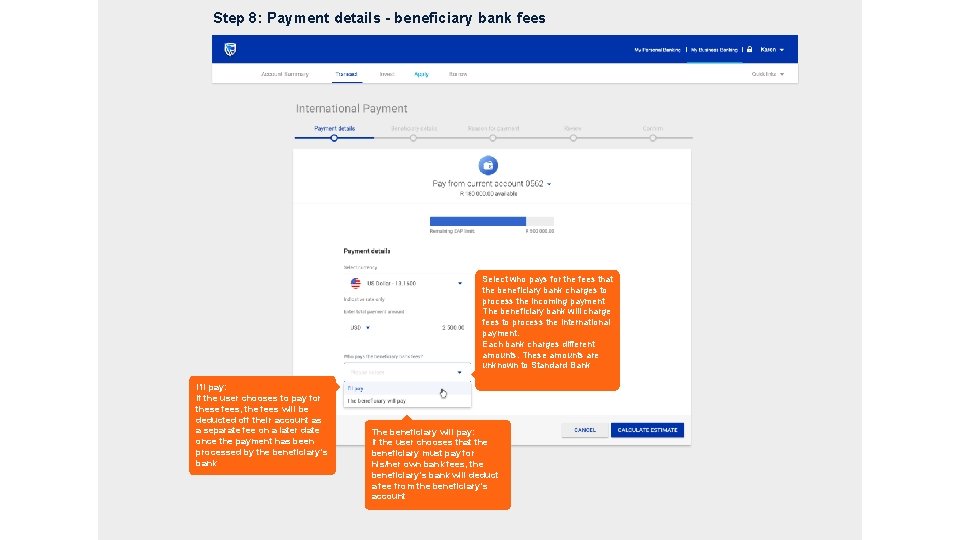
Step 8: Payment details - beneficiary bank fees Select who pays for the fees that the beneficiary bank charges to process the incoming payment The beneficiary bank will charge fees to process the international payment. Each bank charges different amounts. These amounts are unknown to Standard Bank I’ll pay: If the user chooses to pay for these fees, the fees will be deducted off their account as a separate fee on a later date once the payment has been processed by the beneficiary’s bank The beneficiary will pay: If the user chooses that the beneficiary must pay for his/her own bank fees, the beneficiary’s bank will deduct a fee from the beneficiary’s account
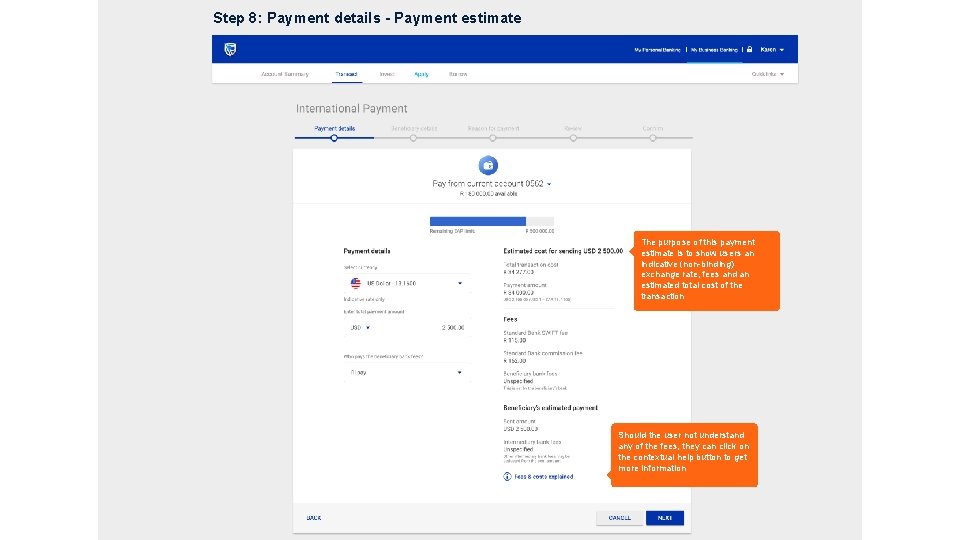
Step 8: Payment details - Payment estimate The purpose of this payment estimate is to show users an indicative (non-binding) exchange rate, fees and an estimated total cost of the transaction Should the user not understand any of the fees, they can click on the contextual help button to get more information 12
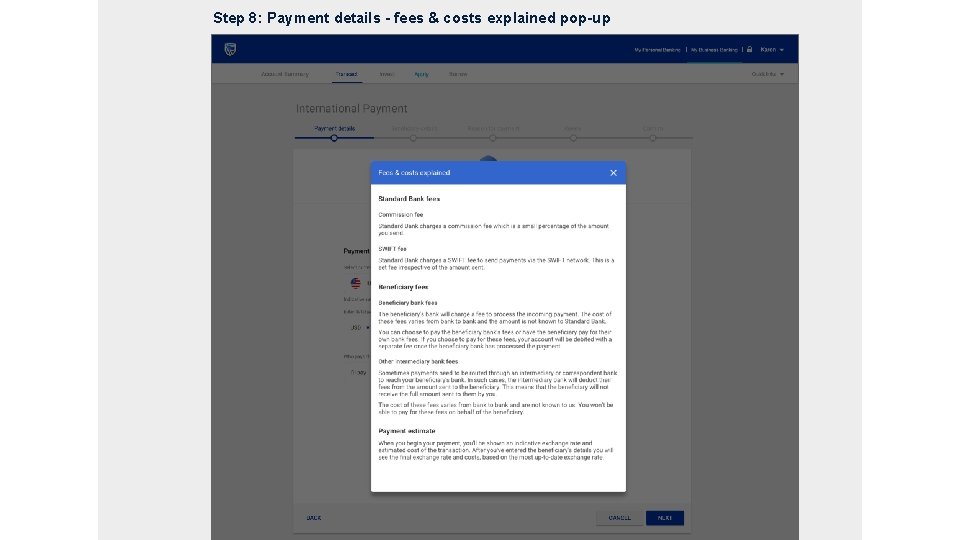
Step 8: Payment details - fees & costs explained pop-up 13
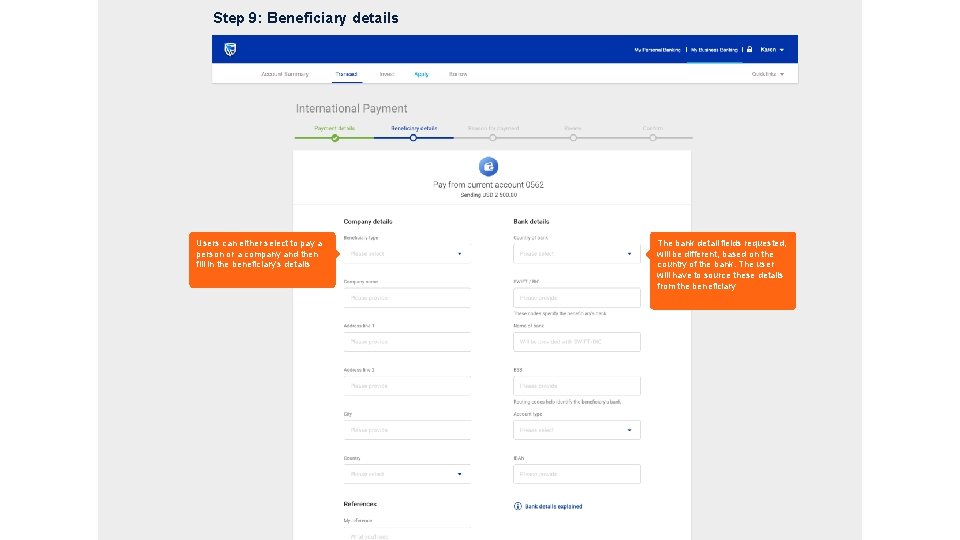
Step 9: Beneficiary details Users can either select to pay a person or a company and then fill in the beneficiary’s details The bank detail fields requested, will be different, based on the country of the bank. The user will have to source these details from the beneficiary 14
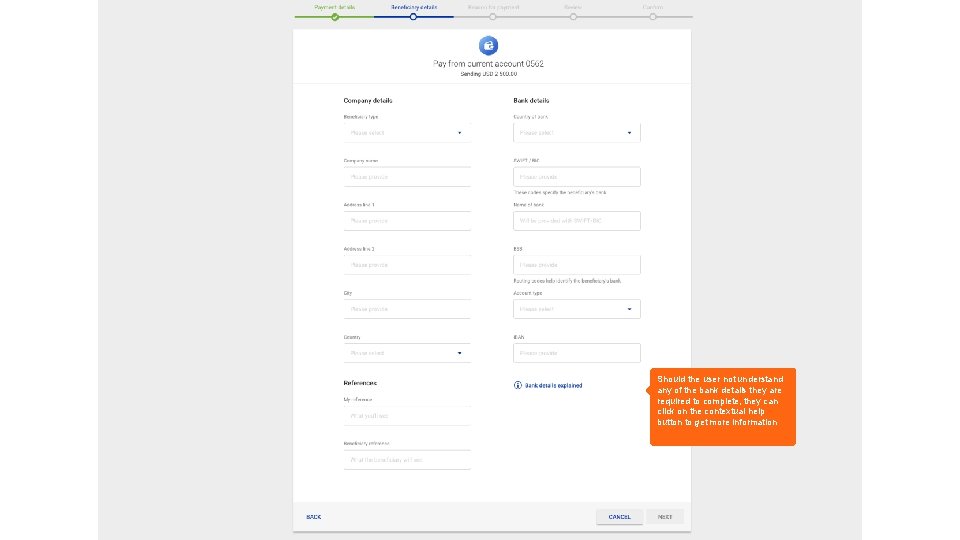
Step 9: Beneficiary details Should the user not understand any of the bank details they are required to complete, they can click on the contextual help button to get more information 15
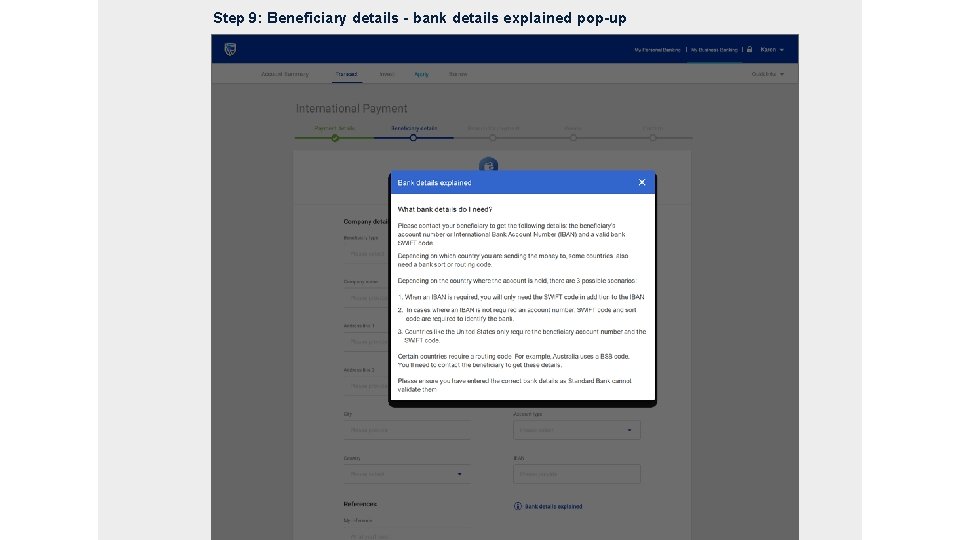
Step 9: Beneficiary details - bank details explained pop-up 16
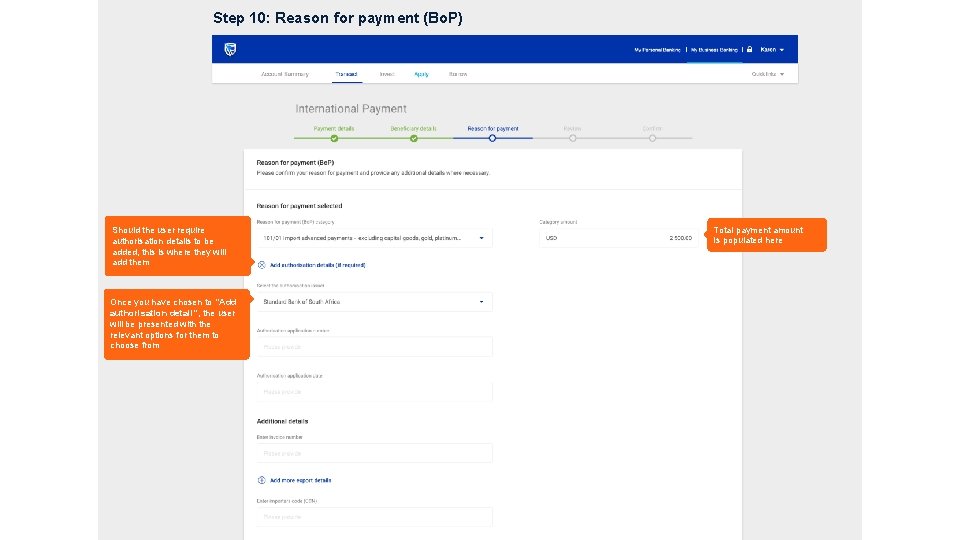
Step 10: Reason for payment (Bo. P) Should the user require authorisation details to be added, this is where they will add them Total payment amount Is populated here Once you have chosen to “Add authorisation detail”, the user will be presented with the relevant options for them to choose from 17
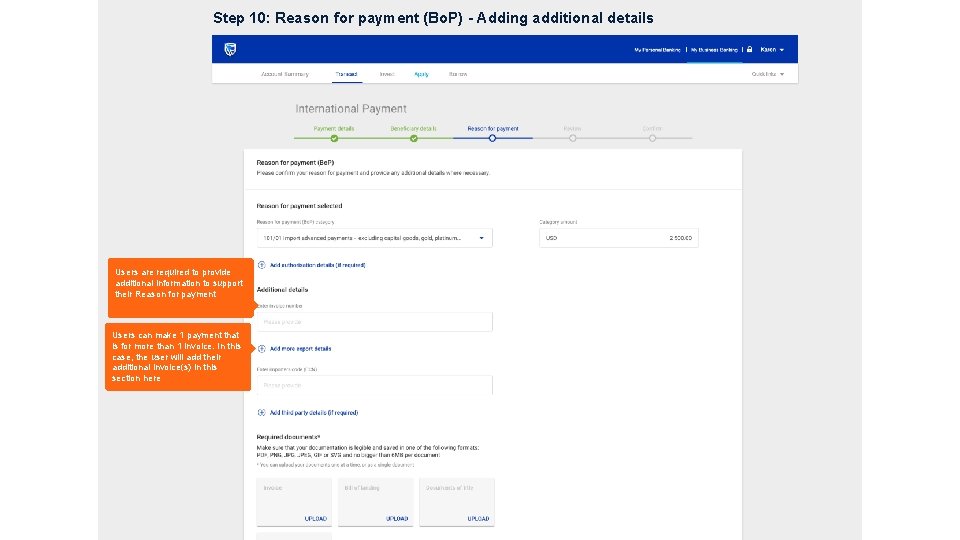
Step 10: Reason for payment (Bo. P) - Adding additional details Users are required to provide additional information to support their Reason for payment Users can make 1 payment that is for more than 1 invoice. In this case, the user will add their additional invoice(s) in this section here 18
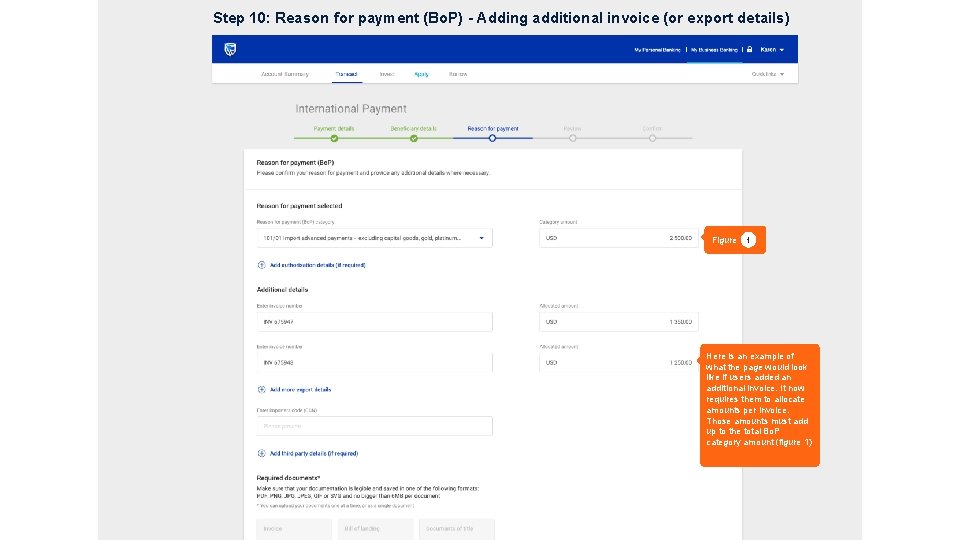
Step 10: Reason for payment (Bo. P) - Adding additional invoice (or export details) Figure 1 Here is an example of what the page would look like if users added an additional invoice. It now requires them to allocate amounts per invoice. Those amounts must add up to the total Bo. P category amount (figure 1) 19
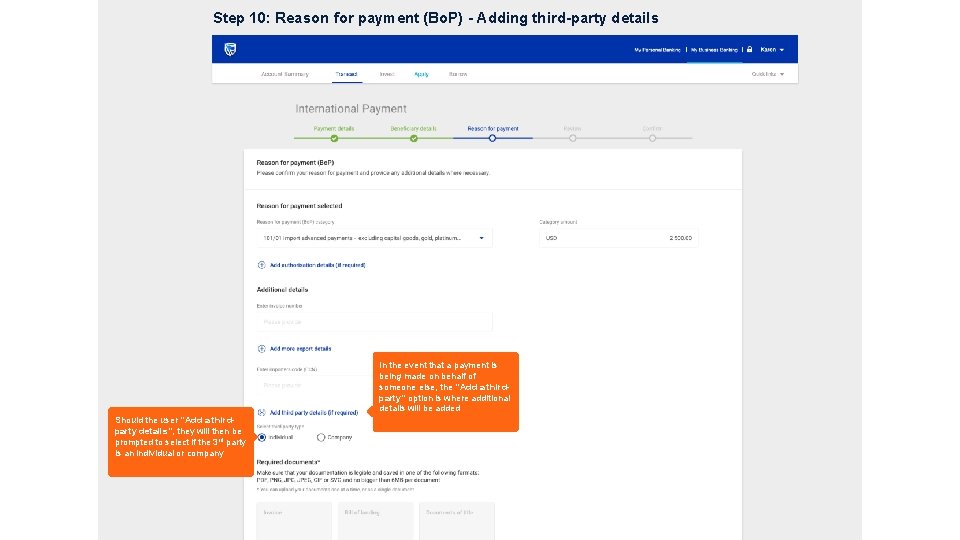
Step 10: Reason for payment (Bo. P) - Adding third-party details In the event that a payment is being made on behalf of someone else, the “Add a thirdparty” option is where additional details will be added Should the user “Add a thirdparty details”, they will then be prompted to select if the 3 rd party is an individual or company 20
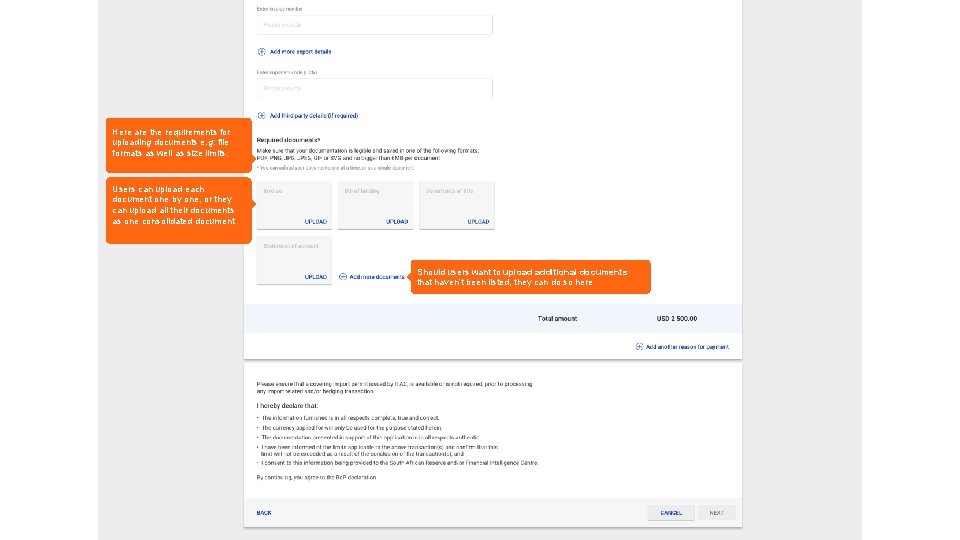
Here are the requirements for uploading documents e. g: file formats as well as size limits. Users can upload each document one by one, or they can upload all their documents as one consolidated document Should users want to upload additional documents that haven’t been listed, they can do so here
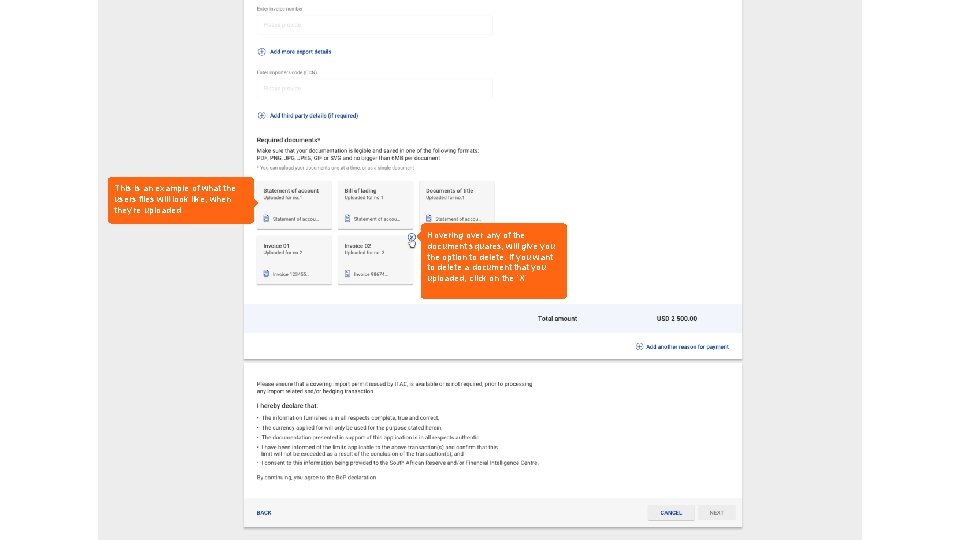
This is an example of what the users files will look like, when they’re uploaded Hovering over any of the document squares, will give you the option to delete. If you want to delete a document that you uploaded, click on the ‘X’
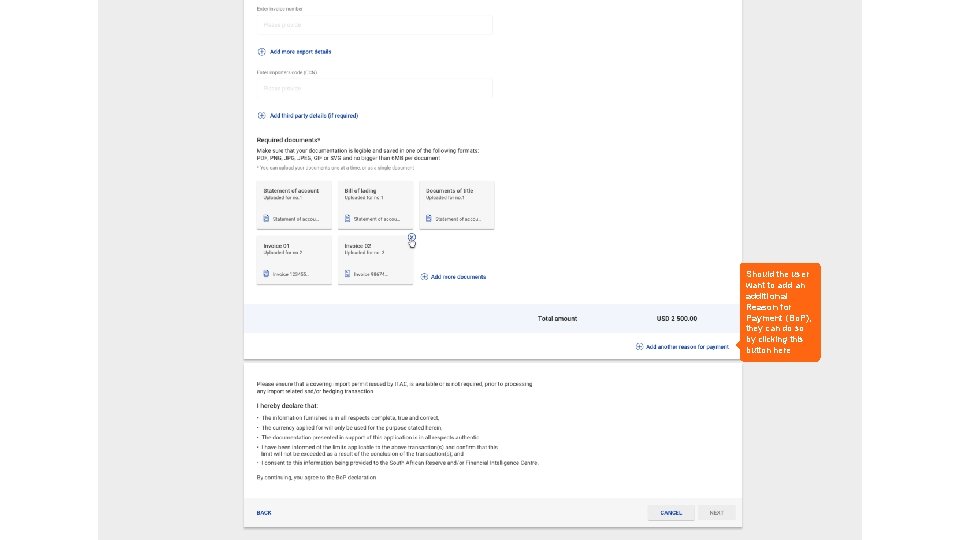
Should the user want to add an additional Reason for Payment (Bo. P), they can do so by clicking this button here
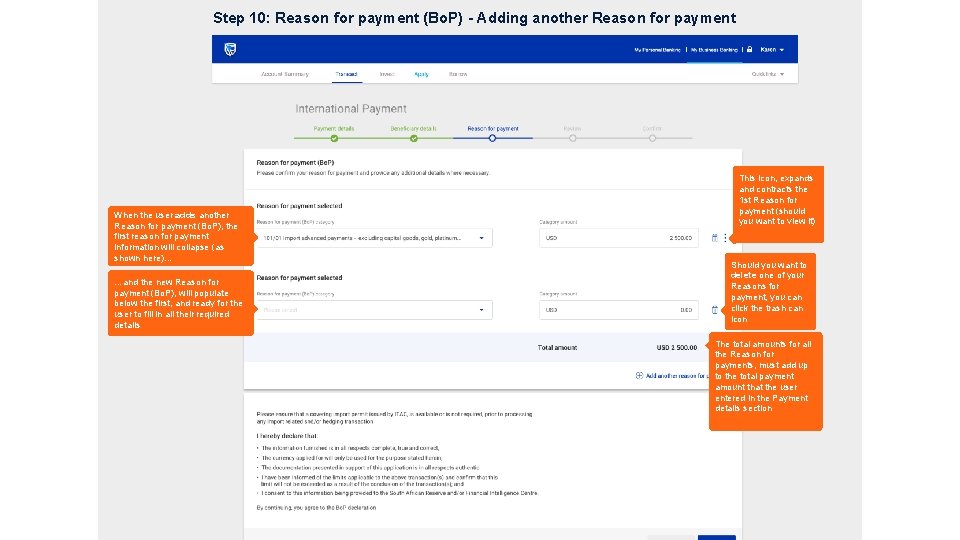
Step 10: Reason for payment (Bo. P) - Adding another Reason for payment When the user adds another Reason for payment (Bo. P), the first reason for payment information will collapse (as shown here)… …and the new Reason for payment (Bo. P), will populate below the first, and ready for the user to fill in all their required details This icon, expands and contracts the 1 st Reason for payment (should you want to view it) Should you want to delete one of your Reasons for payment, you can click the trash can icon The total amounts for all the Reason for payments, must add up to the total payment amount that the user entered in the Payment details section 24
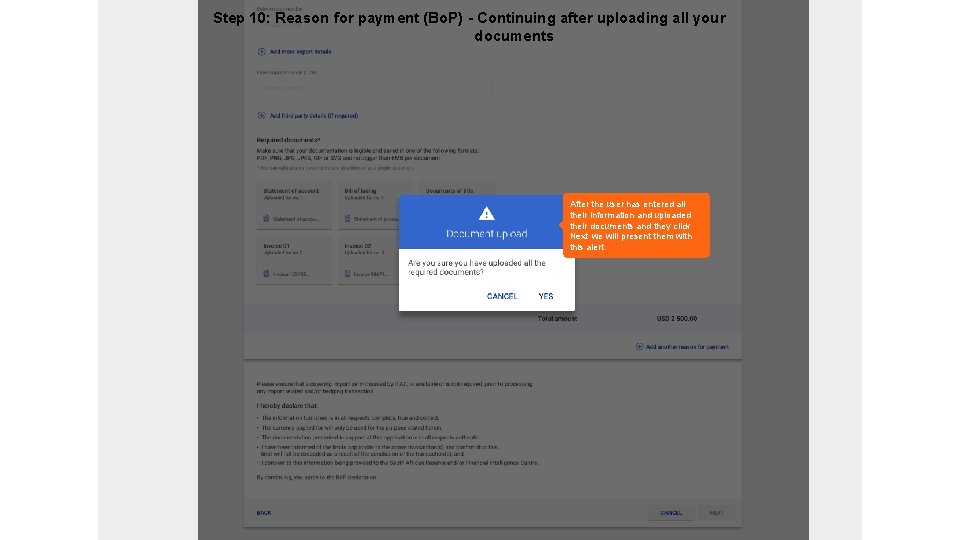
Step 10: Reason for payment (Bo. P) - Continuing after uploading all your documents After the user has entered all their information and uploaded their documents and they click Next we will present them with this alert
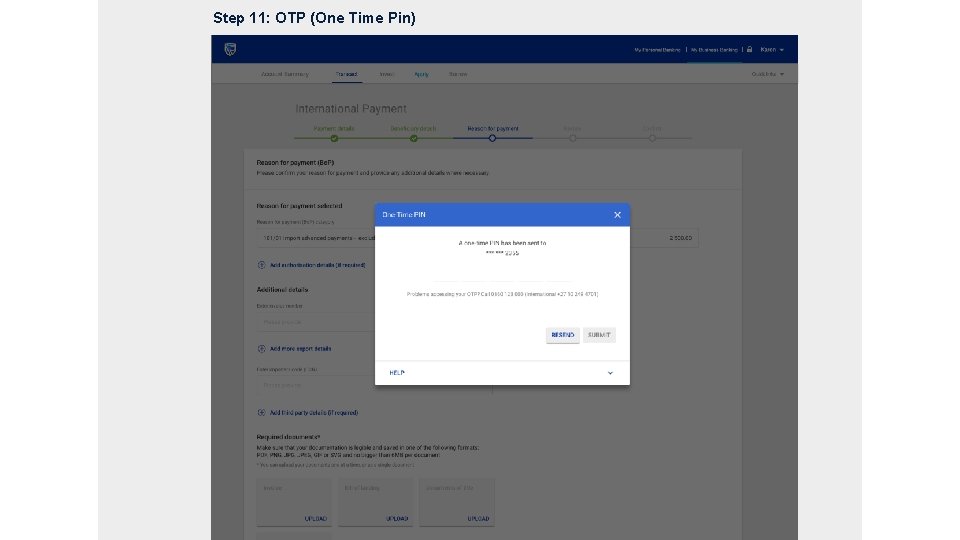
Step 11: OTP (One Time Pin)
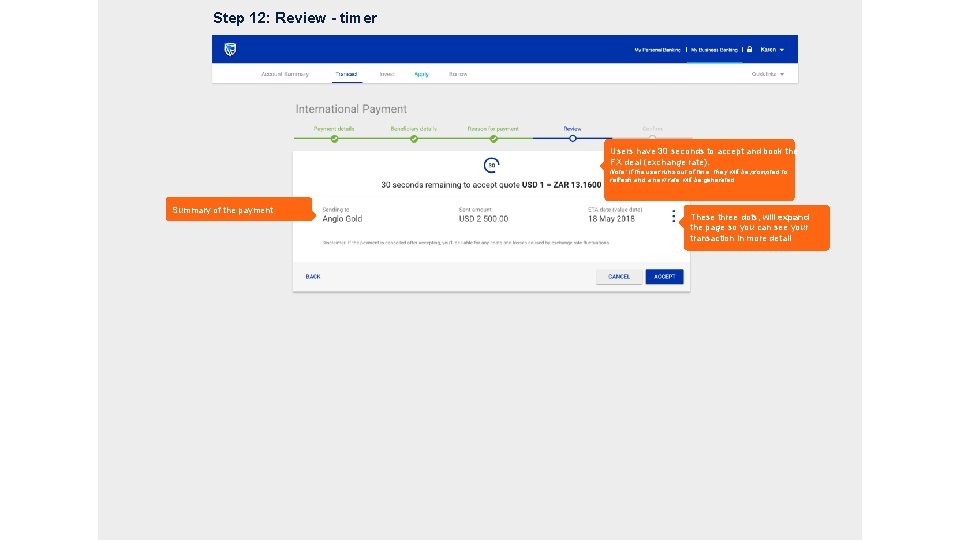
Step 12: Review - timer Users have 30 seconds to accept and book the FX deal (exchange rate). Note: If the user runs out of time, they will be prompted to refresh and a new rate will be generated Summary of the payment These three dots, will expand the page so you can see your transaction in more detail
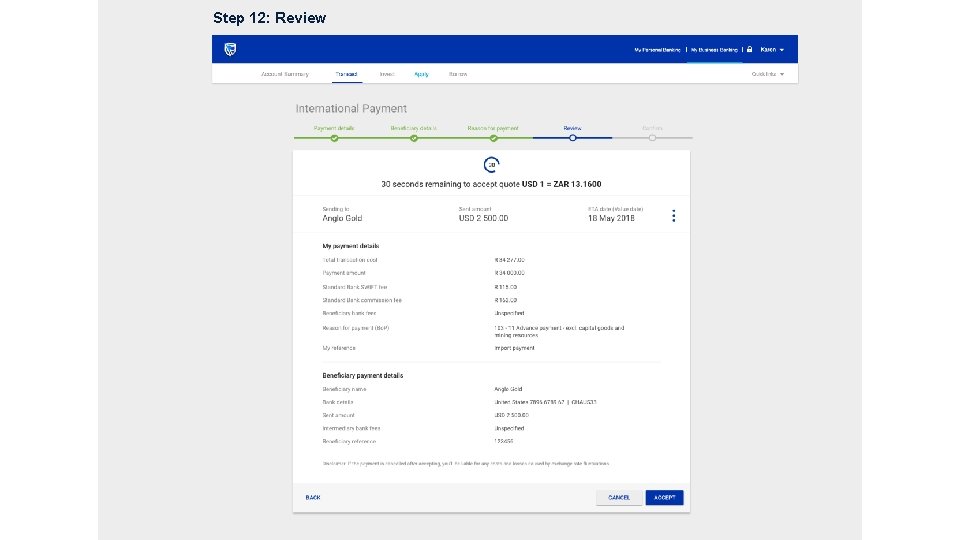
Step 12: Review
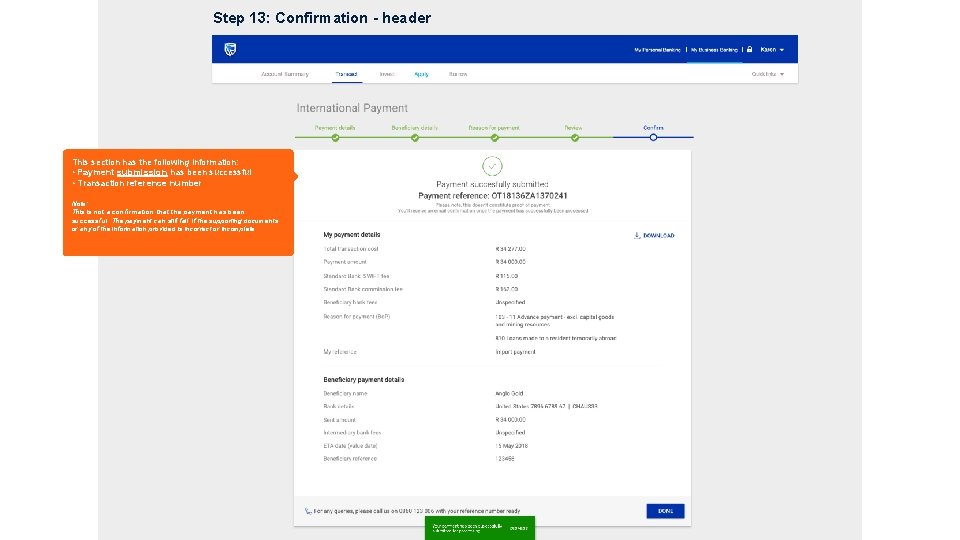
Step 13: Confirmation - header This section has the following information: • Payment submission has been successful • Transaction reference number Note: This is not a confirmation that the payment has been successful. The payment can still fail, if the supporting documents or any of the information provided is incorrect or incomplete
- Slides: 29