
How to Use Yamm Yet Another Mail Merge
- Slides: 21
How to Use Yamm Yet Another Mail Merge
2 § YAMM is a Google Sheet add-on that What is YAMM? lets you send personalized emails to a group of people. § YAMM can only be used with Gmail.
3 Step 1: Install YAMM 1. Open a Google Sheet. 2. Click Add-ons / Get Add-ons… 3. Search for YAMM and install it.
4 1. Open Gmail. 2. Create a new draft email. Step 2: Draft an email 3. YAMM calls this your email template. 4. Insert merge fields in <<brackets>> as placeholders for names, addresses, and any other information you want to customize in each email.
5 1. Create a new spreadsheet with a column for each merge field. Step 3: Create a list of recipients 2. At a minimum, the sheet should contain a column for name and email address. 3. The titles of the columns must match the merge fields in your draft email.
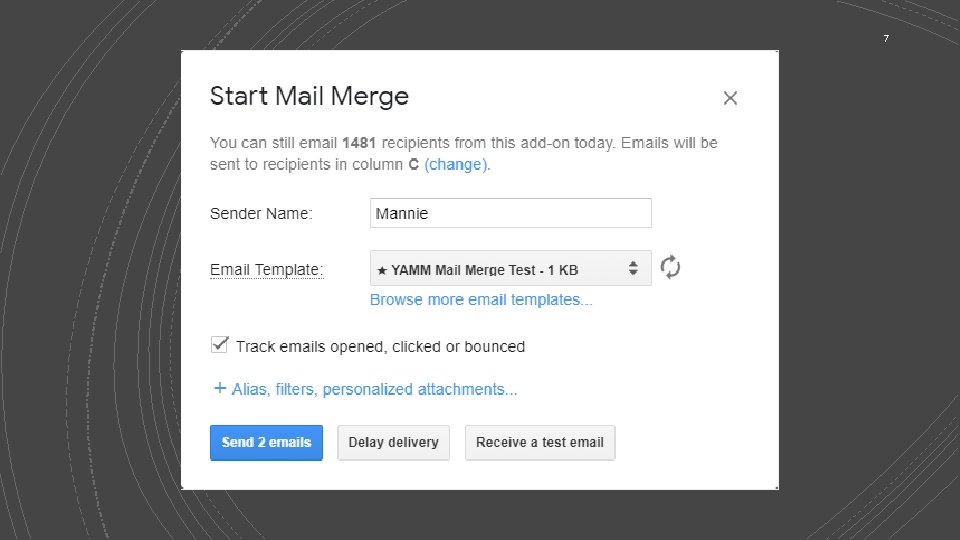
6 1. From your list of recipients in Step 4: Receive a test email Google Sheets, select Add-ons / Yet Another Mail Merge / Start a Mail Merge… 2. Select your email template (draft) from the drop-down. 3. Click Receive a test email.
7
8 1. Click the blue Send <#> emails. Step 5: Send the emails 2. By default, YAMM will track emails as they are clicked, opened or bounced. 3. Uncheck this box if you do not want to track responses.
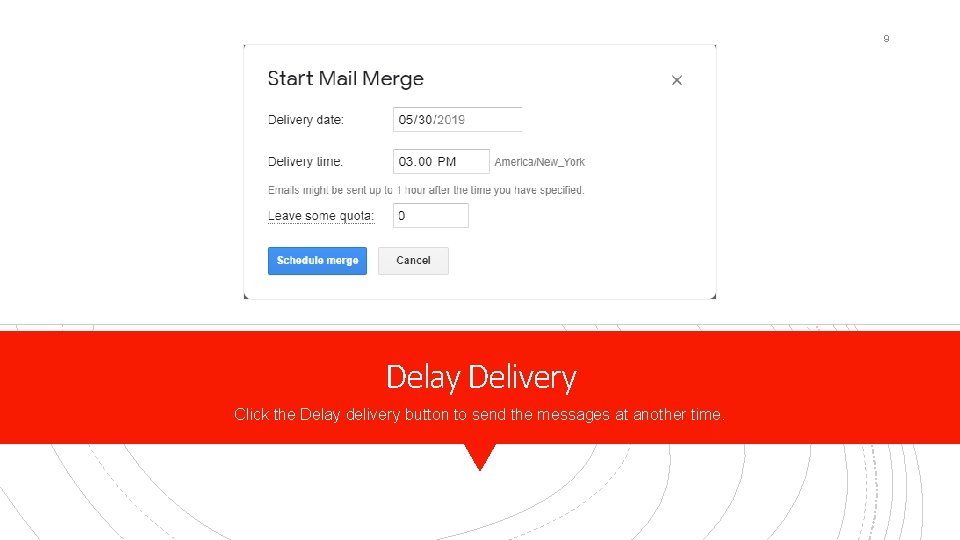
9 Delay Delivery Click the Delay delivery button to send the messages at another time.
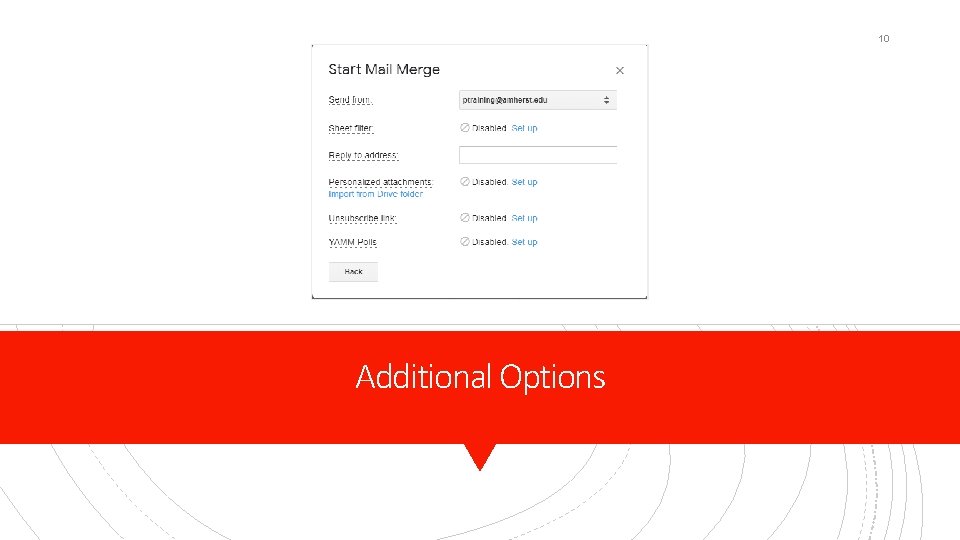
10 Additional Options
11 Segmenting: Sending emails to part of your list There are three ways to send emails to only some recipients on your list. 1. Use sheet filters. (Click set up in Additional Options dialog. ) 2. Hide rows. 3. Change merge status to 0.
12 Using Sheet Filters The Sheet Filter Set up links to a YAMM support page with an instructional video on using filters in Google Sheets.
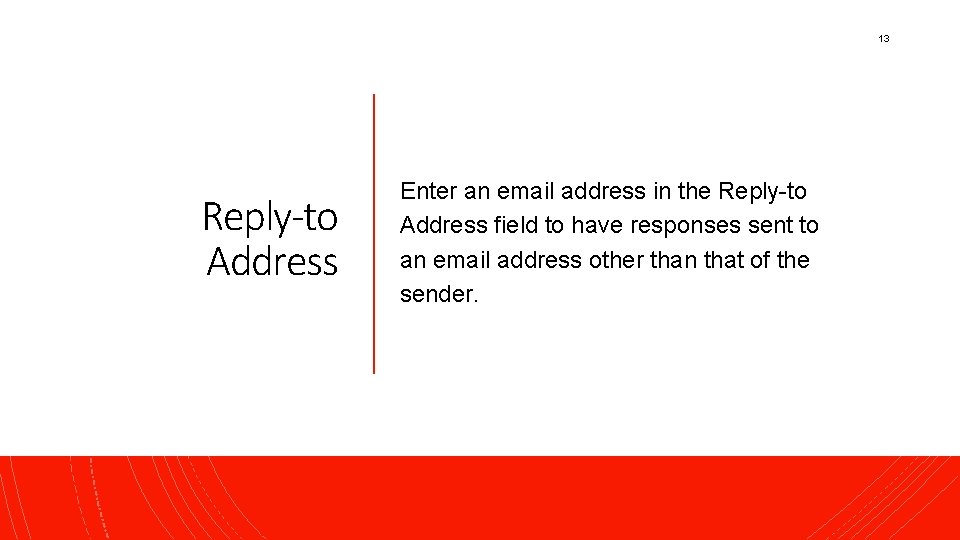
13 Reply-to Address Enter an email address in the Reply-to Address field to have responses sent to an email address other than that of the sender.
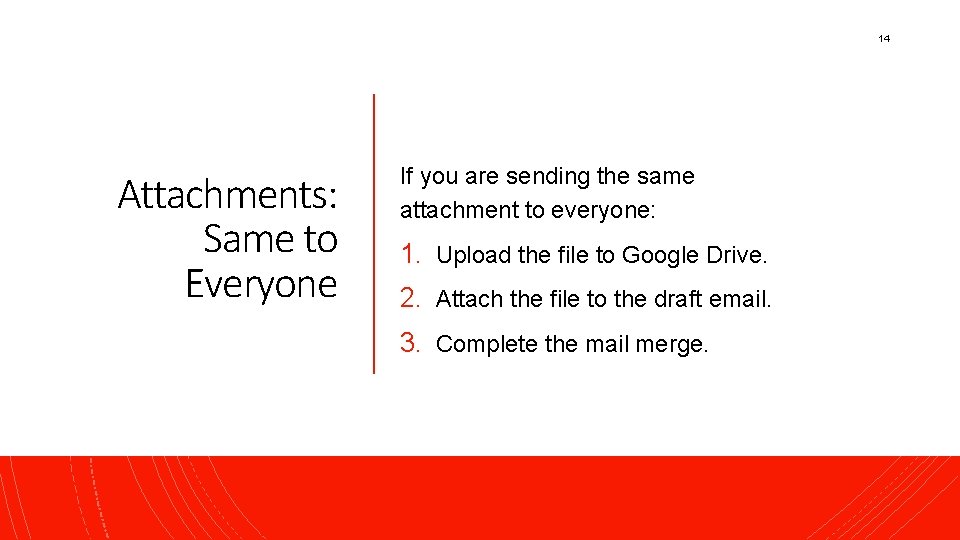
14 Attachments: Same to Everyone If you are sending the same attachment to everyone: 1. Upload the file to Google Drive. 2. Attach the file to the draft email. 3. Complete the mail merge.
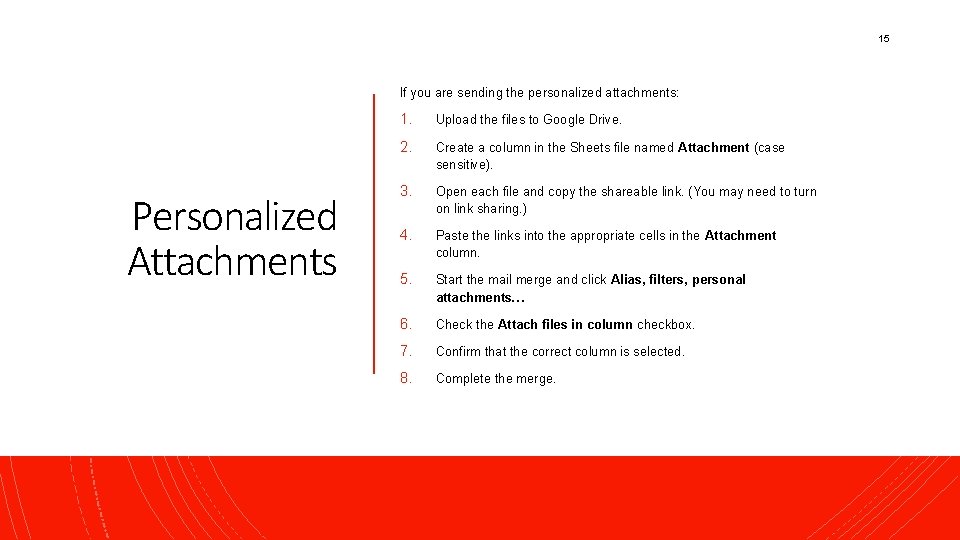
15 If you are sending the personalized attachments: Personalized Attachments 1. Upload the files to Google Drive. 2. Create a column in the Sheets file named Attachment (case sensitive). 3. Open each file and copy the shareable link. (You may need to turn on link sharing. ) 4. Paste the links into the appropriate cells in the Attachment column. 5. Start the mail merge and click Alias, filters, personal attachments… 6. Check the Attach files in column checkbox. 7. Confirm that the correct column is selected. 8. Complete the merge.
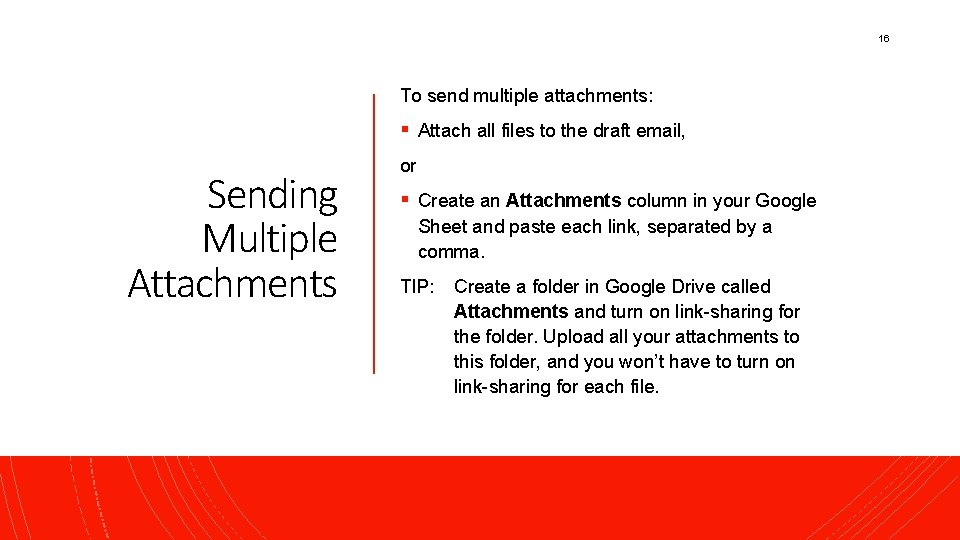
16 To send multiple attachments: § Attach all files to the draft email, Sending Multiple Attachments or § Create an Attachments column in your Google Sheet and paste each link, separated by a comma. TIP: Create a folder in Google Drive called Attachments and turn on link-sharing for the folder. Upload all your attachments to this folder, and you won’t have to turn on link-sharing for each file.
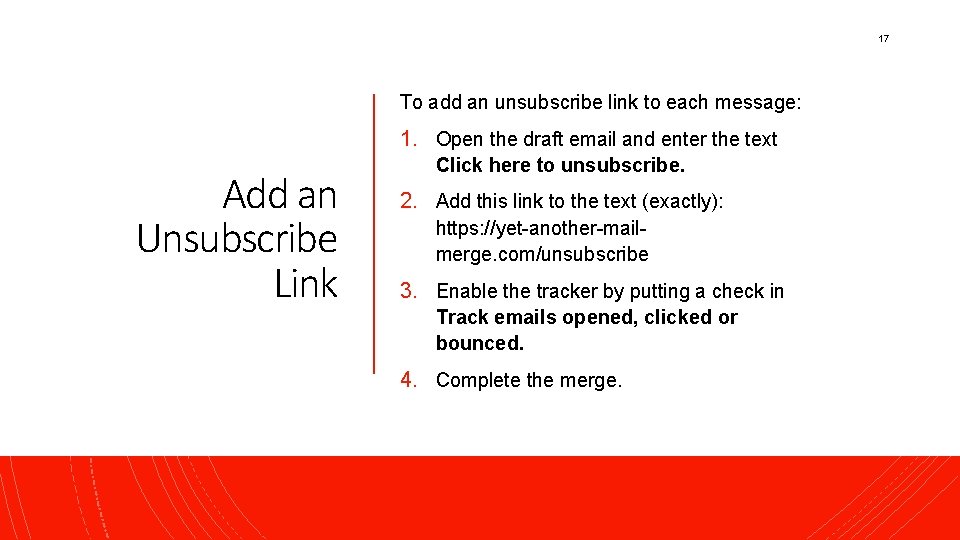
17 To add an unsubscribe link to each message: 1. Open the draft email and enter the text Add an Unsubscribe Link Click here to unsubscribe. 2. Add this link to the text (exactly): https: //yet-another-mailmerge. com/unsubscribe 3. Enable the tracker by putting a check in Track emails opened, clicked or bounced. 4. Complete the merge.
18 YAMM Polls let you ask a quick question or send a short survey. YAMM Polls People can respond by simply by clicking a link. YAMM will collect all responses in your Google sheet.
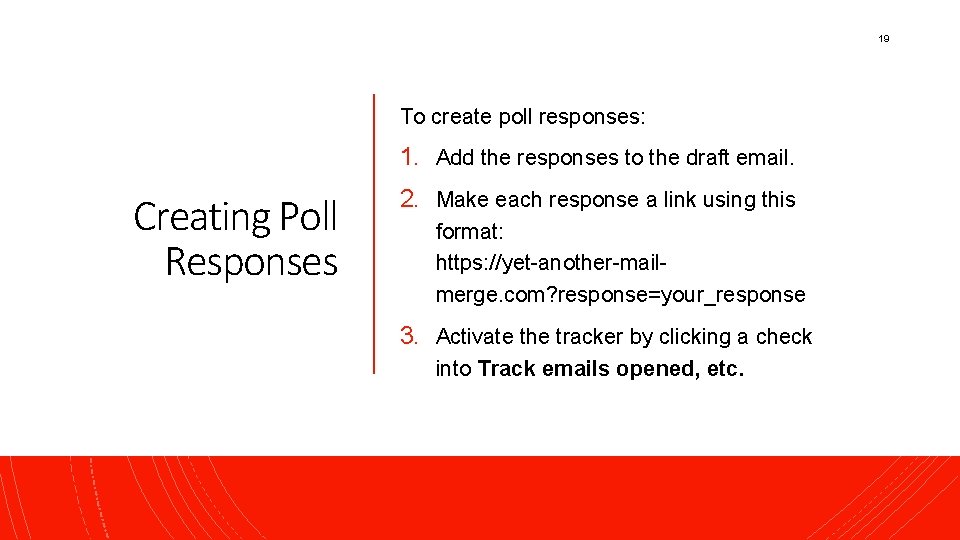
19 To create poll responses: 1. Add the responses to the draft email. Creating Poll Responses 2. Make each response a link using this format: https: //yet-another-mailmerge. com? response=your_response 3. Activate the tracker by clicking a check into Track emails opened, etc.
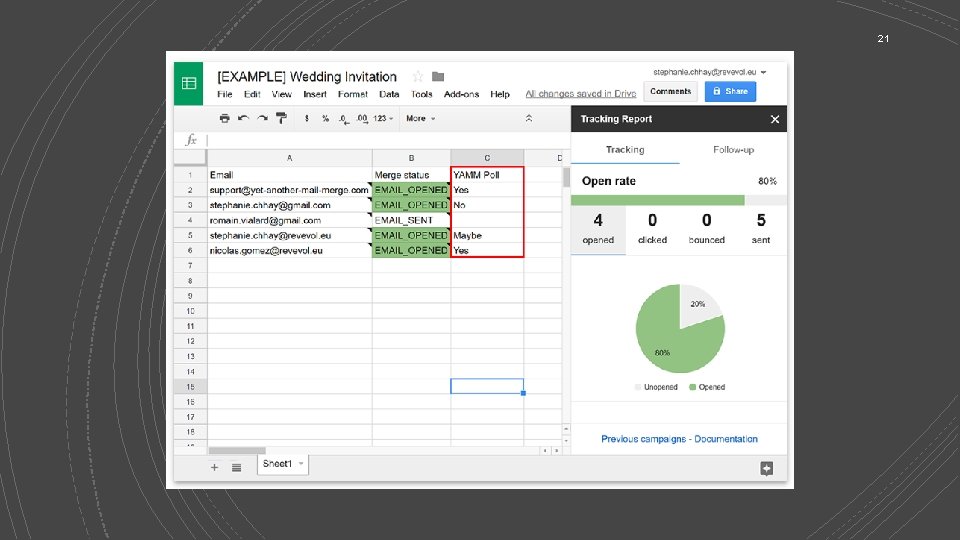
20 Tracking Poll Responses YAMM will add a new column in your spreadsheet, YAMM Poll, where it will store responses.
21