
How to use these slide templates to make
- Slides: 4
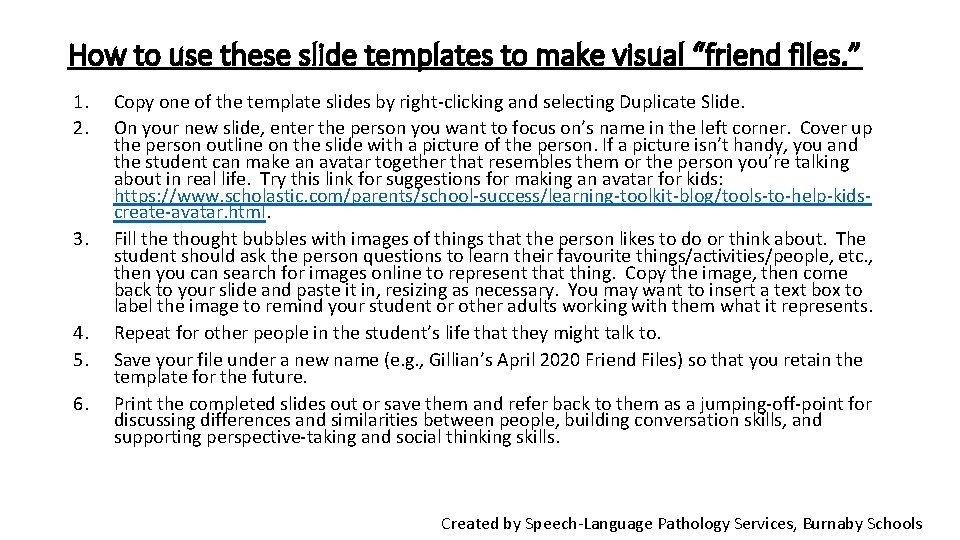
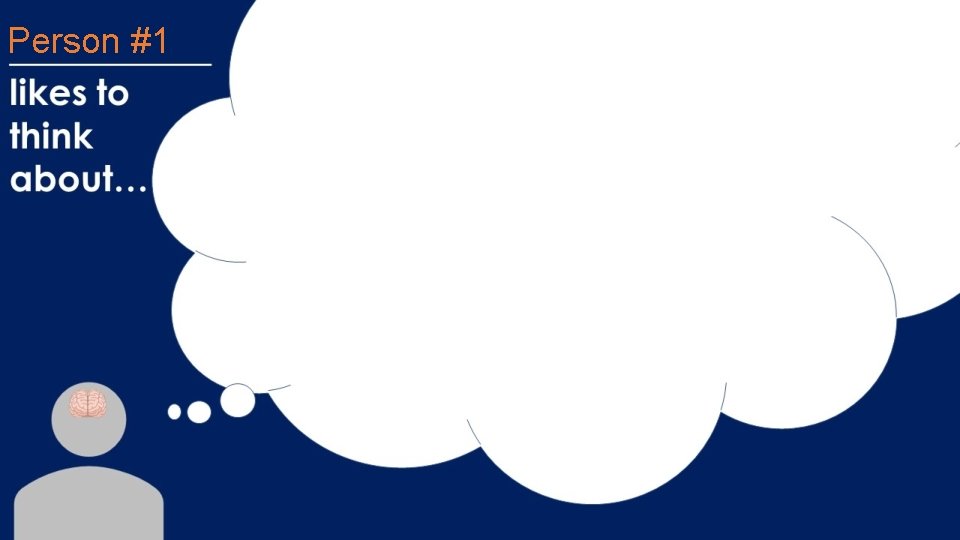
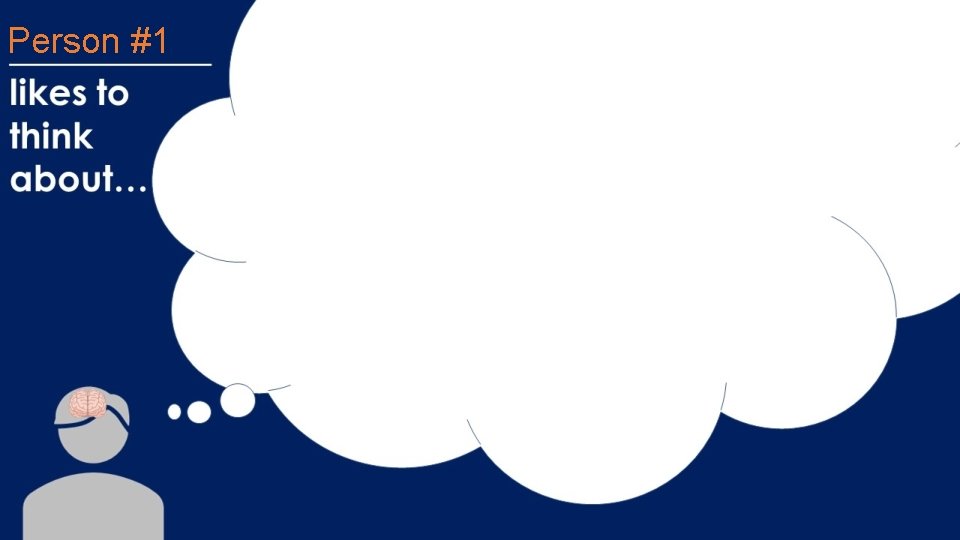
How to use these slide templates to make visual “friend files. ” 1. 2. 3. 4. 5. 6. Copy one of the template slides by right-clicking and selecting Duplicate Slide. On your new slide, enter the person you want to focus on’s name in the left corner. Cover up the person outline on the slide with a picture of the person. If a picture isn’t handy, you and the student can make an avatar together that resembles them or the person you’re talking about in real life. Try this link for suggestions for making an avatar for kids: https: //www. scholastic. com/parents/school-success/learning-toolkit-blog/tools-to-help-kidscreate-avatar. html. Fill the thought bubbles with images of things that the person likes to do or think about. The student should ask the person questions to learn their favourite things/activities/people, etc. , then you can search for images online to represent that thing. Copy the image, then come back to your slide and paste it in, resizing as necessary. You may want to insert a text box to label the image to remind your student or other adults working with them what it represents. Repeat for other people in the student’s life that they might talk to. Save your file under a new name (e. g. , Gillian’s April 2020 Friend Files) so that you retain the template for the future. Print the completed slides out or save them and refer back to them as a jumping-off-point for discussing differences and similarities between people, building conversation skills, and supporting perspective-taking and social thinking skills. Created by Speech-Language Pathology Services, Burnaby Schools
Person #1
Person #1
Person #1