
How to use the STUDENT TIME TRACKING TEMPLATE

- Slides: 29
How to use the STUDENT TIME TRACKING TEMPLATE Press the ENTER key or left click on the mouse to continue.
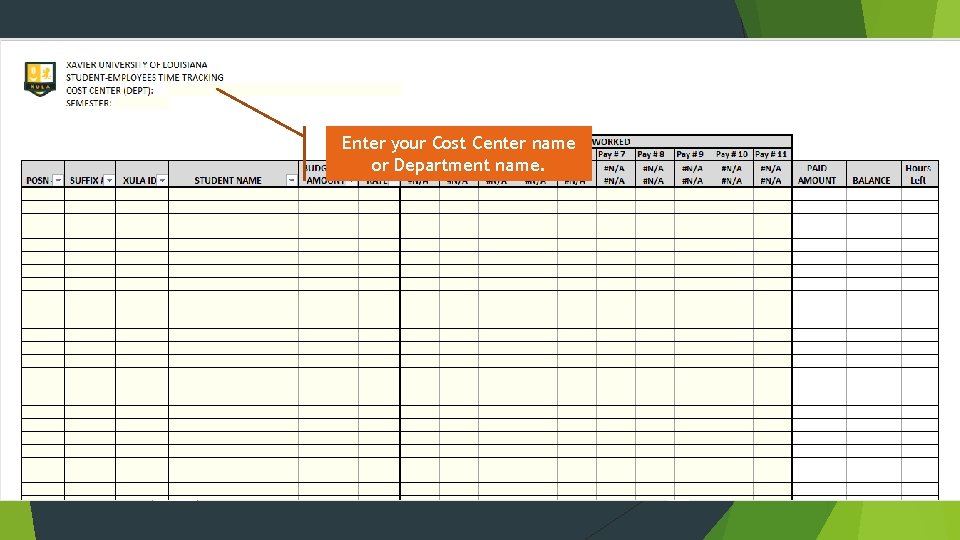
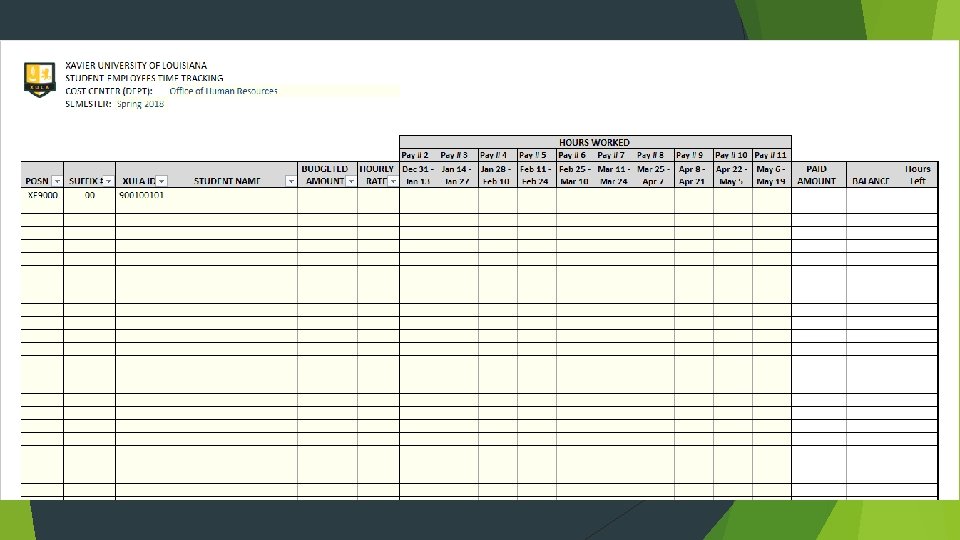
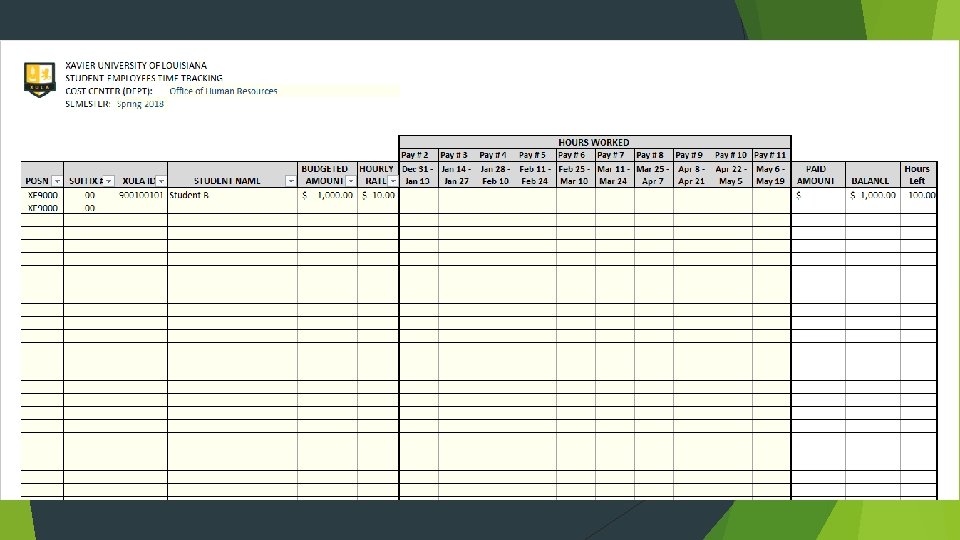
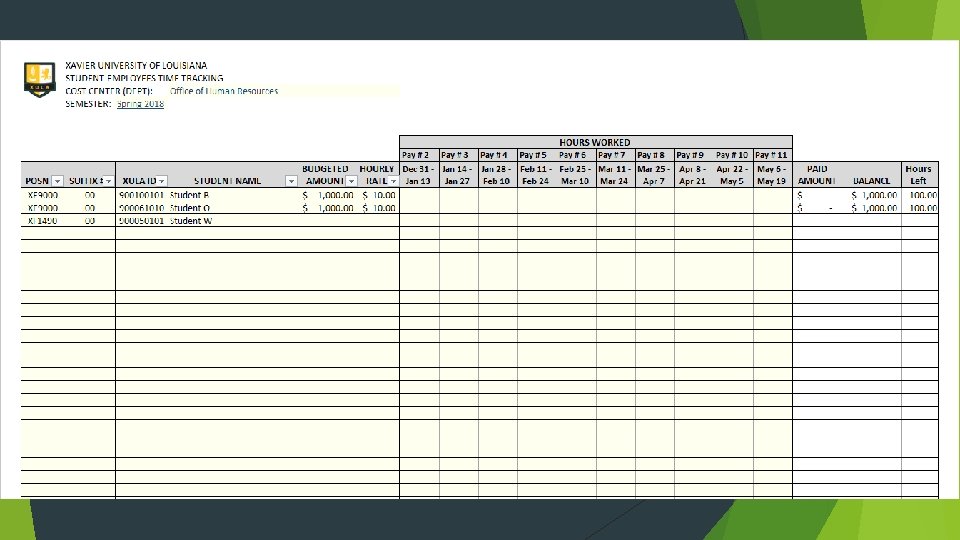
Enter your Cost Center name or Department name.
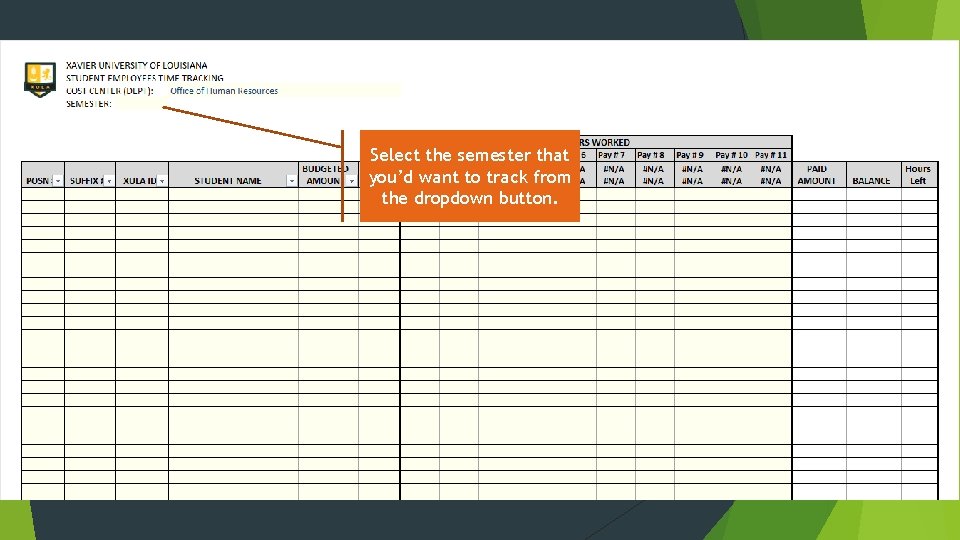
Select the semester that you’d want to track from the dropdown button.
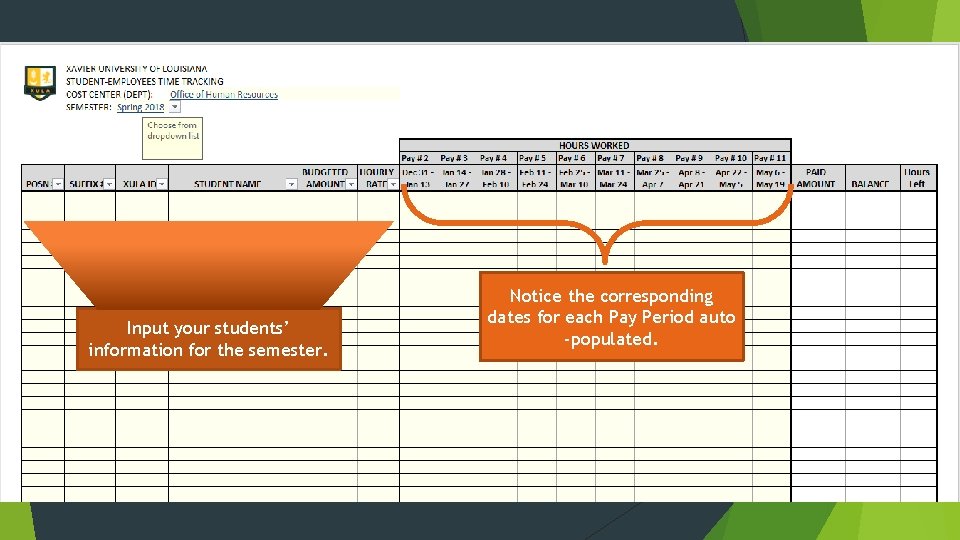
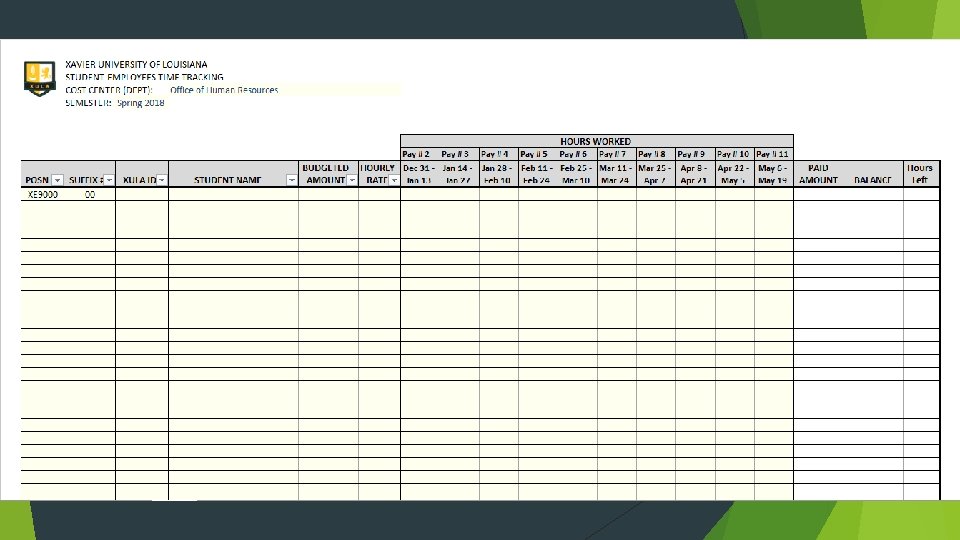
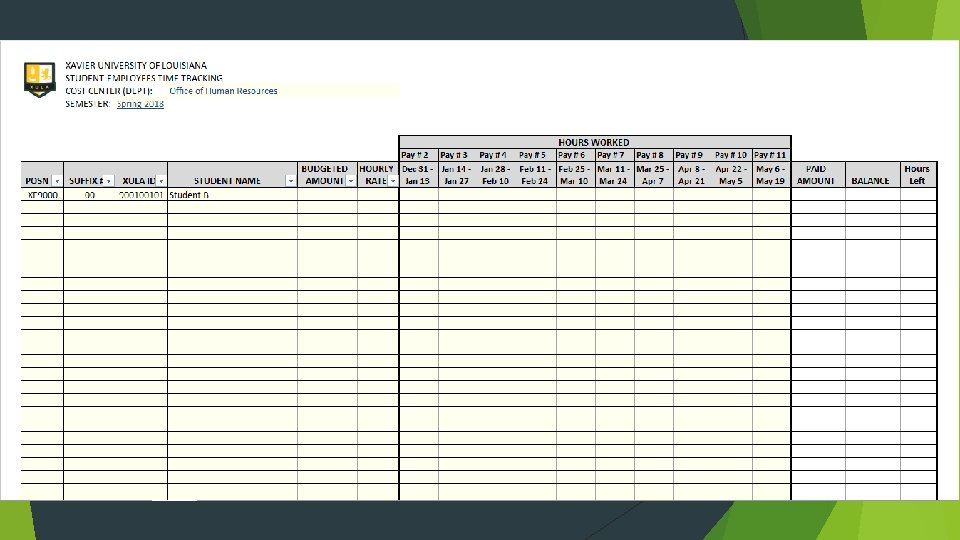
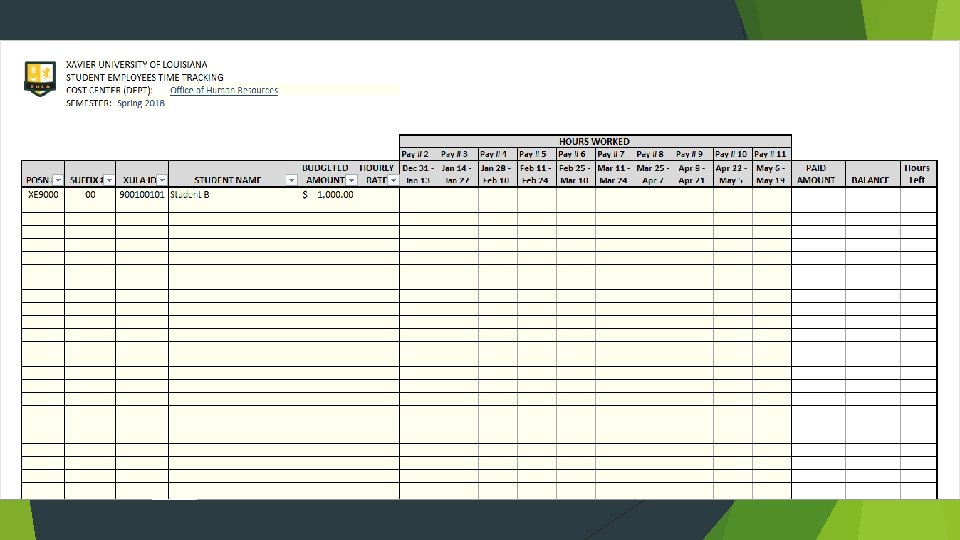
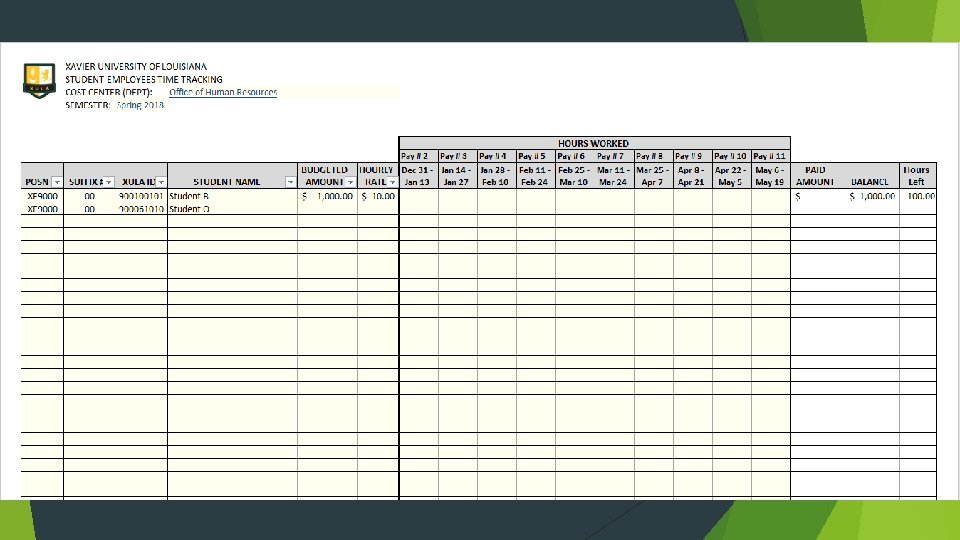
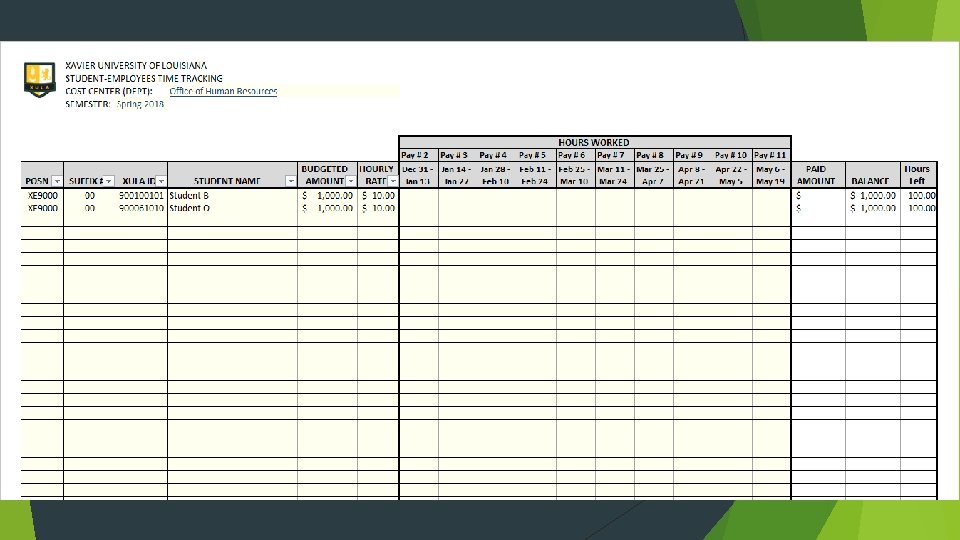
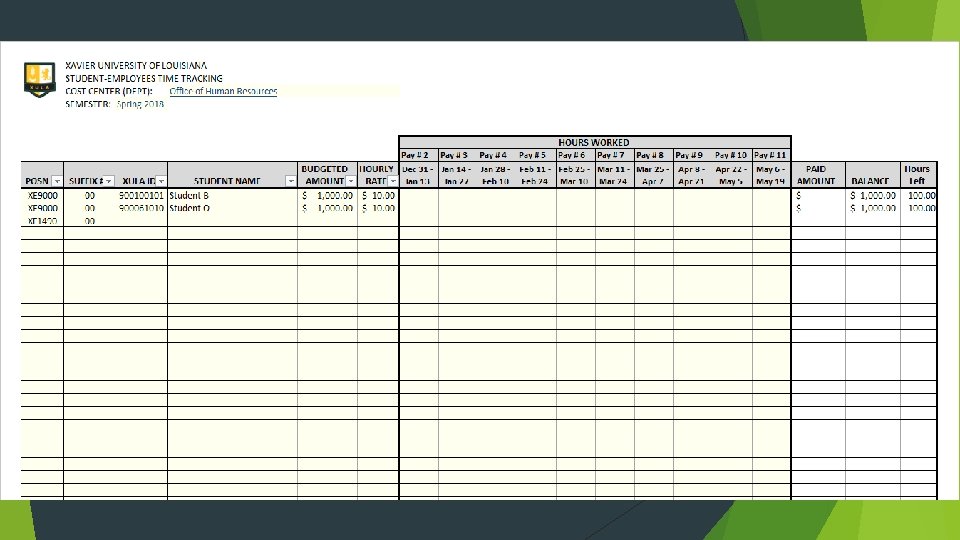
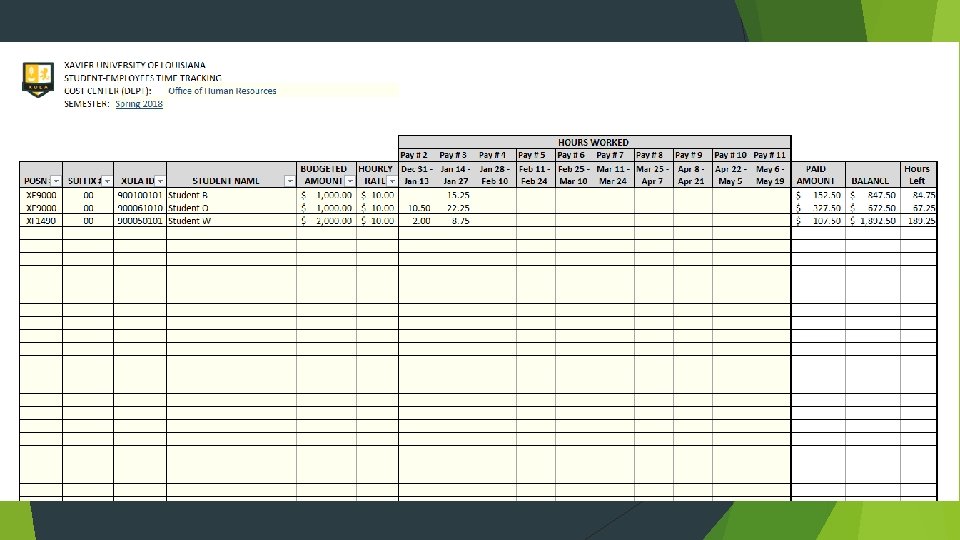
Input your students’ information for the semester. Notice the corresponding dates for each Pay Period auto -populated.
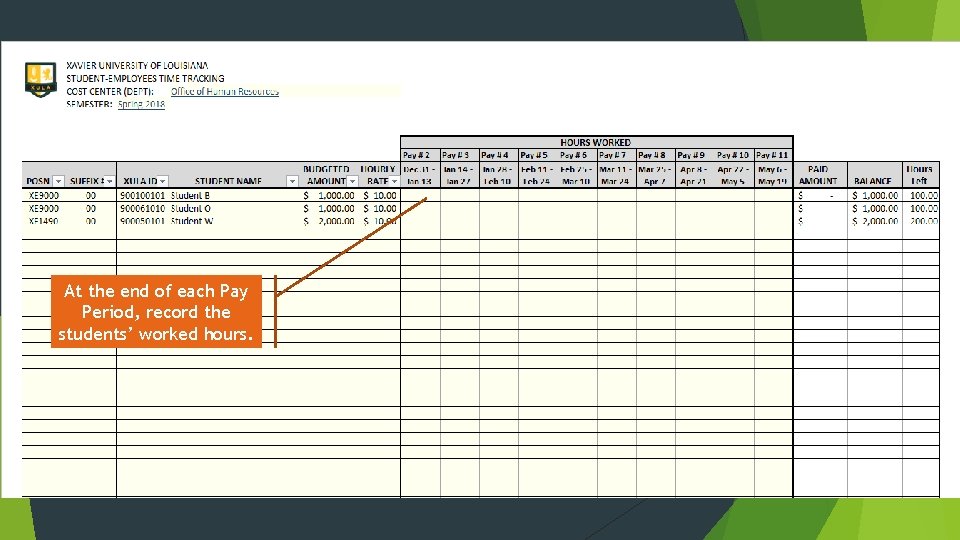
At the end of each Pay Period, record the students’ worked hours.
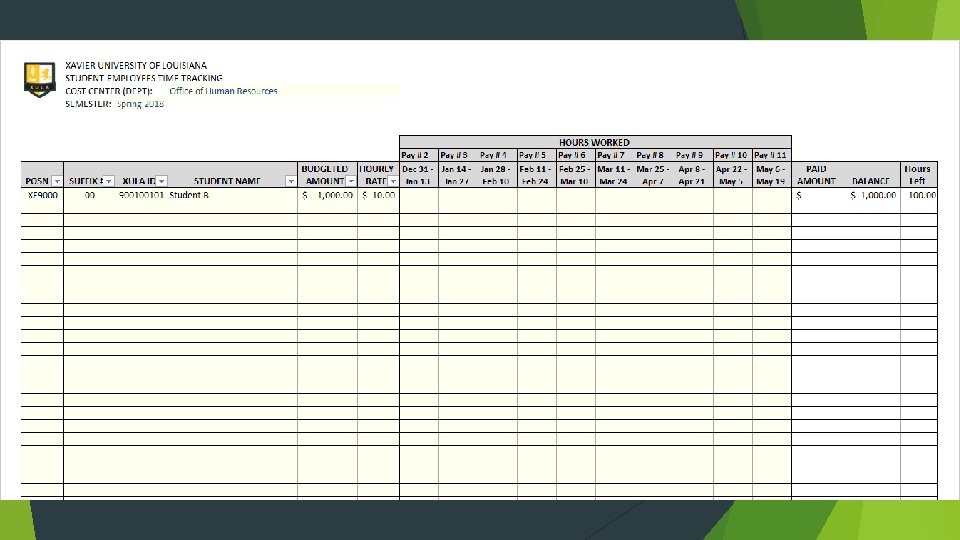
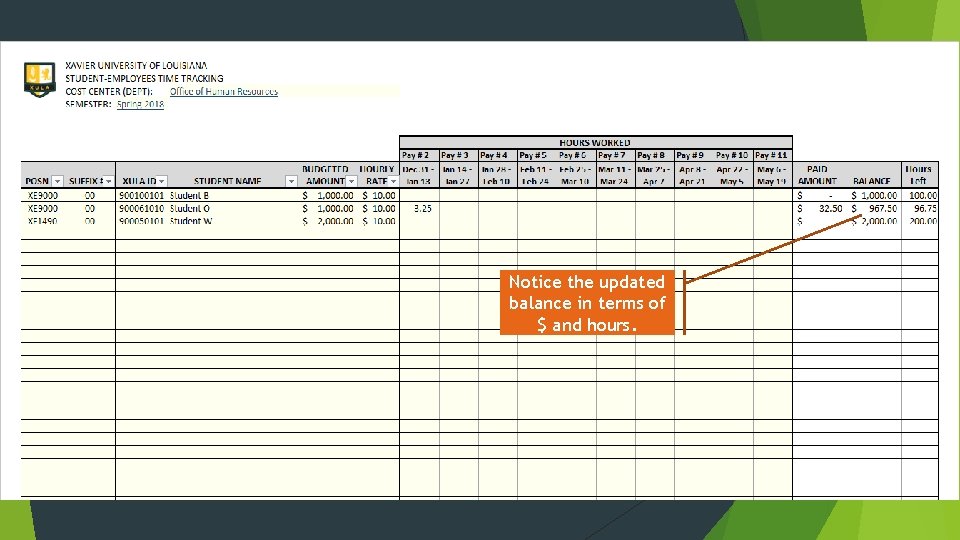
Notice the updated balance in terms of $ and hours.
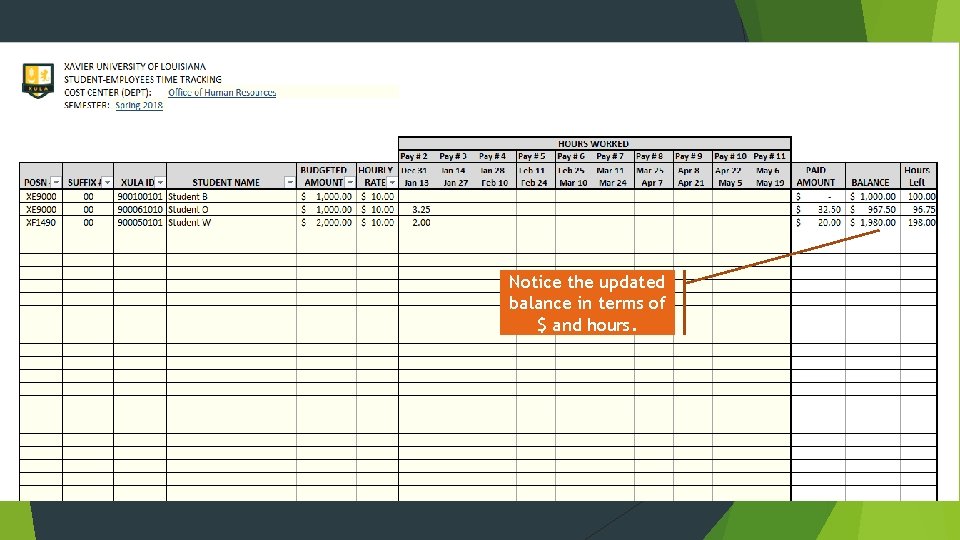
Notice the updated balance in terms of $ and hours.
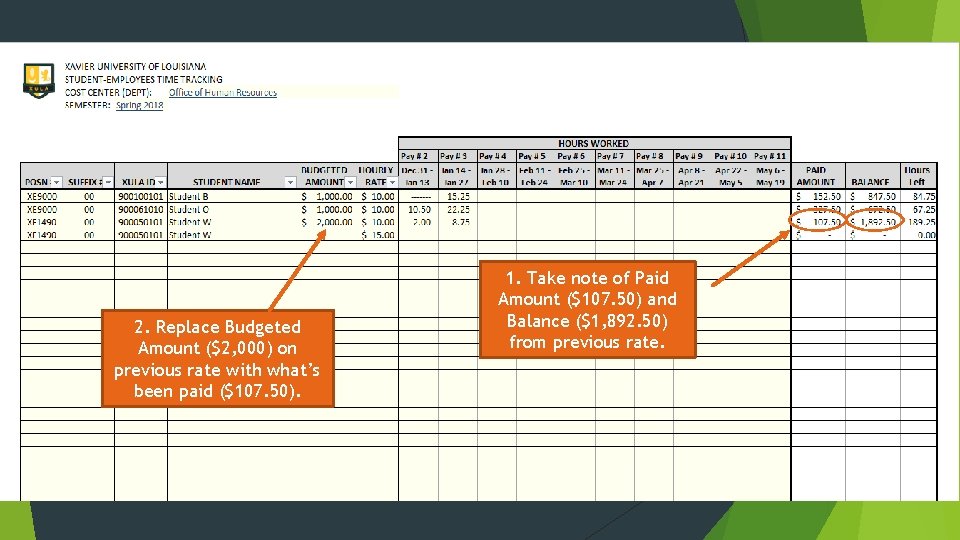
Work-study students sometimes get a rate increase or decrease during the semester. When this happens, close-out the previous rate and enter a new record for the student with the current rate. Ø Press the ENTER key (or left click on the mouse) to see how. Ø To end this tutorial now, right click on the mouse, then choose “end show. ”
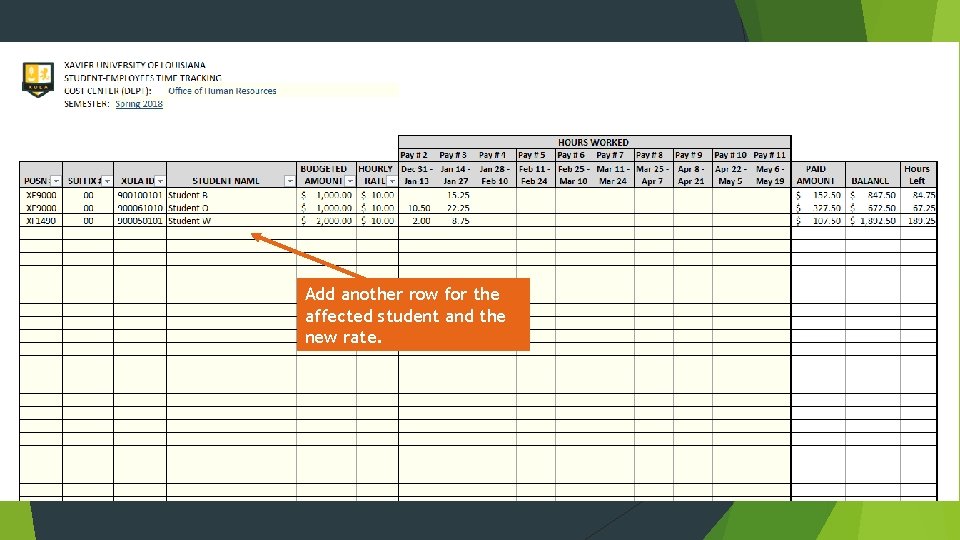
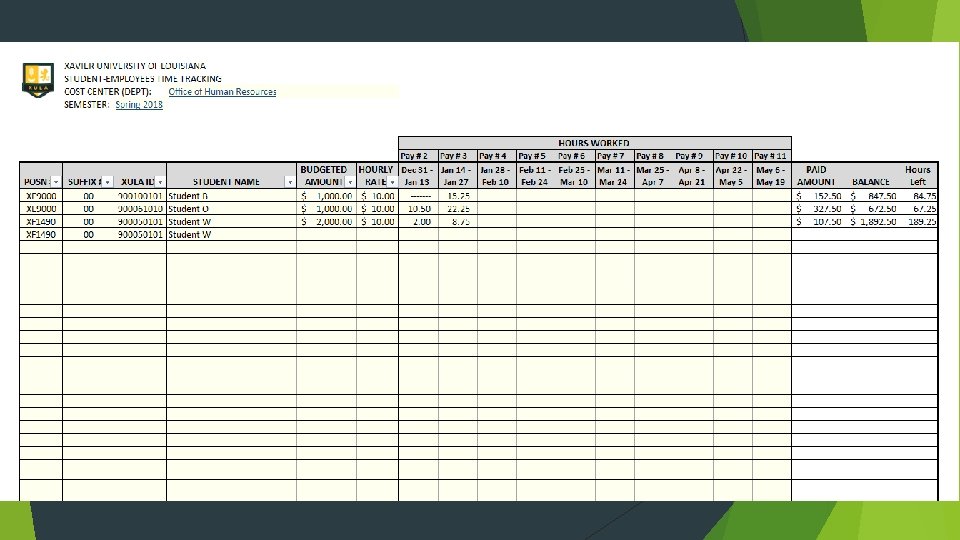
Add another row for the affected student and the new rate.
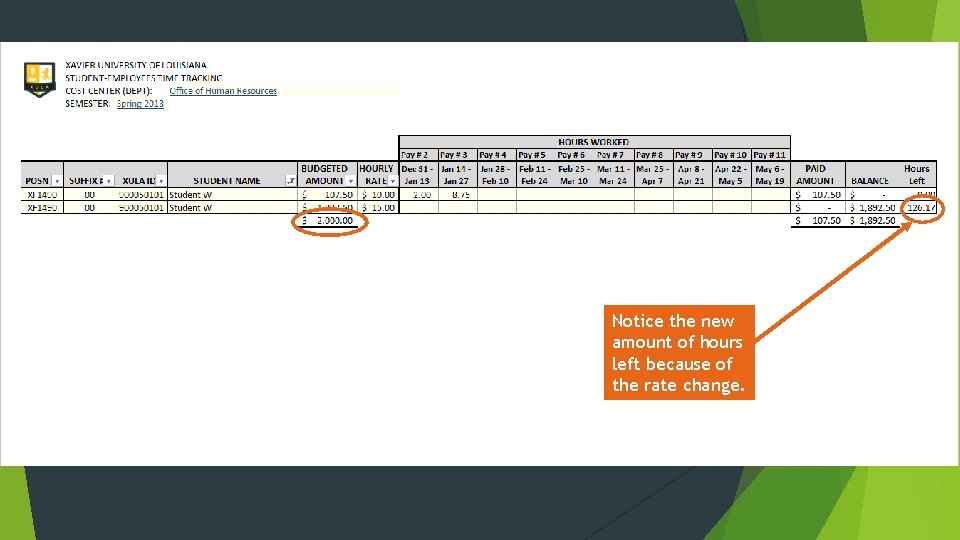
2. Replace Budgeted Amount ($2, 000) on previous rate with what’s been paid ($107. 50). 1. Take note of Paid Amount ($107. 50) and Balance ($1, 892. 50) from previous rate.
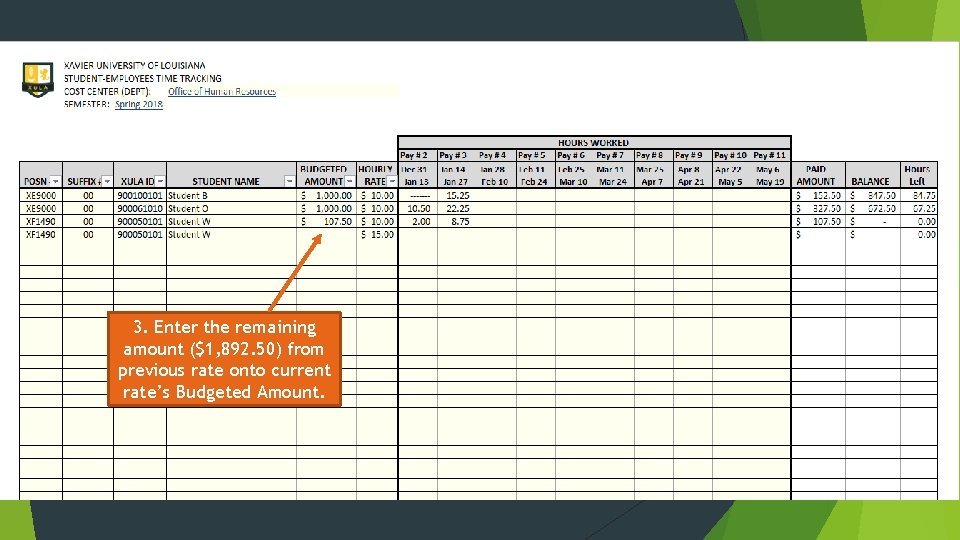
3. Enter the remaining amount ($1, 892. 50) from previous rate onto current rate’s Budgeted Amount.
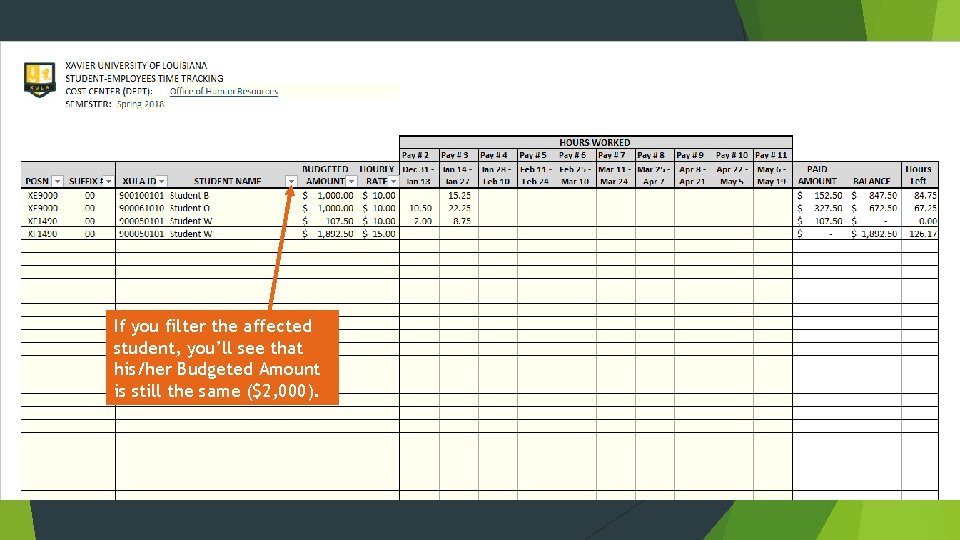
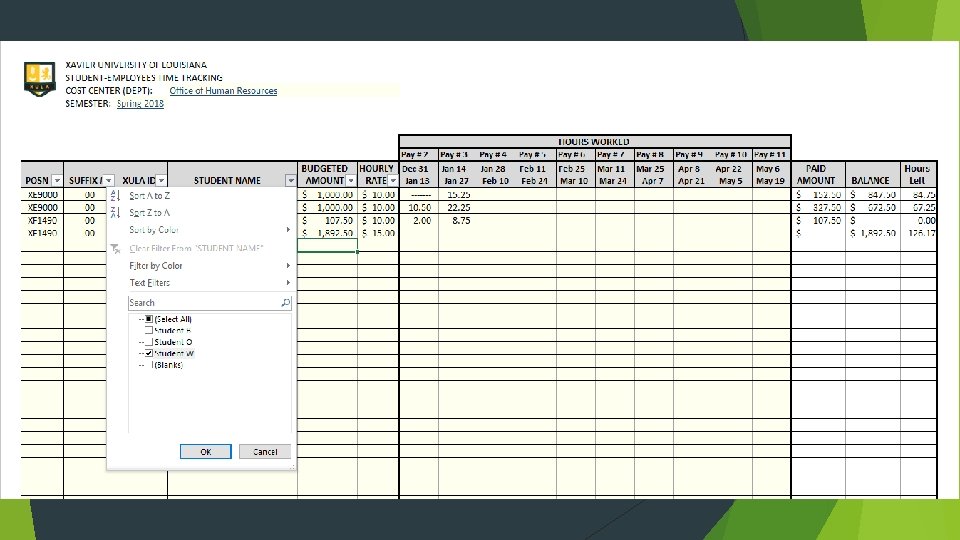
If you filter the affected student, you’ll see that his/her Budgeted Amount is still the same ($2, 000).
Notice the new amount of hours left because of the rate change.
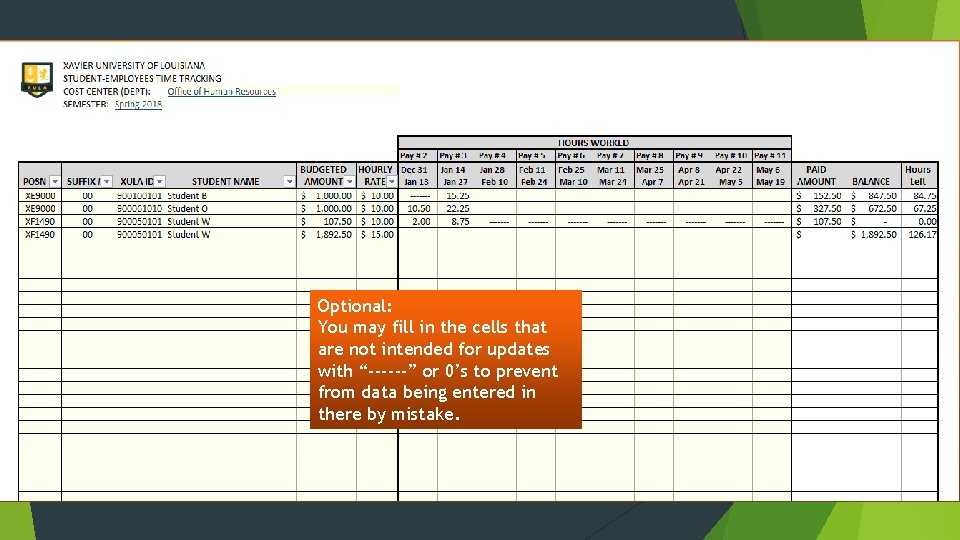
Optional: You may fill in the cells that are not intended for updates with “------” or 0’s to prevent from data being entered in there by mistake.
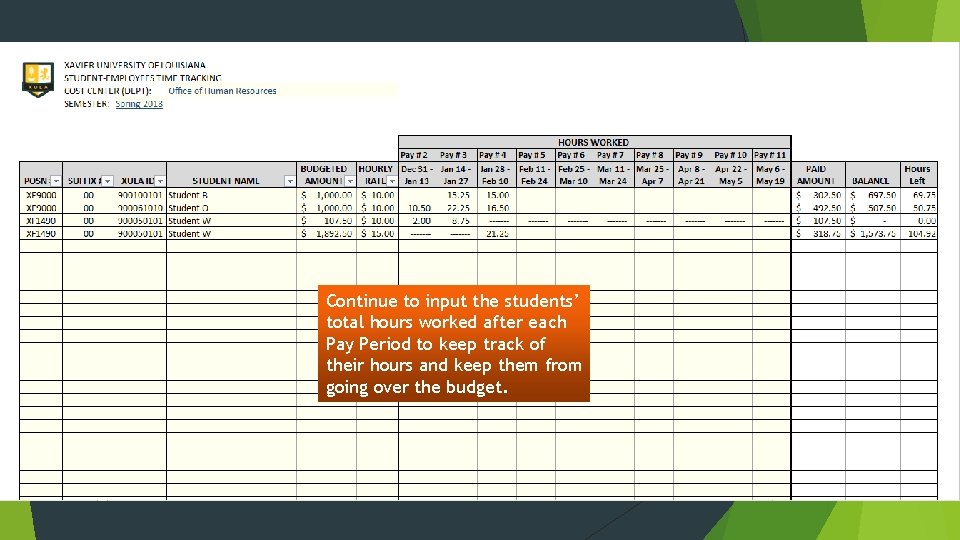
Continue to input the students’ total hours worked after each Pay Period to keep track of their hours and keep them from going over the budget.
This is the end of the tutorial. Thank you for viewing. Please contact the Office of Human Resources at ext. 5738 if you have any questions concerning Student Employment. Comments and suggestions are always welcome. Have a memorable time with Xavier’s student employees!