
How to use the output of one Alma




- Slides: 15
How to use the output of one Alma Analytics report as the input for a subsequent Alma Analytics report Yoel Kortick – Senior Librarian © 2020 Ex Libris | Confidential & Proprietary
Contents • Introduction • How does it work? © 2020 Ex Libris | Confidential & Proprietary 2
Introduction © 2020 Ex Libris | Confidential & Proprietary 3
Introduction • Often it is useful to take the output of one report and use it as input in a subsequent report • For example a report in one subject area may be used as input for a report in a different subject area • Thus in essence this provides a means of combining the dimensions of various subject areas together in one report. © 2020 Ex Libris | Confidential & Proprietary 4
Introduction • For example: • In the "Physical Items" subject area we can get a list of all barcodes of all POLs created in the last 365 days. • In the "Physical Items" subject area we can also get the number of loans for each of those barcodes (items). • But …. • In the "physical items" subject area we cannot get the number of loans of those barcodes per user group. For that we need the "Fulfillment" subject area. • In the "Fulfillment" subject area we cannot get the items of POLs created in the last 365 days. © 2020 Ex Libris | Confidential & Proprietary 5
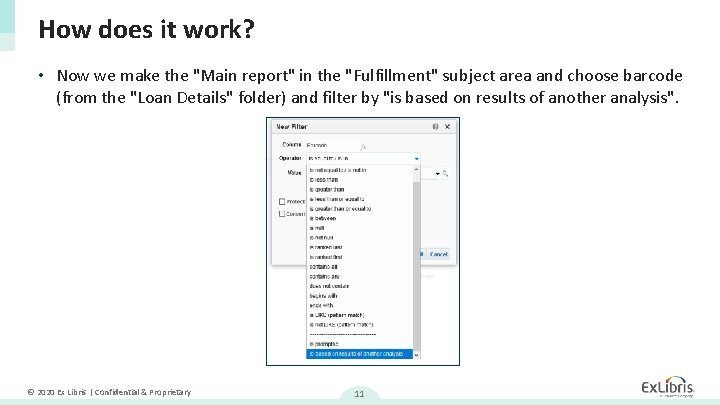
Introduction • Therefore we will take the list of barcodes created in the "physical items" subject area and use it in the "fulfillment" subject area. • The list of barcodes created in the "physical items" subject area will be input for a report in the "fulfillment" subject area. • This is done using filter "is based on results of another analysis". © 2020 Ex Libris | Confidential & Proprietary 6
How does it work? © 2020 Ex Libris | Confidential & Proprietary 7
How does it work? • First we make the report which will be the "input". • Our input report will be called "POLs and barcodes for POLs created in last 365 days" • This report makes a list of "PO Line Reference" numbers for orders created in the last year and also the corresponding item barcode. © 2020 Ex Libris | Confidential & Proprietary 8
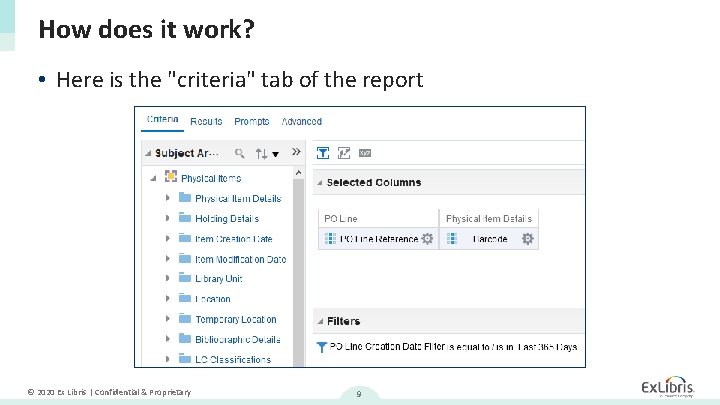
How does it work? • Here is the "criteria" tab of the report © 2020 Ex Libris | Confidential & Proprietary 9
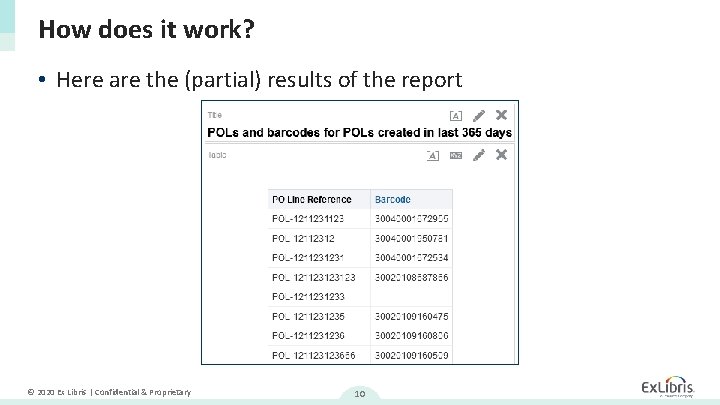
How does it work? • Here are the (partial) results of the report © 2020 Ex Libris | Confidential & Proprietary 10
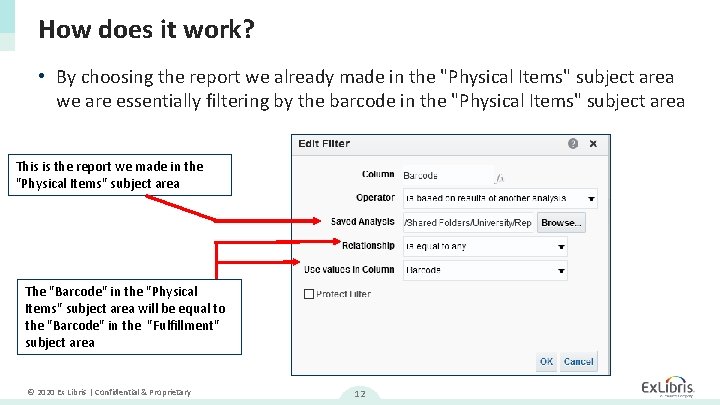
How does it work? • Now we make the "Main report" in the "Fulfillment" subject area and choose barcode (from the "Loan Details" folder) and filter by "is based on results of another analysis". © 2020 Ex Libris | Confidential & Proprietary 11
How does it work? • By choosing the report we already made in the "Physical Items" subject area we are essentially filtering by the barcode in the "Physical Items" subject area This is the report we made in the "Physical Items" subject area The "Barcode" in the "Physical Items" subject area will be equal to the "Barcode" in the "Fulfillment" subject area © 2020 Ex Libris | Confidential & Proprietary 12
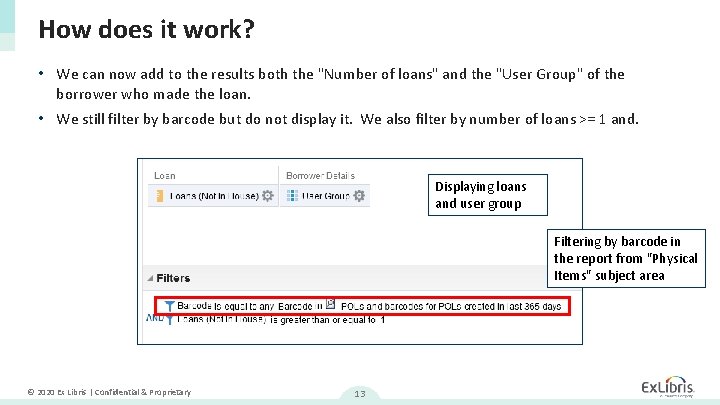
How does it work? • We can now add to the results both the "Number of loans" and the "User Group" of the borrower who made the loan. • We still filter by barcode but do not display it. We also filter by number of loans >= 1 and. Displaying loans and user group Filtering by barcode in the report from "Physical Items" subject area © 2020 Ex Libris | Confidential & Proprietary 13
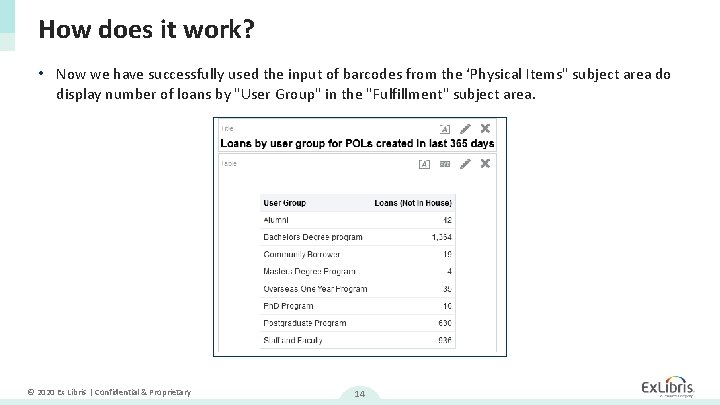
How does it work? • Now we have successfully used the input of barcodes from the ‘Physical Items" subject area do display number of loans by "User Group" in the "Fulfillment" subject area. © 2020 Ex Libris | Confidential & Proprietary 14
Thank you! xxx@exlibrisgroup. com © 2020 Ex Libris | Confidential & Proprietary