
How to use SVN K Somiya Tokyo Tech
- Slides: 11
How to use SVN K. Somiya Tokyo Tech
First of all The details are written in the KAGRA wiki: http: //gwwiki. icrr. u-tokyo. ac. jp/JGWwiki/LCGT/SVN (The wiki page was written by Y. Aso) This document is for dummies who want to start SVN but do not know much about it.
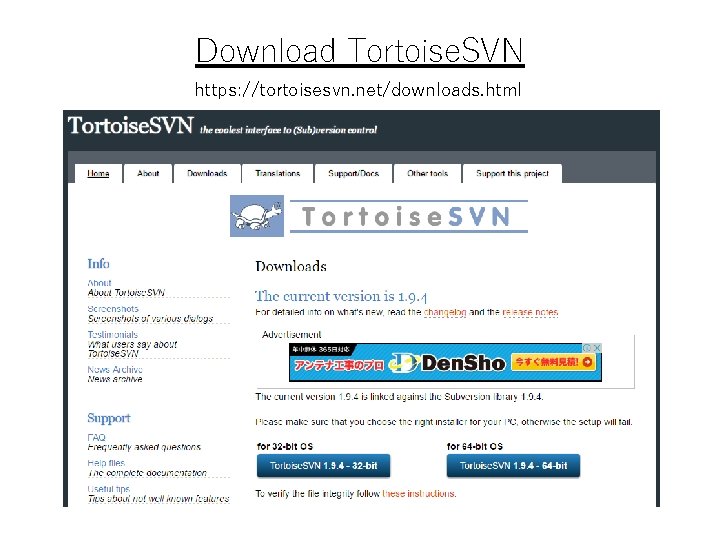
Download Tortoise. SVN https: //tortoisesvn. net/downloads. html
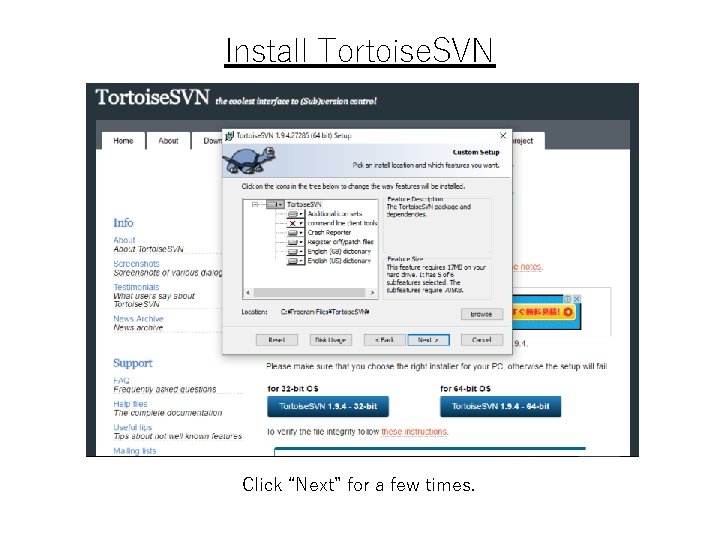
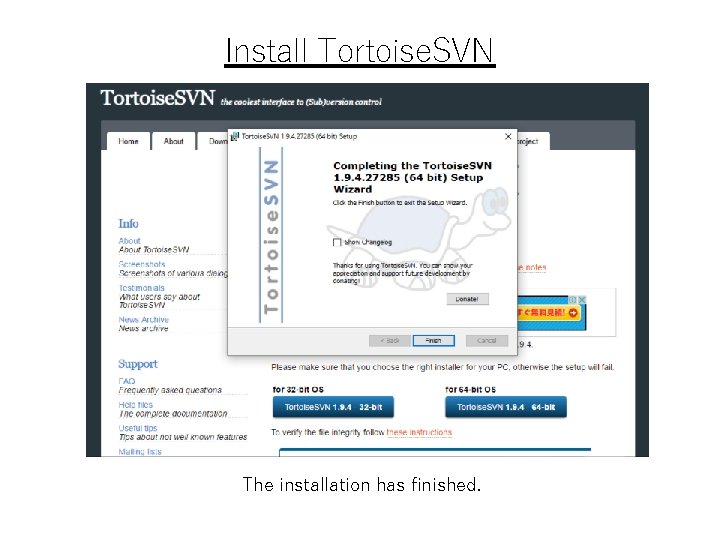
Install Tortoise. SVN Click “Next” for a few times.
Install Tortoise. SVN The installation has finished.
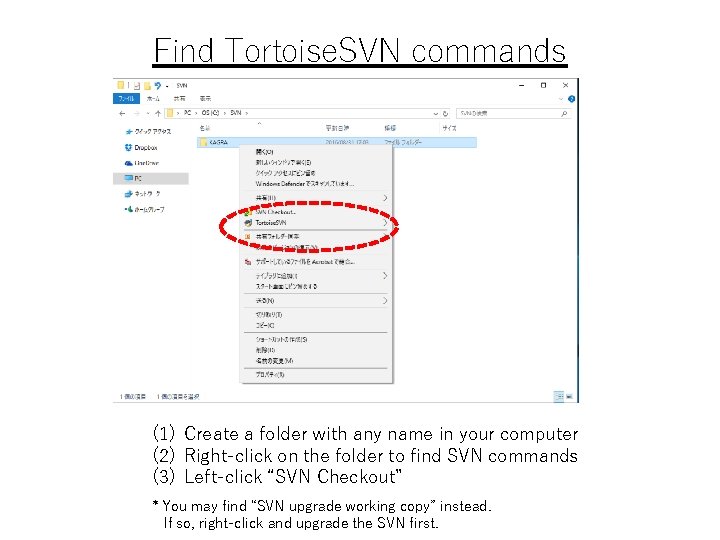
Find Tortoise. SVN commands (1) Create a folder with any name in your computer (2) Right-click on the folder to find SVN commands (3) Left-click “SVN Checkout” * You may find “SVN upgrade working copy” instead. If so, right-click and upgrade the SVN first.
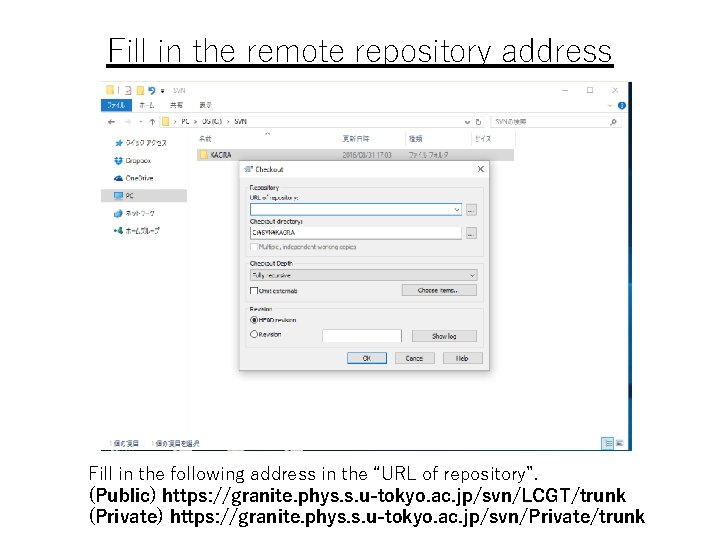
Fill in the remote repository address Fill in the following address in the “URL of repository”. (Public) https: //granite. phys. s. u-tokyo. ac. jp/svn/LCGT/trunk (Private) https: //granite. phys. s. u-tokyo. ac. jp/svn/Private/trunk
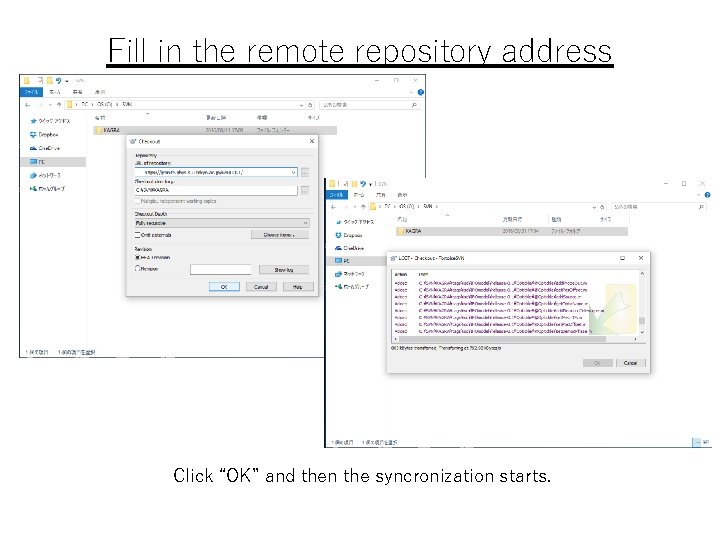
Fill in the remote repository address Click “OK” and then the syncronization starts.
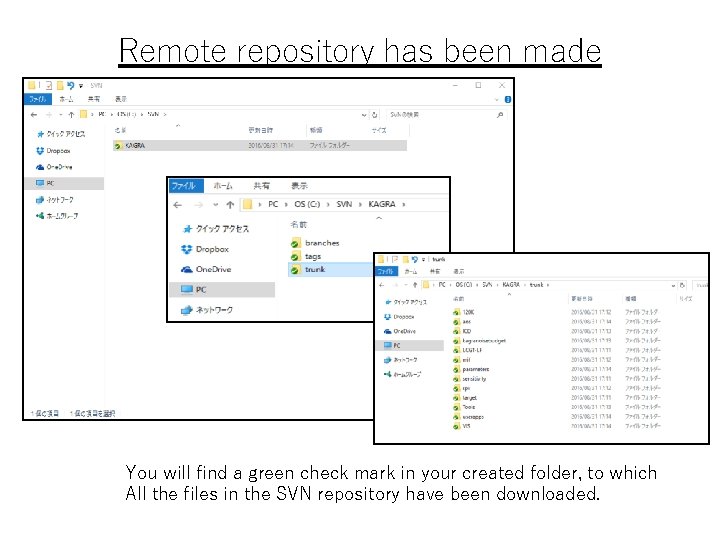
Remote repository has been made You will find a green check mark in your created folder, to which All the files in the SVN repository have been downloaded.
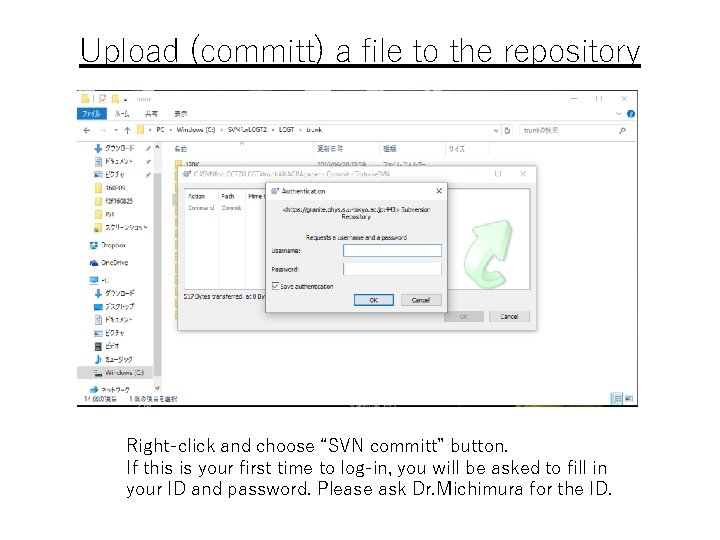
Upload (committ) a file to the repository Right-click and choose “SVN committ” button. If this is your first time to log-in, you will be asked to fill in your ID and password. Please ask Dr. Michimura for the ID.
Misc. • To add a new file, click “Add” before committing it to the repository. • Anyone who knows the repository address can see and download the files in the public repository, but the ID is required to add or change the files. • The ID is required to see, download, add, or change the files in the private repository.