
How to use suppression lists functionality Description The
- Slides: 4
How to use suppression lists functionality Description: The suppression list feature in Yale Message can be used to exclude members from an email message when selecting an audience during the Send Email process. You can use an existing data extension or manual file upload lists to exclude members. Steps to perform the following processes are included in this guide: • How to use the suppression list feature 1
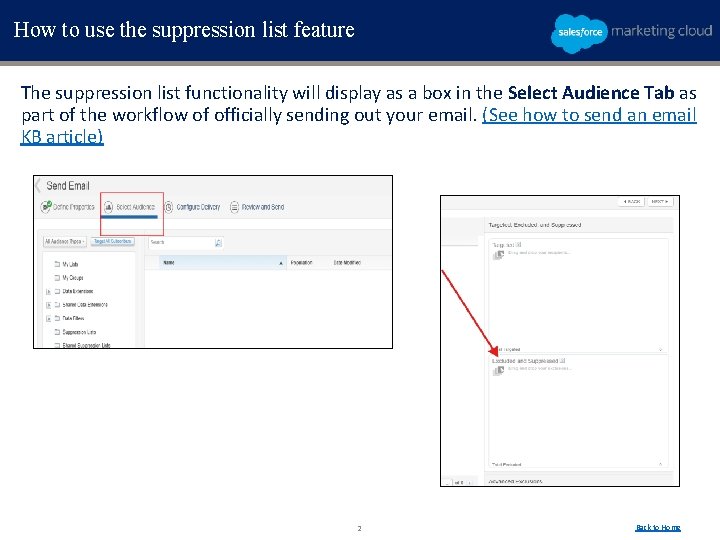
How to use the suppression list feature The suppression list functionality will display as a box in the Select Audience Tab as part of the workflow of officially sending out your email. (See how to send an email KB article) 2 Back to Home
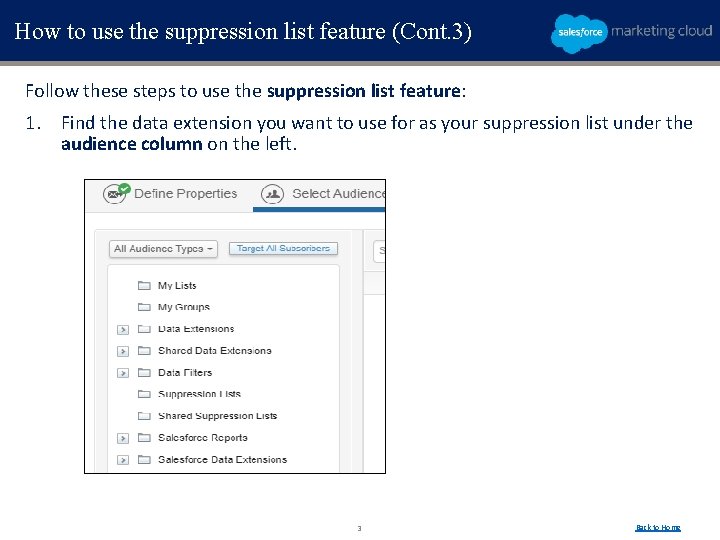
How to use the suppression list feature (Cont. 3) Follow these steps to use the suppression list feature: 1. Find the data extension you want to use for as your suppression list under the audience column on the left. 3 Back to Home
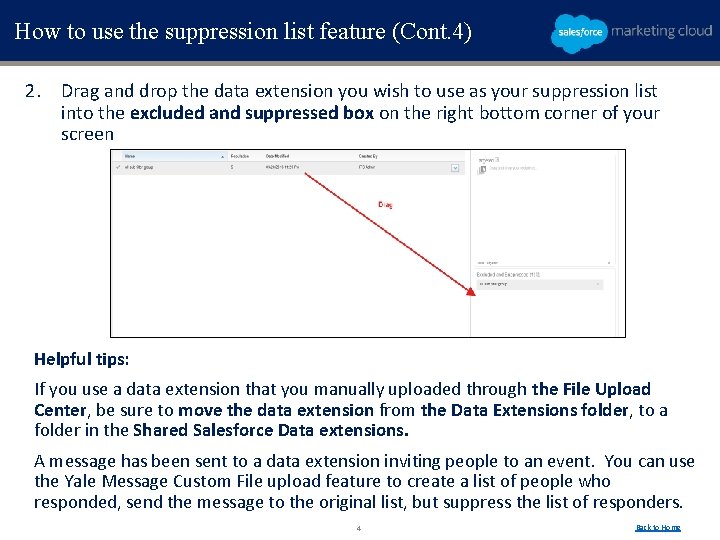
How to use the suppression list feature (Cont. 4) 2. Drag and drop the data extension you wish to use as your suppression list into the excluded and suppressed box on the right bottom corner of your screen Helpful tips: If you use a data extension that you manually uploaded through the File Upload Center, be sure to move the data extension from the Data Extensions folder, to a folder in the Shared Salesforce Data extensions. A message has been sent to a data extension inviting people to an event. You can use the Yale Message Custom File upload feature to create a list of people who responded, send the message to the original list, but suppress the list of responders. 4 Back to Home