
How to use search box WDSPdb http www
How to use search box? WDSPdb http: //www. wdspdb. com/wdsp/ 1
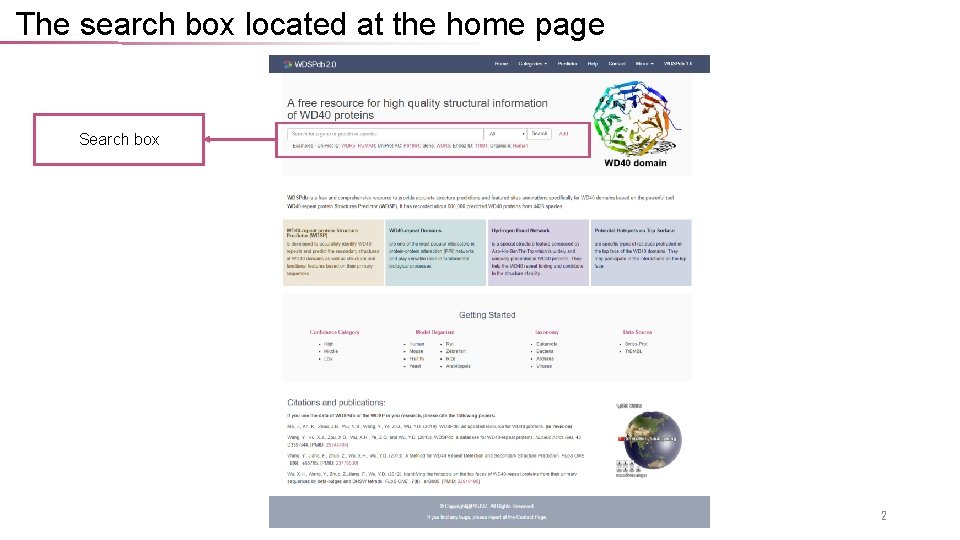
The search box located at the home page Search box 2

The introduction of search box Search box Examples Specify the type of user's keyword Add multiple search boxes for advanced searching 3
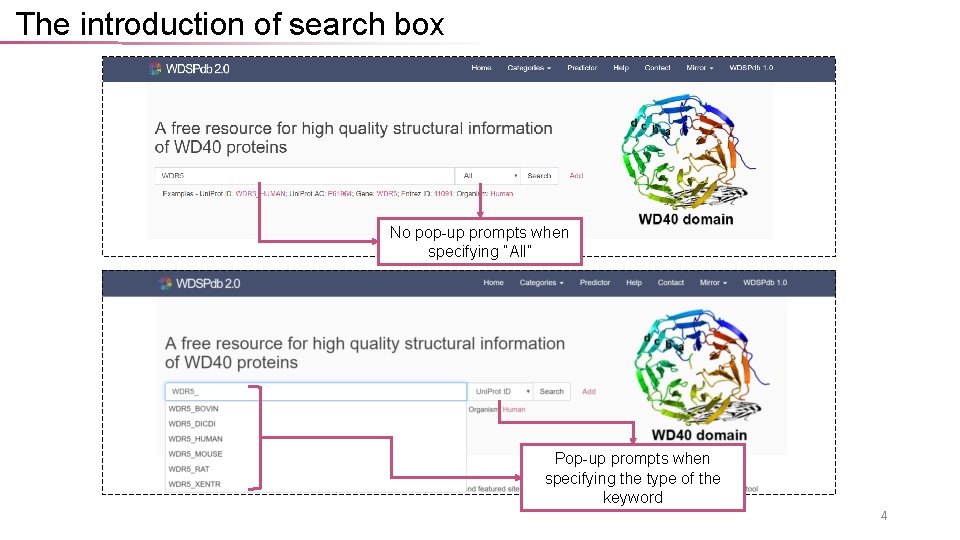
The introduction of search box No pop-up prompts when specifying “All” Pop-up prompts when specifying the type of the keyword 4
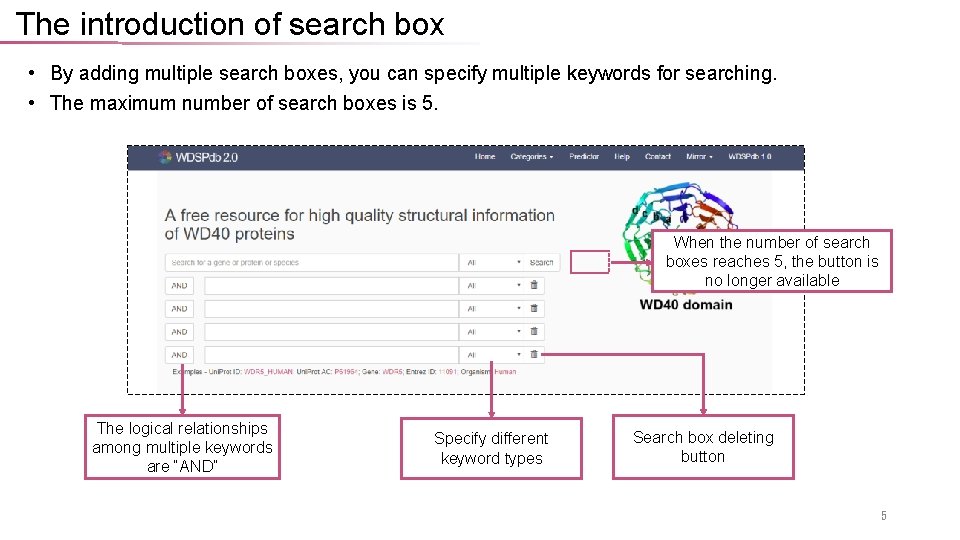
The introduction of search box • By adding multiple search boxes, you can specify multiple keywords for searching. • The maximum number of search boxes is 5. When the number of search boxes reaches 5, the button is no longer available The logical relationships among multiple keywords are “AND” Specify different keyword types Search box deleting button 5
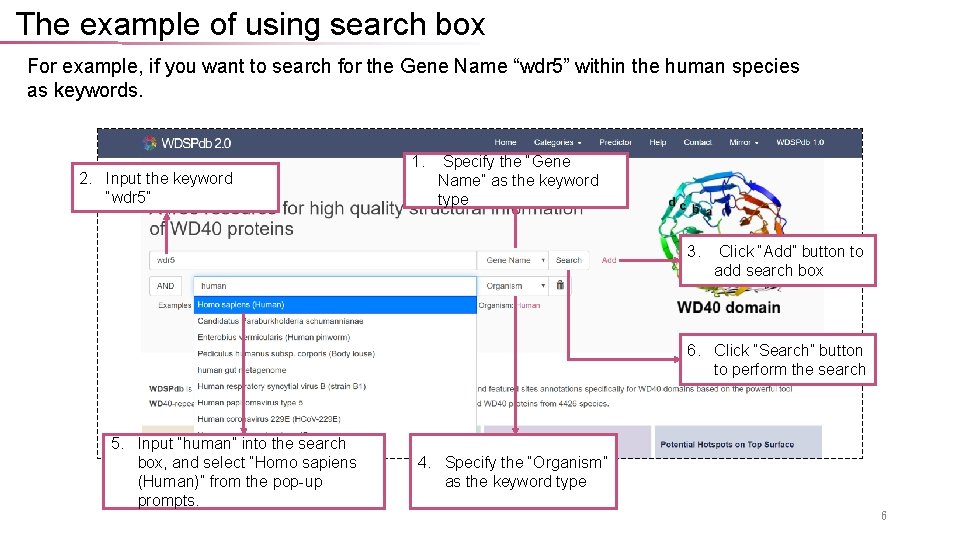
The example of using search box For example, if you want to search for the Gene Name “wdr 5” within the human species as keywords. 2. Input the keyword “wdr 5” 1. Specify the “Gene Name” as the keyword type 3. Click “Add” button to add search box 6. Click “Search” button to perform the search 5. Input “human” into the search box, and select “Homo sapiens (Human)” from the pop-up prompts. 4. Specify the “Organism” as the keyword type 6
The search result Action bar of the result table Section tag: from Uni. Prot/Swiss-Prot from Uni. Prot/Tr. EMBL The link to the protein detail page 7
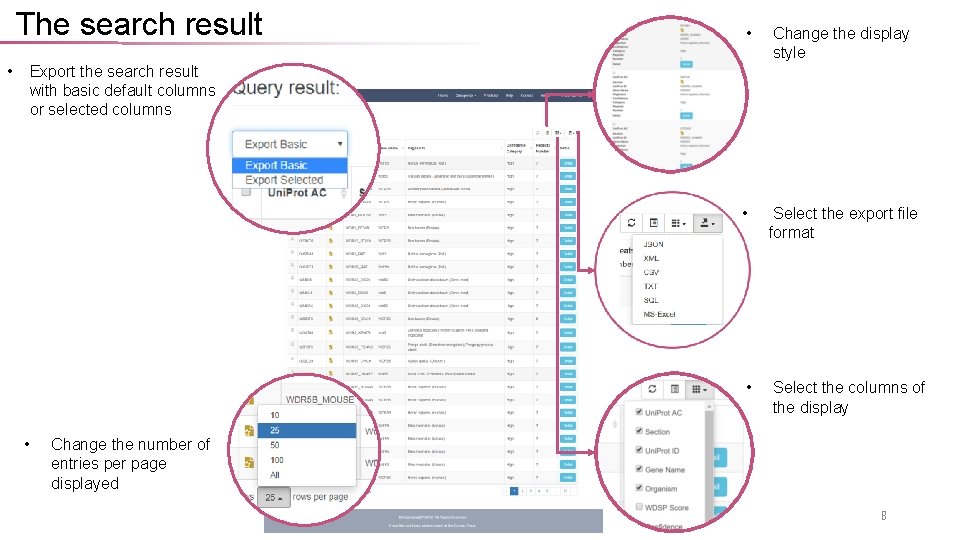
The search result • • Change the display style • Select the export file format • Select the columns of the display Export the search result with basic default columns or selected columns • Change the number of entries per page displayed 8
- Slides: 8