
How to use Quick Assist Windows 10 Before
How to use Quick Assist Windows 10
Before allowing access … • Since this feature gives a person complete control over another's PC, you should only use it with someone you trust. • If you are the person giving assistance, you need to use a Microsoft account. • If you are receiving assistance, you don't have to be signed in to a Microsoft account. As long as you're comfortable with allowing that person access to your Windows 10 PC, the following steps will get everything working.
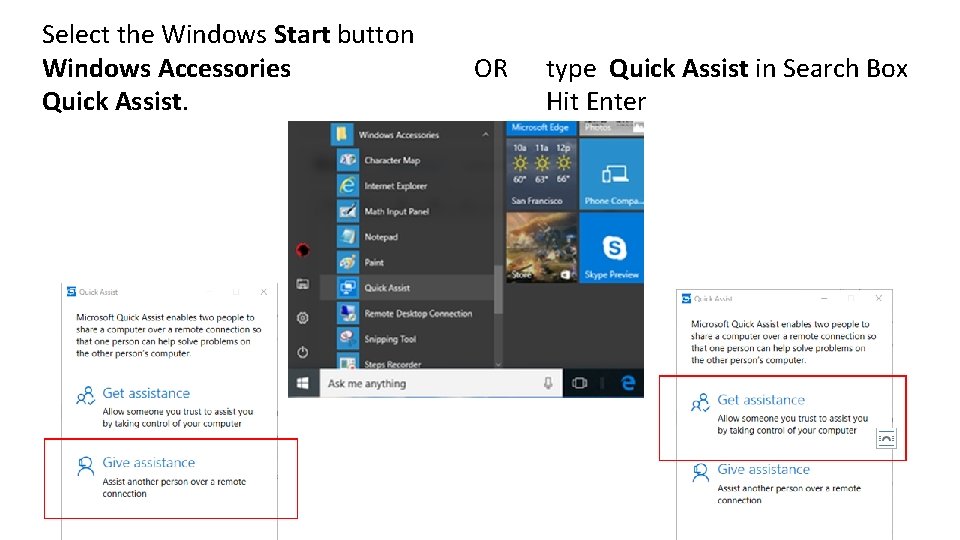
Select the Windows Start button Windows Accessories Quick Assist. OR type Quick Assist in Search Box Hit Enter
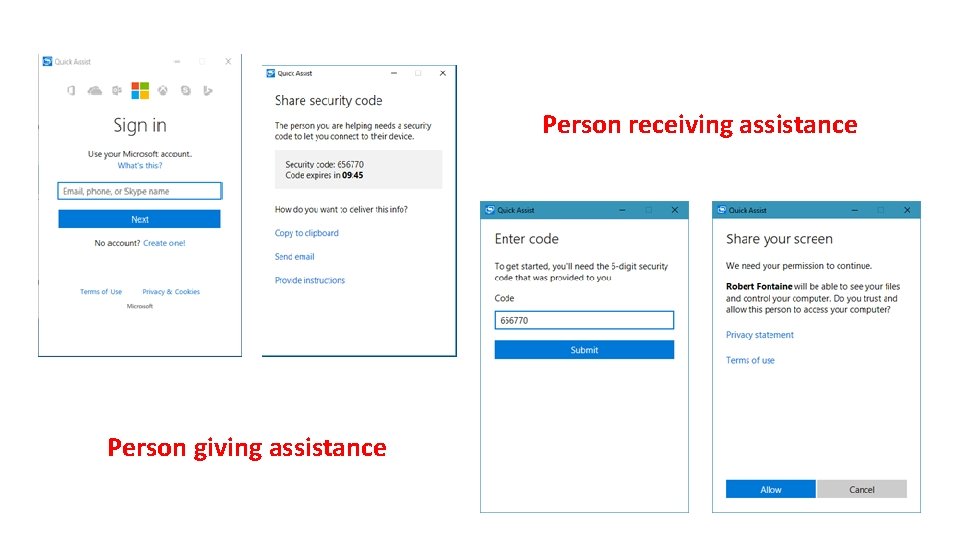
Person receiving assistance Person giving assistance
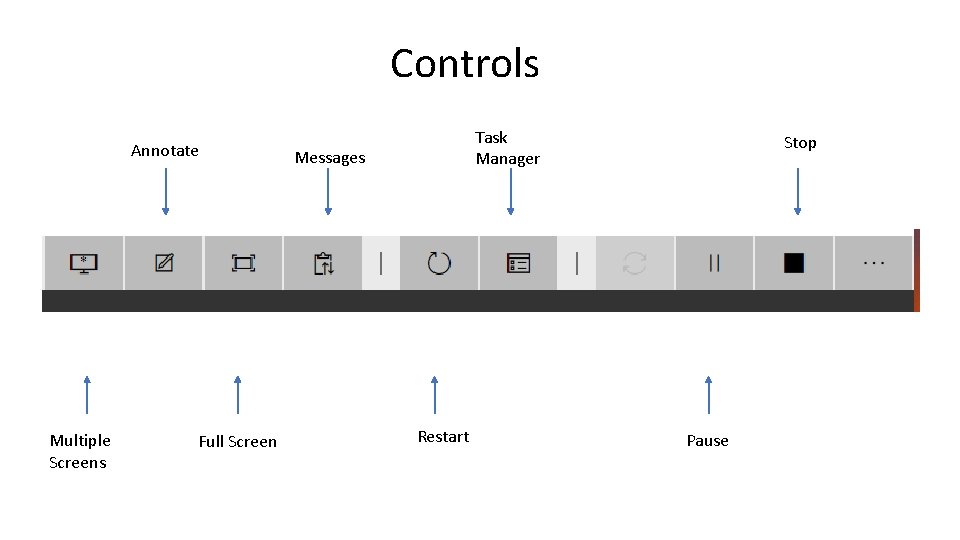
Controls Annotate Multiple Screens Full Screen Task Manager Messages Restart Stop Pause

To annotate both screens, click the Annotate button. This allows the person giving assistance to draw directly on both screens using their mouse cursor. This is useful for jotting down notes or highlighting parts of the screen you want to bring their attention to. Any annotations you make will be removed when Quick Assist is closed.
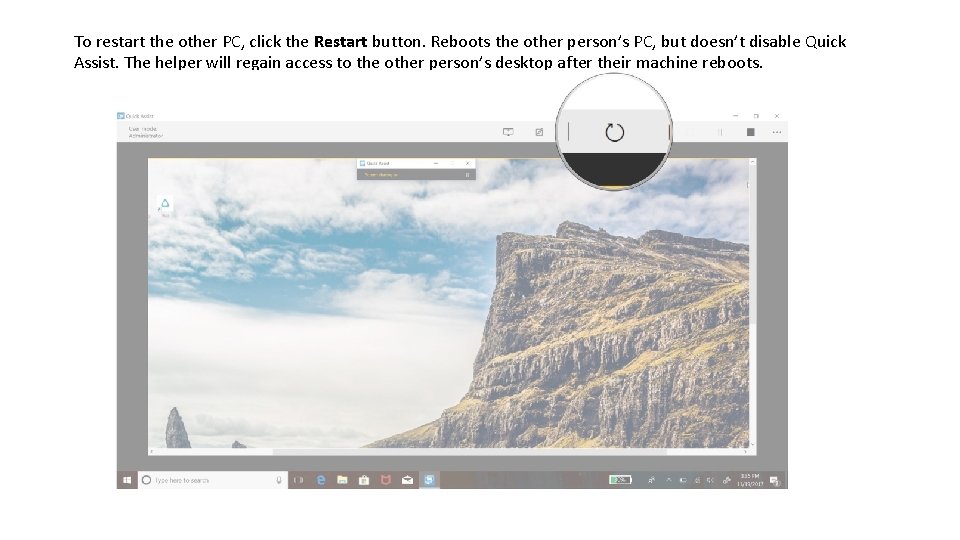
To restart the other PC, click the Restart button. Reboots the other person’s PC, but doesn’t disable Quick Assist. The helper will regain access to the other person’s desktop after their machine reboots.
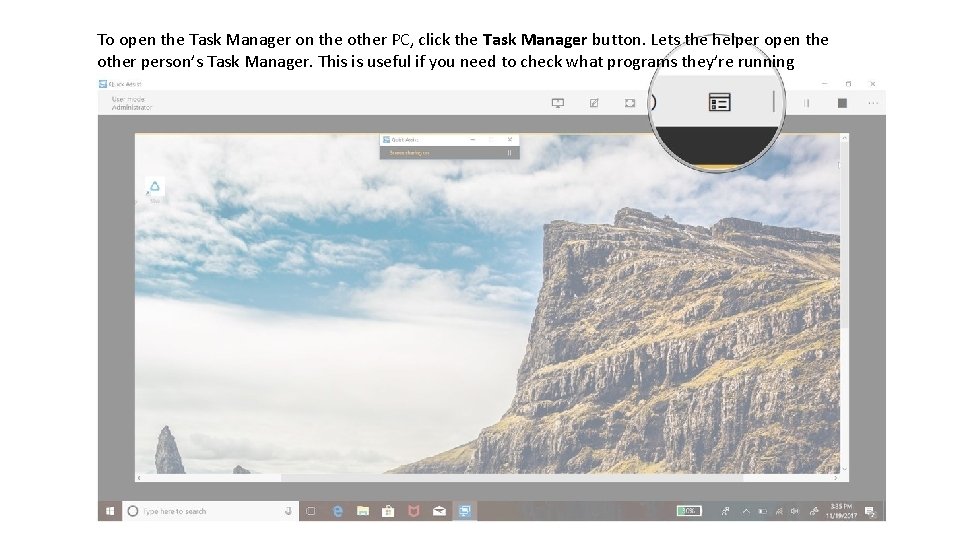
To open the Task Manager on the other PC, click the Task Manager button. Lets the helper open the other person’s Task Manager. This is useful if you need to check what programs they’re running

To pause or stop the connection, click the Pause or Stop button. The connection can be resumed by hitting the Play button in the same spot.
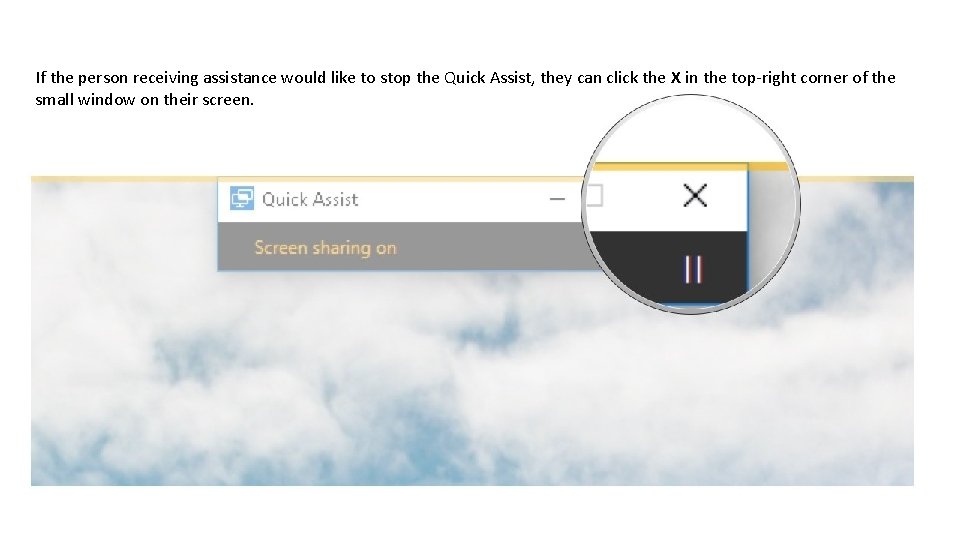
If the person receiving assistance would like to stop the Quick Assist, they can click the X in the top-right corner of the small window on their screen.
- Slides: 10