
How to Use Power Point And how not

- Slides: 11
How to Use Power. Point And how not to use it!
What is Powerpoint for? • Digital presentations – Research presentations – Lectures – Sales pitches – Picture slide shows
What can Powerpoint do? • It can display: – Pictures – Audio – Video • You can manipulate: – Fonts – Backgrounds – Slide transitions – Custom slide animations
A good Powerpoint Presentation: • Portrays ideas in a logical order • Has as few words as necessary • Has interesting and appropriate graphics for every slide • Is not too crazy!
Exercise 1: Basic Formatting • Click on your first slide • Type your name in the first box • In the second box, type your school name, your teacher’s name, and the data • Highlight the text in the boxes, then go to “Format” then “Font” and change the font • Go to “Format” then “Slide Background” and change the color of your slide
Exercise 2: Slideshows • Click “Insert” and then “New slide. ” • Have your partner do Exercise 1 on the new slide. Now you should have 2 slides. • Click on the first slide. • In the lower left hand corner, click the little icon that looks like an easel and then scroll through your slides with the rightwardpointing arrow key on your keyboard.
Exercise 3: Inserting Pictures • Minimize your Powerpoint window. • Go to Google Images. • Search for a picture of something you like: animal, sport, car, whatever. • Right click and “copy. ” • Maximize your Powerpoint window. • Rick click on the slide where you want the picture and “paste. ” • Switch partners and repeat.
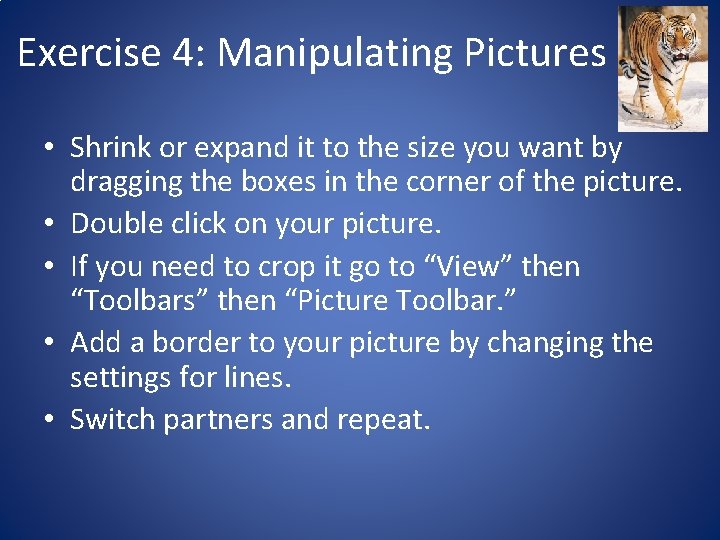
Exercise 4: Manipulating Pictures • Shrink or expand it to the size you want by dragging the boxes in the corner of the picture. • Double click on your picture. • If you need to crop it go to “View” then “Toolbars” then “Picture Toolbar. ” • Add a border to your picture by changing the settings for lines. • Switch partners and repeat.
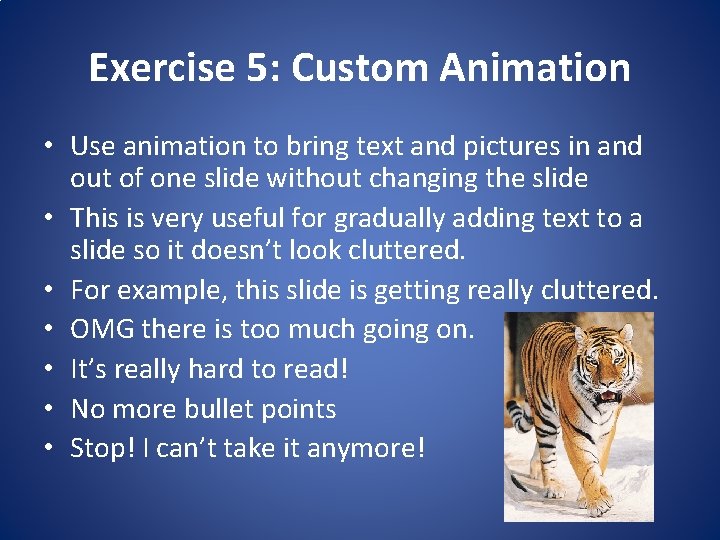
Exercise 5: Custom Animation • Use animation to bring text and pictures in and out of one slide without changing the slide • This is very useful for gradually adding text to a slide so it doesn’t look cluttered. • For example, this slide is getting really cluttered. • OMG there is too much going on. • It’s really hard to read! • No more bullet points • Stop! I can’t take it anymore!
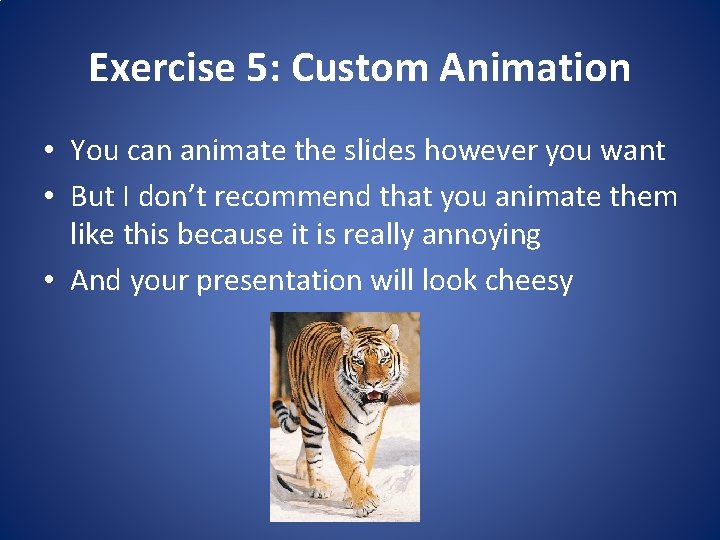
Exercise 5: Custom Animation • You can animate the slides however you want • But I don’t recommend that you animate them like this because it is really annoying • And your presentation will look cheesy
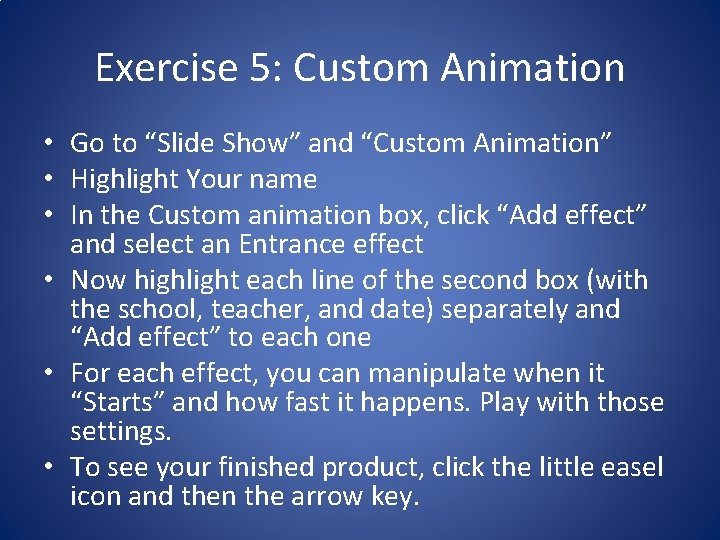
Exercise 5: Custom Animation • Go to “Slide Show” and “Custom Animation” • Highlight Your name • In the Custom animation box, click “Add effect” and select an Entrance effect • Now highlight each line of the second box (with the school, teacher, and date) separately and “Add effect” to each one • For each effect, you can manipulate when it “Starts” and how fast it happens. Play with those settings. • To see your finished product, click the little easel icon and then the arrow key.