
How to use Microsoft Teams If students are
- Slides: 18
How to use Microsoft Teams • If students are required to study from home at any point in the coming months, the majority of your lessons will be accessed through Microsoft Teams. • To use Teams, you will need the following -: • Computer access. • Internet. • School e-mail address and password. • If you do not have any of the above, you must let your form tutor know, so that the issue can be resolved or appropriate work can be provided, if needed.
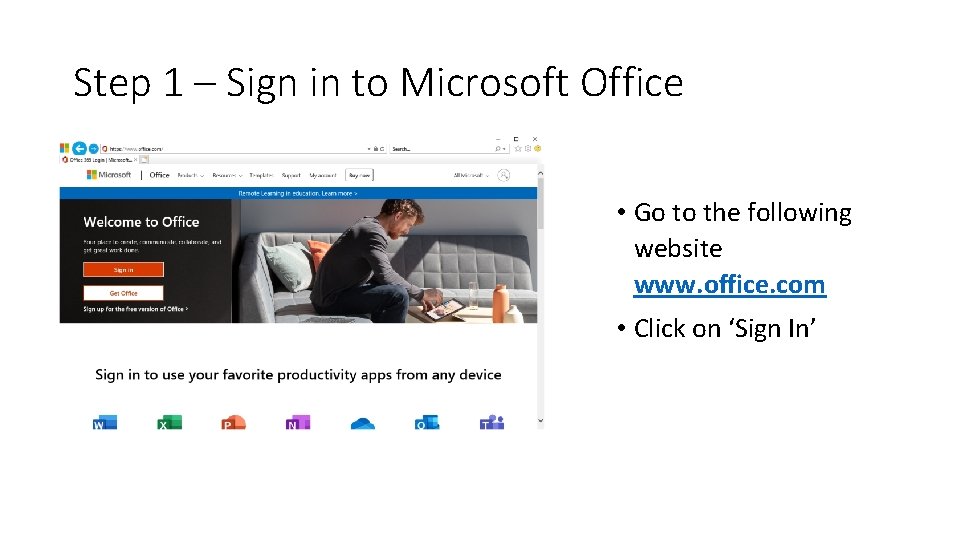
Step 1 – Sign in to Microsoft Office • Go to the following website www. office. com • Click on ‘Sign In’
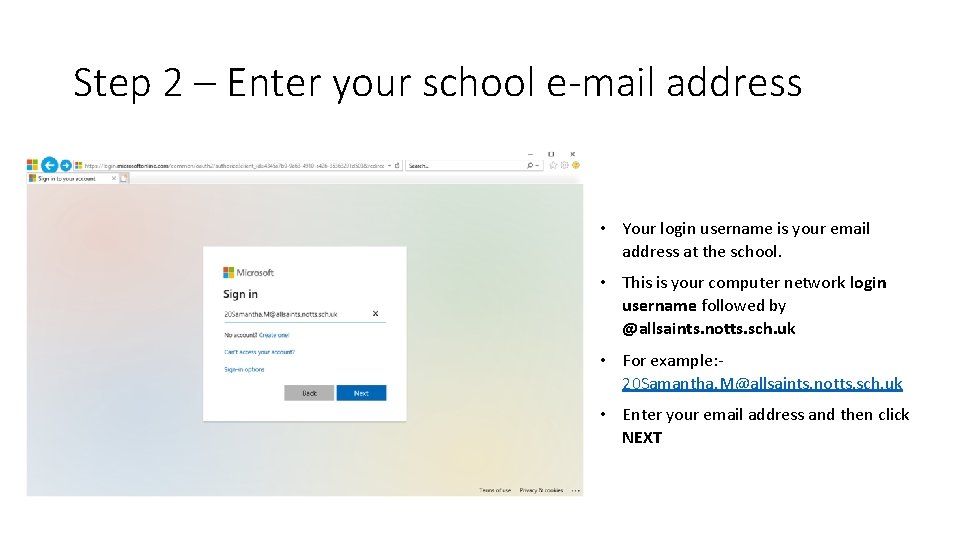
Step 2 – Enter your school e-mail address • Your login username is your email address at the school. • This is your computer network login username followed by @allsaints. notts. sch. uk • For example: 20 Samantha. M@allsaints. notts. sch. uk • Enter your email address and then click NEXT
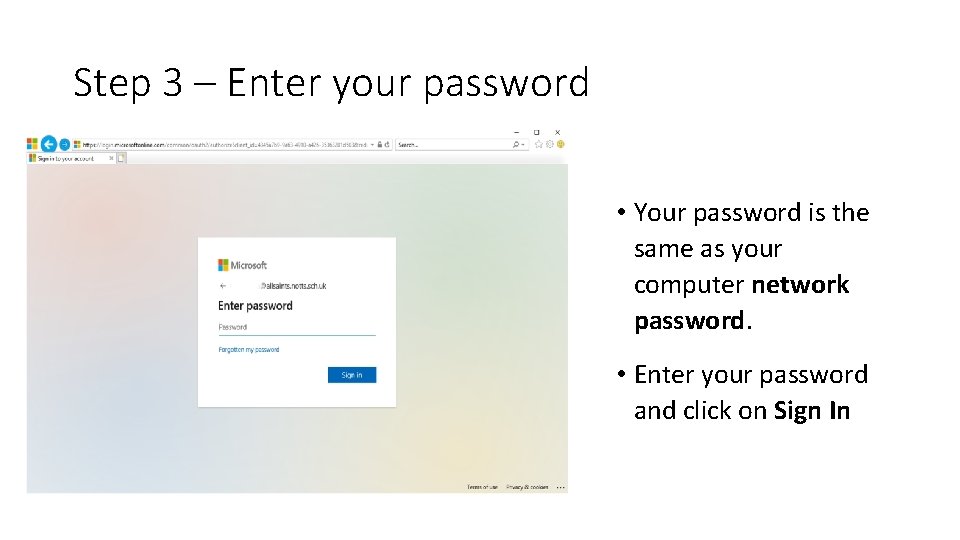
Step 3 – Enter your password • Your password is the same as your computer network password. • Enter your password and click on Sign In
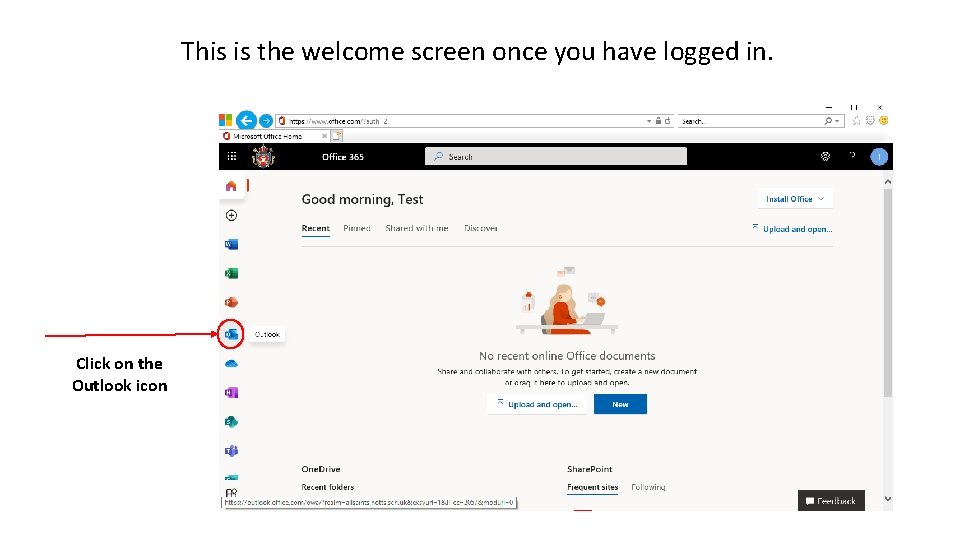
This is the welcome screen once you have logged in. Click on the Outlook icon
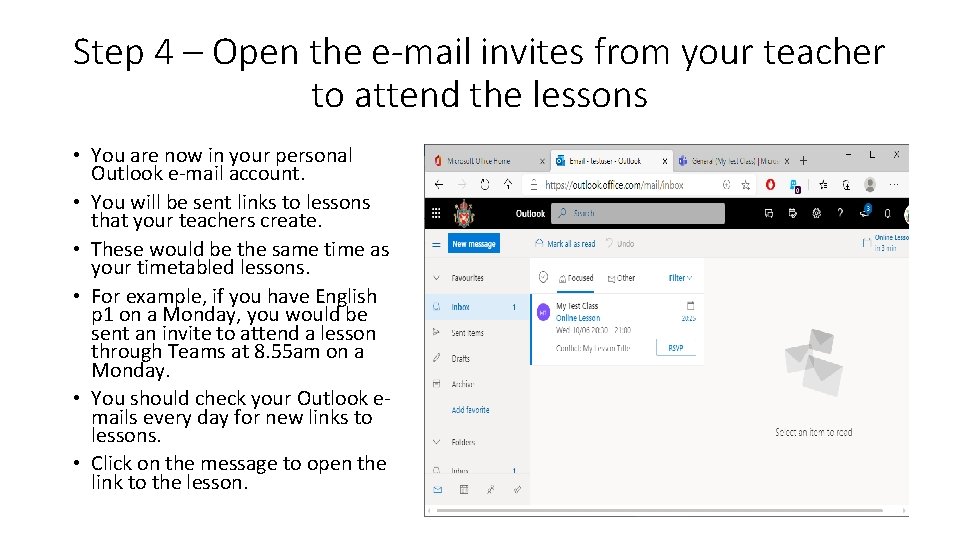
Step 4 – Open the e-mail invites from your teacher to attend the lessons • You are now in your personal Outlook e-mail account. • You will be sent links to lessons that your teachers create. • These would be the same time as your timetabled lessons. • For example, if you have English p 1 on a Monday, you would be sent an invite to attend a lesson through Teams at 8. 55 am on a Monday. • You should check your Outlook emails every day for new links to lessons. • Click on the message to open the link to the lesson.
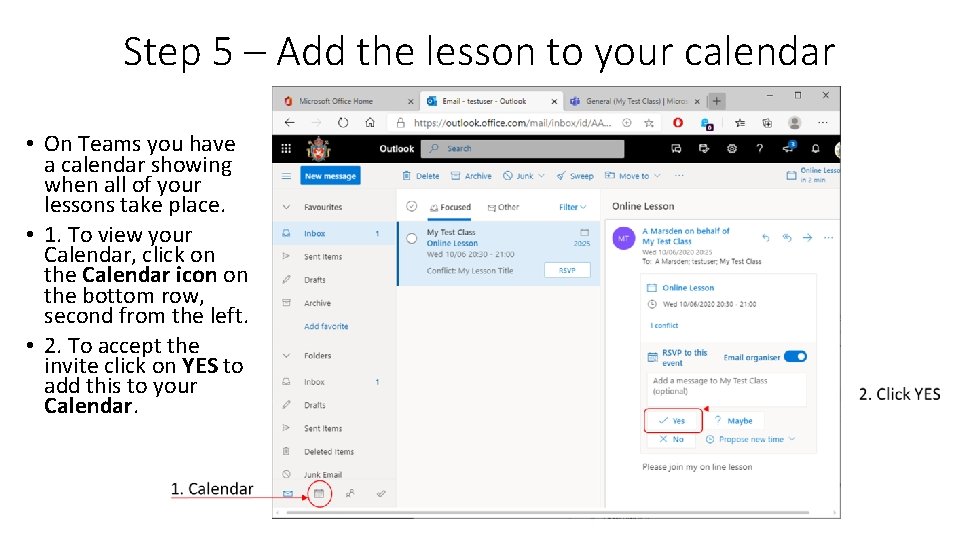
Step 5 – Add the lesson to your calendar • On Teams you have a calendar showing when all of your lessons take place. • 1. To view your Calendar, click on the Calendar icon on the bottom row, second from the left. • 2. To accept the invite click on YES to add this to your Calendar.
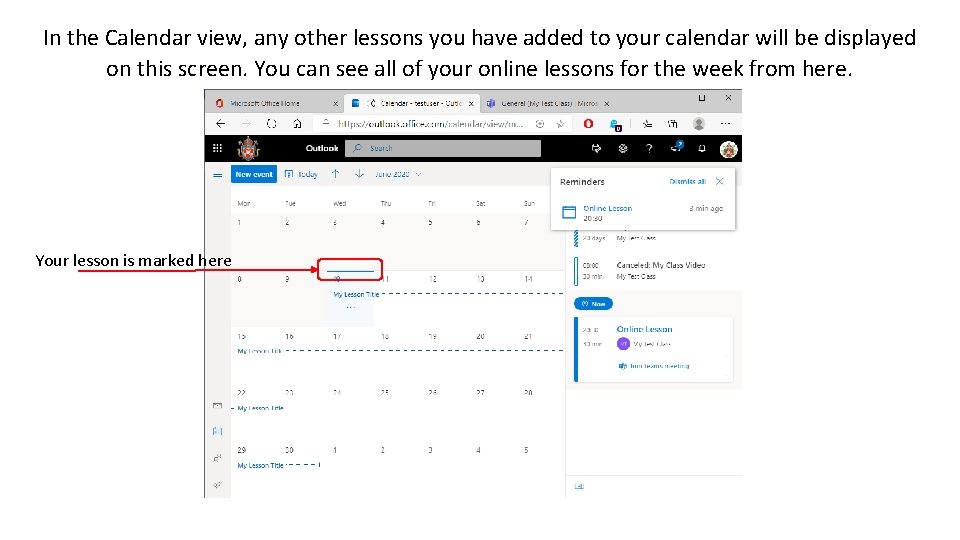
In the Calendar view, any other lessons you have added to your calendar will be displayed on this screen. You can see all of your online lessons for the week from here. Your lesson is marked here
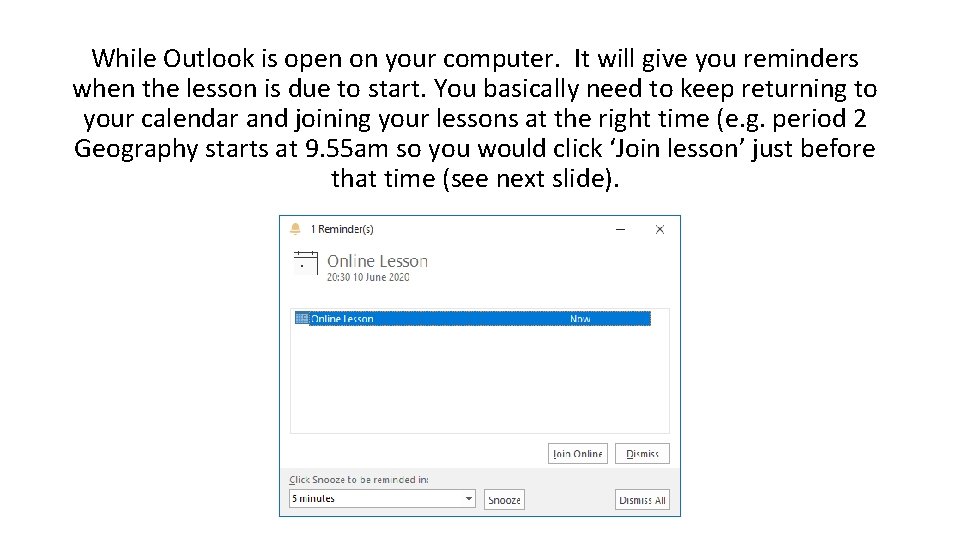
While Outlook is open on your computer. It will give you reminders when the lesson is due to start. You basically need to keep returning to your calendar and joining your lessons at the right time (e. g. period 2 Geography starts at 9. 55 am so you would click ‘Join lesson’ just before that time (see next slide).
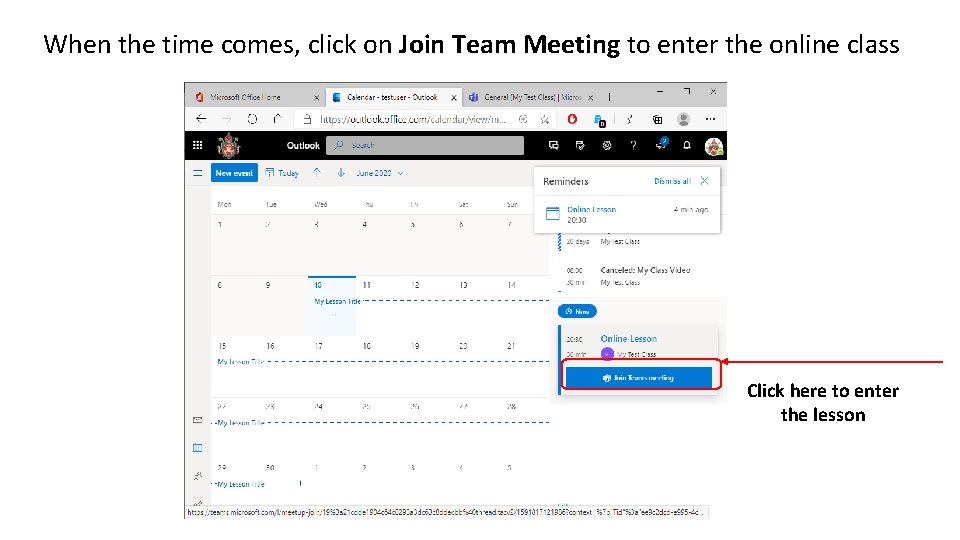
When the time comes, click on Join Team Meeting to enter the online class Click here to enter the lesson
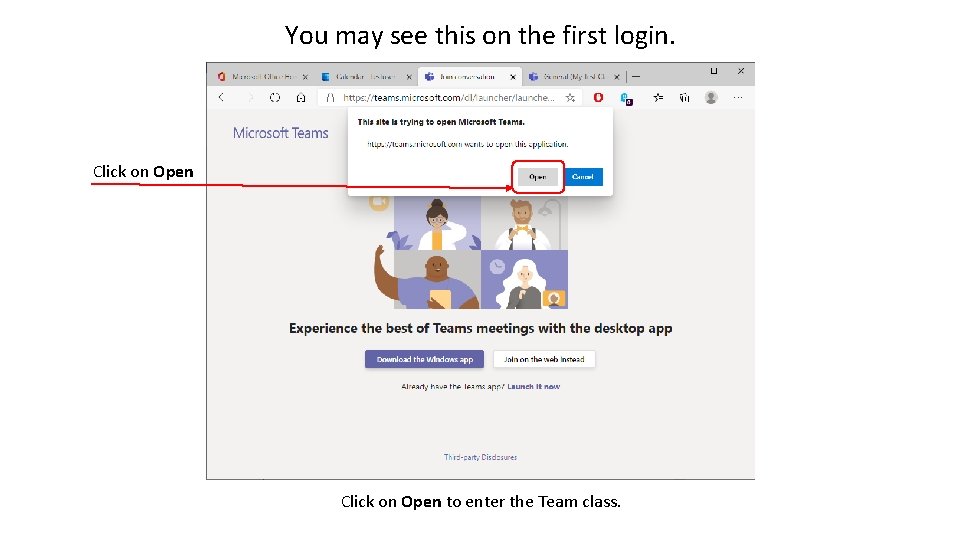
You may see this on the first login. Click on Open to enter the Team class.
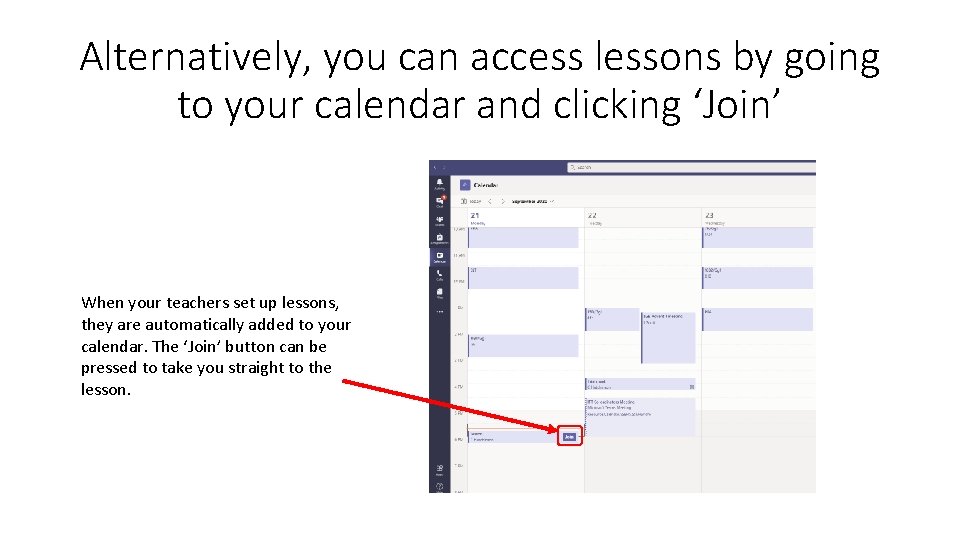
Alternatively, you can access lessons by going to your calendar and clicking ‘Join’ When your teachers set up lessons, they are automatically added to your calendar. The ‘Join’ button can be pressed to take you straight to the lesson.
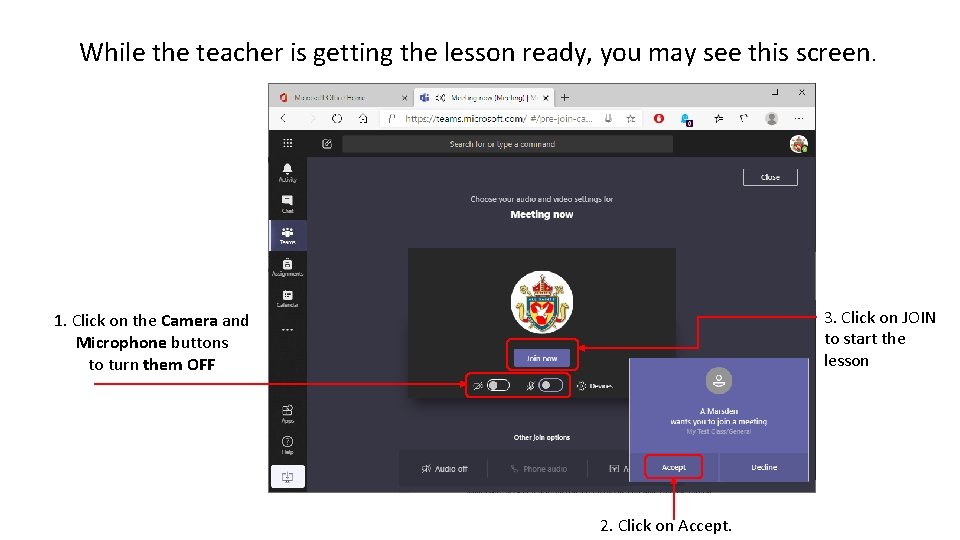
While the teacher is getting the lesson ready, you may see this screen. 3. Click on JOIN to start the lesson 1. Click on the Camera and Microphone buttons to turn them OFF 2. Click on Accept.
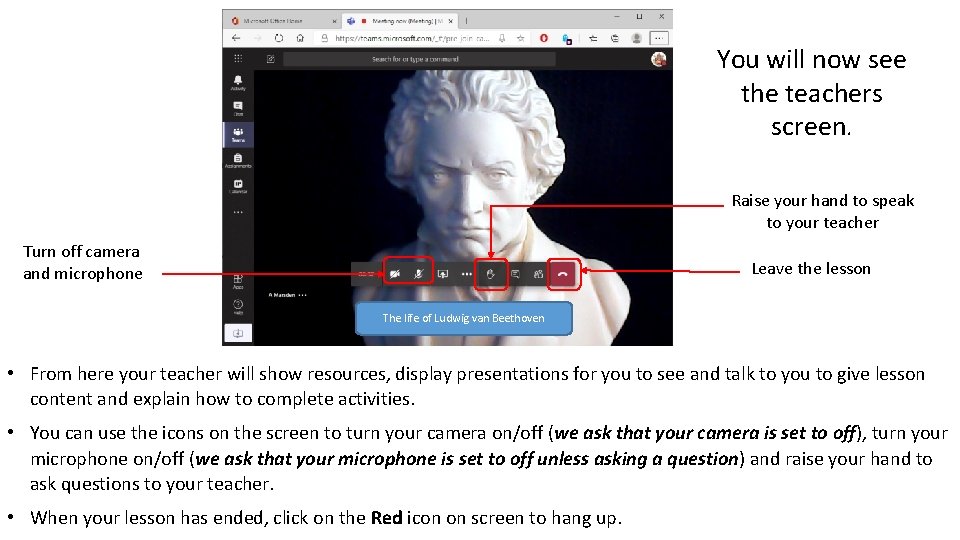
You will now see the teachers screen. Raise your hand to speak to your teacher Turn off camera and microphone Leave the lesson The life of Ludwig van Beethoven • From here your teacher will show resources, display presentations for you to see and talk to you to give lesson content and explain how to complete activities. • You can use the icons on the screen to turn your camera on/off (we ask that your camera is set to off), turn your microphone on/off (we ask that your microphone is set to off unless asking a question) and raise your hand to ask questions to your teacher. • When your lesson has ended, click on the Red icon on screen to hang up.
Putting it all together • https: //www. youtube. com/watch? v=Semj. M 2 f. HV 2 Q • Watch the first 4 minutes of this video and see how these steps should look together. • Focus on how you access Teams using your school e-mail address and password. • Take note of how your Teams homepage will look with all of the tiles for your different classes. • What do you need to do when you want to join a lesson? • What should you turn off before you join a lesson?
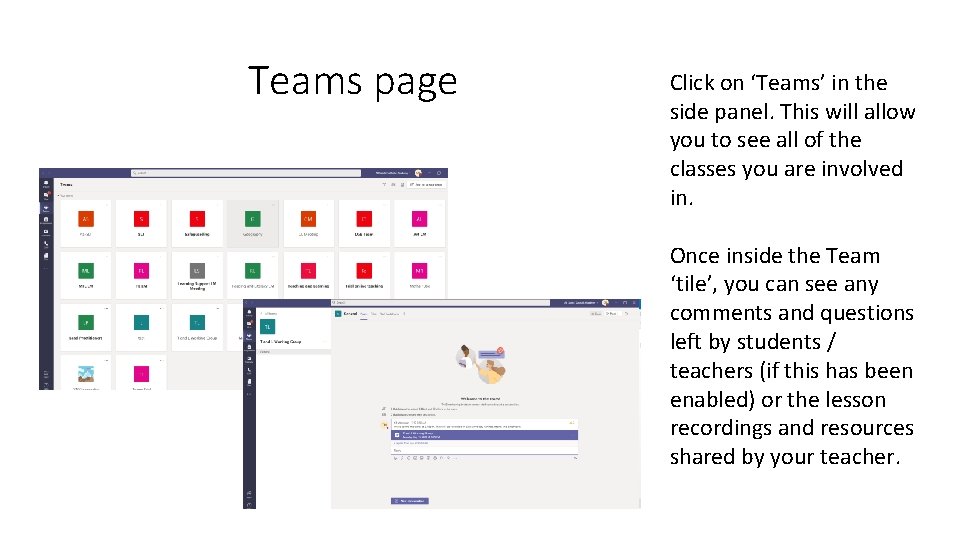
Teams page Click on ‘Teams’ in the side panel. This will allow you to see all of the classes you are involved in. Once inside the Team ‘tile’, you can see any comments and questions left by students / teachers (if this has been enabled) or the lesson recordings and resources shared by your teacher.
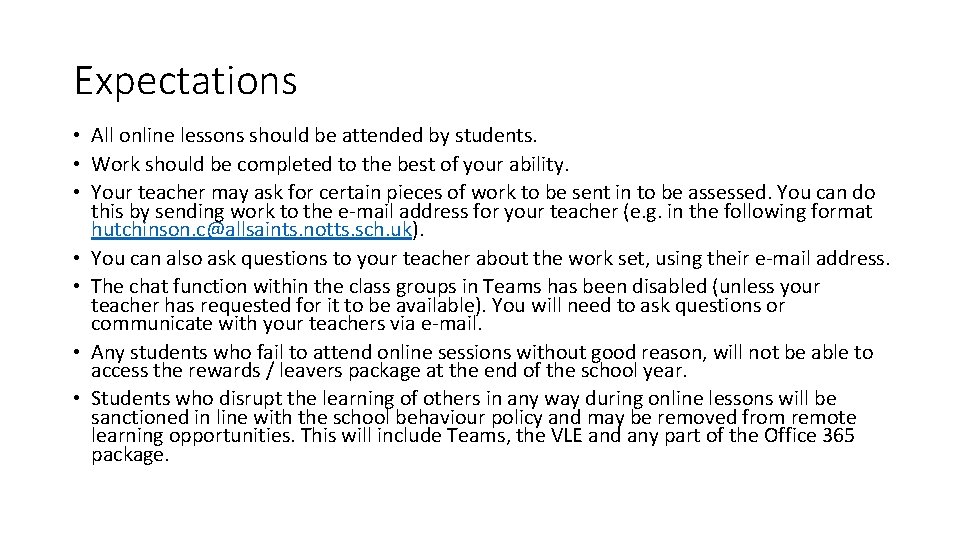
Expectations • All online lessons should be attended by students. • Work should be completed to the best of your ability. • Your teacher may ask for certain pieces of work to be sent in to be assessed. You can do this by sending work to the e-mail address for your teacher (e. g. in the following format hutchinson. c@allsaints. notts. sch. uk). • You can also ask questions to your teacher about the work set, using their e-mail address. • The chat function within the class groups in Teams has been disabled (unless your teacher has requested for it to be available). You will need to ask questions or communicate with your teachers via e-mail. • Any students who fail to attend online sessions without good reason, will not be able to access the rewards / leavers package at the end of the school year. • Students who disrupt the learning of others in any way during online lessons will be sanctioned in line with the school behaviour policy and may be removed from remote learning opportunities. This will include Teams, the VLE and any part of the Office 365 package.
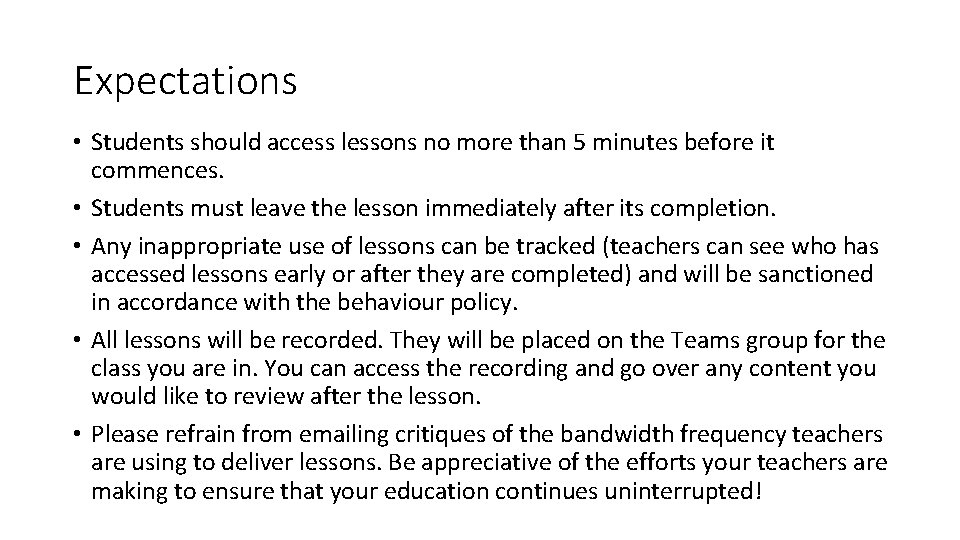
Expectations • Students should access lessons no more than 5 minutes before it commences. • Students must leave the lesson immediately after its completion. • Any inappropriate use of lessons can be tracked (teachers can see who has accessed lessons early or after they are completed) and will be sanctioned in accordance with the behaviour policy. • All lessons will be recorded. They will be placed on the Teams group for the class you are in. You can access the recording and go over any content you would like to review after the lesson. • Please refrain from emailing critiques of the bandwidth frequency teachers are using to deliver lessons. Be appreciative of the efforts your teachers are making to ensure that your education continues uninterrupted!