
How to Use JAWS for Accessibility Testing Hadi
How to Use JAWS for Accessibility Testing? Hadi Rangin University of Washington
Preview (1/2) 1. Technical accessibility vs Functional accessibility 2. What’s a screen reader? 3. How should we test? 4. What should we test? 5. Can I use Jaws for testing?
Preview (2/2) 6. Understanding how Jaws works 7. Jaws survival commands 8. Commonly used jaws commands for testing 9. Testing with Jaws in action 10. Resources 11. Questions
Functional vs Technical Accessibility • Accessible techniques are required, but not sufficient • Usability with accessibility consideration • Both aspects are necessary in developing an accessible application
Functional accessibility • Can the end user accomplish a task to effectively and efficiently use an application, regardless of coding technique? • “Can a user successfully compose and send an email to a desired recipient? ” • Functional accessibility success if the task can be completed by various mode of interactions (mouse, keyboard & AT)
Technical accessibility • Is the coding practice according to the standard (WCAG)? • Ensures assistive technologies can effectively interact with the application • “Does a particular button in the user interface present itself in a way so that it can be understood by, and interacted using both visual and non-visual means? ” • Limitation: does not take a holistic view of determining if the pieces of an application work together and if the end user can complete the task effectively in a timely fashion.
Screen readers: Magic or confusing tool? • SR made for end-user • 100 s of functions to assist end-users • Complicated algorithm to compensate for lack of accessibility features • Use it to verify issues but not to determine issues • Not designed for accessibility testing • Bottom-line: Don’t use it for testing unless you know what you are doing
Things We Should Consider before Testing (1/2) • Understand the basics of coding practice • Focus on Functional accessibility • Consider Universal Design in your accessibility solutions • Differentiate between your personal preferences and accessibility solutions
Things We Should Consider before Testing (2/2) • Utilize developer & accessibility tools for technical accessibility • SR can help you partially with technical accessibility • Work-around is not an accessibility solution • Don’t get lost in your testing and evaluation
What should we test? (1/3) • Consistency throughout the application Visual consistency Functional consistency Proper use of elements • Keyboard operability Be able to navigate to all focusable elements Be able to fully perform all applicable functions Be able go always to see the visual focus indicator Logical tab order Shortcut keys alone do *not* make application accessible
What should we test? (2/3) • ARIA landmarks Integrity of ARIA landmarks throughout the application No orphaned content Meaningful labels • Heading structure Hierarchical Meaningful Do headings cover the major sections?
What should we test? (3/3) • Grouping relevant items Ordered, unordered & definition lists • Graphic Meaningful text for informational graphics • Forms Meaningful Form Control labels Use accessibility tools or check the DOM Test for verification and error handling Test for dynamic widgets (advanced) Menu, Expand/collapse, Carousel, Modal, etc.
Can I use Jaws for testing? (1/2) • Yes but: Not for keyboard operability Only if you are aware of Jaws limitations & guessing algorithm There are other means to verify your findings • There is *no* such thing as “Jaws accessibility” • Use Jaws to verify issues • Test for Functional accessibility
Can I use Jaws for testing? (2/2) • Use browser, developer & accessibility tools for technical accessibility • Do *not* make any recommendations as work-arounds for Jaws • Contact Freedom Scientific for any inconsistency with HTML/ARIA best practices • Perform manual check for difficult technical accessibility issues
Understanding how Jaws works • Virtual mode: Linearization of page/content Page discovery & Jaws navigation Selected interaction with form elements Links, Radio, Checkbox, buttons Navigation to various elements • Form mode: Interacting with elements Link, Radio, Checkbox, Button, Select box, Text area, Menu, widgets
Inaccessible Websites Demo • Washington. edu • Inaccessible University • Accessible University • Washington Federal - Enrollment
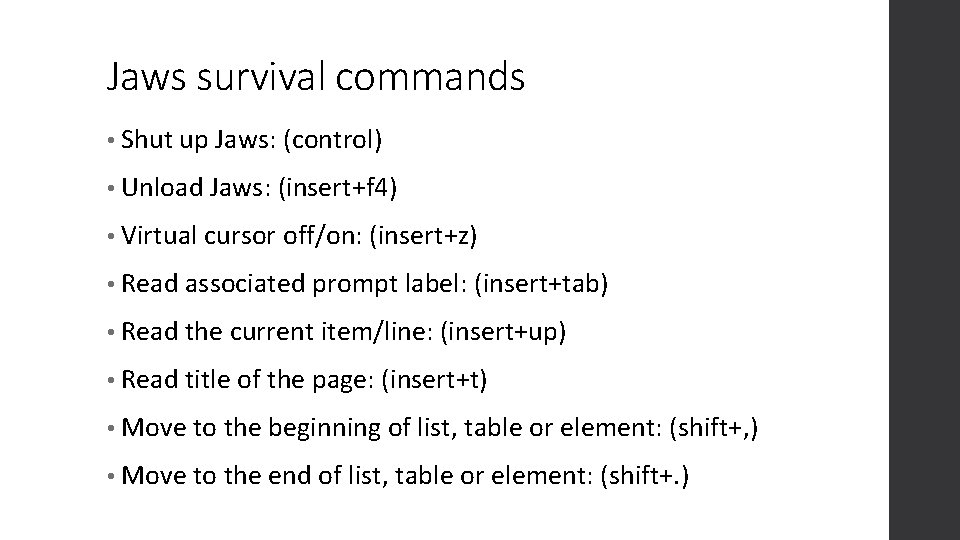
Jaws survival commands • Shut up Jaws: (control) • Unload Jaws: (insert+f 4) • Virtual cursor off/on: (insert+z) • Read associated prompt label: (insert+tab) • Read the current item/line: (insert+up) • Read title of the page: (insert+t) • Move to the beginning of list, table or element: (shift+, ) • Move to the end of list, table or element: (shift+. )
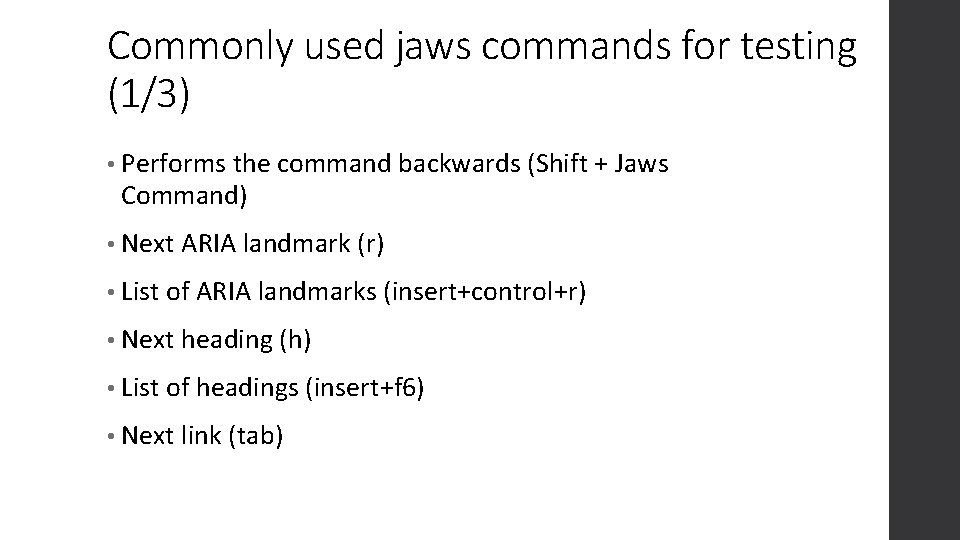
Commonly used jaws commands for testing (1/3) • Performs the command backwards (Shift + Jaws Command) • Next ARIA landmark (r) • List of ARIA landmarks (insert+control+r) • Next heading (h) • List of headings (insert+f 6) • Next link (tab)
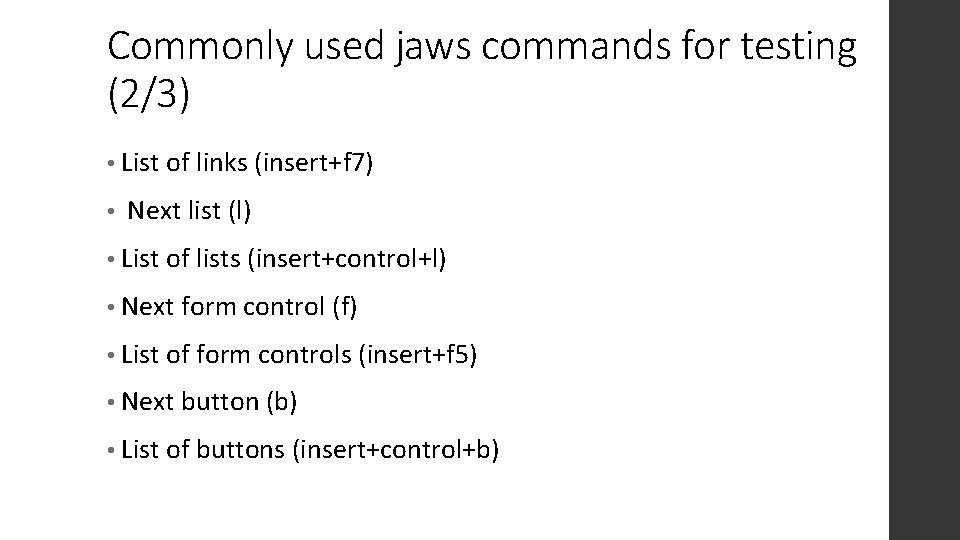
Commonly used jaws commands for testing (2/3) • List of links (insert+f 7) • Next list (l) • List of lists (insert+control+l) • Next form control (f) • List of form controls (insert+f 5) • Next button (b) • List of buttons (insert+control+b)
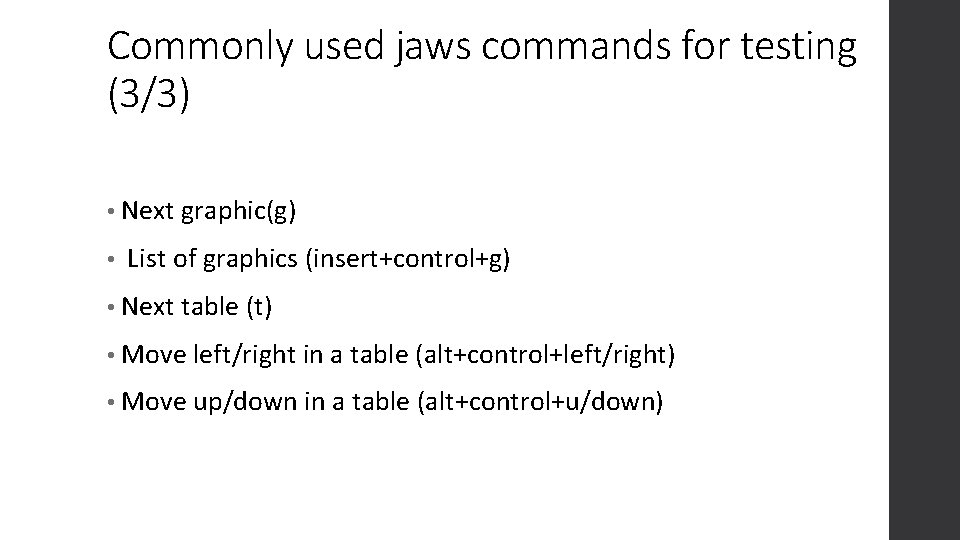
Commonly used jaws commands for testing (3/3) • Next graphic(g) • List of graphics (insert+control+g) • Next table (t) • Move left/right in a table (alt+control+left/right) • Move up/down in a table (alt+control+u/down)
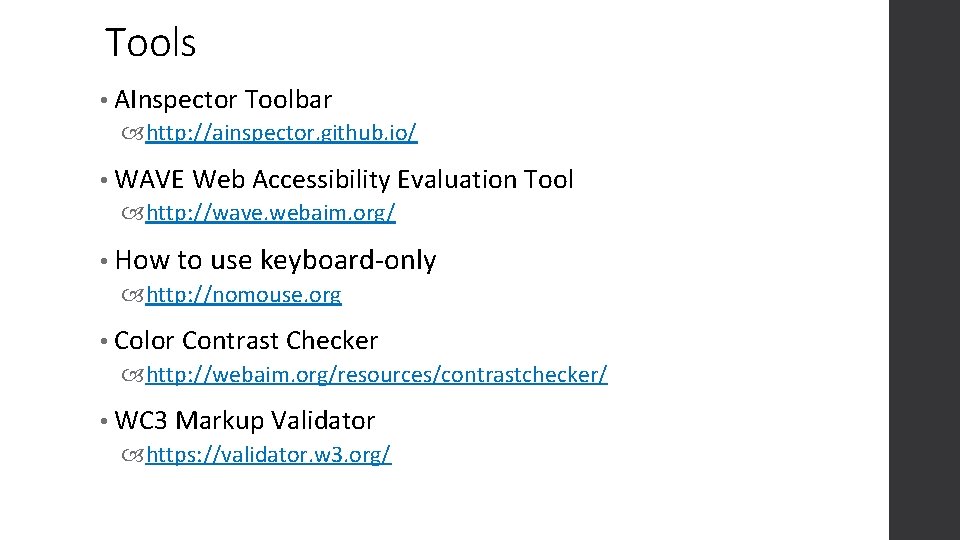
Tools • AInspector Toolbar http: //ainspector. github. io/ • WAVE Web Accessibility Evaluation Tool http: //wave. webaim. org/ • How to use keyboard-only http: //nomouse. org • Color Contrast Checker http: //webaim. org/resources/contrastchecker/ • WC 3 Markup Validator https: //validator. w 3. org/
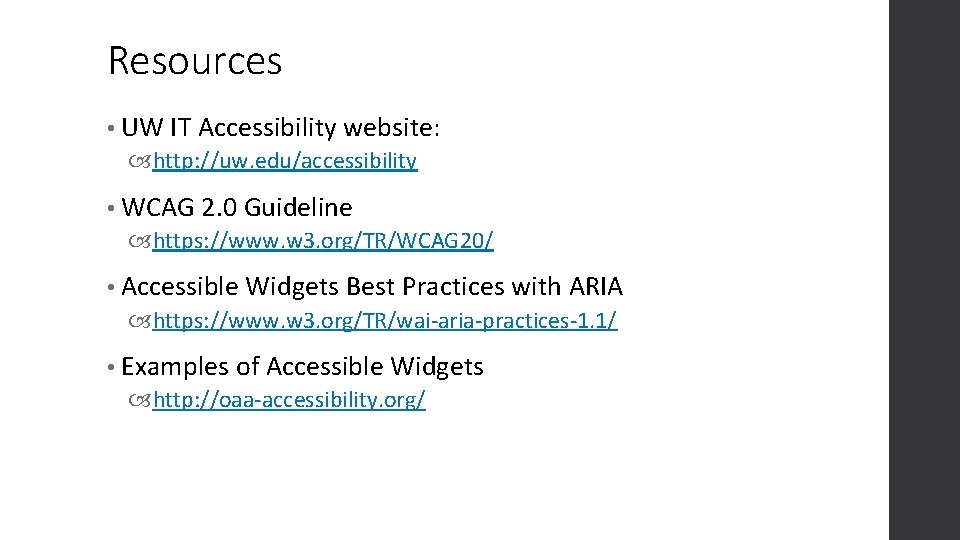
Resources • UW IT Accessibility website: http: //uw. edu/accessibility • WCAG 2. 0 Guideline https: //www. w 3. org/TR/WCAG 20/ • Accessible Widgets Best Practices with ARIA https: //www. w 3. org/TR/wai-aria-practices-1. 1/ • Examples of Accessible Widgets http: //oaa-accessibility. org/
Questions?
- Slides: 23