
How to use Docu Sign to send out


- Slides: 11
How to use Docu. Sign to send out SOWs and Subcontractor agreements
Items to get started • Set up your Docu. Sign account by following the instructions in the invitation email • The following instructions show to send a SOW or Subcontractor agreement by uploading the document from MS Word or Dropbox • "Envelopes" refer to documents
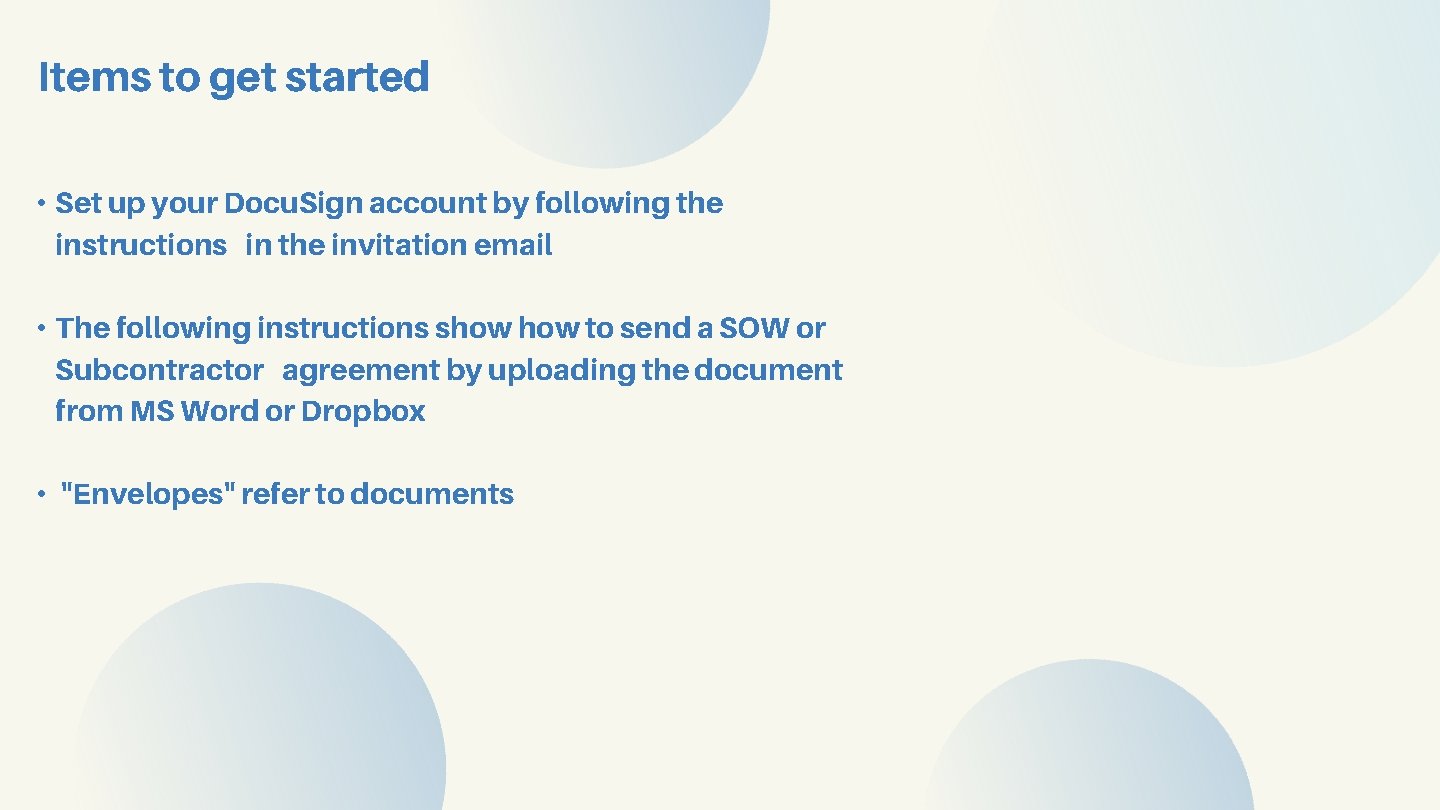
Step 1: Edit your SOW or sub agreement in MS Word/Dropbox with the appropriate information and in correct LSI format
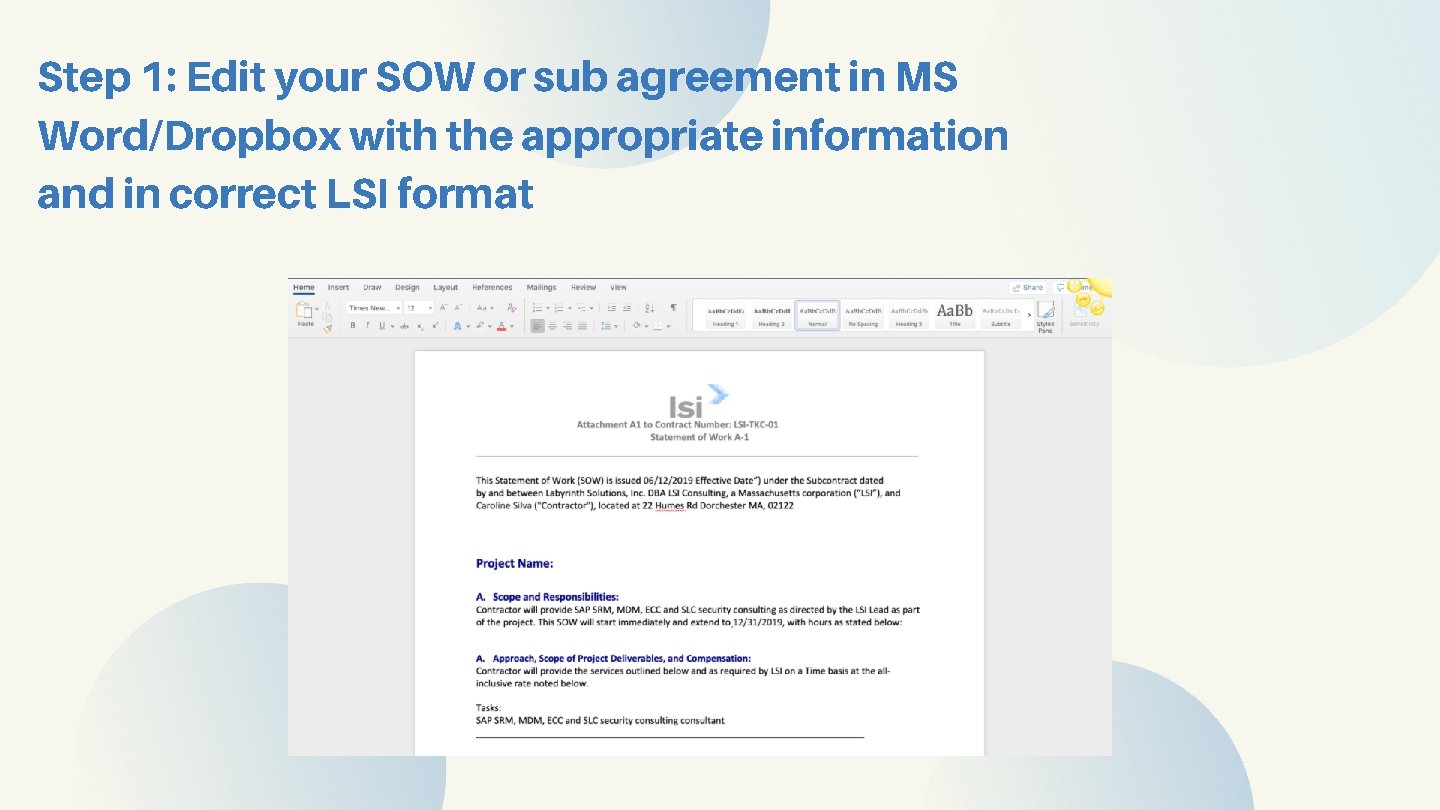
Step 2: Log into Dropbox by going to account. docusign. com and putting in your email address and password.
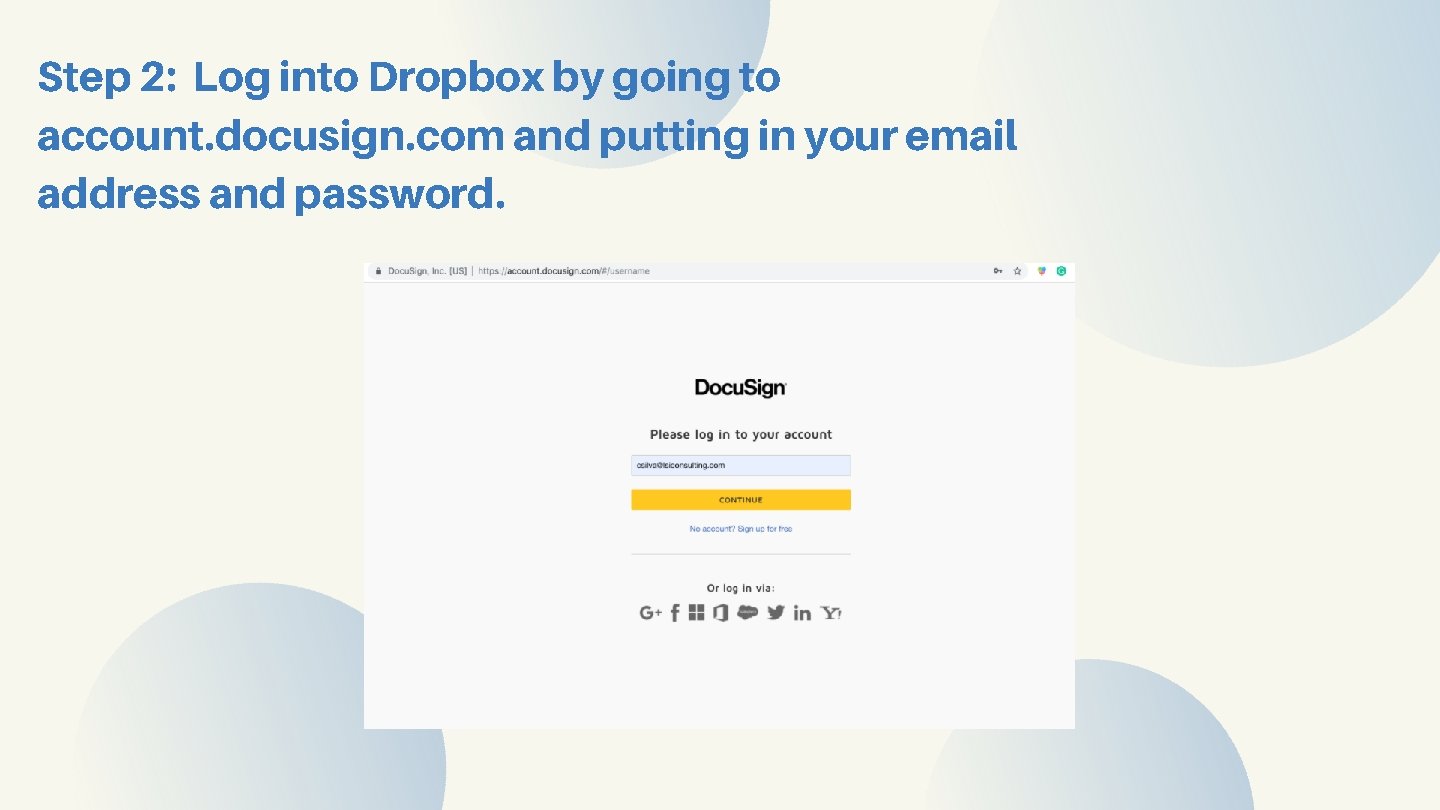
Step 3: Once on your dashboard, click the yellow button that reads "New" and then from the dropdown select "Send Envelope"
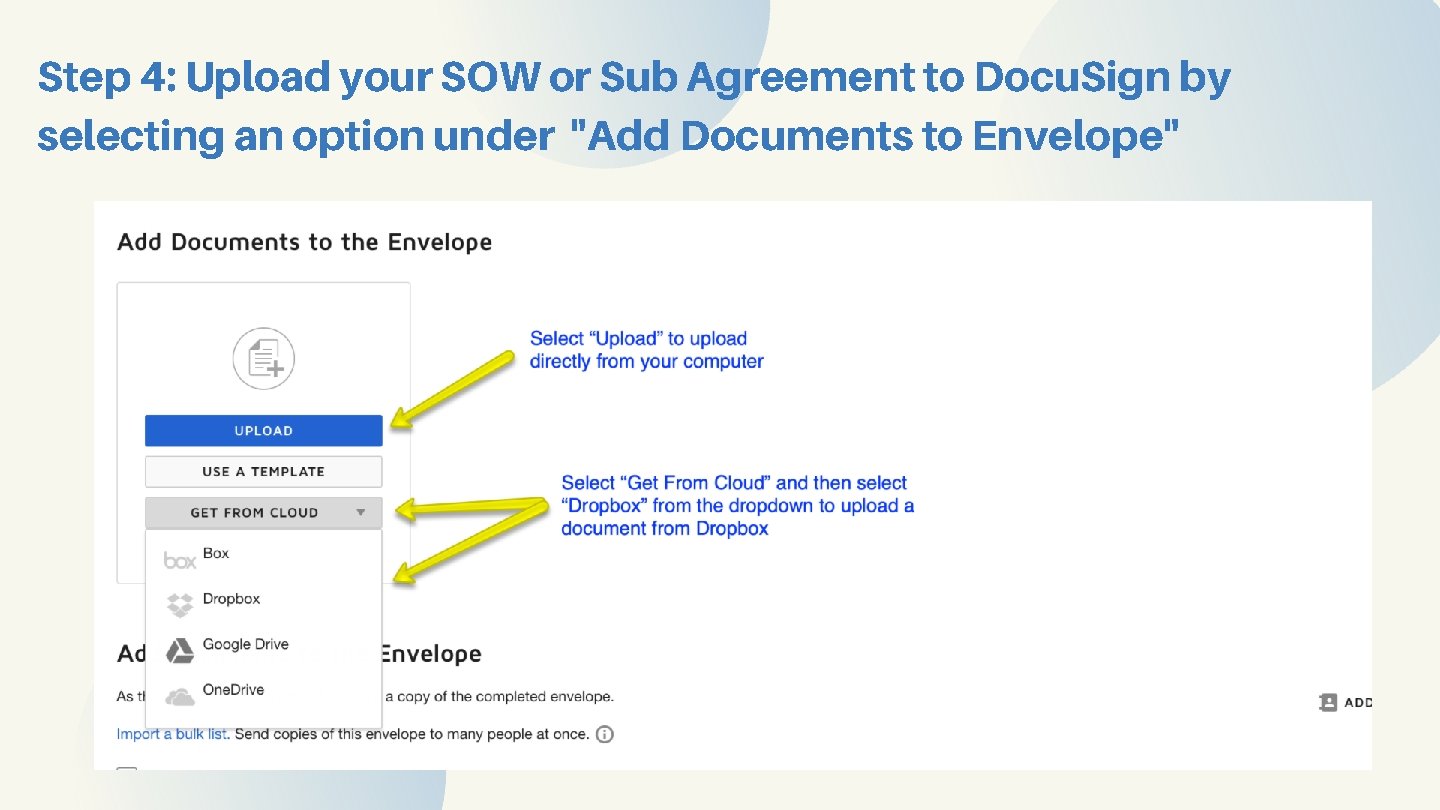
Step 4: Upload your SOW or Sub Agreement to Docu. Sign by selecting an option under "Add Documents to Envelope"
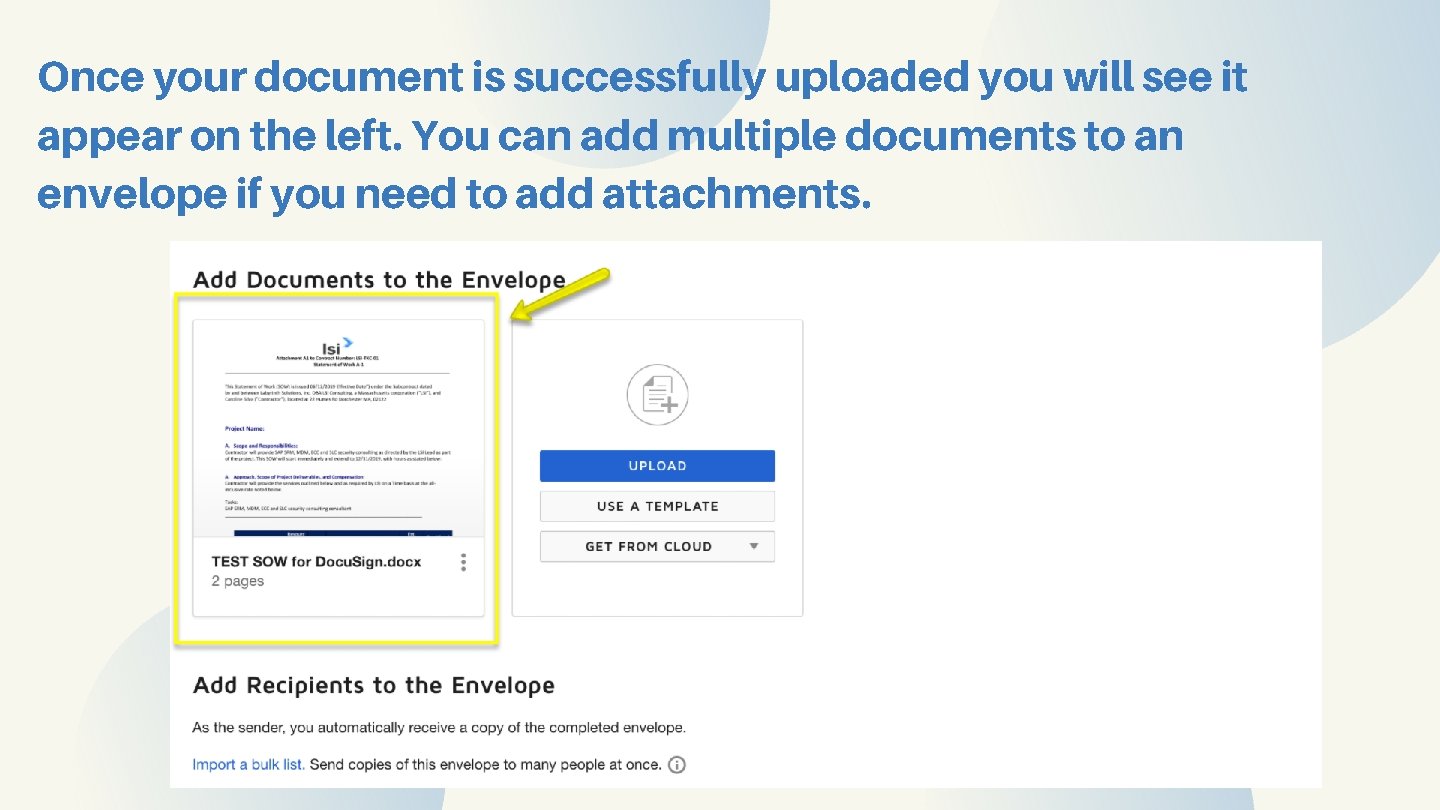
Once your document is successfully uploaded you will see it appear on the left. You can add multiple documents to an envelope if you need to add attachments.
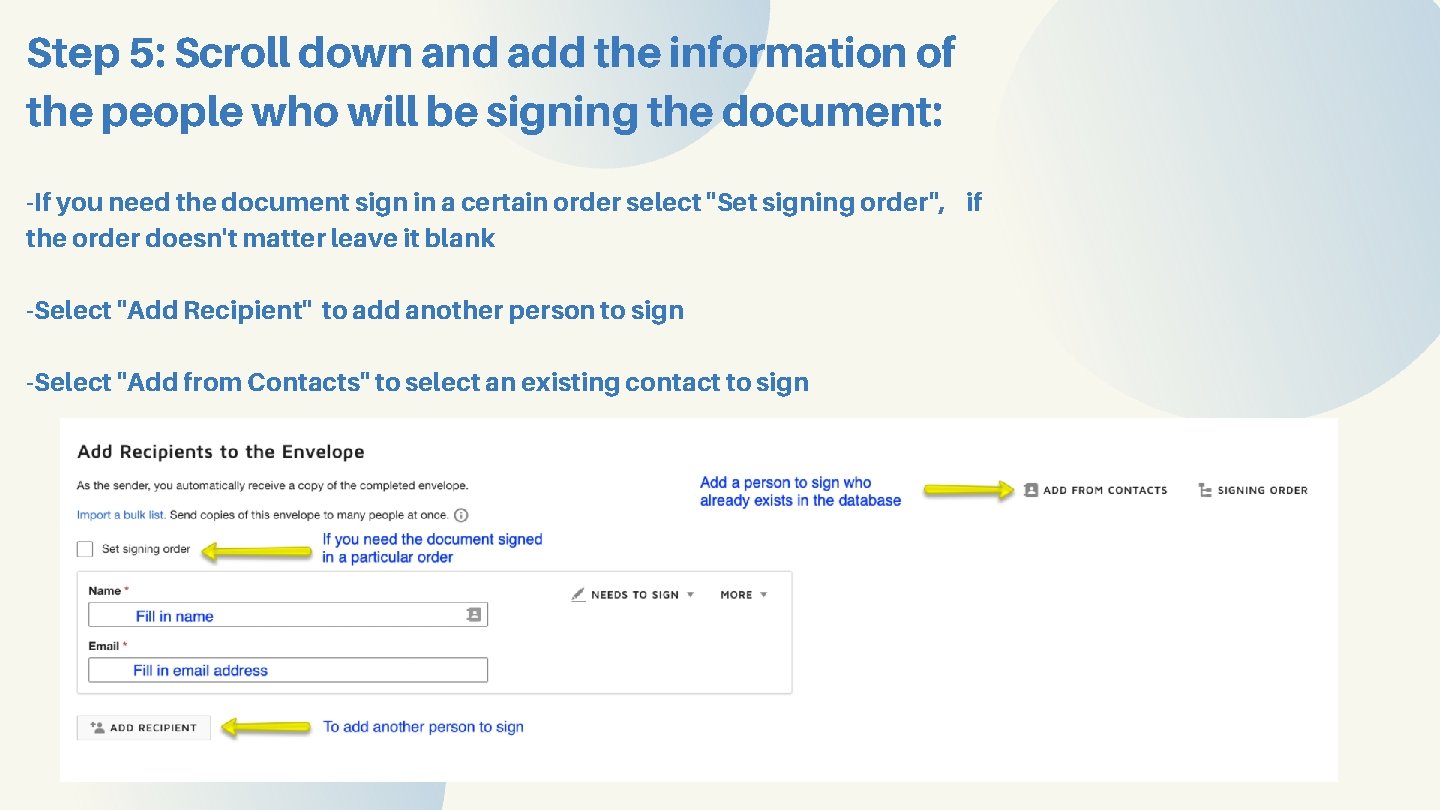
Step 5: Scroll down and add the information of the people who will be signing the document: -If you need the document sign in a certain order select "Set signing order", if the order doesn't matter leave it blank -Select "Add Recipient" to add another person to sign -Select "Add from Contacts" to select an existing contact to sign
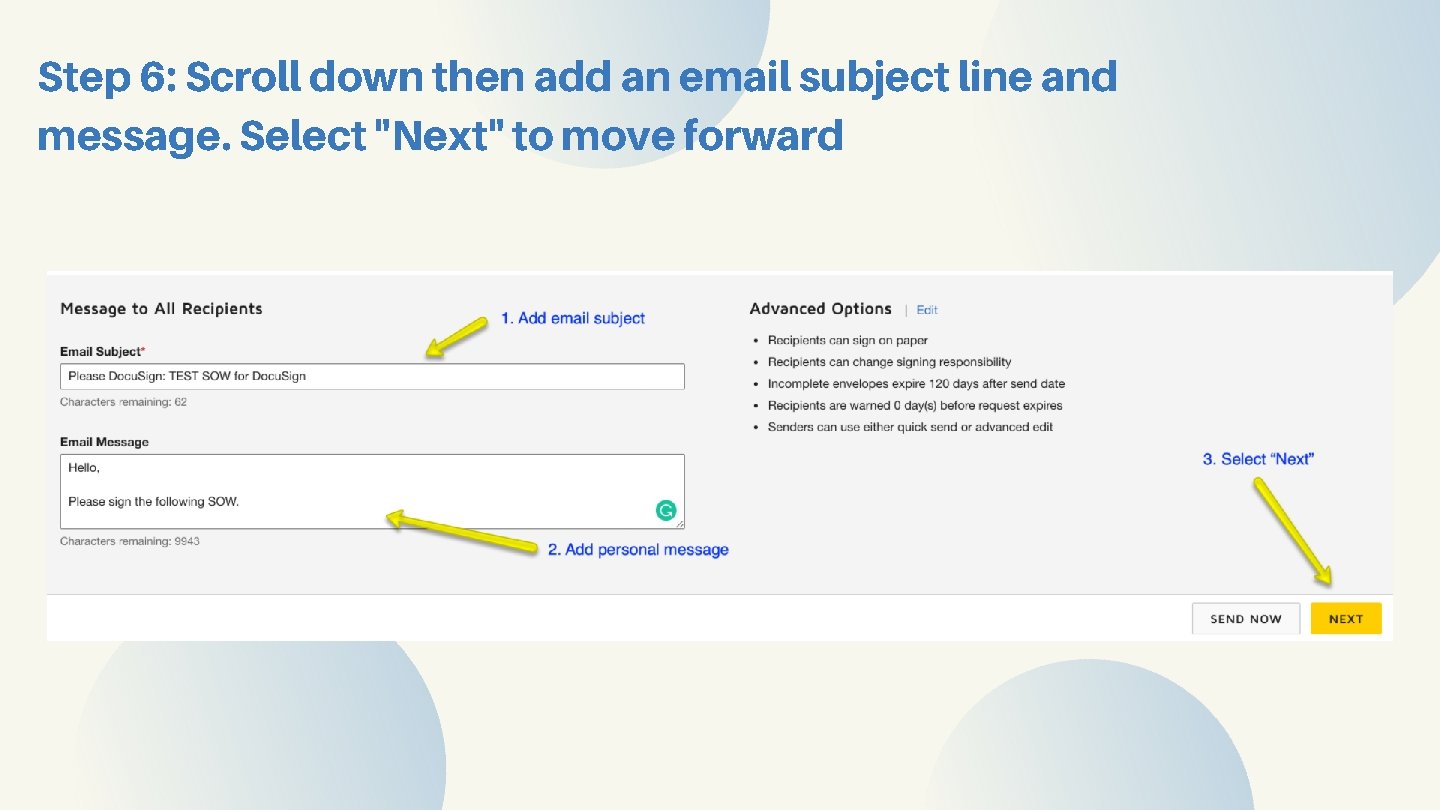
Step 6: Scroll down then add an email subject line and message. Select "Next" to move forward
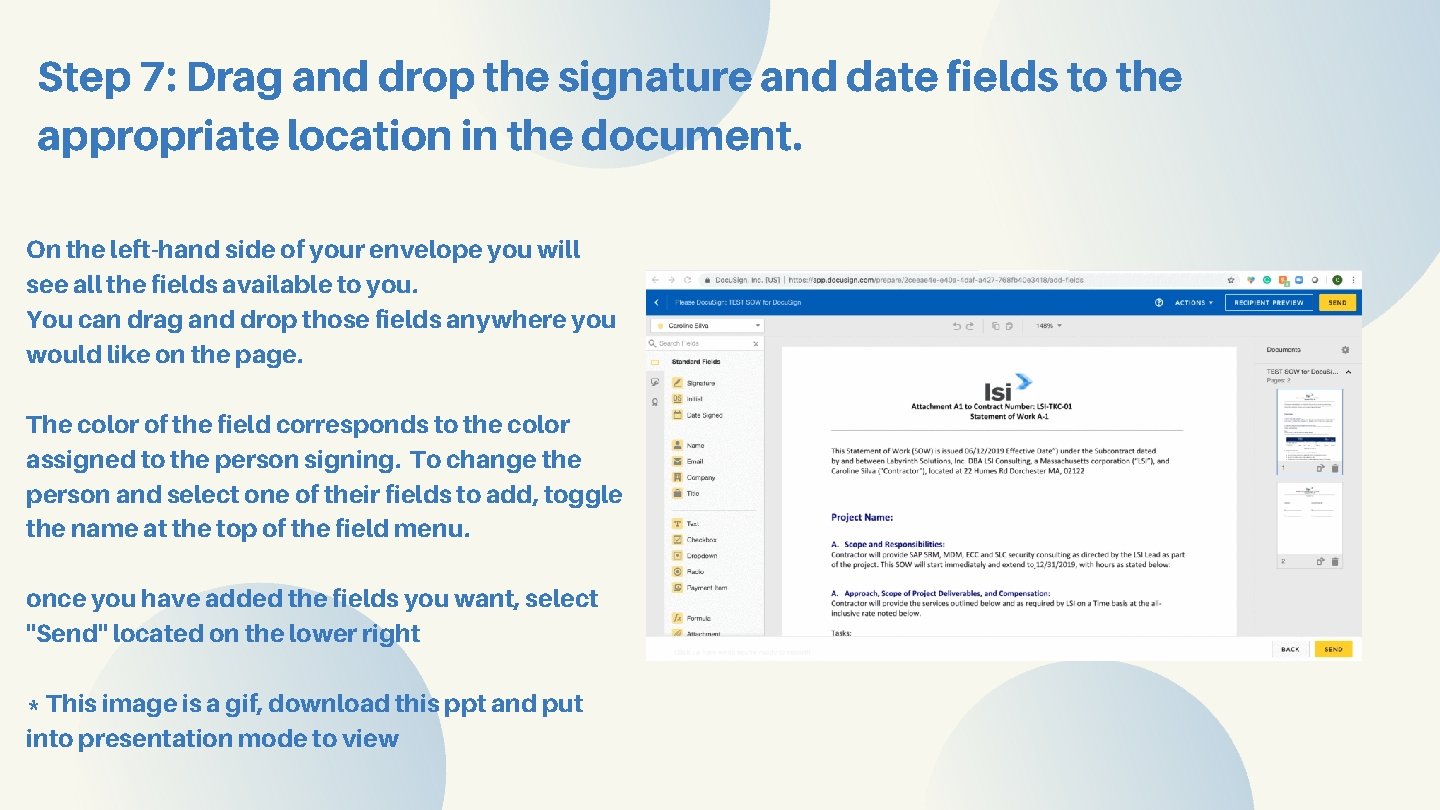
Step 7: Drag and drop the signature and date fields to the appropriate location in the document. On the left-hand side of your envelope you will see all the fields available to you. You can drag and drop those fields anywhere you would like on the page. The color of the field corresponds to the color assigned to the person signing. To change the person and select one of their fields to add, toggle the name at the top of the field menu. once you have added the fields you want, select "Send" located on the lower right * This image is a gif, download this ppt and put into presentation mode to view
Questions? Caroline Silva Email: csilva@lsiconsulting. com