
How to use a normalization rule in a


- Slides: 35
How to use a normalization rule in a General Publishing Profile to add a link to Primo during export Yoel Kortick. Senior Librarian © 2019 Ex Libris | Confidential & Proprietary
• Introduction • Creating the normalization rule • Using a normalization processes for import profile • Adding the normalization rule to a process • Exporting the records with the link to Primo © 2019 Ex Libris | Confidential & Proprietary
Introduction • There are cases where institutions export bibliographic records to “another” catalog and want to include a link to Primo as part of the record. • In this way the record will be imported to the external catalog and already have a link to view it in Primo. © 2019 Ex Libris | Confidential & Proprietary 3
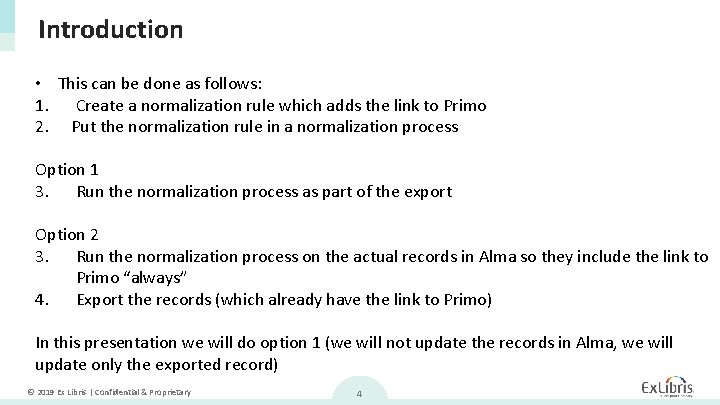
Introduction • This can be done as follows: 1. Create a normalization rule which adds the link to Primo 2. Put the normalization rule in a normalization process Option 1 3. Run the normalization process as part of the export Option 2 3. Run the normalization process on the actual records in Alma so they include the link to Primo “always” 4. Export the records (which already have the link to Primo) In this presentation we will do option 1 (we will not update the records in Alma, we will update only the exported record) © 2019 Ex Libris | Confidential & Proprietary 4
Creating the normalization rule © 2019 Ex Libris | Confidential & Proprietary 5
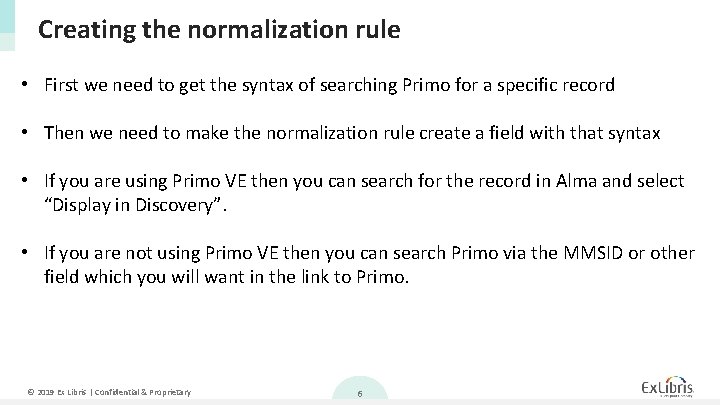
Creating the normalization rule • First we need to get the syntax of searching Primo for a specific record • Then we need to make the normalization rule create a field with that syntax • If you are using Primo VE then you can search for the record in Alma and select “Display in Discovery”. • If you are not using Primo VE then you can search Primo via the MMSID or other field which you will want in the link to Primo. © 2019 Ex Libris | Confidential & Proprietary 6
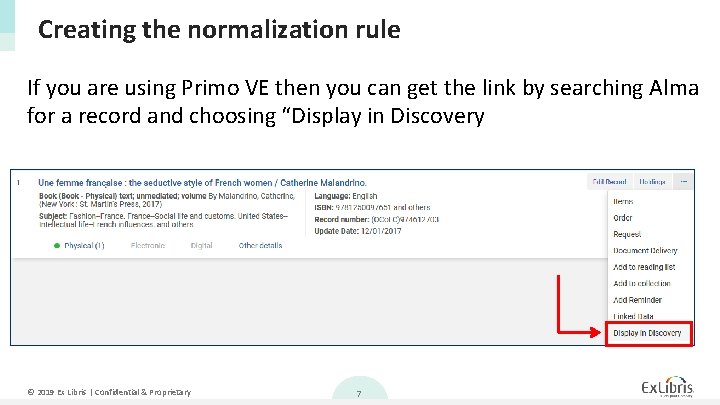
Creating the normalization rule If you are using Primo VE then you can get the link by searching Alma for a record and choosing “Display in Discovery © 2019 Ex Libris | Confidential & Proprietary 7
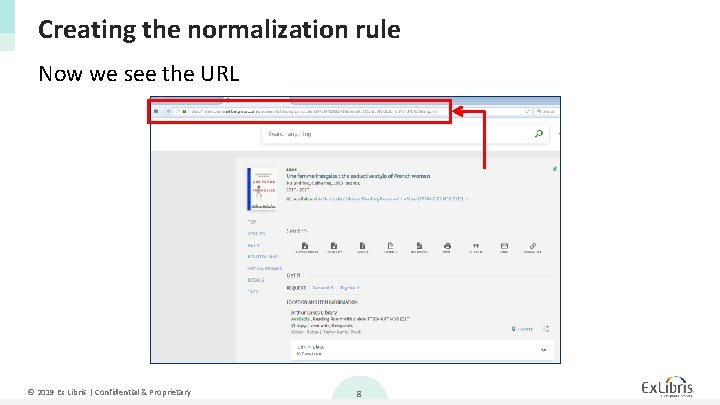
Creating the normalization rule Now we see the URL © 2019 Ex Libris | Confidential & Proprietary 8
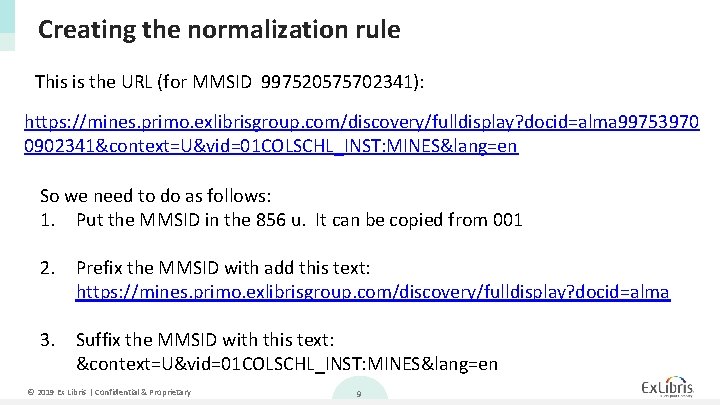
Creating the normalization rule This is the URL (for MMSID 997520575702341): https: //mines. primo. exlibrisgroup. com/discovery/fulldisplay? docid=alma 99753970 0902341&context=U&vid=01 COLSCHL_INST: MINES&lang=en So we need to do as follows: 1. Put the MMSID in the 856 u. It can be copied from 001 2. Prefix the MMSID with add this text: https: //mines. primo. exlibrisgroup. com/discovery/fulldisplay? docid=alma 3. Suffix the MMSID with this text: &context=U&vid=01 COLSCHL_INST: MINES&lang=en © 2019 Ex Libris | Confidential & Proprietary 9
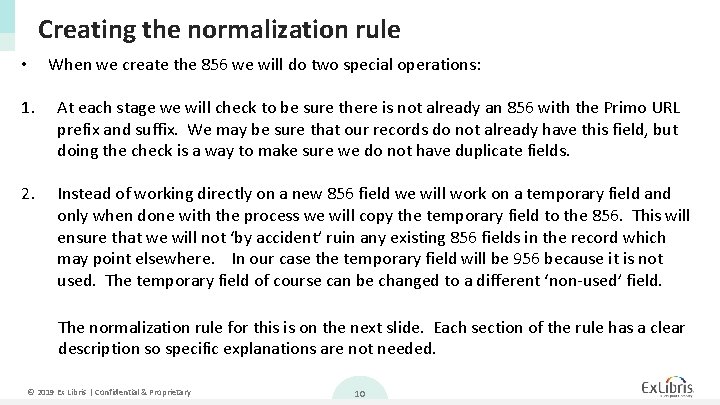
Creating the normalization rule • When we create the 856 we will do two special operations: 1. At each stage we will check to be sure there is not already an 856 with the Primo URL prefix and suffix. We may be sure that our records do not already have this field, but doing the check is a way to make sure we do not have duplicate fields. 2. Instead of working directly on a new 856 field we will work on a temporary field and only when done with the process we will copy the temporary field to the 856. This will ensure that we will not ‘by accident’ ruin any existing 856 fields in the record which may point elsewhere. In our case the temporary field will be 956 because it is not used. The temporary field of course can be changed to a different ‘non-used’ field. The normalization rule for this is on the next slide. Each section of the rule has a clear description so specific explanations are not needed. © 2019 Ex Libris | Confidential & Proprietary 10
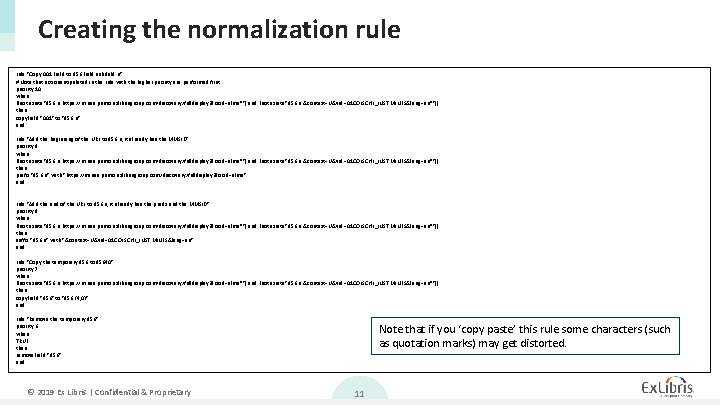
Creating the normalization rule "Copy 001 Field to 956 Field subfield u" # Note that actions stipulated in the rule with the higher priority are performed first priority 10 when ((not exists "856. u. https: //mines. primo. exlibrisgroup. com/discovery/fulldisplay? docid=alma*") and (not exists "856. u. &context=U&vid=01 COLSCHL_INST: MINES&lang=en*")) then copy. Field "001" to "956. u" end rule "Add the beginning of the URL to 956 u, it already has the MMSID" priority 9 when ((not exists "856. u. https: //mines. primo. exlibrisgroup. com/discovery/fulldisplay? docid=alma*") and (not exists "856. u. &context=U&vid=01 COLSCHL_INST: MINES&lang=en*")) then prefix "956. u" with "https: //mines. primo. exlibrisgroup. com/discovery/fulldisplay? docid=alma" end rule "Add the end of the URL to 856 u, it already has the prefix and the MMSID" priority 8 when ((not exists "856. u. https: //mines. primo. exlibrisgroup. com/discovery/fulldisplay? docid=alma*") and (not exists "856. u. &context=U&vid=01 COLSCHL_INST: MINES&lang=en*")) then suffix "956. u" with "&context=U&vid=01 COLSCHL_INST: MINES&lang=en" end rule "Copy the temporary 956 to 85640" priority 7 when ((not exists "856. u. https: //mines. primo. exlibrisgroup. com/discovery/fulldisplay? docid=alma*") and (not exists "856. u. &context=U&vid=01 COLSCHL_INST: MINES&lang=en*")) then copy. Field "956" to "856. {4, 0}" end rule "Remove the temporary 956" priority 6 when TRUE then remove. Field "956" end © 2019 Ex Libris | Confidential & Proprietary Note that if you ‘copy paste’ this rule some characters (such as quotation marks) may get distorted. 11
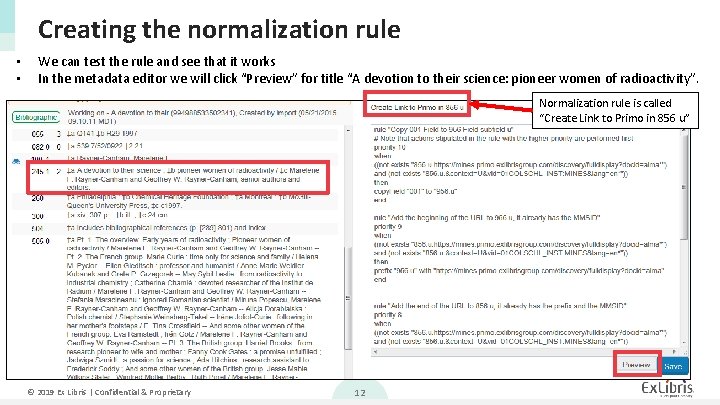
Creating the normalization rule • • We can test the rule and see that it works In the metadata editor we will click “Preview” for title “A devotion to their science: pioneer women of radioactivity”. Normalization rule is called “Create Link to Primo in 856 u” © 2019 Ex Libris | Confidential & Proprietary 12
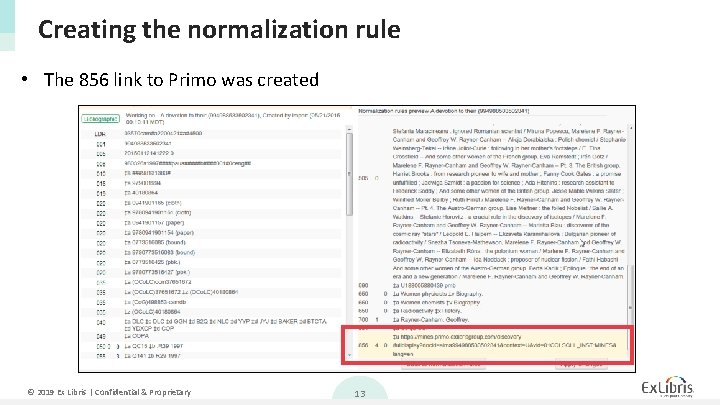
Creating the normalization rule • The 856 link to Primo was created © 2019 Ex Libris | Confidential & Proprietary 13
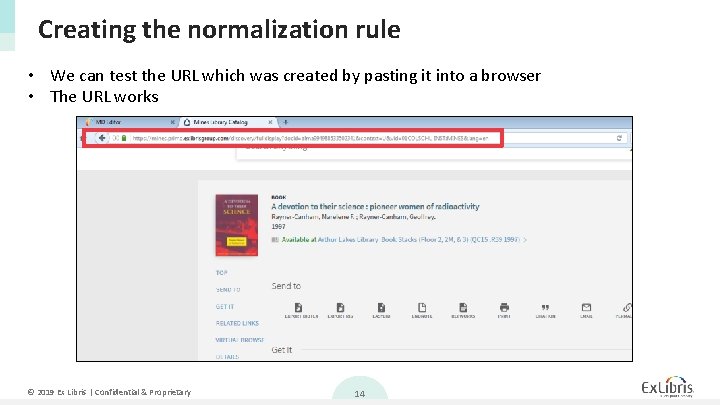
Creating the normalization rule • We can test the URL which was created by pasting it into a browser • The URL works © 2019 Ex Libris | Confidential & Proprietary 14
Adding the normalization rule to a process © 2019 Ex Libris | Confidential & Proprietary 15
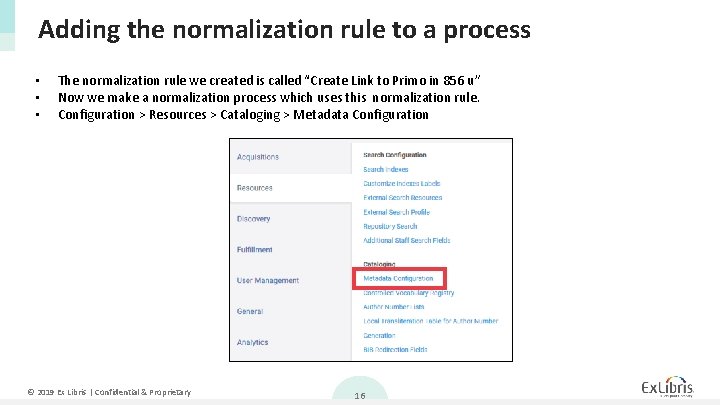
Adding the normalization rule to a process • • • The normalization rule we created is called “Create Link to Primo in 856 u” Now we make a normalization process which uses this normalization rule. Configuration > Resources > Cataloging > Metadata Configuration © 2019 Ex Libris | Confidential & Proprietary 16
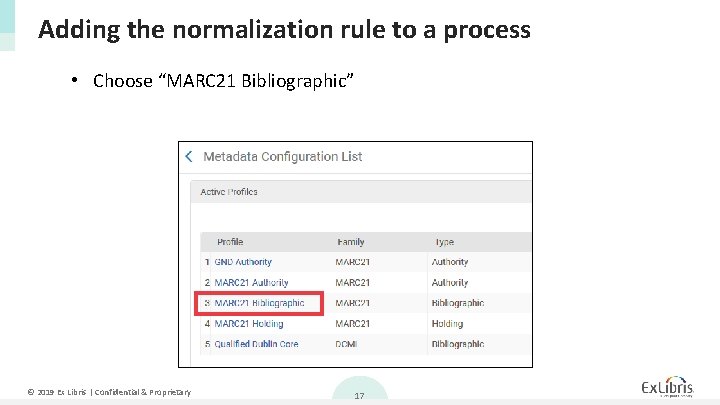
Adding the normalization rule to a process • Choose “MARC 21 Bibliographic” © 2019 Ex Libris | Confidential & Proprietary 17
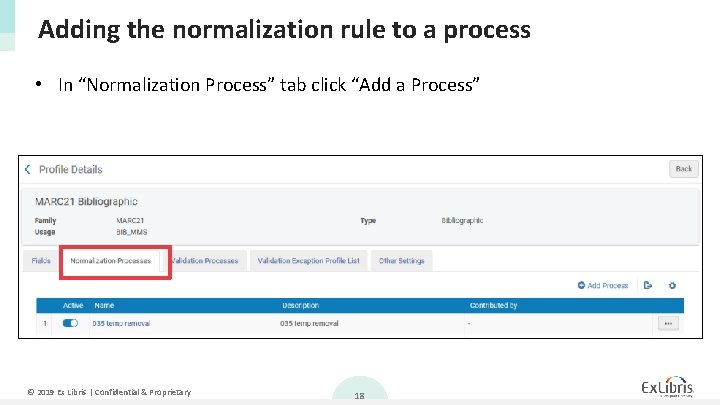
Adding the normalization rule to a process • In “Normalization Process” tab click “Add a Process” © 2019 Ex Libris | Confidential & Proprietary 18
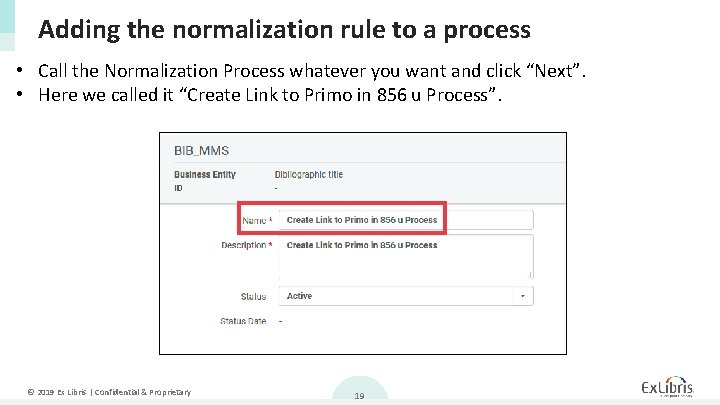
Adding the normalization rule to a process • Call the Normalization Process whatever you want and click “Next”. • Here we called it “Create Link to Primo in 856 u Process”. © 2019 Ex Libris | Confidential & Proprietary 19
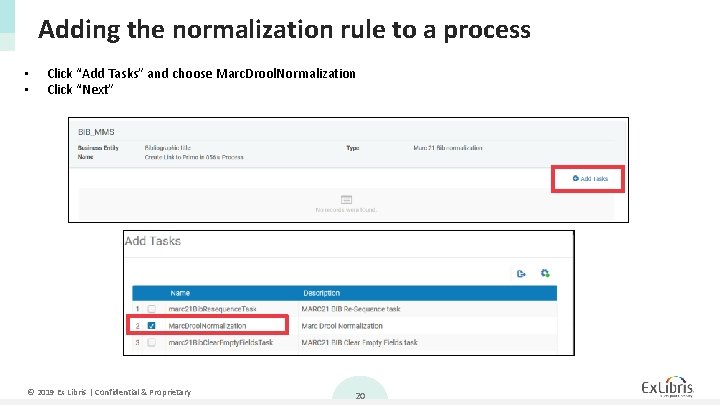
Adding the normalization rule to a process • • Click “Add Tasks” and choose Marc. Drool. Normalization Click “Next” © 2019 Ex Libris | Confidential & Proprietary 20
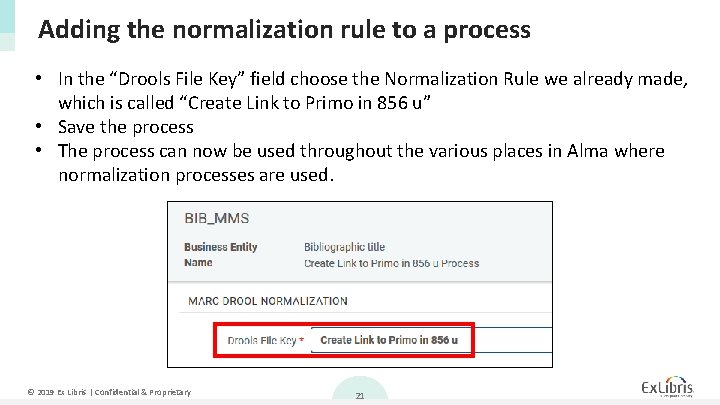
Adding the normalization rule to a process • In the “Drools File Key” field choose the Normalization Rule we already made, which is called “Create Link to Primo in 856 u” • Save the process • The process can now be used throughout the various places in Alma where normalization processes are used. © 2019 Ex Libris | Confidential & Proprietary 21
Exporting the records with the link to Primo © 2019 Ex Libris | Confidential & Proprietary 22
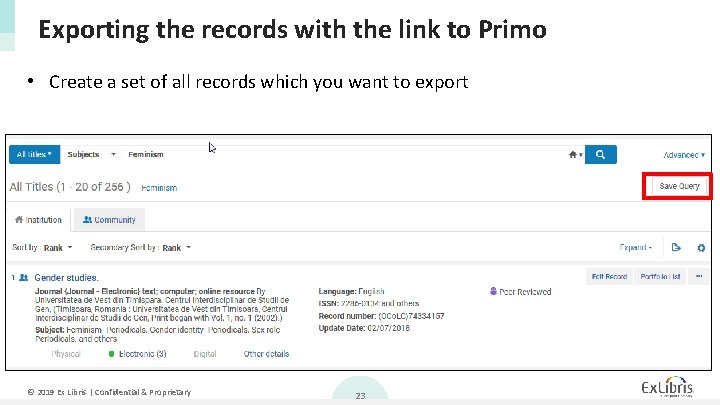
Exporting the records with the link to Primo • Create a set of all records which you want to export © 2019 Ex Libris | Confidential & Proprietary 23
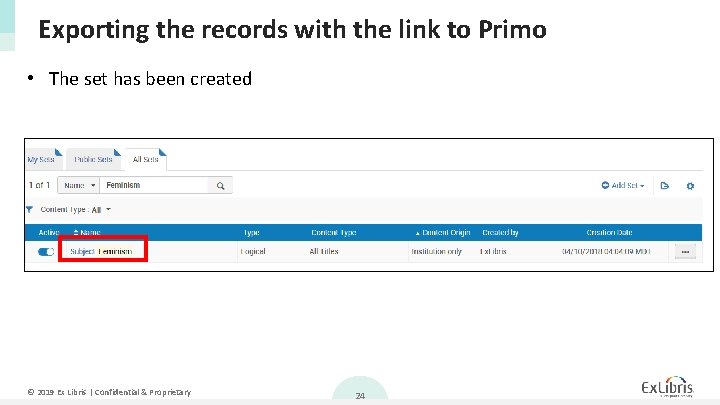
Exporting the records with the link to Primo • The set has been created © 2019 Ex Libris | Confidential & Proprietary 24
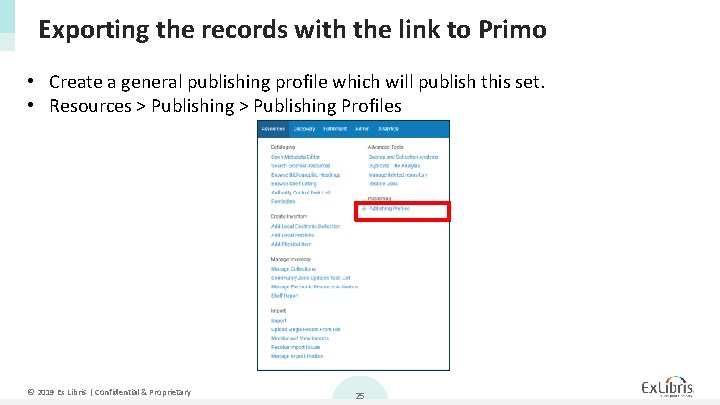
Exporting the records with the link to Primo • Create a general publishing profile which will publish this set. • Resources > Publishing Profiles © 2019 Ex Libris | Confidential & Proprietary 25
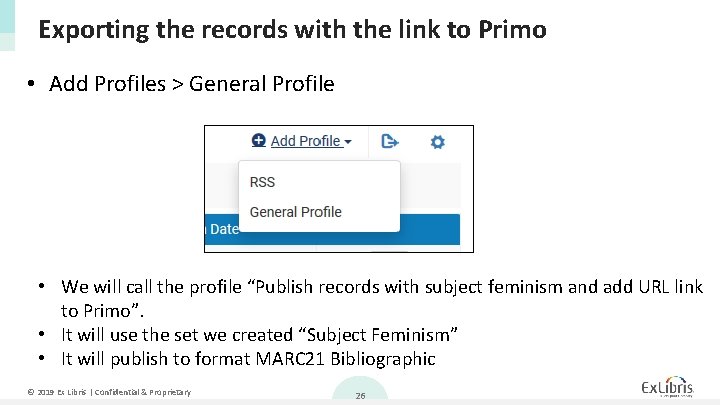
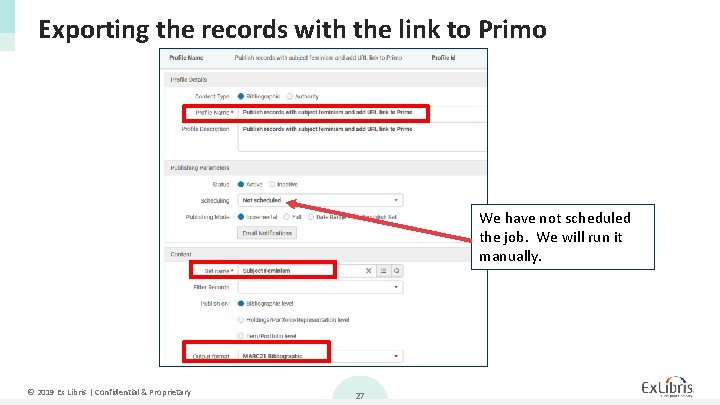
Exporting the records with the link to Primo • Add Profiles > General Profile • We will call the profile “Publish records with subject feminism and add URL link to Primo”. • It will use the set we created “Subject Feminism” • It will publish to format MARC 21 Bibliographic © 2019 Ex Libris | Confidential & Proprietary 26
Exporting the records with the link to Primo We have not scheduled the job. We will run it manually. © 2019 Ex Libris | Confidential & Proprietary 27
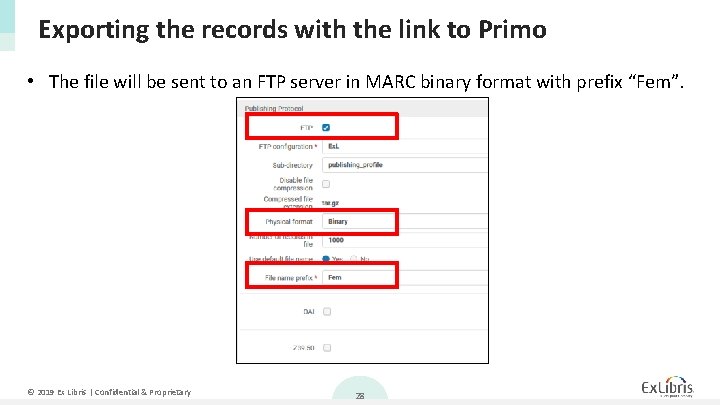
Exporting the records with the link to Primo • The file will be sent to an FTP server in MARC binary format with prefix “Fem”. © 2019 Ex Libris | Confidential & Proprietary 28
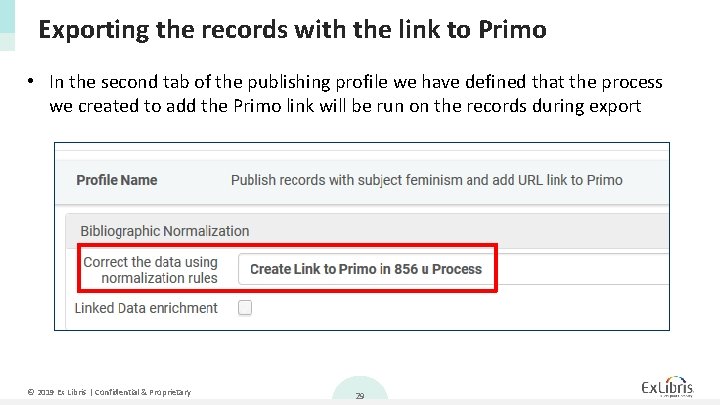
Exporting the records with the link to Primo • In the second tab of the publishing profile we have defined that the process we created to add the Primo link will be run on the records during export © 2019 Ex Libris | Confidential & Proprietary 29
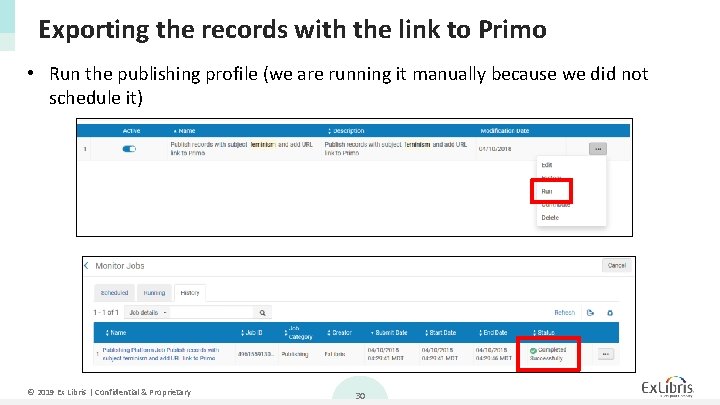
Exporting the records with the link to Primo • Run the publishing profile (we are running it manually because we did not schedule it) © 2019 Ex Libris | Confidential & Proprietary 30
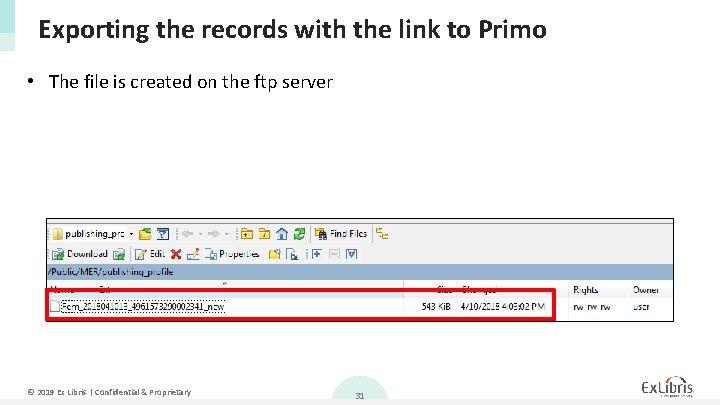
Exporting the records with the link to Primo • The file is created on the ftp server © 2019 Ex Libris | Confidential & Proprietary 31
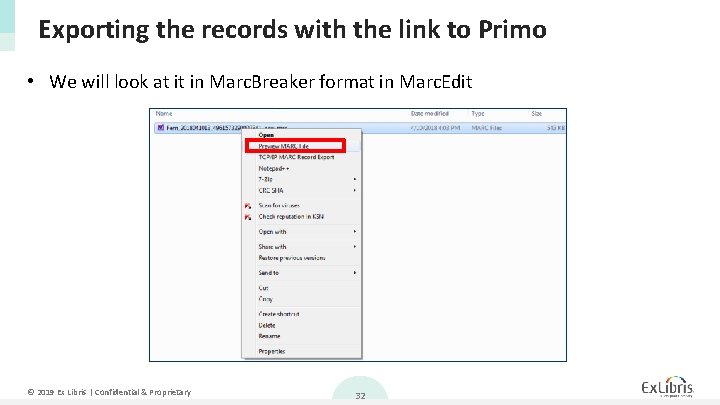
Exporting the records with the link to Primo • We will look at it in Marc. Breaker format in Marc. Edit © 2019 Ex Libris | Confidential & Proprietary 32
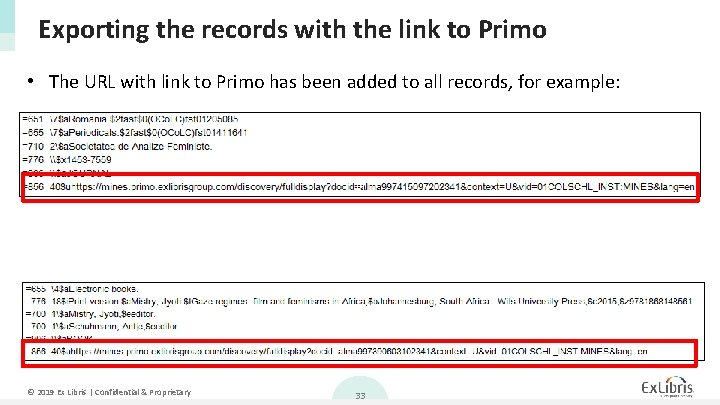
Exporting the records with the link to Primo • The URL with link to Primo has been added to all records, for example: 0 © 2019 Ex Libris | Confidential & Proprietary 33
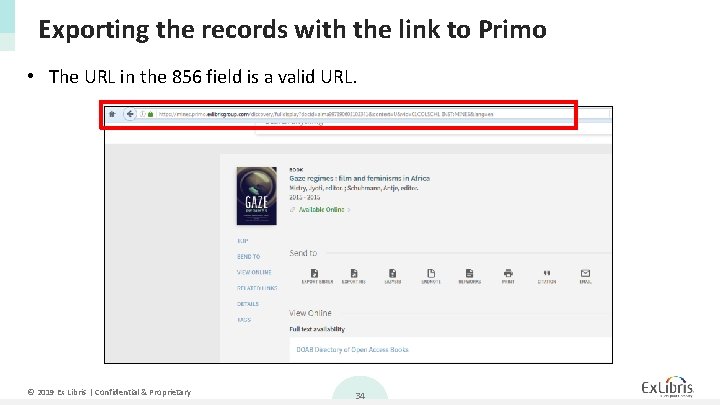
Exporting the records with the link to Primo • The URL in the 856 field is a valid URL. © 2019 Ex Libris | Confidential & Proprietary 34
Thank you! Yoel. Kortick@exlibrisgroup. com © 2019 Ex Libris | Confidential & Proprietary