
How to type in Japanese Using the Japanese


- Slides: 28
How to type in Japanese Using the Japanese language bar
Installing IME To type in Japanese you need to have the Language bar installed. You will see an ‘EN’ at the bottom of your window if it is installed. If you don’t have a Language bar use this website http: //www. declan-software. com/japanese_ime/ which has clear instructions with screen shots about how to install the Japanese IME language bar.
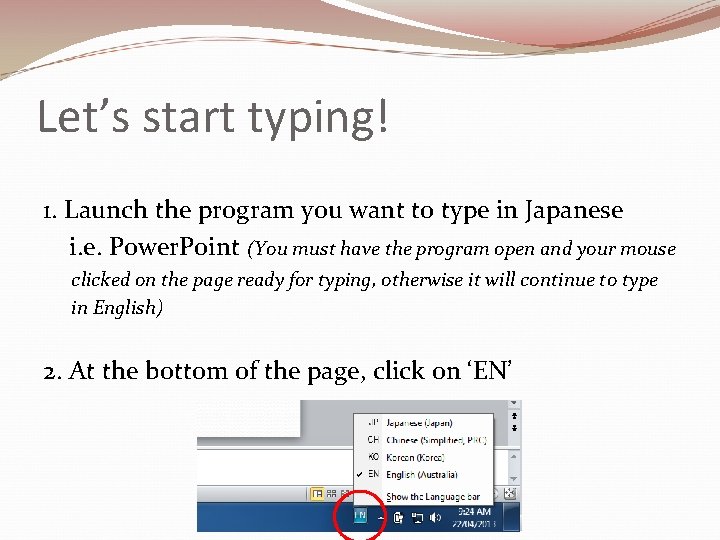
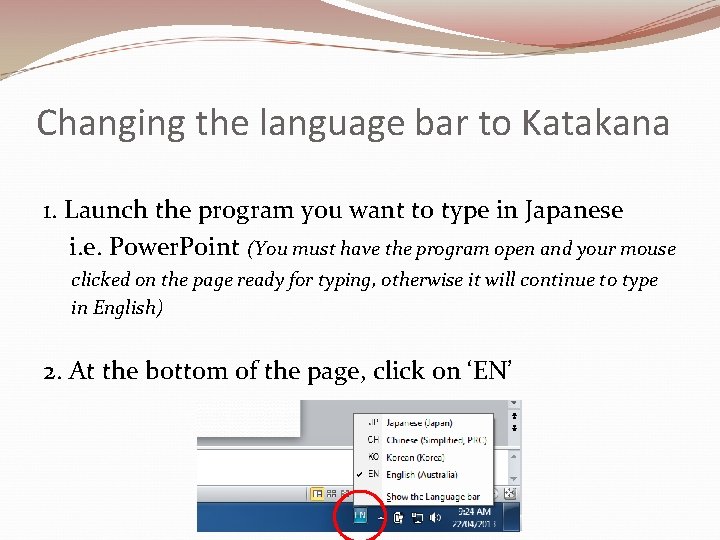
Let’s start typing! 1. Launch the program you want to type in Japanese i. e. Power. Point (You must have the program open and your mouse clicked on the page ready for typing, otherwise it will continue to type in English) 2. At the bottom of the page, click on ‘EN’
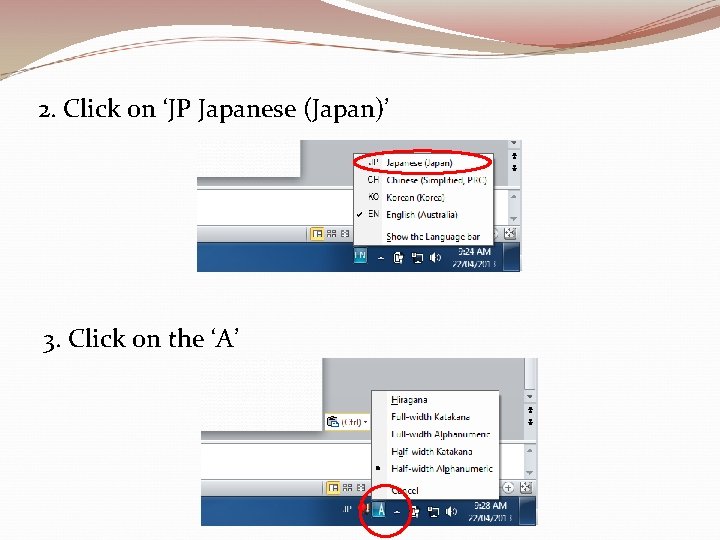
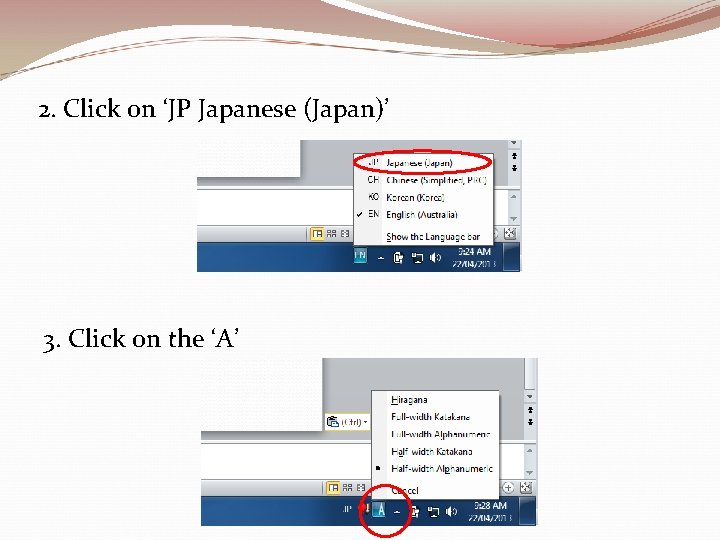
2. Click on ‘JP Japanese (Japan)’ 3. Click on the ‘A’
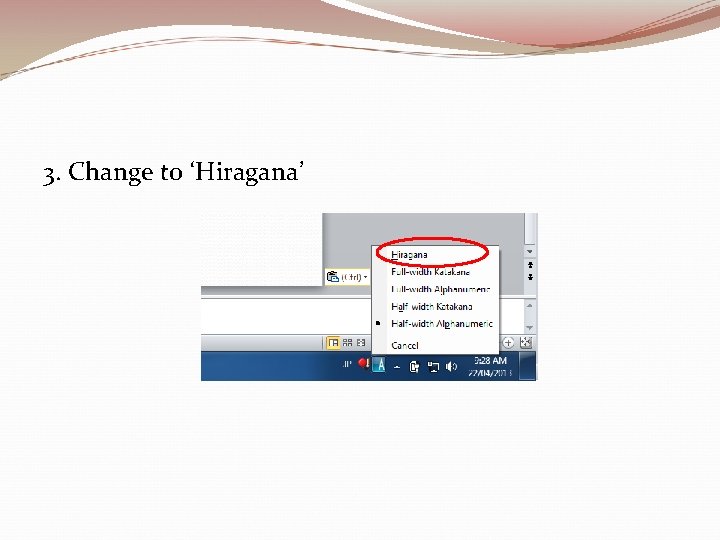
3. Change to ‘Hiragana’
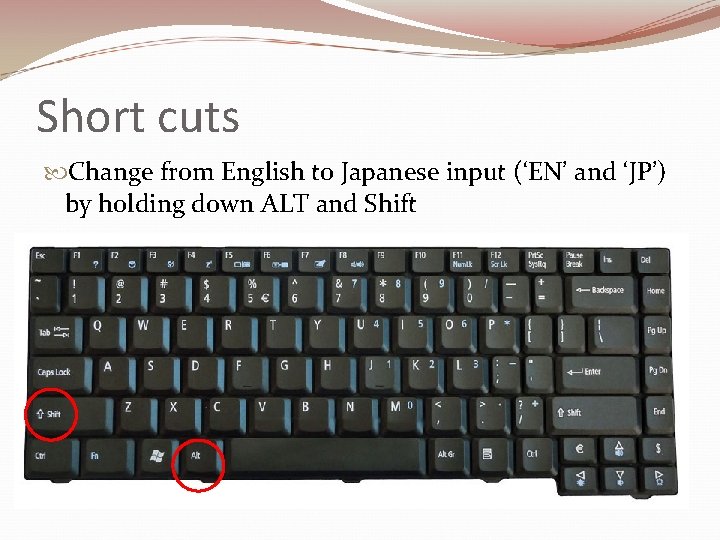
Short cuts Change from English to Japanese input (‘EN’ and ‘JP’) by holding down ALT and Shift
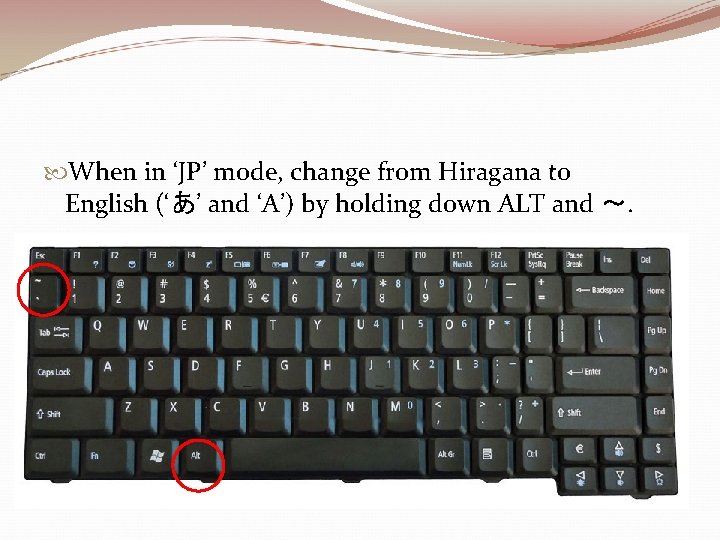
When in ‘JP’ mode, change from Hiragana to English (‘あ’ and ‘A’) by holding down ALT and ~.
Basic typing rules Using IME Japanese correctly
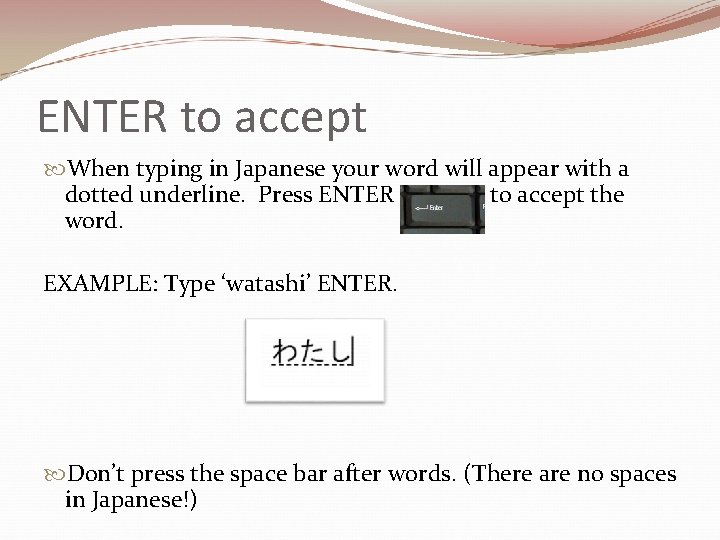
ENTER to accept When typing in Japanese your word will appear with a dotted underline. Press ENTER to accept the word. EXAMPLE: Type ‘watashi’ ENTER. Don’t press the space bar after words. (There are no spaces in Japanese!)
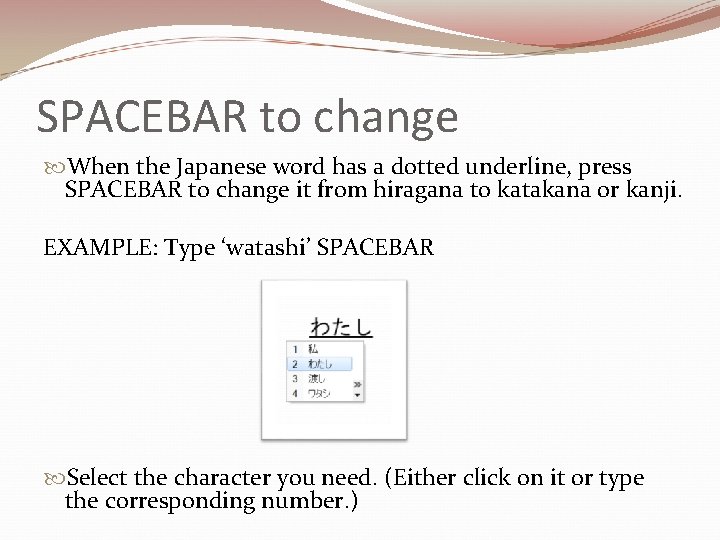
SPACEBAR to change When the Japanese word has a dotted underline, press SPACEBAR to change it from hiragana to katakana or kanji. EXAMPLE: Type ‘watashi’ SPACEBAR Select the character you need. (Either click on it or type the corresponding number. )
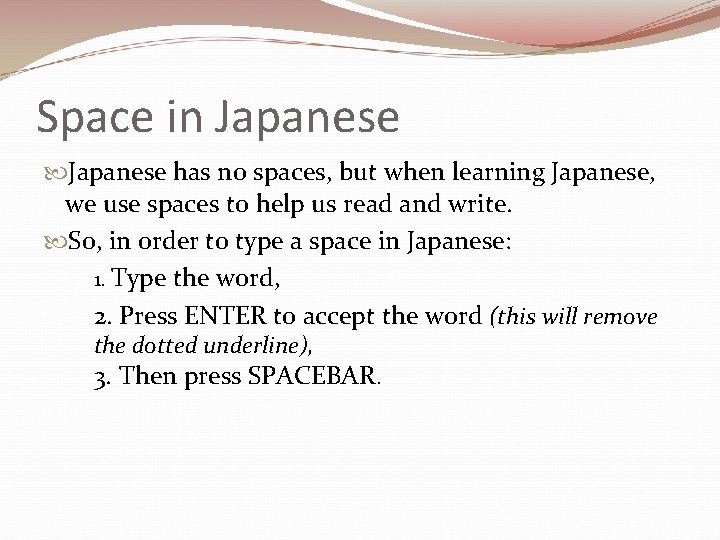
Space in Japanese has no spaces, but when learning Japanese, we use spaces to help us read and write. So, in order to type a space in Japanese: 1. Type the word, 2. Press ENTER to accept the word (this will remove the dotted underline), 3. Then press SPACEBAR.
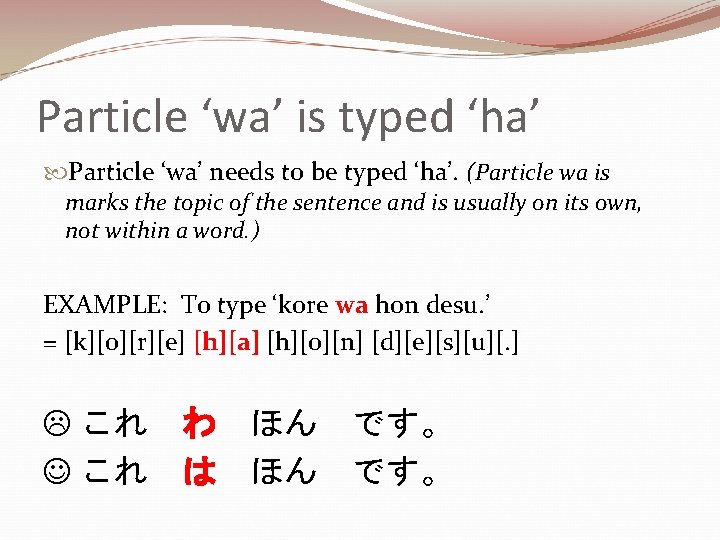
Particle ‘wa’ is typed ‘ha’ Particle ‘wa’ needs to be typed ‘ha’. (Particle wa is marks the topic of the sentence and is usually on its own, not within a word. ) EXAMPLE: To type ‘kore wa hon desu. ’ = [k][o][r][e] [h][a] [h][o][n] [d][e][s][u][. ] これ わ ほん です。 これ は ほん です。
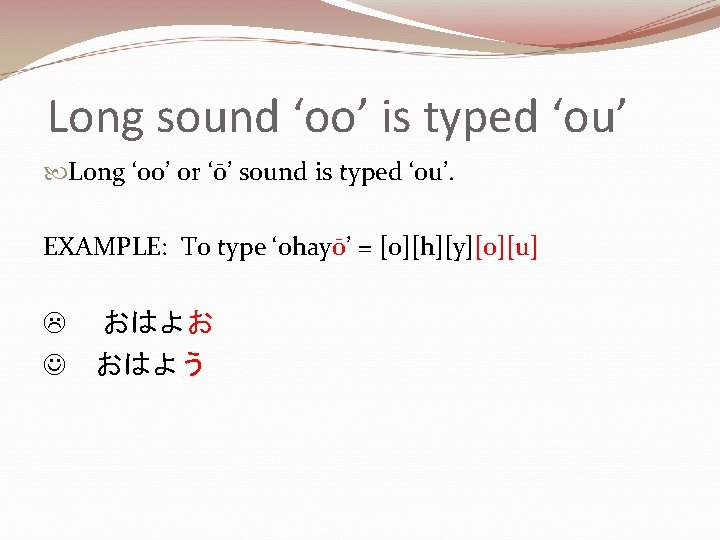
Long sound ‘oo’ is typed ‘ou’ Long ‘oo’ or ‘ō’ sound is typed ‘ou’. EXAMPLE: To type ‘ohayō’ = [o][h][y][o][u] おはよお おはよう
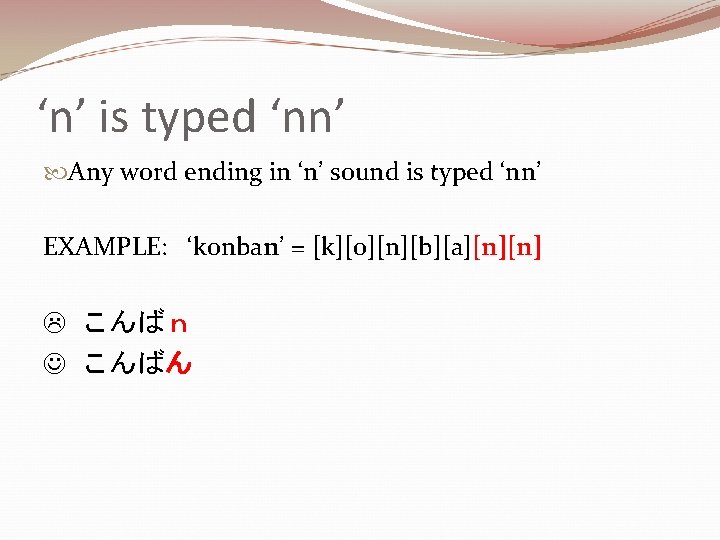
‘n’ is typed ‘nn’ Any word ending in ‘n’ sound is typed ‘nn’ EXAMPLE: ‘konban’ = [k][o][n][b][a][n][n] こんばn こんばん
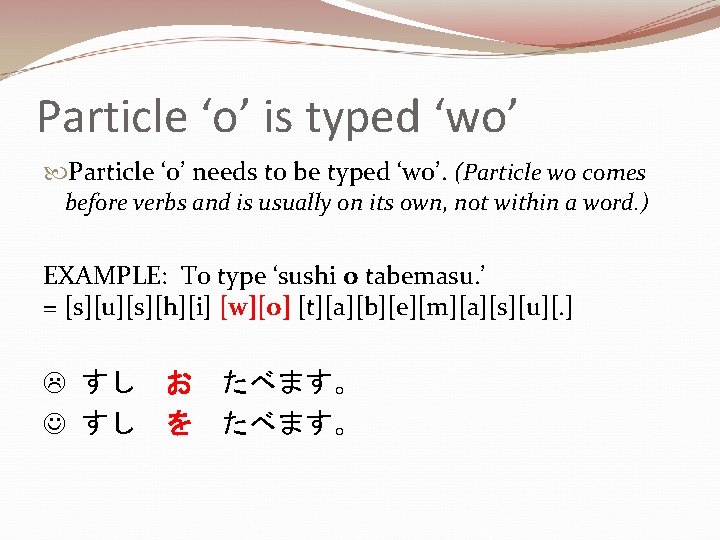
Particle ‘o’ is typed ‘wo’ Particle ‘o’ needs to be typed ‘wo’. (Particle wo comes before verbs and is usually on its own, not within a word. ) EXAMPLE: To type ‘sushi o tabemasu. ’ = [s][u][s][h][i] [w][o] [t][a][b][e][m][a][s][u][. ] すし お すし を たべます。
Typing Katakana
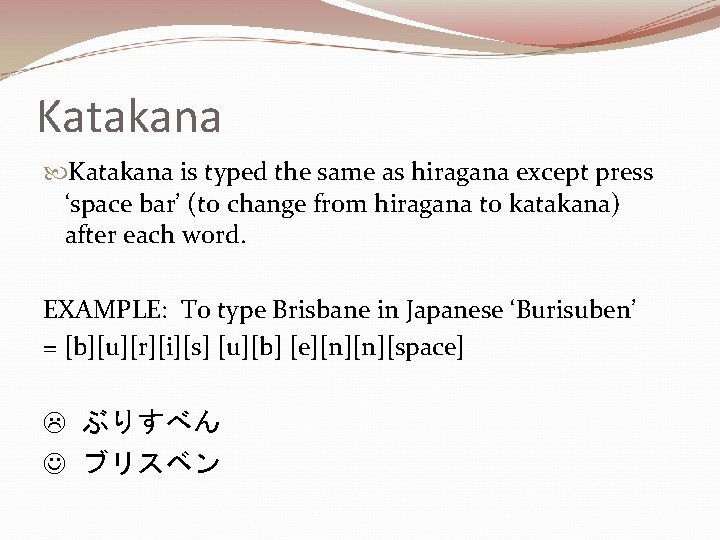
Katakana is typed the same as hiragana except press ‘space bar’ (to change from hiragana to katakana) after each word. EXAMPLE: To type Brisbane in Japanese ‘Burisuben’ = [b][u][r][i][s] [u][b] [e][n][n][space] ぶりすべん ブリスベン
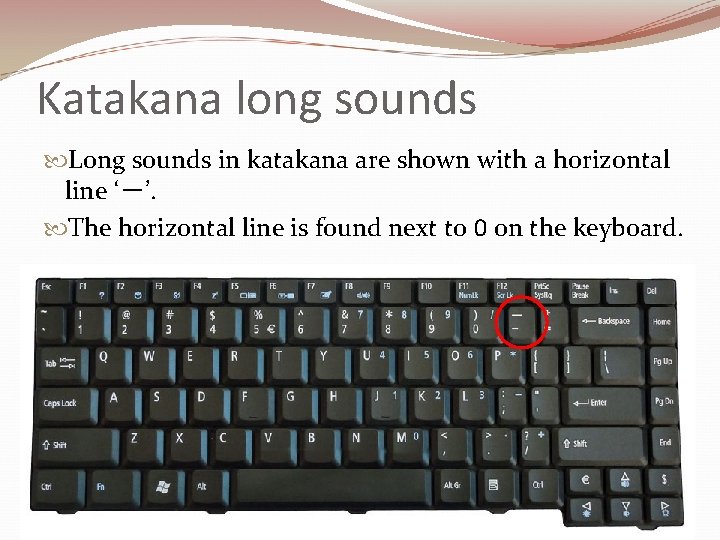
Katakana long sounds Long sounds in katakana are shown with a horizontal line ‘-’. The horizontal line is found next to 0 on the keyboard. EXAMPLE: To type ‘Koohii’ = [k][o][-][h][i] [-][space] コウヒイ コーヒー
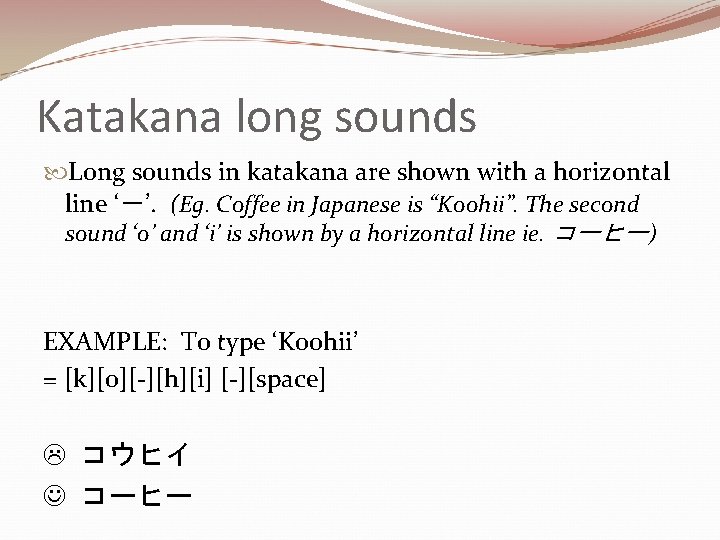
Katakana long sounds Long sounds in katakana are shown with a horizontal line ‘-’. (Eg. Coffee in Japanese is “Koohii”. The second sound ‘o’ and ‘i’ is shown by a horizontal line ie. コーヒー) EXAMPLE: To type ‘Koohii’ = [k][o][-][h][i] [-][space] コウヒイ コーヒー
Changing the language bar to Katakana 1. Launch the program you want to type in Japanese i. e. Power. Point (You must have the program open and your mouse clicked on the page ready for typing, otherwise it will continue to type in English) 2. At the bottom of the page, click on ‘EN’
2. Click on ‘JP Japanese (Japan)’ 3. Click on the ‘A’
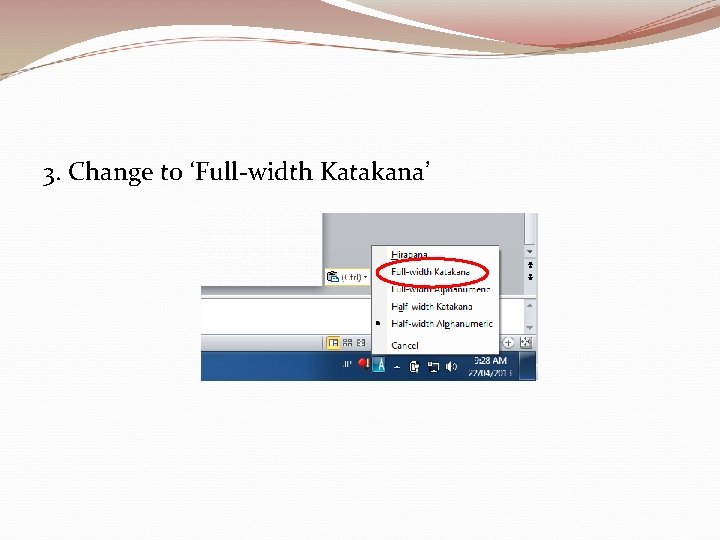
3. Change to ‘Full-width Katakana’
Let’s practise hiragana
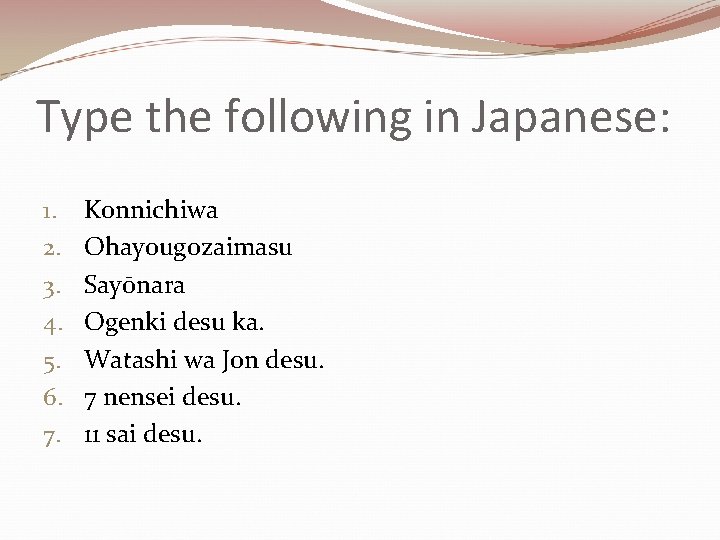
Type the following in Japanese: 1. 2. 3. 4. 5. 6. 7. Konnichiwa Ohayougozaimasu Sayōnara Ogenki desu ka. Watashi wa Jon desu. 7 nensei desu. 11 sai desu.
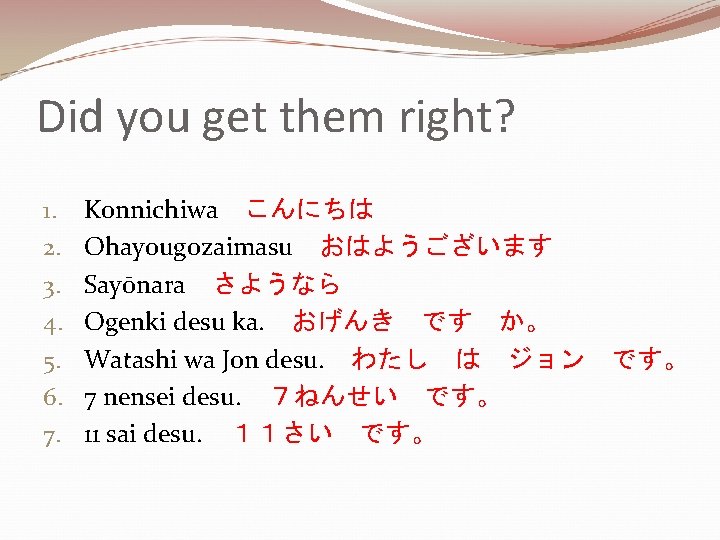
Did you get them right? 1. 2. 3. 4. 5. 6. 7. Konnichiwa こんにちは Ohayougozaimasu おはようございます Sayōnara さようなら Ogenki desu ka. おげんき です か。 Watashi wa Jon desu. わたし は ジョン 7 nensei desu. 7ねんせい です。 11 sai desu. 11さい です。
Let’s practise Katakana
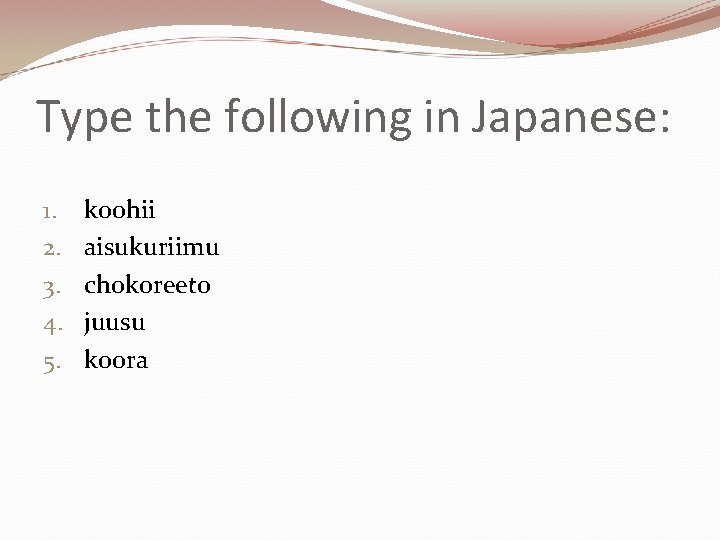
Type the following in Japanese: 1. 2. 3. 4. 5. koohii aisukuriimu chokoreeto juusu koora
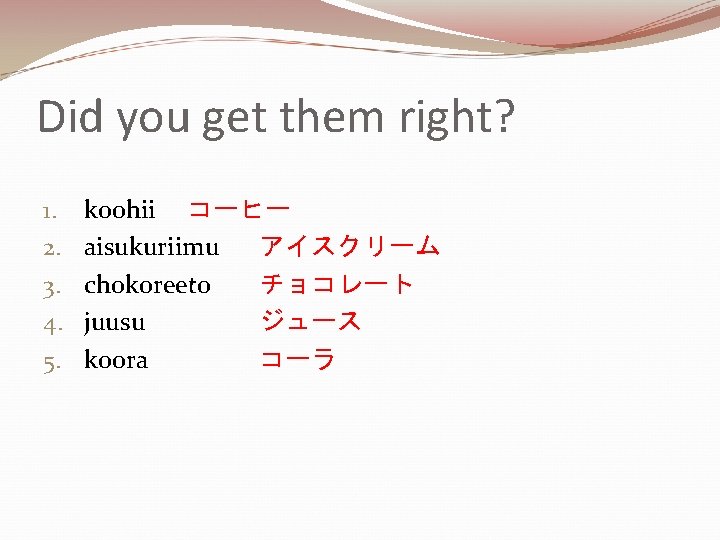
Did you get them right? 1. 2. 3. 4. 5. koohii コーヒー aisukuriimu アイスクリーム chokoreeto チョコレート juusu ジュース koora コーラ