
How to Teams Scheduling Daily Meetings Recommendations Go
- Slides: 10
How to Teams: Scheduling Daily Meetings Recommendations
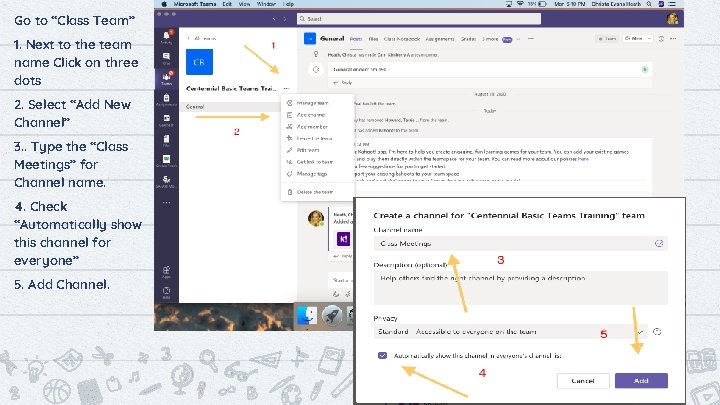
Go to “Class Team” 1. Next to the team name Click on three dots 2. Select “Add New Channel” 3. . Type the “Class Meetings” for Channel name. 4. Check “Automatically show this channel for everyone” 5. Add Channel. 2
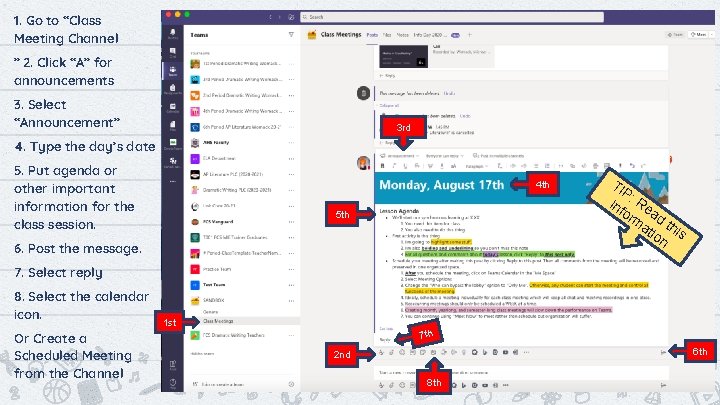
1. Go to “Class Meeting Channel ” 2. Click “A” for announcements 3. Select “Announcement” 3 rd 4. Type the day’s date 5. Put agenda or other important information for the class session. 4 th 5 th 6. Post the message. TI P inf : Re or ad ma th tio is n 7. Select reply 8. Select the calendar icon. Or Create a Scheduled Meeting from the Channel 1 st 7 th 6 th 2 nd 3 8 th
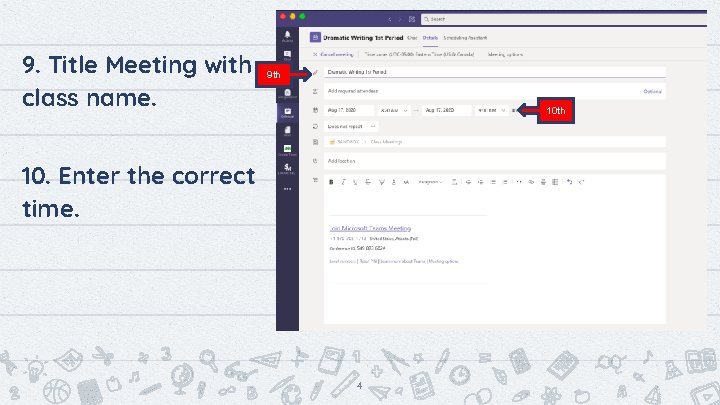
9. Title Meeting with class name. 9 th 10. Enter the correct time. 4
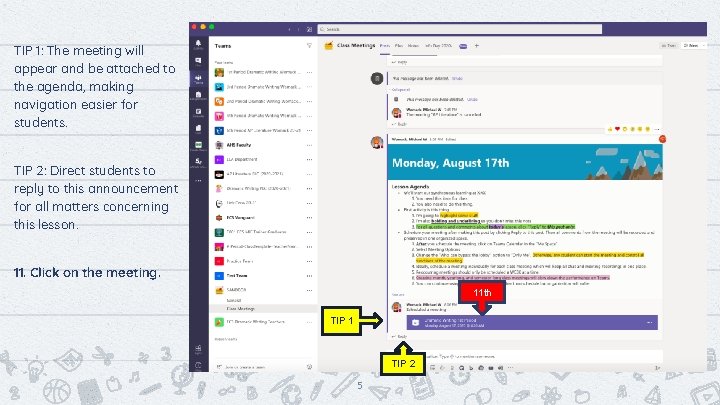
TIP 1: The meeting will appear and be attached to the agenda, making navigation easier for students. TIP 2: Direct students to reply to this announcement for all matters concerning this lesson. 11. Click on the meeting. 11 th TIP 1 TIP 2 5
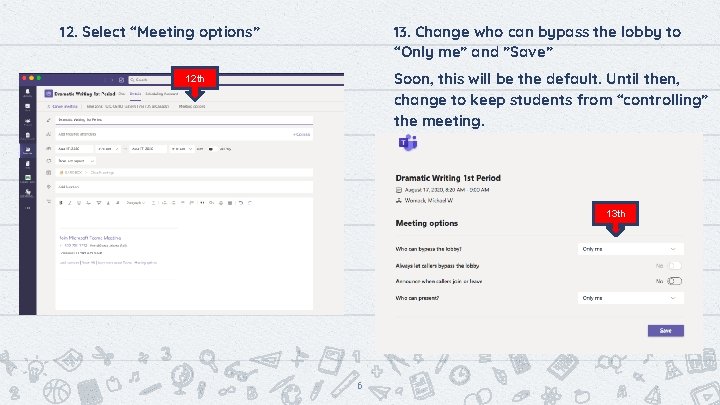
12. Select “Meeting options” 13. Change who can bypass the lobby to “Only me” and ”Save” Soon, this will be the default. Until then, change to keep students from “controlling” the meeting. 12 th 13 th 6
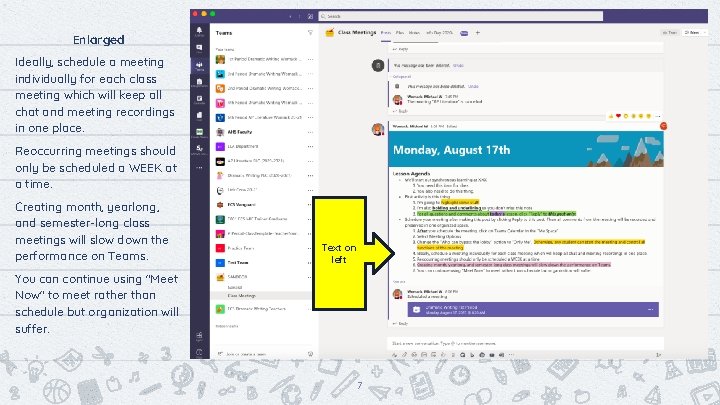
Enlarged Ideally, schedule a meeting individually for each class meeting which will keep all chat and meeting recordings in one place. Reoccurring meetings should only be scheduled a WEEK at a time. Creating month, yearlong, and semester-long class meetings will slow down the performance on Teams. Text on left You can continue using "Meet Now" to meet rather than schedule but organization will suffer. 7
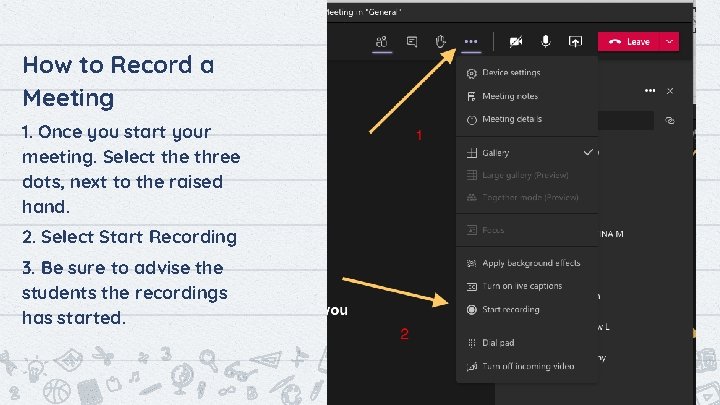
How to Record a Meeting 1. Once you start your meeting. Select the three dots, next to the raised hand. 2. Select Start Recording 3. Be sure to advise the students the recordings has started. 8
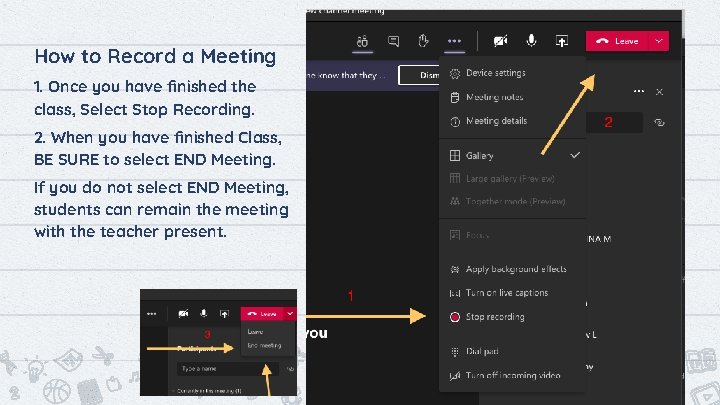
How to Record a Meeting 1. Once you have finished the class, Select Stop Recording. 2. When you have finished Class, BE SURE to select END Meeting. If you do not select END Meeting, students can remain the meeting with the teacher present. 9
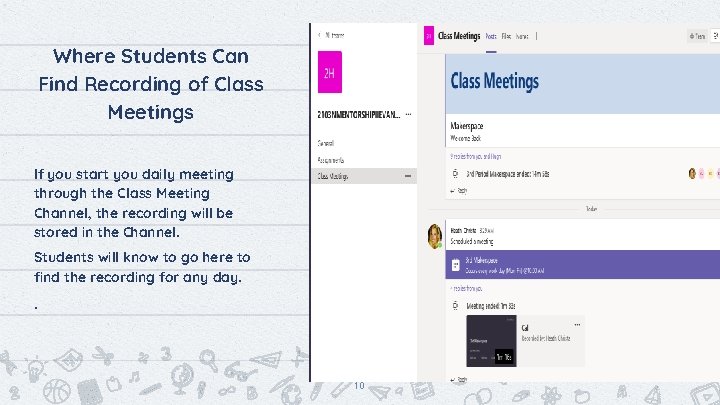
Where Students Can Find Recording of Class Meetings If you start you daily meeting through the Class Meeting Channel, the recording will be stored in the Channel. Students will know to go here to find the recording for any day. . 10