
How to Take the Write Space Quizzes Ed
- Slides: 19
How to Take the Write. Space Quizzes Ed Mc. Corduck CPN 101: Writing Studies II on Computer SUNY Cortland http: //mccorduck. cortland. edu
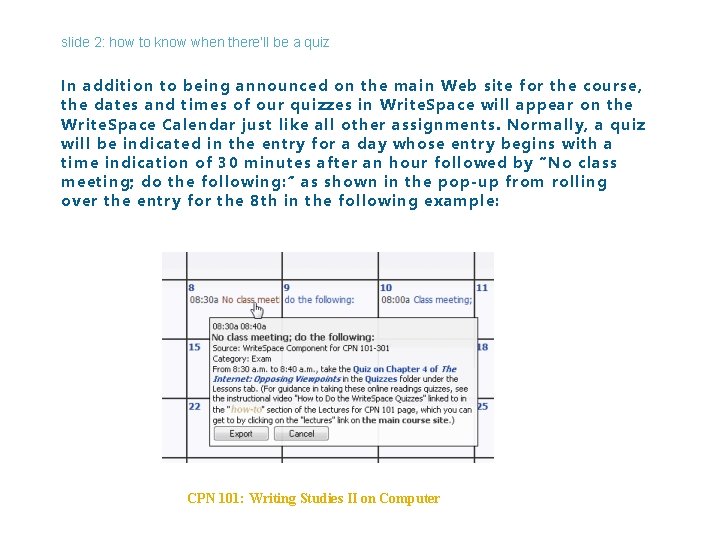
slide 2: how to know when there’ll be a quiz In addition to being announced on the main Web site for the course, the dates and times of our quizzes in Write. Space will appear on the Write. Space Calendar just like all other assignments. Normally, a quiz will be indicated in the entry for a day whose entry begins with a time indication of 30 minutes after an hour followed by “No class meeting; do the following: ” as shown in the pop-up from rolling over the entry for the 8 th in the following example: CPN 101: Writing Studies II on Computer
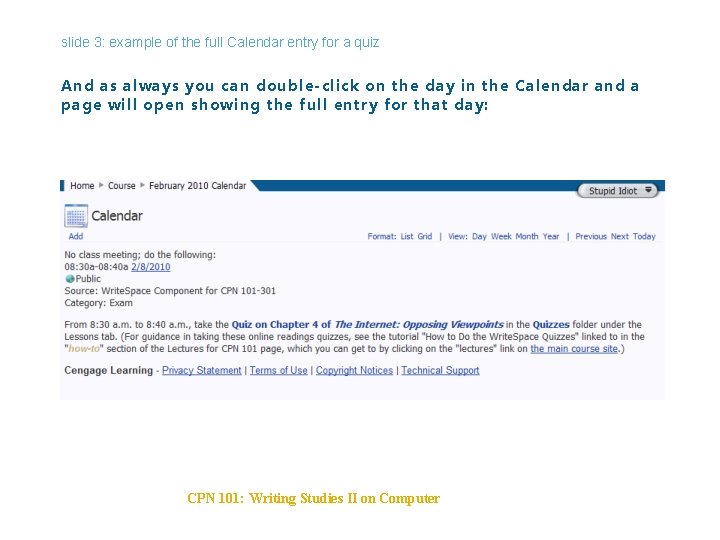
slide 3: example of the full Calendar entry for a quiz And as always you can double-click on the day in the Calendar and a page will open showing the full entry for that day: CPN 101: Writing Studies II on Computer
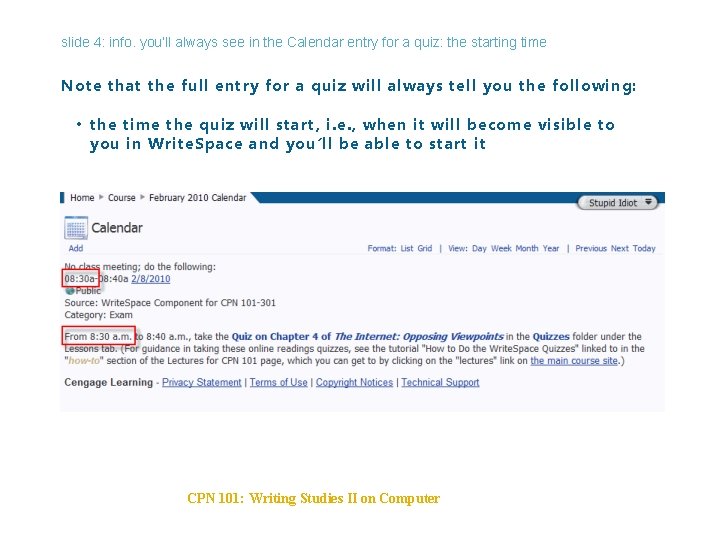
slide 4: info. you’ll always see in the Calendar entry for a quiz: the starting time Note that the full entry for a quiz will always tell you the following: • the time the quiz will start, i. e. , when it will become visible to you in Write. Space and you’ll be able to start it CPN 101: Writing Studies II on Computer
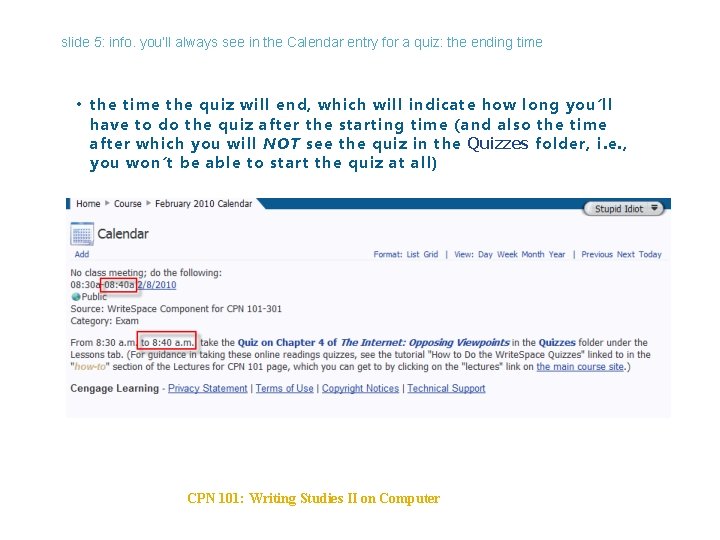
slide 5: info. you’ll always see in the Calendar entry for a quiz: the ending time • the time the quiz will end, which will indicate how long you’ll have to do the quiz after the starting time (and also the time after which you will NOT see the quiz in the Quizzes folder, i. e. , you won’t be able to start the quiz at all) CPN 101: Writing Studies II on Computer
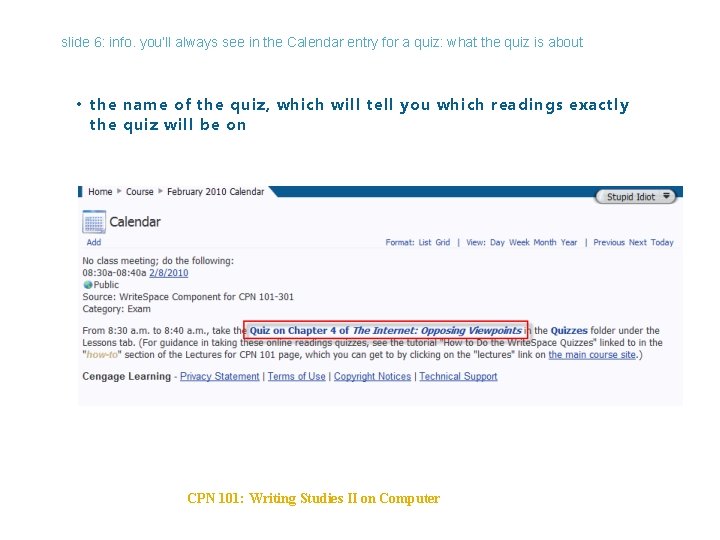
slide 6: info. you’ll always see in the Calendar entry for a quiz: what the quiz is about • the name of the quiz, which will tell you which readings exactly the quiz will be on CPN 101: Writing Studies II on Computer
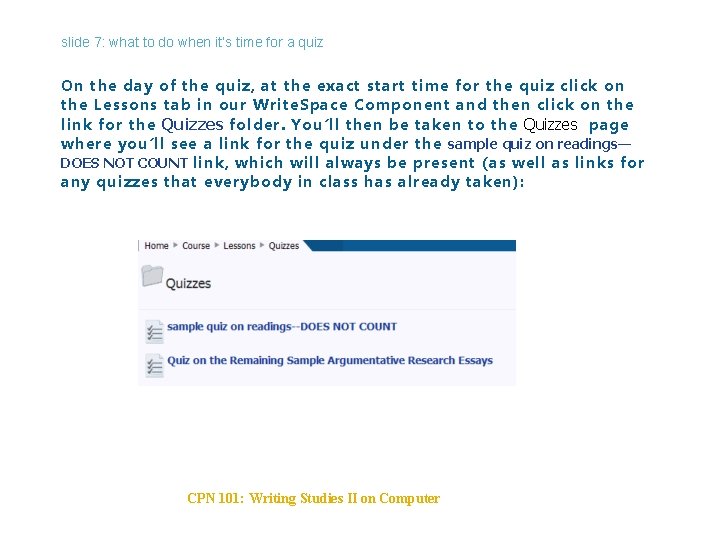
slide 7: what to do when it’s time for a quiz On the day of the quiz, at the exact start time for the quiz click on the Lessons tab in our Write. Space Component and then click on the link for the Quizzes folder. You’ll then be taken to the Quizzes page where you’ll see a link for the quiz under the sample quiz on readings— DOES NOT COUNT link, which will always be present (as well as links for any quizzes that everybody in class has already taken): CPN 101: Writing Studies II on Computer
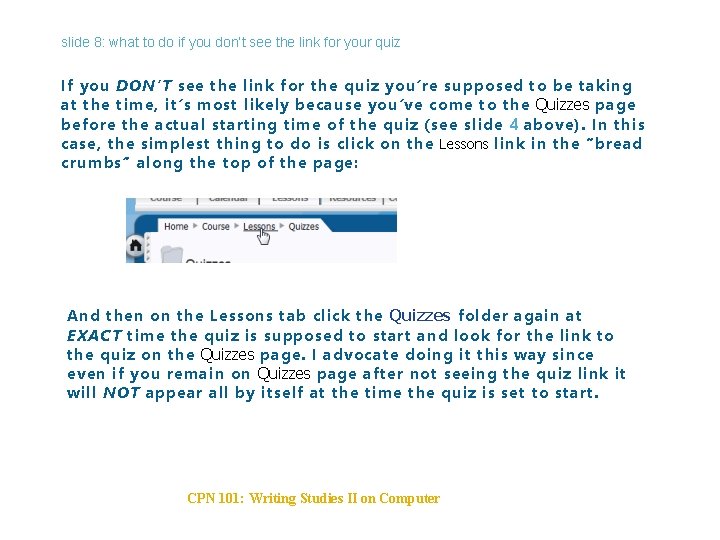
slide 8: what to do if you don’t see the link for your quiz If you DON’T see the link for the quiz you’re supposed to be taking at the time, it’s most likely because you’ve come to the Quizzes page before the actual starting time of the quiz (see slide 4 above). In this case, the simplest thing to do is click on the Lessons link in the “bread crumbs” along the top of the page: And then on the Lessons tab click the Quizzes folder again at EXACT time the quiz is supposed to start and look for the link to the quiz on the Quizzes page. I advocate doing it this way since even if you remain on Quizzes page after not seeing the quiz link it will NOT appear all by itself at the time the quiz is set to start. CPN 101: Writing Studies II on Computer
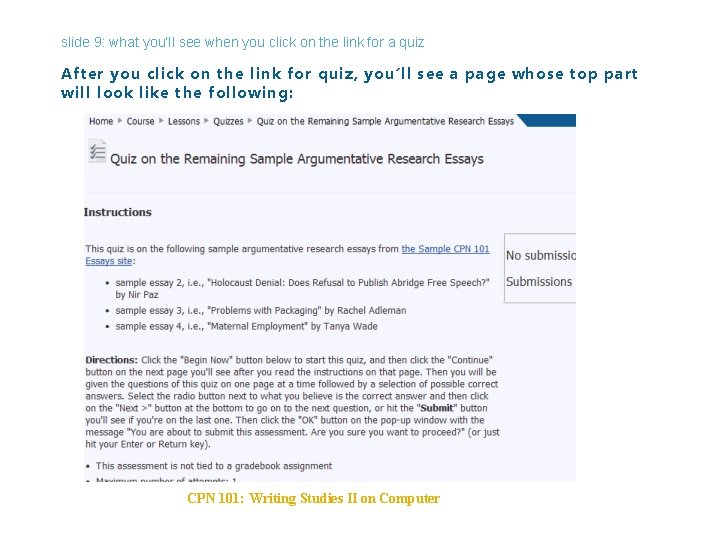
slide 9: what you’ll see when you click on the link for a quiz After you click on the link for quiz, you’ll see a page whose top part will look like the following: CPN 101: Writing Studies II on Computer
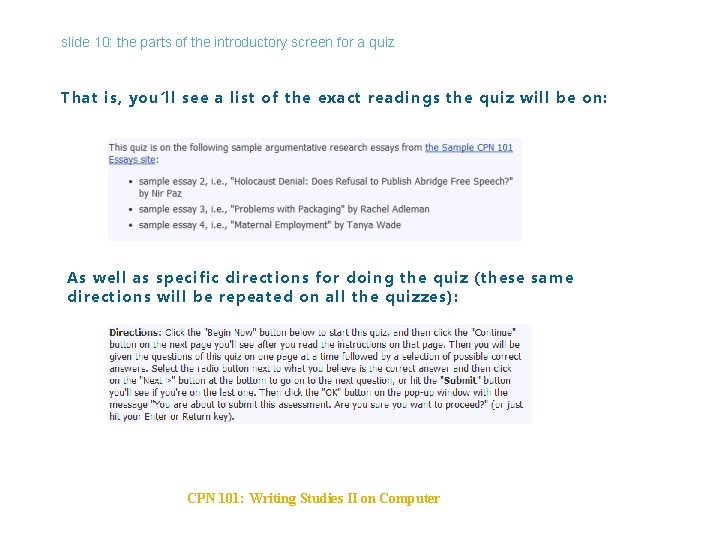
slide 10: the parts of the introductory screen for a quiz That is, you’ll see a list of the exact readings the quiz will be on: As well as specific directions for doing the quiz (these same directions will be repeated on all the quizzes): CPN 101: Writing Studies II on Computer
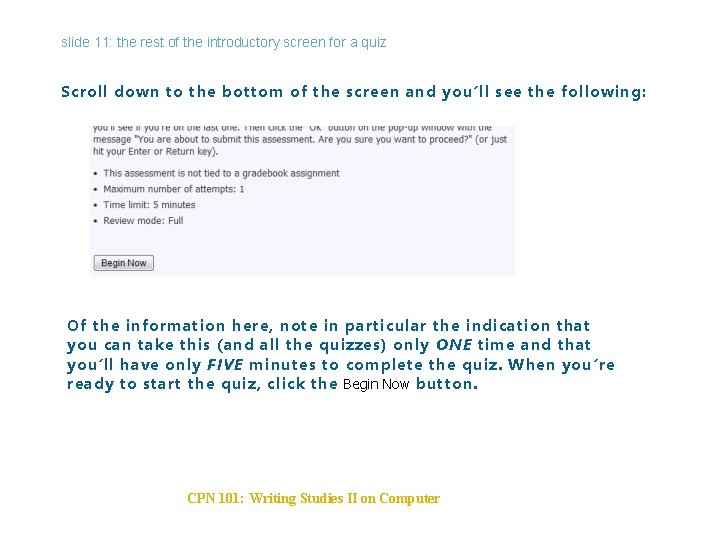
slide 11: the rest of the introductory screen for a quiz Scroll down to the bottom of the screen and you’ll see the following: Of the information here, note in particular the indication that you can take this (and all the quizzes) only ONE time and that you’ll have only FIVE minutes to complete the quiz. When you’re ready to start the quiz, click the Begin Now button. CPN 101: Writing Studies II on Computer
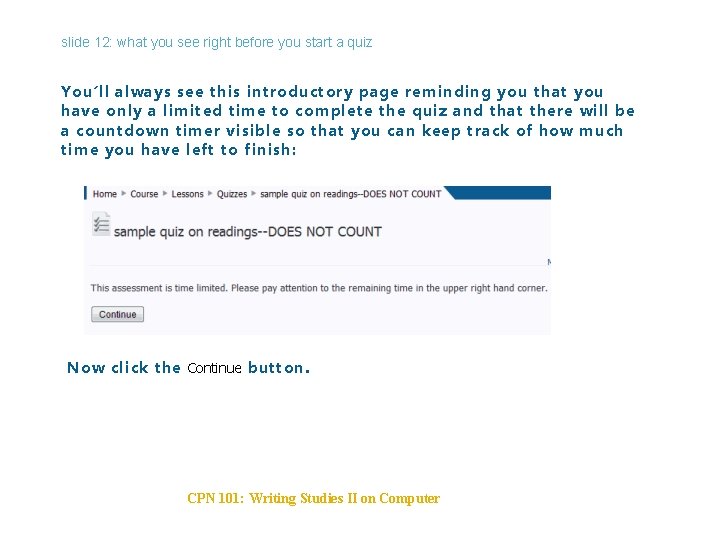
slide 12: what you see right before you start a quiz You’ll always see this introductory page reminding you that you have only a limited time to complete the quiz and that there will be a countdown timer visible so that you can keep track of how much time you have left to finish: Now click the Continue button. CPN 101: Writing Studies II on Computer
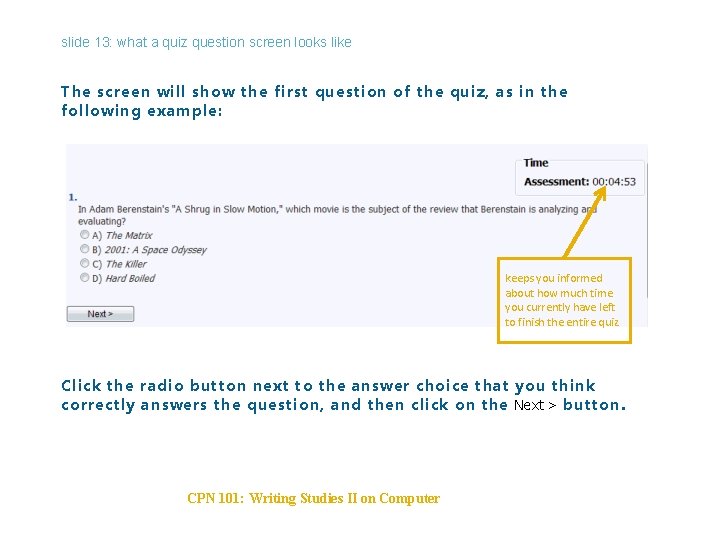
slide 13: what a quiz question screen looks like The screen will show the first question of the quiz, as in the following example: keeps you informed about how much time you currently have left to finish the entire quiz Click the radio button next to the answer choice that you think correctly answers the question, and then click on the Next > button. CPN 101: Writing Studies II on Computer
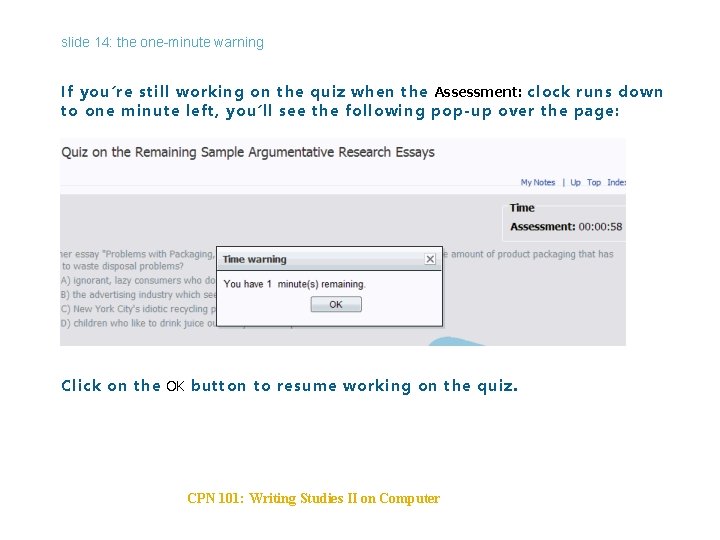
slide 14: the one-minute warning If you’re still working on the quiz when the Assessment: clock runs down to one minute left, you’ll see the following pop-up over the page: Click on the OK button to resume working on the quiz. CPN 101: Writing Studies II on Computer
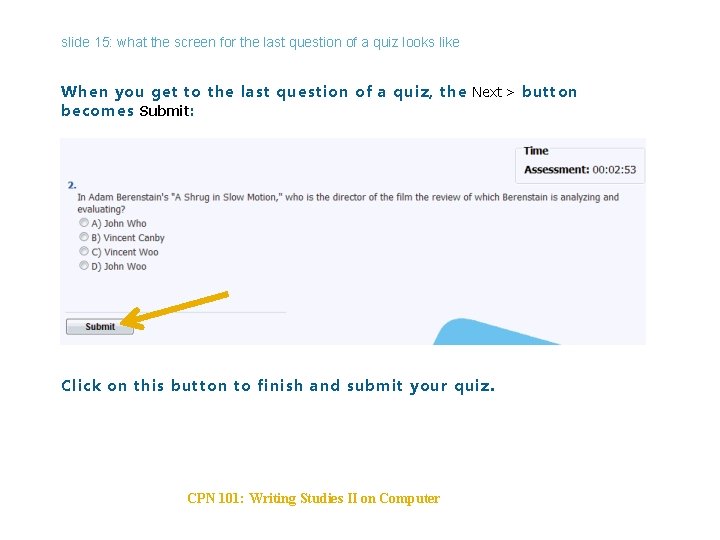
slide 15: what the screen for the last question of a quiz looks like When you get to the last question of a quiz, the Next > button becomes Submit: Click on this button to finish and submit your quiz. CPN 101: Writing Studies II on Computer
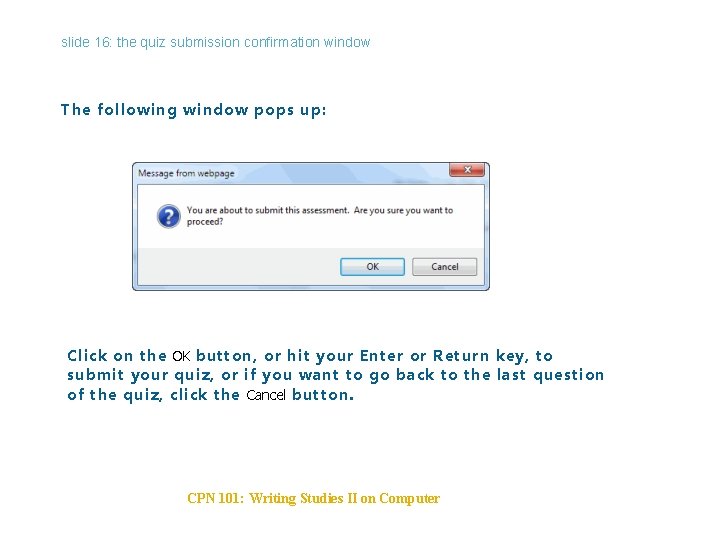
slide 16: the quiz submission confirmation window The following window pops up: Click on the OK button, or hit your Enter or Return key, to submit your quiz, or if you want to go back to the last question of the quiz, click the Cancel button. CPN 101: Writing Studies II on Computer
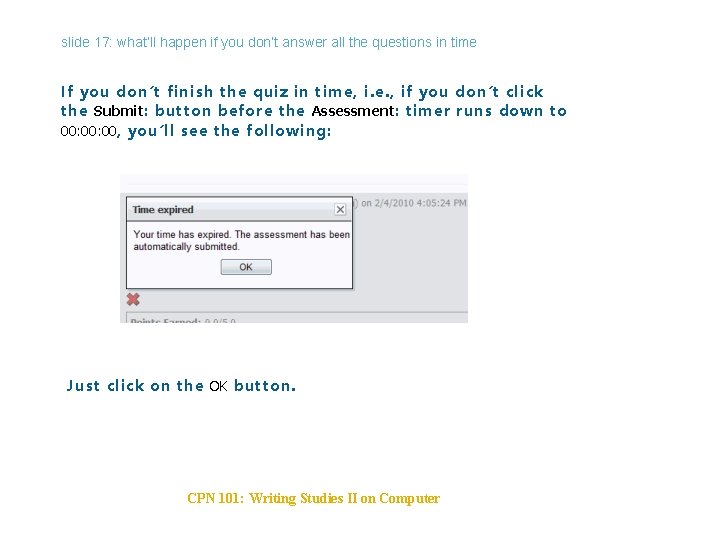
slide 17: what’ll happen if you don’t answer all the questions in time If you don’t finish the quiz in time, i. e. , if you don’t click the Submit: button before the Assessment: timer runs down to 00: 00, you’ll see the following: Just click on the OK button. CPN 101: Writing Studies II on Computer
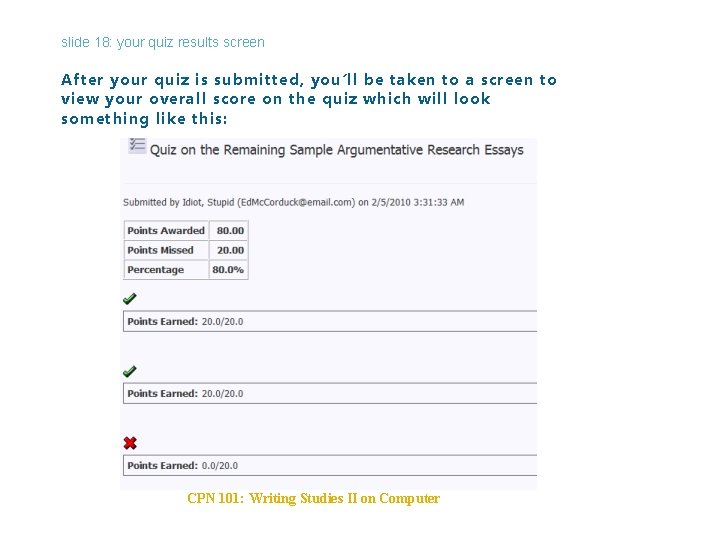
slide 18: your quiz results screen After your quiz is submitted, you’ll be taken to a screen to view your overall score on the quiz which will look something like this: CPN 101: Writing Studies II on Computer
slide 19: interpreting your results As the example on the previous slide illustrates, you’ll be able to view only your overall score on the quiz, in the table after Percentage. CPN 101: Writing Studies II on Computer