
How to Submit Expenses in Oracle Aaron W
How to Submit Expenses in Oracle Aaron W Howard BRET Travel Coordinator aaron. w. howard@Vanderbilt. edu
Table of Contents • Logging In • Set Up & adding a Delegate • Opening a New Report • Expense Items • Financials • Report Part 2 • Itemization
You will need • Financial Approval • Completed Intent to Travel • Graduate School Award • Copy of Outside Reimbursement • Image Receipts • Scanned(preferred) or photographed • Can be Uploaded Via the Oracle App i. OS Android Students can submit expenses as soon as you have these Don’t have to wait until after your travel
Logging into Oracle • Oracle is where you go to Submit Expenses • https: //www. vanderbilt. edu/skyvu/ • If you cannot log in let an Admin know so we can enter you into the system • Must use University Side VUnet ID • If you do not know your password call 3 -9999
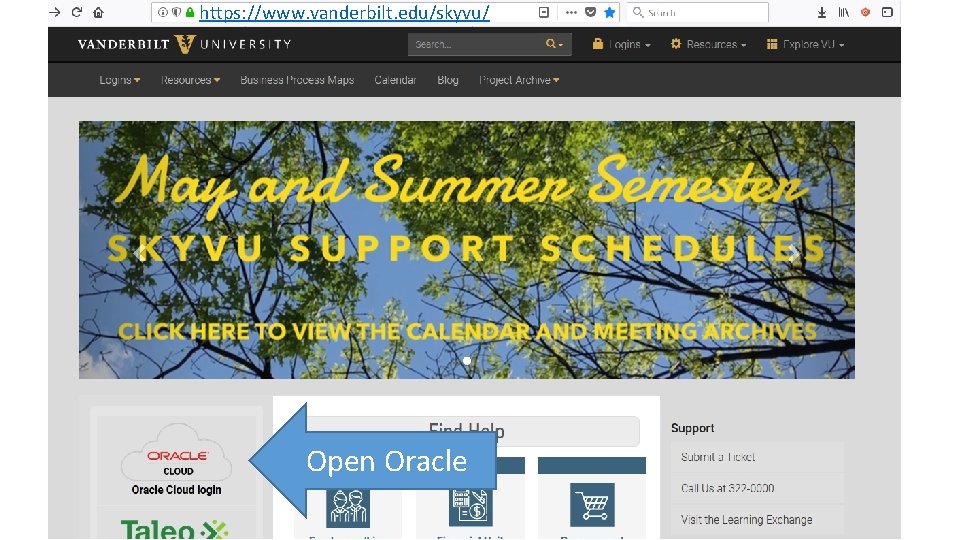
https: //www. vanderbilt. edu/skyvu/ Open Oracle
Oracle Setup First Time in Oracle, Student should make sure their Information is Correct 1. Open the Expense Tab I. If you’re denied access, contact the BRET Travel Coordinator 2. Check direct deposit information for accuracy I. Click on Manage bank account II. Imported from Payroll 3. Set up any Delegates that your Dept. Requires
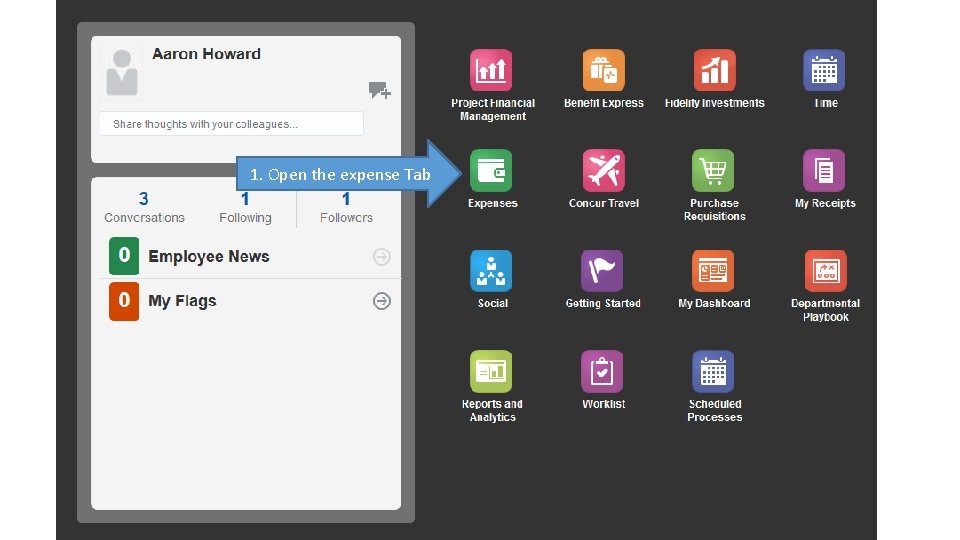
1. Open the expense Tab
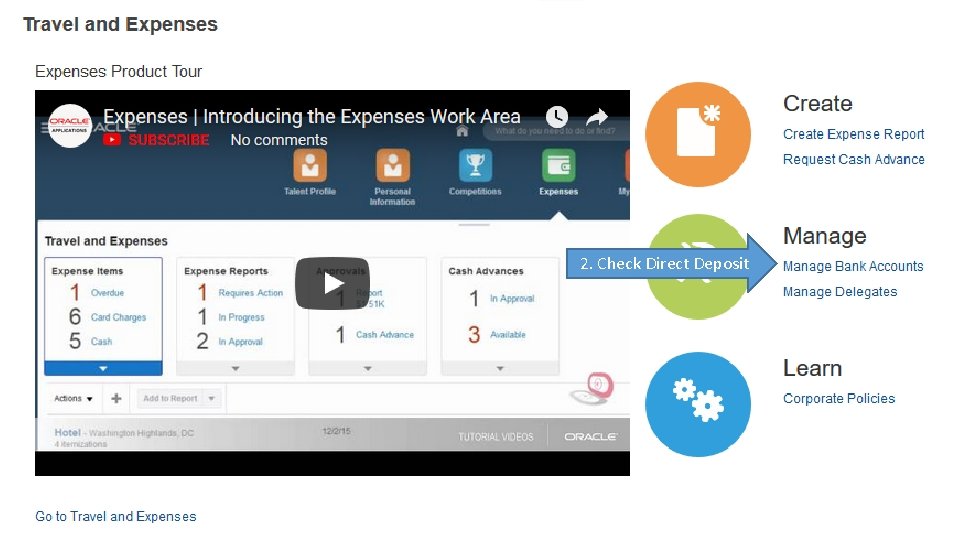
2. Check Direct Deposit
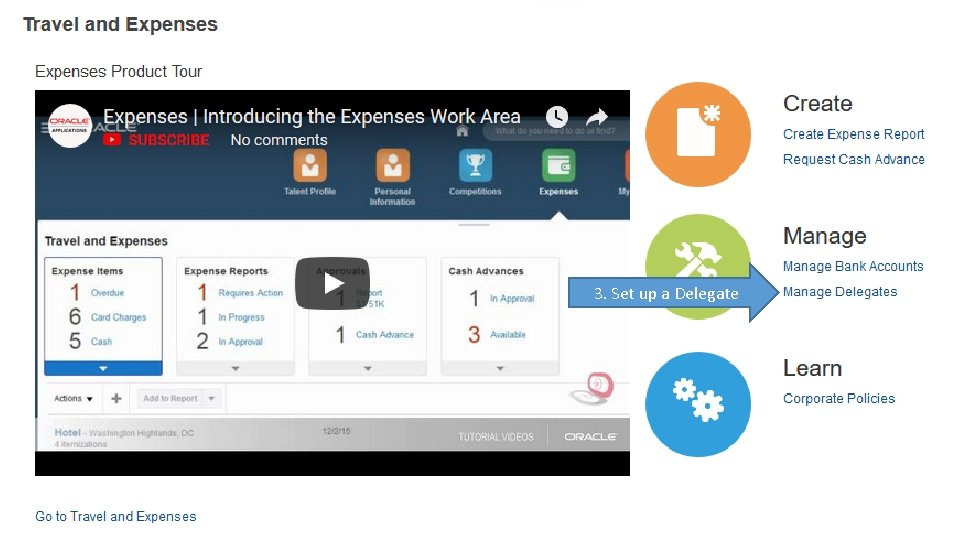
3. Set up a Delegate
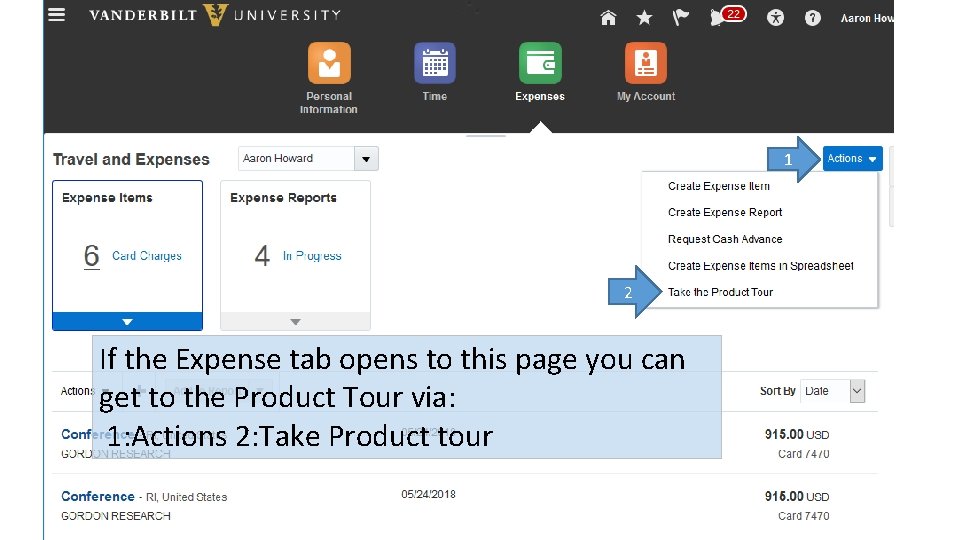
1 2 If the Expense tab opens to this page you can get to the Product Tour via: 1: Actions 2: Take Product tour
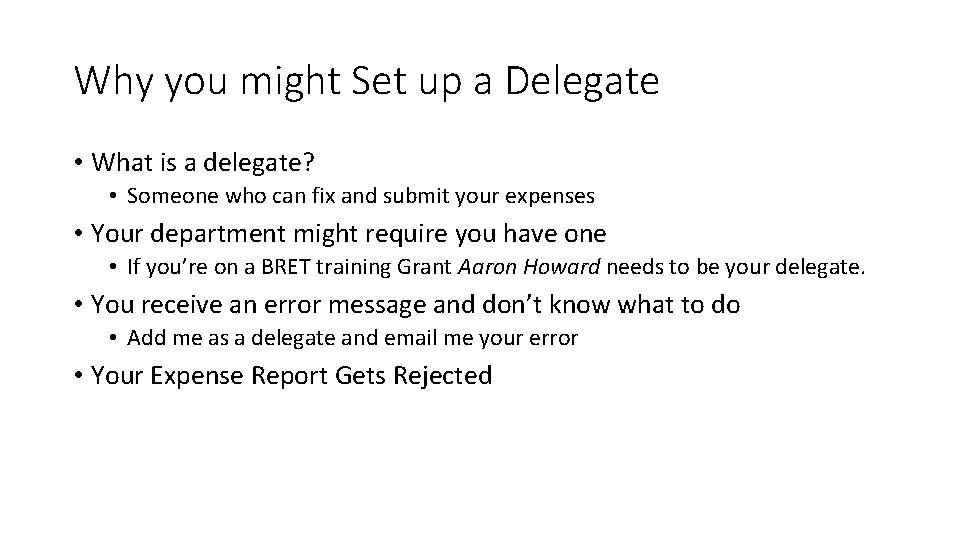
Why you might Set up a Delegate • What is a delegate? • Someone who can fix and submit your expenses • Your department might require you have one • If you’re on a BRET training Grant Aaron Howard needs to be your delegate. • You receive an error message and don’t know what to do • Add me as a delegate and email me your error • Your Expense Report Gets Rejected
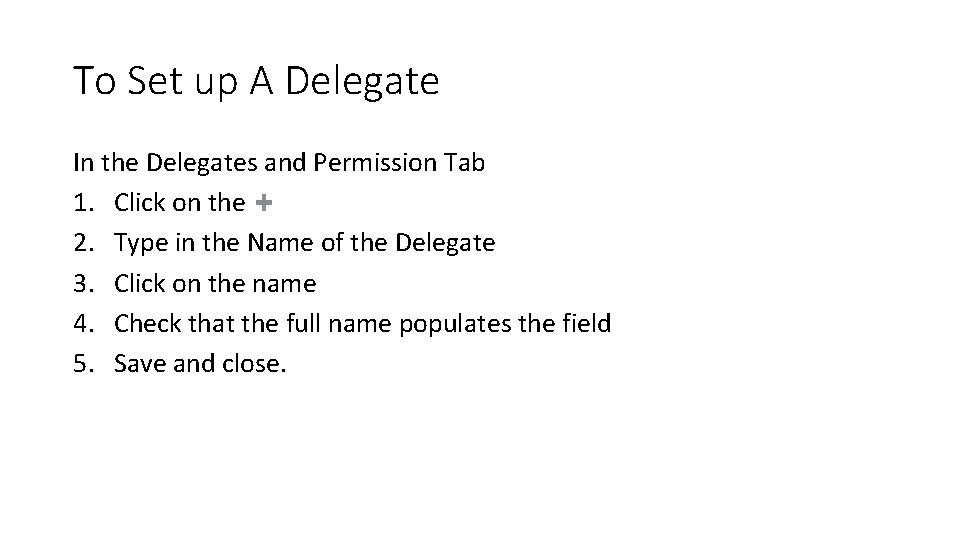
To Set up A Delegate In the Delegates and Permission Tab 1. Click on the 2. Type in the Name of the Delegate 3. Click on the name 4. Check that the full name populates the field 5. Save and close.
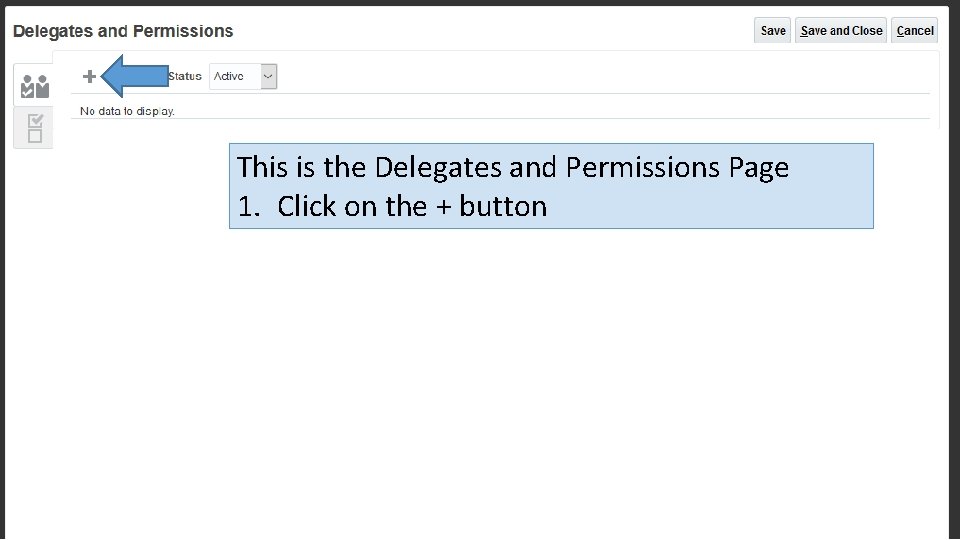
This is the Delegates and Permissions Page 1. Click on the + button
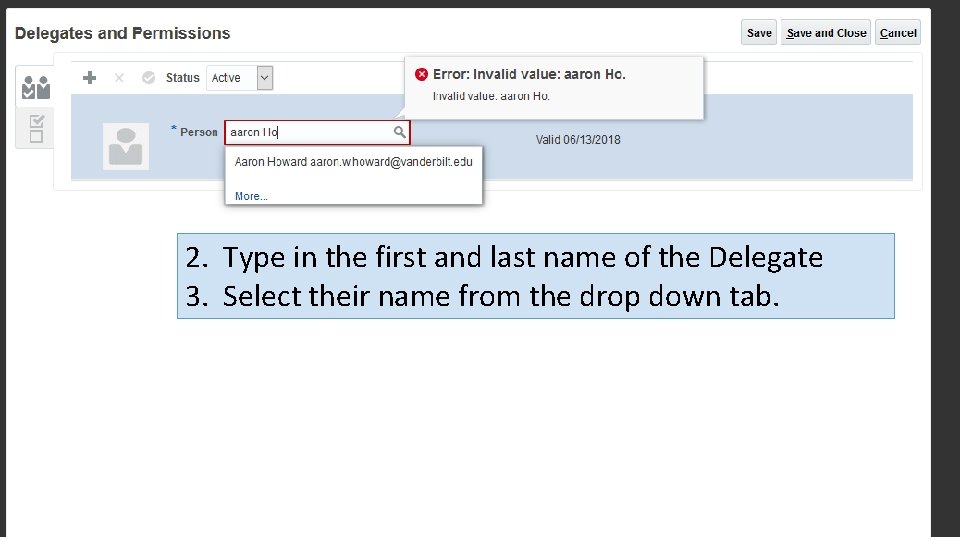
2. Type in the first and last name of the Delegate 3. Select their name from the drop down tab.
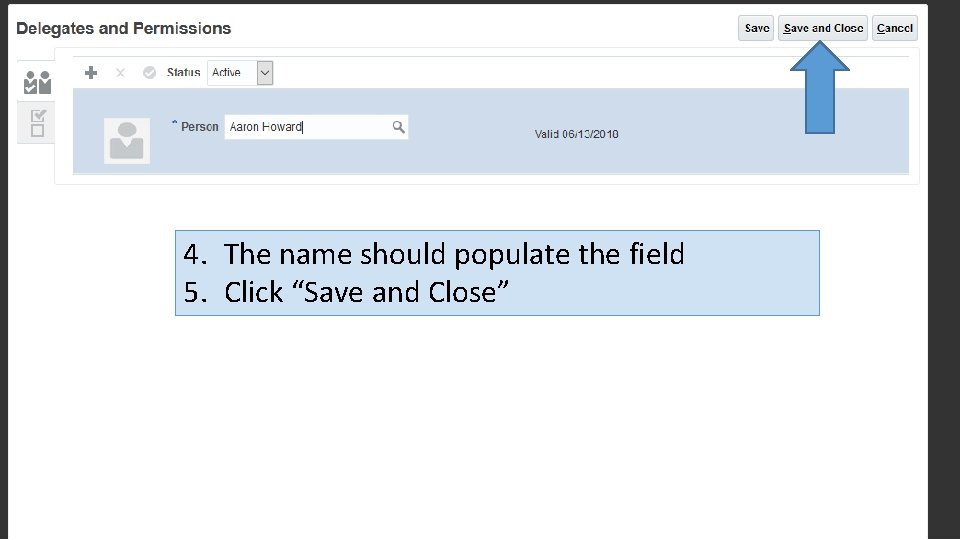
4. The name should populate the field 5. Click “Save and Close”
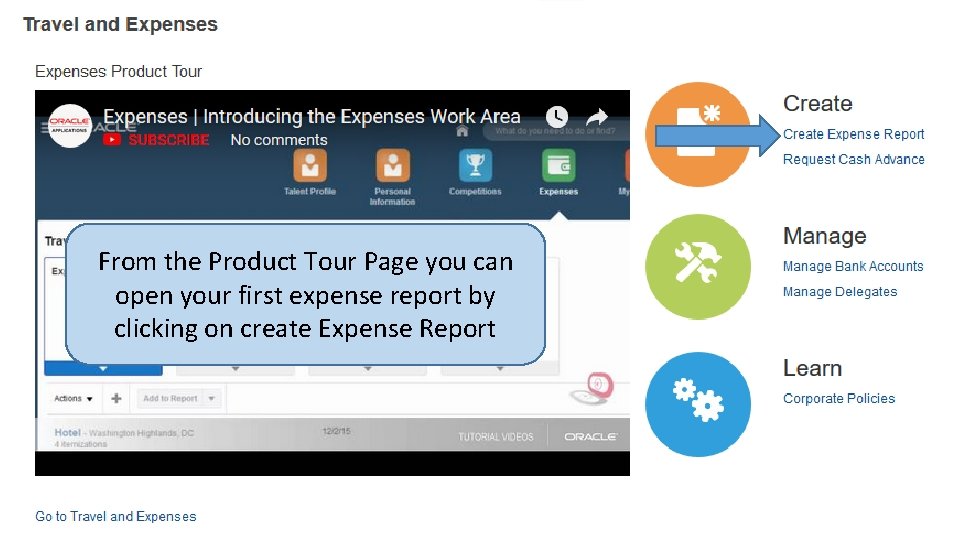
From the Product Tour Page you can open your first expense report by clicking on create Expense Report
Creating an Expense Report Pt 1 1. Fill in Purpose with Conference Name, Month, Year, either it is pre/post travel • I recommend limiting oneself to 2 reports; Pre and post. 2. Attach Financial Information • Intent to travel, Grad School Awards, Any Rewards or Emails. 3. Save 4. Create an Expense Item by clicking on the + We will come back to this page later
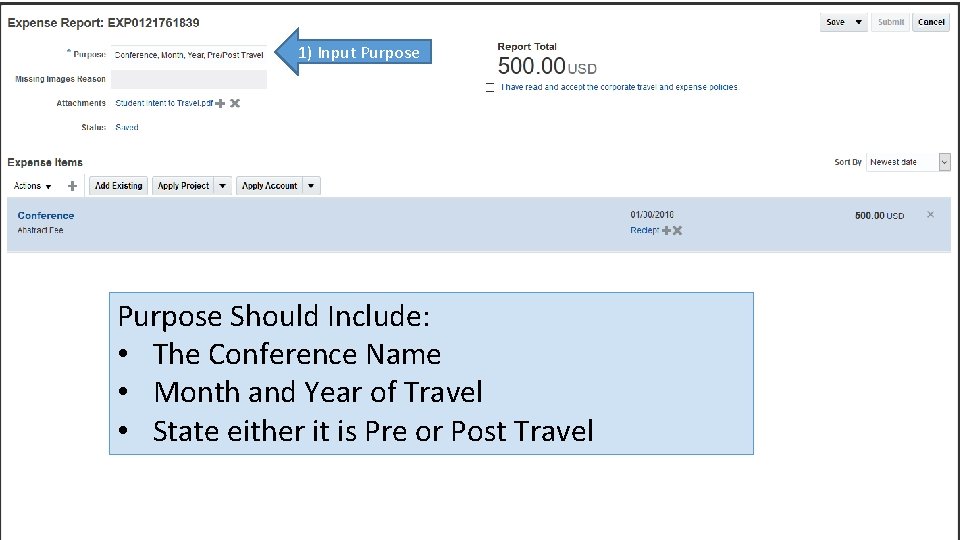
1) Input Purpose Should Include: • The Conference Name • Month and Year of Travel • State either it is Pre or Post Travel
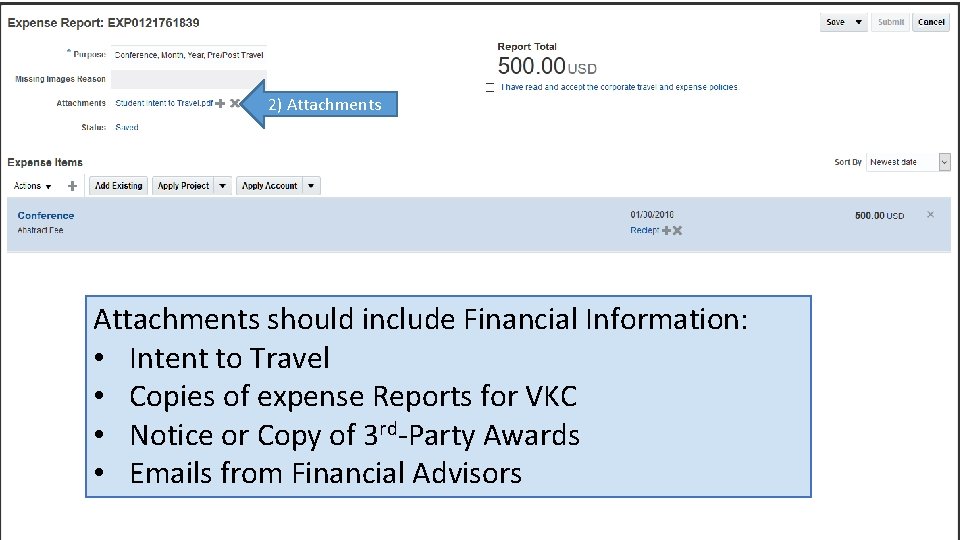
2) Attachments should include Financial Information: • Intent to Travel • Copies of expense Reports for VKC • Notice or Copy of 3 rd-Party Awards • Emails from Financial Advisors
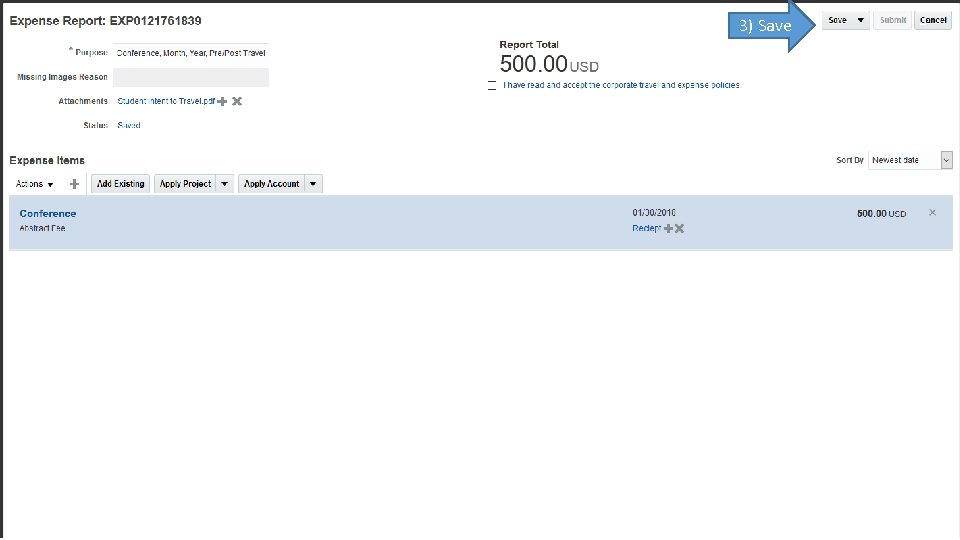
3) Save
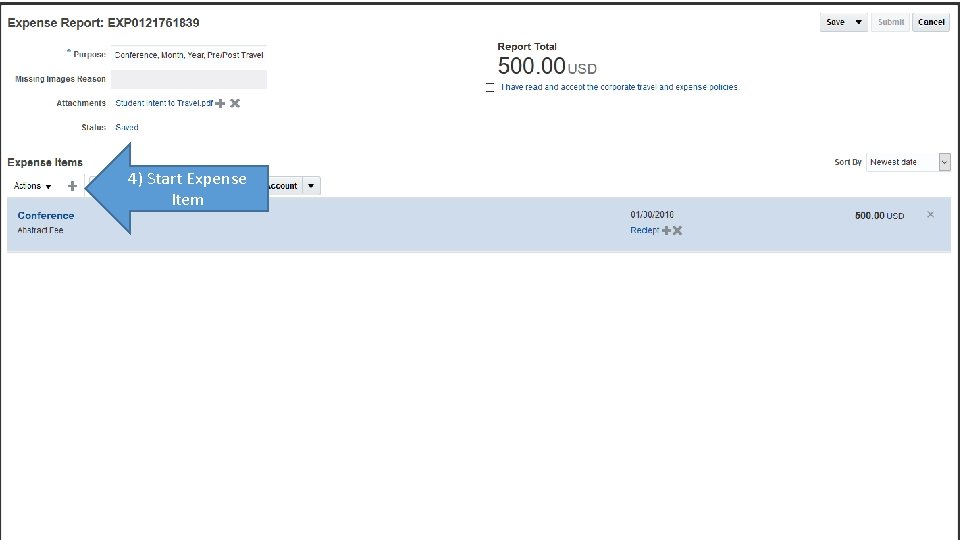
4) Start Expense Item
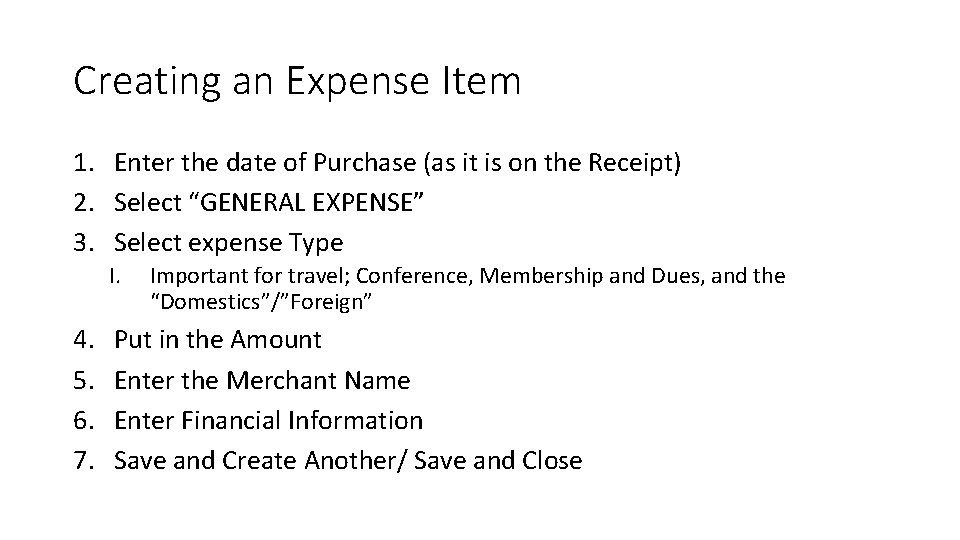
Creating an Expense Item 1. Enter the date of Purchase (as it is on the Receipt) 2. Select “GENERAL EXPENSE” 3. Select expense Type I. 4. 5. 6. 7. Important for travel; Conference, Membership and Dues, and the “Domestics”/”Foreign” Put in the Amount Enter the Merchant Name Enter Financial Information Save and Create Another/ Save and Close
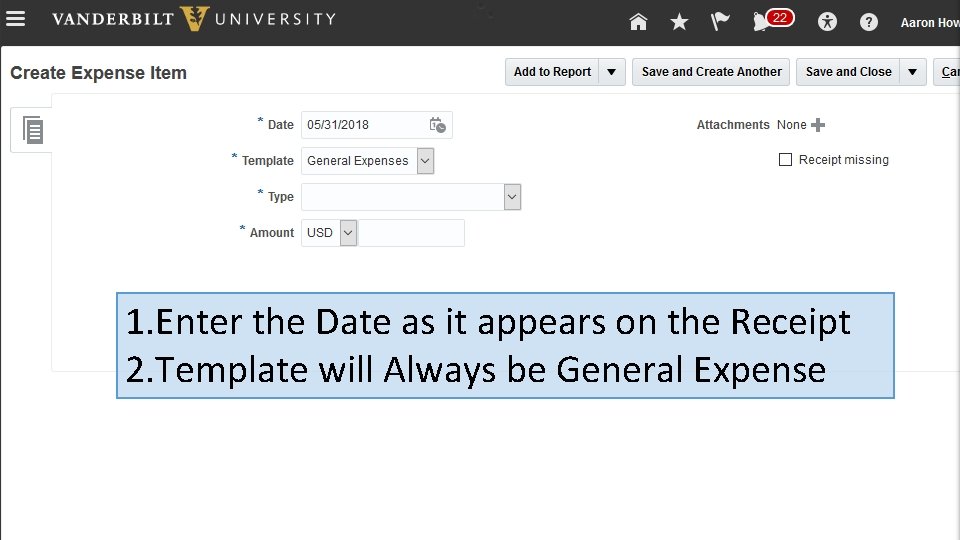
1. Enter the Date as it appears on the Receipt 2. Template will Always be General Expense
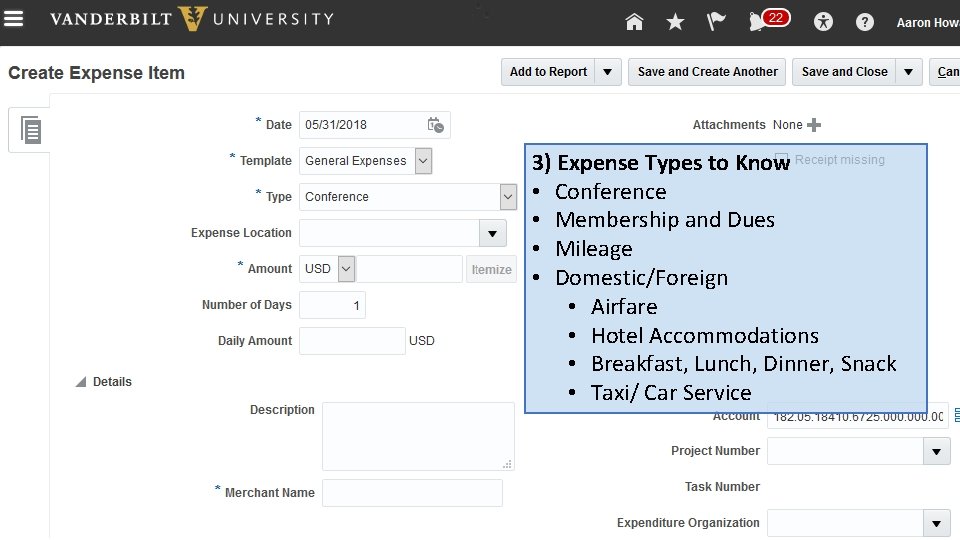
3) Expense Types to Know • Conference • Membership and Dues • Mileage • Domestic/Foreign • Airfare • Hotel Accommodations • Breakfast, Lunch, Dinner, Snack • Taxi/ Car Service
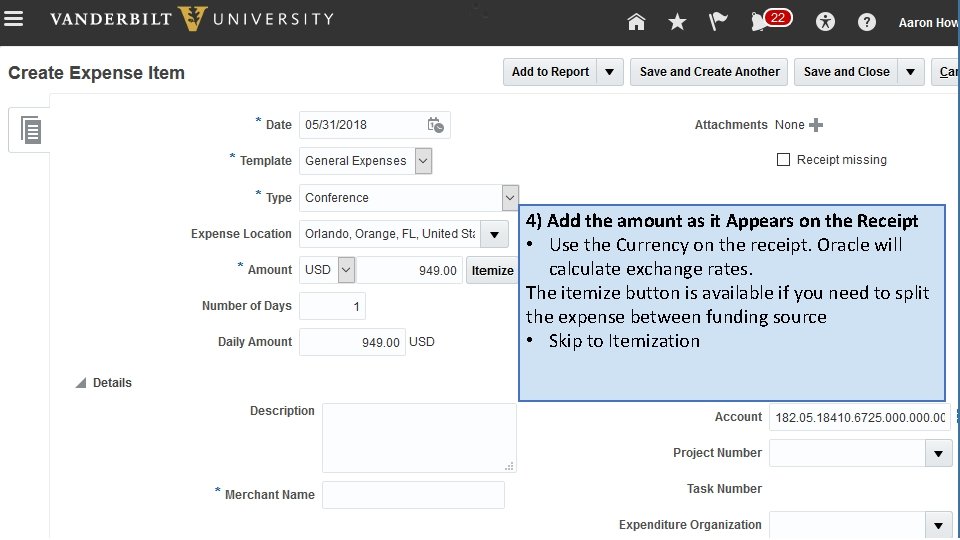
4) Add the amount as it Appears on the Receipt • Use the Currency on the receipt. Oracle will calculate exchange rates. The itemize button is available if you need to split the expense between funding source • Skip to Itemization
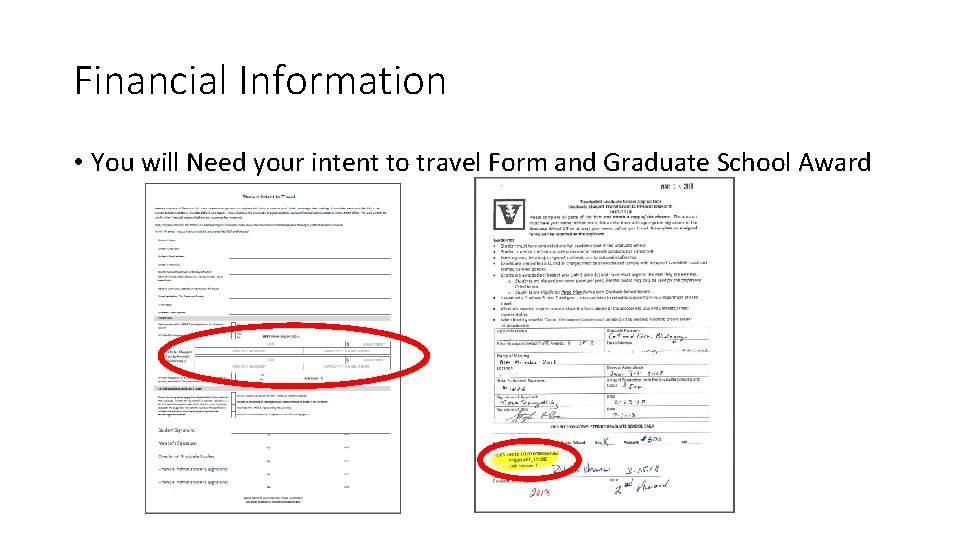
Financial Information • You will Need your intent to travel Form and Graduate School Award
NEVER SUBMIT A REPORT WITH THE DEFAULT FINANCIAL INFORMATION
Financial Information only needs to be Input once. Repeats can be applied from the Report Page
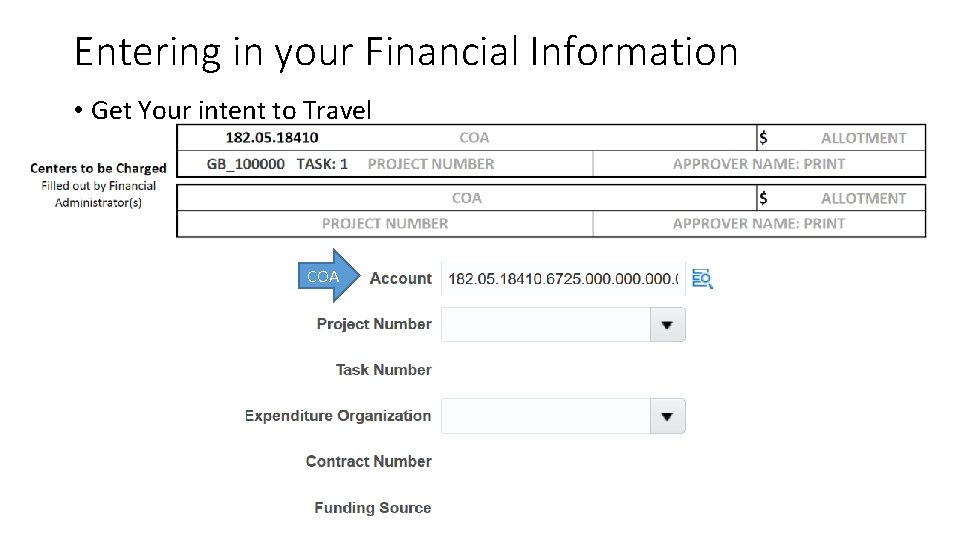
Entering in your Financial Information • Get Your intent to Travel COA
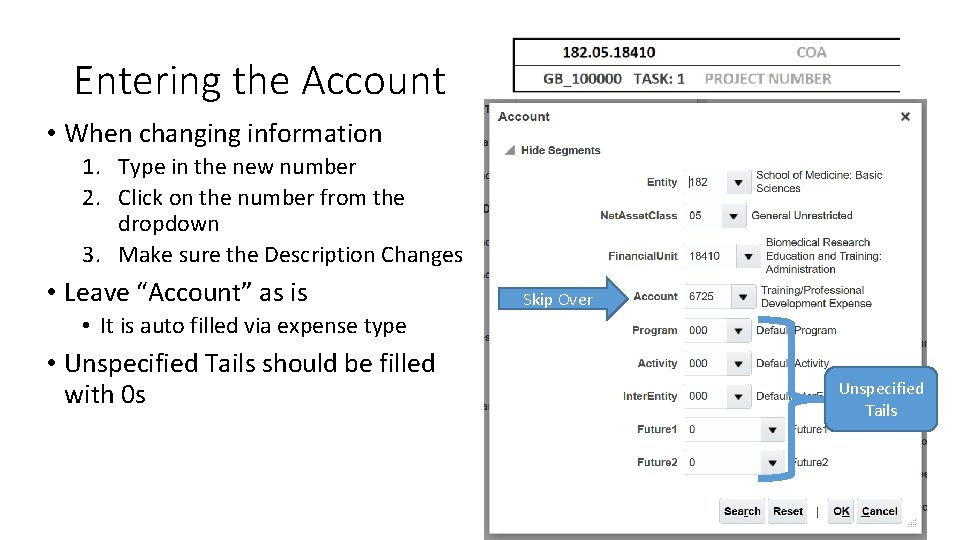
Entering the Account • When changing information 1. Type in the new number 2. Click on the number from the dropdown 3. Make sure the Description Changes • Leave “Account” as is Skip Over • It is auto filled via expense type • Unspecified Tails should be filled with 0 s Unspecified Tails
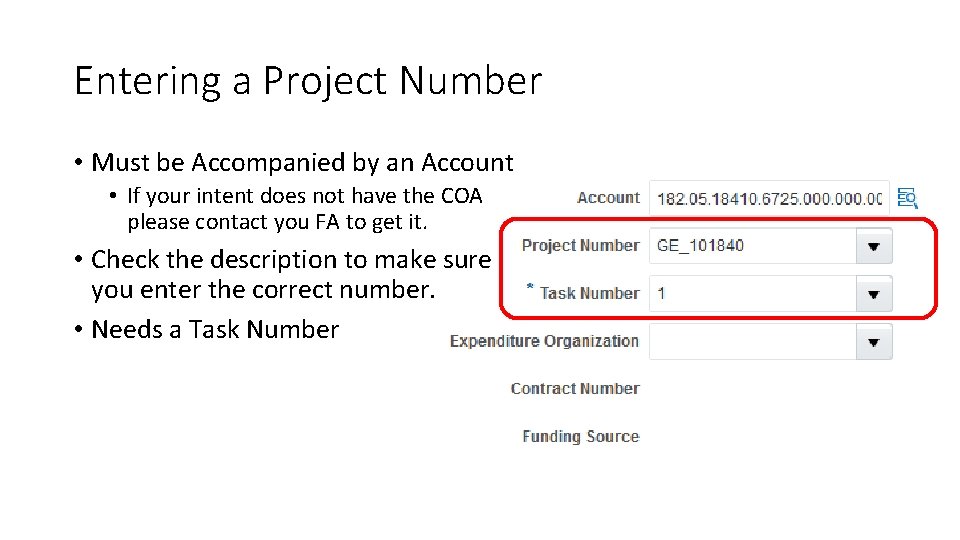
Entering a Project Number • Must be Accompanied by an Account • If your intent does not have the COA please contact you FA to get it. • Check the description to make sure you enter the correct number. • Needs a Task Number
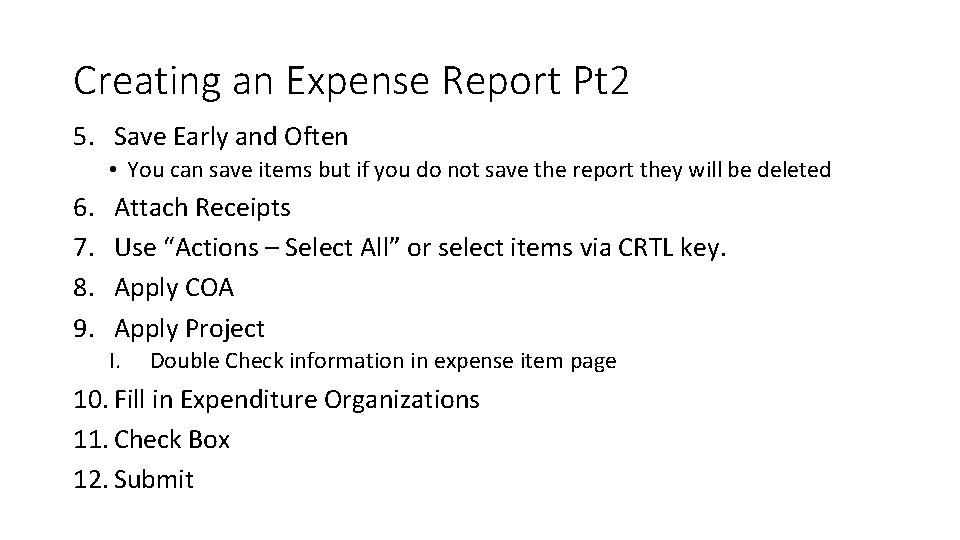
Creating an Expense Report Pt 2 5. Save Early and Often • You can save items but if you do not save the report they will be deleted 6. 7. 8. 9. Attach Receipts Use “Actions – Select All” or select items via CRTL key. Apply COA Apply Project I. Double Check information in expense item page 10. Fill in Expenditure Organizations 11. Check Box 12. Submit
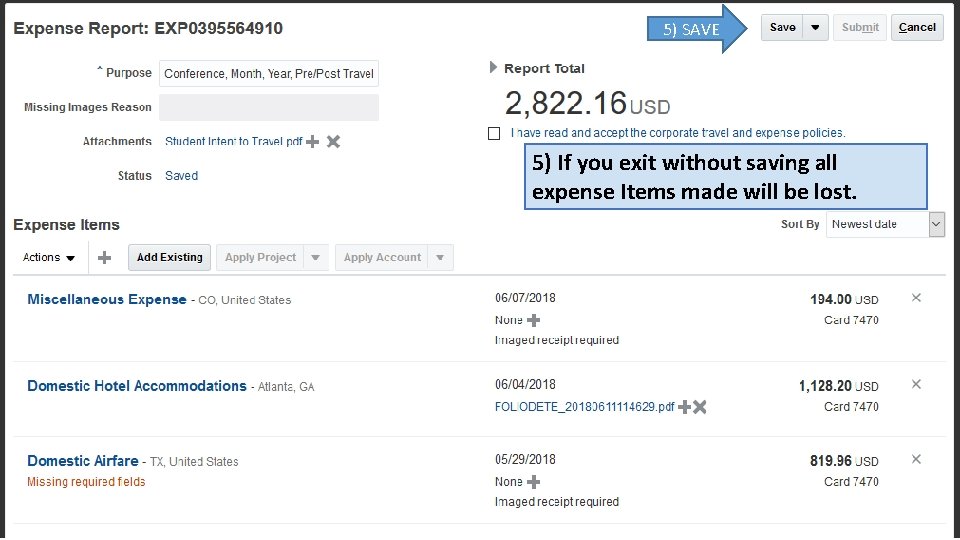
5) SAVE 5) If you exit without saving all expense Items made will be lost.
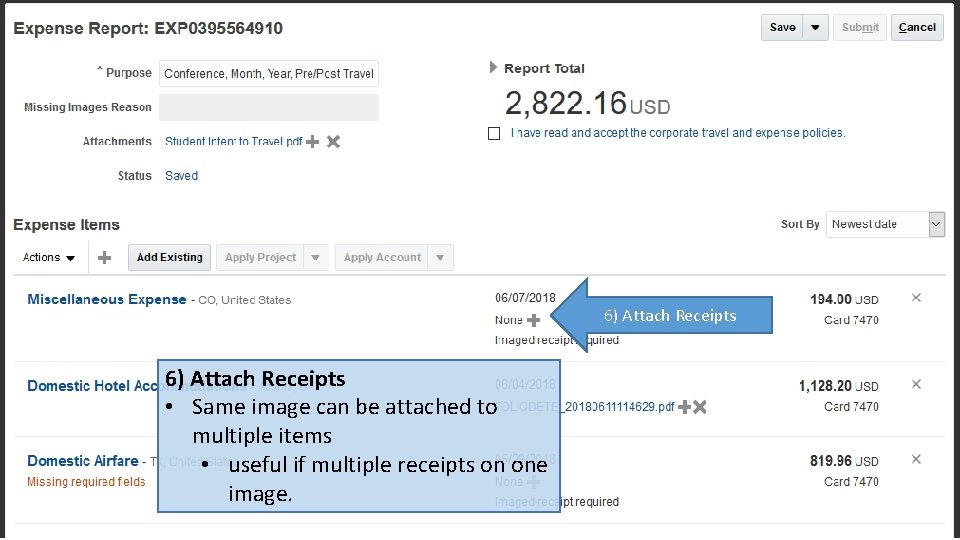
6) Attach Receipts • Same image can be attached to multiple items • useful if multiple receipts on one image.
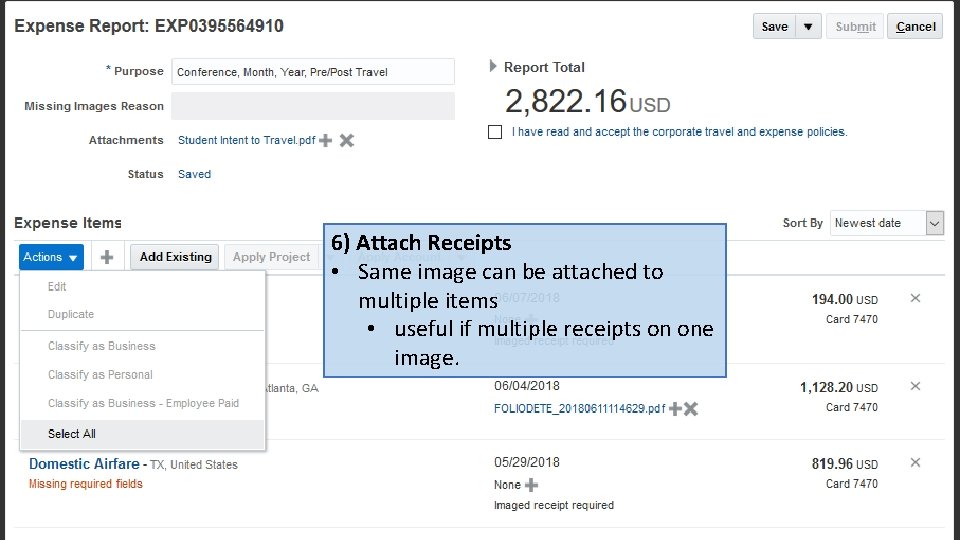
6) Attach Receipts • Same image can be attached to multiple items • useful if multiple receipts on one image.
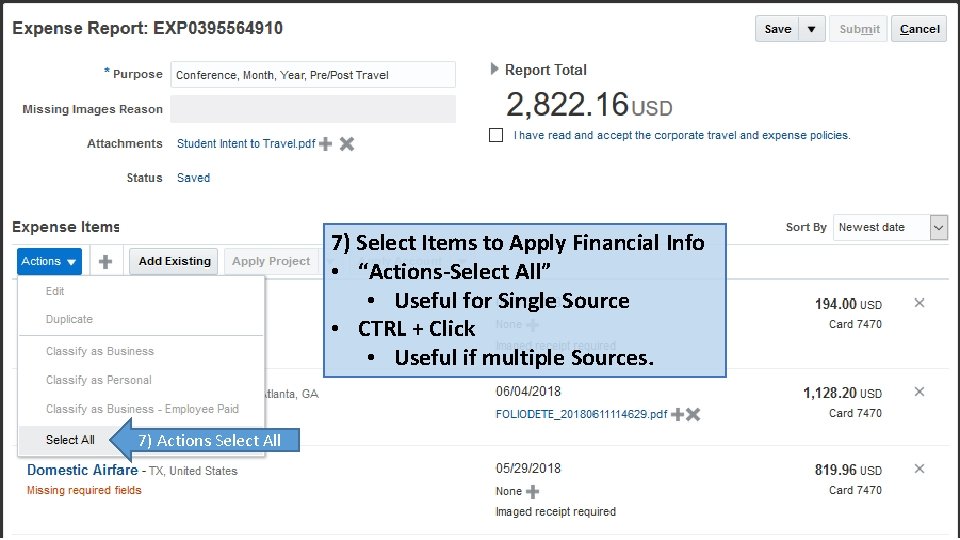
7) Select Items to Apply Financial Info • “Actions-Select All” • Useful for Single Source • CTRL + Click • Useful if multiple Sources. 7) Actions Select All
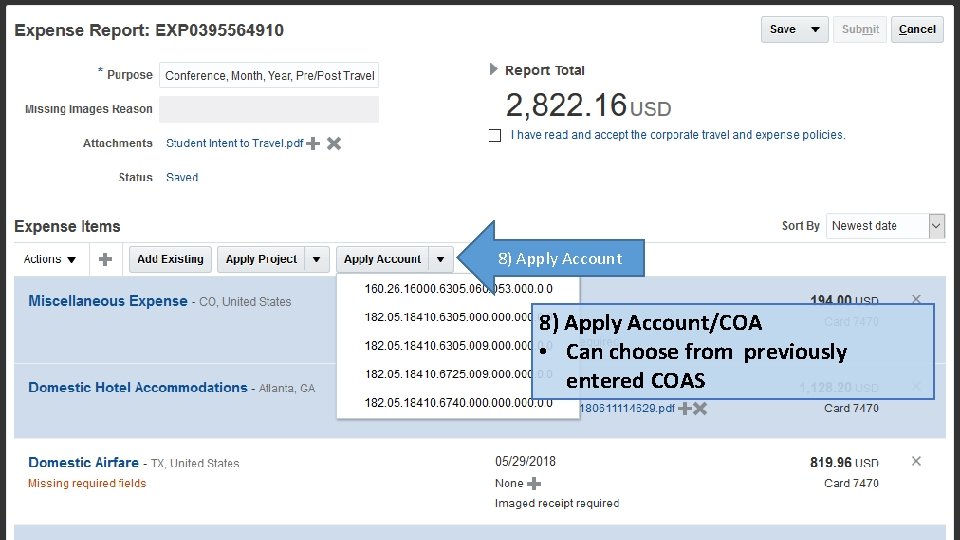
8) Apply Account/COA • Can choose from previously entered COAS
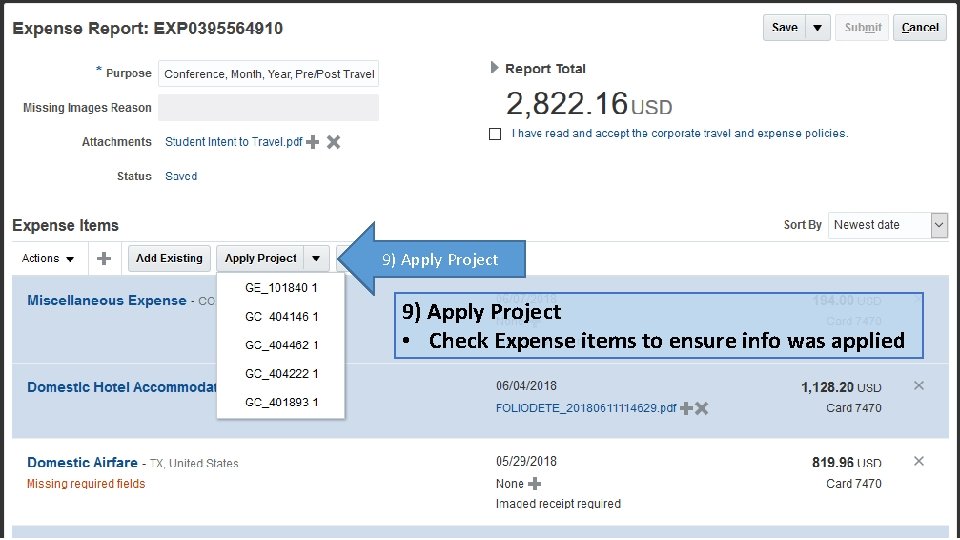
9) Apply Project • Check Expense items to ensure info was applied
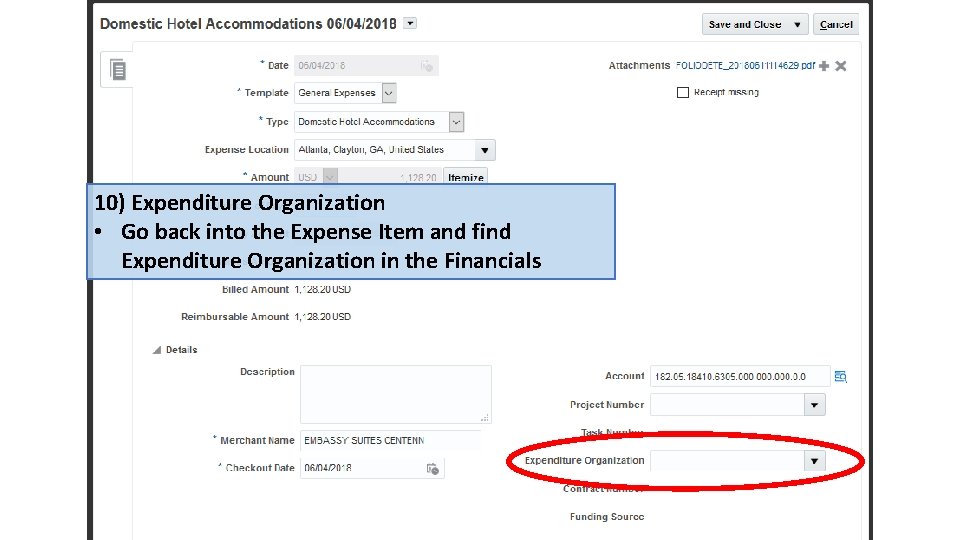
10) Expenditure Organization • Go back into the Expense Item and find Expenditure Organization in the Financials
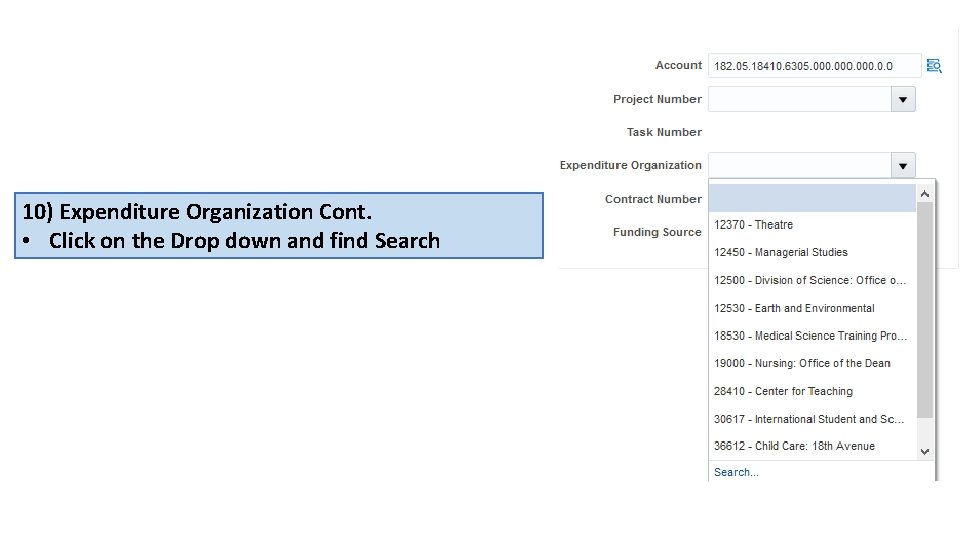
10) Expenditure Organization Cont. • Click on the Drop down and find Search
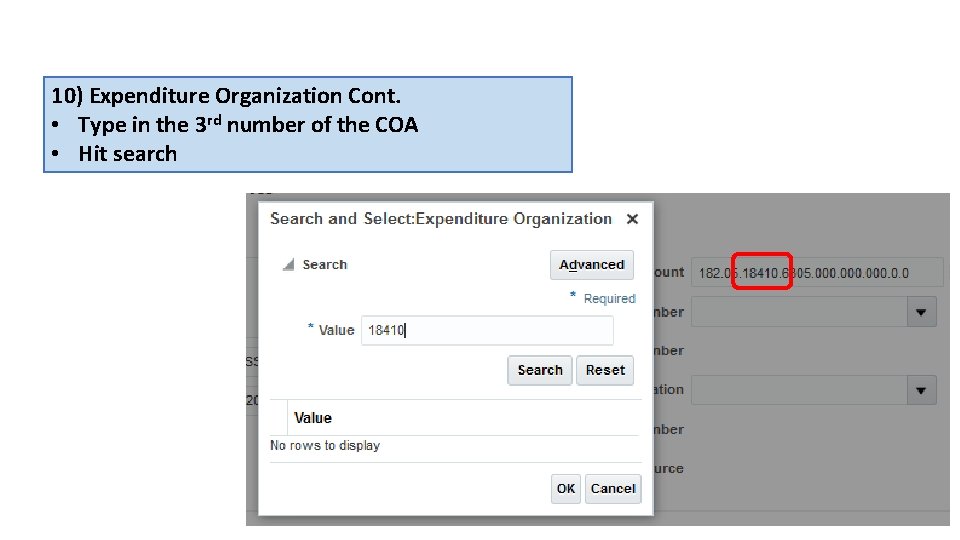
10) Expenditure Organization Cont. • Type in the 3 rd number of the COA • Hit search
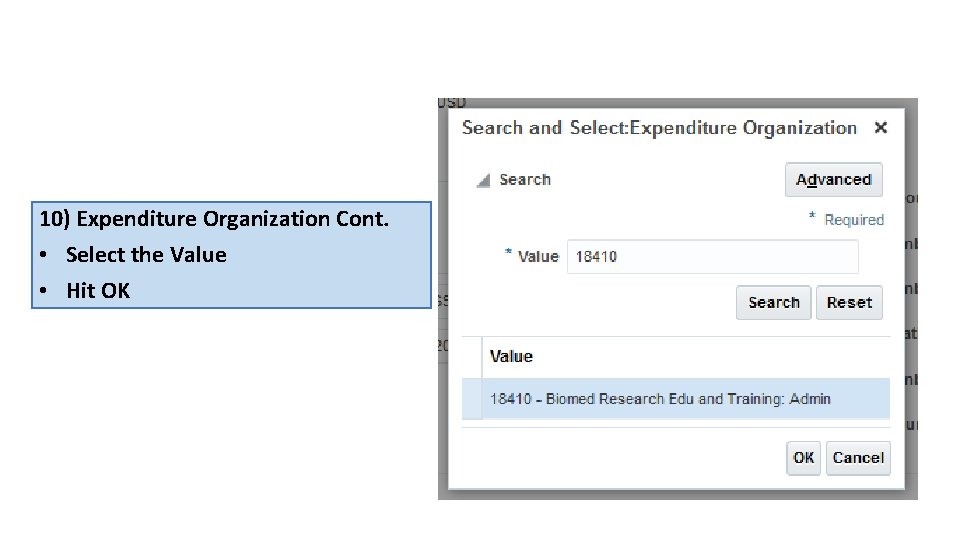
10) Expenditure Organization Cont. • Select the Value • Hit OK
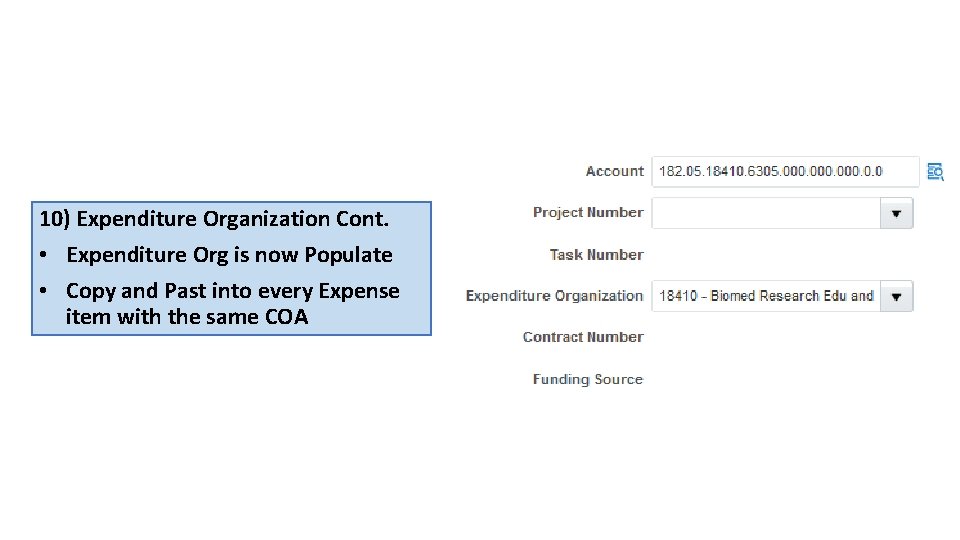
10) Expenditure Organization Cont. • Expenditure Org is now Populate • Copy and Past into every Expense item with the same COA
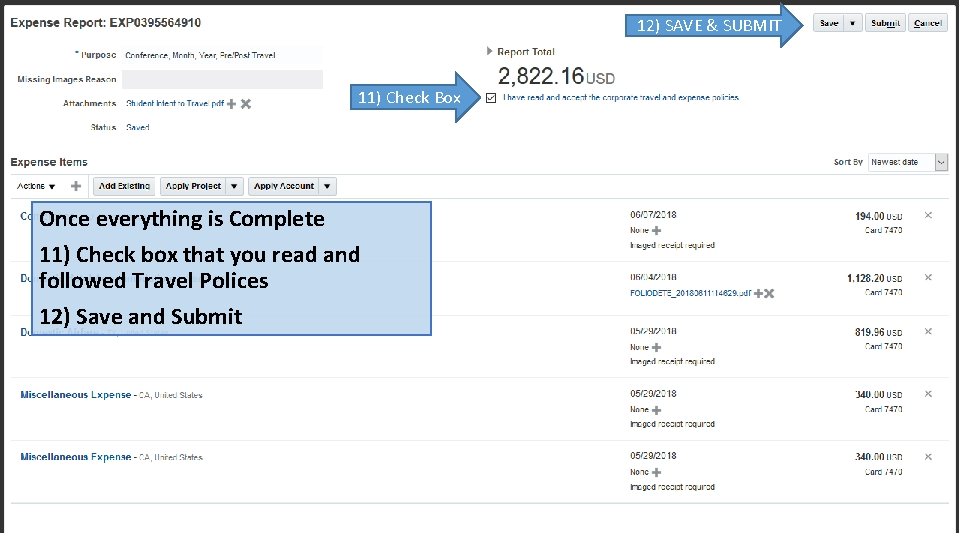
12) SAVE & SUBMIT 11) Check Box Once everything is Complete 11) Check box that you read and followed Travel Polices 12) Save and Submit
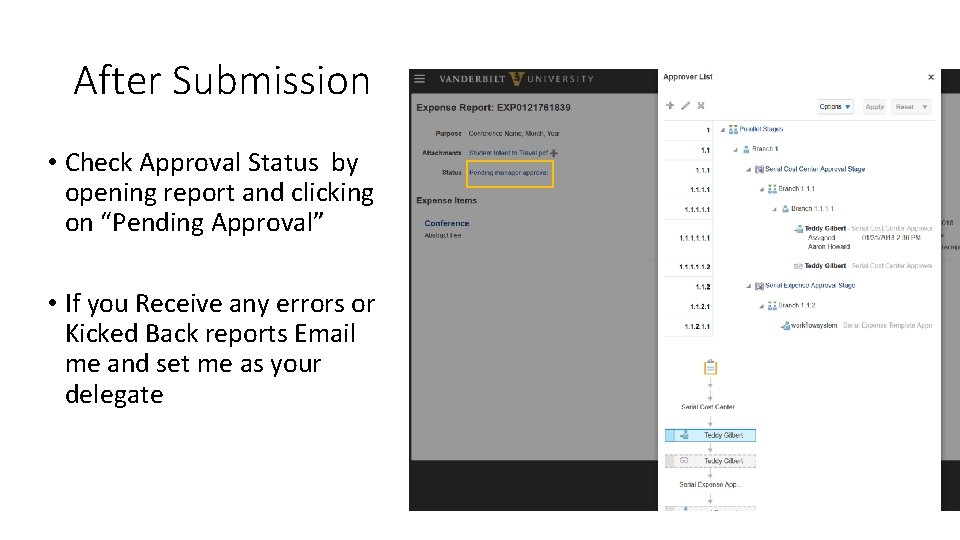
After Submission • Check Approval Status by opening report and clicking on “Pending Approval” • If you Receive any errors or Kicked Back reports Email me and set me as your delegate
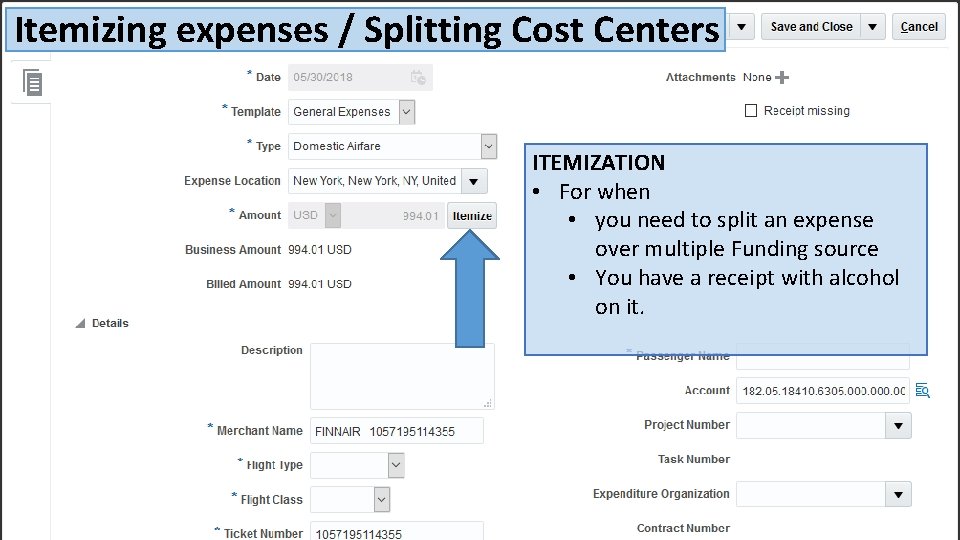
Itemizing expenses / Splitting Cost Centers ITEMIZATION • For when • you need to split an expense over multiple Funding source • You have a receipt with alcohol on it.
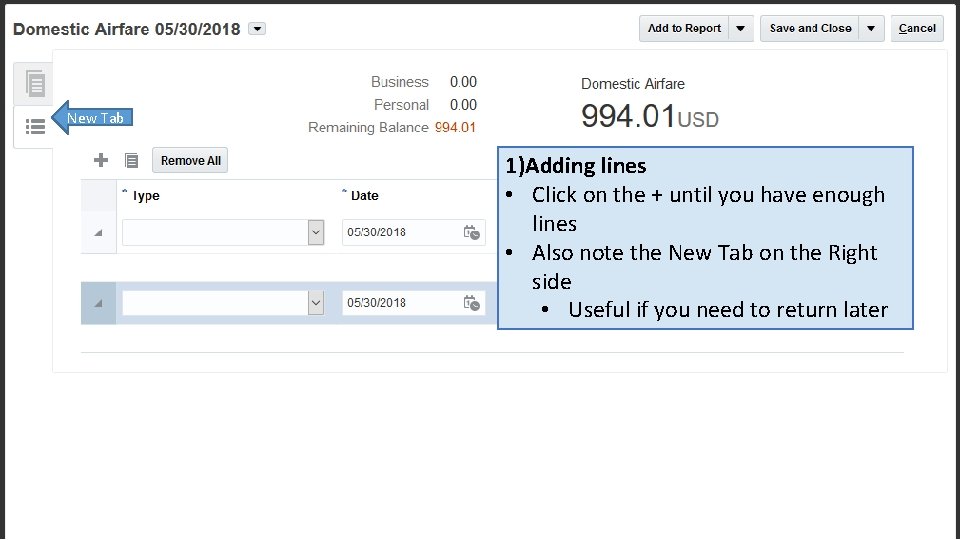
New Tab 1)Adding lines • Click on the + until you have enough lines • Also note the New Tab on the Right side • Useful if you need to return later
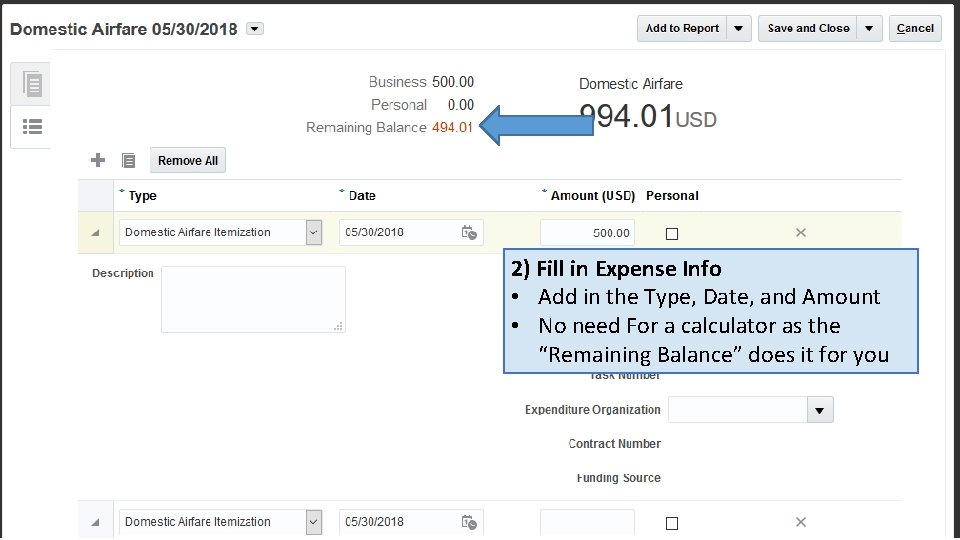
2) Fill in Expense Info • Add in the Type, Date, and Amount • No need For a calculator as the “Remaining Balance” does it for you
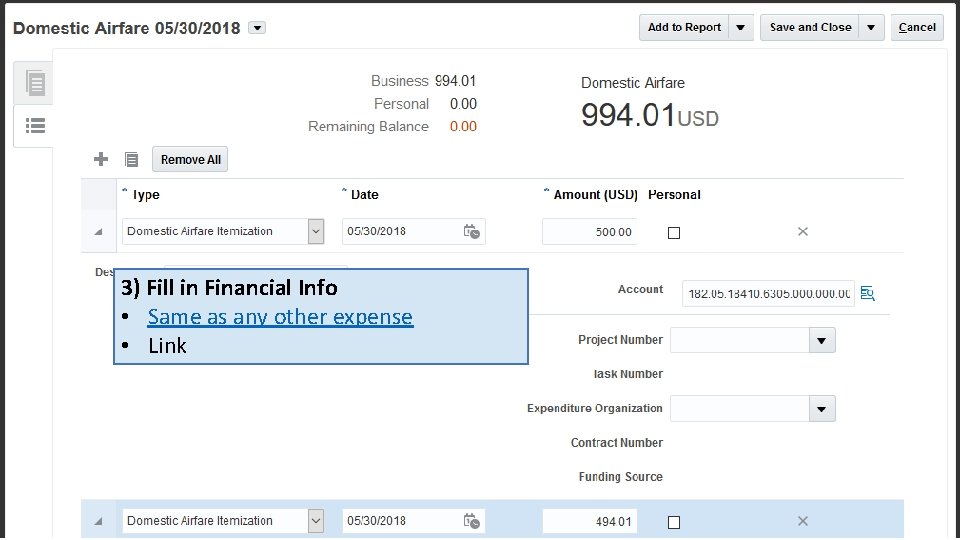
3) Fill in Financial Info • Same as any other expense • Link
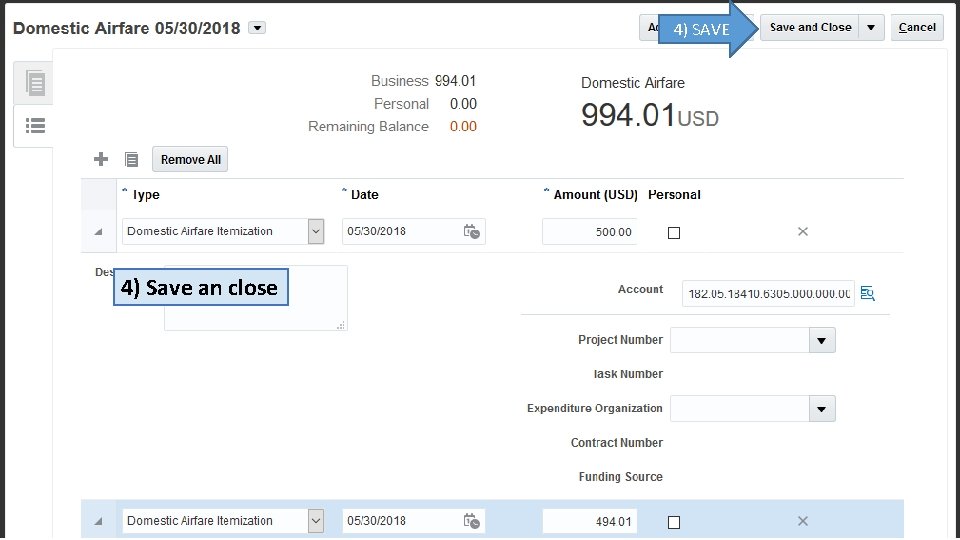
4) SAVE 4) Save an close
- Slides: 50