
How to set up authentication and authorization How





- Slides: 20
How to set up authentication and authorization How to use the login controls page(618 -635) Gokul Satyaraj Mutyala presentation Id: 14
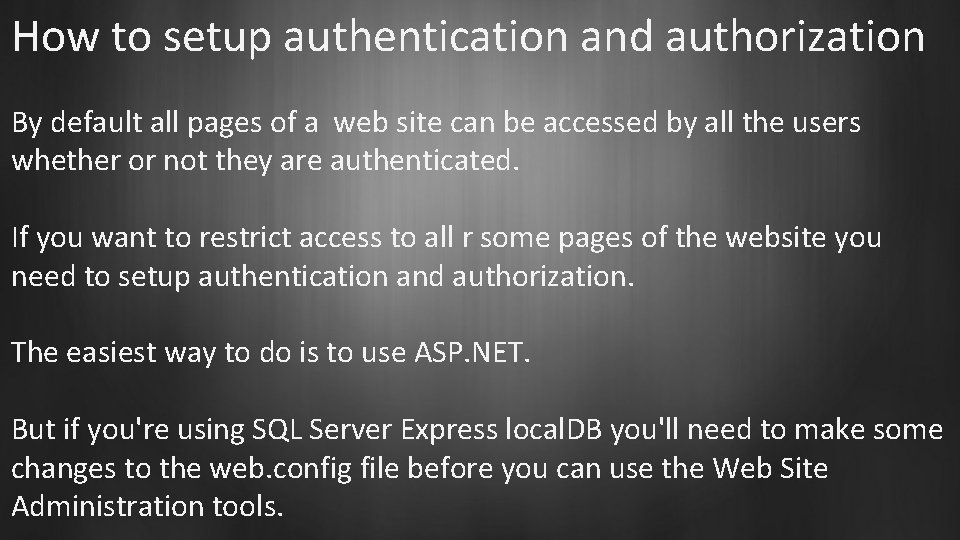
How to setup authentication and authorization By default all pages of a web site can be accessed by all the users whether or not they are authenticated. If you want to restrict access to all r some pages of the website you need to setup authentication and authorization. The easiest way to do is to use ASP. NET. But if you're using SQL Server Express local. DB you'll need to make some changes to the web. config file before you can use the Web Site Administration tools.
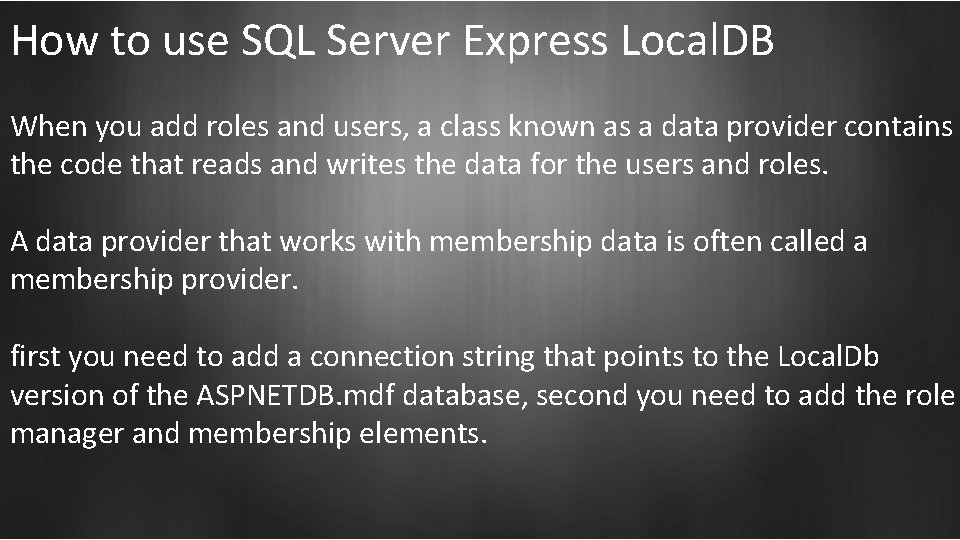
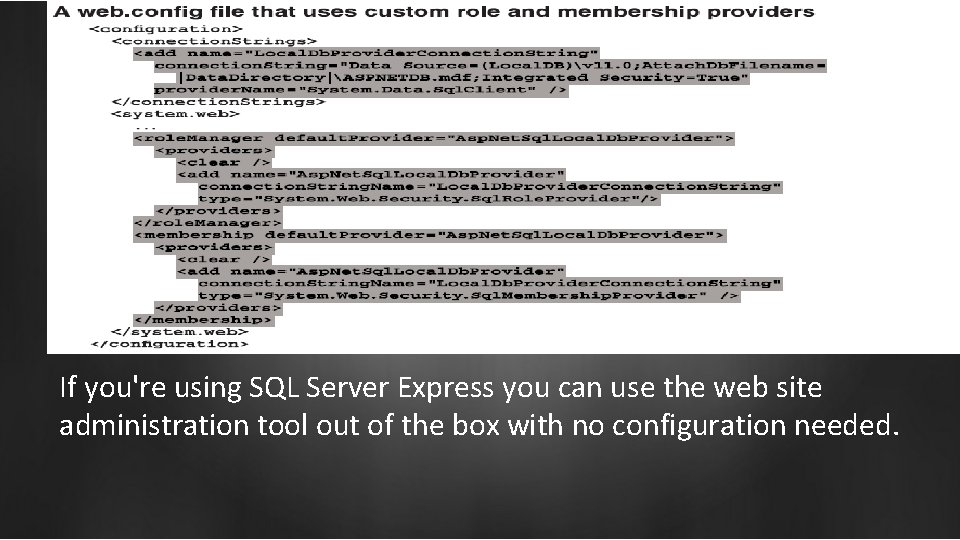
How to use SQL Server Express Local. DB When you add roles and users, a class known as a data provider contains the code that reads and writes the data for the users and roles. A data provider that works with membership data is often called a membership provider. first you need to add a connection string that points to the Local. Db version of the ASPNETDB. mdf database, second you need to add the role manager and membership elements.
If you're using SQL Server Express you can use the web site administration tool out of the box with no configuration needed.
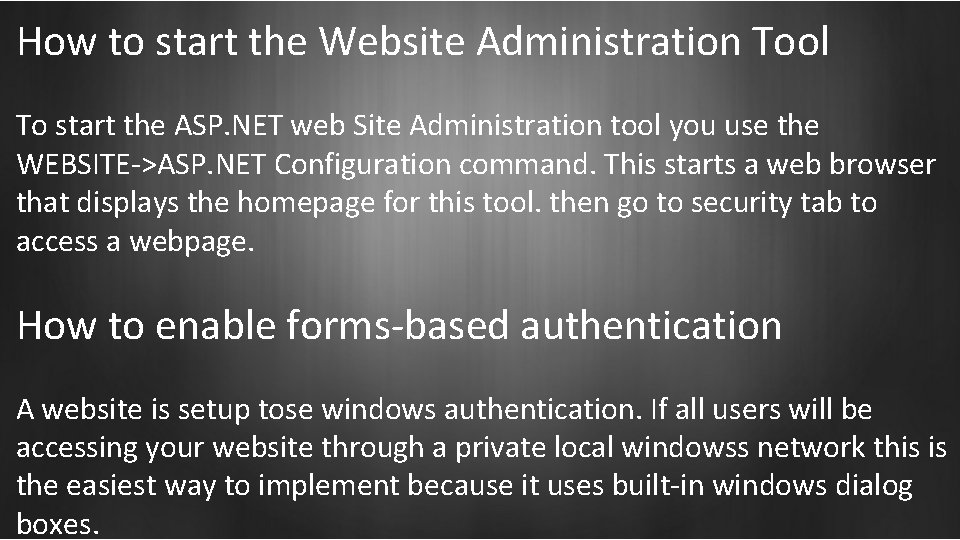
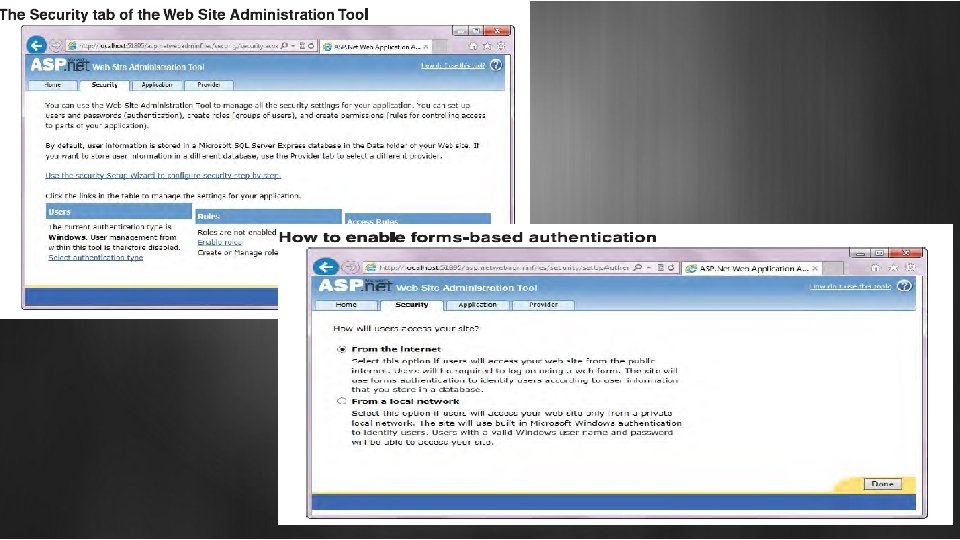
How to start the Website Administration Tool To start the ASP. NET web Site Administration tool you use the WEBSITE->ASP. NET Configuration command. This starts a web browser that displays the homepage for this tool. then go to security tab to access a webpage. How to enable forms-based authentication A website is setup tose windows authentication. If all users will be accessing your website through a private local windowss network this is the easiest way to implement because it uses built-in windows dialog boxes.
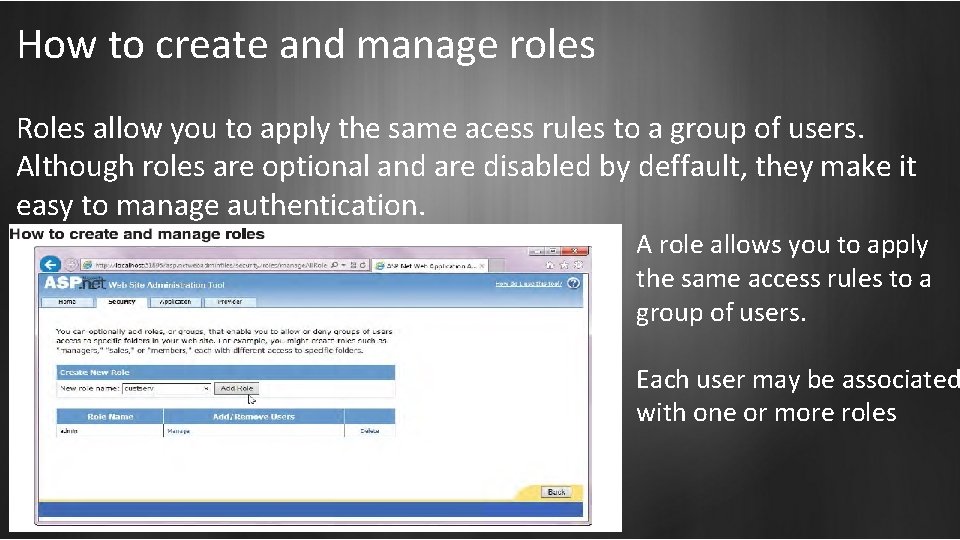
How to create and manage roles Roles allow you to apply the same acess rules to a group of users. Although roles are optional and are disabled by deffault, they make it easy to manage authentication. A role allows you to apply the same access rules to a group of users. Each user may be associated with one or more roles
How to create and mange users Start by entering all required information for a user. it includes username, password, email address and few more. Once you've created users you can use the second screen to mange them. To edit the email address or change the description you can click Edit User link. If your application contains many users you may need to search for user controls to search for users.
How to create and manage access rule If you want to apply an access rule to the entire web application, you can select the root directory for the web application and apply the rule. However its more common to allow all users including anonymous users to access the pages in the root directory. The second page shows how to manage the access rules for a folder. To do that you can move rules up or down, which is important since they're applied in the order in which they are displayed. Oryou can delete any rules that you no longer want to apply.
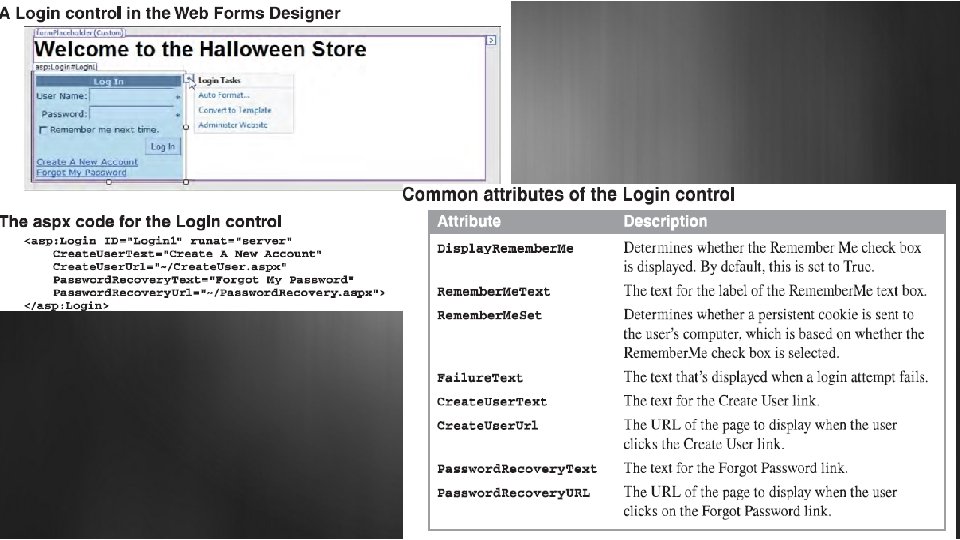
How to use the login controls Once you've restricted access to some or all of the web pages of your web application, you need to allow users with the proper permissions to log in and access the restricted pages. You can use the controls in the login group of the toolbox to automatically handle few tasks How to use the login control like most login pages the login control includes two text boxes that let the user enter a username and a password. It does that by checking to see whether the username and password are in the membership data store.
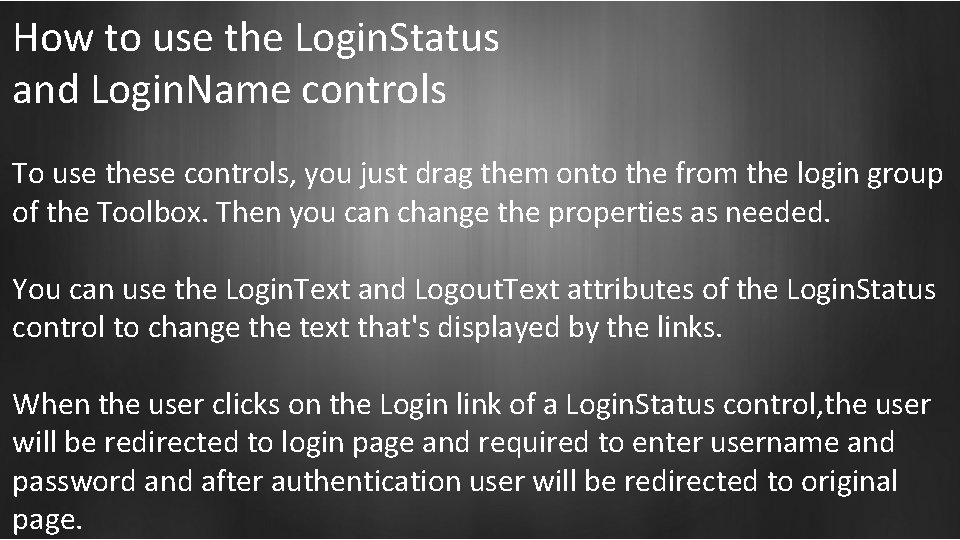
How to use the Login. Status and Login. Name controls To use these controls, you just drag them onto the from the login group of the Toolbox. Then you can change the properties as needed. You can use the Login. Text and Logout. Text attributes of the Login. Status control to change the text that's displayed by the links. When the user clicks on the Login link of a Login. Status control, the user will be redirected to login page and required to enter username and password and after authentication user will be redirected to original page.
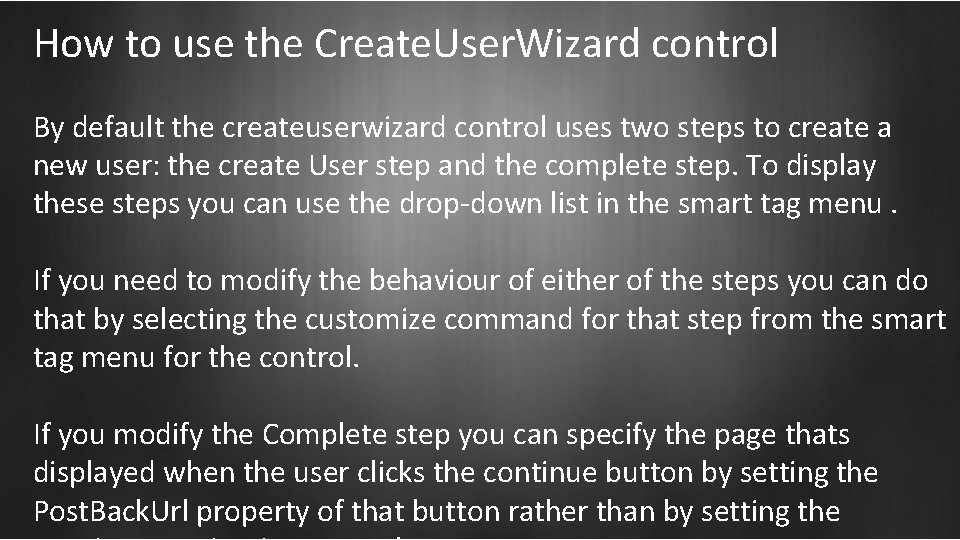
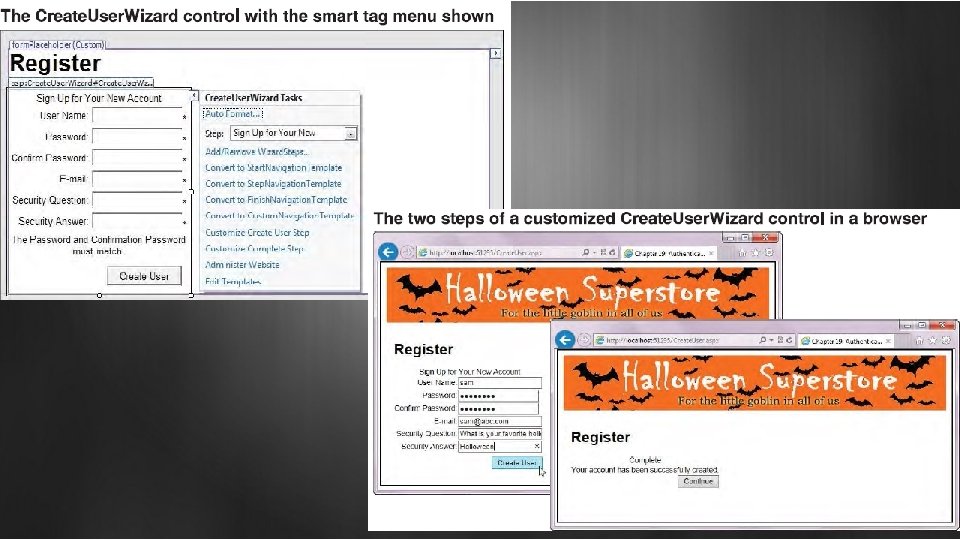
How to use the Create. User. Wizard control By default the createuserwizard control uses two steps to create a new user: the create User step and the complete step. To display these steps you can use the drop-down list in the smart tag menu. If you need to modify the behaviour of either of the steps you can do that by selecting the customize command for that step from the smart tag menu for the control. If you modify the Complete step you can specify the page thats displayed when the user clicks the continue button by setting the Post. Back. Url property of that button rather than by setting the
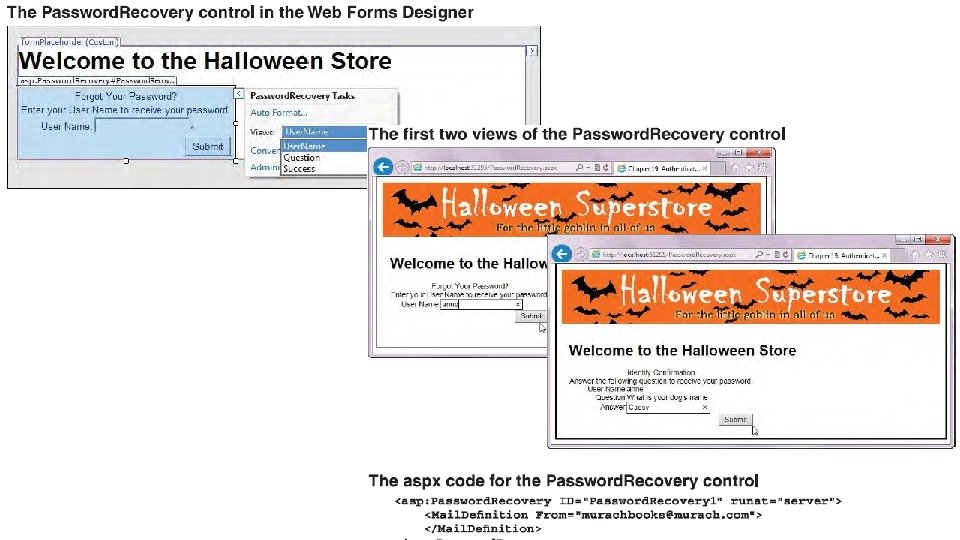
How to use the Password. Recovery control When you use the password recovery control the new password is sent to the user via email. The most important element of the Password. Recovery control is the Mail. Definition element. In particular, you must set the form attribute of the Mail. Definition element to the email address thats sending the email message or an error will occur. Password. Recovery control uses three views. In the web forms Designer, you can switch between these views by using the smart tag.
Thank You