
How to pull o Data Reports in Excel






- Slides: 16
How to pull o. Data Reports in Excel Administration Training
OVERVIEW This presentation will demonstrate the following: • How to get the o. Data feed link in the Convercent App • How to create an o. Data report in Excel-2013 Note: We recommend using Excel-2013 as it is more stable, and more User-Friendly when pulling o. Data. Excel-2010 will work, but has potential stability issues and thus won’t be covered in this guide.
HOW TO ACQUIRE ODATA FEED LINKS IN CONVERCENT 3 © 2014 Convercent. All rights reserved.
ACQUIRING ODATA FEED LINKS IN CONVERCENT To start the process, click “Reports”. 4 © 2014 Convercent. All rights reserved.
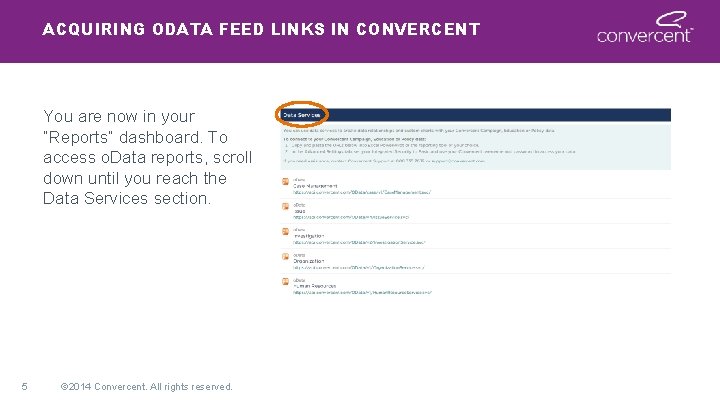
ACQUIRING ODATA FEED LINKS IN CONVERCENT You are now in your “Reports” dashboard. To access o. Data reports, scroll down until you reach the Data Services section. 5 © 2014 Convercent. All rights reserved.
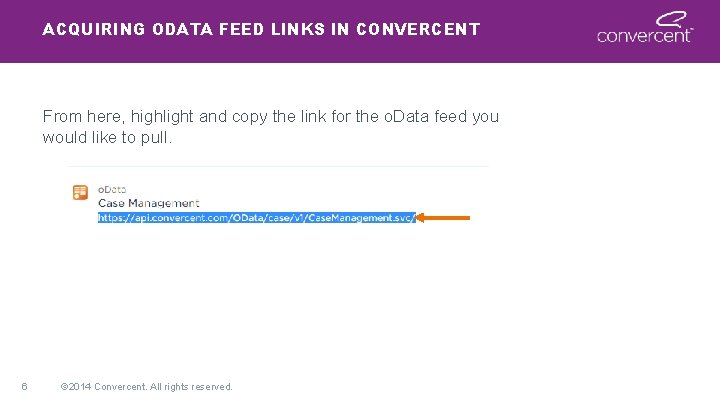
ACQUIRING ODATA FEED LINKS IN CONVERCENT From here, highlight and copy the link for the o. Data feed you would like to pull. 6 © 2014 Convercent. All rights reserved.
CREATING ODATA REPORTS IN EXCEL 7 © 2014 Convercent. All rights reserved.
CREATING ODATA REPORTS IN EXCEL Now you will need to open up Excel. Next open up a new blank workbook. Once open, look along the ribbon and click the “Data” tab. 8 © 2014 Convercent. All rights reserved.
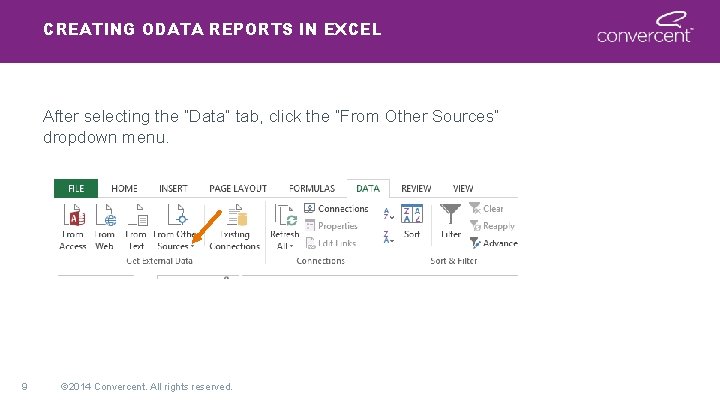
CREATING ODATA REPORTS IN EXCEL After selecting the “Data” tab, click the “From Other Sources” dropdown menu. 9 © 2014 Convercent. All rights reserved.
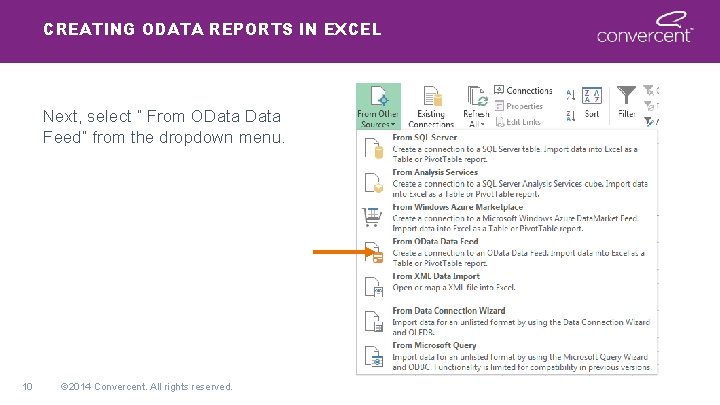
CREATING ODATA REPORTS IN EXCEL Next, select “ From OData Feed” from the dropdown menu. 10 © 2014 Convercent. All rights reserved.
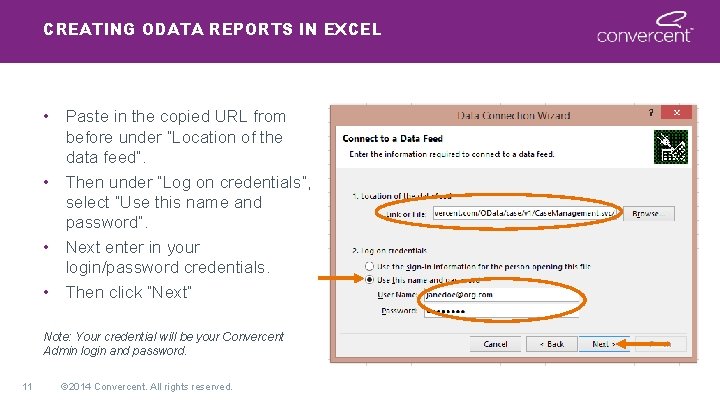
CREATING ODATA REPORTS IN EXCEL • Paste in the copied URL from before under “Location of the data feed”. • Then under “Log on credentials”, select “Use this name and password”. • Next enter in your login/password credentials. • Then click “Next” Note: Your credential will be your Convercent Admin login and password. 11 © 2014 Convercent. All rights reserved.
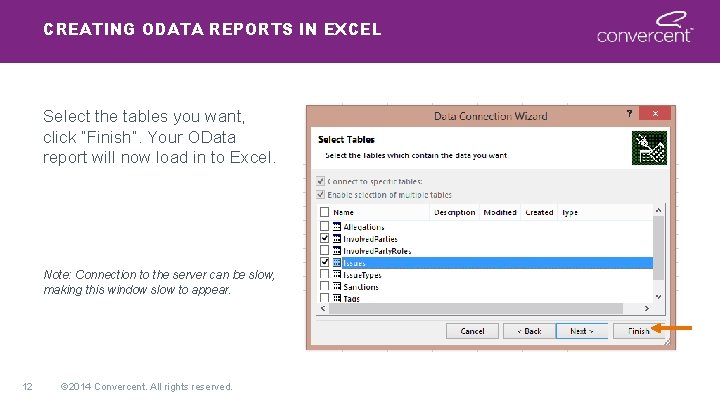
CREATING ODATA REPORTS IN EXCEL Select the tables you want, click “Finish”. Your OData report will now load in to Excel. Note: Connection to the server can be slow, making this window slow to appear. 12 © 2014 Convercent. All rights reserved.
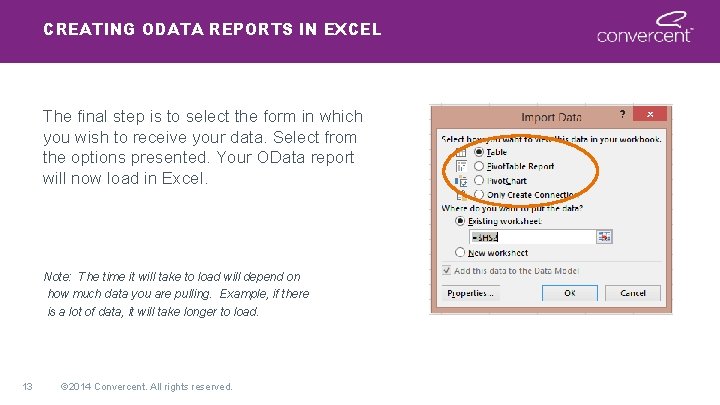
CREATING ODATA REPORTS IN EXCEL The final step is to select the form in which you wish to receive your data. Select from the options presented. Your OData report will now load in Excel. Note: The time it will take to load will depend on how much data you are pulling. Example, if there is a lot of data, it will take longer to load. 13 © 2014 Convercent. All rights reserved.
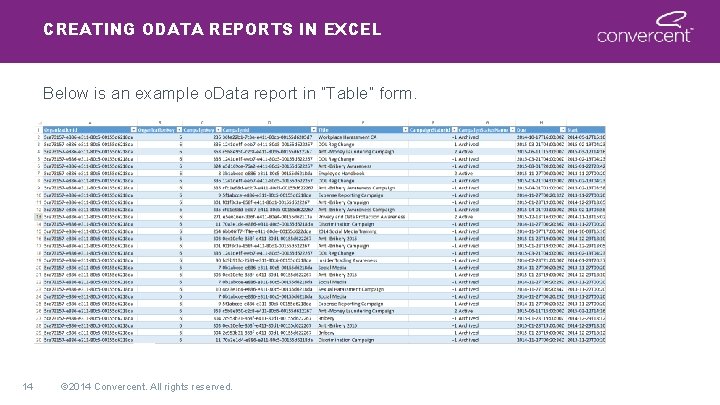
CREATING ODATA REPORTS IN EXCEL Below is an example o. Data report in “Table” form. 14 © 2014 Convercent. All rights reserved.
CREATING ODATA REPORTS IN EXCEL Make sure to save your report so that you can continue to use. Once a report has been pulled, you only need to refresh it to get the most recent data. If you would like to know how to refresh your o. Data report please refer to “Refreshing o. Data”. If you would like to know how to build interactive Pivot. Tables and Pivot. Charts, please refer to “How to Build Pivot. Tables and Pivot. Charts”. Both of these documents can be found in our supportal. 15 © 2014 Convercent. All rights reserved.
Thank You. 16 © 2014 Convercent. All rights reserved.