
How to Print to a Toshiba Copier Printer
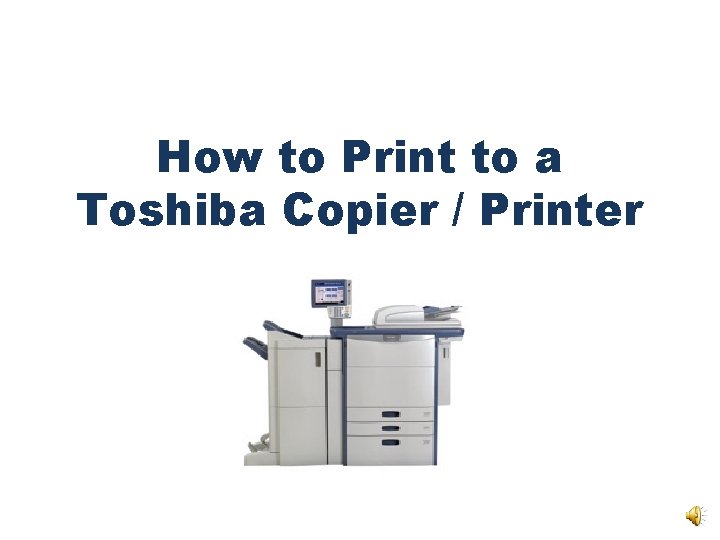
How to Print to a Toshiba Copier / Printer
Please note that your instructions will be in a box on the screen like this one. * The Basic Training is only 14 panels. * To learn about Private Print is only 14 more panels. * The entire training should take 10 -15 minutes.
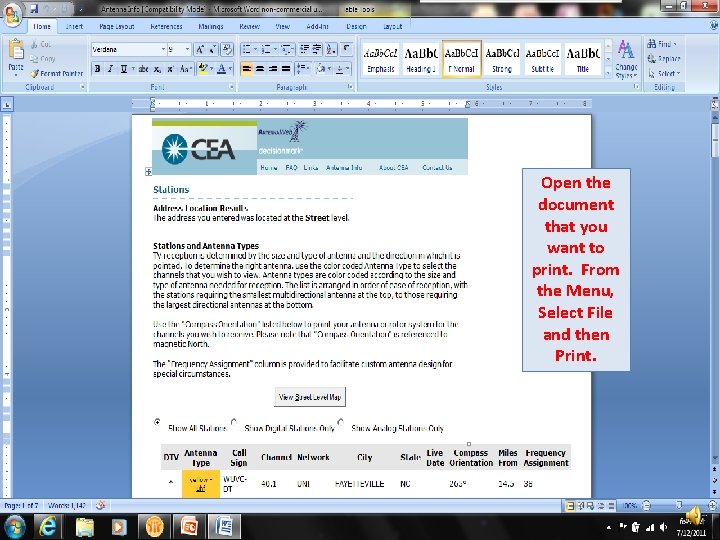
Open the document that you want to print. From the Menu, Select File and then Print.
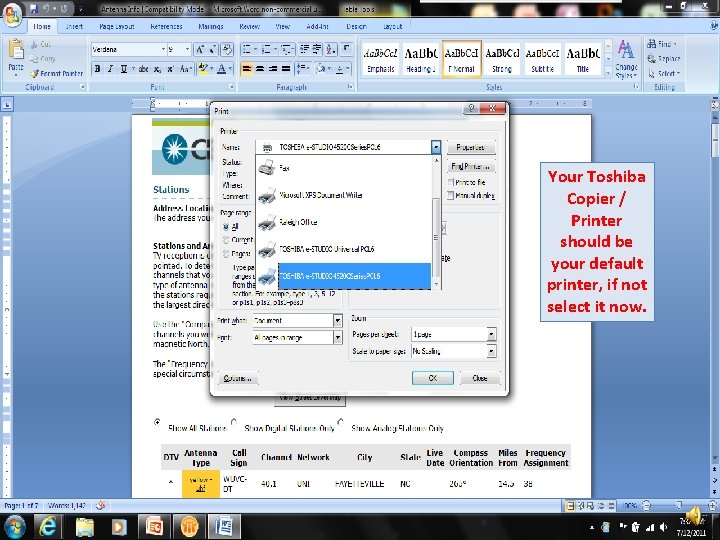
Your Toshiba Copier / Printer should be your default printer, if not select it now.
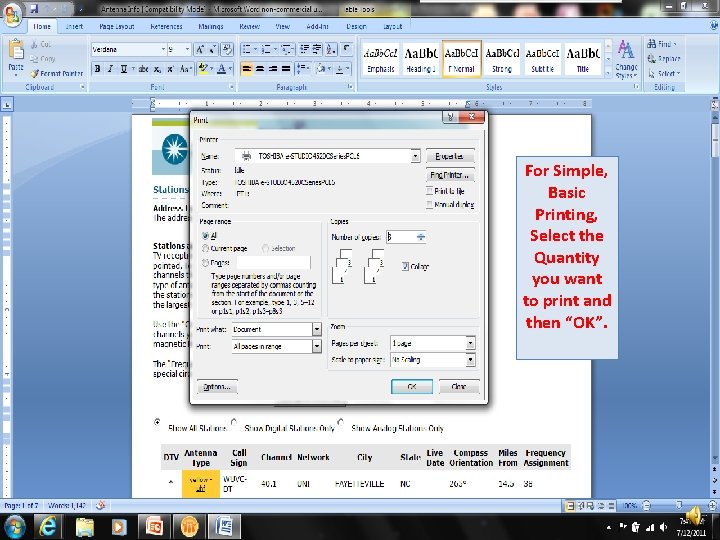
For Simple, Basic Printing, Select the Quantity you want to print and then “OK”.
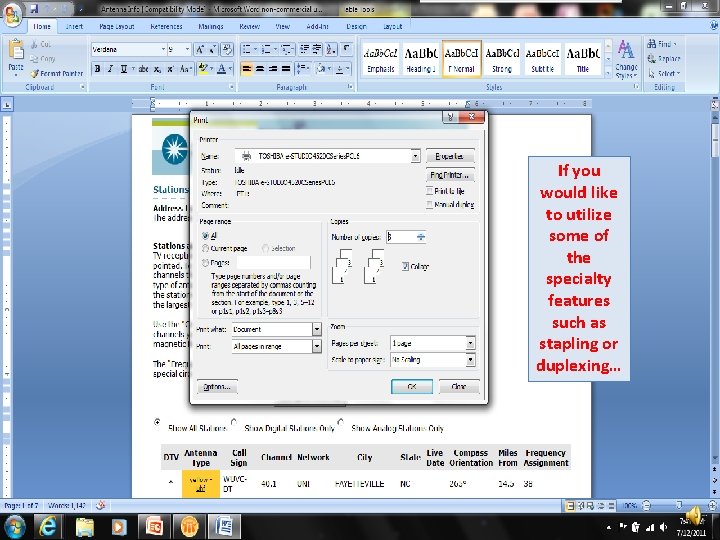
If you would like to utilize some of the specialty features such as stapling or duplexing…
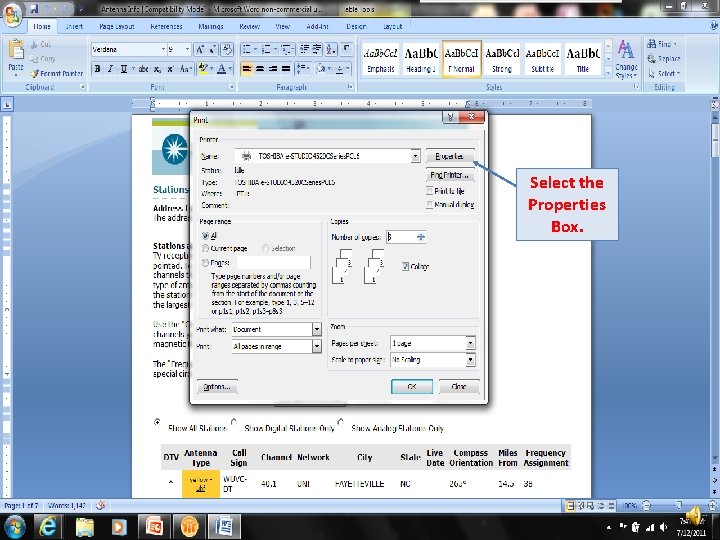
Select the Properties Box.
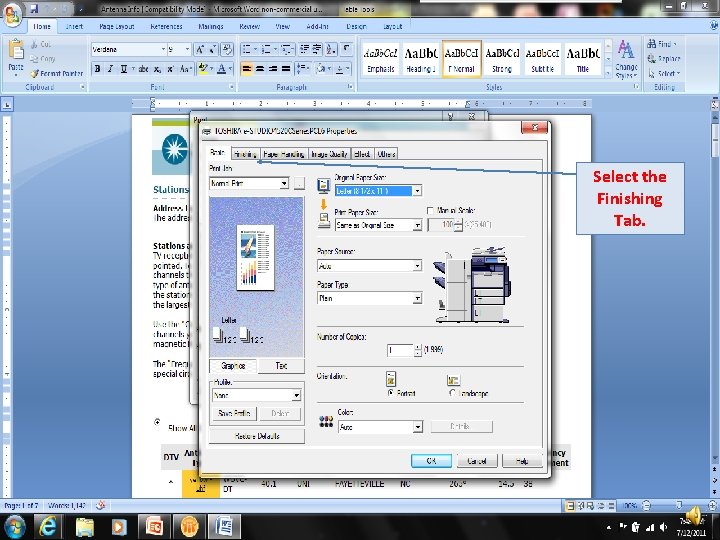
Select the Finishing Tab.
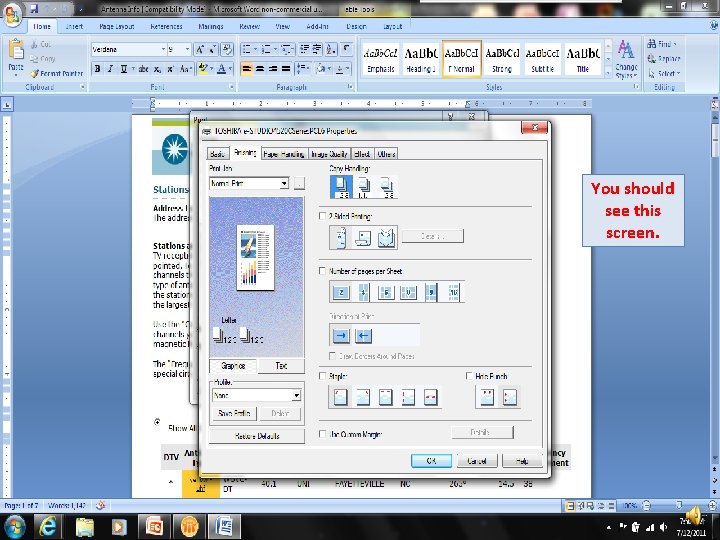
You should see this screen.
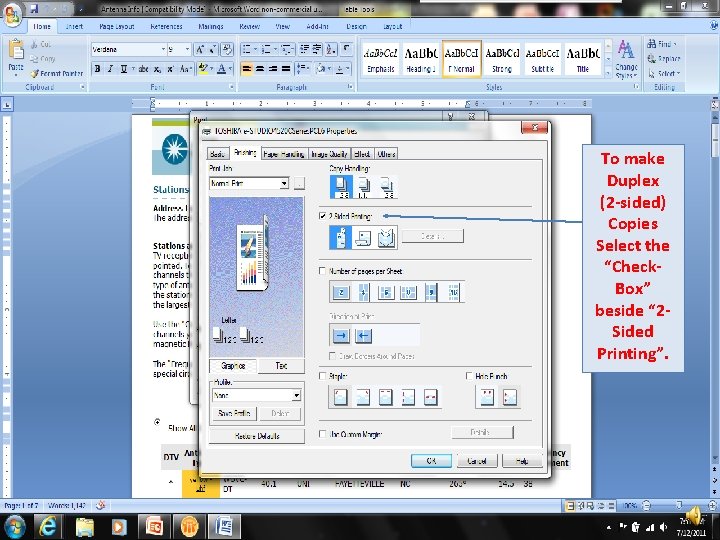
To make Duplex (2 -sided) Copies Select the “Check. Box” beside “ 2 Sided Printing”.
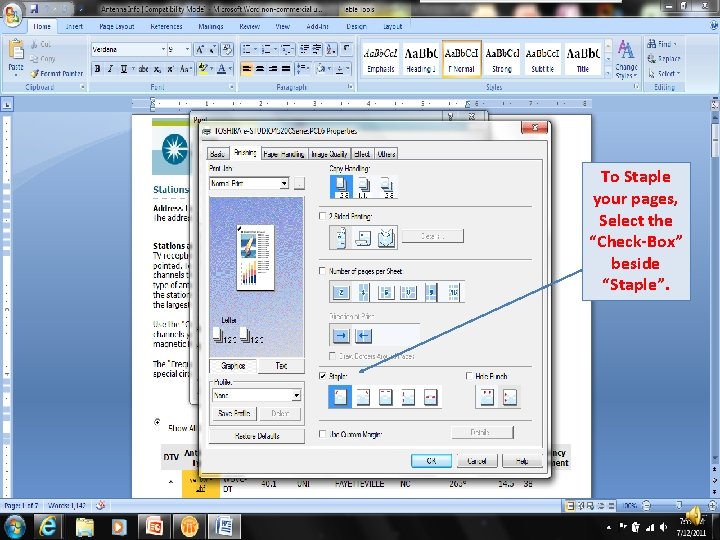
To Staple your pages, Select the “Check-Box” beside “Staple”.
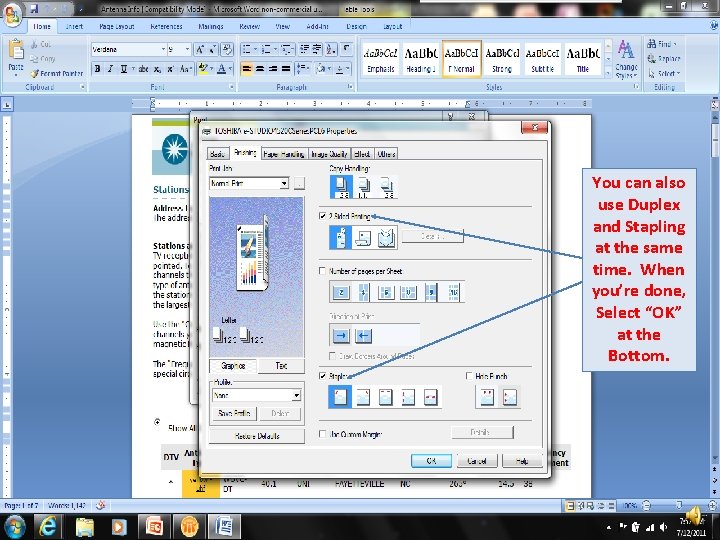
You can also use Duplex and Stapling at the same time. When you’re done, Select “OK” at the Bottom.
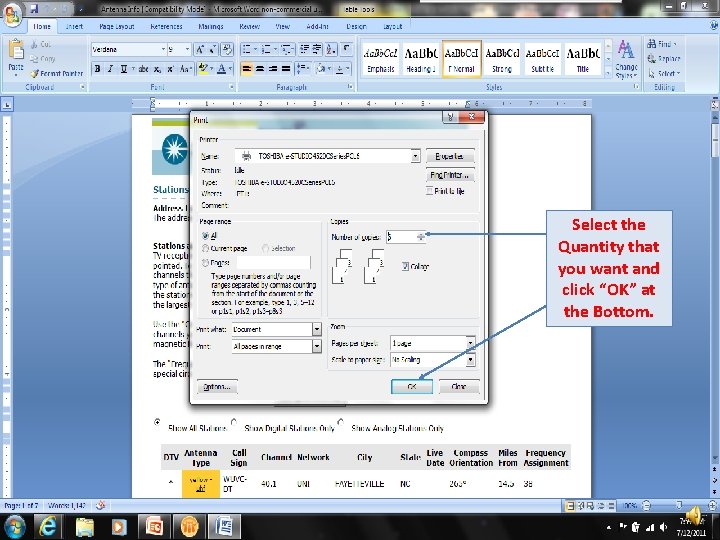
Select the Quantity that you want and click “OK” at the Bottom.
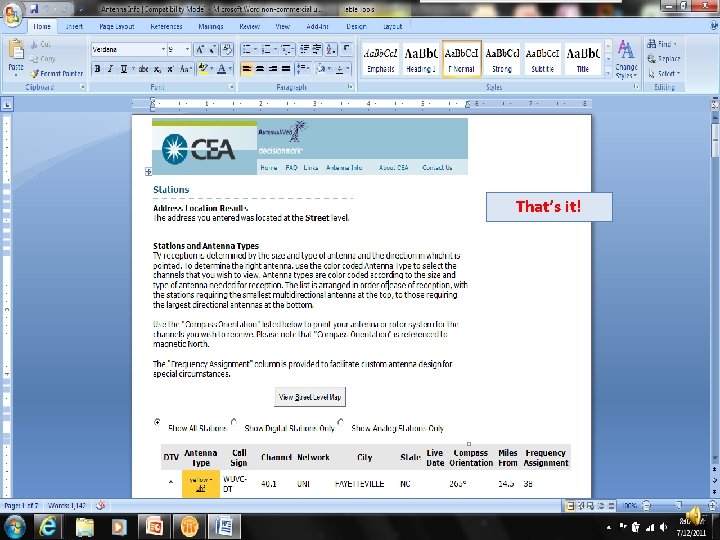
That’s it!
You can now pick up your documents at the copier/ printer Now, would you like to learn about Private Print? Then onto the next Section -
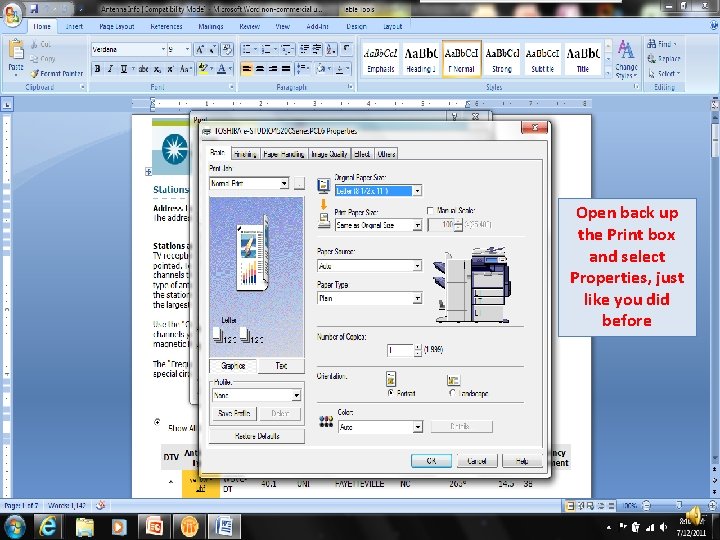
Open back up the Print box and select Properties, just like you did before
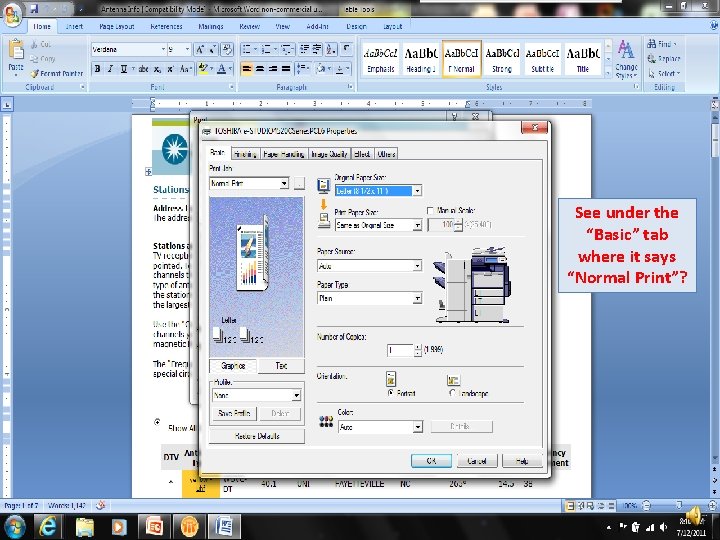
See under the “Basic” tab where it says “Normal Print”?
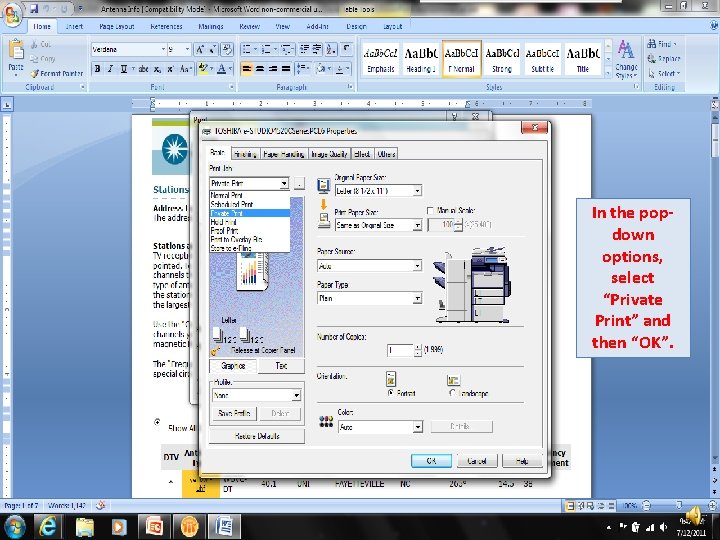
In the popdown options, select “Private Print” and then “OK”.
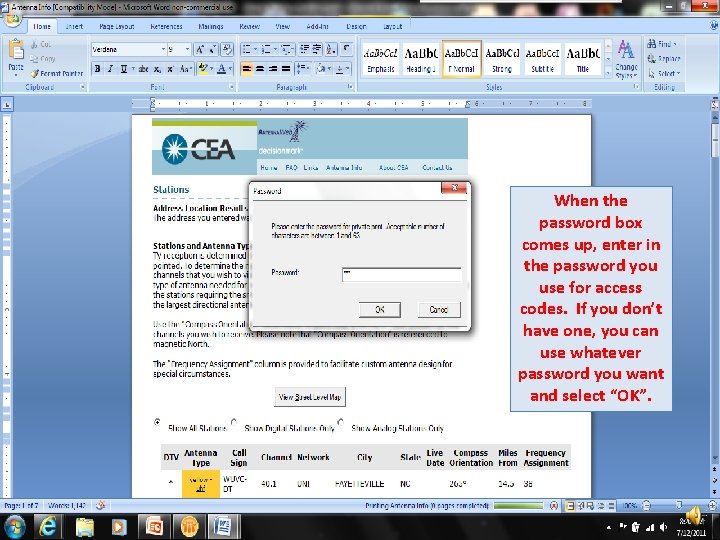
When the password box comes up, enter in the password you use for access codes. If you don’t have one, you can use whatever password you want and select “OK”.
Once again, you’re ready to pick up your documents at the copier. But no Rush! They’ll wait for you…
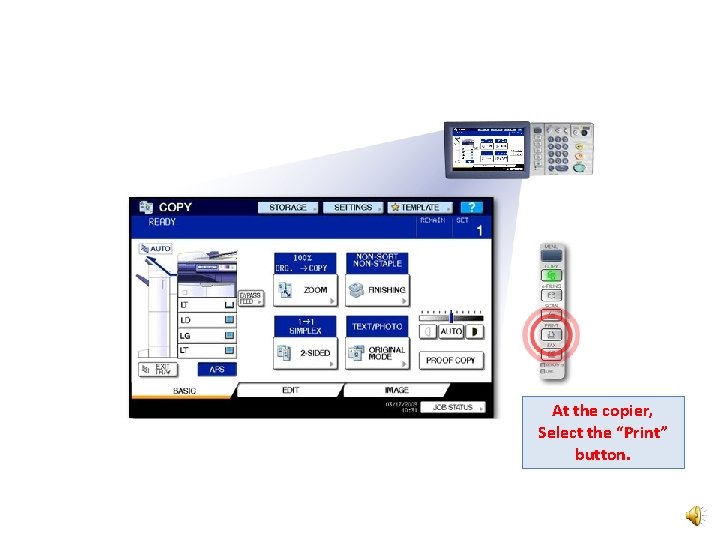
At the copier, Select the “Print” button.
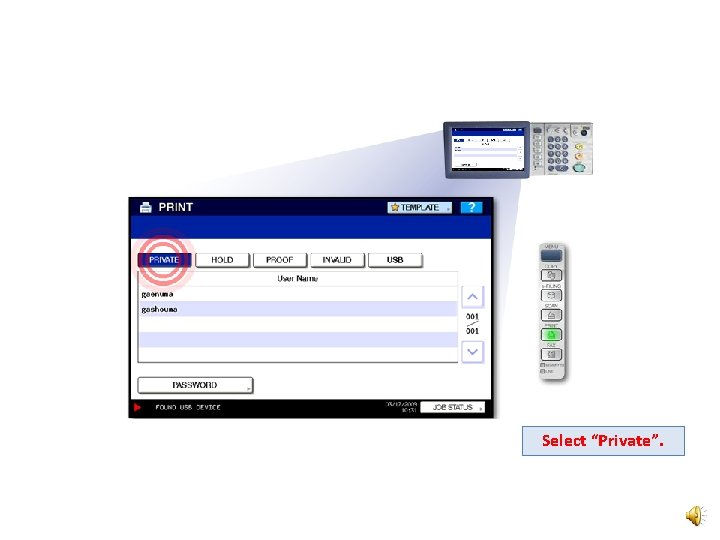
Select “Private”.
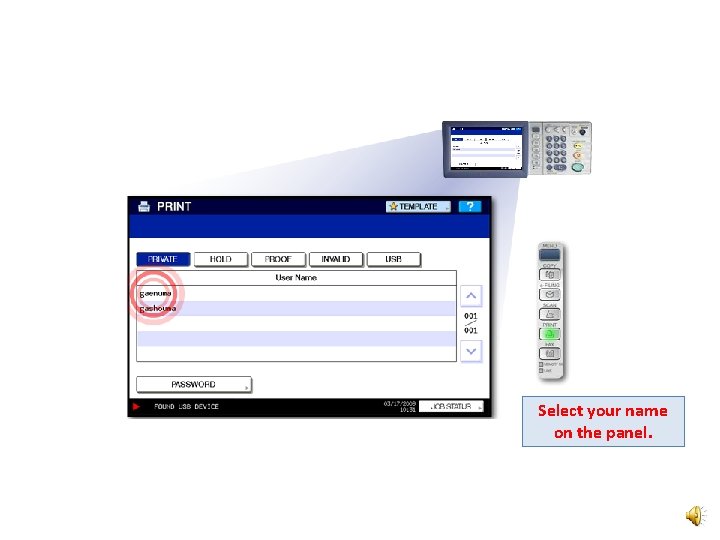
Select your name on the panel.
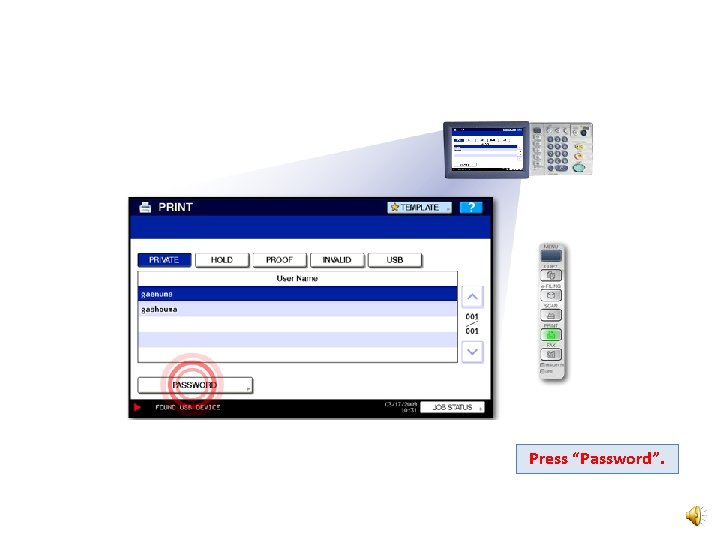
Press “Password”.
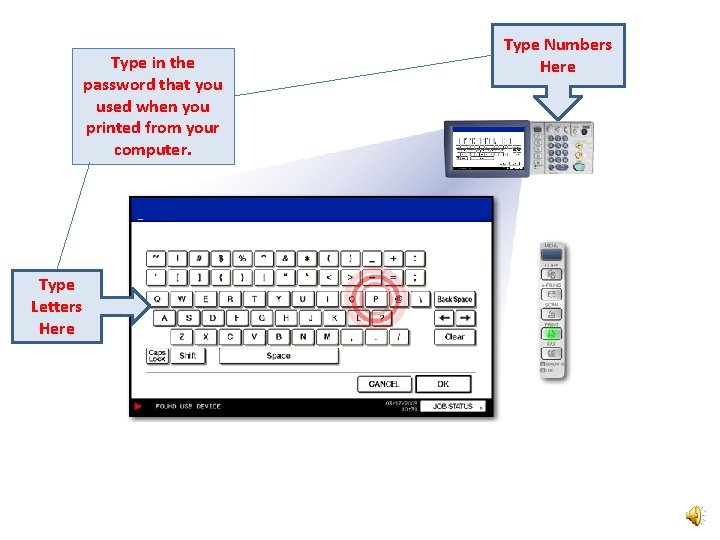
Type in the password that you used when you printed from your computer. Type Letters Here Type Numbers Here
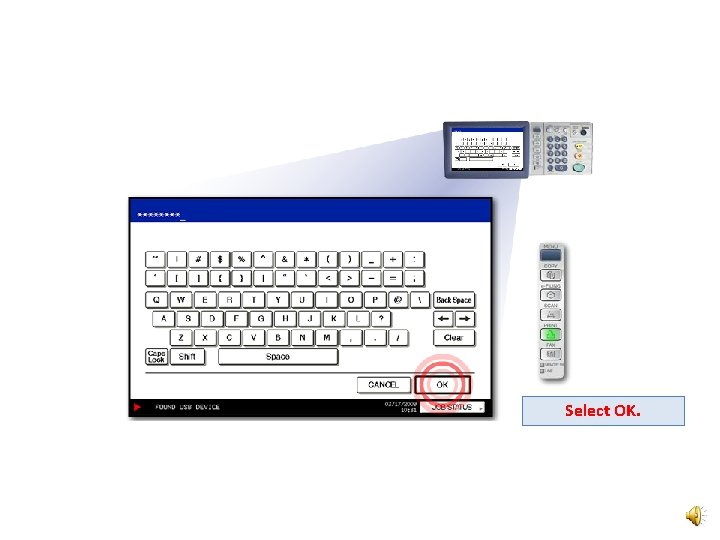
Select OK.
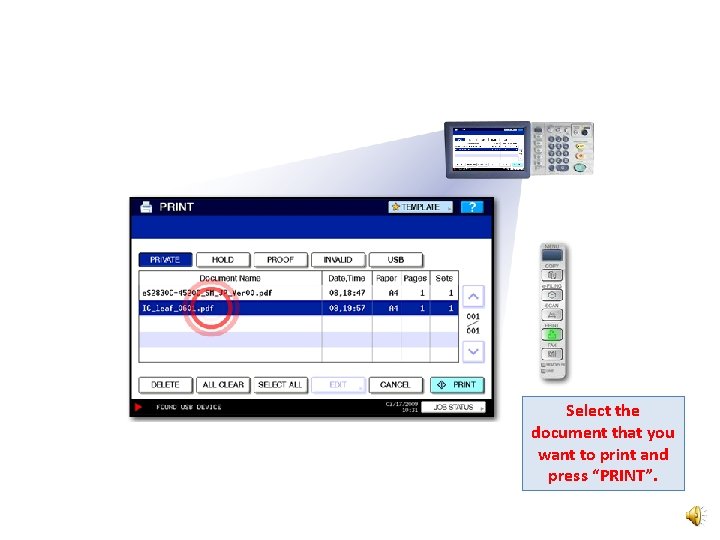
Select the document that you want to print and press “PRINT”.
That’s it! For additional training information please visit: http: //copiers. toshiba. com/usa/support/training/index. html Thanks!
- Slides: 28