
How to place a SOGEA NTE Shift Order

- Slides: 25
How to place a SOGEA NTE Shift Order on Enhanced Eco+ Version 1 1 Version 1 Julie Clementson.
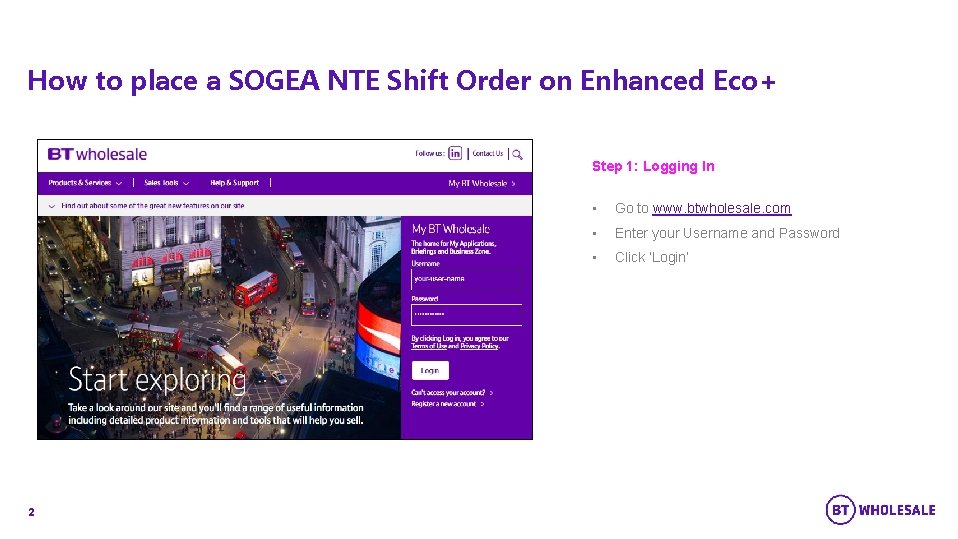
How to place a SOGEA NTE Shift Order on Enhanced Eco+ Step 1: Logging In 2 • Go to www. btwholesale. com • Enter your Username and Password • Click ‘Login’
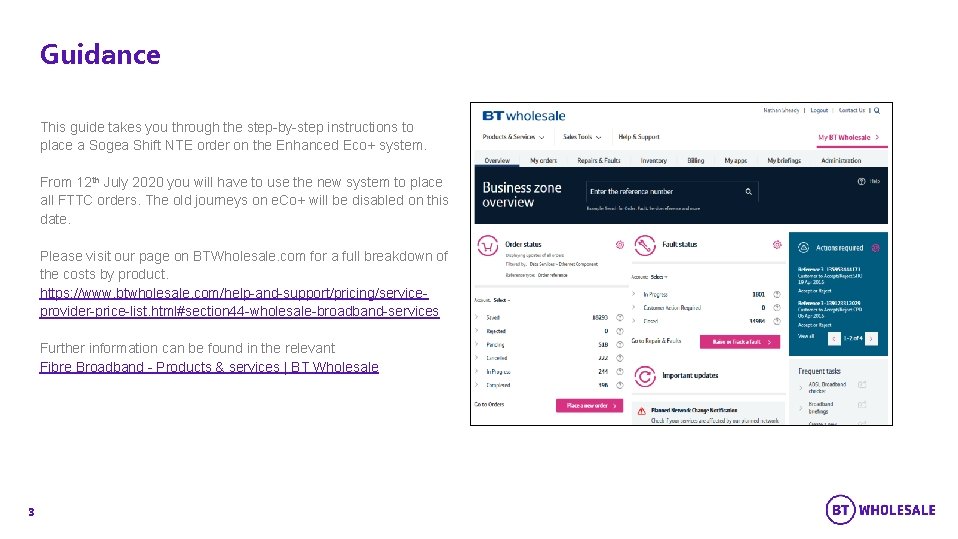
Guidance This guide takes you through the step-by-step instructions to place a Sogea Shift NTE order on the Enhanced Eco+ system. From 12 th July 2020 you will have to use the new system to place all FTTC orders. The old journeys on e. Co+ will be disabled on this date. Please visit our page on BTWholesale. com for a full breakdown of the costs by product. https: //www. btwholesale. com/help-and-support/pricing/serviceprovider-price-list. html#section 44 -wholesale-broadband-services Further information can be found in the relevant Fibre Broadband - Products & services | BT Wholesale 3
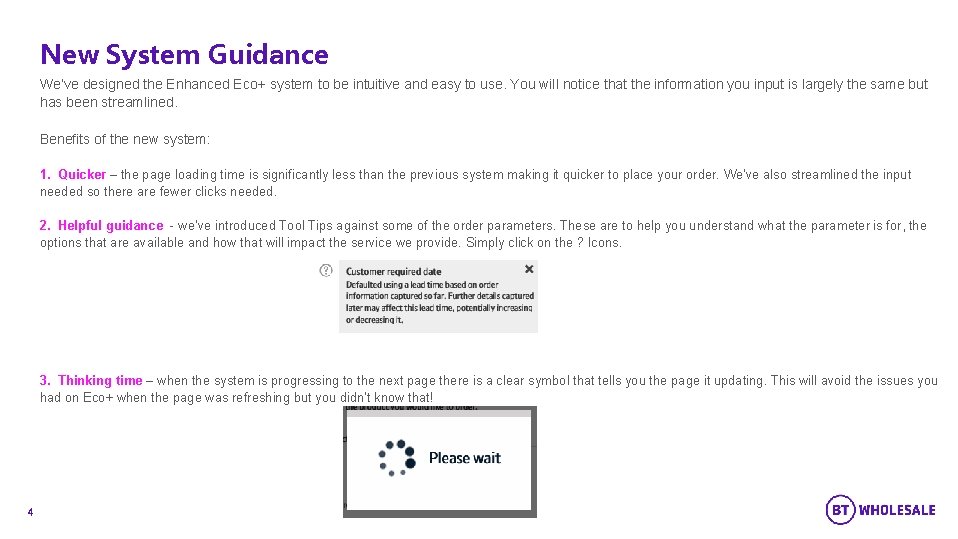
New System Guidance We’ve designed the Enhanced Eco+ system to be intuitive and easy to use. You will notice that the information you input is largely the same but has been streamlined. Benefits of the new system: 1. Quicker – the page loading time is significantly less than the previous system making it quicker to place your order. We’ve also streamlined the input needed so there are fewer clicks needed. 2. Helpful guidance - we’ve introduced Tool Tips against some of the order parameters. These are to help you understand what the parameter is for, the options that are available and how that will impact the service we provide. Simply click on the ? Icons. 3. Thinking time – when the system is progressing to the next page there is a clear symbol that tells you the page it updating. This will avoid the issues you had on Eco+ when the page was refreshing but you didn’t know that! 4
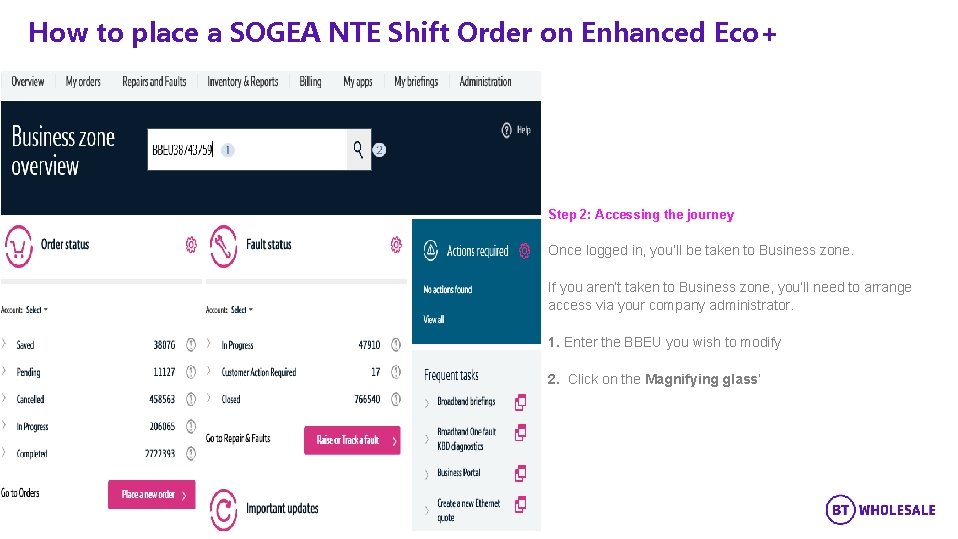
How to place a SOGEA NTE Shift Order on Enhanced Eco+ Step 2: Accessing the journey Once logged in, you’ll be taken to Business zone. If you aren’t taken to Business zone, you’ll need to arrange access via your company administrator. 1. Enter the BBEU you wish to modify 2. Click on the Magnifying glass’ 5
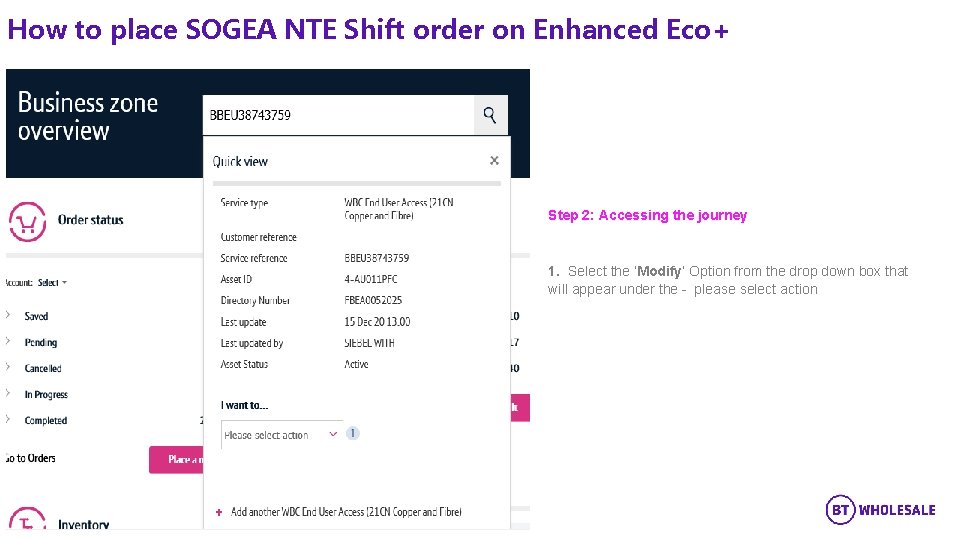
How to place SOGEA NTE Shift order on Enhanced Eco+ Step 2: Accessing the journey 1. Select the ‘Modify’ Option from the drop down box that will appear under the - please select action 6
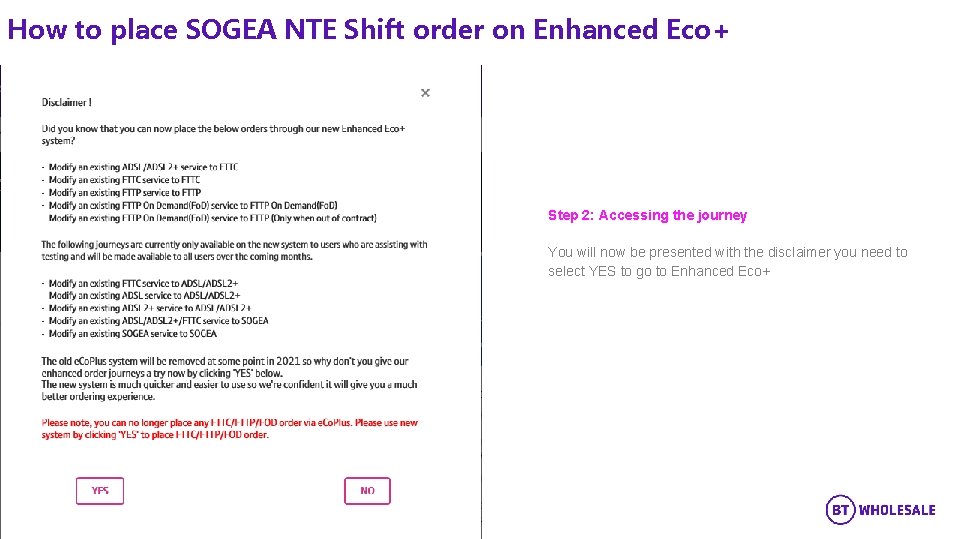
How to place SOGEA NTE Shift order on Enhanced Eco+ Step 2: Accessing the journey You will now be presented with the disclaimer you need to select YES to go to Enhanced Eco+ 7
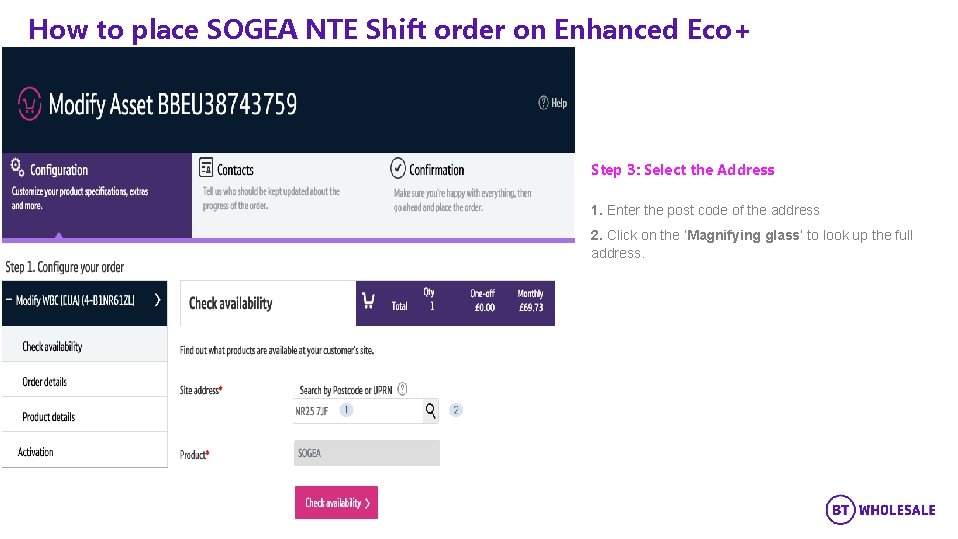
How to place SOGEA NTE Shift order on Enhanced Eco+ Step 3: Select the Address 1. Enter the post code of the address 2. Click on the ‘Magnifying glass’ to look up the full address. 8
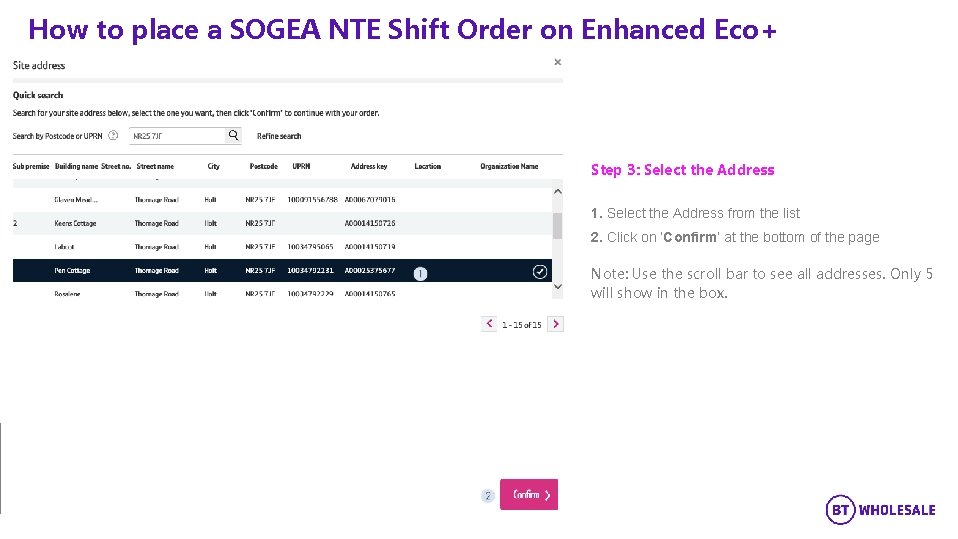
How to place a SOGEA NTE Shift Order on Enhanced Eco+ Step 3: Select the Address 1. Select the Address from the list 2. Click on ‘Confirm’ at the bottom of the page Note: Use the scroll bar to see all addresses. Only 5 will show in the box. 9
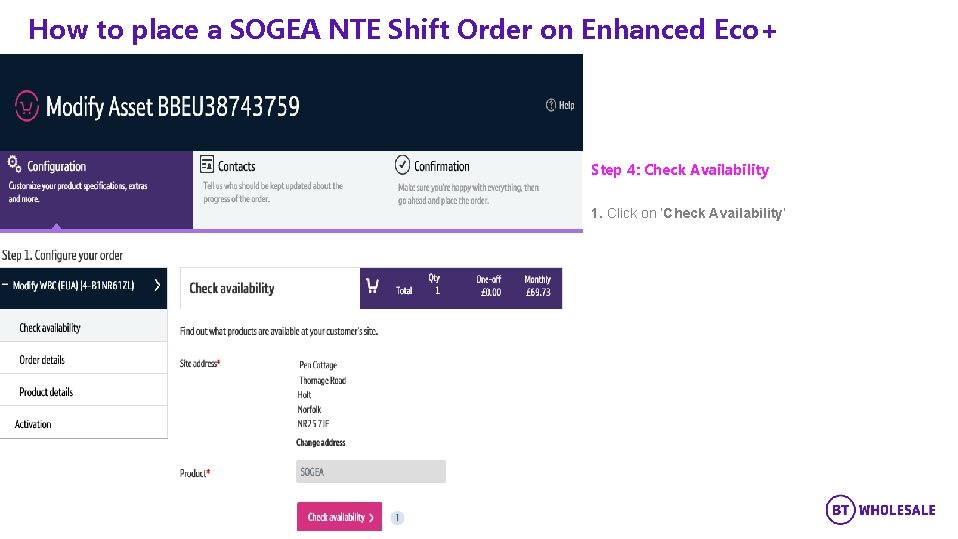
How to place a SOGEA NTE Shift Order on Enhanced Eco+ Step 4: Check Availability 1. Click on ‘Check Availability’ 10
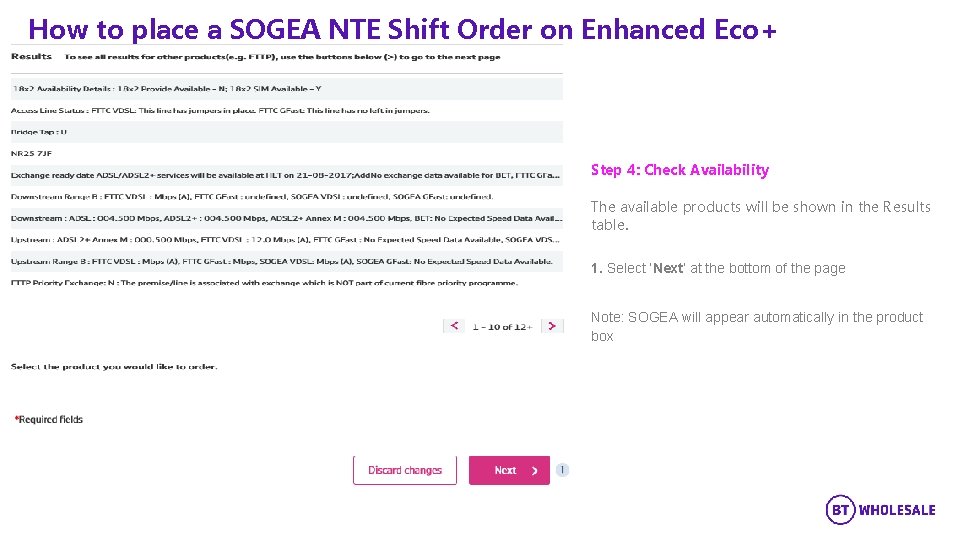
How to place a SOGEA NTE Shift Order on Enhanced Eco+ Step 4: Check Availability The available products will be shown in the Results table. 1. Select ‘Next’ at the bottom of the page Note: SOGEA will appear automatically in the product box 11
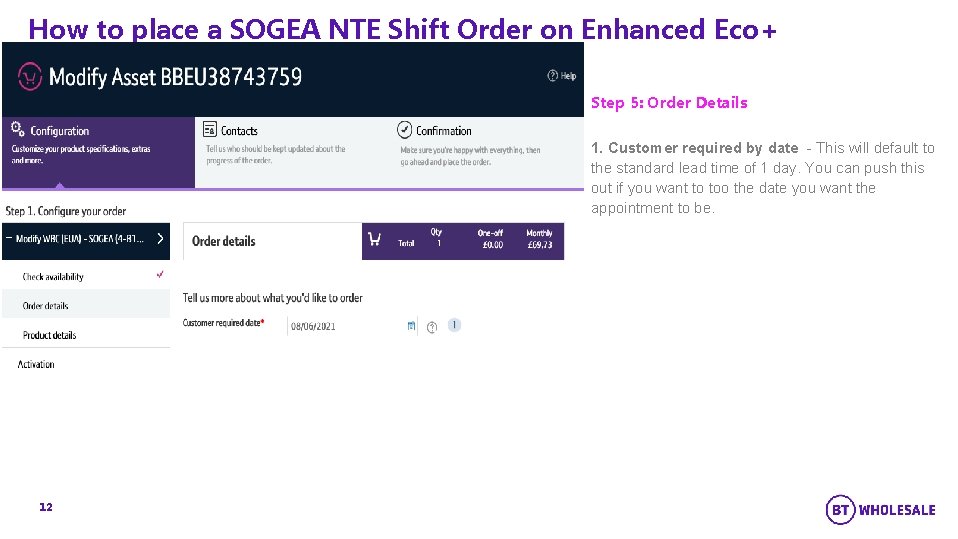
How to place a SOGEA NTE Shift Order on Enhanced Eco+ Step 5: Order Details 1. Customer required by date - This will default to the standard lead time of 1 day. You can push this out if you want to too the date you want the appointment to be. 12
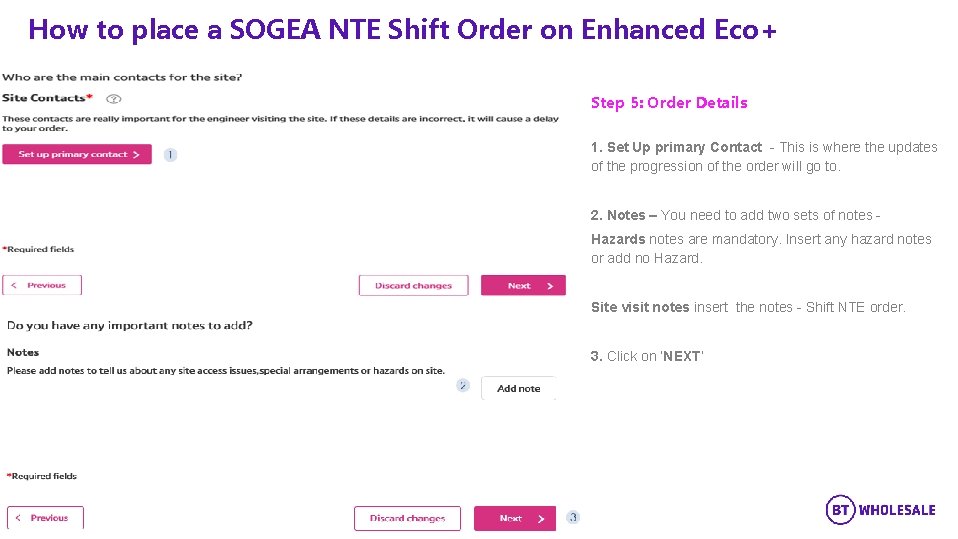
How to place a SOGEA NTE Shift Order on Enhanced Eco+ Step 5: Order Details 1. Set Up primary Contact - This is where the updates of the progression of the order will go to. 2. Notes – You need to add two sets of notes Hazards notes are mandatory. Insert any hazard notes or add no Hazard. Site visit notes insert the notes - Shift NTE order. 3. Click on ‘NEXT’ 13
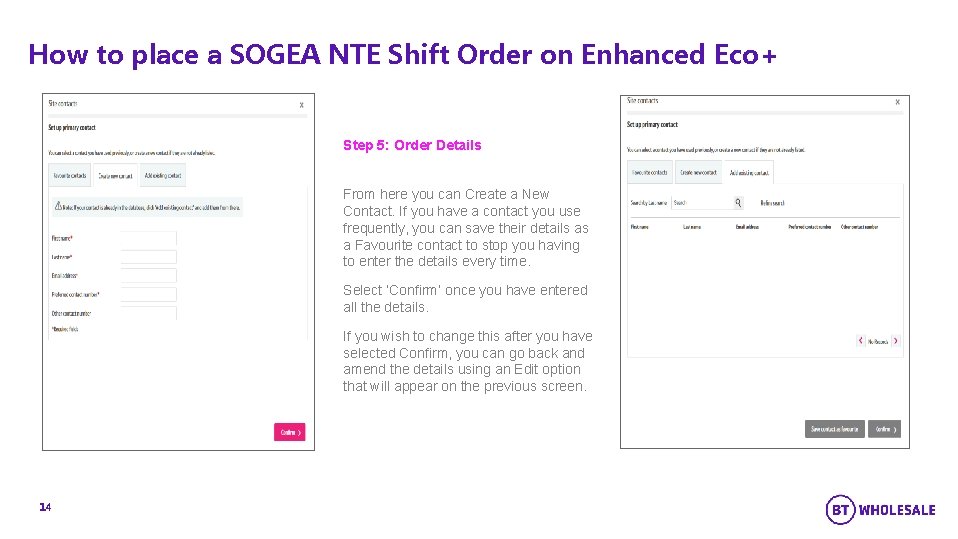
How to place a SOGEA NTE Shift Order on Enhanced Eco+ Step 5: Order Details From here you can Create a New Contact. If you have a contact you use frequently, you can save their details as a Favourite contact to stop you having to enter the details every time. Select ‘Confirm’ once you have entered all the details. If you wish to change this after you have selected Confirm, you can go back and amend the details using an Edit option that will appear on the previous screen. 14
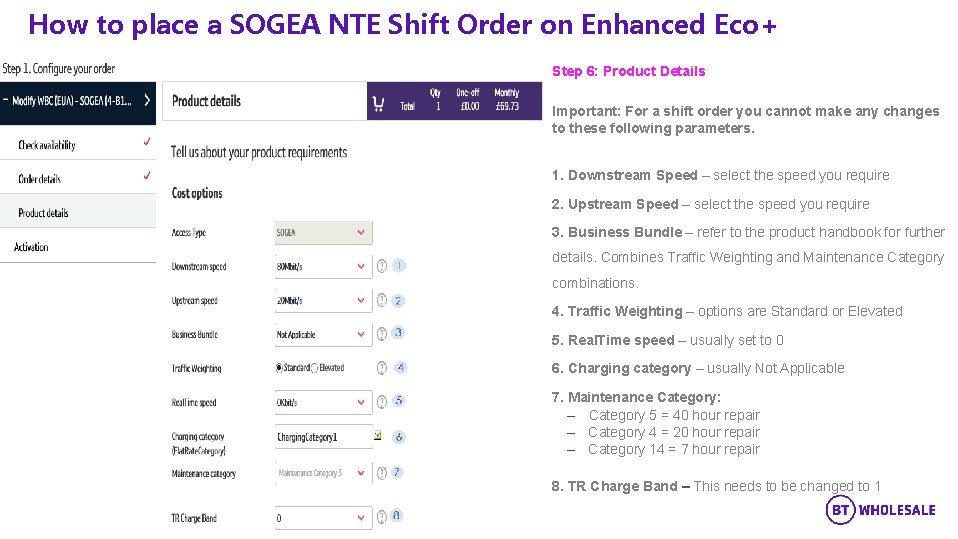
How to place a SOGEA NTE Shift Order on Enhanced Eco+ Step 6: Product Details Important: For a shift order you cannot make any changes to these following parameters. 1. Downstream Speed – select the speed you require 2. Upstream Speed – select the speed you require 3. Business Bundle – refer to the product handbook for further 4 details. Combines Traffic Weighting and Maintenance Category 5 6 combinations. 7 4. Traffic Weighting – options are Standard or Elevated 5. Real. Time speed – usually set to 0 6. Charging category – usually Not Applicable 9 10 11 7. Maintenance Category: – Category 5 = 40 hour repair – Category 4 = 20 hour repair – Category 14 = 7 hour repair 8. TR Charge Band – This needs to be changed to 1 15
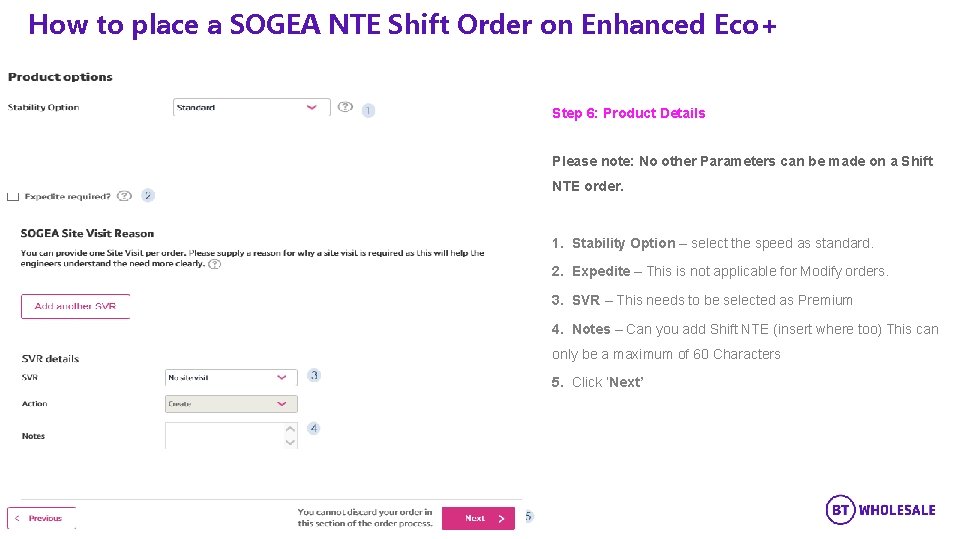
How to place a SOGEA NTE Shift Order on Enhanced Eco+ Step 6: Product Details Please note: No other Parameters can be made on a Shift NTE order. 1. Stability Option – select the speed as standard. 2. Expedite – This is not applicable for Modify orders. 3. SVR – This needs to be selected as Premium 4. Notes – Can you add Shift NTE (insert where too) This can only be a maximum of 60 Characters 5. Click ‘Next’ 16
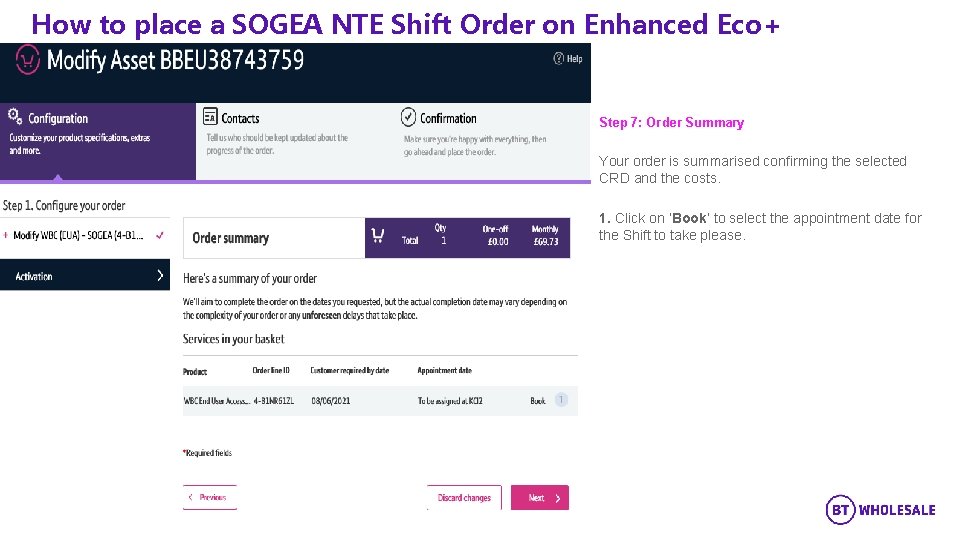
How to place a SOGEA NTE Shift Order on Enhanced Eco+ Step 7: Order Summary Your order is summarised confirming the selected CRD and the costs. 1. Click on ‘Book’ to select the appointment date for the Shift to take please. 17
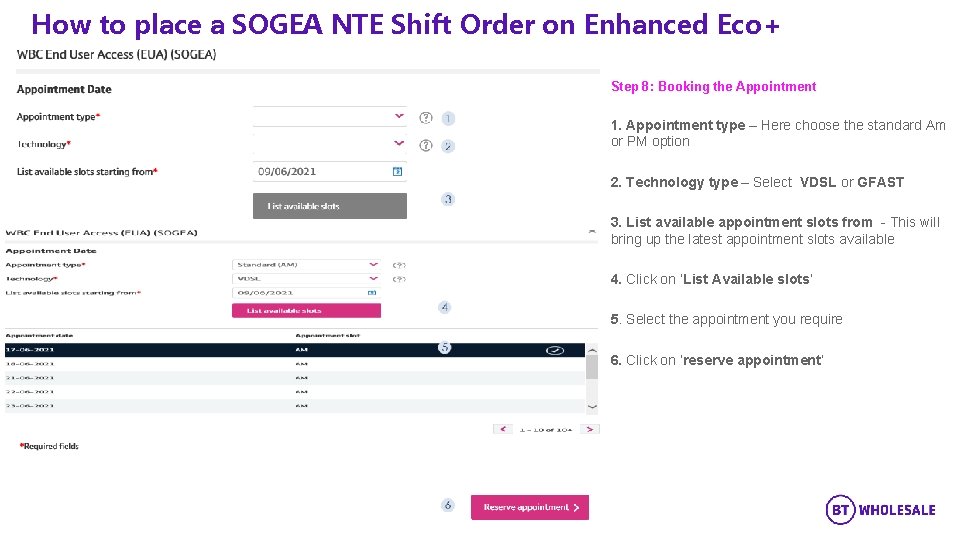
How to place a SOGEA NTE Shift Order on Enhanced Eco+ Step 8: Booking the Appointment 1. Appointment type – Here choose the standard Am or PM option 2. Technology type – Select VDSL or GFAST 3. List available appointment slots from - This will bring up the latest appointment slots available 4. Click on ‘List Available slots’ 5. Select the appointment you require 6. Click on ‘reserve appointment’ 18
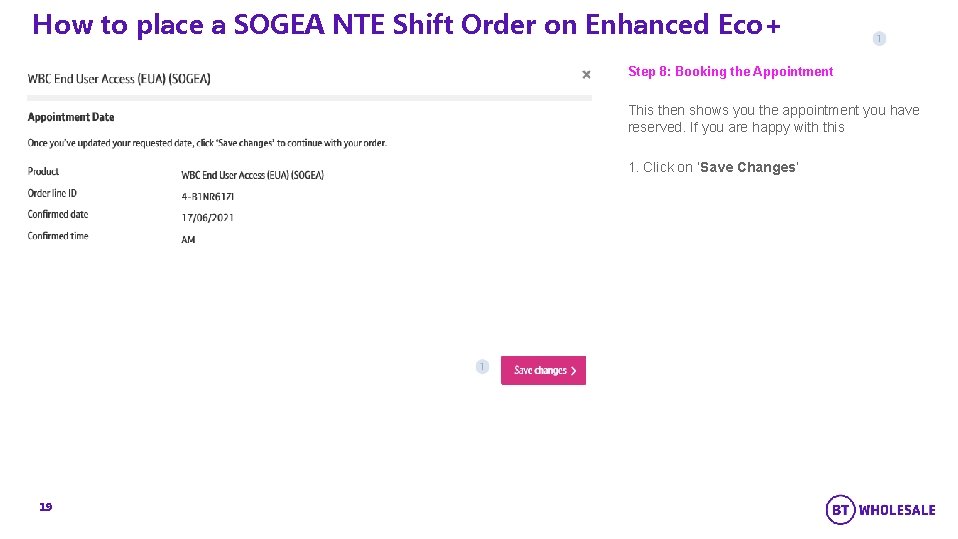
How to place a SOGEA NTE Shift Order on Enhanced Eco+ Step 8: Booking the Appointment This then shows you the appointment you have reserved. If you are happy with this 1. Click on ‘Save Changes’ 19
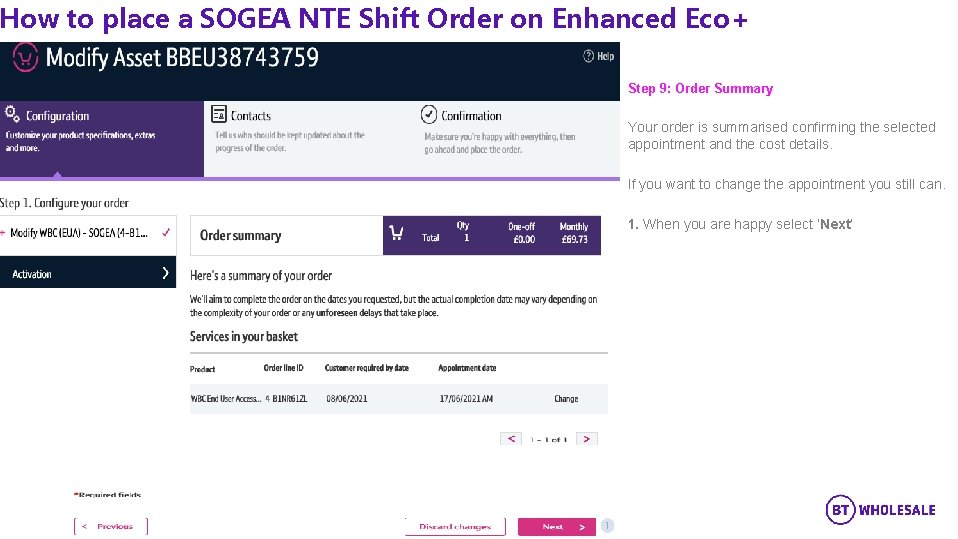
How to place a SOGEA NTE Shift Order on Enhanced Eco+ Step 9: Order Summary Your order is summarised confirming the selected appointment and the cost details. If you want to change the appointment you still can. 1. When you are happy select ‘Next’ 20
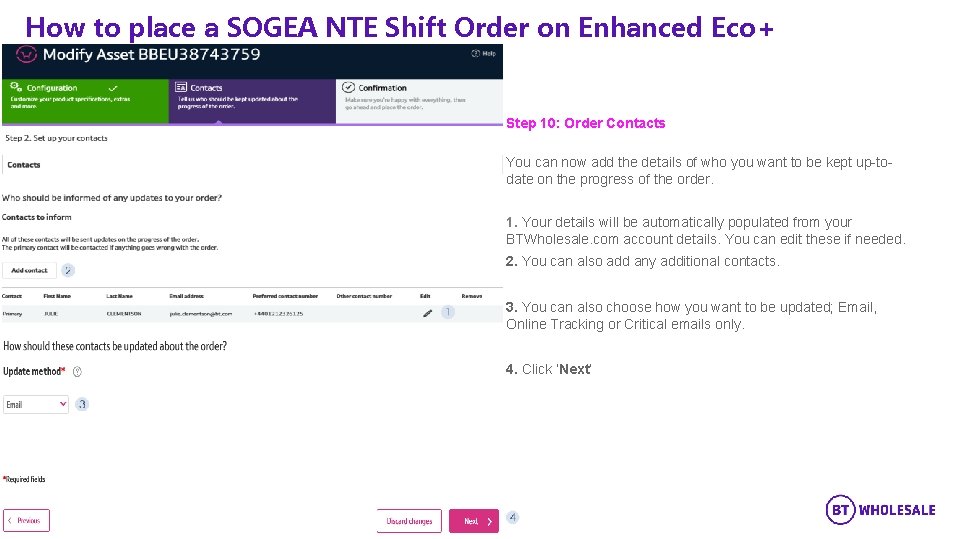
How to place a SOGEA NTE Shift Order on Enhanced Eco+ Step 10: Order Contacts You can now add the details of who you want to be kept up-todate on the progress of the order. 1. Your details will be automatically populated from your BTWholesale. com account details. You can edit these if needed. 2. You can also add any additional contacts. 2 3. You can also choose how you want to be updated; Email, Online Tracking or Critical emails only. 4. Click ‘Next’ 3 4 21
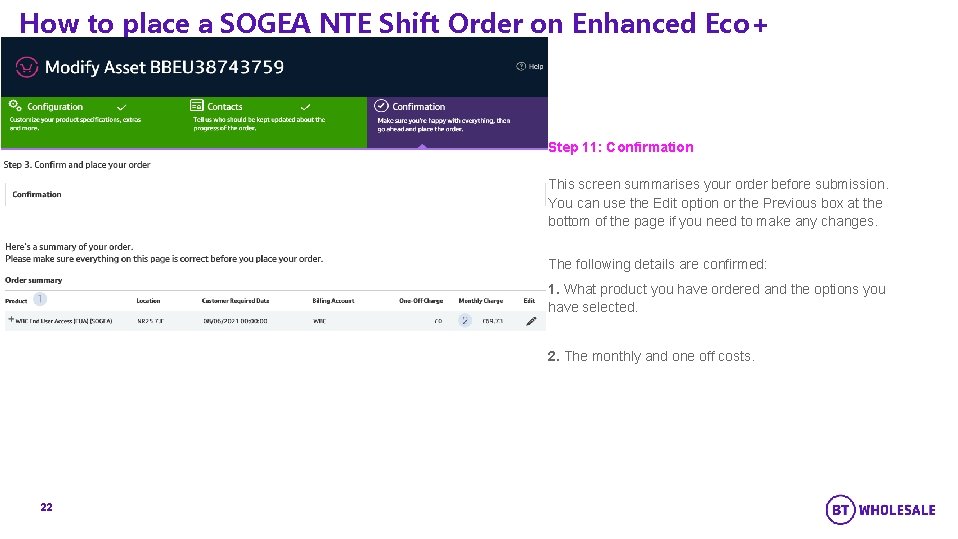
How to place a SOGEA NTE Shift Order on Enhanced Eco+ Step 11: Confirmation This screen summarises your order before submission. You can use the Edit option or the Previous box at the bottom of the page if you need to make any changes. The following details are confirmed: 1. What product you have ordered and the options you have selected. 2. The monthly and one off costs. 22
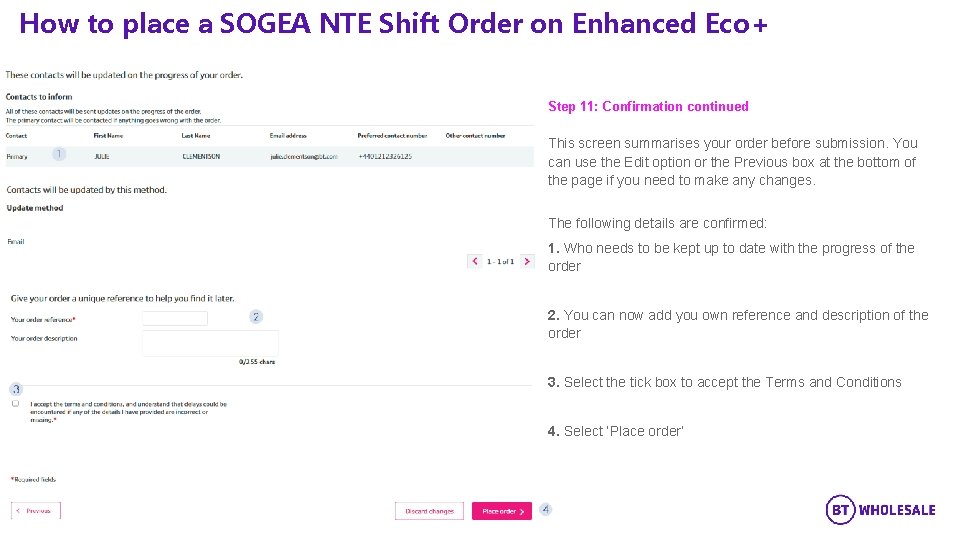
How to place a SOGEA NTE Shift Order on Enhanced Eco+ Step 11: Confirmation continued This screen summarises your order before submission. You can use the Edit option or the Previous box at the bottom of the page if you need to make any changes. The following details are confirmed: 1. Who needs to be kept up to date with the progress of the order 2. You can now add you own reference and description of the order 3. Select the tick box to accept the Terms and Conditions 4. Select ‘Place order’ 23
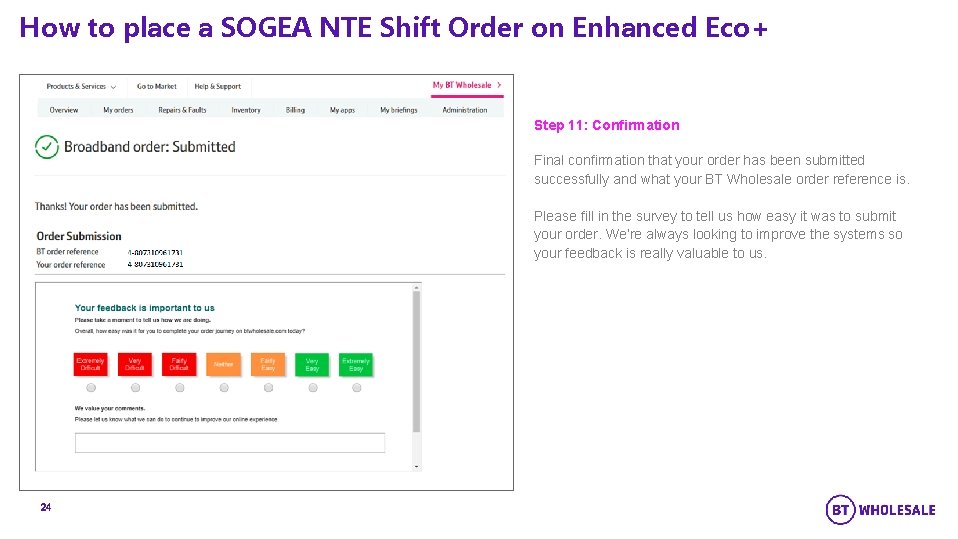
How to place a SOGEA NTE Shift Order on Enhanced Eco+ Step 11: Confirmation Final confirmation that your order has been submitted successfully and what your BT Wholesale order reference is. Please fill in the survey to tell us how easy it was to submit your order. We’re always looking to improve the systems so your feedback is really valuable to us. 24
© British Telecommunications plc