
How to make a DDC Exam Step 1
![Step 3: Name Exam � Enter Title – Be specific (“TAPCO [NAME OF EXAM]](https://slidetodoc.com/presentation_image_h/0fca1dd86dd08842980b6f56b05d4f9a/image-6.jpg "Step 3: Name Exam � Enter Title – Be specific (“TAPCO [NAME OF EXAM]")



- Slides: 18
How to make a DDC Exam
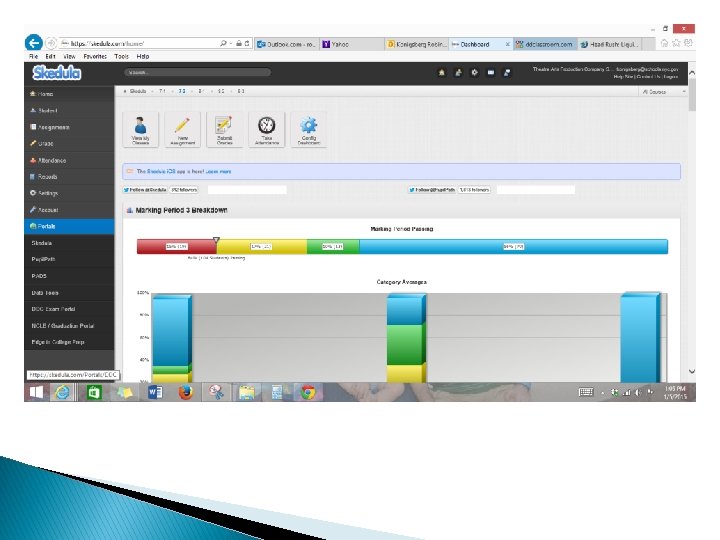
Step 1: Log-In � Log-In to Skedula � Click on “Portals” on the bottom left hand sidebar � Click “DDC Exam Portal” � Log-In to DDC if necessary (using the same log-in information)
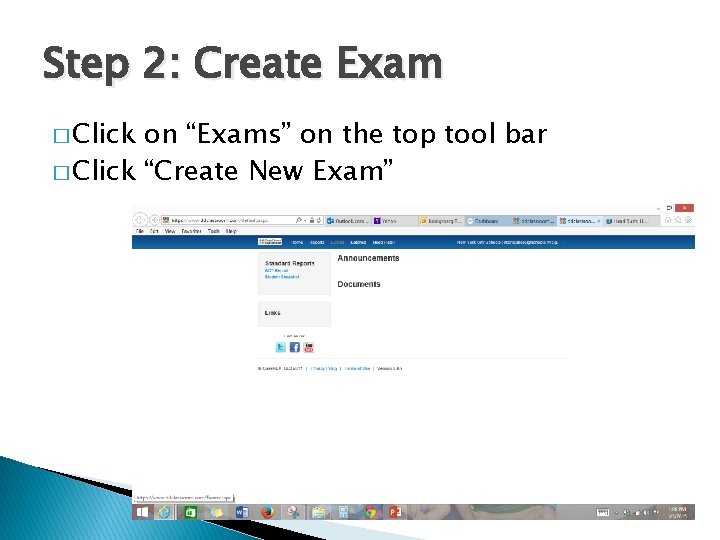
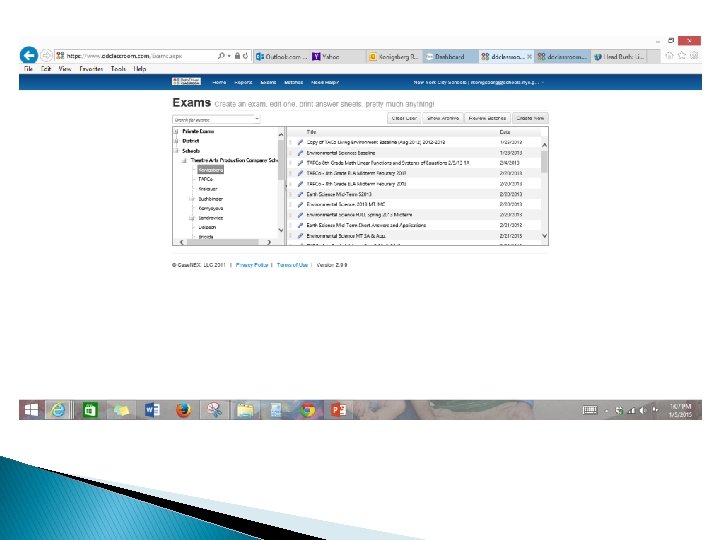
Step 2: Create Exam � Click on “Exams” on the top tool bar � Click “Create New Exam”
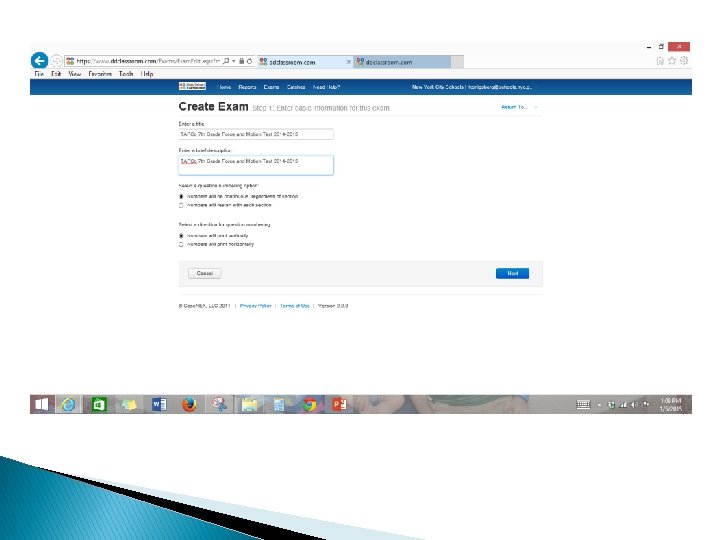
Step 3: Name Exam � Enter Title – Be specific (“TAPCO [NAME OF EXAM] [DATE]”) ◦ Ex: TAPCO ENGLISH 11 Critical lens essay 1/15/13 � Enter Description: describe test in your own way � Numbering options: ◦ 1) Make numbers consecutive ◦ 2) Restart numbering in each section � Direction for Question Number ◦ Vertical ◦ Horizontal ◦ CHOOSE VERTICAL � CLICK NEXT
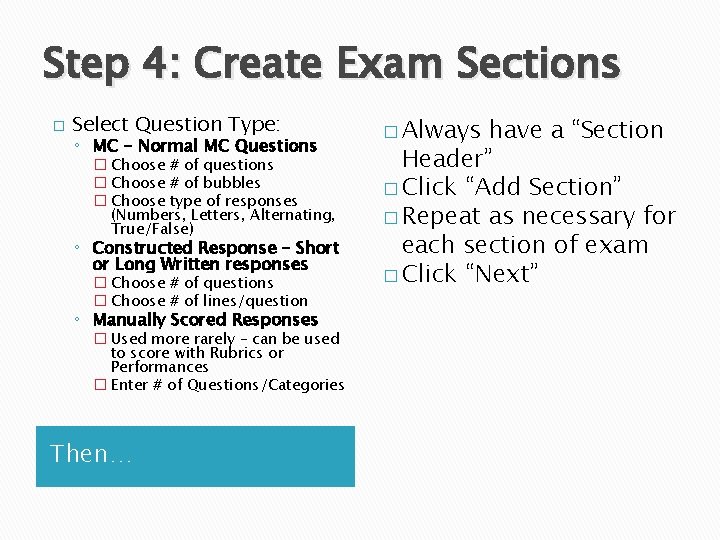
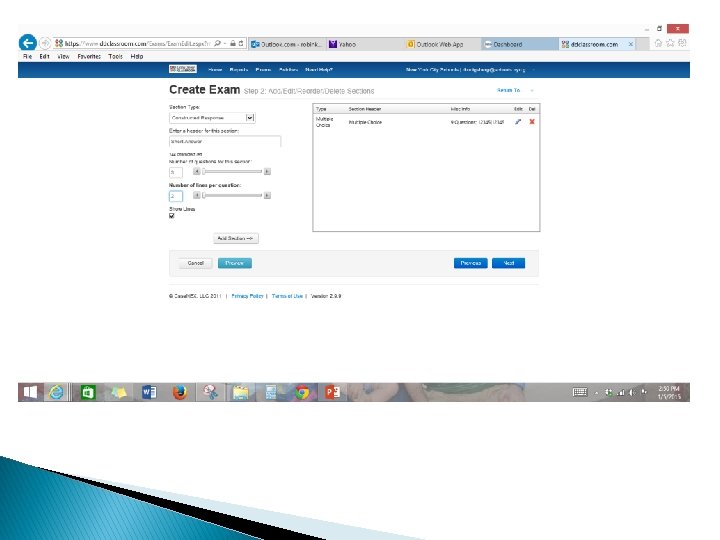
Step 4: Create Exam Sections � Select Question Type: ◦ MC – Normal MC Questions � Choose # of questions � Choose # of bubbles � Choose type of responses (Numbers, Letters, Alternating, True/False) ◦ Constructed Response – Short or Long Written responses � Choose # of questions � Choose # of lines/question ◦ Manually Scored Responses � Used more rarely – can be used to score with Rubrics or Performances � Enter # of Questions/Categories Then… � Always have a “Section Header” � Click “Add Section” � Repeat as necessary for each section of exam � Click “Next”
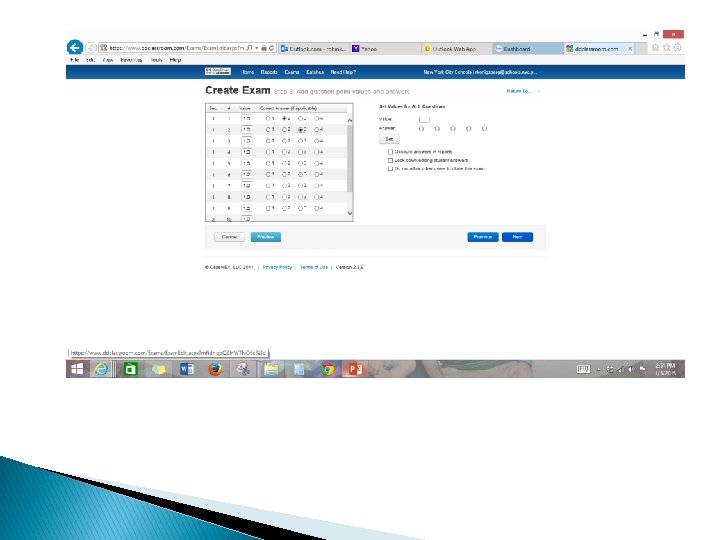
Step 5: Entering Answers/Points � For MC ◦ Bubble in correct answer choices based on your test ◦ Set desired point values (either per question or values for all) � For constructed and manual response and just set question value � Click “Next”
Step 6: CLICK FINISH! � Now you have to learn how to print…
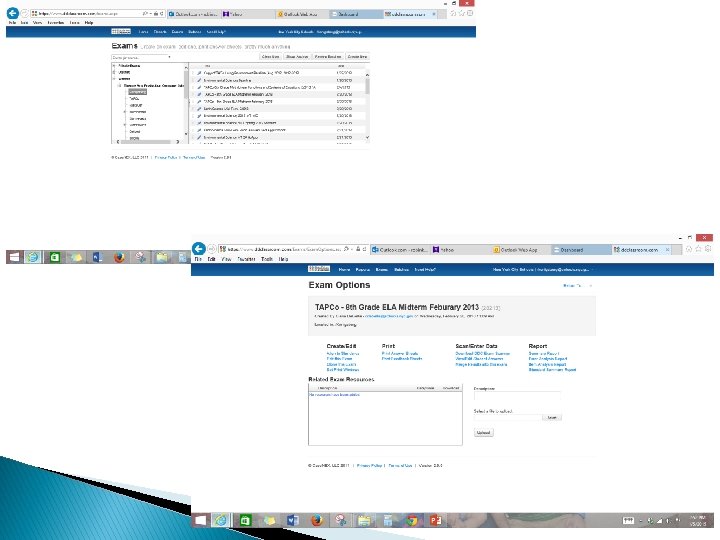
Step 7: Printing � On DDC home screen click “Exams” on top tool bar � Select your exam that you would like to print � In the center of the screen click “Print Answer Sheets” in the “Print” Column
Step 8: Filtering Students � Click on “Courses” drop down Menu � Choose the classes which are taking the test – make sure to uncheck “All” � Click “Apply Filter” on the bottom left � The students you chose should now appear in a list below (Check/Uncheck students as necessary) � Scroll to bottom of page and next to “Generate Exam Forms” click “Export” ◦ This will Export all Answer Sheets to a PDF
Step 9: Printing Answer Sheets � Use PC when Printing � Go to “File” and then “Print” � Make sure that Page scaling is unchecked “None”; do no “fit to page”; uncheck “Autorotation” � There is a “Warning Line” on the top and bottom of the page – make sure that this line does not appear on your printed page ◦ If it does appear, check your settings, and re-print � THE TEST WILL NOT SCAN IF WARNING LINE IS ON THE PAGE