
How to login to CoreCT for the first
- Slides: 19
How to login to Core-CT for the first time and setting up/using the forgotten password help Revised 2/13/20
§ This is a web-based system that can be accessed at: http: //www. core-ct. state. ct. us § All employees are sent an email containing their Core-CT Username and temporary Password. How to Log In to Core. CT § Your Username is your 6 -digit State of Connecticut Employee ID that is listed on your biweekly paycheck or advice of deposit form. 2
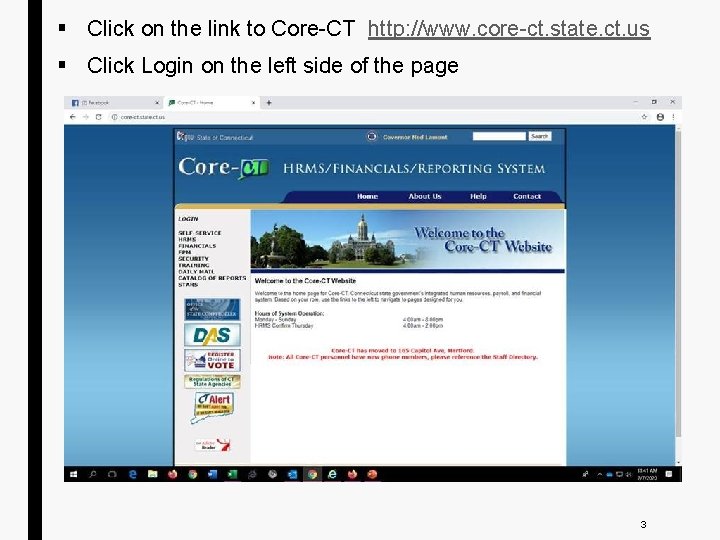
§ Click on the link to Core-CT http: //www. core-ct. state. ct. us § Click Login on the left side of the page 3
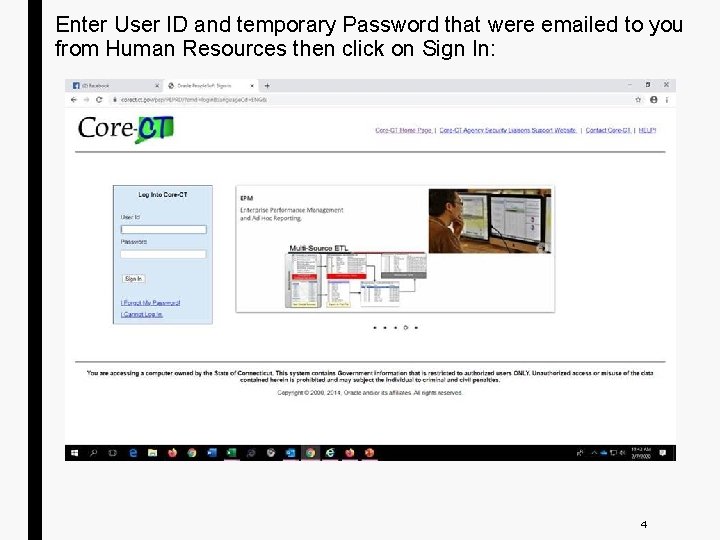
Enter User ID and temporary Password that were emailed to you from Human Resources then click on Sign In: 4
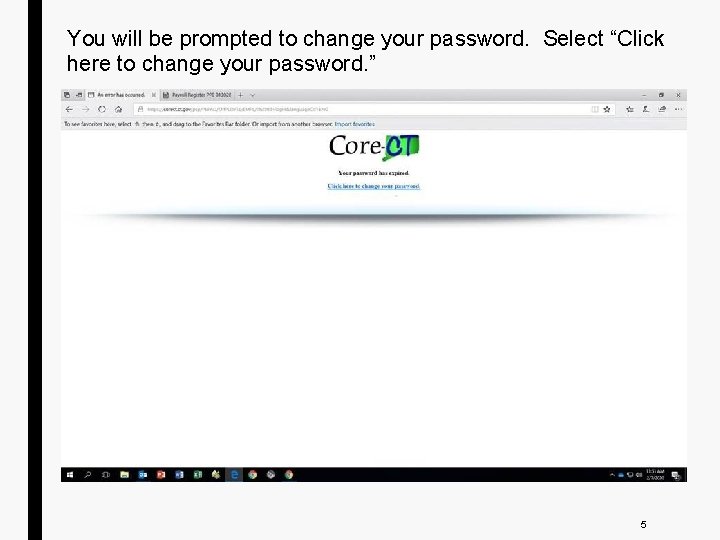
You will be prompted to change your password. Select “Click here to change your password. ” 5
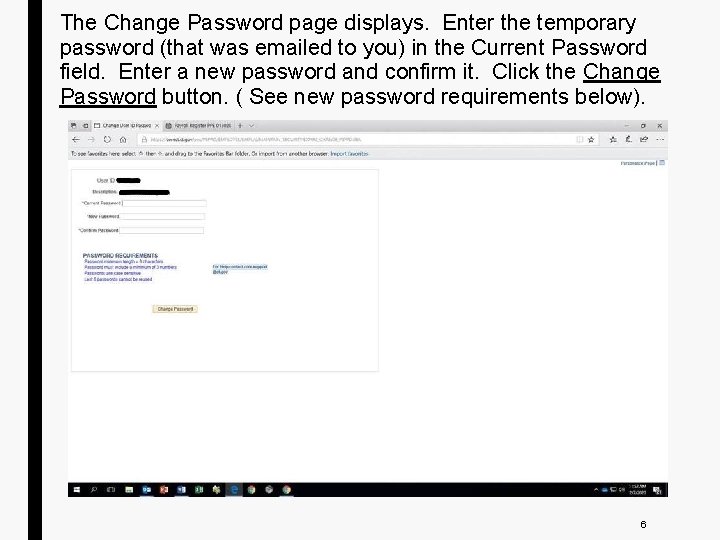
The Change Password page displays. Enter the temporary password (that was emailed to you) in the Current Password field. Enter a new password and confirm it. Click the Change Password button. ( See new password requirements below). 6
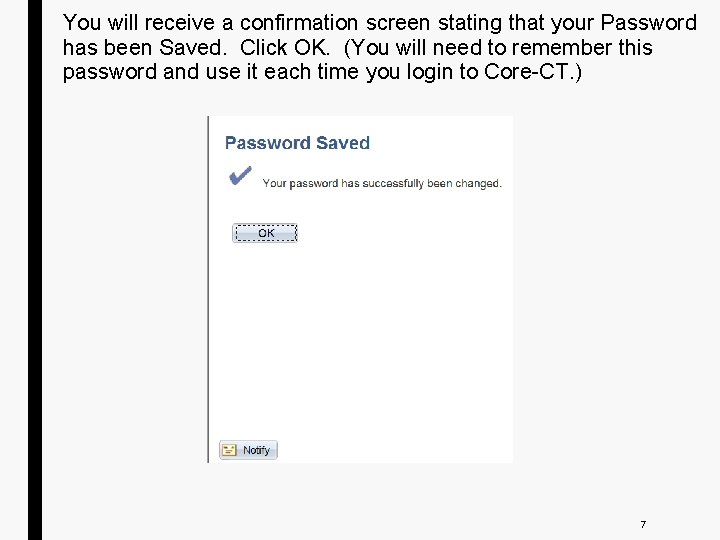
You will receive a confirmation screen stating that your Password has been Saved. Click OK. (You will need to remember this password and use it each time you login to Core-CT. ) 7
The first time you login to Core-CT, you must set up the forgotten password help. You will need this in case you forget your password in the future. How to setup and use forgotten password help 8
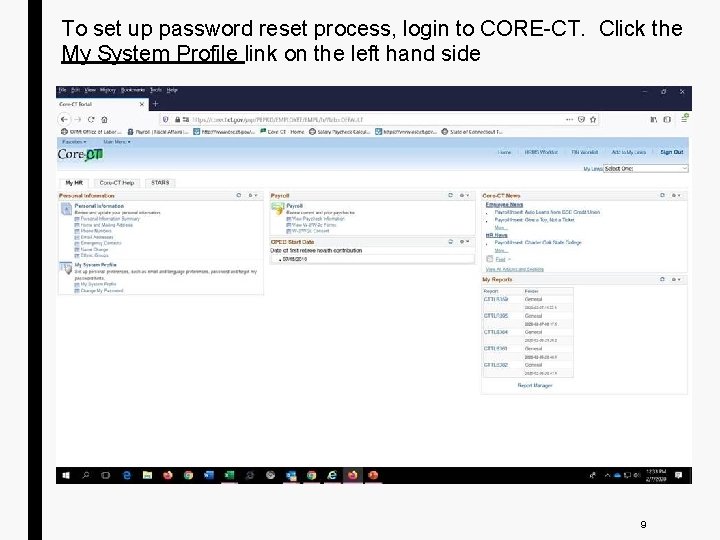
To set up password reset process, login to CORE-CT. Click the My System Profile link on the left hand side 9
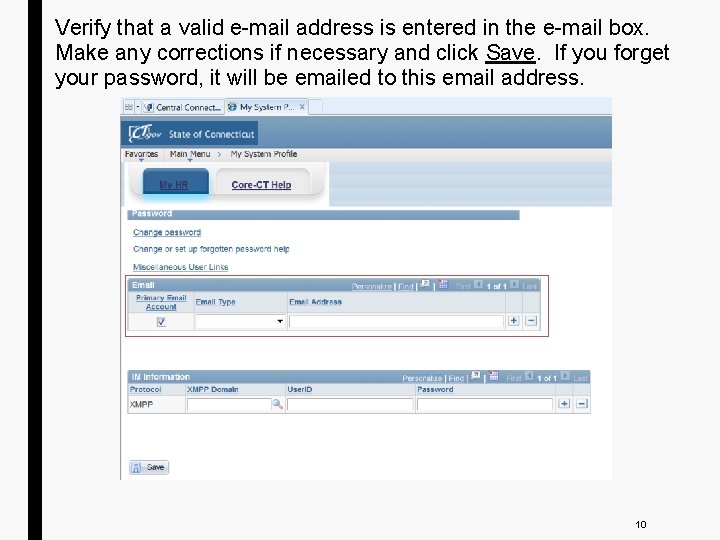
Verify that a valid e-mail address is entered in the e-mail box. Make any corrections if necessary and click Save. If you forget your password, it will be emailed to this email address. 10
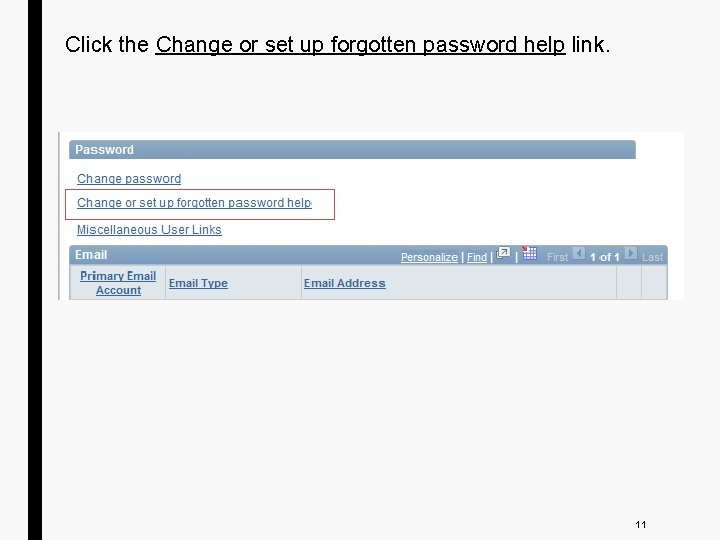
Click the Change or set up forgotten password help link. 11
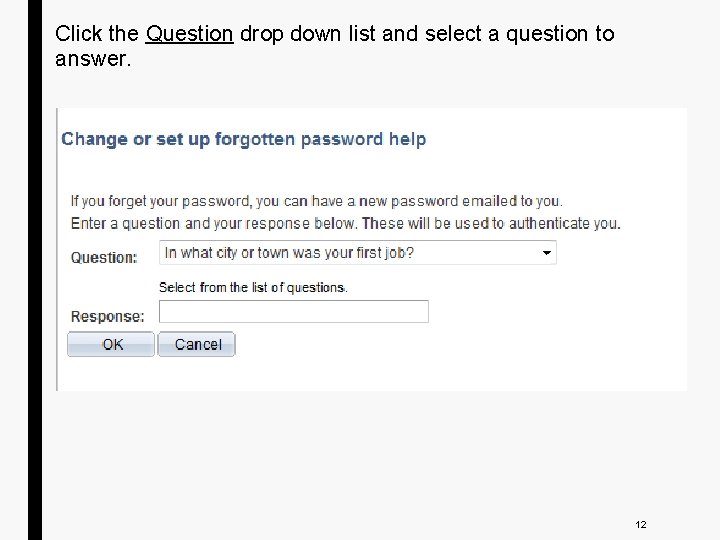
Click the Question drop down list and select a question to answer. 12
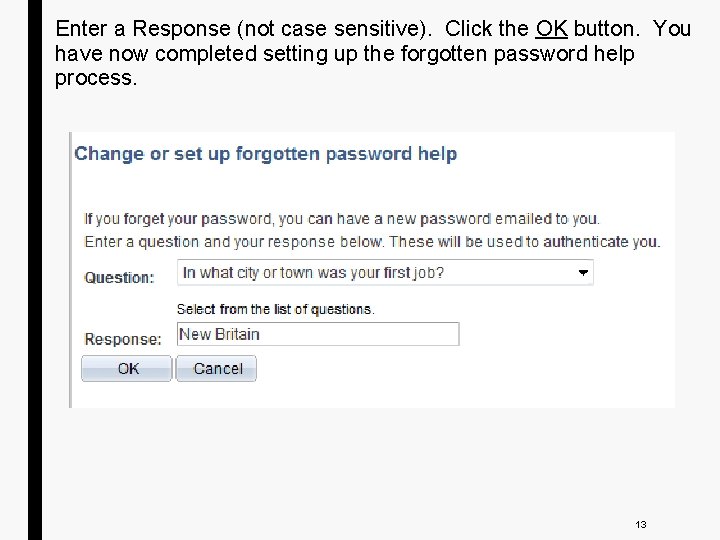
Enter a Response (not case sensitive). Click the OK button. You have now completed setting up the forgotten password help process. 13
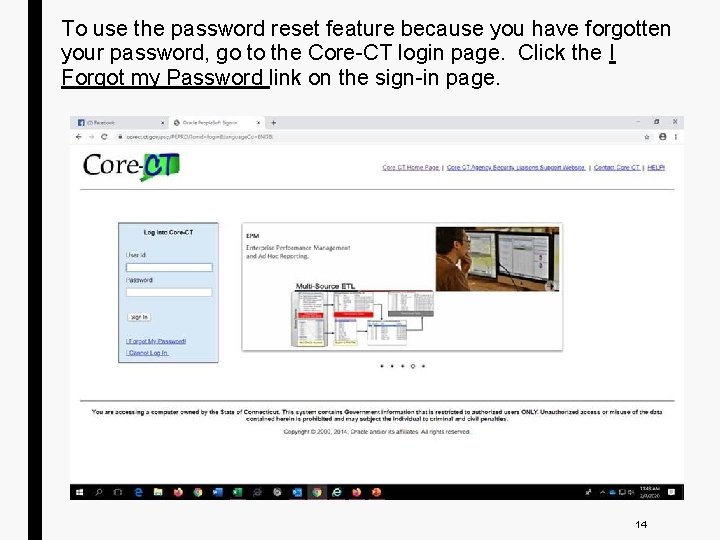
To use the password reset feature because you have forgotten your password, go to the Core-CT login page. Click the I Forgot my Password link on the sign-in page. 14
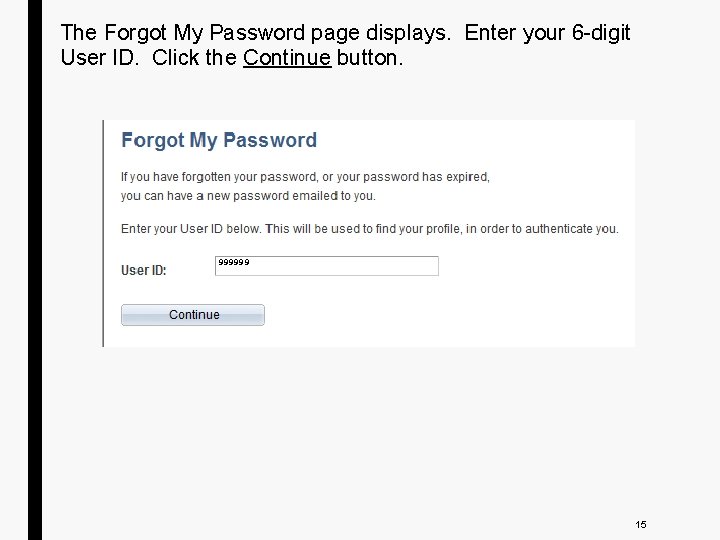
The Forgot My Password page displays. Enter your 6 -digit User ID. Click the Continue button. 999999 15
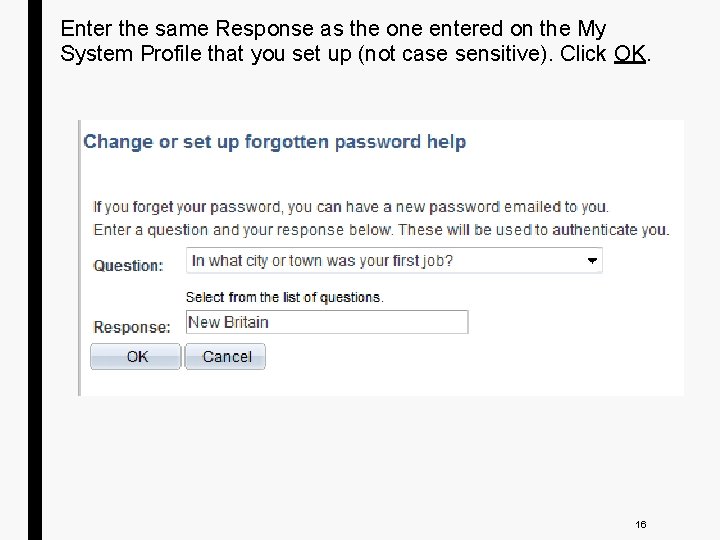
Enter the same Response as the one entered on the My System Profile that you set up (not case sensitive). Click OK. 16
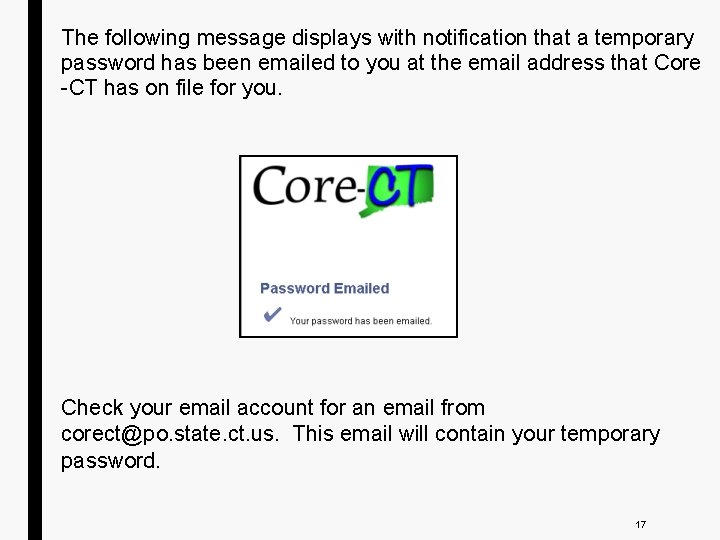
The following message displays with notification that a temporary password has been emailed to you at the email address that Core -CT has on file for you. Check your email account for an email from corect@po. state. ct. us. This email will contain your temporary password. 17
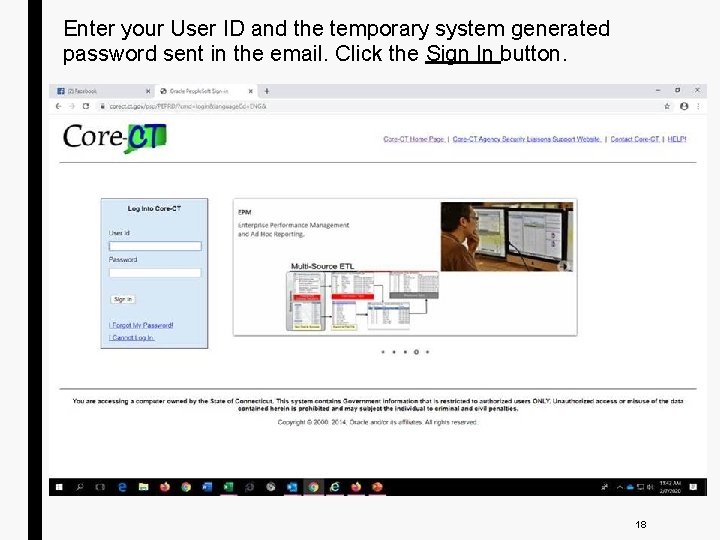
Enter your User ID and the temporary system generated password sent in the email. Click the Sign In button. 18
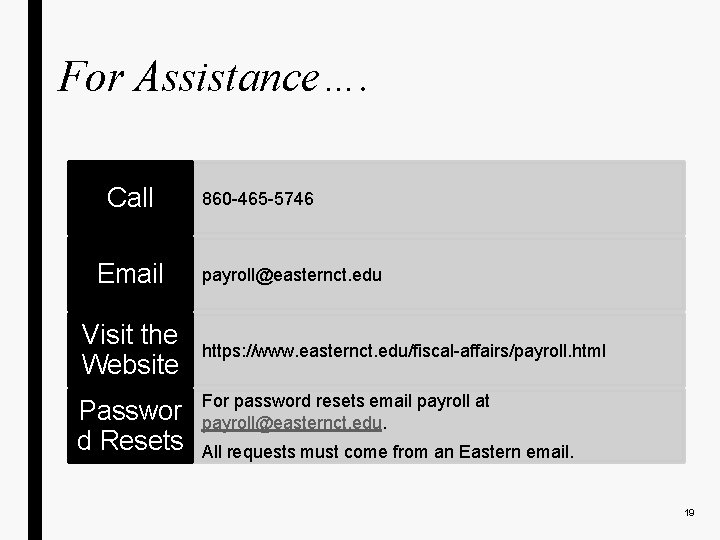
For Assistance…. Call Email Visit the Website Passwor d Resets 860 -465 -5746 payroll@easternct. edu https: //www. easternct. edu/fiscal-affairs/payroll. html For password resets email payroll at payroll@easternct. edu. All requests must come from an Eastern email. 19