
How to Log In Step 1 Go to

- Slides: 10
How to Log In
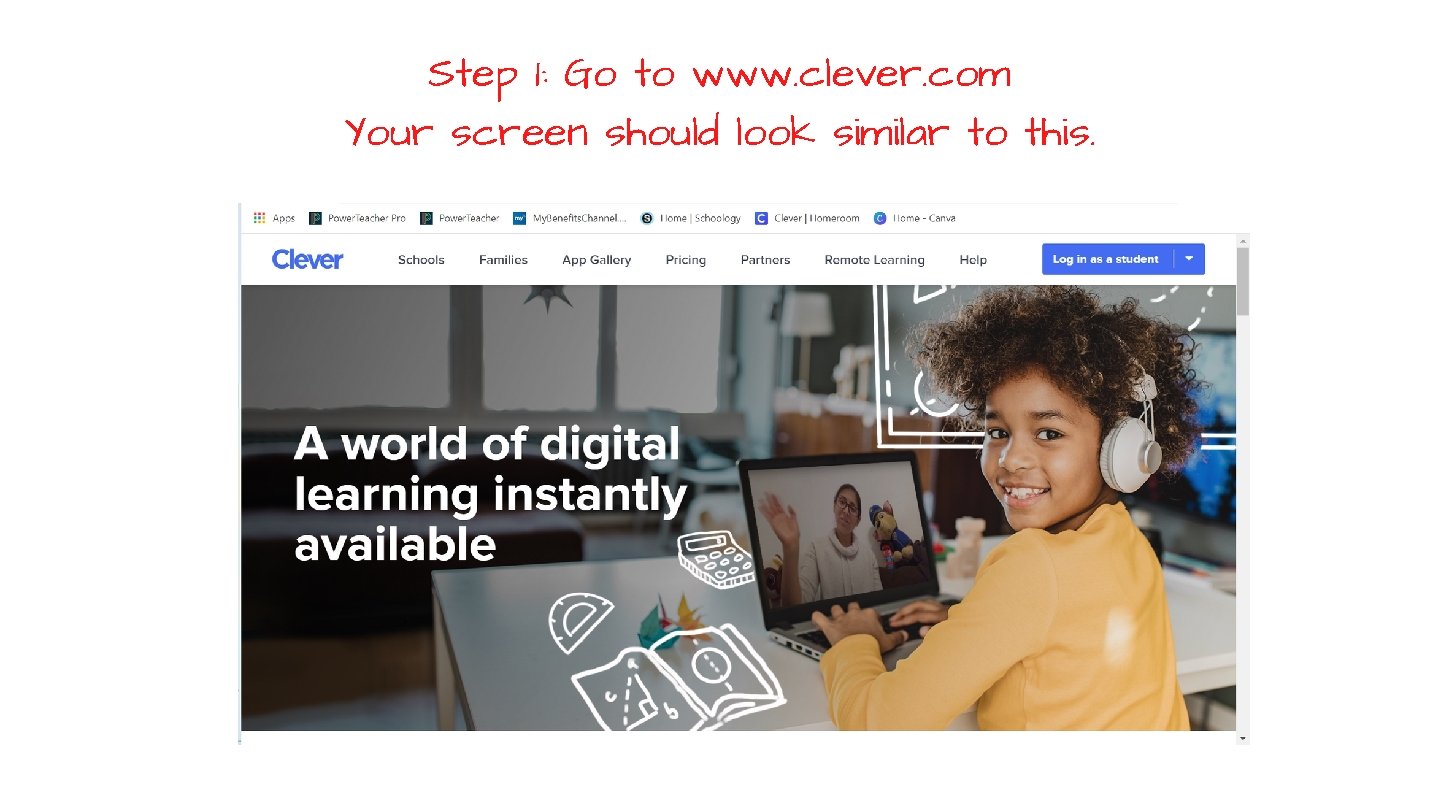
Step 1: Go to www. clever. com Your screen should look similar to this.
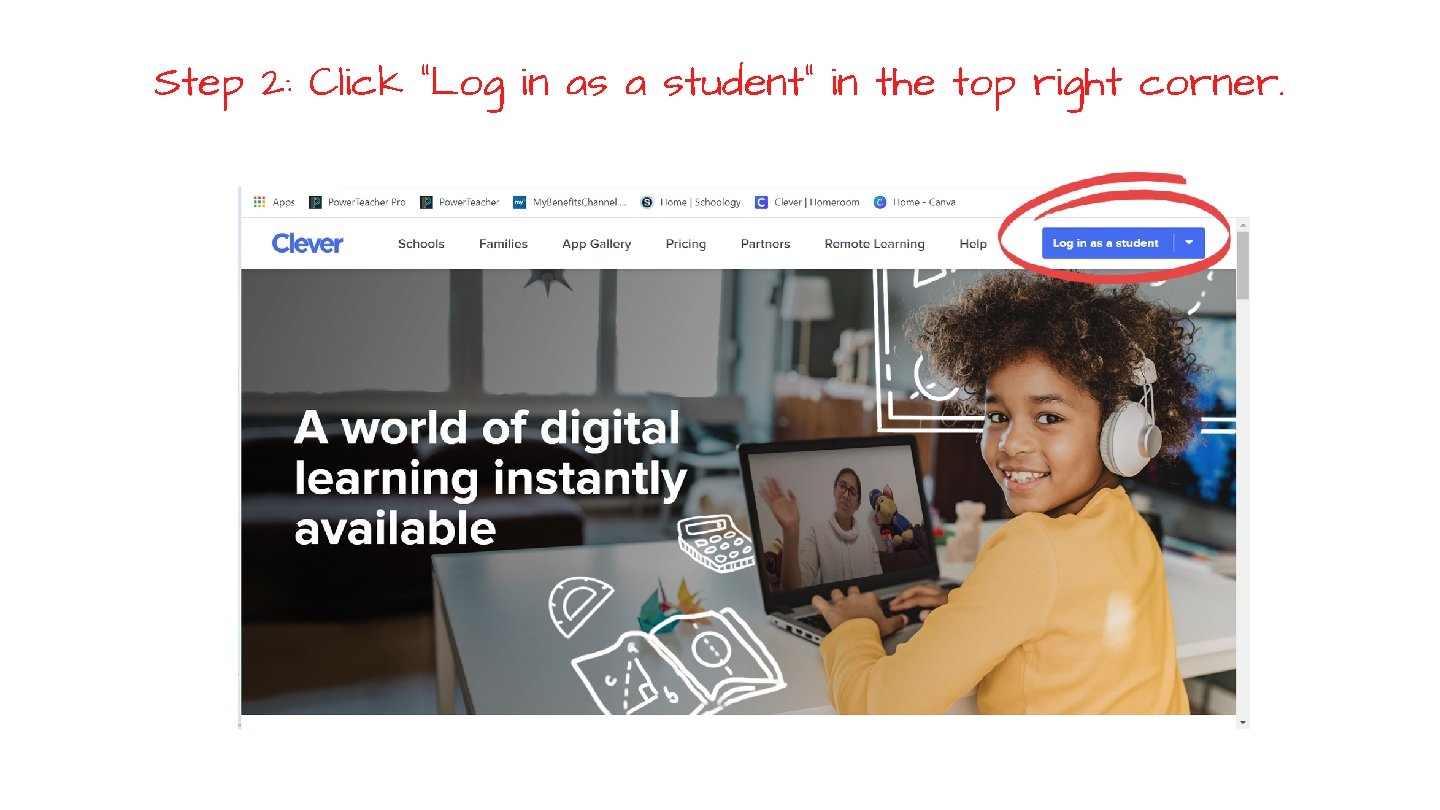
Step 2: Click "Log in as a student" in the top right corner.
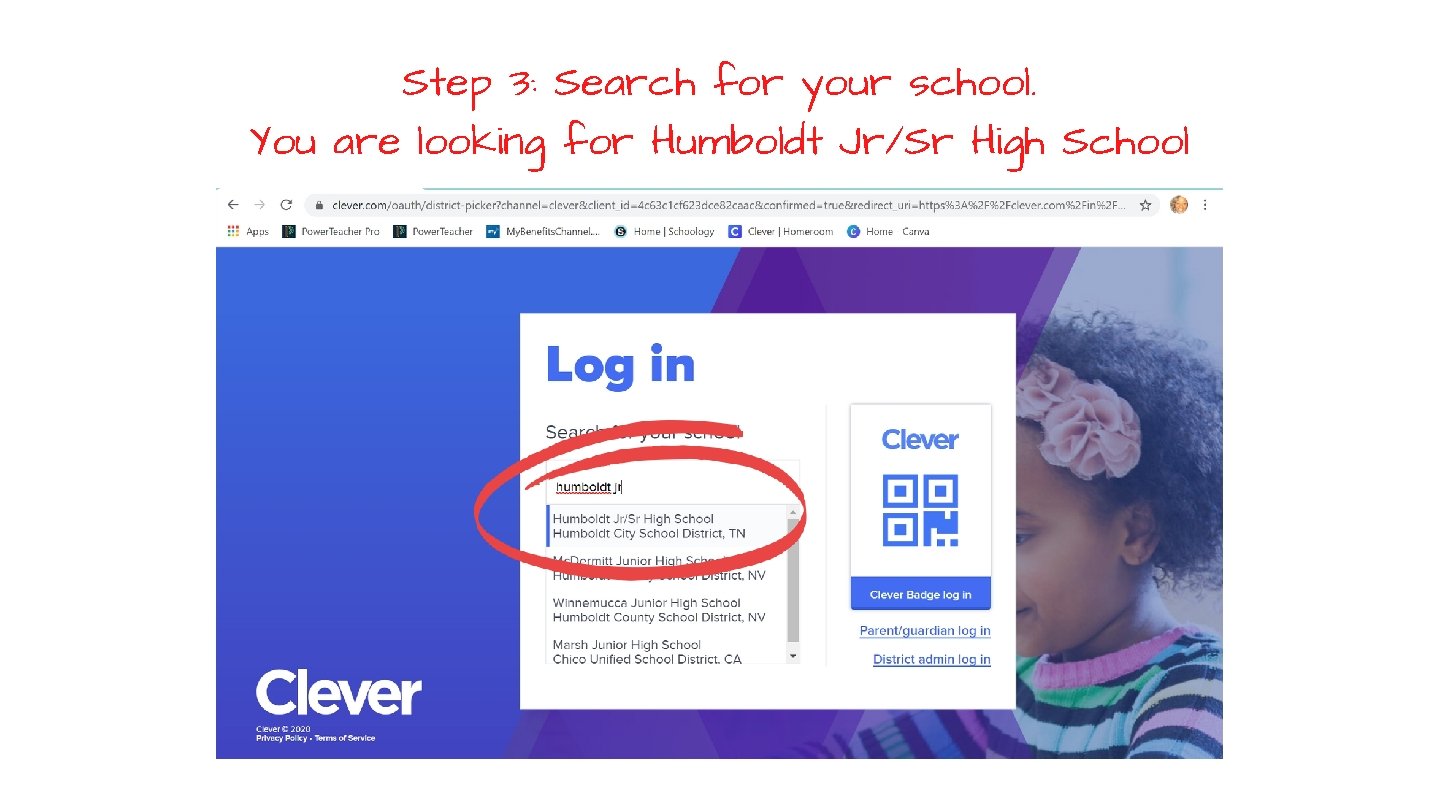
Step 3: Search for your school. You are looking for Humboldt Jr/Sr High School
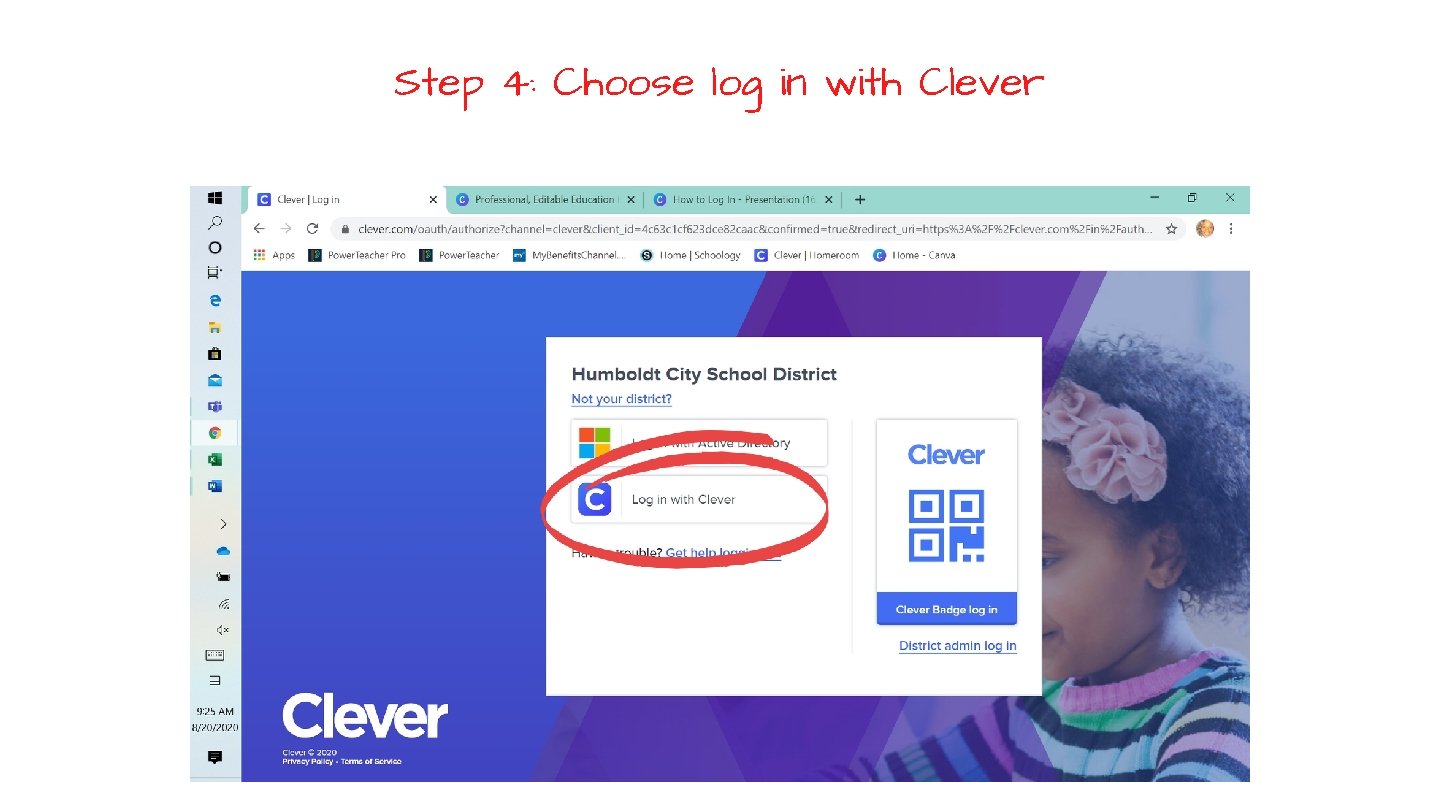
Step 4: Choose log in with Clever
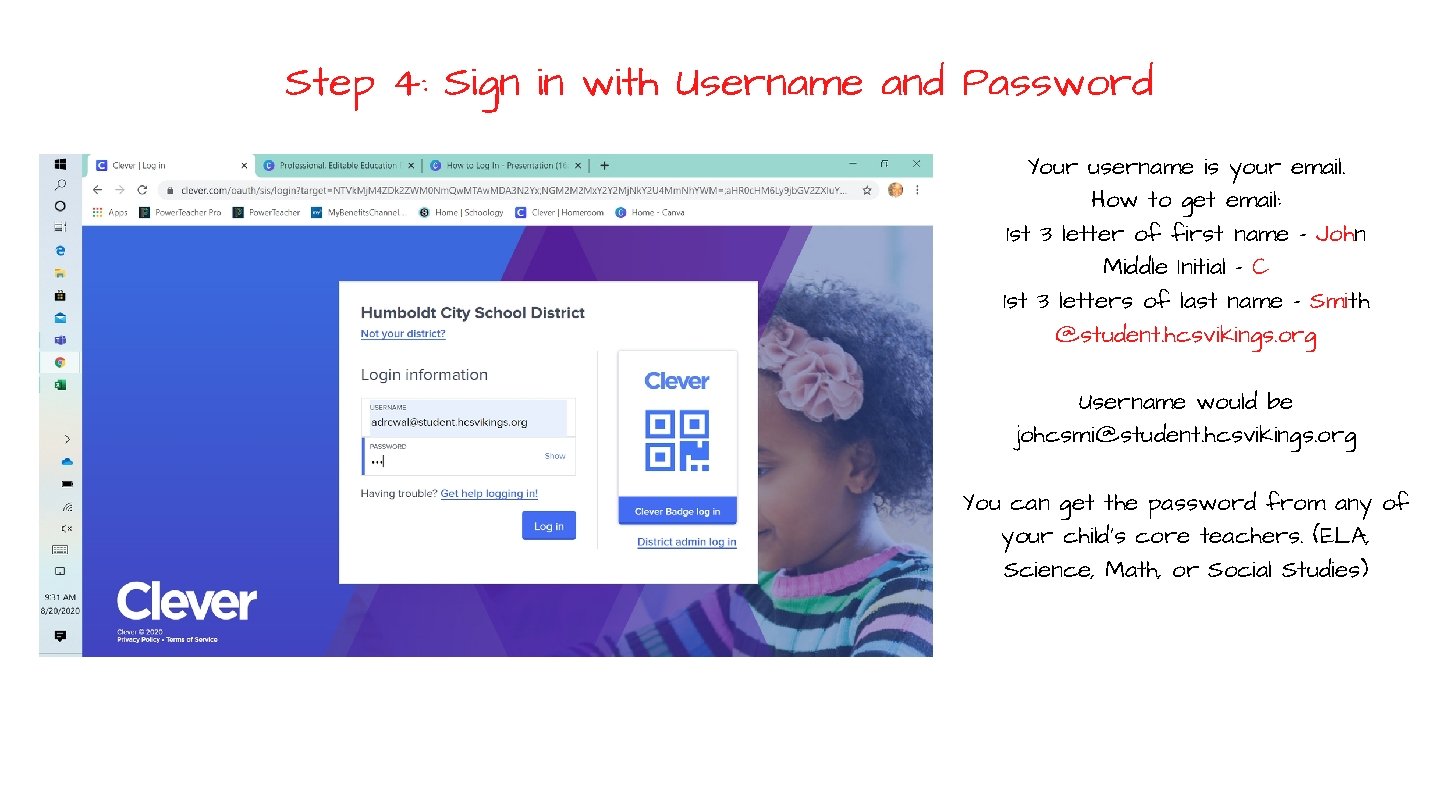
Step 4: Sign in with Username and Password Your username is your email. How to get email: 1 st 3 letter of first name - John Middle Initial - C 1 st 3 letters of last name - Smith @student. hcsvikings. org Username would be johcsmi@student. hcsvikings. org You can get the password from any of your child's core teachers. (ELA, Science, Math, or Social Studies)
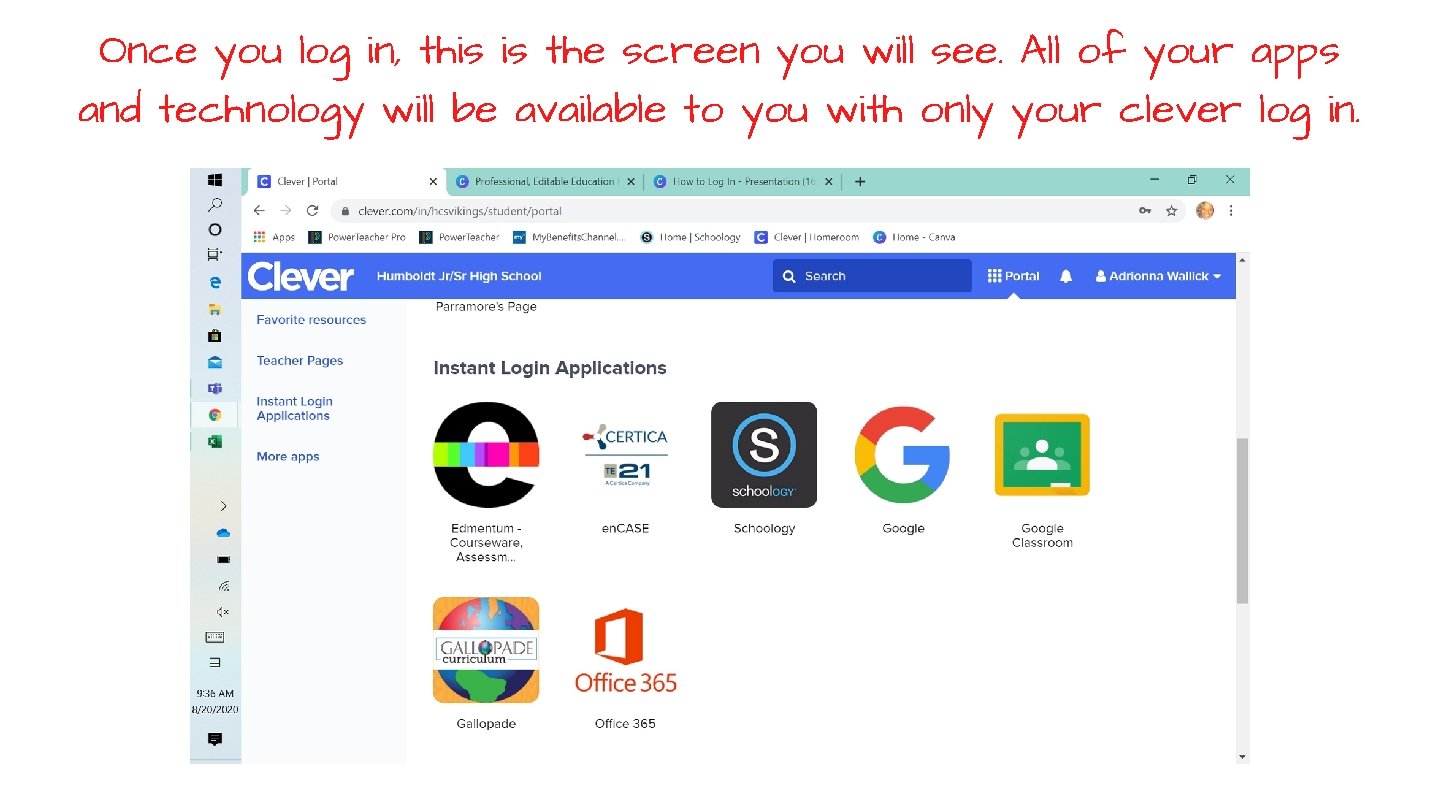
Once you log in, this is the screen you will see. All of your apps and technology will be available to you with only your clever log in.
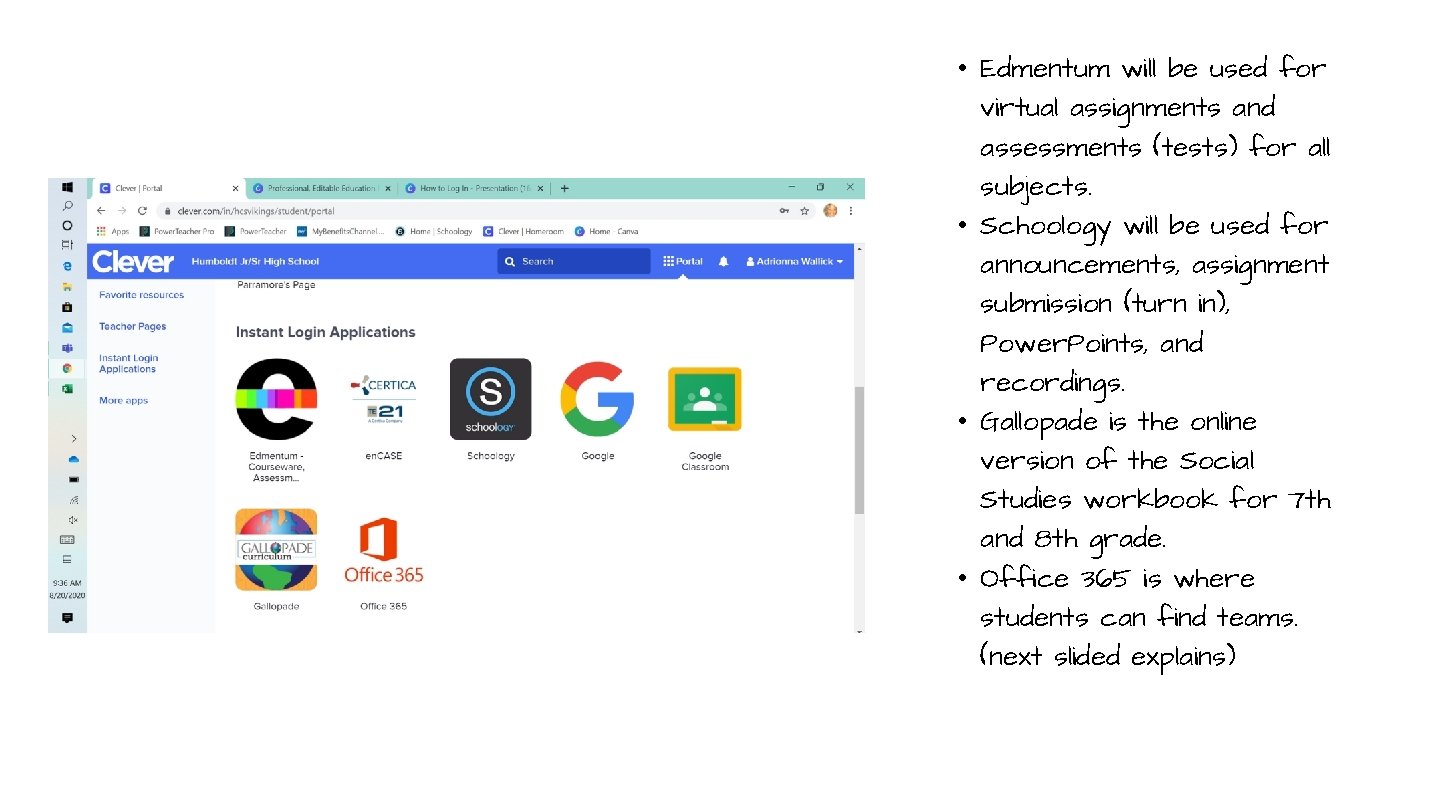
• Edmentum will be used for virtual assignments and assessments (tests) for all subjects. • Schoology will be used for announcements, assignment submission (turn in), Power. Points, and recordings. • Gallopade is the online version of the Social Studies workbook for 7 th and 8 th grade. • Office 365 is where students can find teams. (next slided explains)
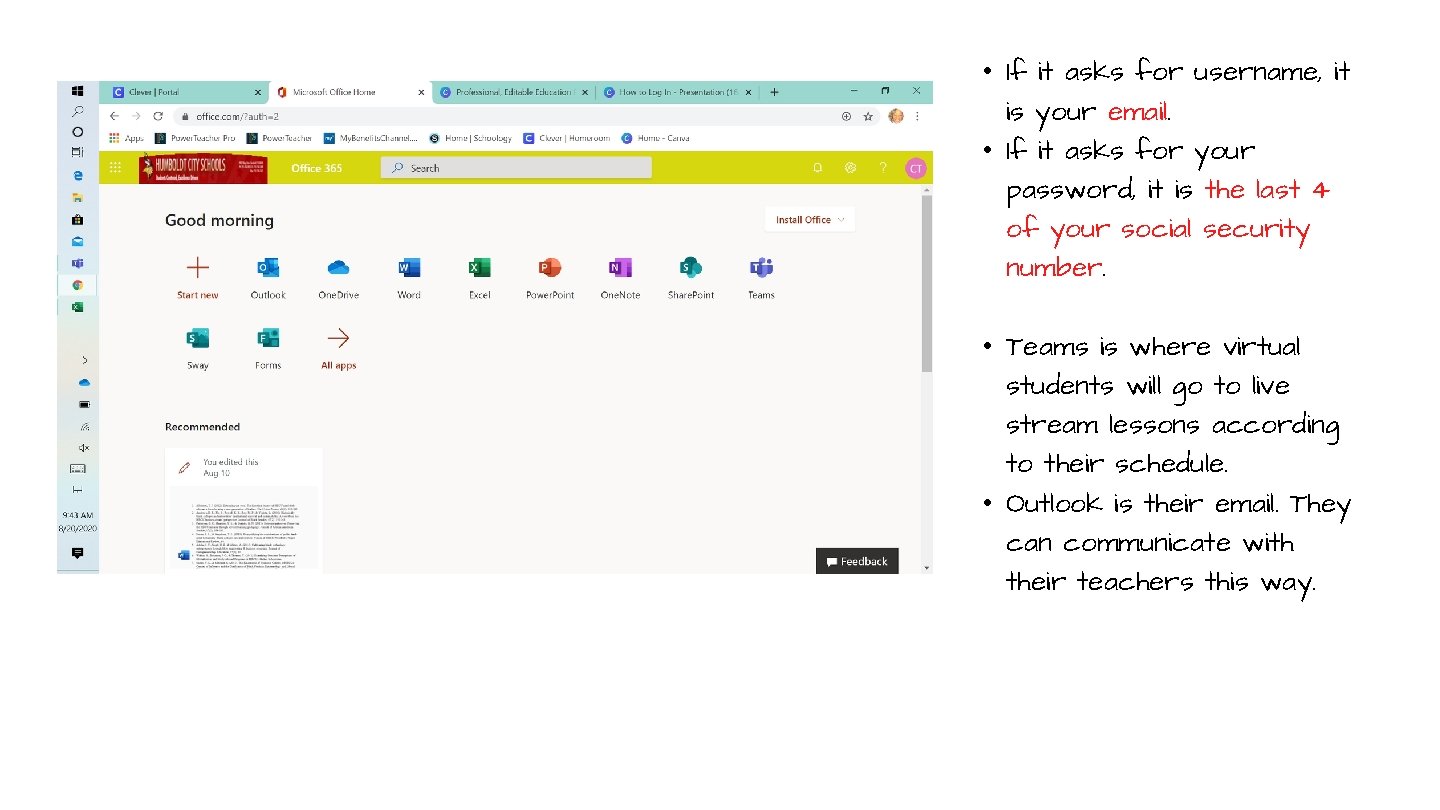
• If it asks for username, it is your email. • If it asks for your password, it is the last 4 of your social security number. • Teams is where virtual students will go to live stream lessons according to their schedule. • Outlook is their email. They can communicate with their teachers this way.
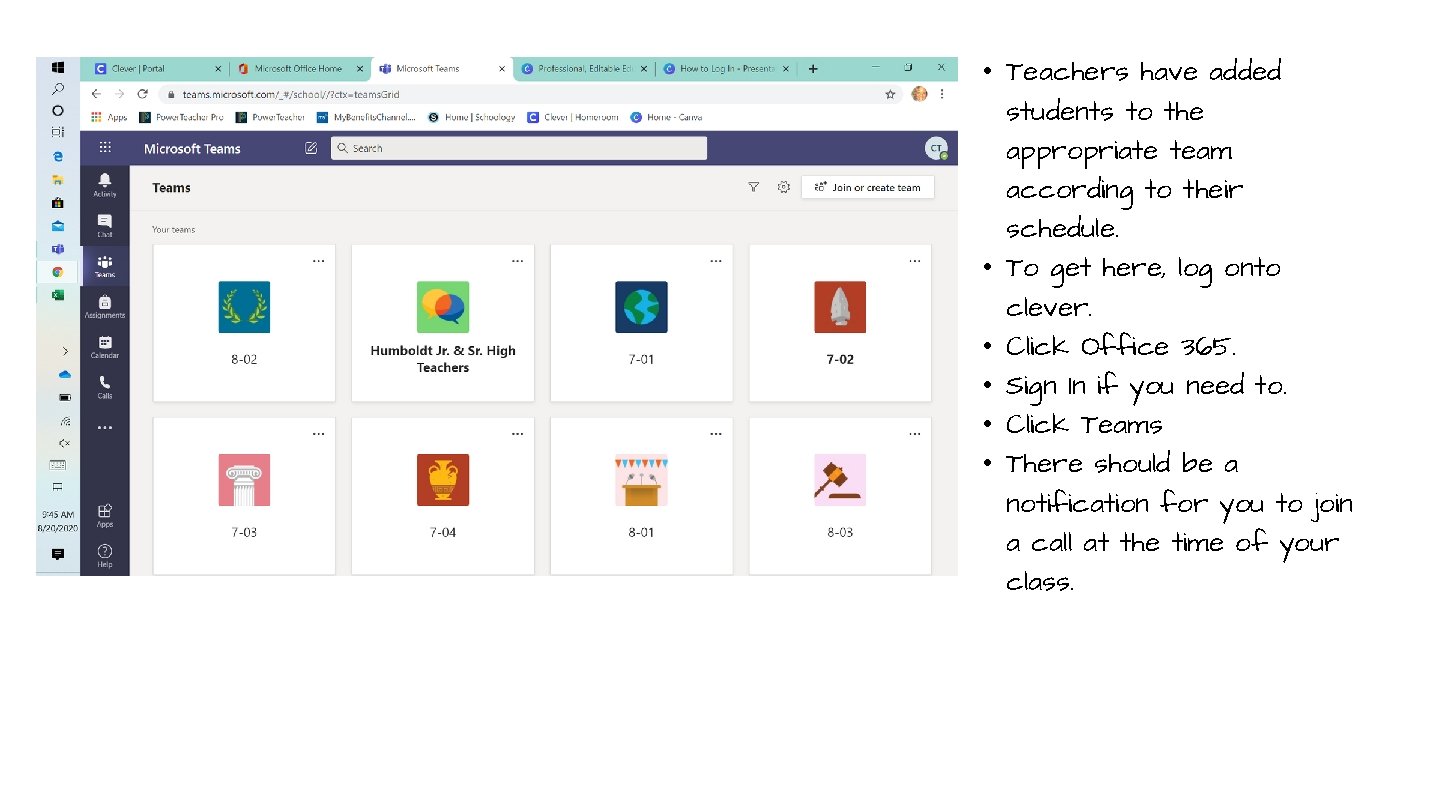
• Teachers have added students to the appropriate team according to their schedule. • To get here, log onto clever. • Click Office 365. • Sign In if you need to. • Click Teams • There should be a notification for you to join a call at the time of your class.