
How to keep Microsoft Project from being the
How to keep Microsoft Project from being the Project 1/8/2003
Who Am I? n Steve Reynolds u u 10 years of Management Consulting experience Over a variety of industries Big range of project sizes Achieving solid business results
Agenda n Initiate u u n Plan u u n Begin with the End in Mind Define Your Basic Approach to Project Management Work Breakdown Structure Task Types Control u u Milestone Usage Manage Actuals
Initiate n n Begin with the End in Mind Define Your Basic Approach to Project Management
Initiate n Begin with the End in Mind One month after go-live u u u Empty pizza boxes thrown out and pop cans recycled Executive Sponsors are singing the praises of the project End-Users are embracing the new product Development Team proud of their successes PM ready to do it all over again, with only slight modifications Business processes documented and improved; knowledge was shared
Initiate n n Basic Approach There’s more to Project Management than MS Project— Primary focus should be u Leadership u Managing Change
Plan n n The Work Breakdown Structure Task Types
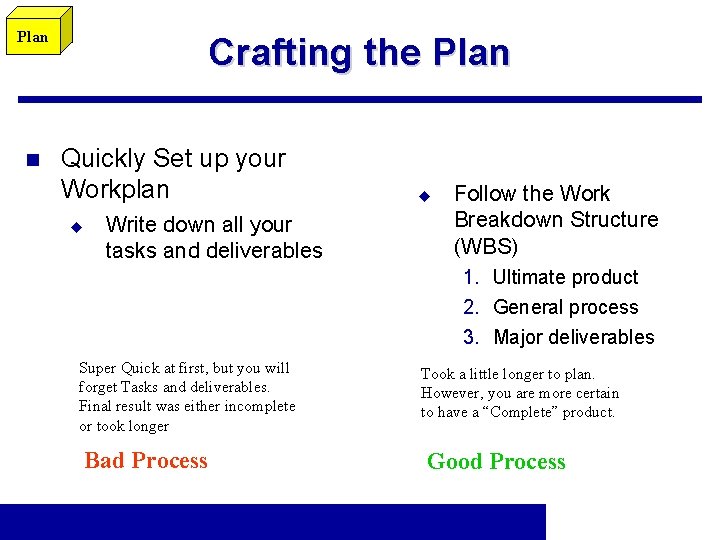
Plan n Crafting the Plan Quickly Set up your Workplan u Write down all your tasks and deliverables u Follow the Work Breakdown Structure (WBS) 1. Ultimate product 2. General process 3. Major deliverables Super Quick at first, but you will forget Tasks and deliverables. Final result was either incomplete or took longer Bad Process Took a little longer to plan. However, you are more certain to have a “Complete” product. Good Process
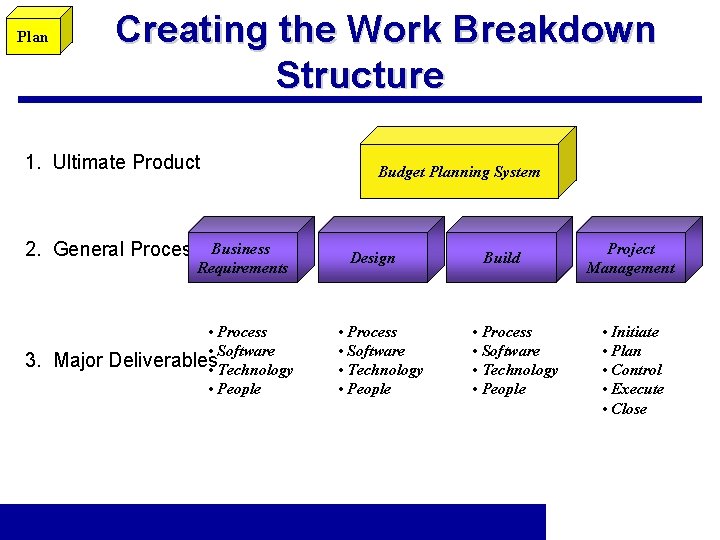
Plan Creating the Work Breakdown Structure 1. Ultimate Product 2. General Process Business Requirements 3. Major • Process • Software Deliverables • Technology • People Budget Planning System Design • Process • Software • Technology • People Build • Process • Software • Technology • People Project Management • Initiate • Plan • Control • Execute • Close
Plan Now What n Agreed on the Process Understand the High Level Deliverables Record all the Tasks n What’s Next? n n
Plan n Task Type Taking control with Task Type u u Understanding Project’s default setting Setting the right Task Type for your activity Knowing when to adjust the Task Type Adding resources
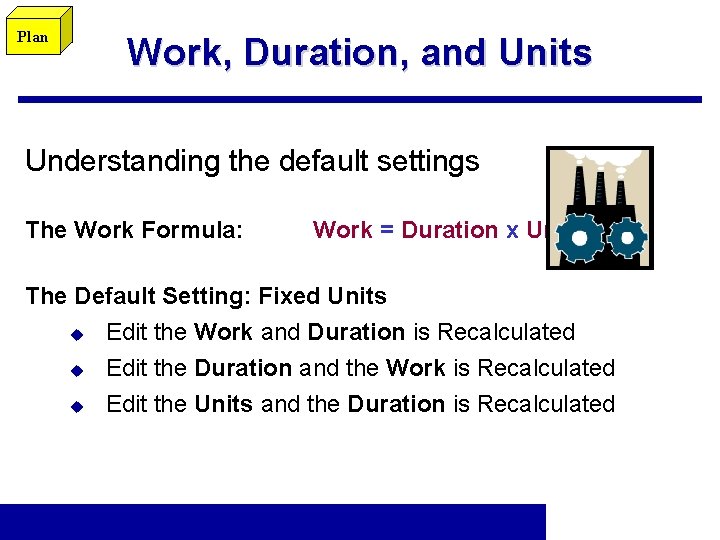
Plan Work, Duration, and Units Understanding the default settings The Work Formula: Work = Duration x Units The Default Setting: Fixed Units u Edit the Work and Duration is Recalculated u Edit the Duration and the Work is Recalculated u Edit the Units and the Duration is Recalculated
Plan n Unexpected Results May expect Project to calculate Resource Units u u Project evaluates the Work Formula and keeps the variable named in the Task Type constant Units default = 100%
Plan n So, How do you deal with this? Before you change an assignment ask yourself this question: u n n “I'm entering a new value for work (or units or duration), so what do I want Project to change to accommodate this new value? ” Decide which field you DON'T want changed and make it fixed by changing the selection in the Task Type field After the calculation is complete you can switch the Task Type back to its original value if you
Plan n Sounds easy, but… Try to add a resource u n A second resource may be added to cut the work in half or they may be added to perform additional work u u n Usually quadruples the work A second programmer working on the same code may cut development time A DBA may add work if they are performing distinct tasks Use the Effort Driven field to let Project keep
Plan n Assigning Resources You can double-click (or right-click) on a task and use the Resources tab of the Task Information dialog box You can use the Assign Resources dialog box (Tools> Resources>Assign Resources) The most effective way to assign resources to tasks is using the split screen method. u When you split the Gantt Chart view, the top of the screen displays the Gantt Chart view and bottom of the screen displays the Task Form view.
Control n n Milestone Usage Actuals Tracked
Control n Milestone Usage How to report Status to Stakeholders? u u To external parties – Project Website Show immediate results – Status Meetings Focus effort on a long-term project – Steering Committee Meetings How do milestones relate to deliverables?
Control n Actuals Tracked Two Detailed Methods u u Resource Usage – Editing actual hours spent by team members Task Usage – Editing actual hours viewed by the outline ü The Plan changes to equal the Actuals n The Quicker Method u Task Sheet: Tracking ü Tracks Actual Start, Actual Finish, and Percent Complete
Recap n n Create a standard but unique Work Breakdown Structure Use a variety of task types and define your default Use milestones for a variety of different purposes Track actuals just a little easier
Q&A n n Any questions now? I’ll be staying after
- Slides: 21