
How to Get The Most Out of Outlook
- Slides: 50
How to Get The Most Out of Outlook 2003 Michele Schwartzman Division of Customer Support 301 -594 -6248 Summer 2006
Agenda n n n n NIH Policies E-mail Tips Organizing Email Modifying Your Global Address Listing Managing the calendar Managing contacts Managing personal folders Using Rules
Microsoft Outlook 2003 n Setting up your Microsoft Outlook Services ¨ n Personal Folders Archiving your Email Options ¨ Setting up your Auto Archive ¨ n Mailbox Management Saving Attachments to Another Location ¨ Setting up the Automatic Emptying Option ¨
NIH Policies n Mailbox Limits ¨ Limits n that are set for all NIH Employees using the NIH Central E-mail Services Excludes Helix, Codon, Internet Mail
Mailbox Limits n > 100 megabytes ¨ n Warning message will be sent stating the user has exceeded their limit and needs to reduce their mailbox size. Grace Period ¨ If the mailbox size is not reduced, eventually the user will be unable to send, but will still be able to receive e-mail.
Remote Access to Email Resources n NIH Portal ¨ http: //my. nih. gov n Outlook Web Access ¨ https: //owa. nih. gov
NIH Web Resource n http: //www. mail. nih. gov ¨ User Section n Access to OWA site to check mail over the web n Link to change your NIH domain/ e-mail password ¨ Popular Links Section n Modifying your Mailbox and Domain Account n Anti. Spam
Has Your Contact Information Changed? Update NED n To correct or update NED information: ¨ Go n to http: //ned. nih. gov Select Update Your NED Record ¨ Login n to the NIH Portal Submit Update
Mailbox Management n n Viewing and Sorting mailbox content Saving the email attachments to a file location on your hard drive or networked drive Deleting items in your “Sent Items” Deleting items from your “Deleted Items” folder will remove items from your mailbox permanently; however, there is a recovery method if within 48 hours.
Outlook Views n Outlook has several ways to customize the way that you access folders and view mail n The popular view at NIH is the Folder List ¨ Allows for navigation through several folders on one screen
Current View By clicking on View Arrange By, a list of possible views is available. n These views facilitate the organization of mail messages in order to navigate through them more effectively. n
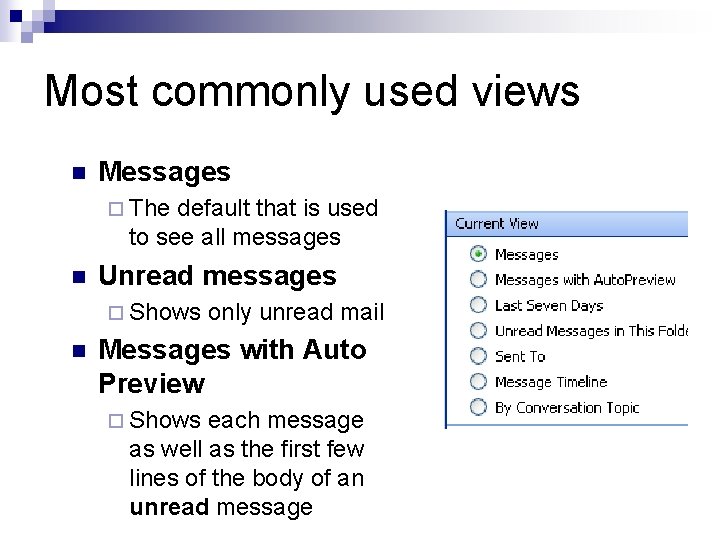
Most commonly used views n Messages ¨ The default that is used to see all messages n Unread messages ¨ Shows n only unread mail Messages with Auto Preview ¨ Shows each message as well as the first few lines of the body of an unread message
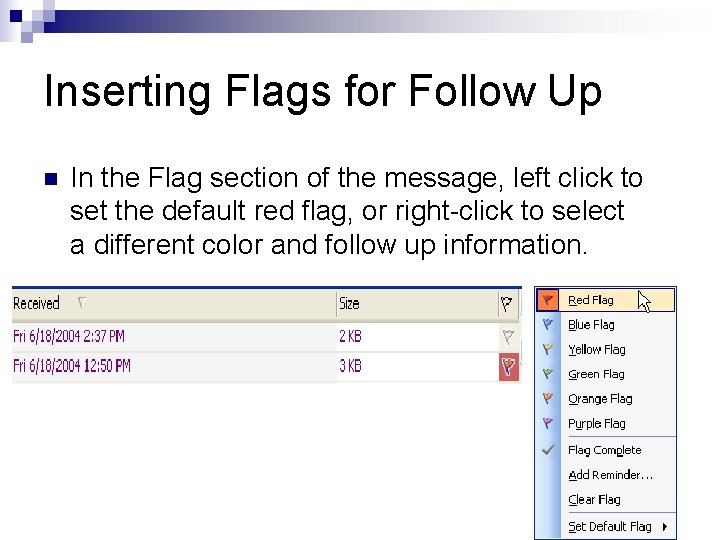
Inserting Flags for Follow Up n In the Flag section of the message, left click to set the default red flag, or right-click to select a different color and follow up information.
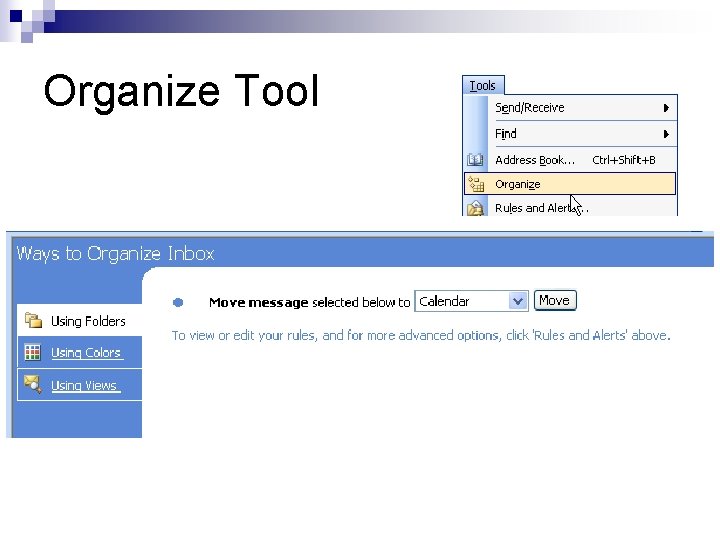
Organize Tool
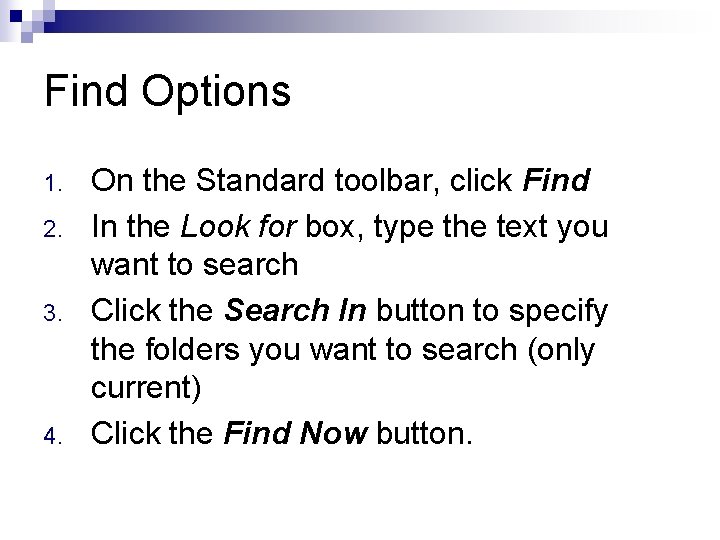
Find Options 1. 2. 3. 4. On the Standard toolbar, click Find In the Look for box, type the text you want to search Click the Search In button to specify the folders you want to search (only current) Click the Find Now button.
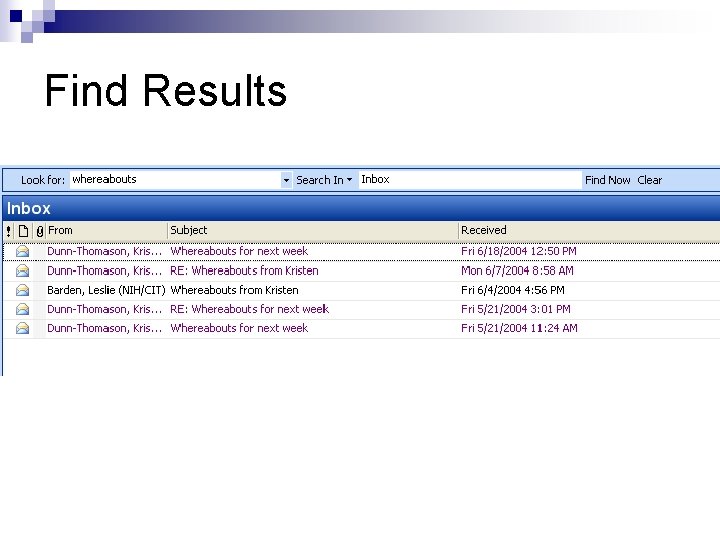
Find Results
Find Results Note: When the search is complete and no longer needed, press Clear so that all email will be visible again.
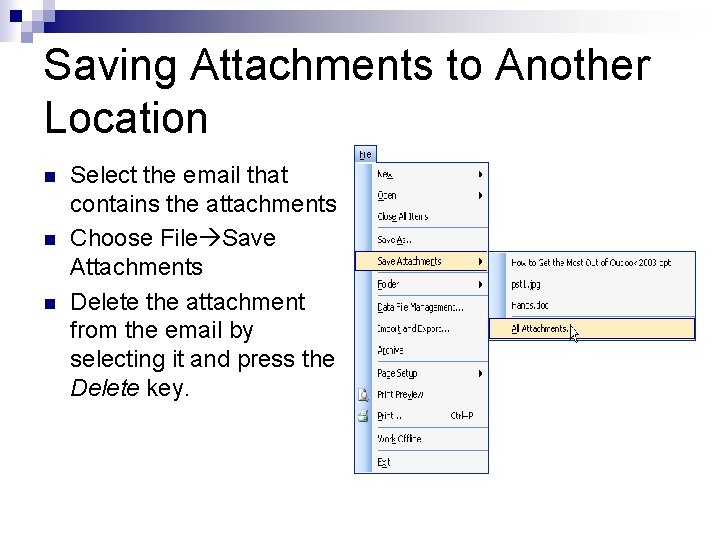
Saving Attachments to Another Location n Select the email that contains the attachments Choose File Save Attachments Delete the attachment from the email by selecting it and press the Delete key.
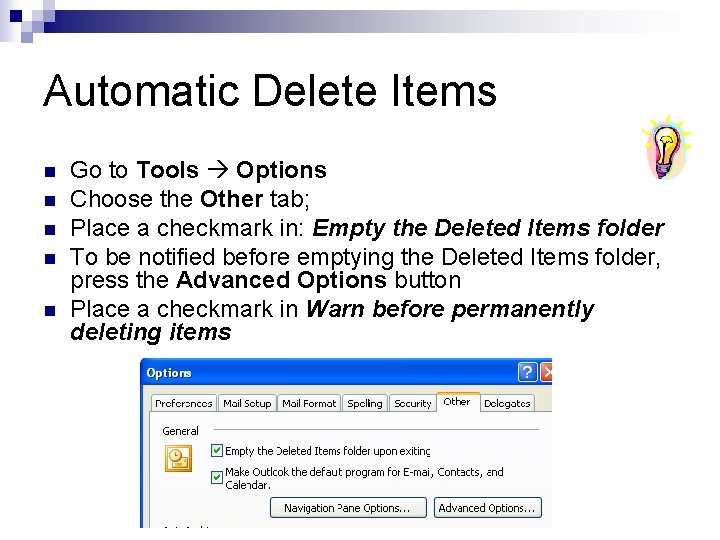
Automatic Delete Items n n n Go to Tools Options Choose the Other tab; Place a checkmark in: Empty the Deleted Items folder To be notified before emptying the Deleted Items folder, press the Advanced Options button Place a checkmark in Warn before permanently deleting items
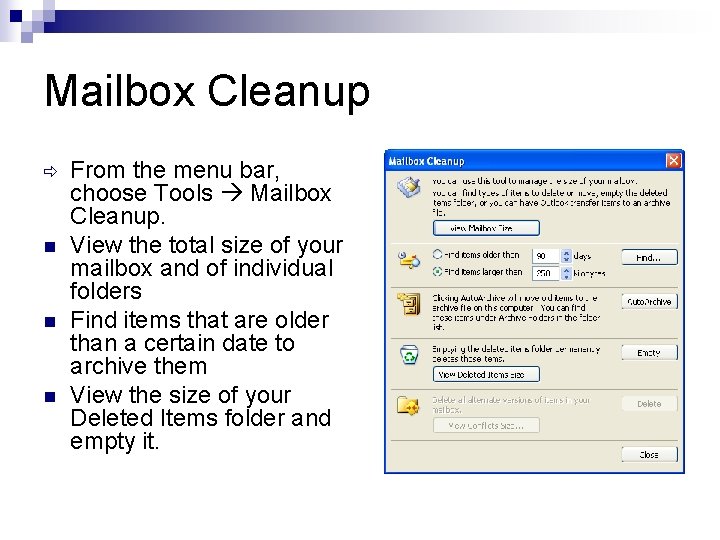
Mailbox Cleanup ð n n n From the menu bar, choose Tools Mailbox Cleanup. View the total size of your mailbox and of individual folders Find items that are older than a certain date to archive them View the size of your Deleted Items folder and empty it.
Manage Information At NIH we use Personal Folders to manage our active information n Recommendation: Personal folders are located on the user’s network drive n Pro: Reduces inbox size n Con: Can become corrupt if too large n
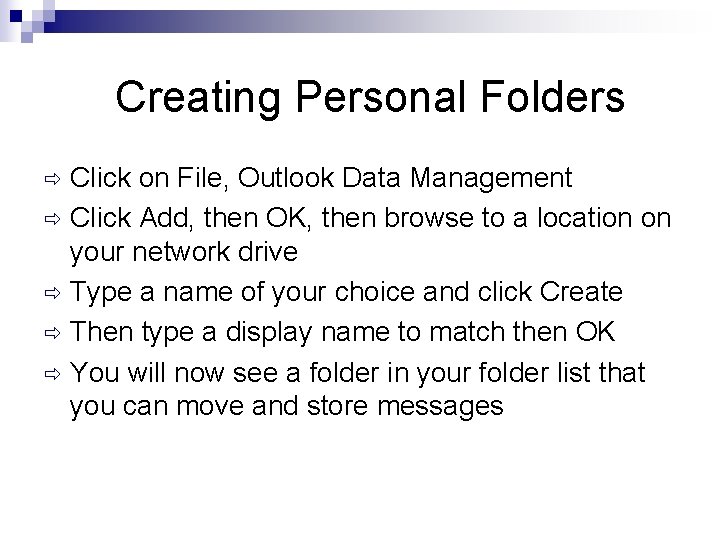
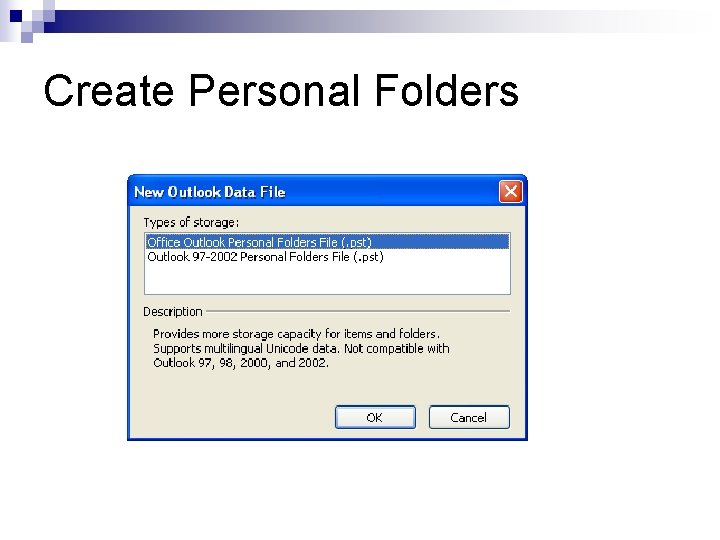
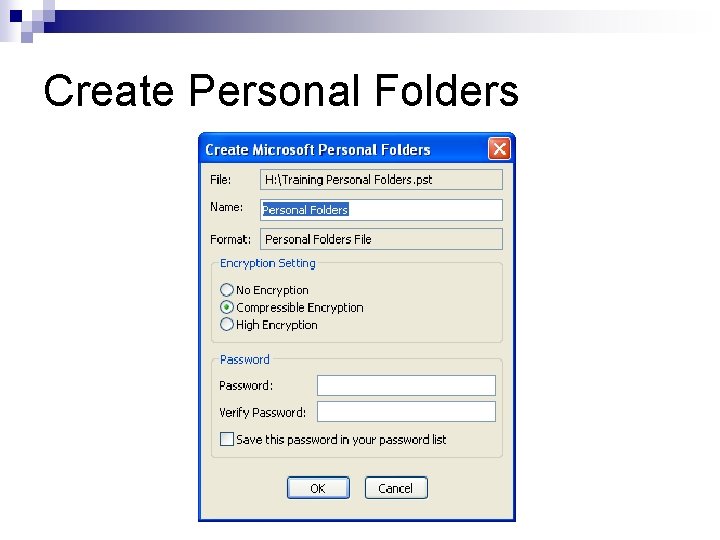
Creating Personal Folders Click on File, Outlook Data Management ð Click Add, then OK, then browse to a location on your network drive ð Type a name of your choice and click Create ð Then type a display name to match then OK ð You will now see a folder in your folder list that you can move and store messages ð
Create Personal Folders
Create Personal Folders
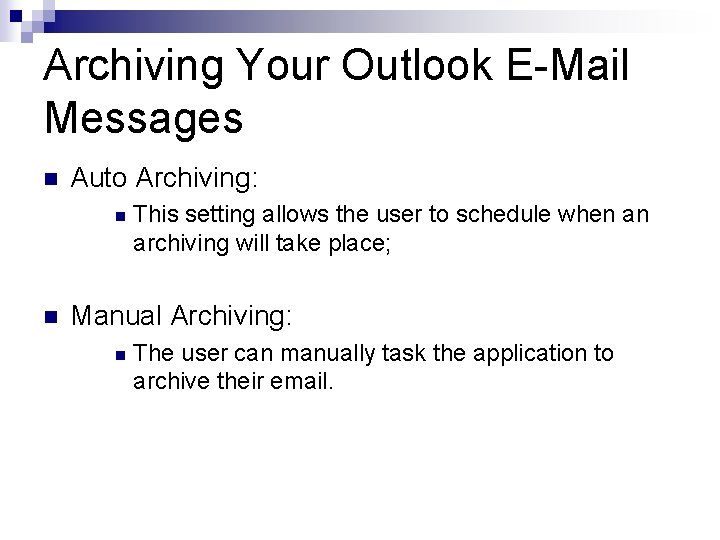
Archiving Your Outlook E-Mail Messages n Auto Archiving: n n This setting allows the user to schedule when an archiving will take place; Manual Archiving: n The user can manually task the application to archive their email.
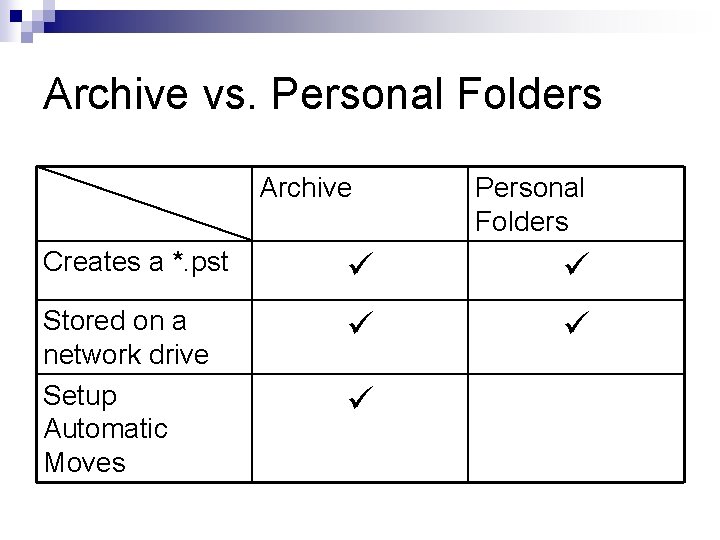
Archive vs. Personal Folders Archive Personal Folders Creates a *. pst Stored on a network drive Setup Automatic Moves
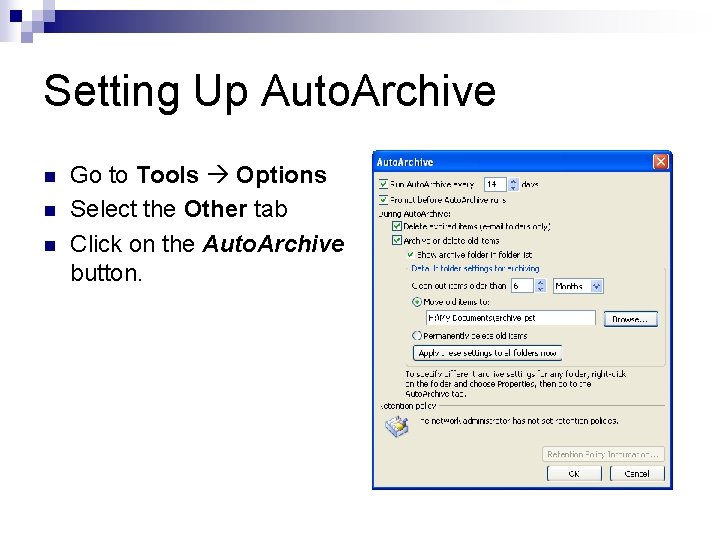
Setting Up Auto. Archive n n n Go to Tools Options Select the Other tab Click on the Auto. Archive button.
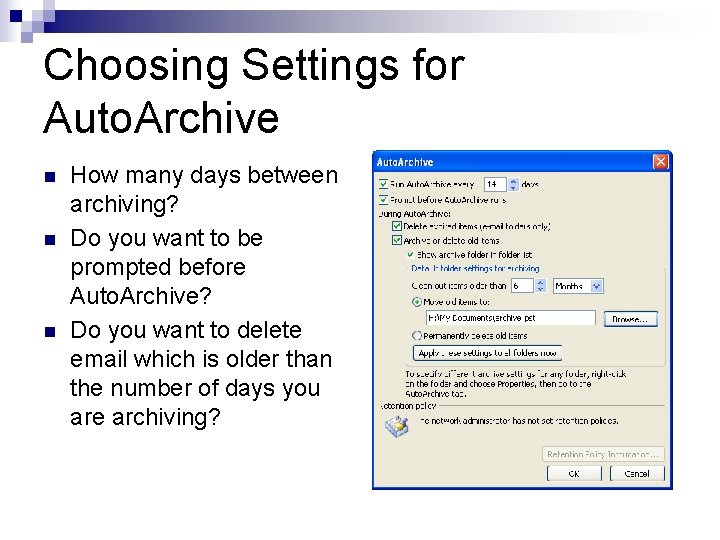
Choosing Settings for Auto. Archive n n n How many days between archiving? Do you want to be prompted before Auto. Archive? Do you want to delete email which is older than the number of days you are archiving?
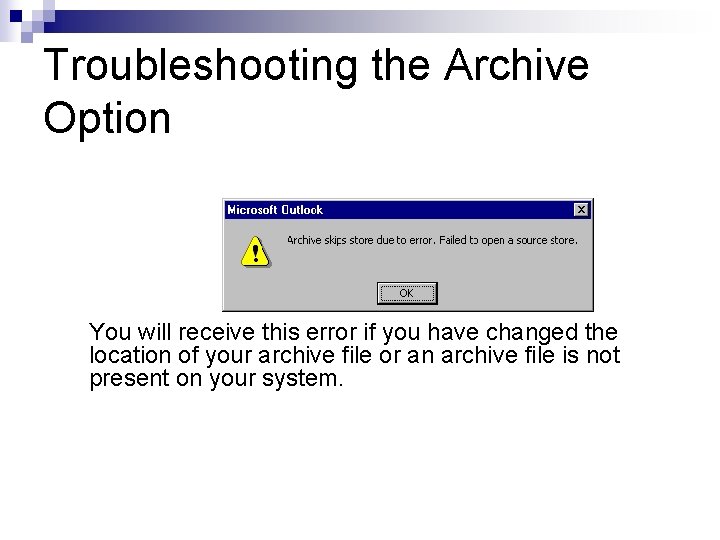
Troubleshooting the Archive Option You will receive this error if you have changed the location of your archive file or an archive file is not present on your system.
Rules n. Set of conditions and actions for processing and organizing your e‑mail messages. n. Conditions identify messages for processing, and actions determine what kind of processing is performed.
Using Rules Assign categories to messages n Setup Notification when important messages arrive n Move messages to a folder from a specific person n Color code messages n
Using Rules n You probably receive large volumes of mail from several different groups (workrelated, personal, and junk mail), so you need some way to manage your messages. In Outlook 2002, you can use rules to sort and process your messages before you even look at them.
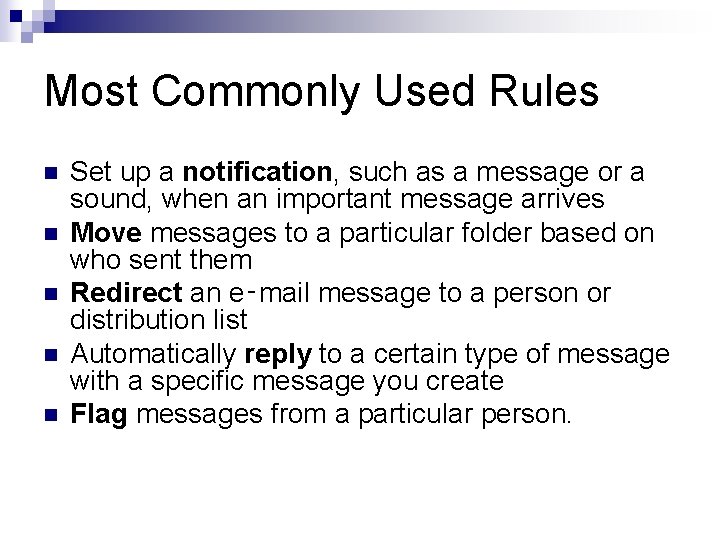
Most Commonly Used Rules n n n Set up a notification, such as a message or a sound, when an important message arrives Move messages to a particular folder based on who sent them Redirect an e‑mail message to a person or distribution list Automatically reply to a certain type of message with a specific message you create Flag messages from a particular person.
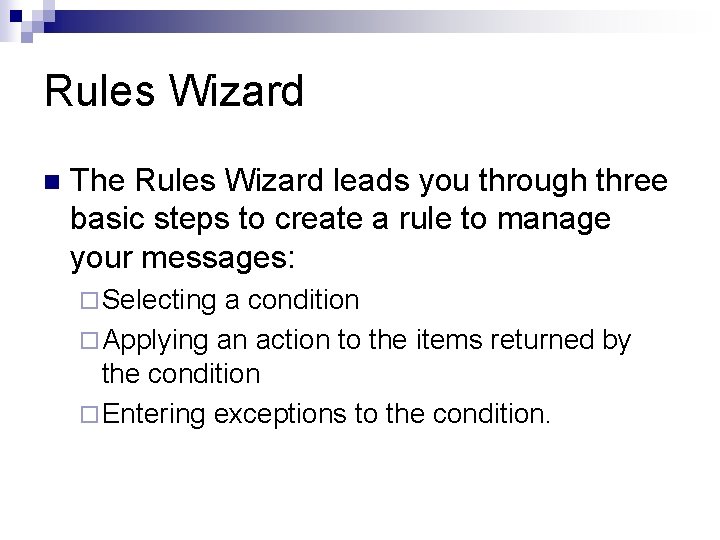
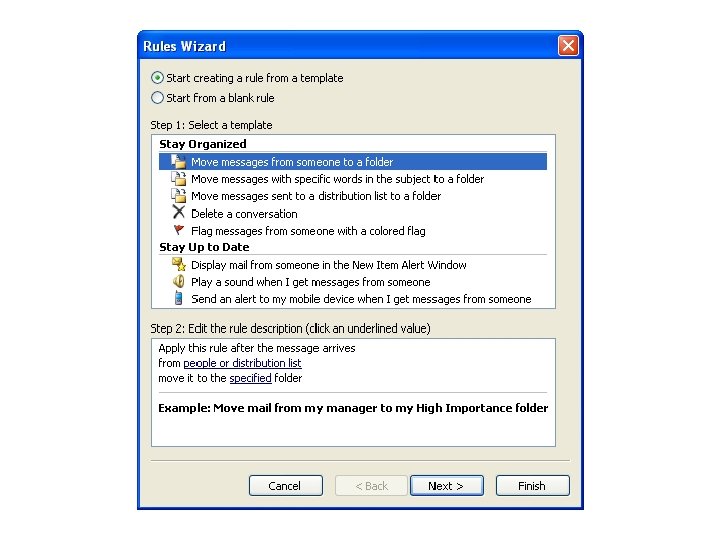
Rules Wizard n The Rules Wizard leads you through three basic steps to create a rule to manage your messages: ¨ Selecting a condition ¨ Applying an action to the items returned by the condition ¨ Entering exceptions to the condition.
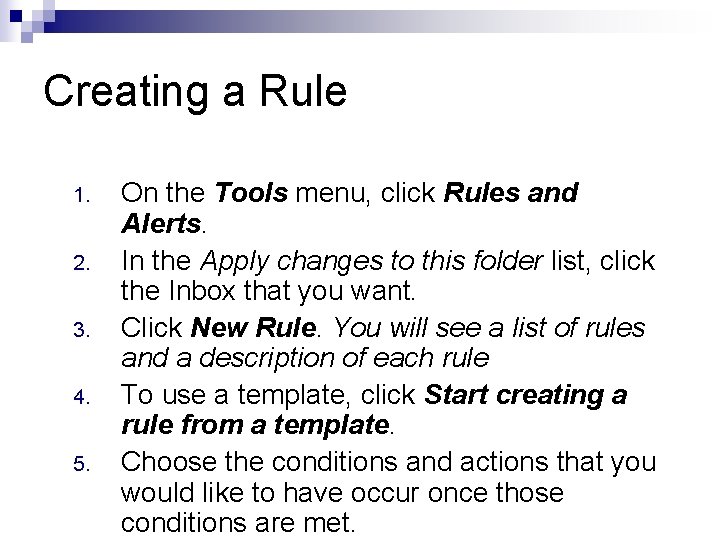
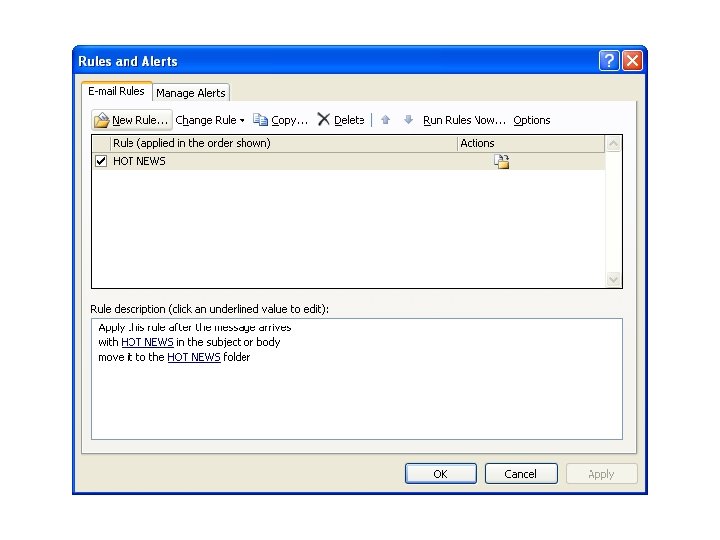
Creating a Rule 1. 2. 3. 4. 5. On the Tools menu, click Rules and Alerts. In the Apply changes to this folder list, click the Inbox that you want. Click New Rule. You will see a list of rules and a description of each rule To use a template, click Start creating a rule from a template. Choose the conditions and actions that you would like to have occur once those conditions are met.
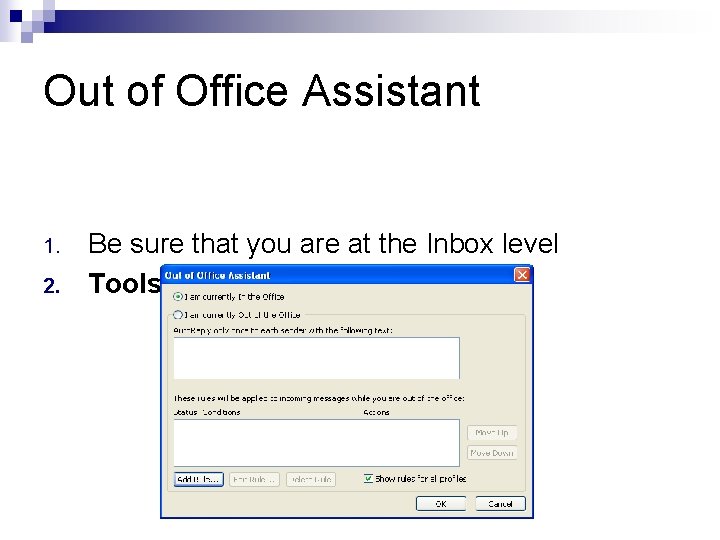
Out of Office Assistant 1. 2. Be sure that you are at the Inbox level Tools Out of Office Assistant
Inserting NIH E-mail Addresses In the To: field type the employee’s name (first last) n Press CTRL+k on the keyboard to check name. n If multiple employees have the same name, a popup box will appear to select the correct one, otherwise the name will automatically be found and linked. n
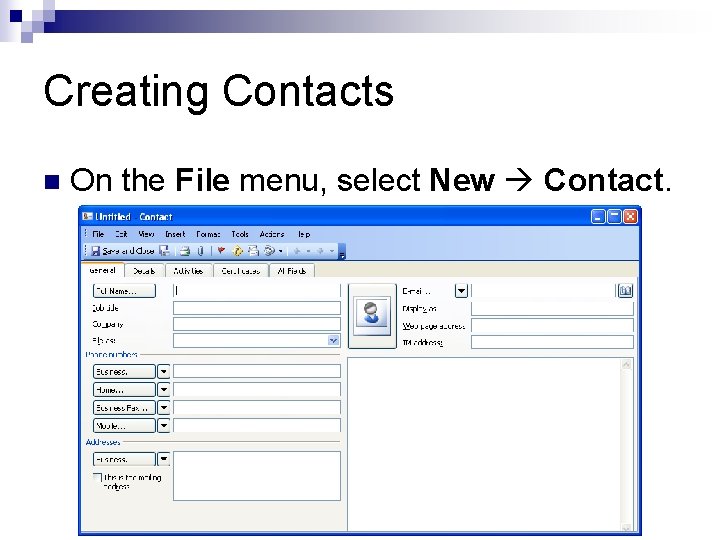
Creating Contacts n On the File menu, select New Contact.
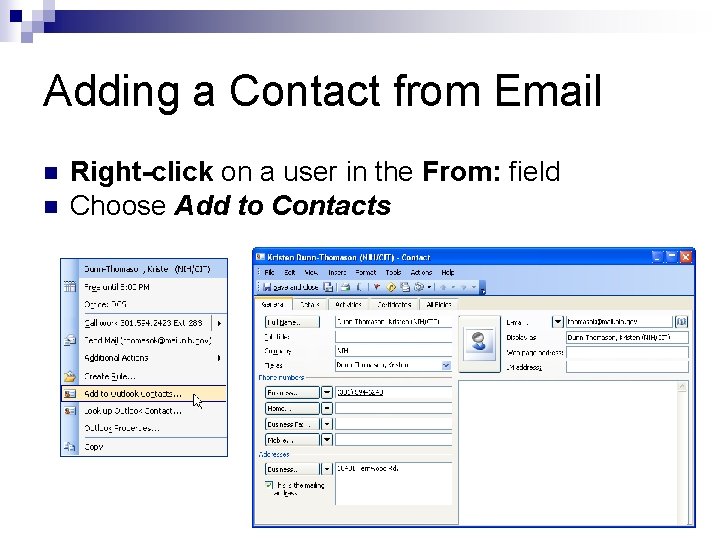
Adding a Contact from Email n n Right-click on a user in the From: field Choose Add to Contacts
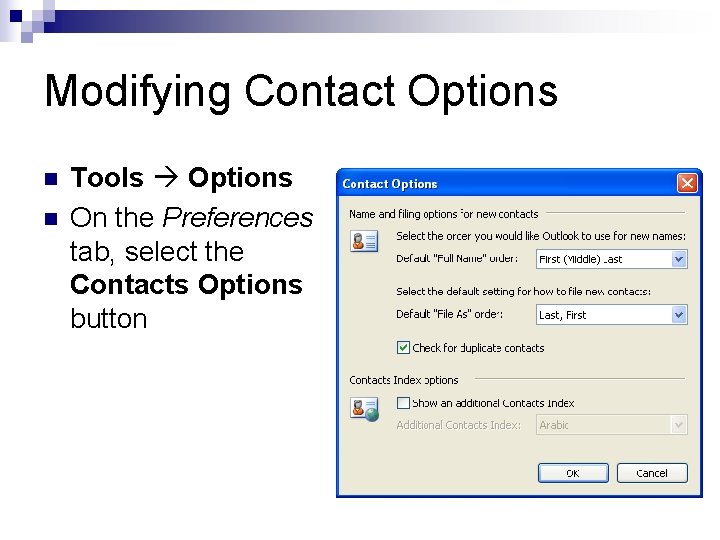
Modifying Contact Options n n Tools Options On the Preferences tab, select the Contacts Options button
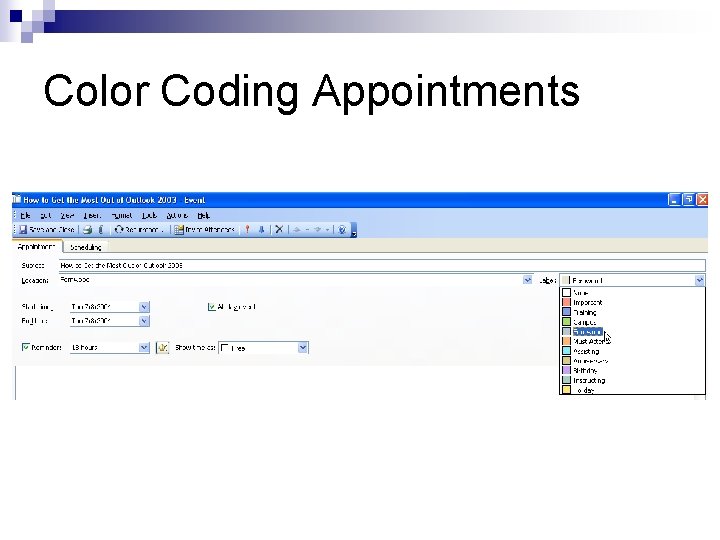
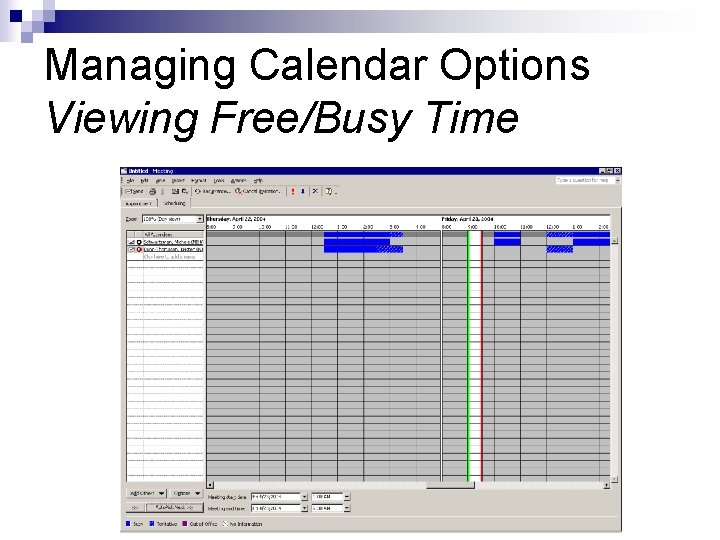
Managing Calendar Viewing Options n Color Coding Appointments n Modifying Calendar Options n ¨ Using n Free/Busy Time Feature Creating a Recurring Meeting Request
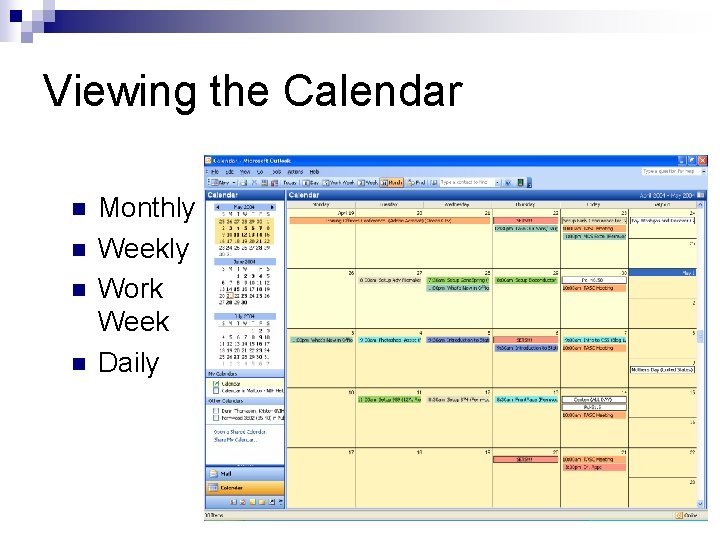
Viewing the Calendar n n Monthly Weekly Work Week Daily
Color Coding Appointments
Managing Calendar Options Creating Appointments n Scheduling Meetings n Recurring n Free/Busy Time n
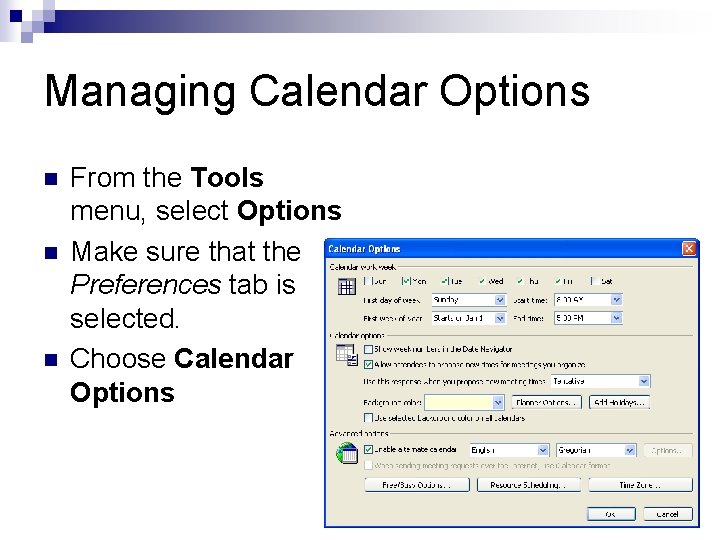
Managing Calendar Options n n n From the Tools menu, select Options Make sure that the Preferences tab is selected. Choose Calendar Options
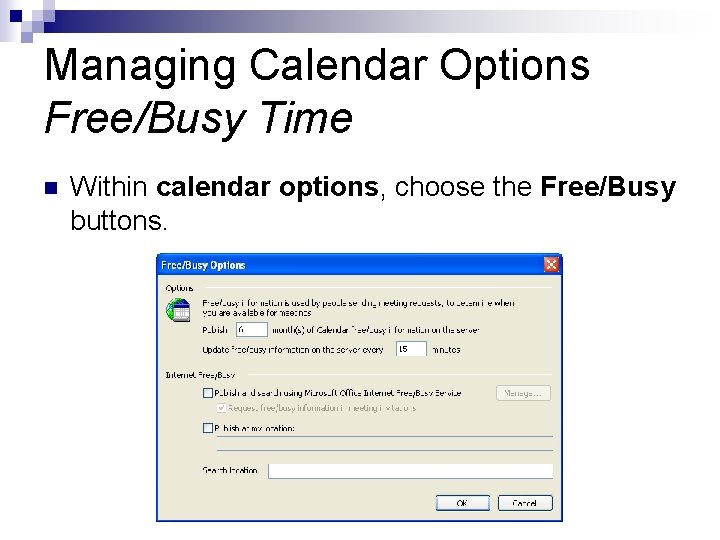
Managing Calendar Options Free/Busy Time n Within calendar options, choose the Free/Busy buttons.
Managing Calendar Options Viewing Free/Busy Time
In Closing… n n http: //antispam. nih. gov http: //www. mail. nih. gov