
How to fill out a Ports Protocols and
- Slides: 16
How to fill out a Ports, Protocols and Services Management (PPSM) Registration Spreadsheet Version 1. 1
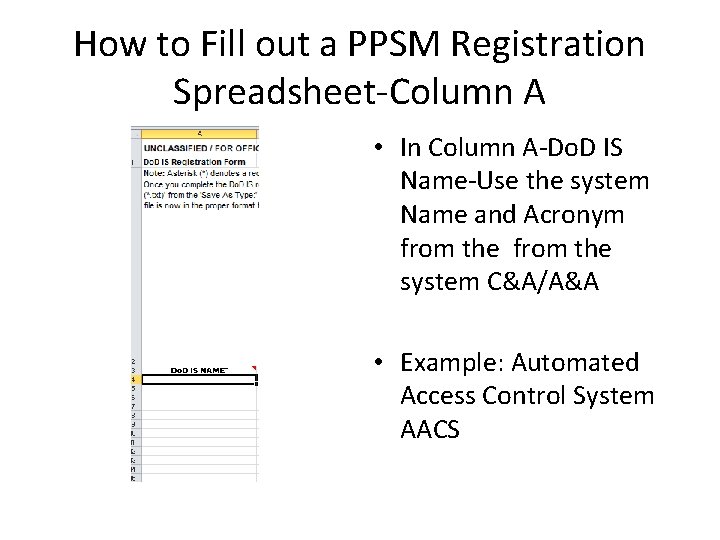
How to Fill out a PPSM Registration Spreadsheet-Column A • In Column A-Do. D IS Name-Use the system Name and Acronym from the system C&A/A&A • Example: Automated Access Control System AACS
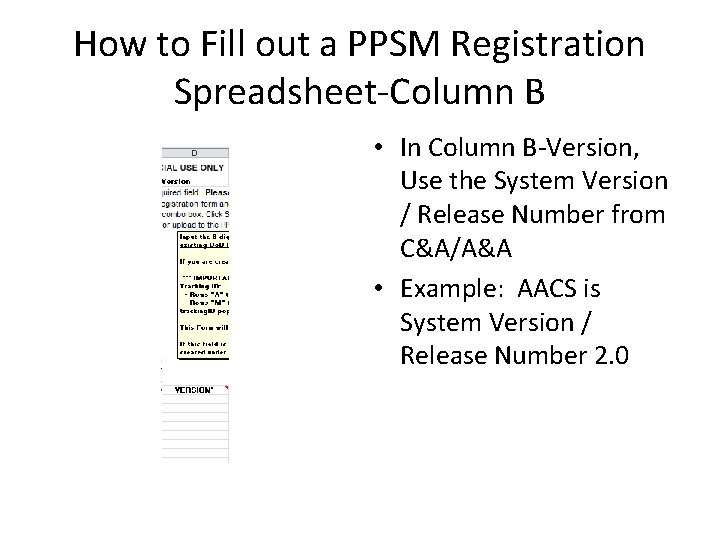
How to Fill out a PPSM Registration Spreadsheet-Column B • In Column B-Version, Use the System Version / Release Number from C&A/A&A • Example: AACS is System Version / Release Number 2. 0
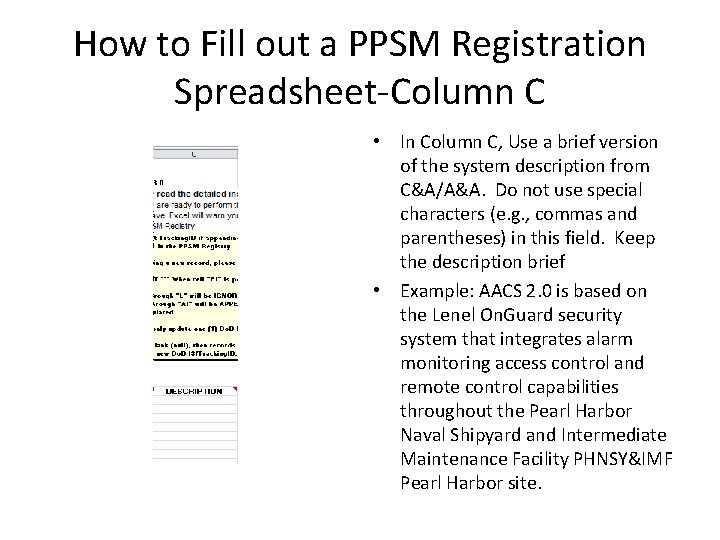
How to Fill out a PPSM Registration Spreadsheet-Column C • In Column C, Use a brief version of the system description from C&A/A&A. Do not use special characters (e. g. , commas and parentheses) in this field. Keep the description brief • Example: AACS 2. 0 is based on the Lenel On. Guard security system that integrates alarm monitoring access control and remote control capabilities throughout the Pearl Harbor Naval Shipyard and Intermediate Maintenance Facility PHNSY&IMF Pearl Harbor site.
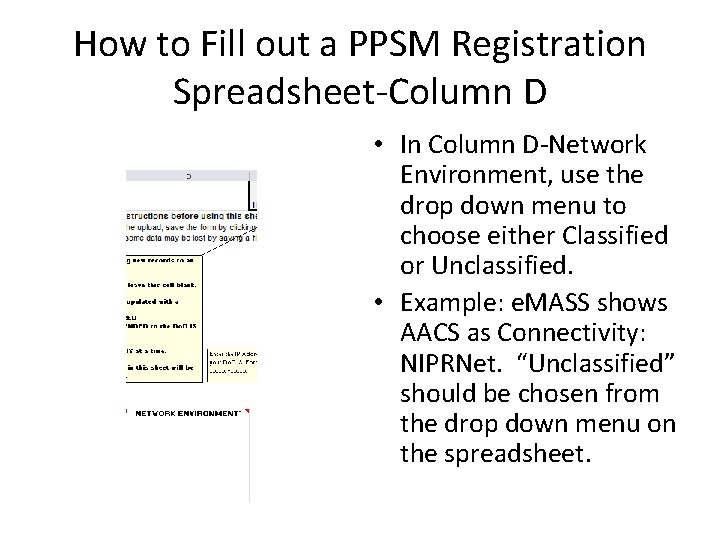
How to Fill out a PPSM Registration Spreadsheet-Column D • In Column D-Network Environment, use the drop down menu to choose either Classified or Unclassified. • Example: e. MASS shows AACS as Connectivity: NIPRNet. “Unclassified” should be chosen from the drop down menu on the spreadsheet.
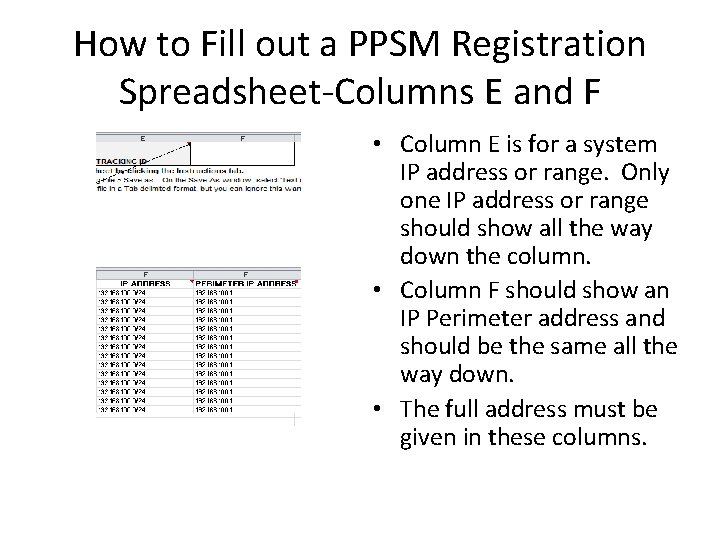
How to Fill out a PPSM Registration Spreadsheet-Columns E and F • Column E is for a system IP address or range. Only one IP address or range should show all the way down the column. • Column F should show an IP Perimeter address and should be the same all the way down. • The full address must be given in these columns.
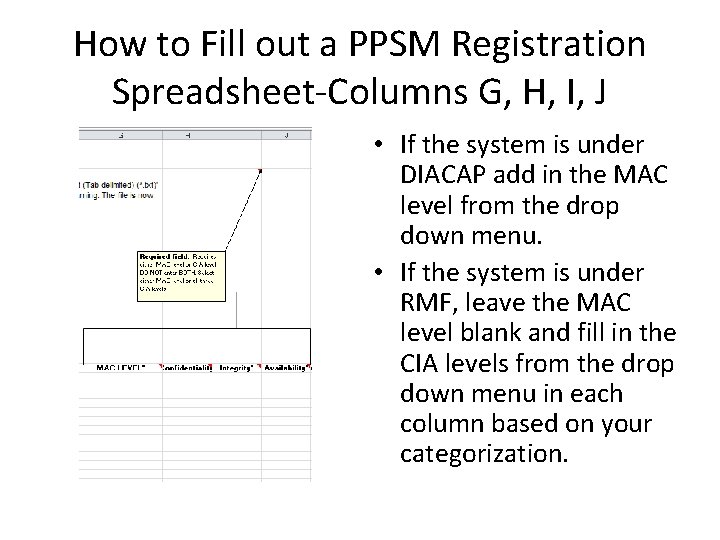
How to Fill out a PPSM Registration Spreadsheet-Columns G, H, I, J • If the system is under DIACAP add in the MAC level from the drop down menu. • If the system is under RMF, leave the MAC level blank and fill in the CIA levels from the drop down menu in each column based on your categorization.
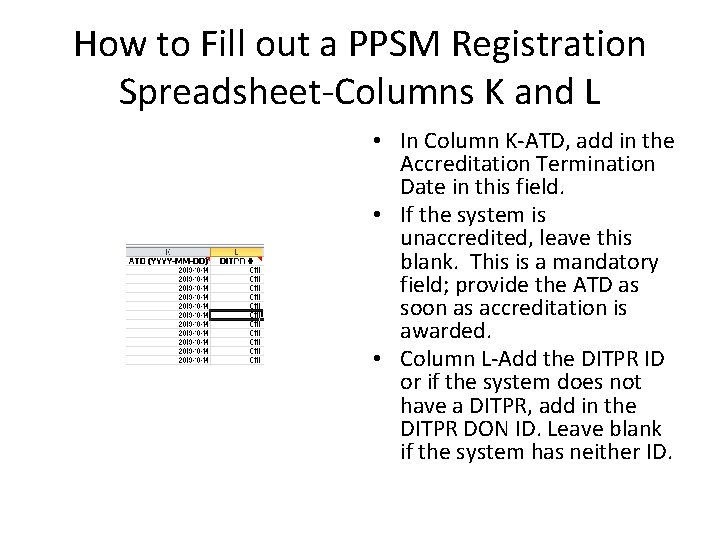
How to Fill out a PPSM Registration Spreadsheet-Columns K and L • In Column K-ATD, add in the Accreditation Termination Date in this field. • If the system is unaccredited, leave this blank. This is a mandatory field; provide the ATD as soon as accreditation is awarded. • Column L-Add the DITPR ID or if the system does not have a DITPR, add in the DITPR DON ID. Leave blank if the system has neither ID.
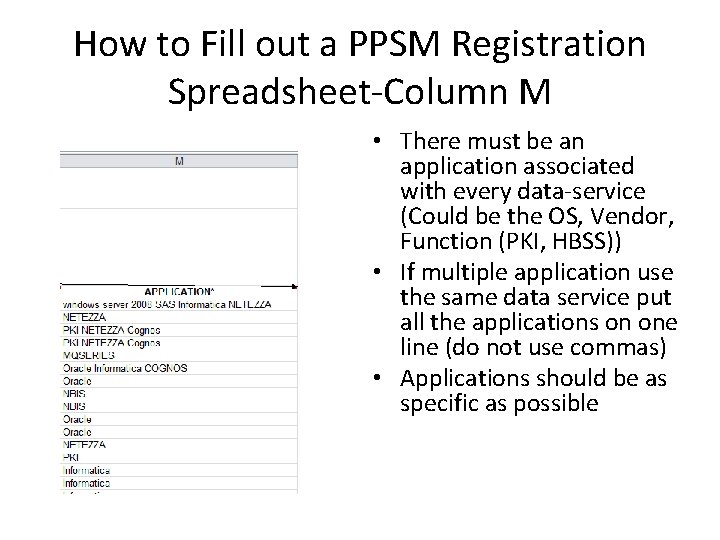
How to Fill out a PPSM Registration Spreadsheet-Column M • There must be an application associated with every data-service (Could be the OS, Vendor, Function (PKI, HBSS)) • If multiple application use the same data service put all the applications on one line (do not use commas) • Applications should be as specific as possible
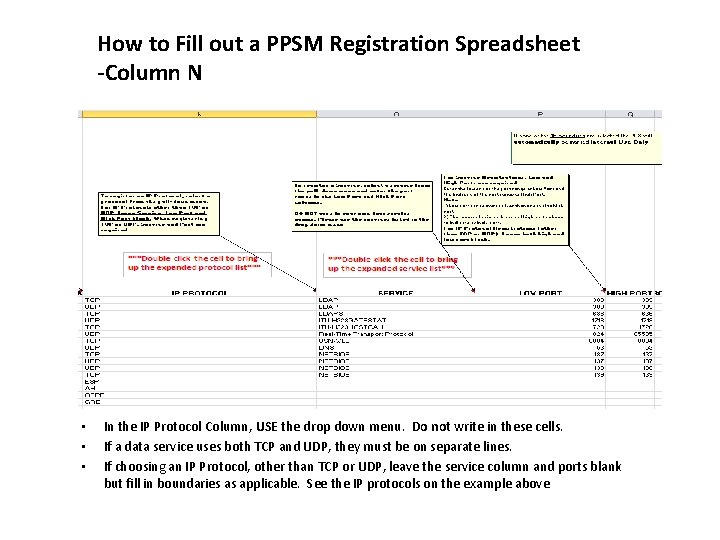
How to Fill out a PPSM Registration Spreadsheet -Column N • • • In the IP Protocol Column, USE the drop down menu. Do not write in these cells. If a data service uses both TCP and UDP, they must be on separate lines. If choosing an IP Protocol, other than TCP or UDP, leave the service column and ports blank but fill in boundaries as applicable. See the IP protocols on the example above
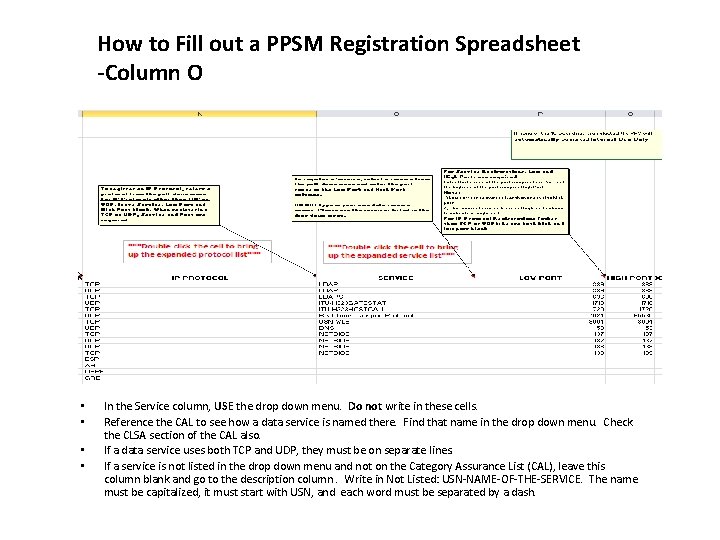
How to Fill out a PPSM Registration Spreadsheet -Column O • • In the Service column, USE the drop down menu. Do not write in these cells. Reference the CAL to see how a data service is named there. Find that name in the drop down menu. Check the CLSA section of the CAL also. If a data service uses both TCP and UDP, they must be on separate lines. If a service is not listed in the drop down menu and not on the Category Assurance List (CAL), leave this column blank and go to the description column. Write in Not Listed: USN-NAME-OF-THE-SERVICE. The name must be capitalized, it must start with USN, and each word must be separated by a dash.
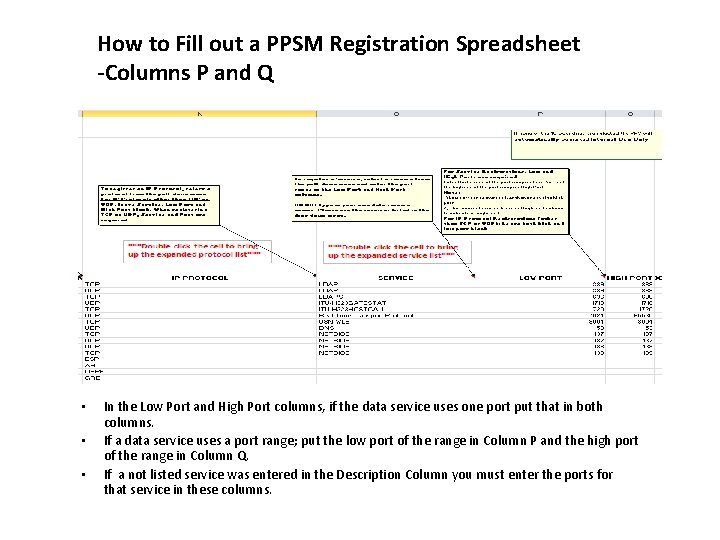
How to Fill out a PPSM Registration Spreadsheet -Columns P and Q • • • In the Low Port and High Port columns, if the data service uses one port put that in both columns. If a data service uses a port range; put the low port of the range in Column P and the high port of the range in Column Q. If a not listed service was entered in the Description Column you must enter the ports for that service in these columns.
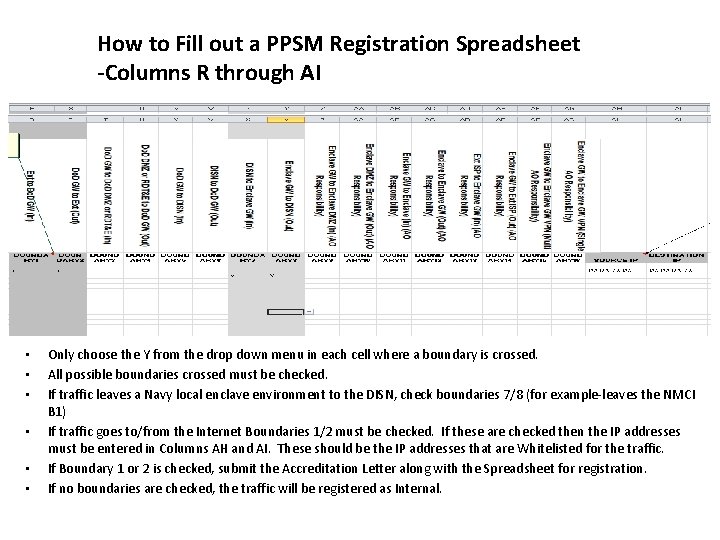
How to Fill out a PPSM Registration Spreadsheet -Columns R through AI • • • Only choose the Y from the drop down menu in each cell where a boundary is crossed. All possible boundaries crossed must be checked. If traffic leaves a Navy local enclave environment to the DISN, check boundaries 7/8 (for example-leaves the NMCI B 1) If traffic goes to/from the Internet Boundaries 1/2 must be checked. If these are checked then the IP addresses must be entered in Columns AH and AI. These should be the IP addresses that are Whitelisted for the traffic. If Boundary 1 or 2 is checked, submit the Accreditation Letter along with the Spreadsheet for registration. If no boundaries are checked, the traffic will be registered as Internal.
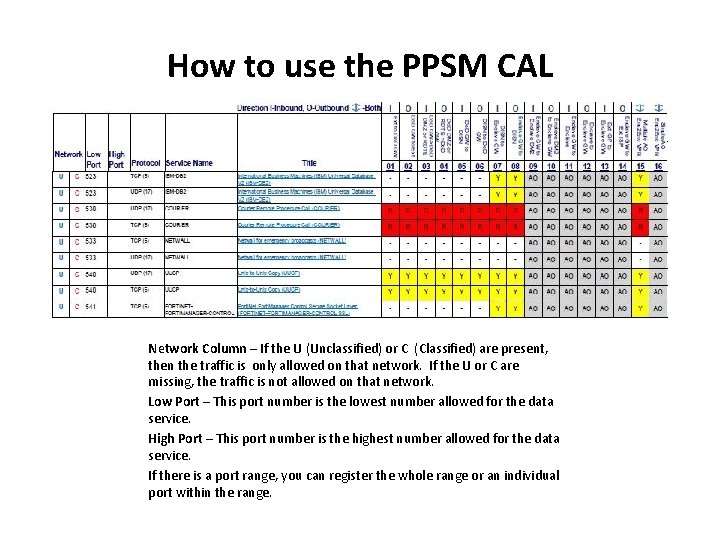
How to use the PPSM CAL Network Column – If the U (Unclassified) or C (Classified) are present, then the traffic is only allowed on that network. If the U or C are missing, the traffic is not allowed on that network. Low Port – This port number is the lowest number allowed for the data service. High Port – This port number is the highest number allowed for the data service. If there is a port range, you can register the whole range or an individual port within the range.
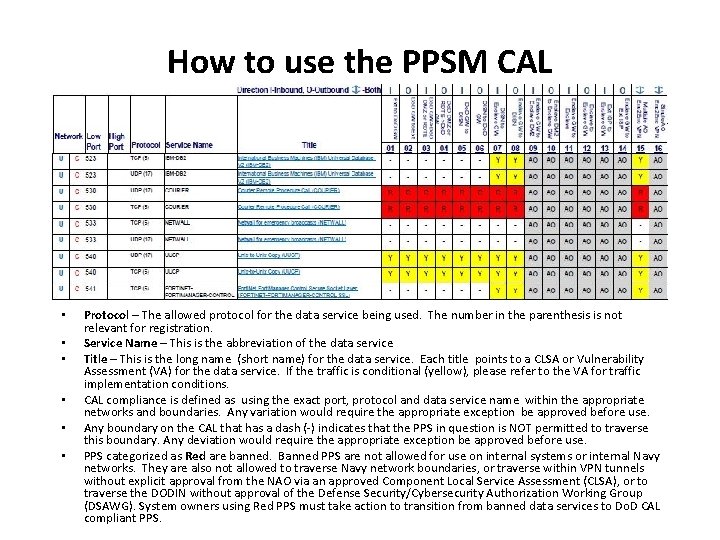
How to use the PPSM CAL • • • Protocol – The allowed protocol for the data service being used. The number in the parenthesis is not relevant for registration. Service Name – This is the abbreviation of the data service Title – This is the long name (short name) for the data service. Each title points to a CLSA or Vulnerability Assessment (VA) for the data service. If the traffic is conditional (yellow), please refer to the VA for traffic implementation conditions. CAL compliance is defined as using the exact port, protocol and data service name within the appropriate networks and boundaries. Any variation would require the appropriate exception be approved before use. Any boundary on the CAL that has a dash (-) indicates that the PPS in question is NOT permitted to traverse this boundary. Any deviation would require the appropriate exception be approved before use. PPS categorized as Red are banned. Banned PPS are not allowed for use on internal systems or internal Navy networks. They are also not allowed to traverse Navy network boundaries, or traverse within VPN tunnels without explicit approval from the NAO via an approved Component Local Service Assessment (CLSA), or to traverse the DODIN without approval of the Defense Security/Cybersecurity Authorization Working Group (DSAWG). System owners using Red PPS must take action to transition from banned data services to Do. D CAL compliant PPS.
How to Submit the PPSM Registration Spreadsheet once it is completed. Once completed, please submit it directly to Sara Taverner at sara. taverner. ctr@navy. mil and Genadio Lopez at genadio. lopez 1. ctr@navy. mil to register the system/application. If it is already registered and this is an update, please also include the PPSM Tracking ID. Below is a link to the PPS section of the NAO Portal, which is a great resource for all PPS related information. There you will find a folder named "Navy PPSM Registration Documents" which includes the latest version of the Navy PPSM Registration Spreadsheet. https: //usff. navy. deps. mil/sites/fccc 10 f/odaa/PPS/Site. Pages/Home. aspx