
How to export Contacts from AKO webmail to
How to export Contacts from AKO webmail to Outlook 2010, 2007, or 2013 Presented by Michael J. Danberry Last update / review: 12 June 2015 1
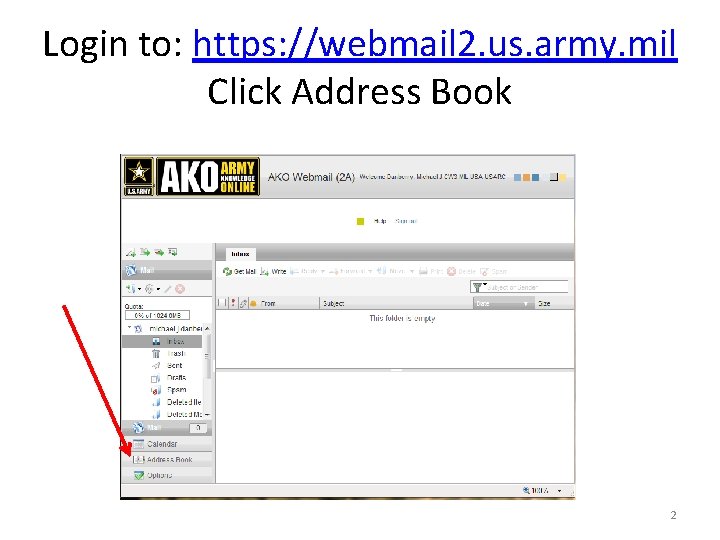
Login to: https: //webmail 2. us. army. mil Click Address Book 2
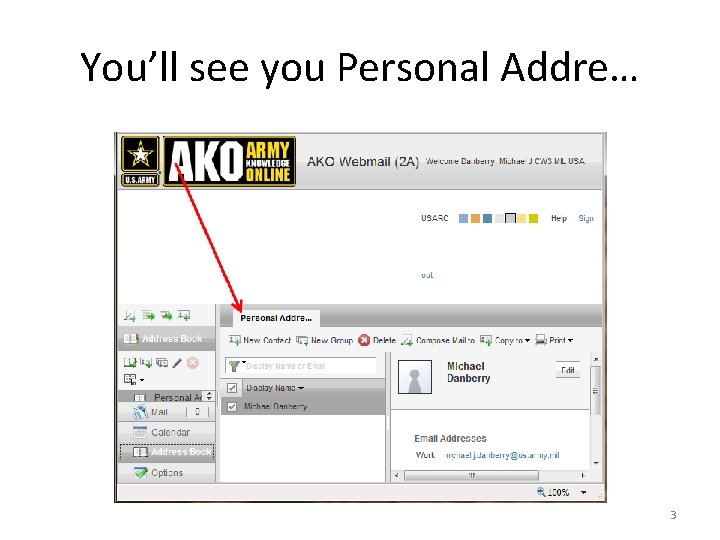
You’ll see you Personal Addre… 3
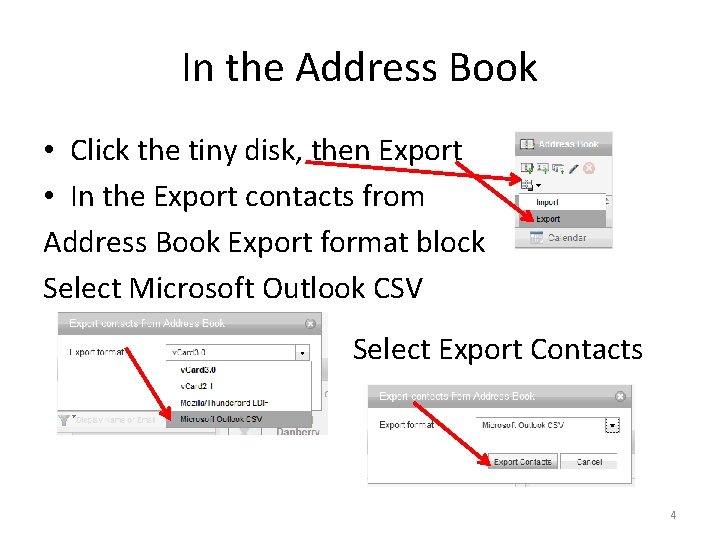
In the Address Book • Click the tiny disk, then Export • In the Export contacts from Address Book Export format block Select Microsoft Outlook CSV Select Export Contacts 4
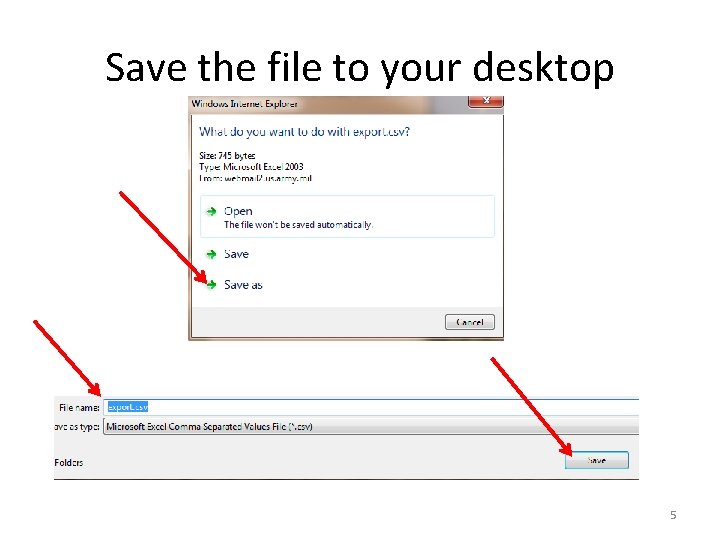
Save the file to your desktop 5
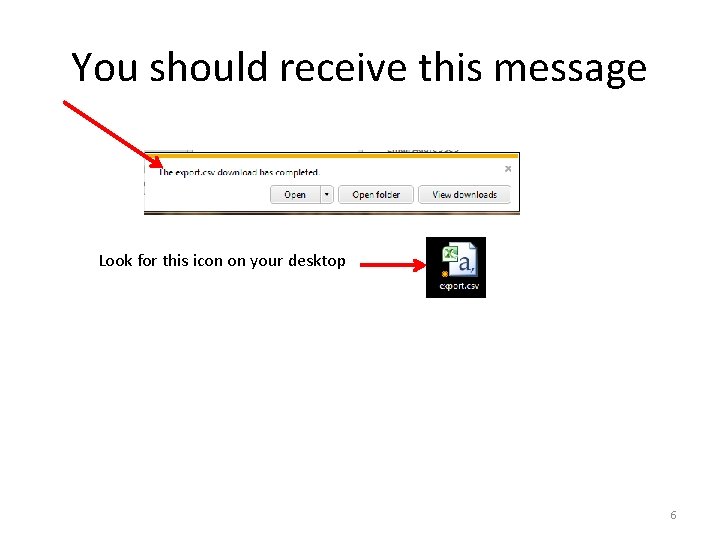
You should receive this message Look for this icon on your desktop 6
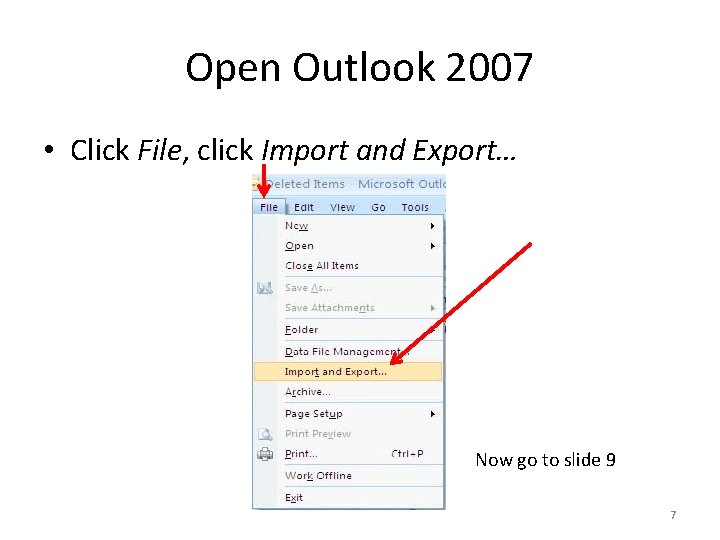
Open Outlook 2007 • Click File, click Import and Export… Now go to slide 9 7
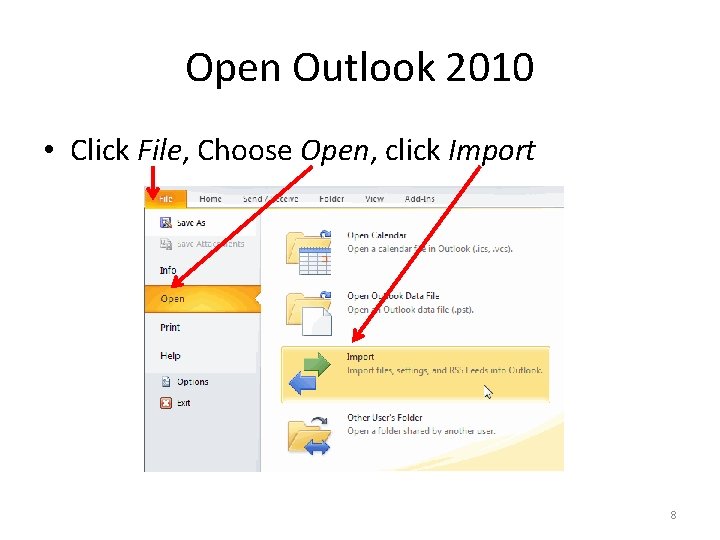
Open Outlook 2010 • Click File, Choose Open, click Import 8
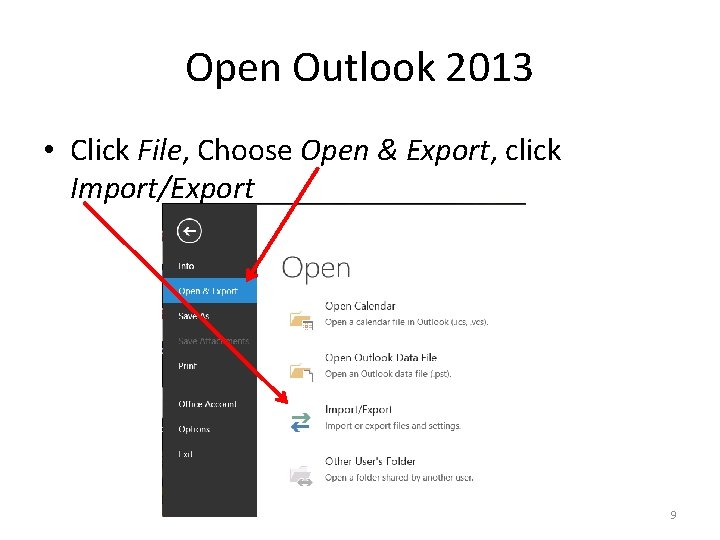
Open Outlook 2013 • Click File, Choose Open & Export, click Import/Export 9
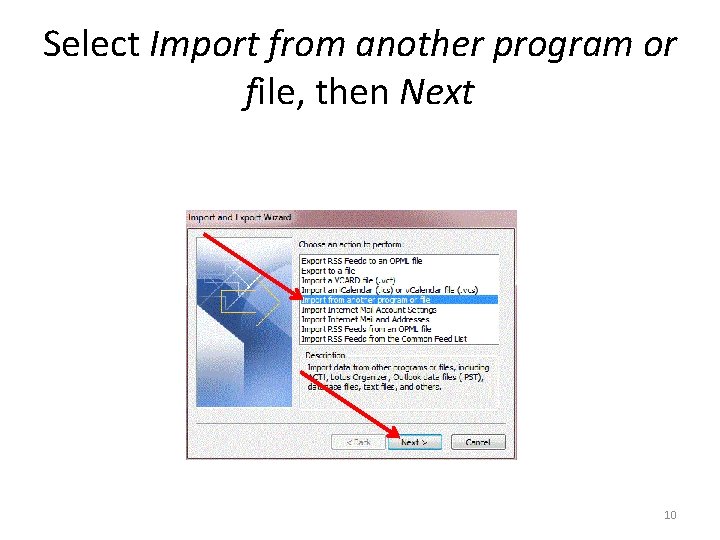
Select Import from another program or file, then Next 10
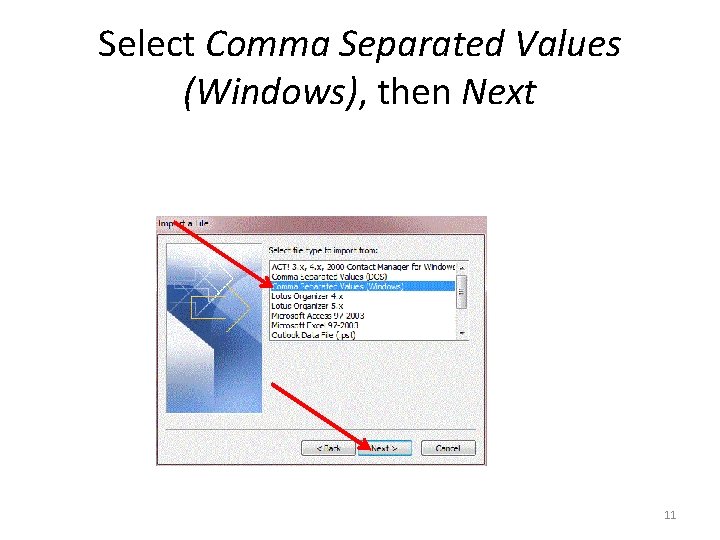
Select Comma Separated Values (Windows), then Next 11
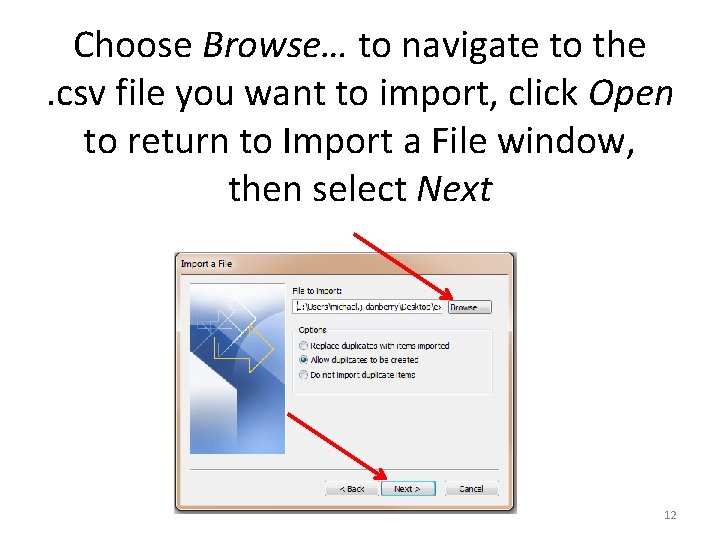
Choose Browse… to navigate to the. csv file you want to import, click Open to return to Import a File window, then select Next 12
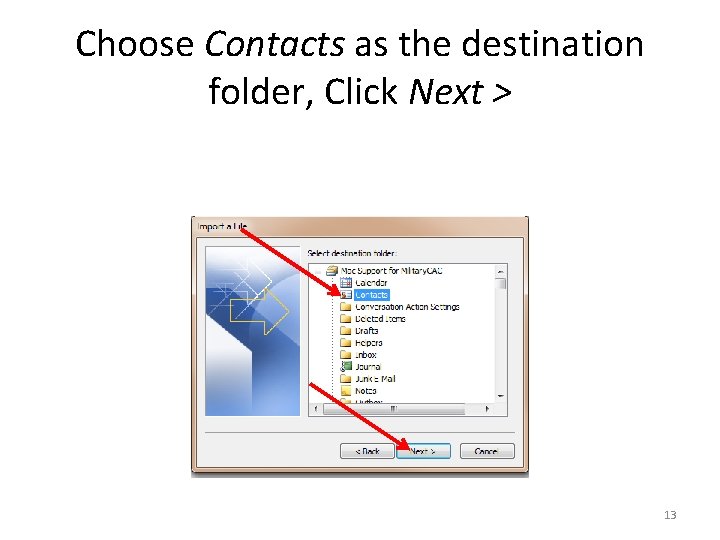
Choose Contacts as the destination folder, Click Next > 13
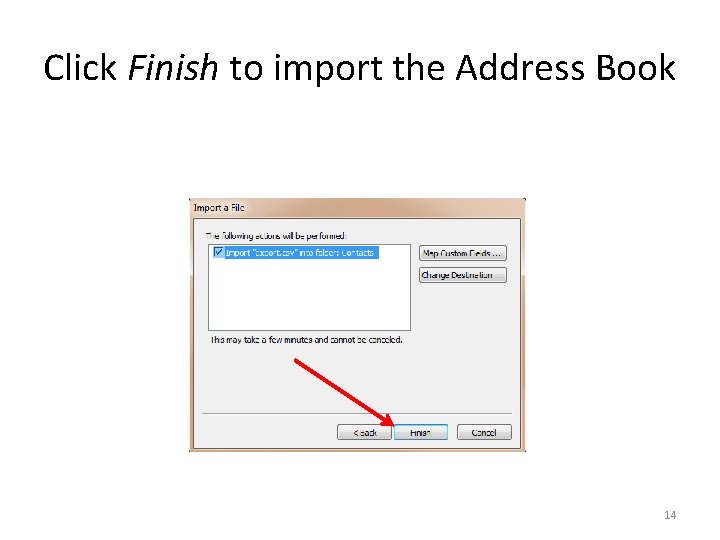
Click Finish to import the Address Book 14
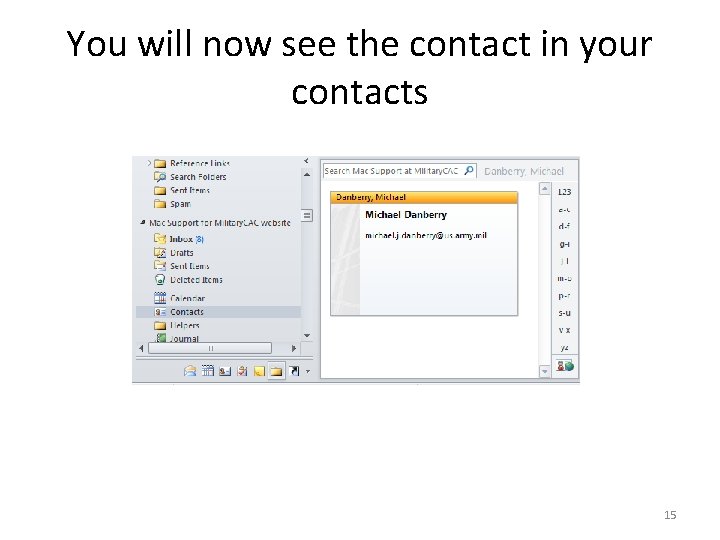
You will now see the contact in your contacts 15

Presentation created by: Michael J. Danberry https: //Military. CAC. com If you still have questions, visit: https: //militarycac. com/questions. htm 16
- Slides: 16