
How to Establish your position in the scene

How to … � Establish your position in the scene � Position objects within the scene � Scale objects � Establish a perspective transformation � Moving around in Open. GL using a camera 2
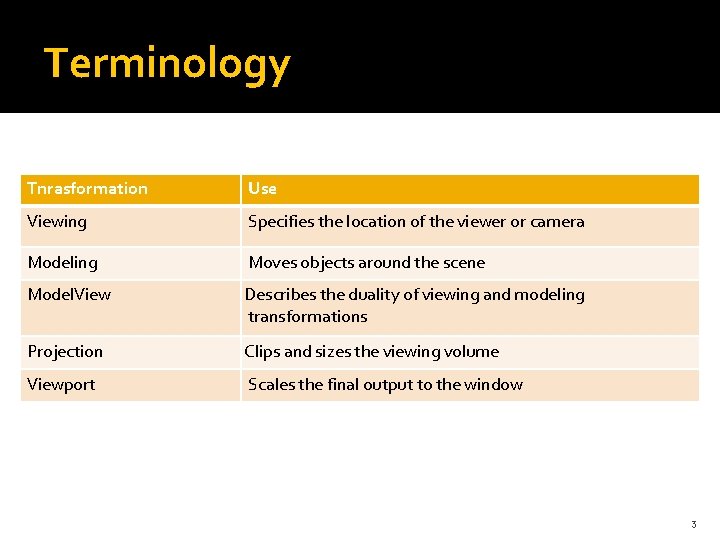
Terminology Tnrasformation Use Viewing Specifies the location of the viewer or camera Modeling Moves objects around the scene Model. View Describes the duality of viewing and modeling transformations Projection Clips and sizes the viewing volume Viewport Scales the final output to the window 3
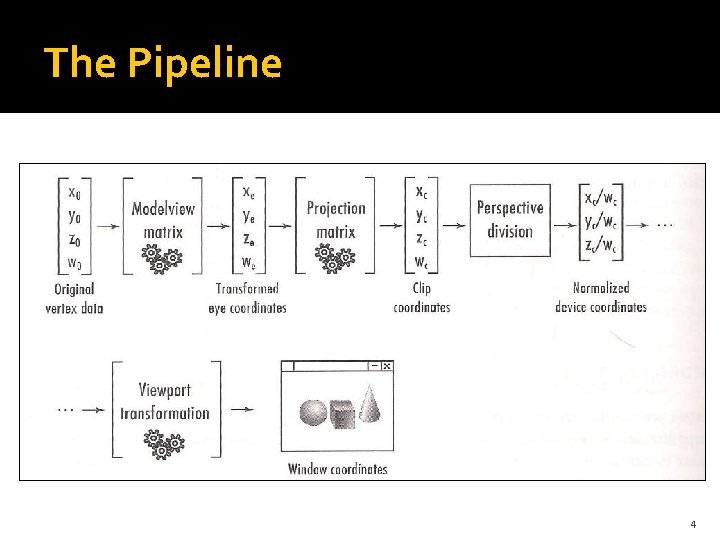
The Pipeline 4

Eye Coordinates � Viewpoint of the observer � They are a virtual fixed coordinate system � Used as a common frame of reference 5
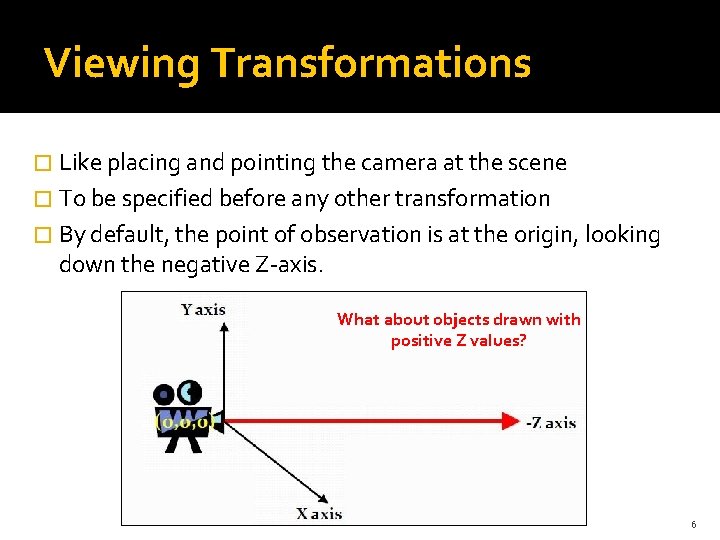
Viewing Transformations � Like placing and pointing the camera at the scene � To be specified before any other transformation � By default, the point of observation is at the origin, looking down the negative Z‐axis. What about objects drawn with positive Z values? 6

Modeling Transformation � Manipulate the model and the particular objects within it � Move objects into place, rotate them, and scale them � These are the most common modeling transformations 7
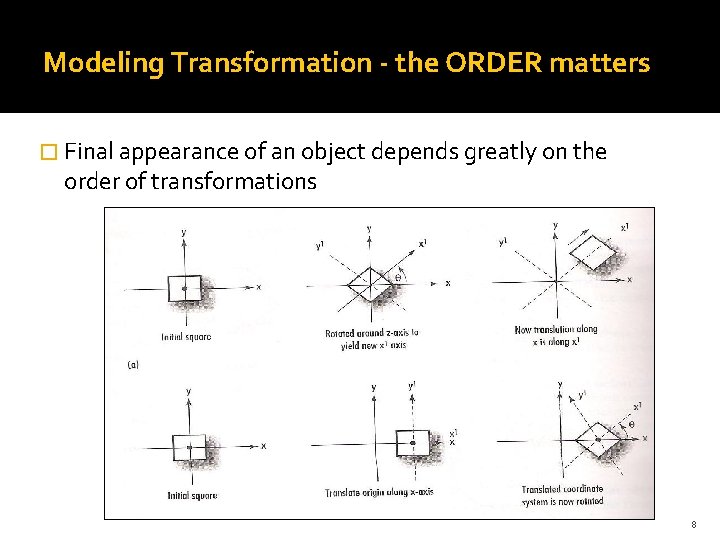
Modeling Transformation - the ORDER matters � Final appearance of an object depends greatly on the order of transformations 8

Model. View Duality � In fact, viewing and modeling transformations are the same � Induce the same effects on the final appearance of the scene � The distinctions is made as a convenience for the programmer 9
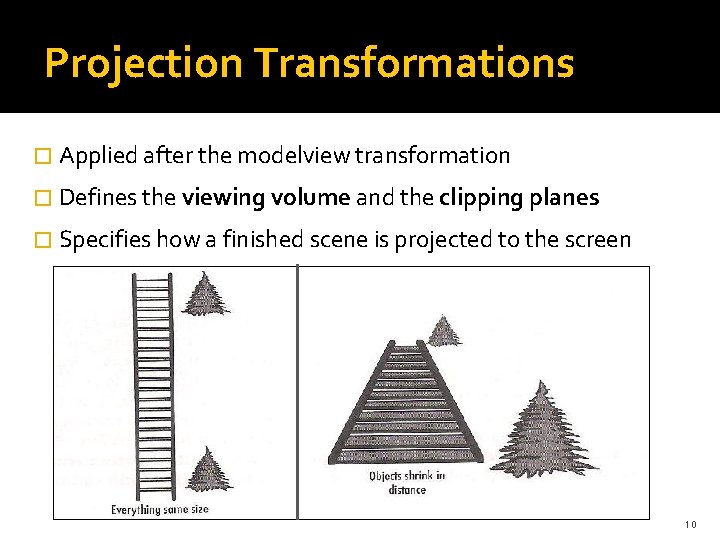
Projection Transformations � Applied after the modelview transformation � Defines the viewing volume and the clipping planes � Specifies how a finished scene is projected to the screen 10
Orthographic Vs. Perspective �In an Orthographic projection: objects are mapped directly on the 2 D screen using parallel lines ‐ No matter how far away something is ‐ �In Perspective projection: Scenes are more realistic ‐ Distant objects appear smaller than nearby objects of the same size ‐ Parallel lines in 3 D space do not always appear parallel ‐ See Code Example 3 11
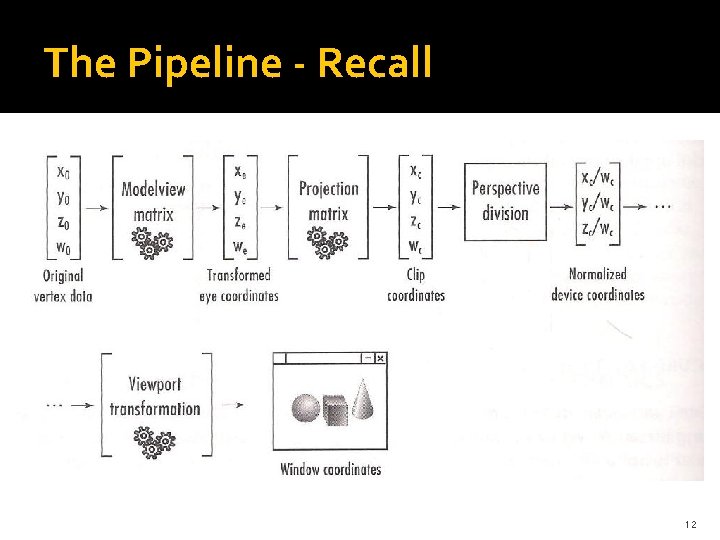
The Pipeline - Recall 12
Slow but steady. . � Current Matrix is part of the Open. GL state � Options are: � GL_MODELVIEW – changes, rotate, translate the model � GL_PROJECTION – changes, translate, rotate the camera � To specify which one is the “Current Matrix” : gl. Matrix. Mode(…) � Subsequent matrix operations affect the specified matrix � One of this matrices could be change in a given time 13
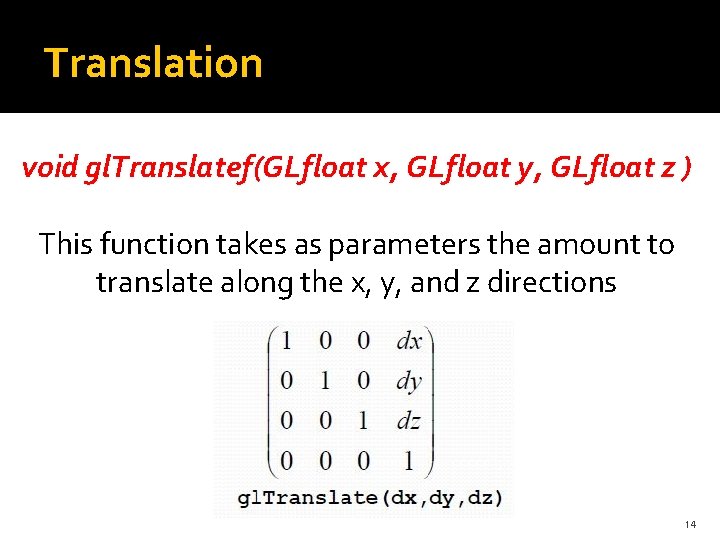
Translation void gl. Translatef(GLfloat x, GLfloat y, GLfloat z ) This function takes as parameters the amount to translate along the x, y, and z directions 14
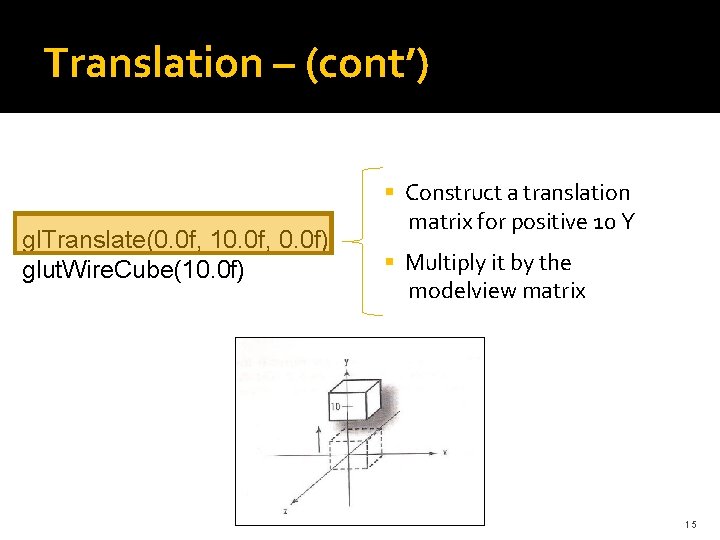
Translation – (cont’) gl. Translate(0. 0 f, 10. 0 f, 0. 0 f) glut. Wire. Cube(10. 0 f) § Construct a translation matrix for positive 10 Y § Multiply it by the modelview matrix 15
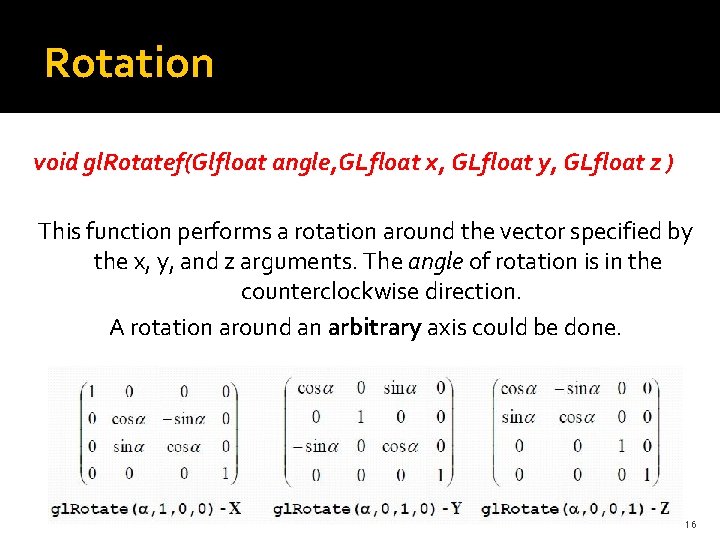
Rotation void gl. Rotatef(Glfloat angle, GLfloat x, GLfloat y, GLfloat z ) This function performs a rotation around the vector specified by the x, y, and z arguments. The angle of rotation is in the counterclockwise direction. A rotation around an arbitrary axis could be done. 16
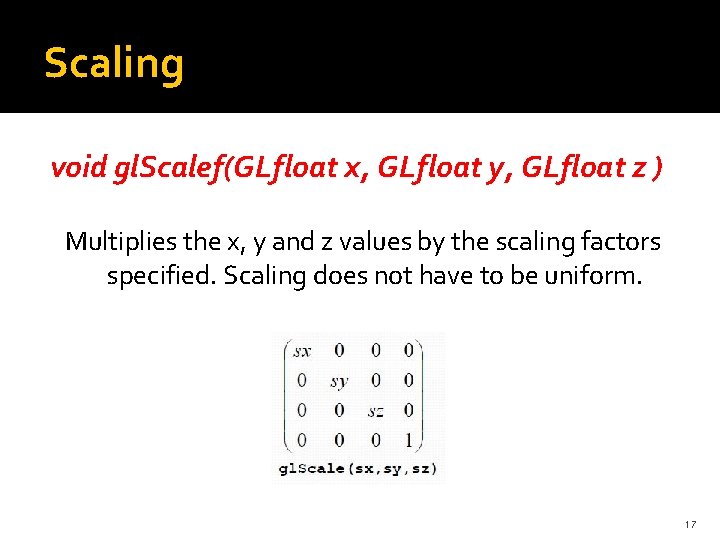
Scaling void gl. Scalef(GLfloat x, GLfloat y, GLfloat z ) Multiplies the x, y and z values by the scaling factors specified. Scaling does not have to be uniform. 17
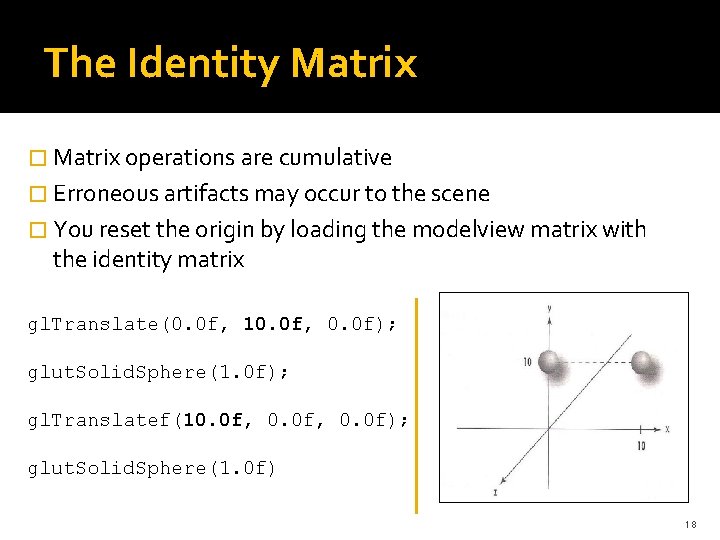
The Identity Matrix � Matrix operations are cumulative � Erroneous artifacts may occur to the scene � You reset the origin by loading the modelview matrix with the identity matrix gl. Translate(0. 0 f, 10. 0 f, 0. 0 f); glut. Solid. Sphere(1. 0 f); gl. Translatef(10. 0 f, 0. 0 f); glut. Solid. Sphere(1. 0 f) 18
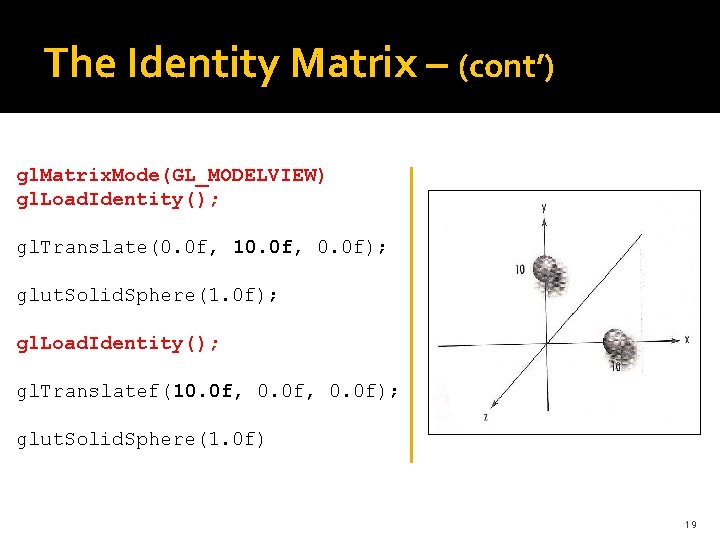
The Identity Matrix – (cont’) gl. Matrix. Mode(GL_MODELVIEW) gl. Load. Identity(); gl. Translate(0. 0 f, 10. 0 f, 0. 0 f); glut. Solid. Sphere(1. 0 f); gl. Load. Identity(); gl. Translatef(10. 0 f, 0. 0 f); glut. Solid. Sphere(1. 0 f) 19
Matrix stack � Resetting the modelview matrix to identity before placing the every object is not always desirable � To save the current transformation state � Open. GL maintains a matrix stack for both the modelview and projection matrices � gl. Push. Matrix() – push the current state matrix to the stack � gl. Pop. Matrix() – pop the top matrix out of the stack, and replace the current state matrix with it 20
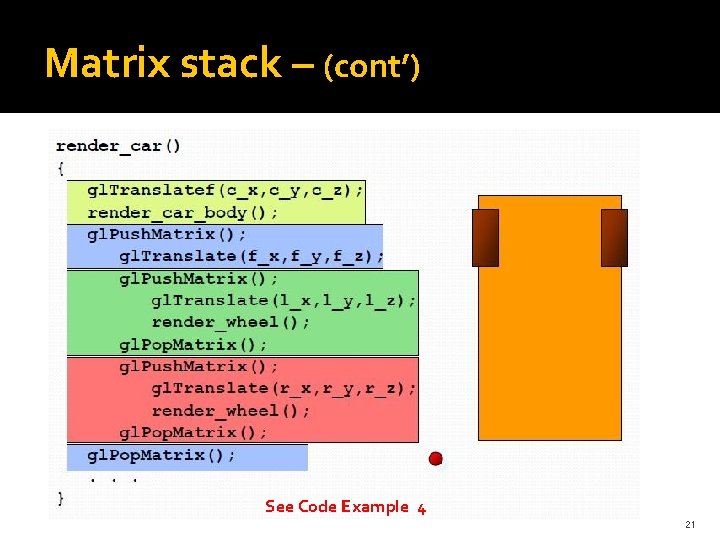
Matrix stack – (cont’) See Code Example 4 21
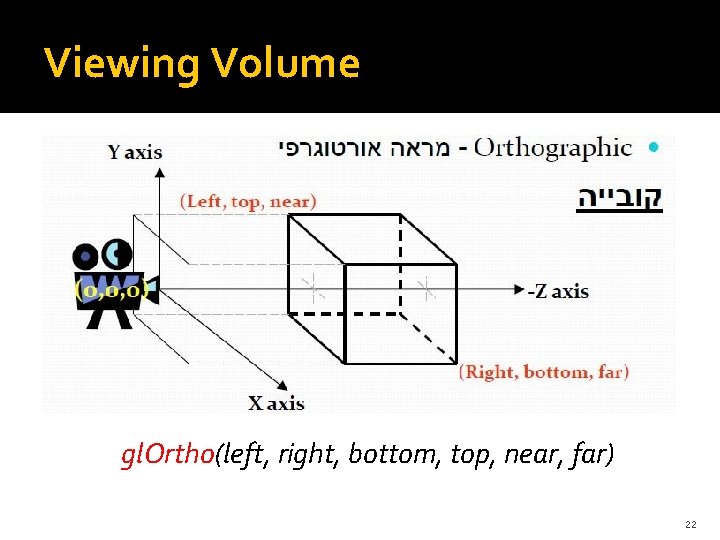
Viewing Volume gl. Ortho(left, right, bottom, top, near, far) 22
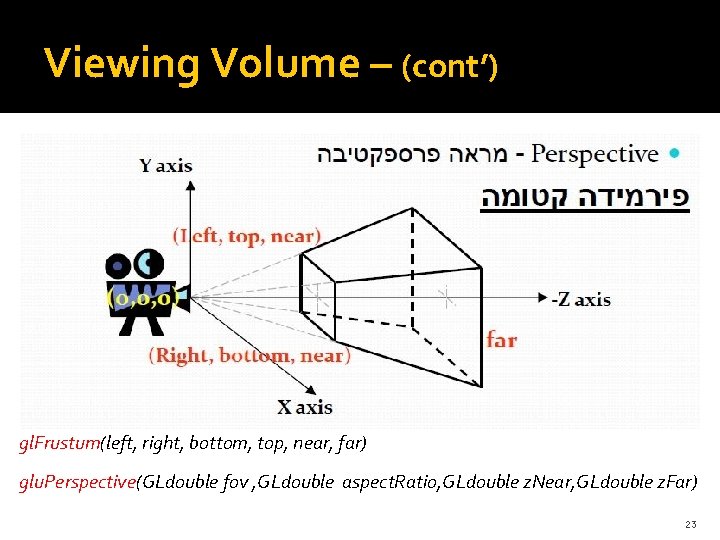
Viewing Volume – (cont’) gl. Frustum(left, right, bottom, top, near, far) glu. Perspective(GLdouble fov , GLdouble aspect. Ratio, GLdouble z. Near, GLdouble z. Far) 23
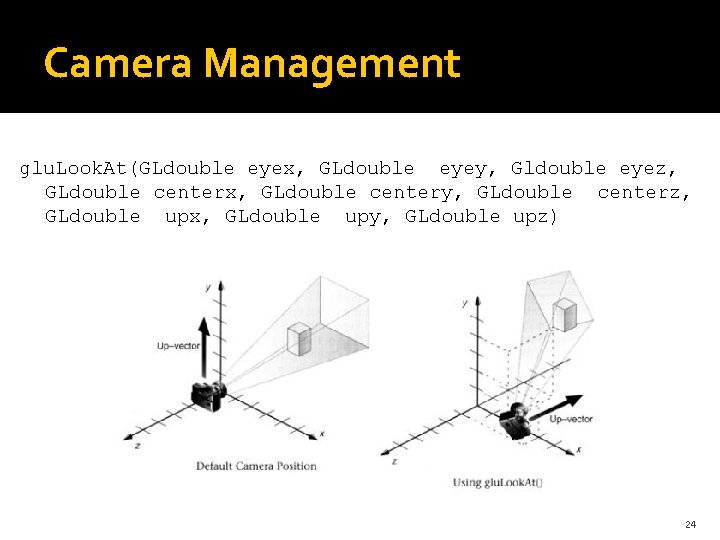
Camera Management glu. Look. At(GLdouble eyex, GLdouble eyey, Gldouble eyez, GLdouble centerx, GLdouble centery, GLdouble centerz, GLdouble upx, GLdouble upy, GLdouble upz) 24
Buffers � Important aspect of the current state of Open. GL � Buffers dimensions are the same as the window’s dimension � Color Buffer – stores the current color for each pixel � Depth Buffer – stores the depth of each pixel of the scene (Z ‐Buffer) � Accumulation buffer, stencil buffer, etc’. . � gl. Enable(GL_DEPTH_TEST) – enables the Z‐Buffer in Open. GL. …. . Otherwise? 25
- Slides: 24