
How to Enter a Purchase Order Creating A
- Slides: 25
How to Enter a Purchase Order
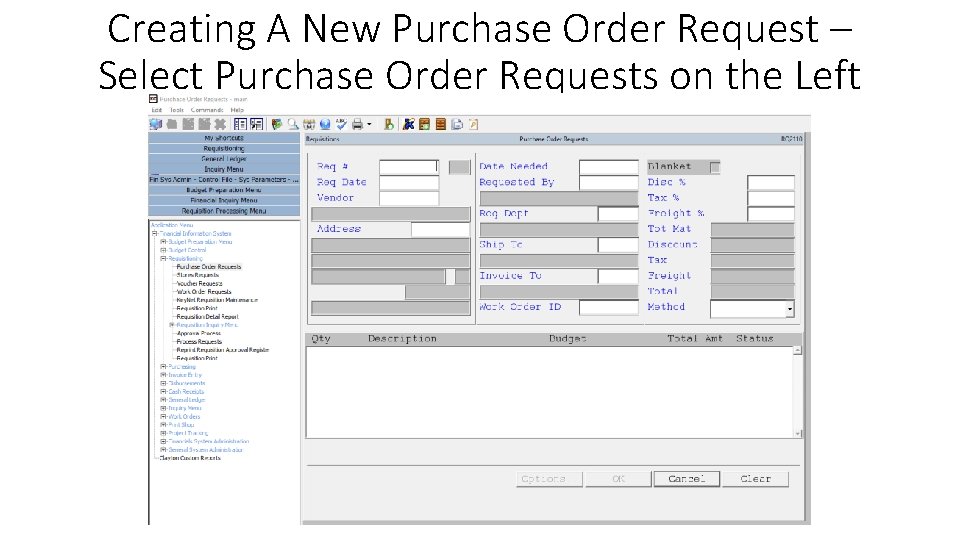
Creating A New Purchase Order Request – Select Purchase Order Requests on the Left
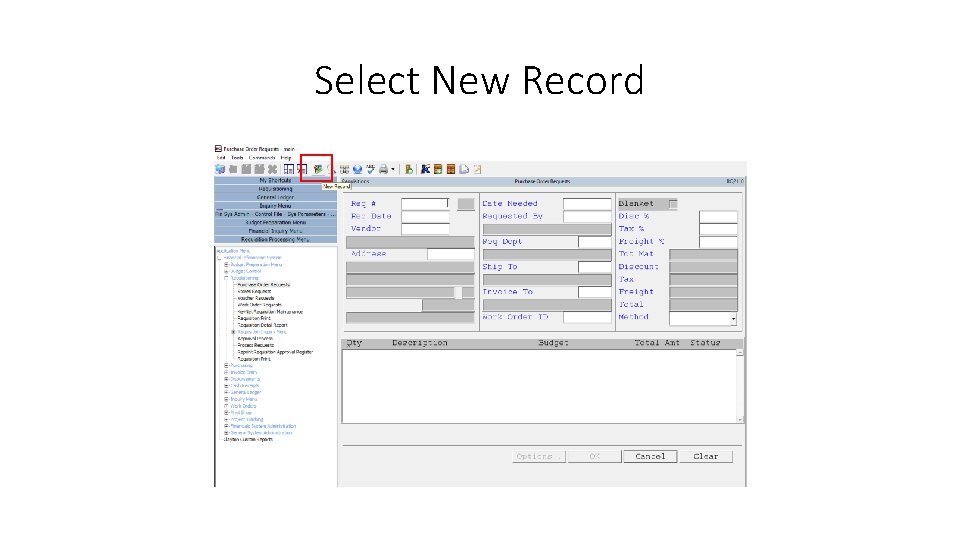
Select New Record
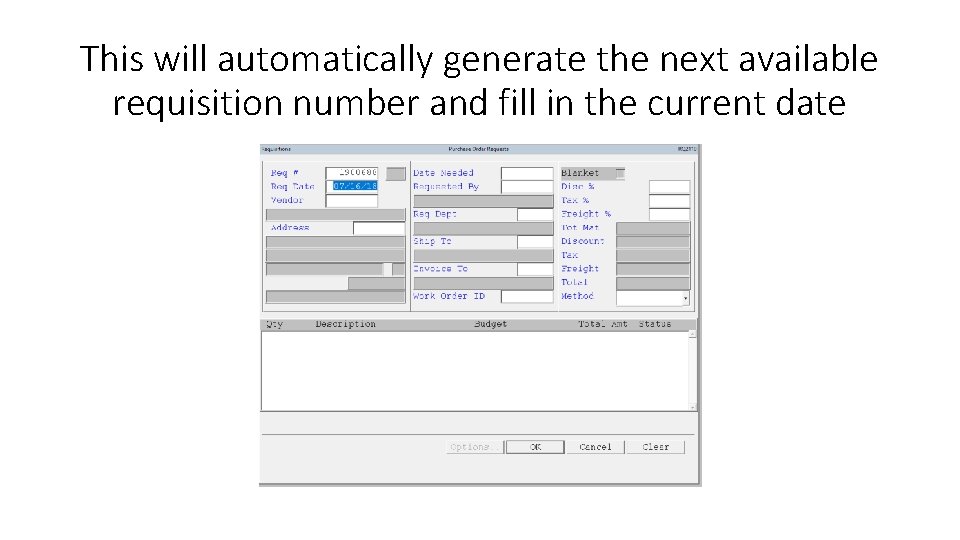
This will automatically generate the next available requisition number and fill in the current date
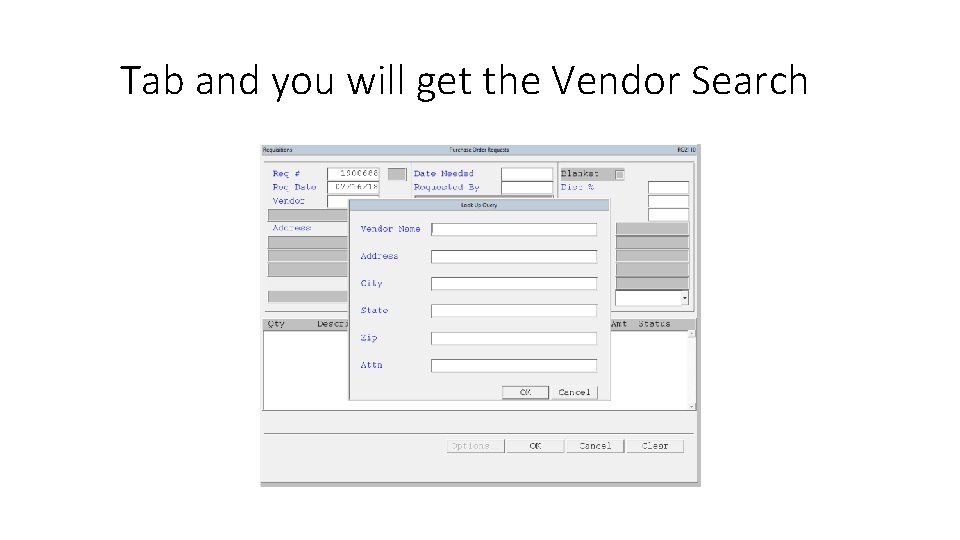
Tab and you will get the Vendor Search
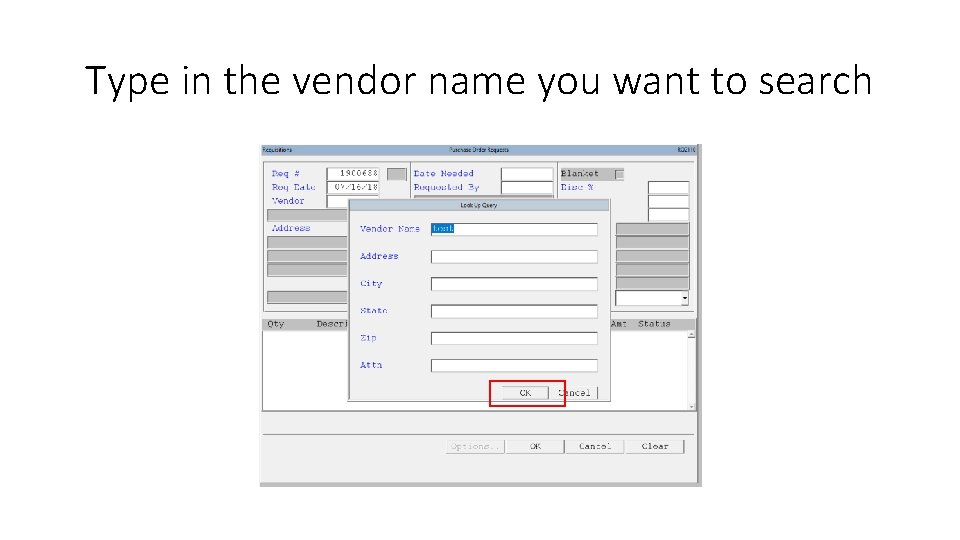
Type in the vendor name you want to search
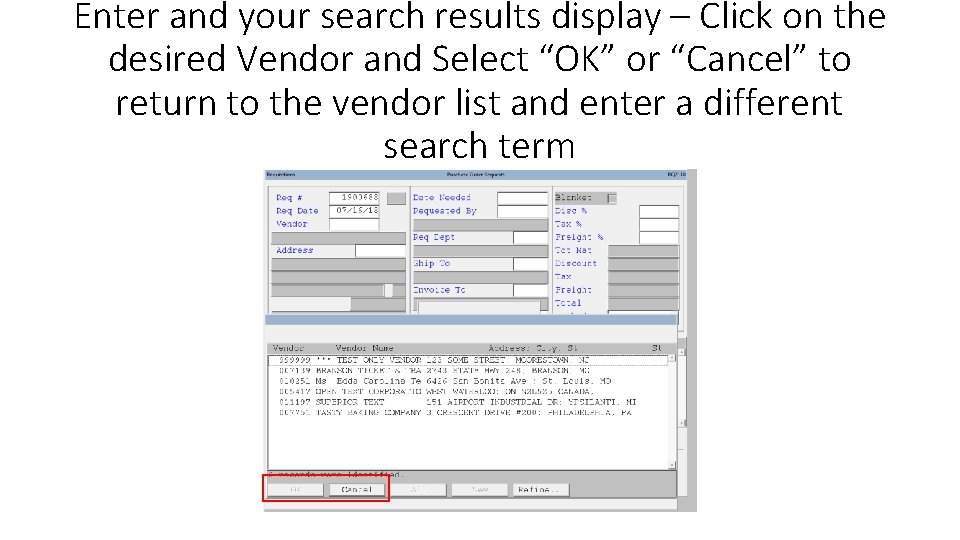
Enter and your search results display – Click on the desired Vendor and Select “OK” or “Cancel” to return to the vendor list and enter a different search term
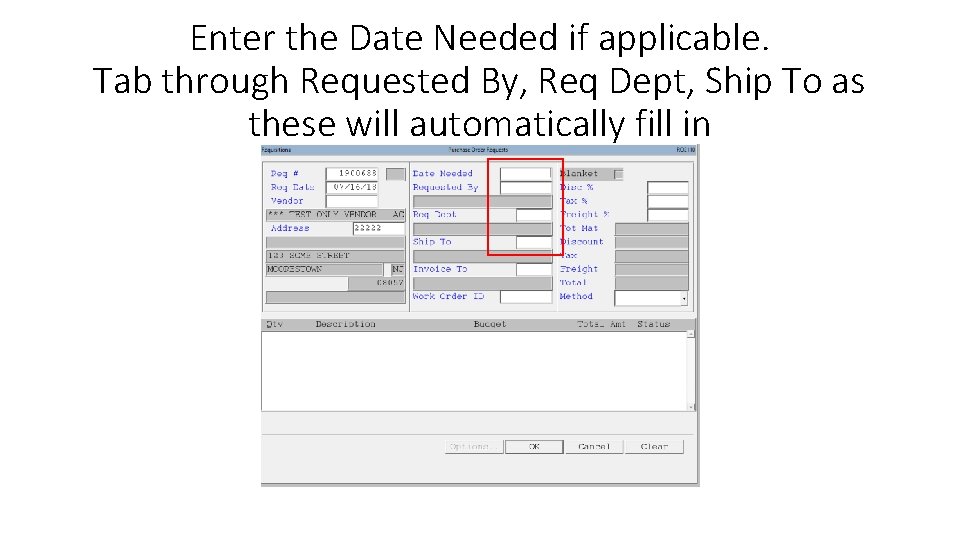
Enter the Date Needed if applicable. Tab through Requested By, Req Dept, Ship To as these will automatically fill in
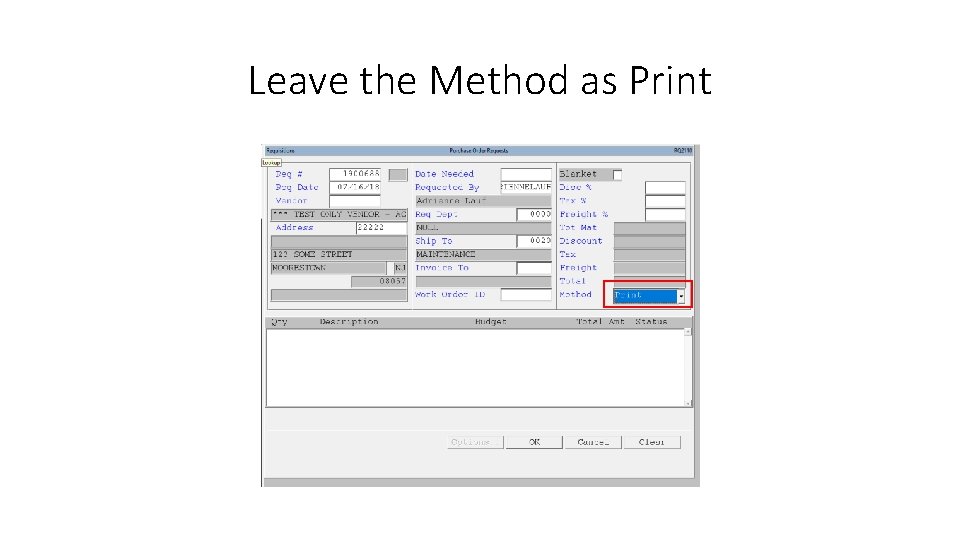
Leave the Method as Print
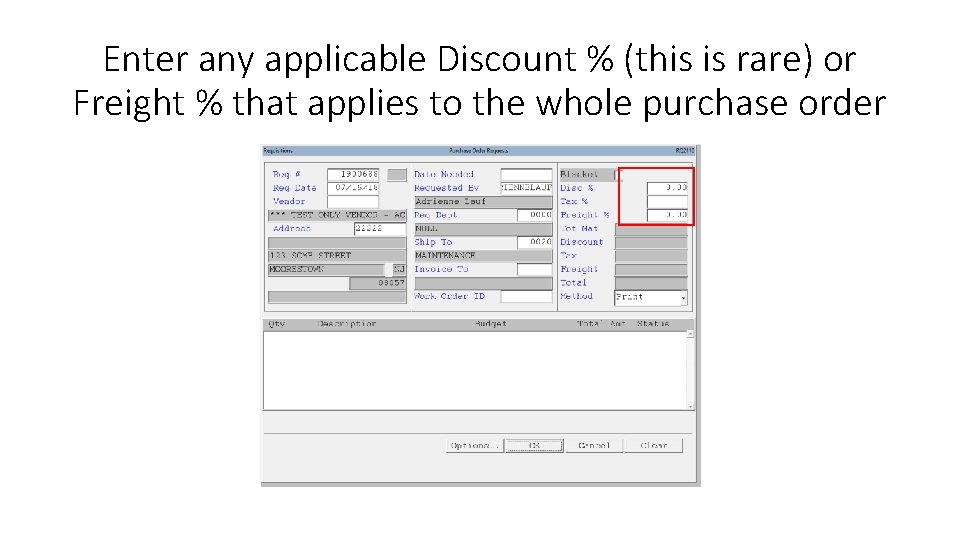
Enter any applicable Discount % (this is rare) or Freight % that applies to the whole purchase order
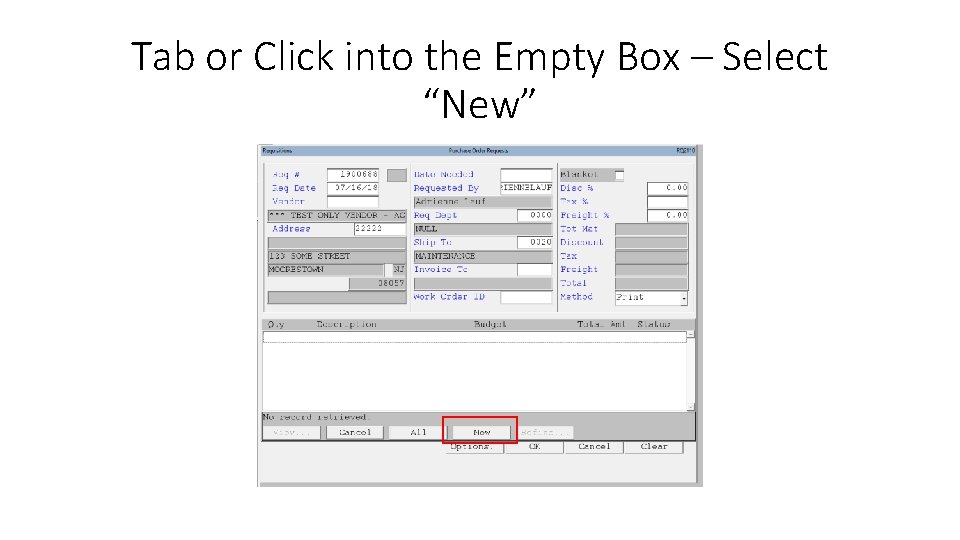
Tab or Click into the Empty Box – Select “New”
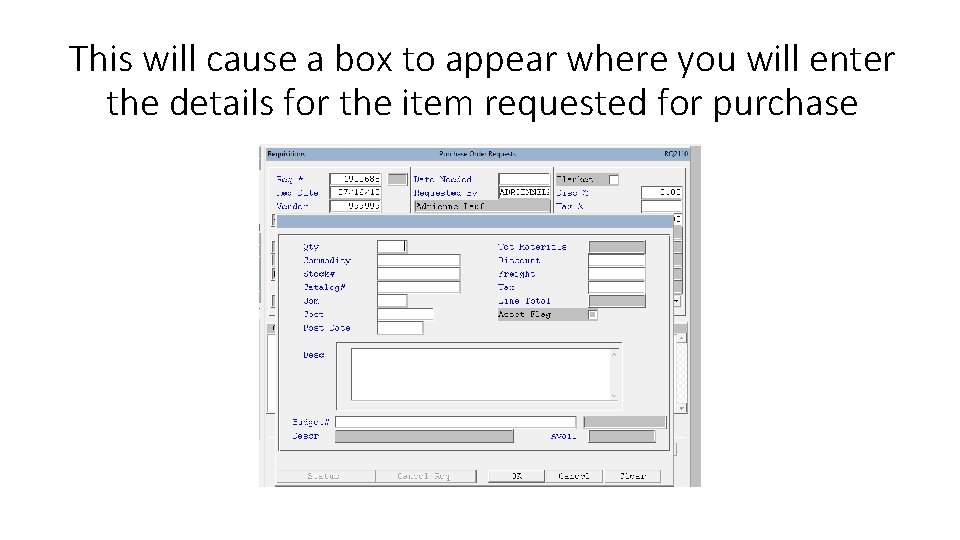
This will cause a box to appear where you will enter the details for the item requested for purchase
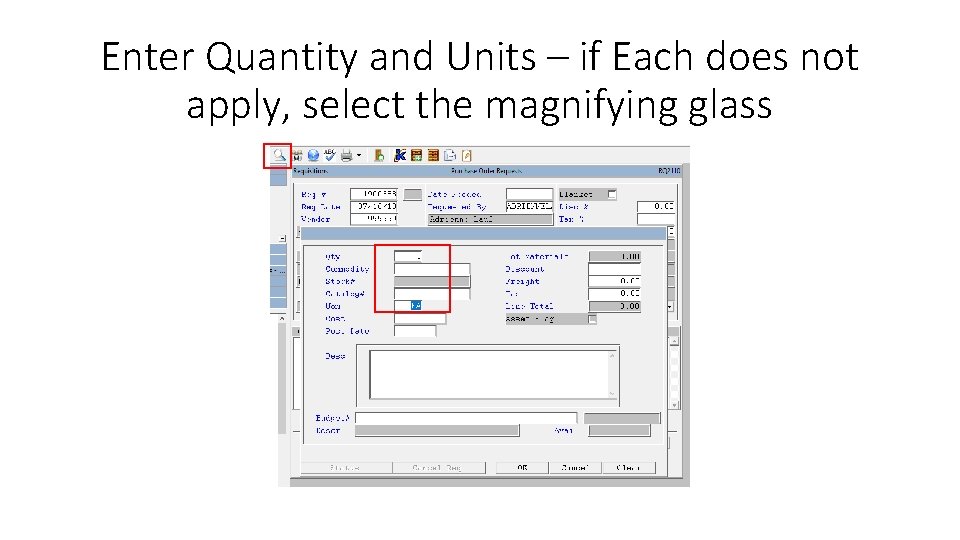
Enter Quantity and Units – if Each does not apply, select the magnifying glass
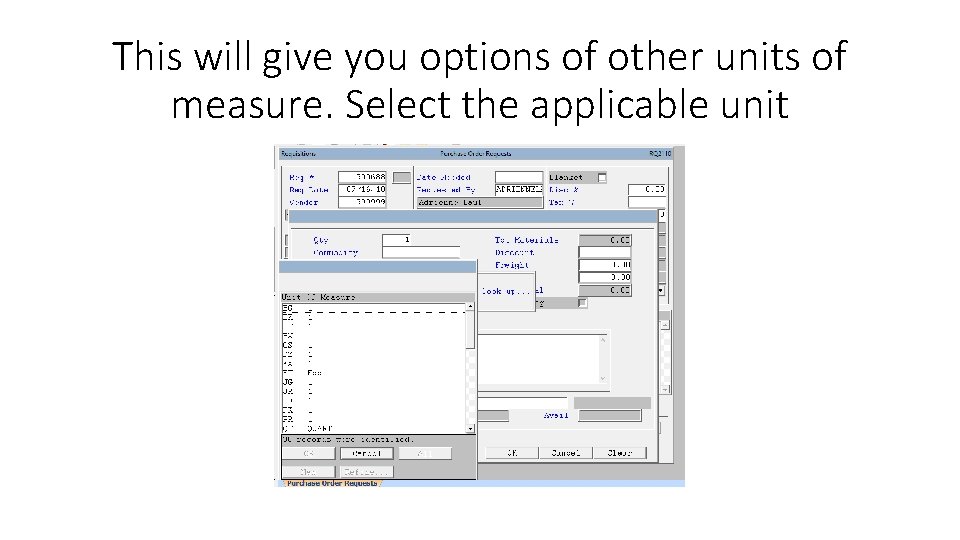
This will give you options of other units of measure. Select the applicable unit
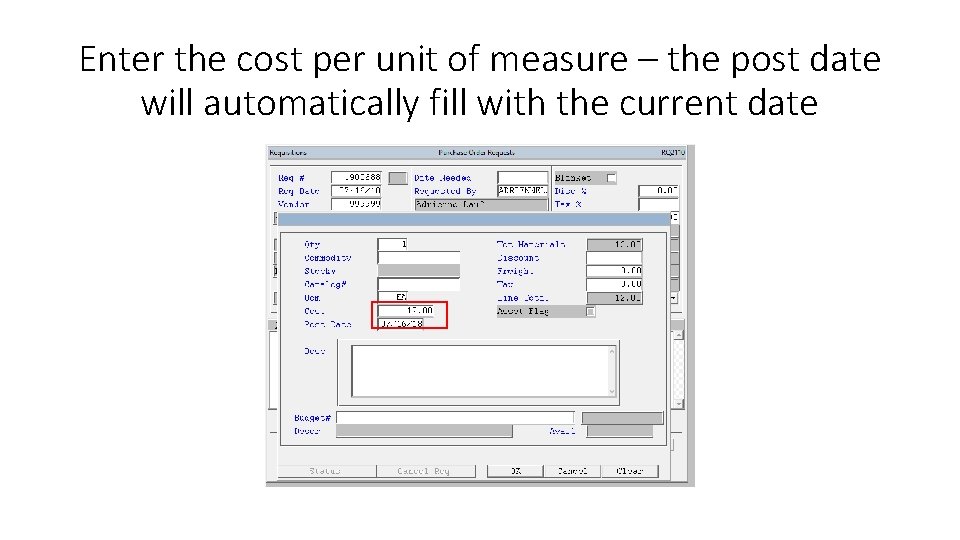
Enter the cost per unit of measure – the post date will automatically fill with the current date
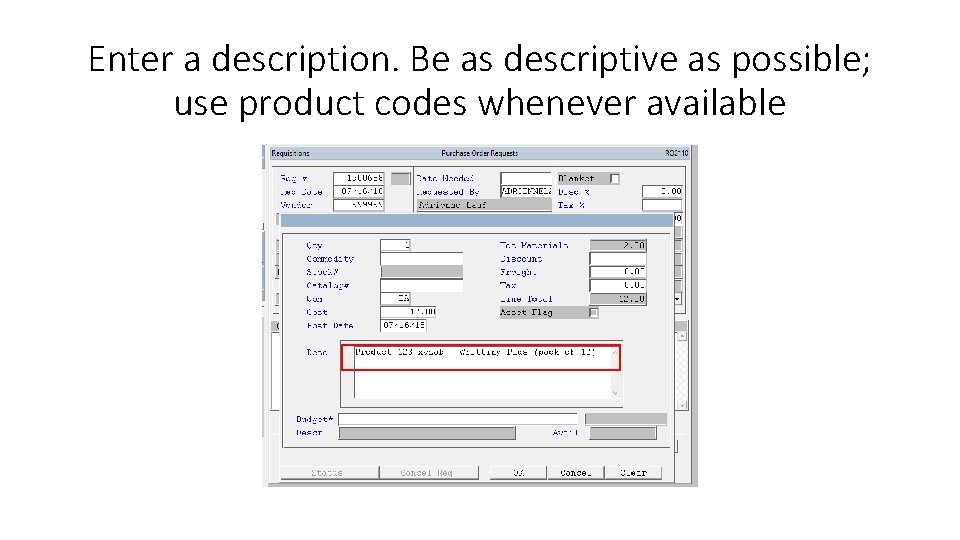
Enter a description. Be as descriptive as possible; use product codes whenever available
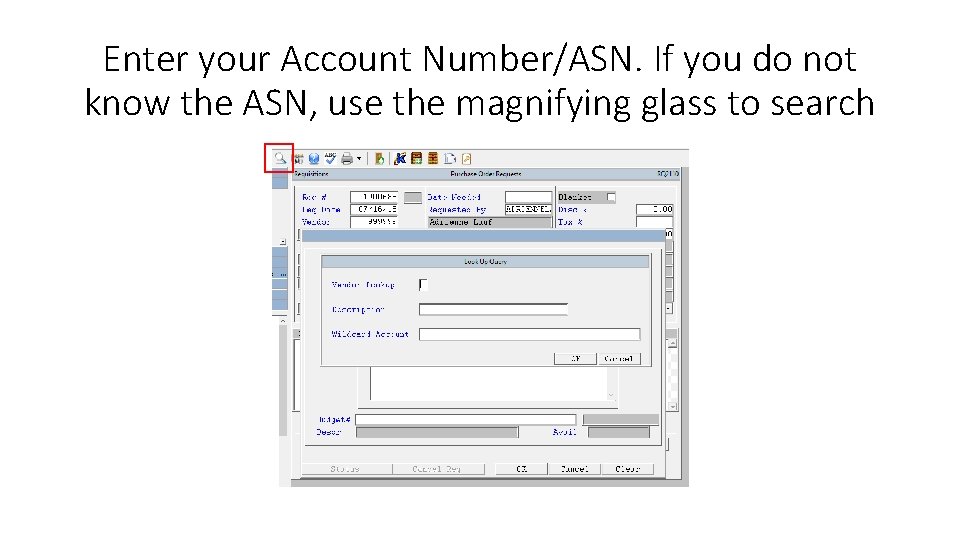
Enter your Account Number/ASN. If you do not know the ASN, use the magnifying glass to search
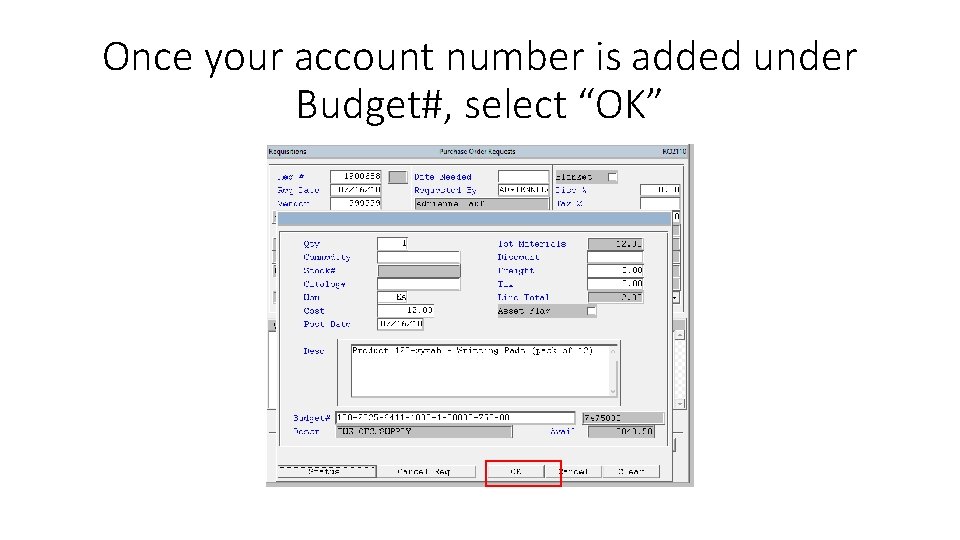
Once your account number is added under Budget#, select “OK”
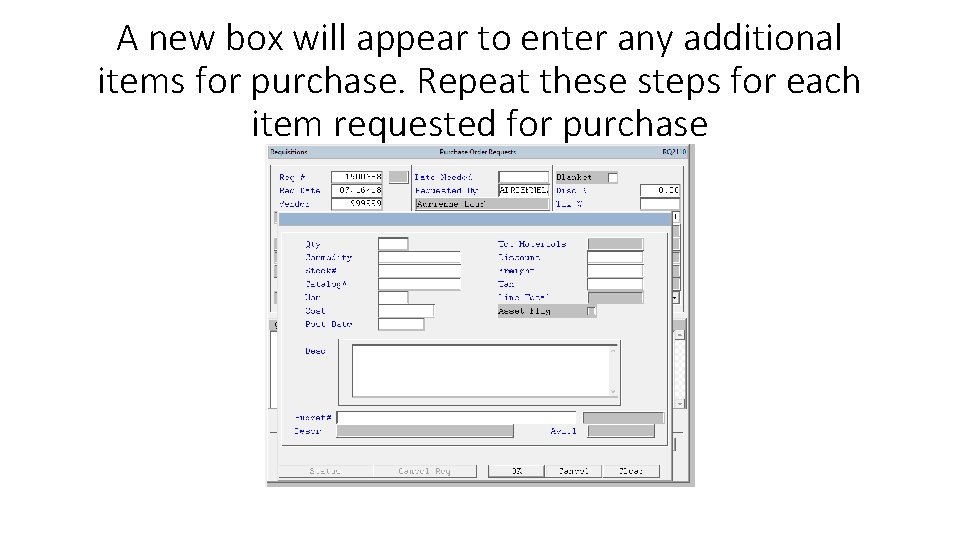
A new box will appear to enter any additional items for purchase. Repeat these steps for each item requested for purchase
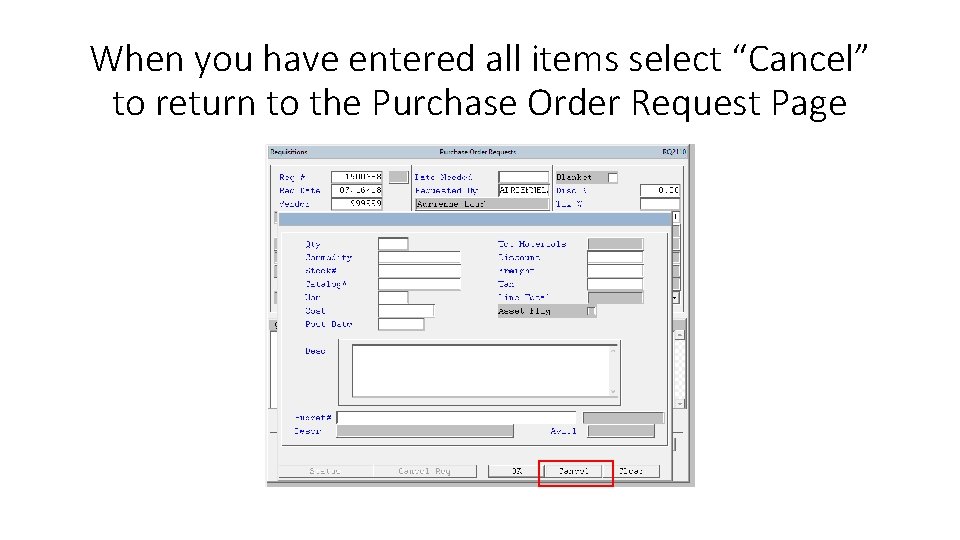
When you have entered all items select “Cancel” to return to the Purchase Order Request Page
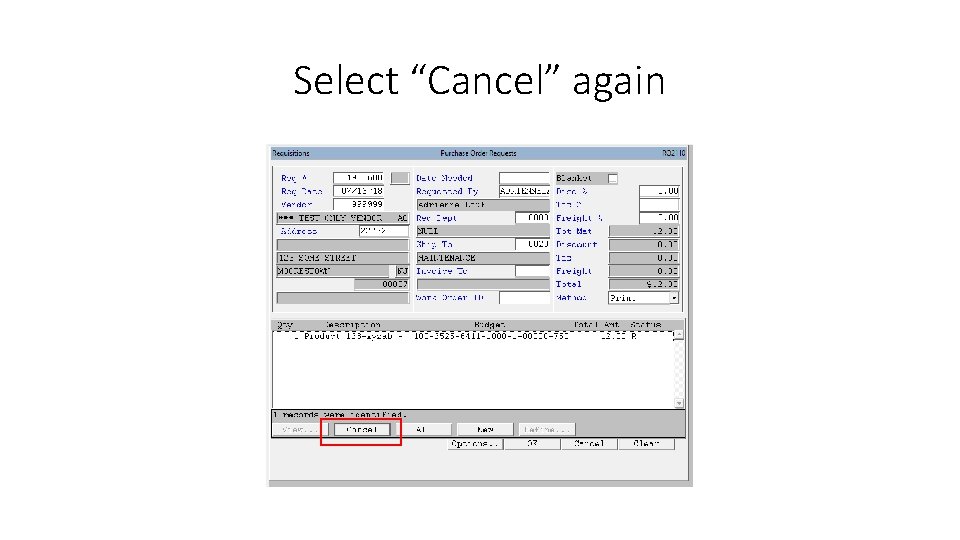
Select “Cancel” again
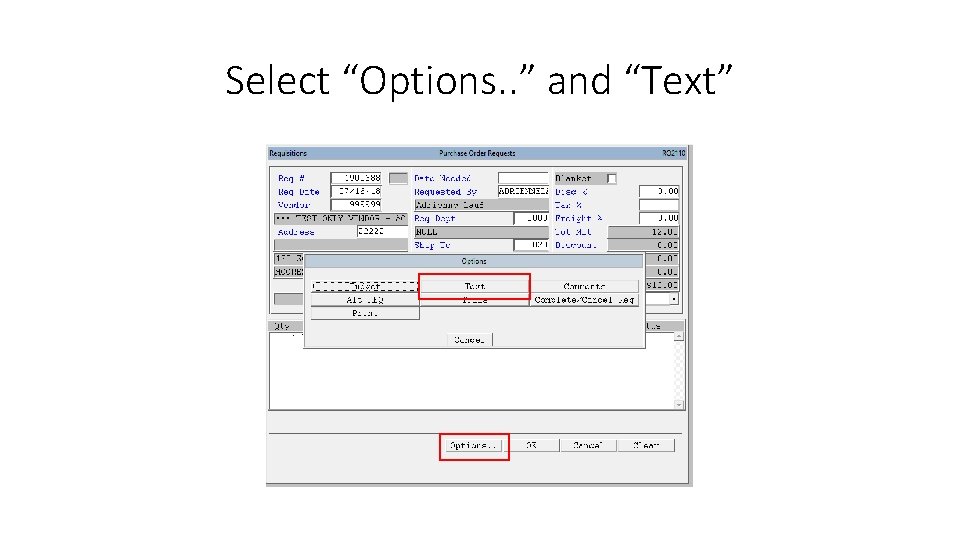
Select “Options. . ” and “Text”
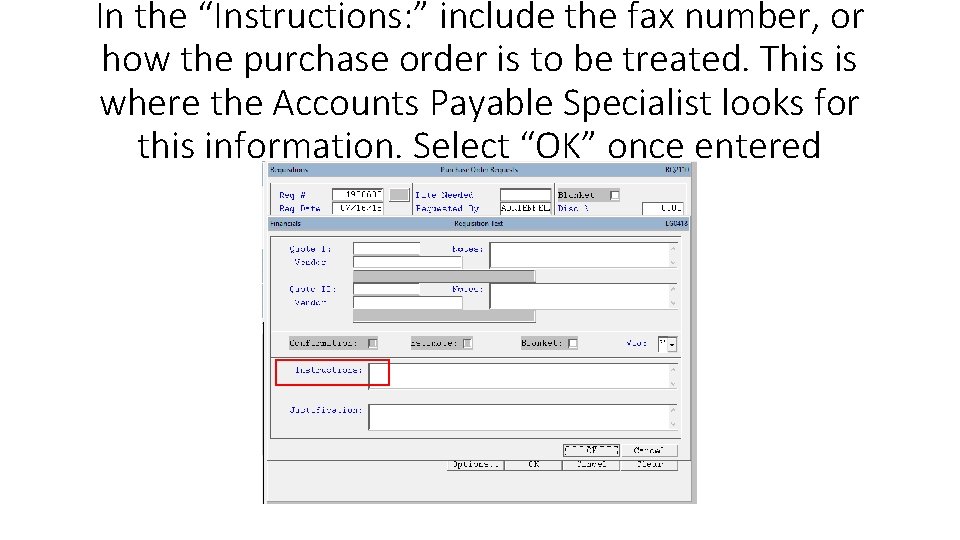
In the “Instructions: ” include the fax number, or how the purchase order is to be treated. This is where the Accounts Payable Specialist looks for this information. Select “OK” once entered
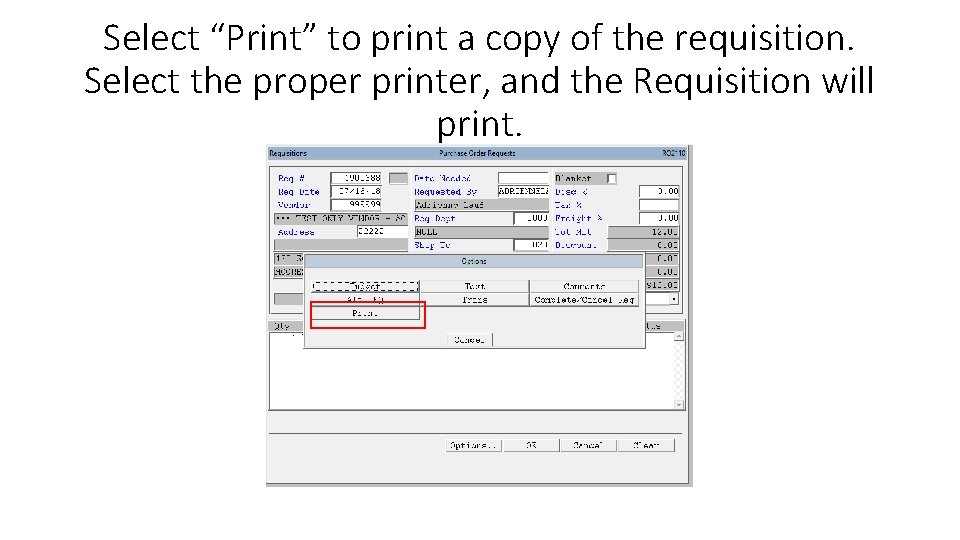
Select “Print” to print a copy of the requisition. Select the proper printer, and the Requisition will print.
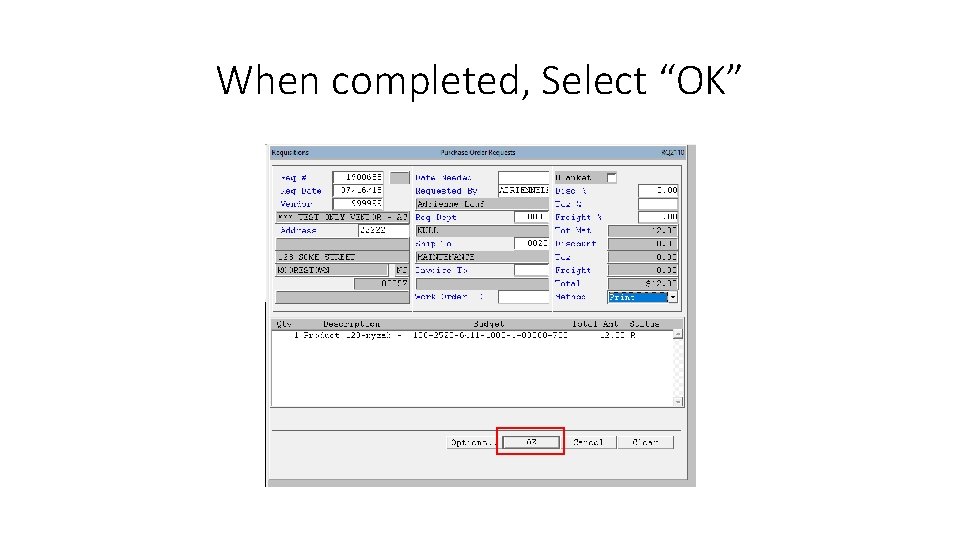
When completed, Select “OK”