
How to Download Classmate on your phone Classmate



- Slides: 37
How to Download Classmate on your phone
Classmate
Classmate
How to Download Classmate on to your Phone
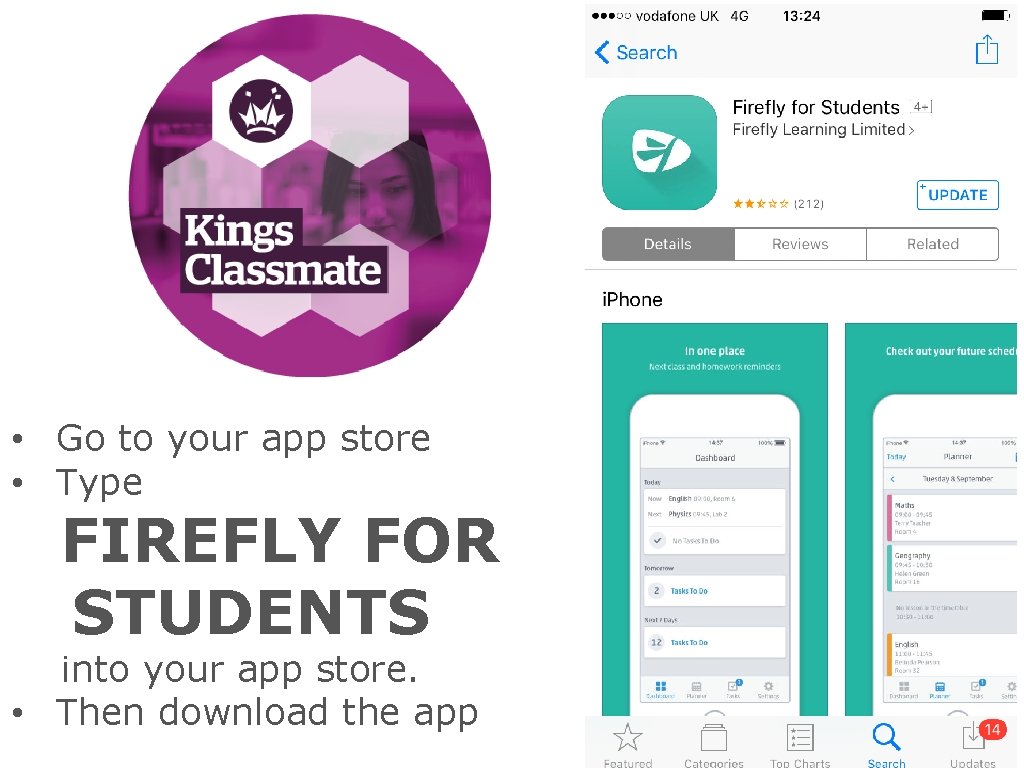
CLASSMATE • Go to your app store • Type FIREFLY FOR STUDENTS into your app store. • Then download the app
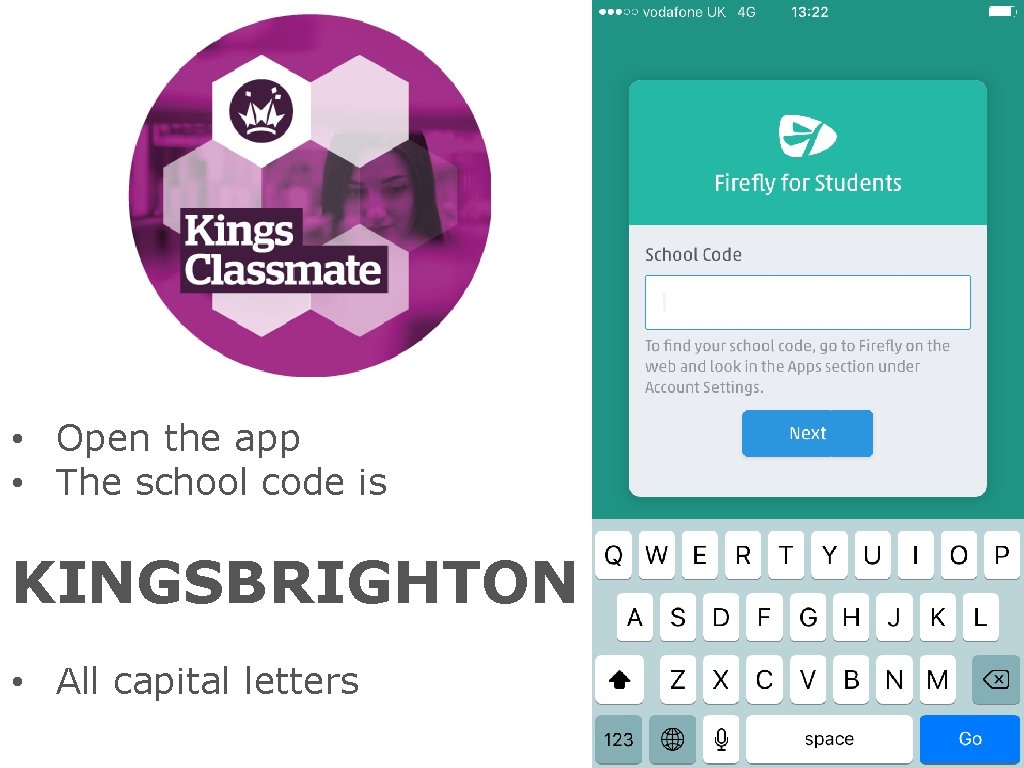
CLASSMATE • Open the app • The school code is KINGSBRIGHTON • All capital letters
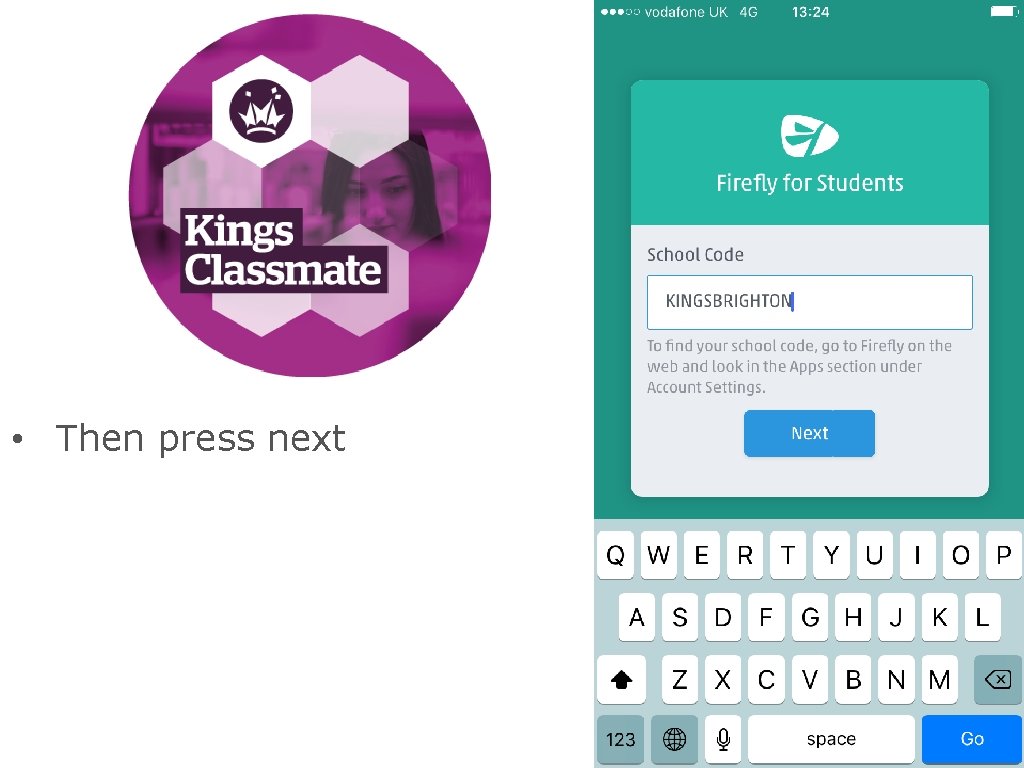
CLASSMATE • Then press next
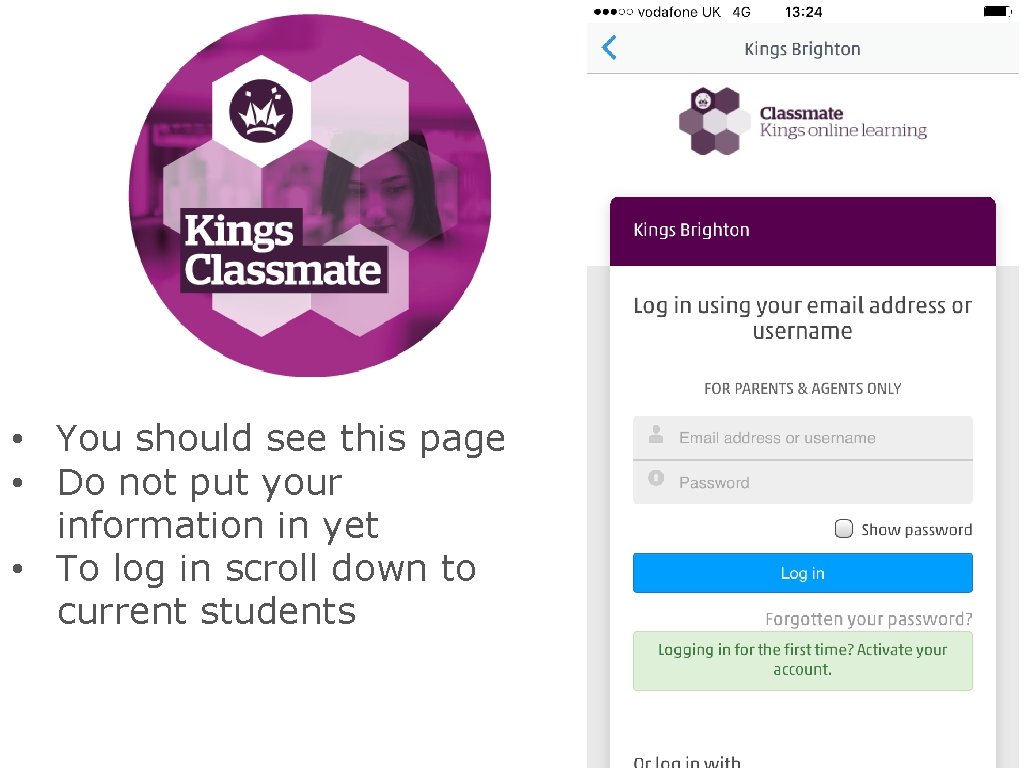
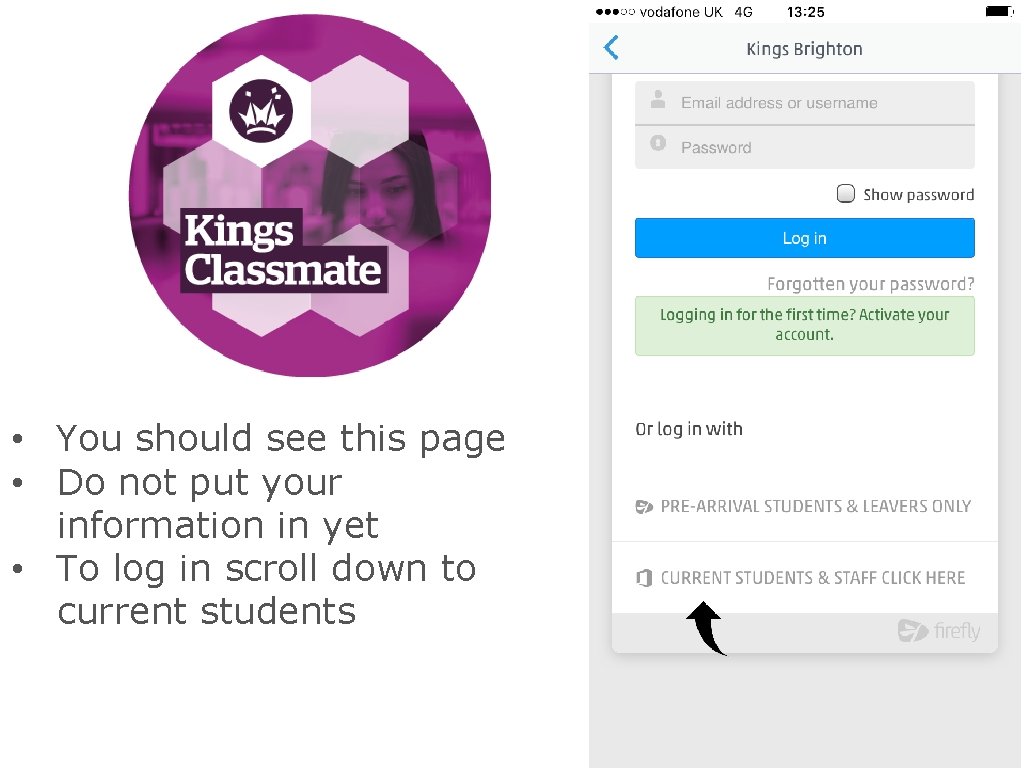
CLASSMATE • You should see this page • Do not put your information in yet • To log in scroll down to current students
CLASSMATE • You should see this page • Do not put your information in yet • To log in scroll down to current students
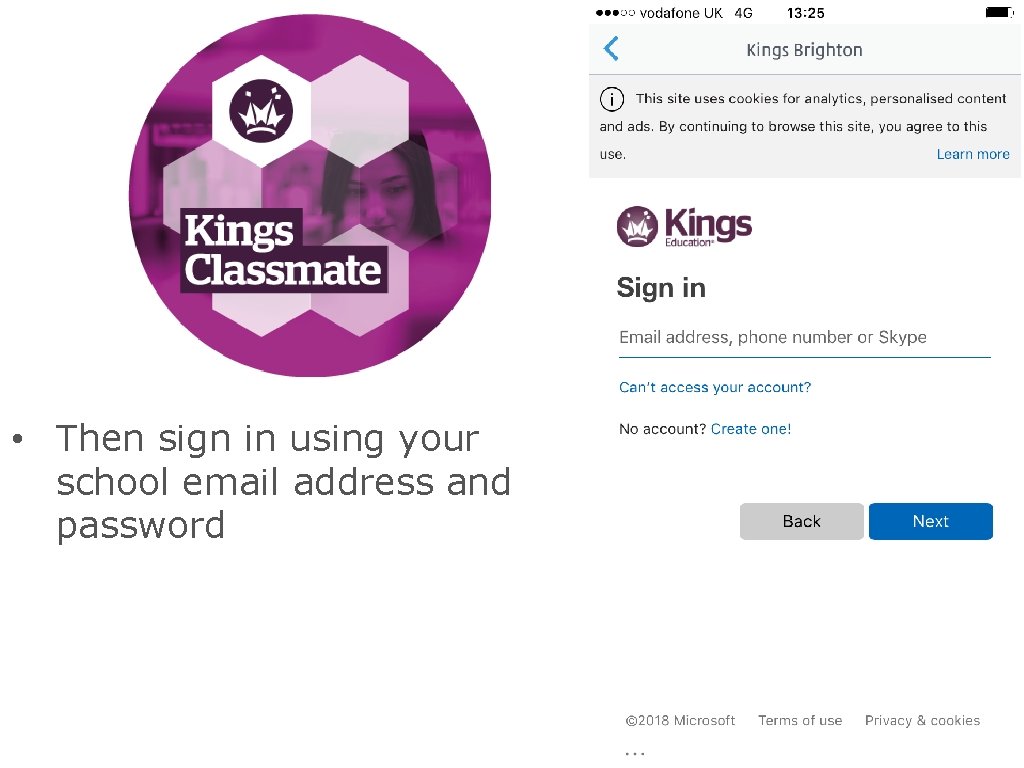
CLASSMATE • Then sign in using your school email address and password
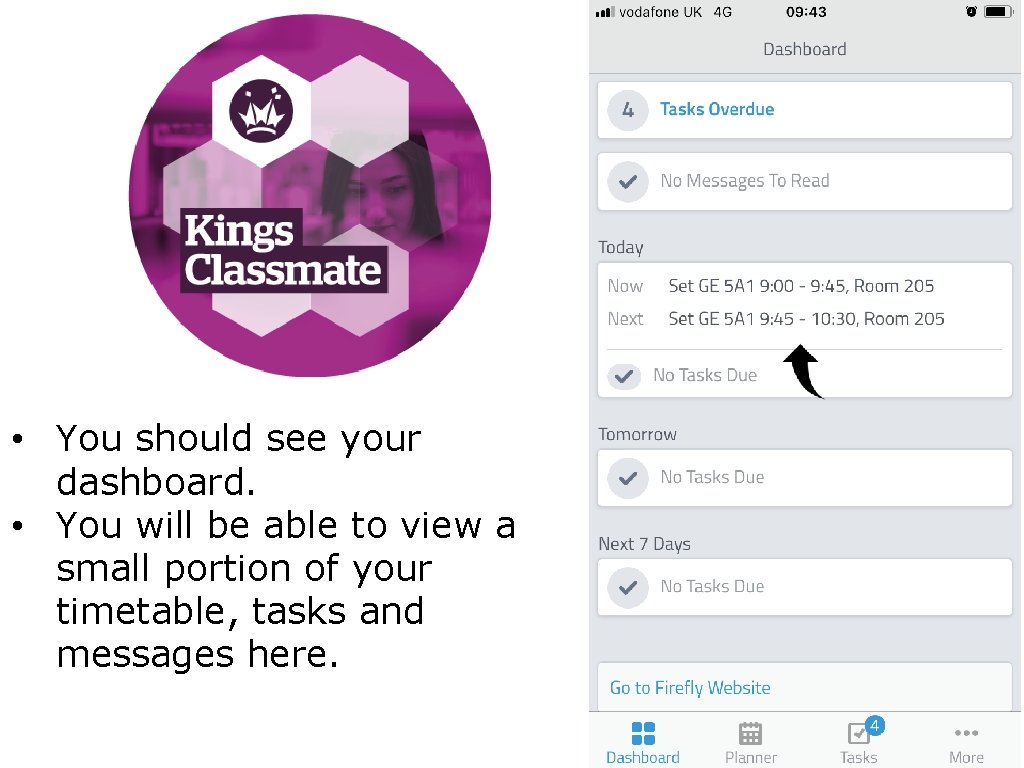
CLASSMATE • You should see your dashboard. • You will be able to view a small portion of your timetable, tasks and messages here.
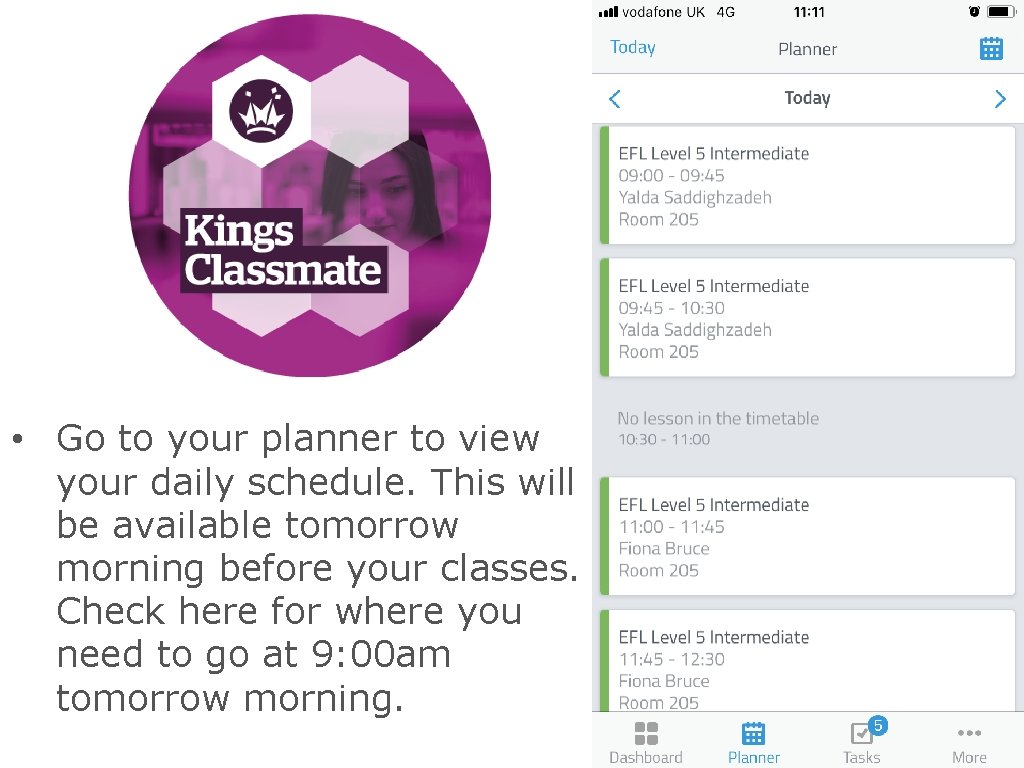
CLASSMATE • Go to your planner to view your daily schedule. This will be available tomorrow morning before your classes. Check here for where you need to go at 9: 00 am tomorrow morning.
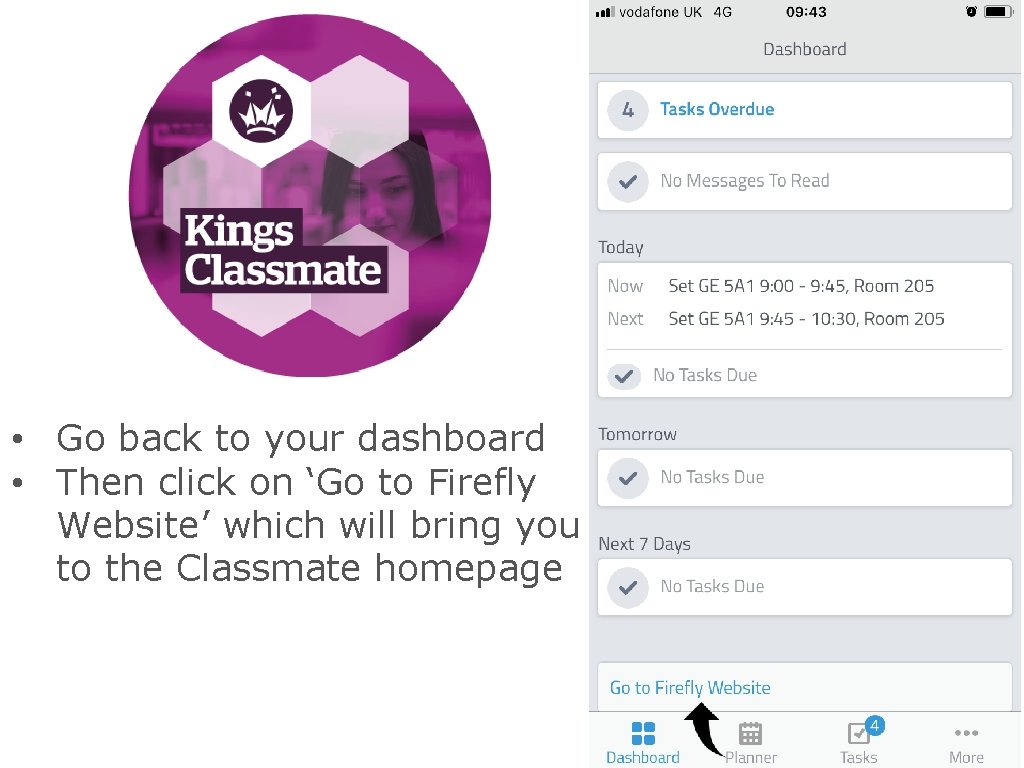
CLASSMATE • Go back to your dashboard • Then click on ‘Go to Firefly Website’ which will bring you to the Classmate homepage
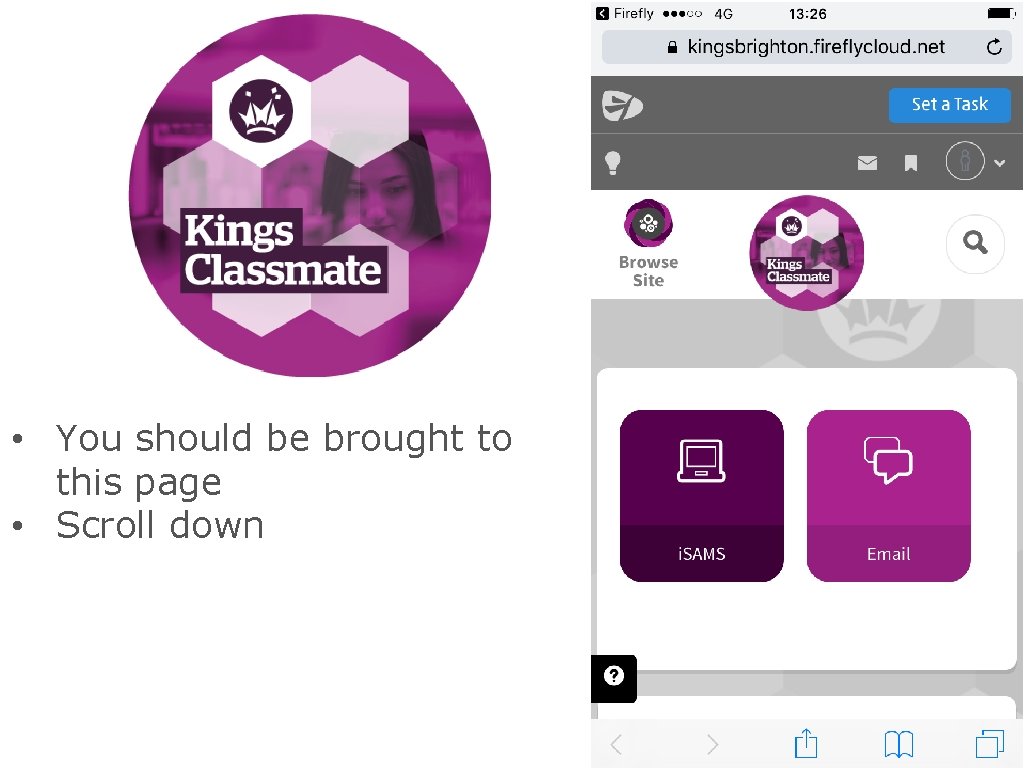
CLASSMATE • You should be brought to this page • Scroll down
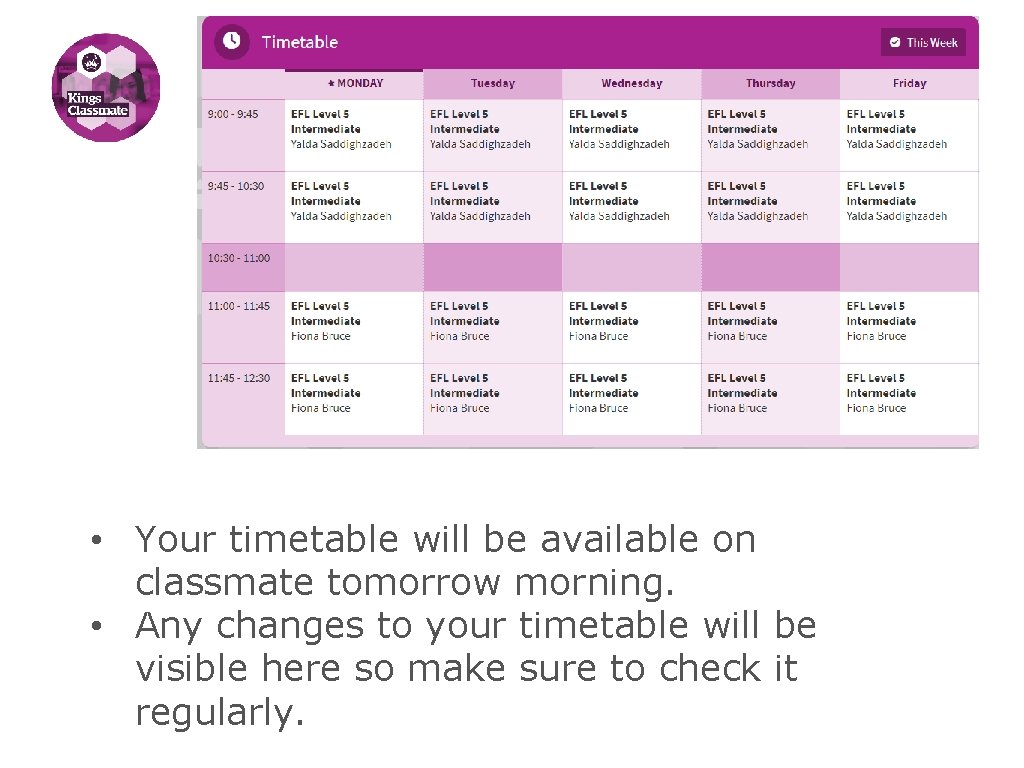
CLASSMATE • Your timetable will be available on classmate tomorrow morning. • Any changes to your timetable will be visible here so make sure to check it regularly.
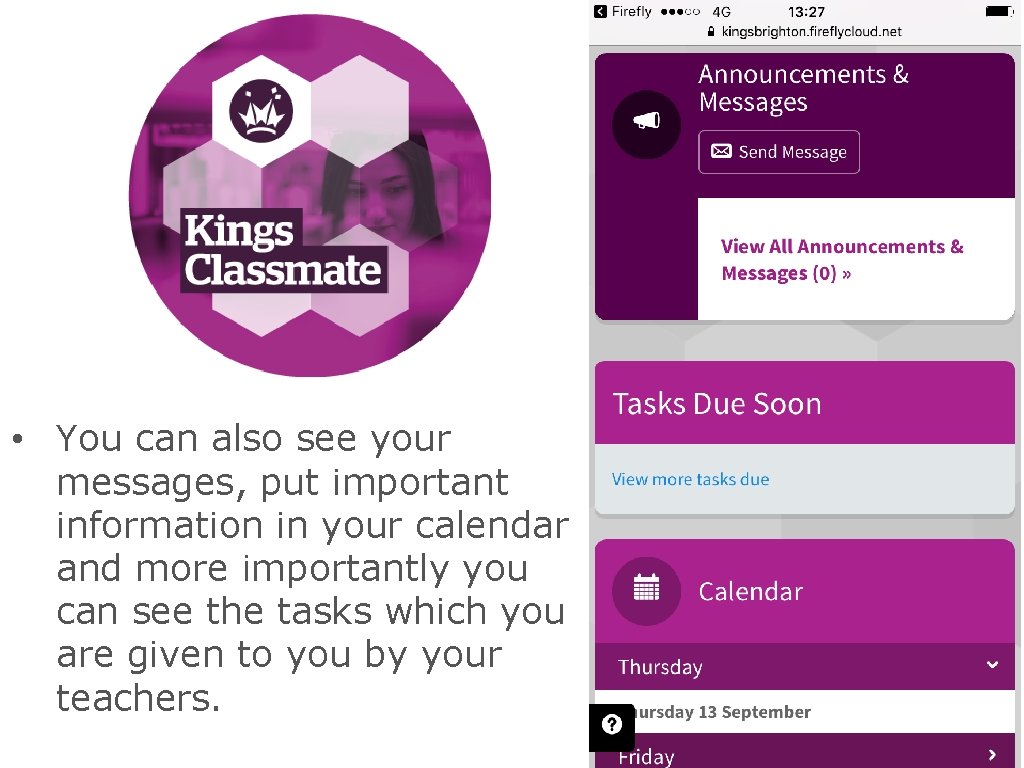
CLASSMATE • You can also see your messages, put important information in your calendar and more importantly you can see the tasks which you are given to you by your teachers.
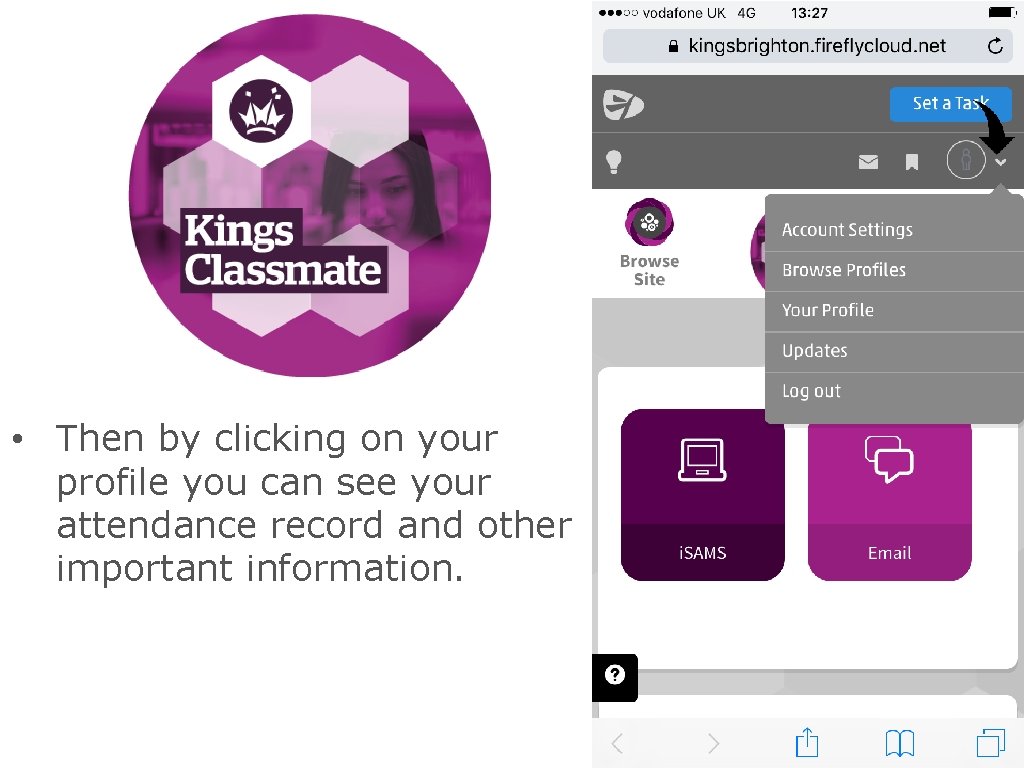
CLASSMATE • Then by clicking on your profile you can see your attendance record and other important information.
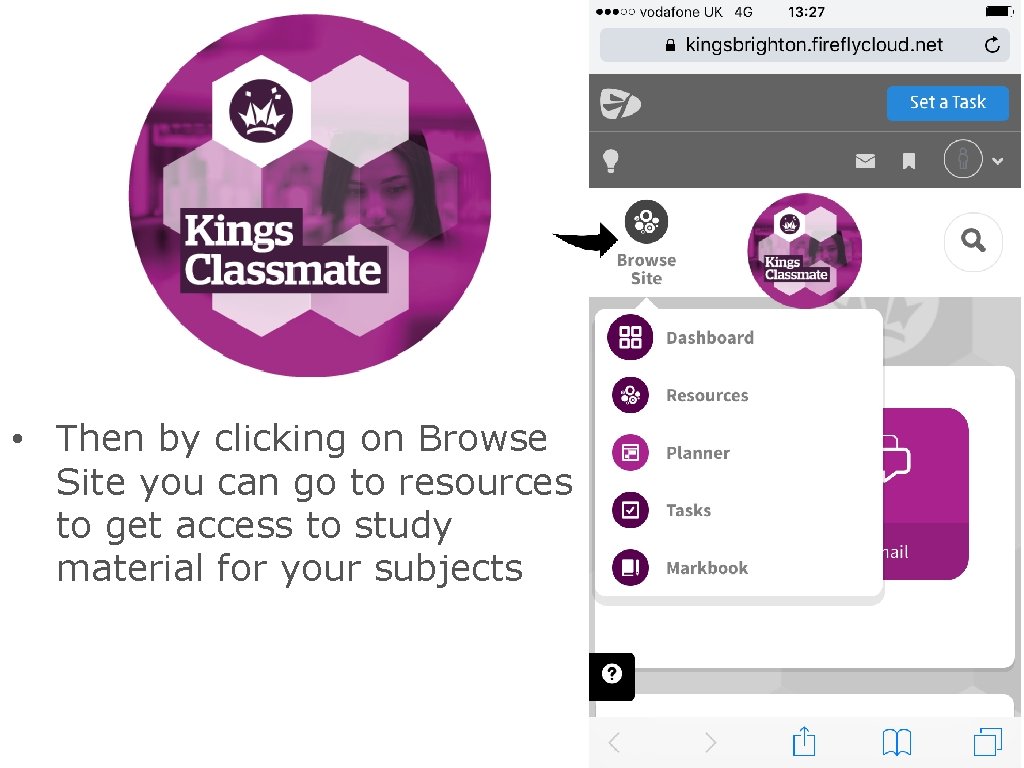
CLASSMATE • Then by clicking on Browse Site you can go to resources to get access to study material for your subjects
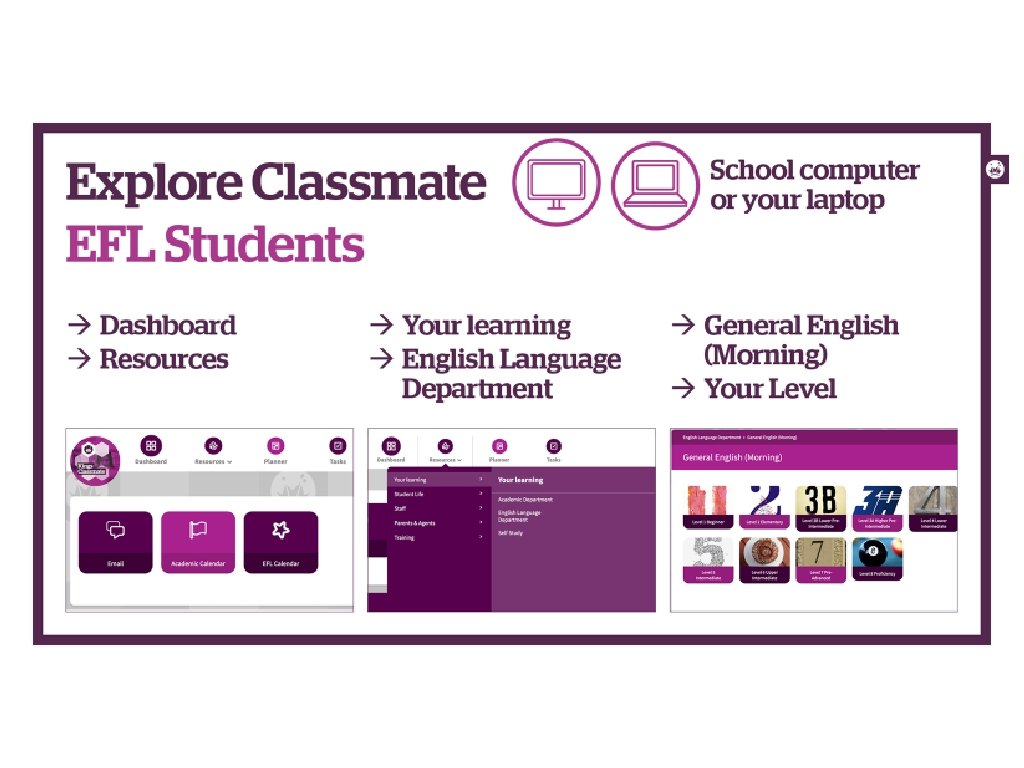
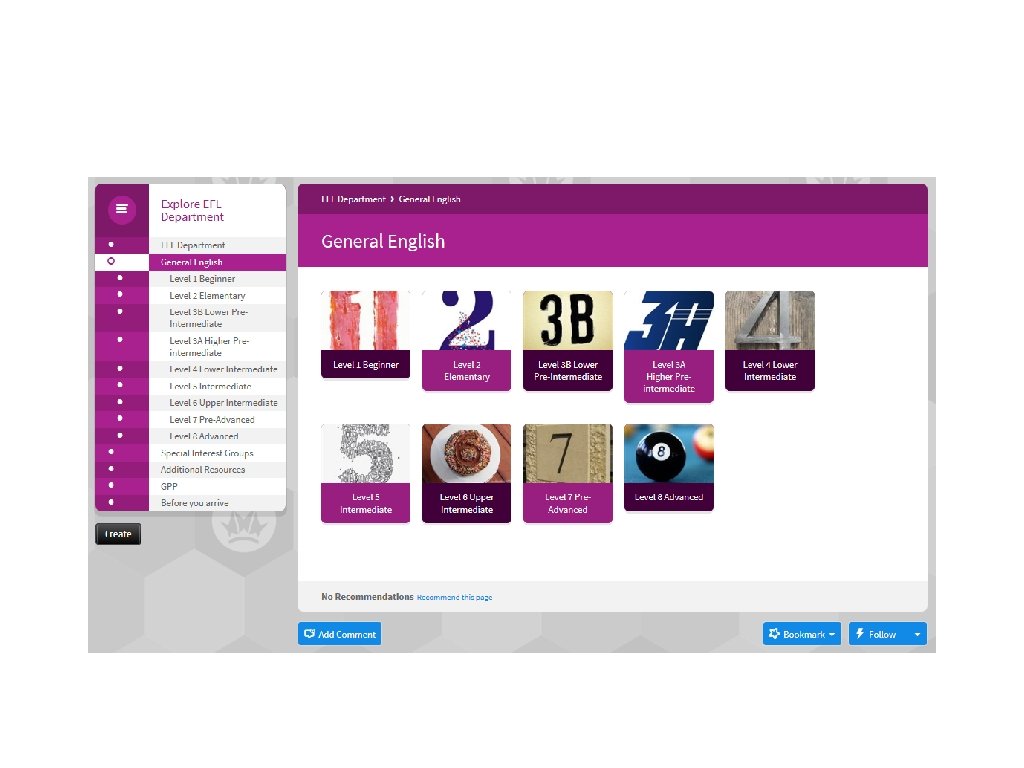
CLASSMATE – all levels
CLASSMATE – all levels
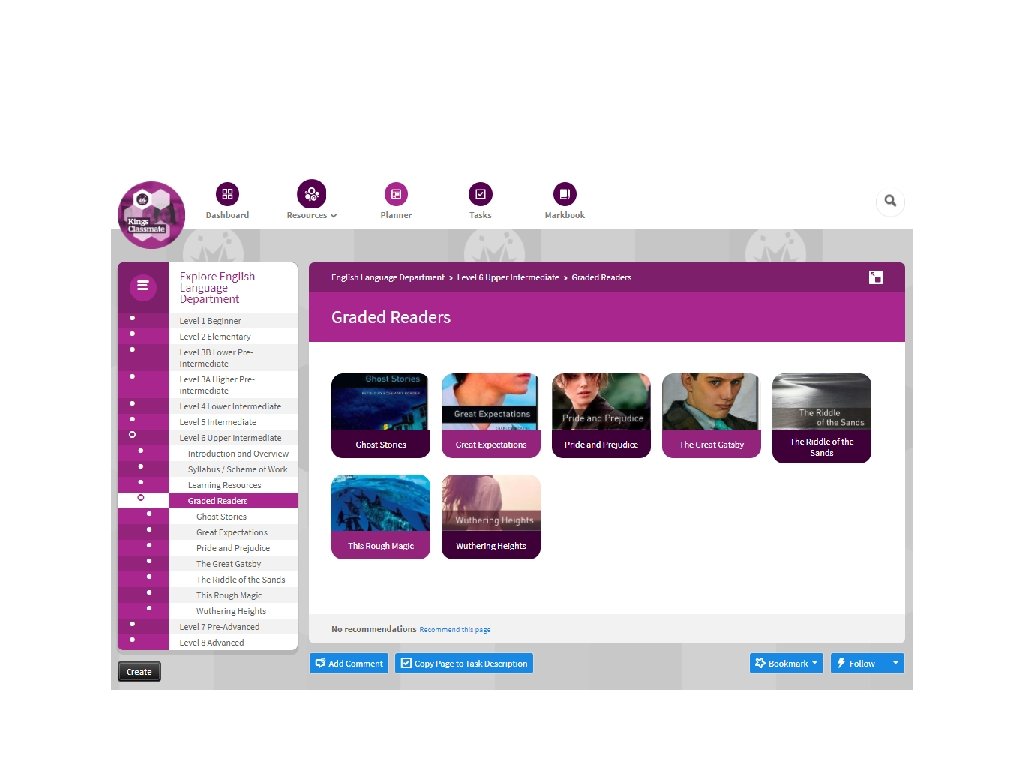
CLASSMATE – audio books
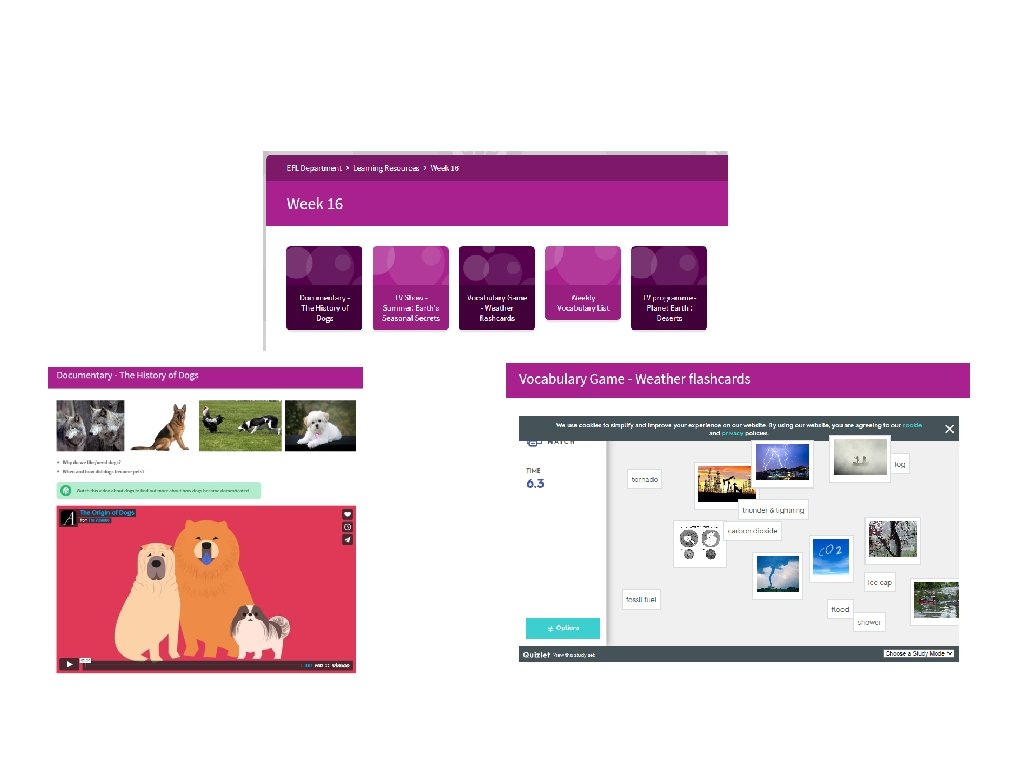
CLASSMATE – learning resources
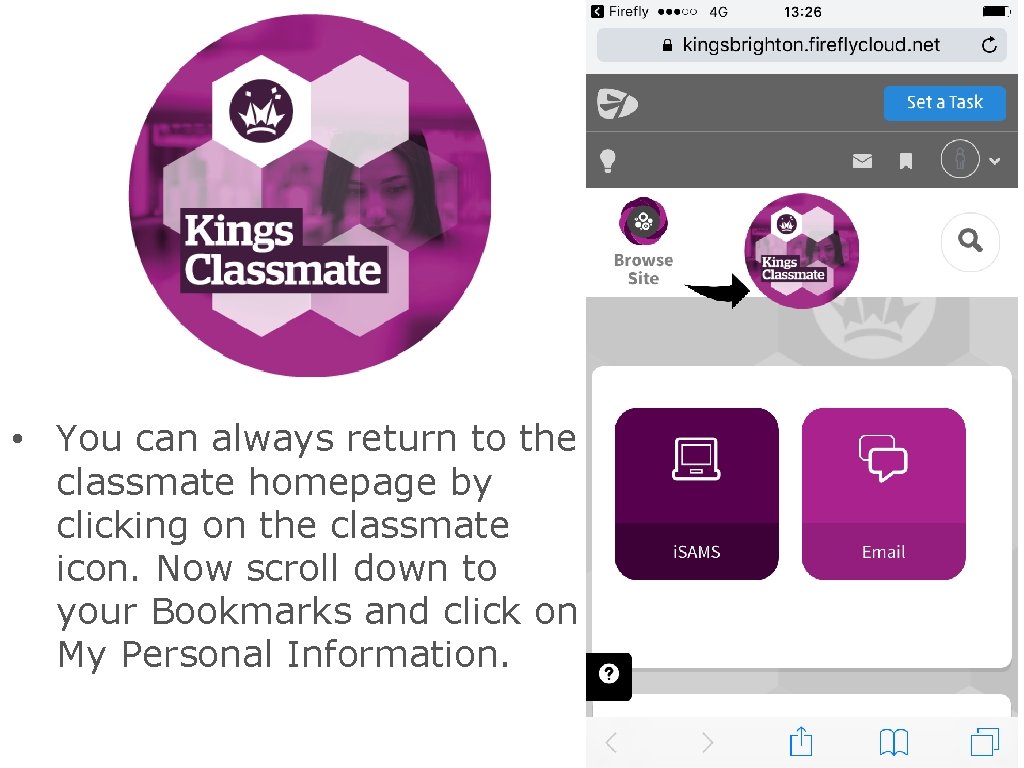
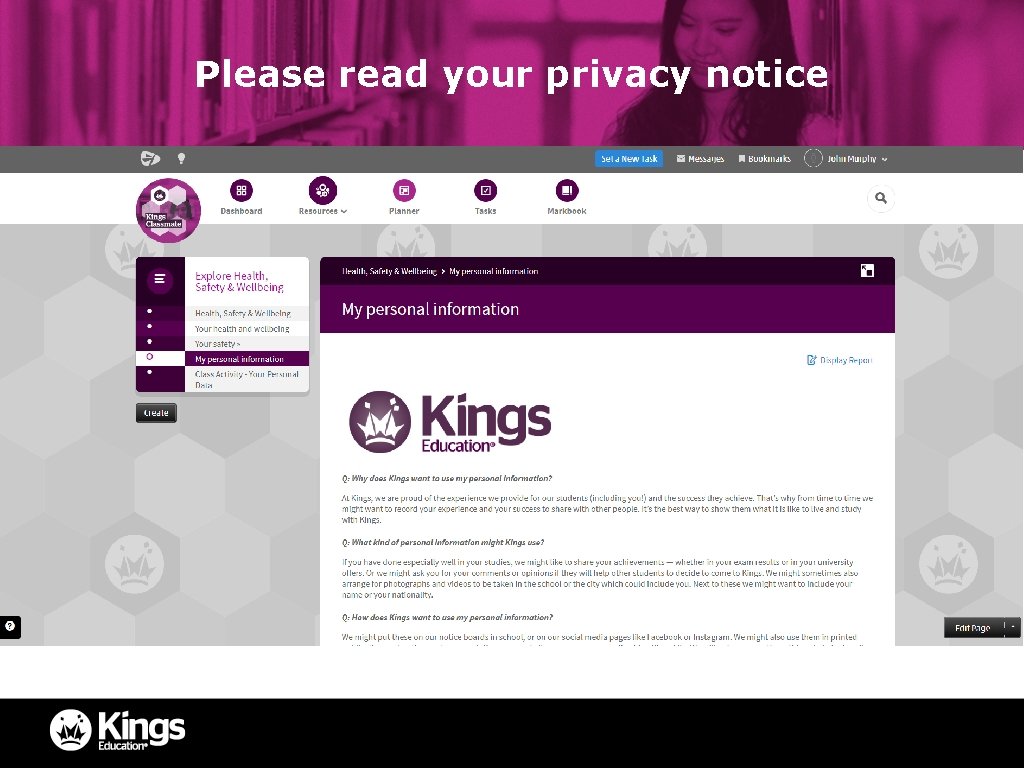
CLASSMATE • You can always return to the classmate homepage by clicking on the classmate icon. Now scroll down to your Bookmarks and click on My Personal Information.
Please read your privacy notice
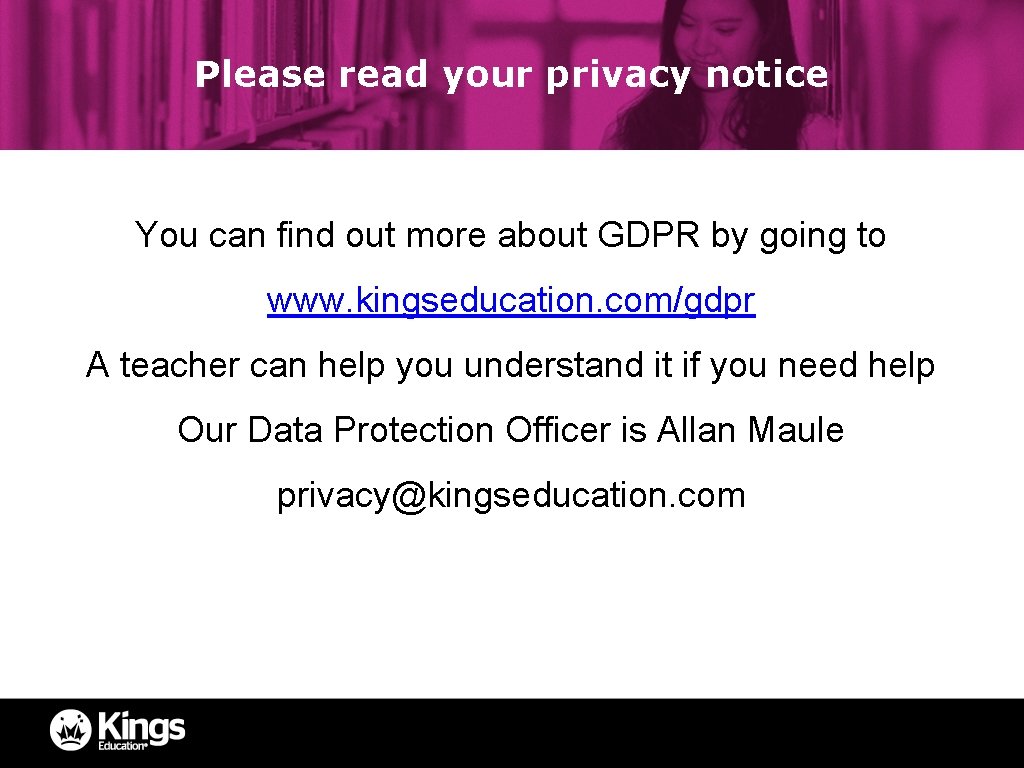
Please read your privacy notice You can find out more about GDPR by going to www. kingseducation. com/gdpr A teacher can help you understand it if you need help Our Data Protection Officer is Allan Maule privacy@kingseducation. com
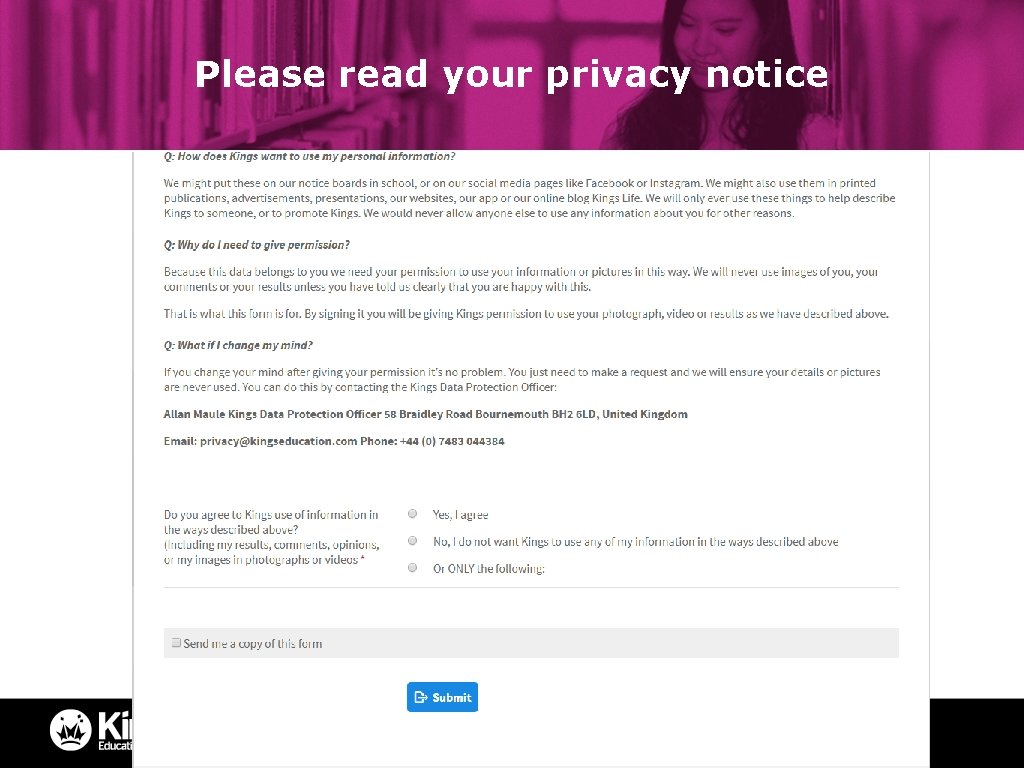
Please read your privacy notice
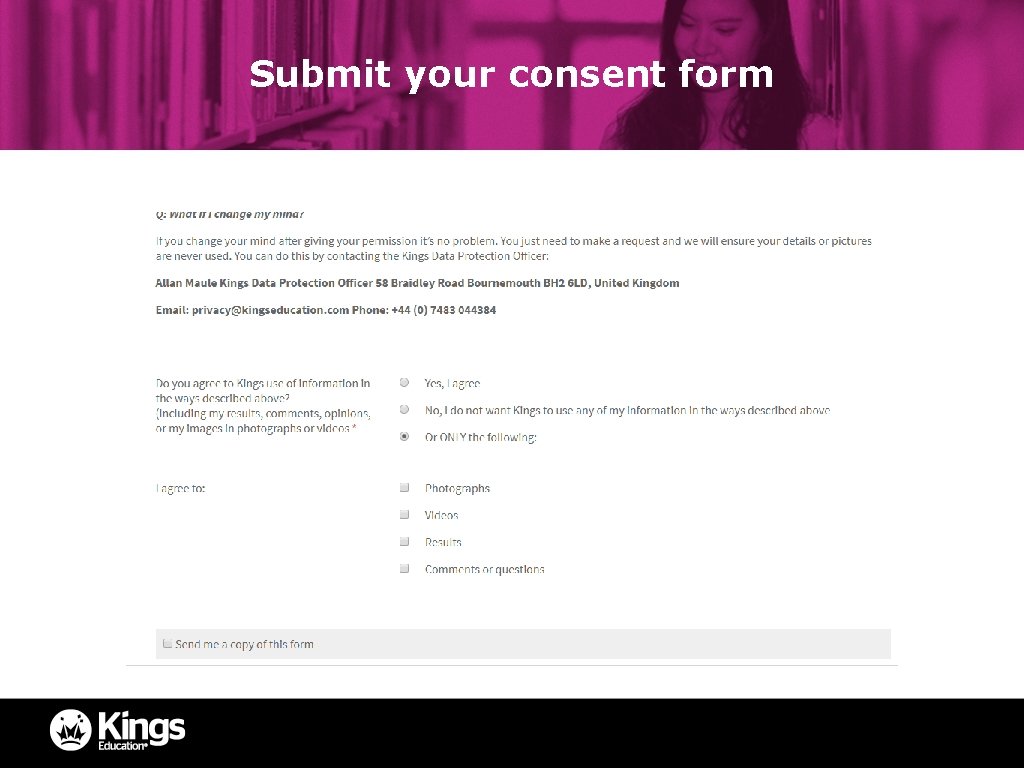
Submit your consent form
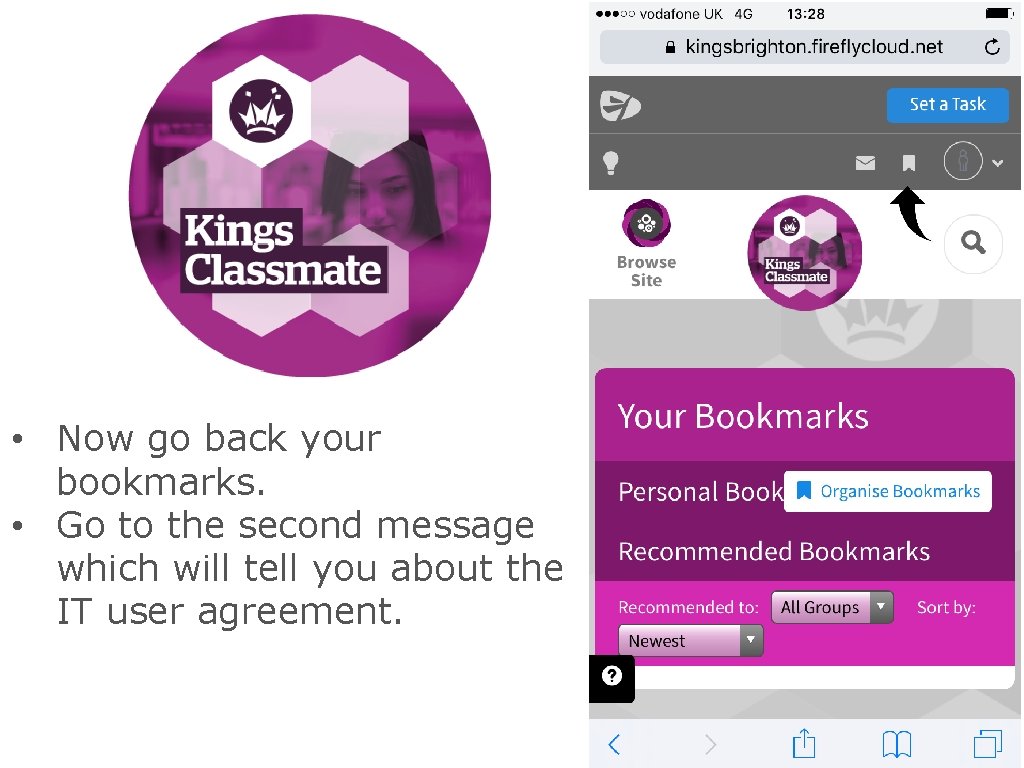
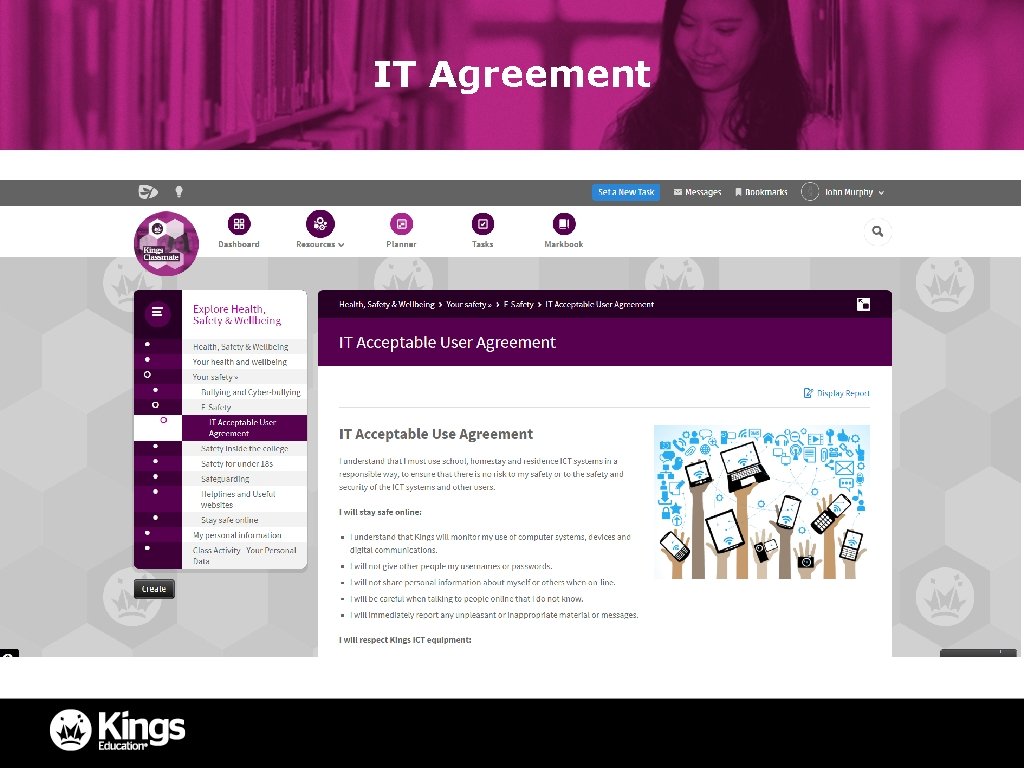
CLASSMATE • Now go back your bookmarks. • Go to the second message which will tell you about the IT user agreement.
IT Agreement
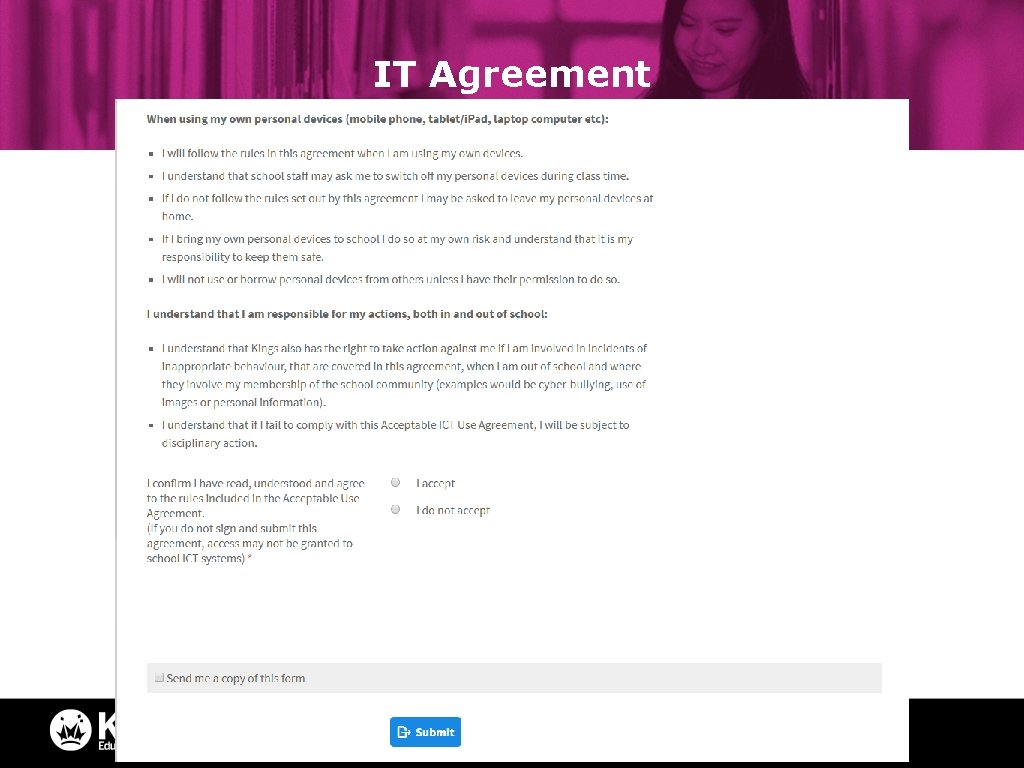
IT Agreement
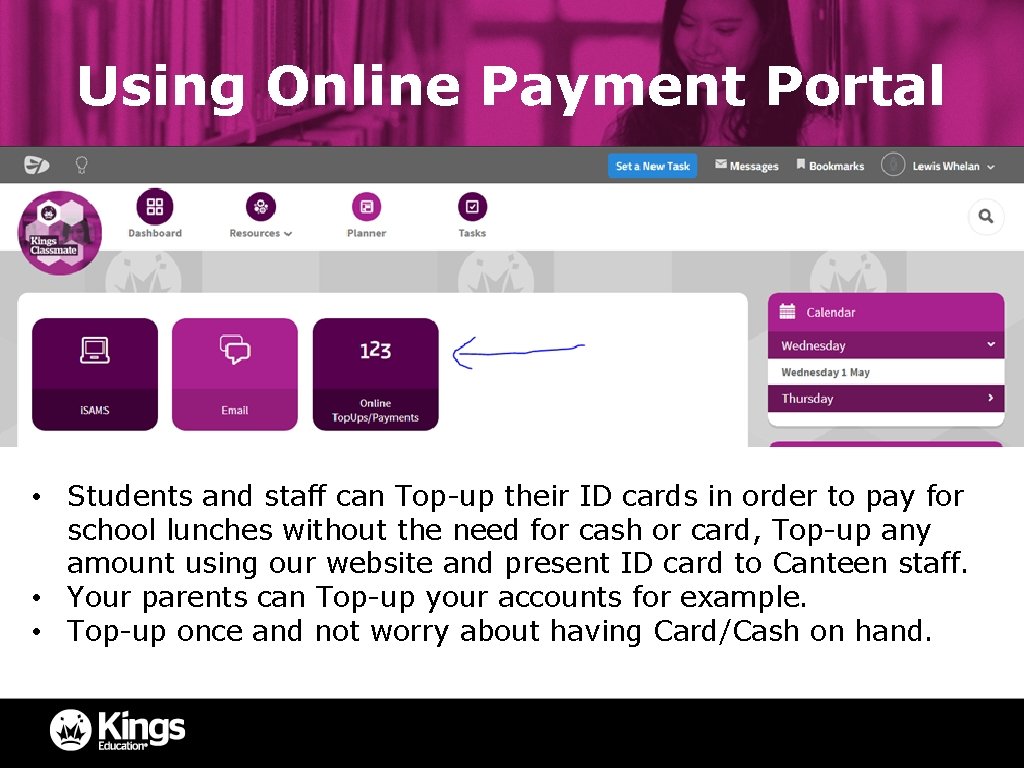
Using Online Payment Portal • Students and staff can Top-up their ID cards in order to pay for school lunches without the need for cash or card, Top-up any amount using our website and present ID card to Canteen staff. • Your parents can Top-up your accounts for example. • Top-up once and not worry about having Card/Cash on hand.
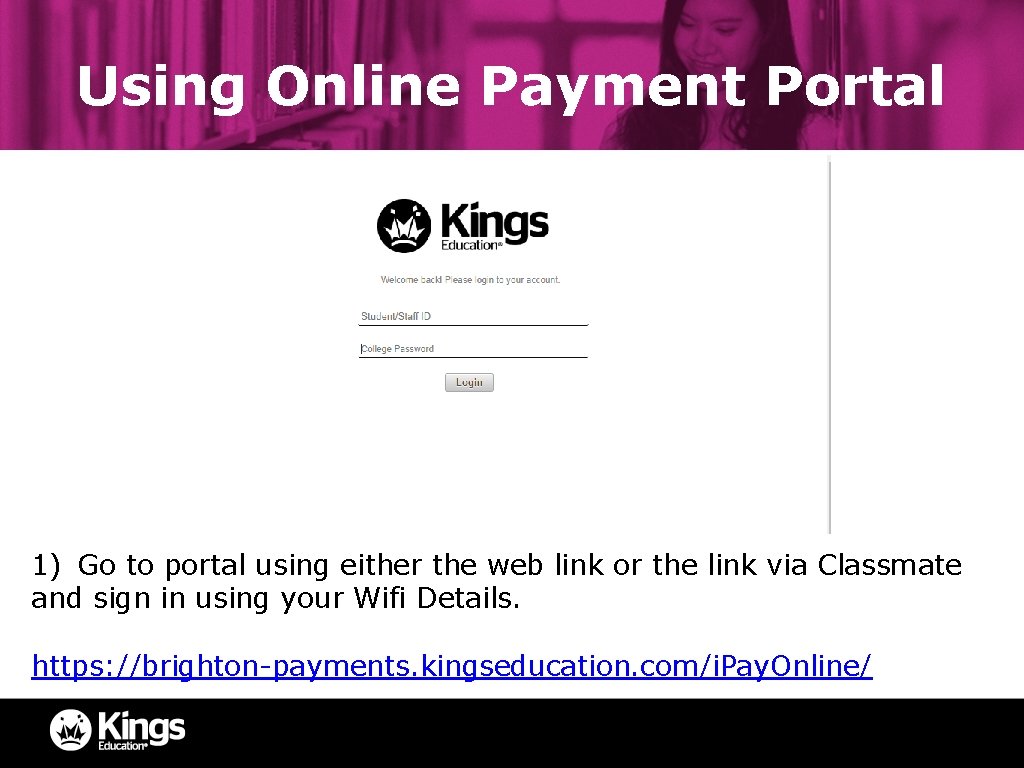
Using Online Payment Portal 1) Go to portal using either the web link or the link via Classmate and sign in using your Wifi Details. https: //brighton-payments. kingseducation. com/i. Pay. Online/
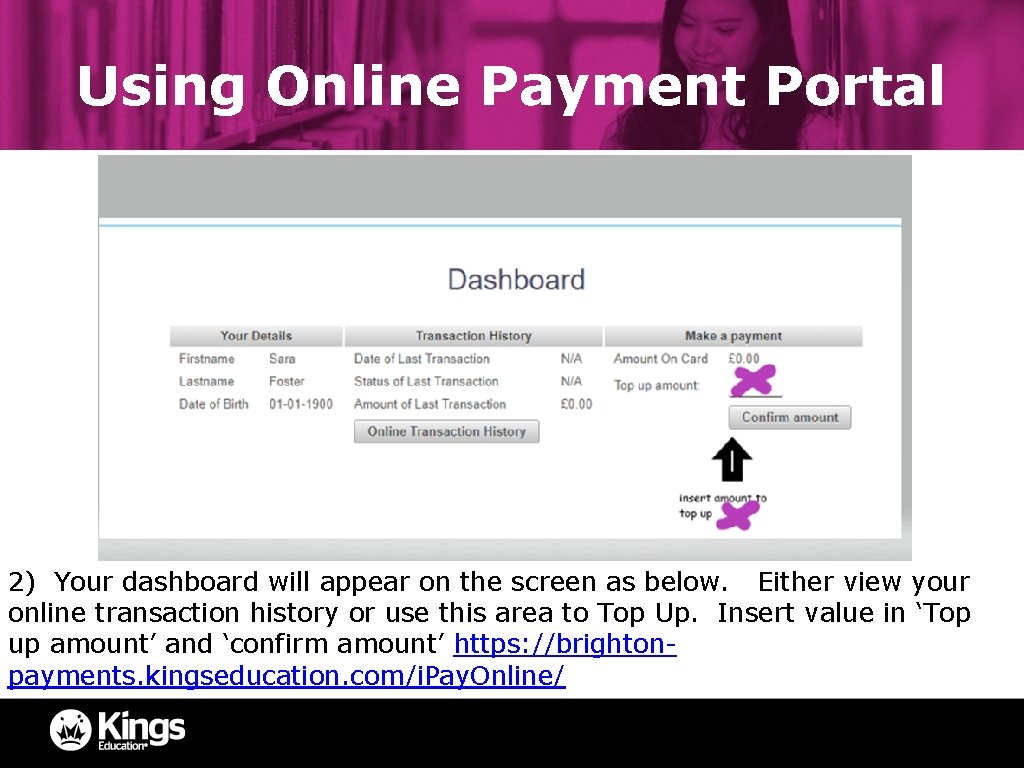
Using Online Payment Portal 2) Your dashboard will appear on the screen as below. Either view your online transaction history or use this area to Top Up. Insert value in ‘Top up amount’ and ‘confirm amount’ https: //brightonpayments. kingseducation. com/i. Pay. Online/
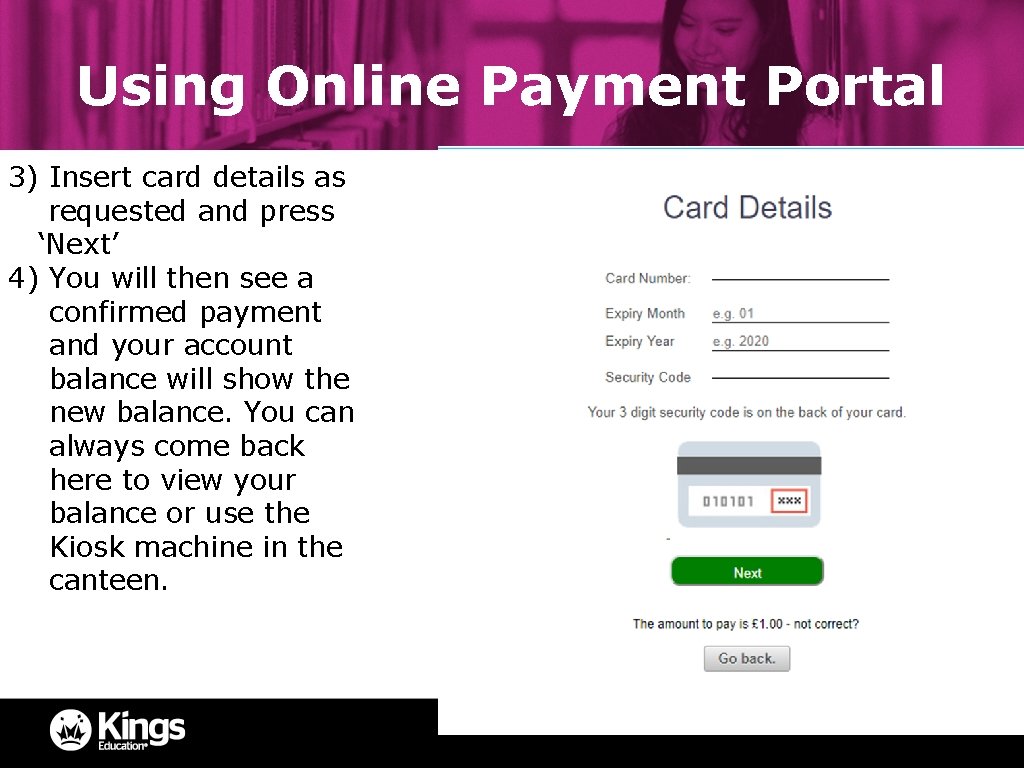
Using Online Payment Portal 3) Insert card details as requested and press ‘Next’ 4) You will then see a confirmed payment and your account balance will show the new balance. You can always come back here to view your balance or use the Kiosk machine in the canteen.
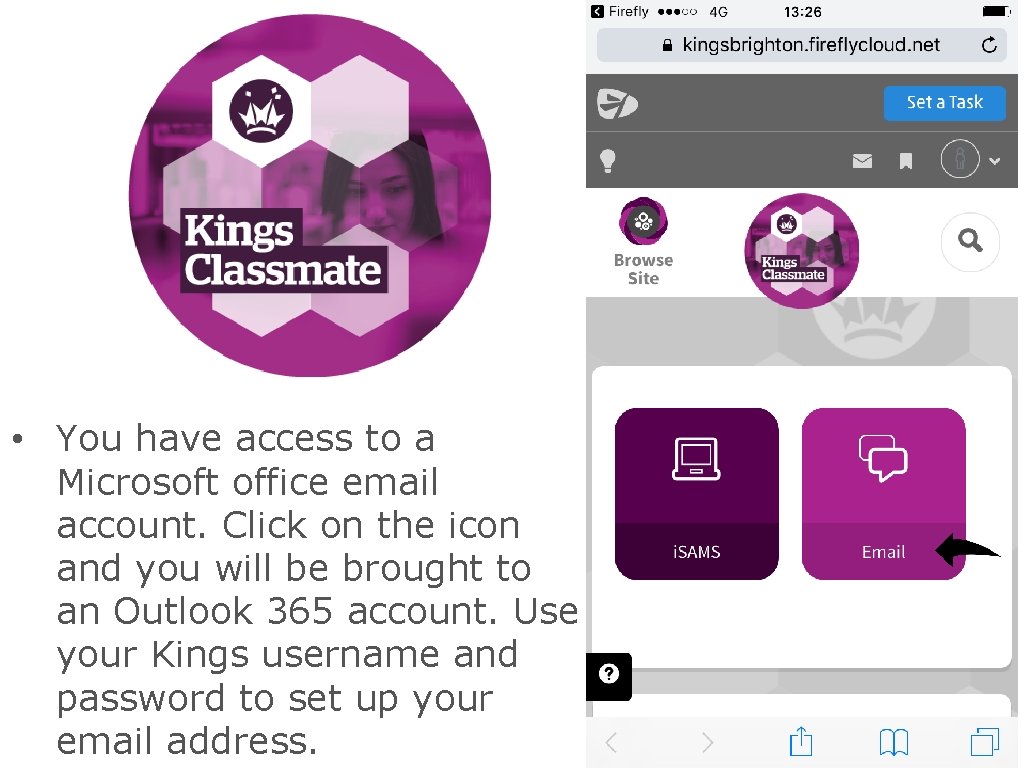
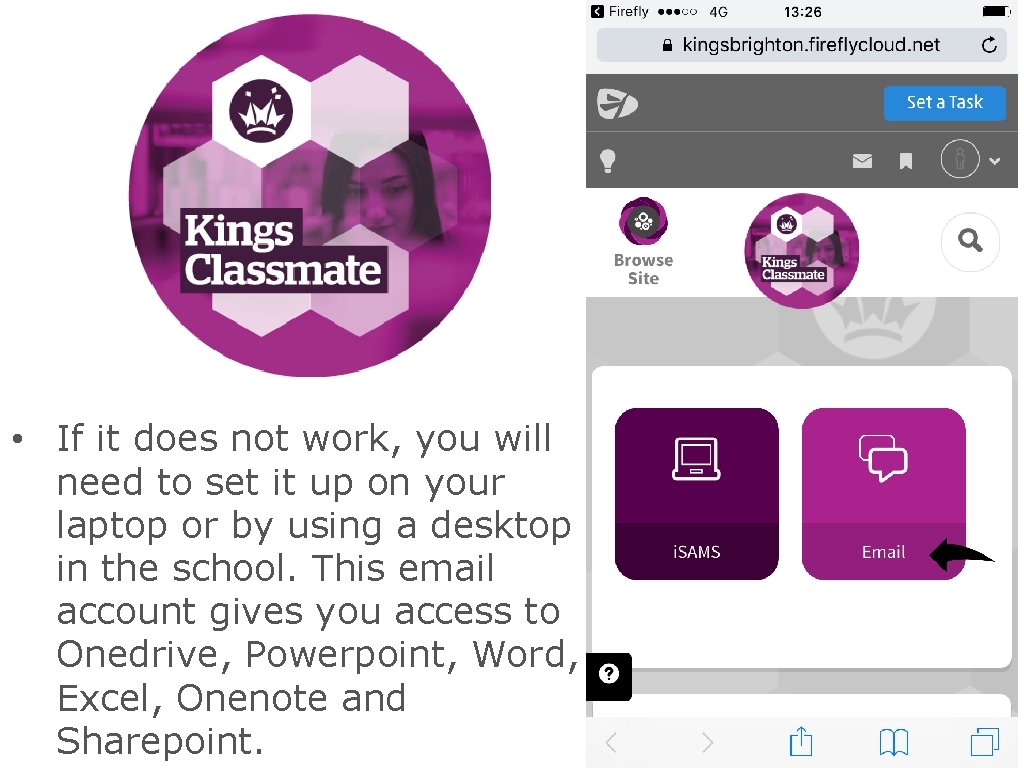
CLASSMATE • You have access to a Microsoft office email account. Click on the icon and you will be brought to an Outlook 365 account. Use your Kings username and password to set up your email address.
CLASSMATE • If it does not work, you will need to set it up on your laptop or by using a desktop in the school. This email account gives you access to Onedrive, Powerpoint, Word, Excel, Onenote and Sharepoint.