
How to Do the e Learning Quizzes Ed
- Slides: 22
How to Do the e. Learning Quizzes Ed Mc. Corduck English 260 --Literature of Sports SUNY Cortland http: //mccorduck. cortland. edu
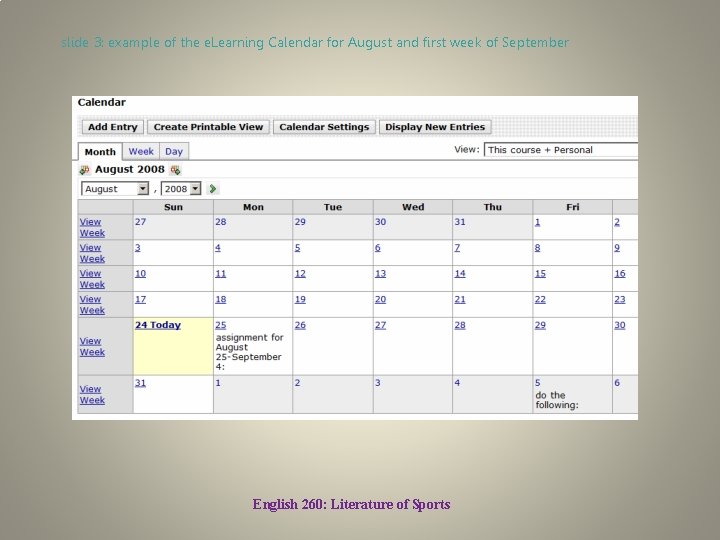
slide 2: how to know when there’ll be a quiz The dates and times of our quizzes will appear on the e. Learning Calendar just like those for all other assignments, and I’ll also alert you to quizzes coming up by posts I’ll make in the Announcements tool. In the Calendar, a quiz will be indicated in the entry for a day whose entry has “do the following: , ” as with September 5 in the following example: English 260: Literature of Sports
slide 3: example of the e. Learning Calendar for August and first week of September English 260: Literature of Sports
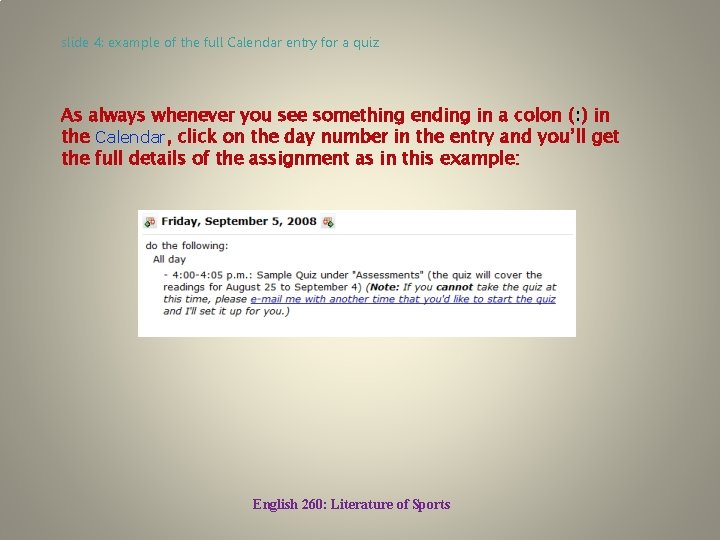
slide 4: example of the full Calendar entry for a quiz As always whenever you see something ending in a colon (: ) in the Calendar, click on the day number in the entry and you’ll get the full details of the assignment as in this example: English 260: Literature of Sports
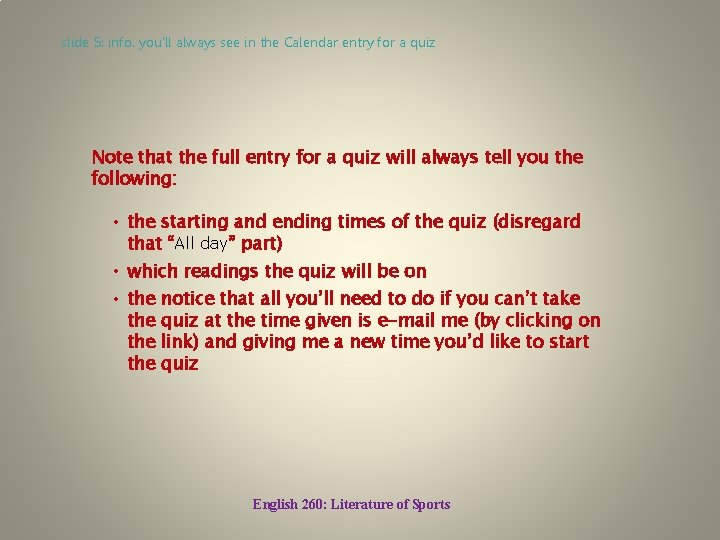
slide 5: info. you’ll always see in the Calendar entry for a quiz Note that the full entry for a quiz will always tell you the following: • the starting and ending times of the quiz (disregard that “All day” part) • which readings the quiz will be on • the notice that all you’ll need to do if you can’t take the quiz at the time given is e-mail me (by clicking on the link) and giving me a new time you’d like to start the quiz English 260: Literature of Sports
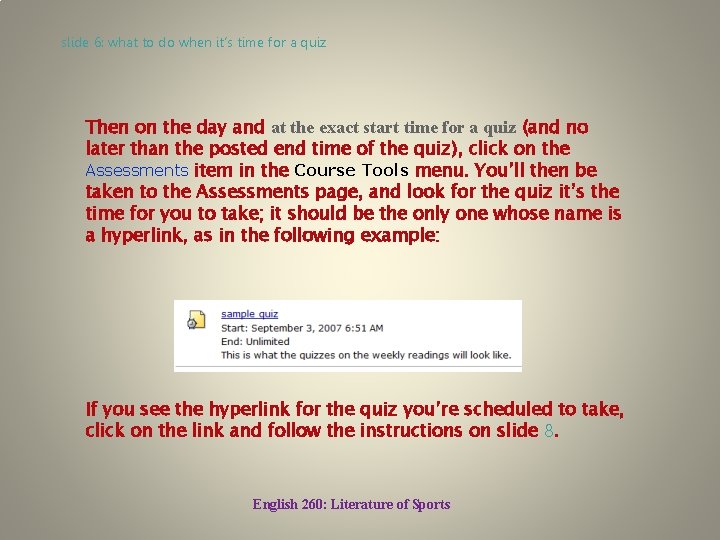
slide 6: what to do when it’s time for a quiz Then on the day and at the exact start time for a quiz (and no later than the posted end time of the quiz), click on the Assessments item in the Course Tools menu. You’ll then be taken to the Assessments page, and look for the quiz it’s the time for you to take; it should be the only one whose name is a hyperlink, as in the following example: If you see the hyperlink for the quiz you’re scheduled to take, click on the link and follow the instructions on slide 8. English 260: Literature of Sports
slide 7: what to do if you don’t see the link for your quiz If you don’t see the link for the quiz you’re supposed to take, it’s probably because you’ve logged in too early. You’ll have to refresh your browser window at the actual start time of the quiz; if you’re using the Internet Explorer browser, you won’t see the usual Refresh button in the navigation area of your browser, so you’ll have to hit the F 5 key on your keyboard instead. When you do that, the browser will take you back to our course’s main e. Learning page, and once again you’ll have to click on the Assessments under Course Tools and if it’s truly time to start the quiz you’ll see the link for it as described in slide 6. English 260: Literature of Sports
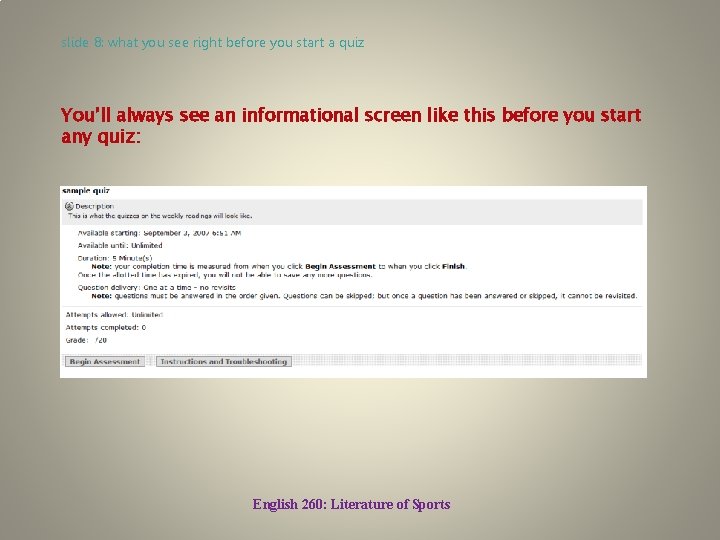
slide 8: what you see right before you start a quiz You’ll always see an informational screen like this before you start any quiz: English 260: Literature of Sports
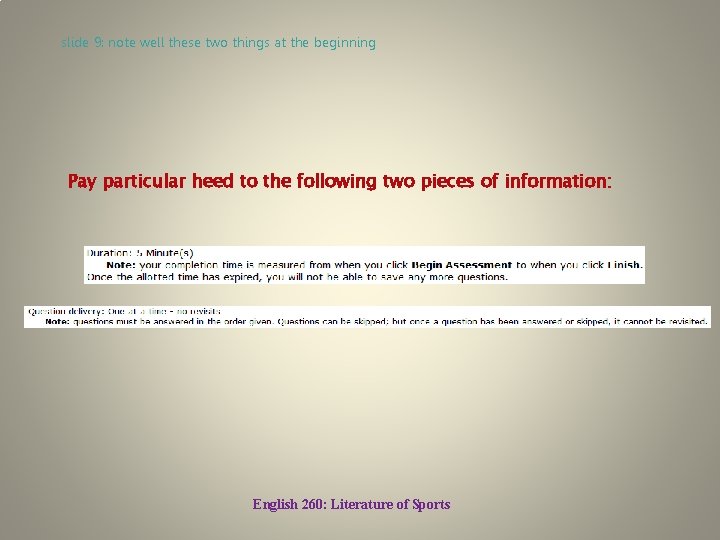
slide 9: note well these two things at the beginning Pay particular heed to the following two pieces of information: English 260: Literature of Sports
slide 10: to start the quiz When you’re ready to start, click the Begin Assessment button. English 260: Literature of Sports
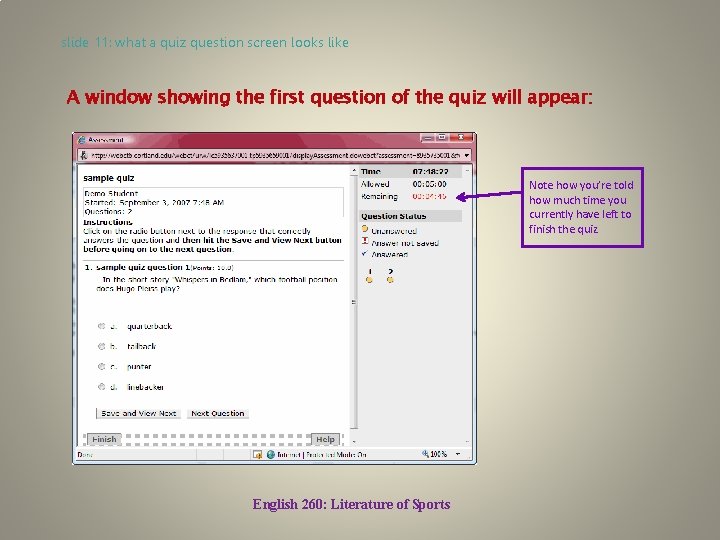
slide 11: what a quiz question screen looks like A window showing the first question of the quiz will appear: Note how you’re told how much time you currently have left to finish the quiz. English 260: Literature of Sports
slide 12: IMPORTANT: HOW TO ANSWER EACH QUESTION THE RIGHT WAY Click the radio button next to what you think is the correct answer to the numbered question. Now, this next step is super important: after you’ve answered this question, click ONLY on the Save and View Next button! English 260: Literature of Sports
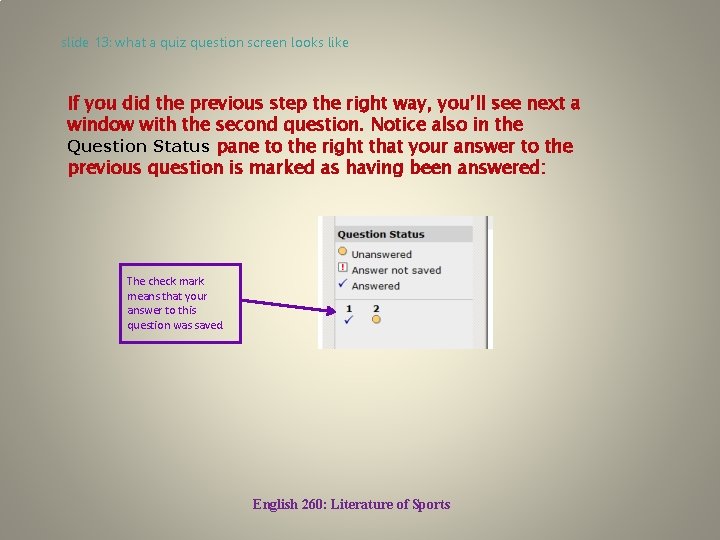
slide 13: what a quiz question screen looks like If you did the previous step the right way, you’ll see next a window with the second question. Notice also in the Question Status pane to the right that your answer to the previous question is marked as having been answered: The check mark means that your answer to this question was saved. English 260: Literature of Sports
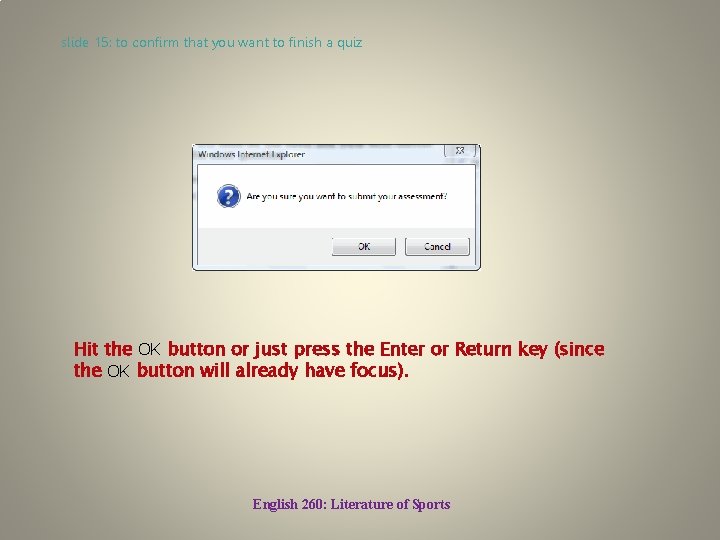
slide 14: doing the rest of a quiz Answer the second and remaining questions following the procedures given in slides 12 and 13 above. When you get to the last question of the quiz, you’ll note that there is no Next Question button as with the previous questions. At this point, once again select your answer to the question and hit the Save and View Next button as usual, and then you’ll be taken back to the screen with the last question again. NOW click on the Finish button, and if everything’s been done the right way up to this point you’ll get the pop-up illustrated on the next slide: English 260: Literature of Sports
slide 15: to confirm that you want to finish a quiz Hit the OK button or just press the Enter or Return key (since the OK button will already have focus). English 260: Literature of Sports
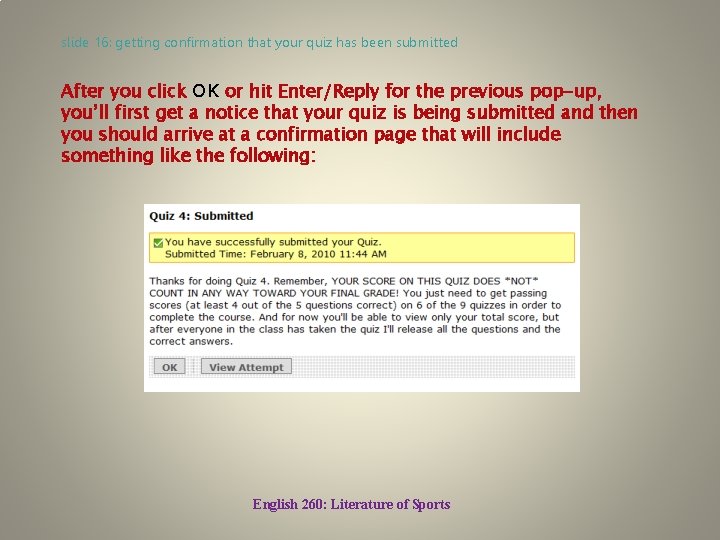
slide 16: getting confirmation that your quiz has been submitted After you click OK or hit Enter/Reply for the previous pop-up, you’ll first get a notice that your quiz is being submitted and then you should arrive at a confirmation page that will include something like the following: English 260: Literature of Sports
slide 17: why you don’t see your quiz score nor full results after finishing a quiz The submission confirmation reminds you of the true significance and purpose of these quizzes as I explain in the e. Learning Syllabus. Now, if you click the View Attempt button on the confirmation screen, chances are you won’t be able to see your score nor the detailed results of the quiz you’ve just taken because it’s very likely that even if you take the quiz at its regularly scheduled time other students in the class won’t have been able to. For security reasons, I’ll release the results of a particular quiz only after everyone has taken it. So you should probably just hit the OK button here and you’ll go back to the Assessments page. English 260: Literature of Sports
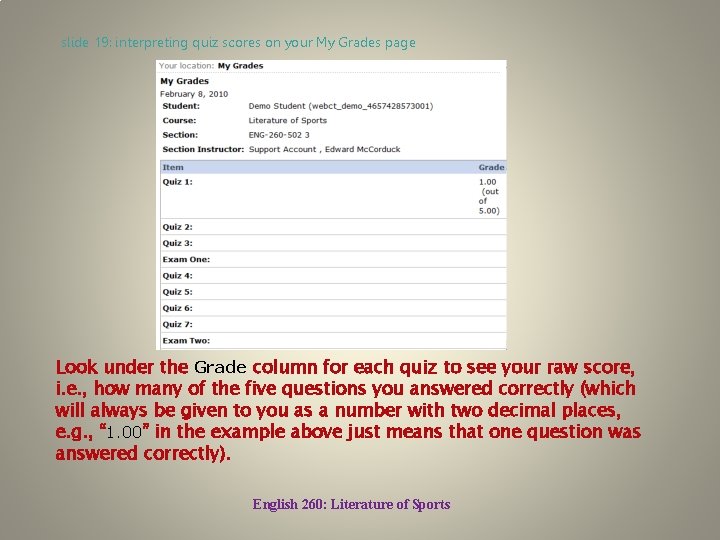
slide 18: how to view just your raw score on a quiz But you can still view just your overall score on the quiz you’ve just taken. To do this, under your My Tools menu click on the My Grades link, and you’ll be taken to your My Grades page which will look something like the following: English 260: Literature of Sports
slide 19: interpreting quiz scores on your My Grades page Look under the Grade column for each quiz to see your raw score, i. e. , how many of the five questions you answered correctly (which will always be given to you as a number with two decimal places, e. g. , “ 1. 00” in the example above just means that one question was answered correctly). English 260: Literature of Sports
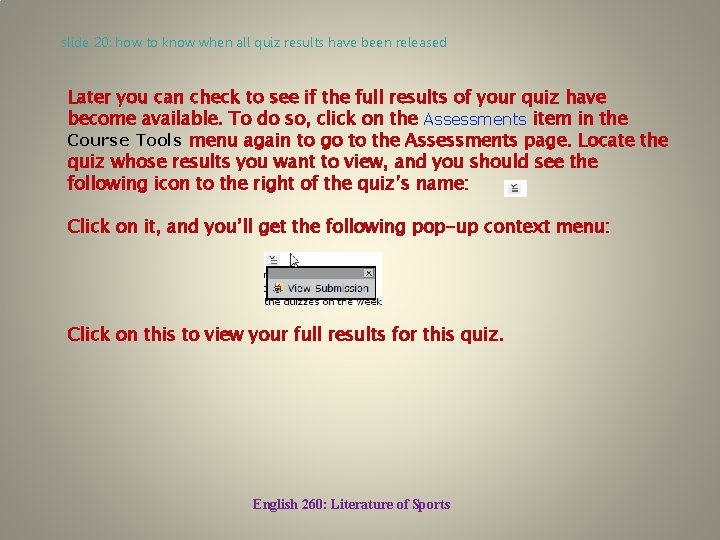
slide 20: how to know when all quiz results have been released Later you can check to see if the full results of your quiz have become available. To do so, click on the Assessments item in the Course Tools menu again to go to the Assessments page. Locate the quiz whose results you want to view, and you should see the following icon to the right of the quiz’s name: Click on it, and you’ll get the following pop-up context menu: Click on this to view your full results for this quiz. English 260: Literature of Sports
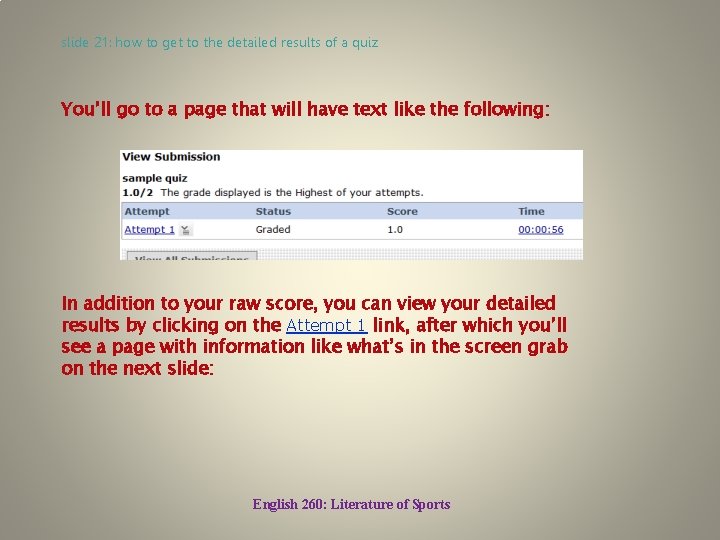
slide 21: how to get to the detailed results of a quiz You’ll go to a page that will have text like the following: In addition to your raw score, you can view your detailed results by clicking on the Attempt 1 link, after which you’ll see a page with information like what’s in the screen grab on the next slide: English 260: Literature of Sports
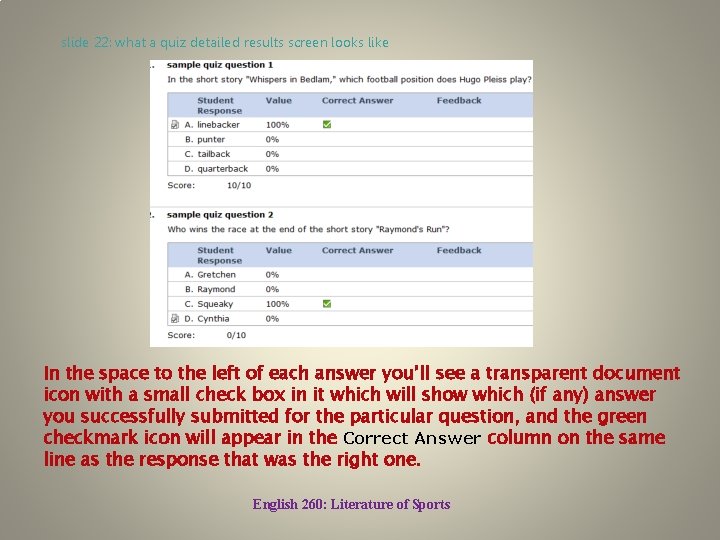
slide 22: what a quiz detailed results screen looks like In the space to the left of each answer you’ll see a transparent document icon with a small check box in it which will show which (if any) answer you successfully submitted for the particular question, and the green checkmark icon will appear in the Correct Answer column on the same line as the response that was the right one. English 260: Literature of Sports