
How to develop a presentation portfolio in Foliotek
- Slides: 38
How to develop a presentation portfolio in Foliotek
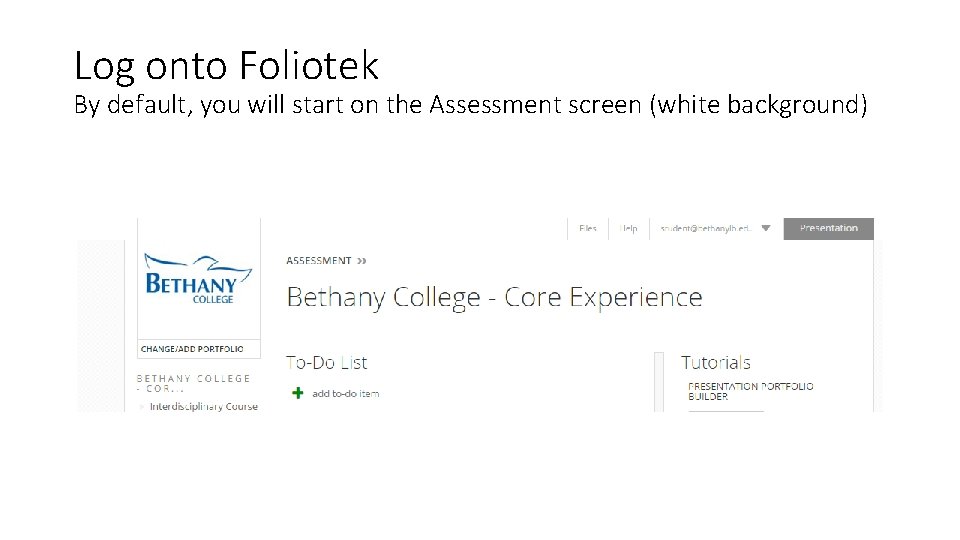
Log onto Foliotek By default, you will start on the Assessment screen (white background)
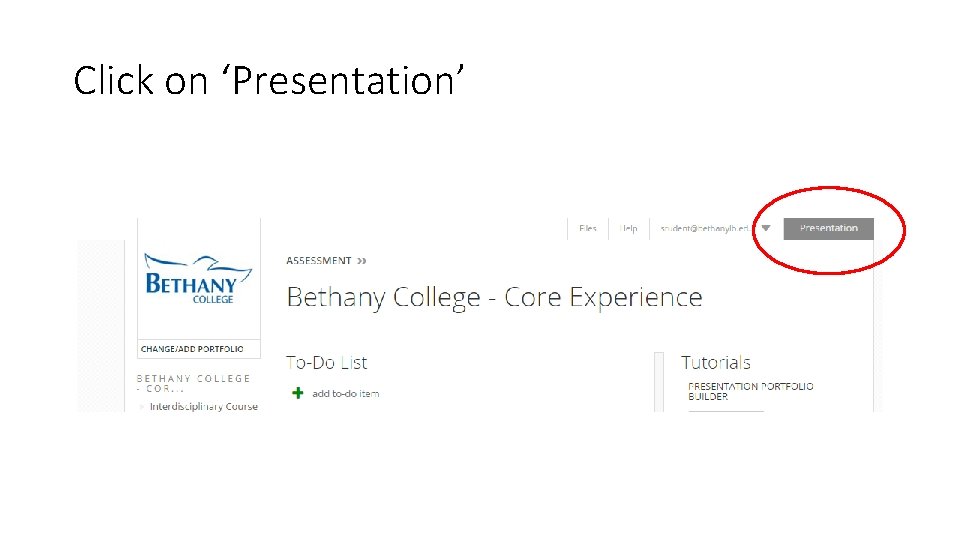
Click on ‘Presentation’
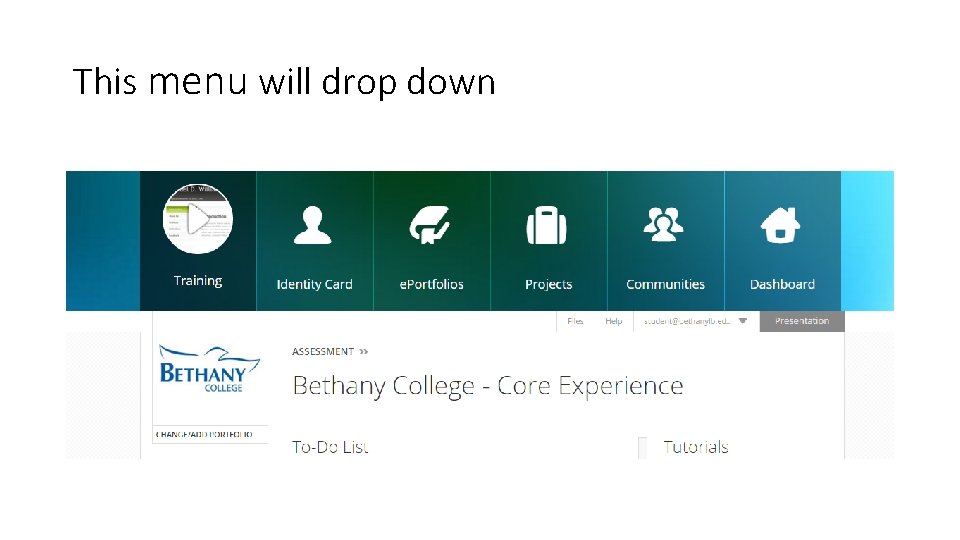
This menu will drop down
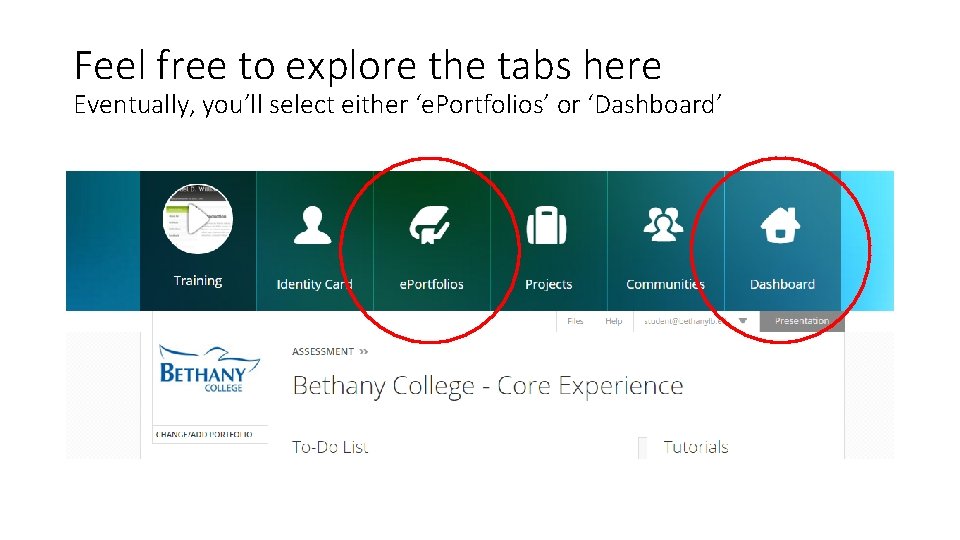
Feel free to explore the tabs here Eventually, you’ll select either ‘e. Portfolios’ or ‘Dashboard’
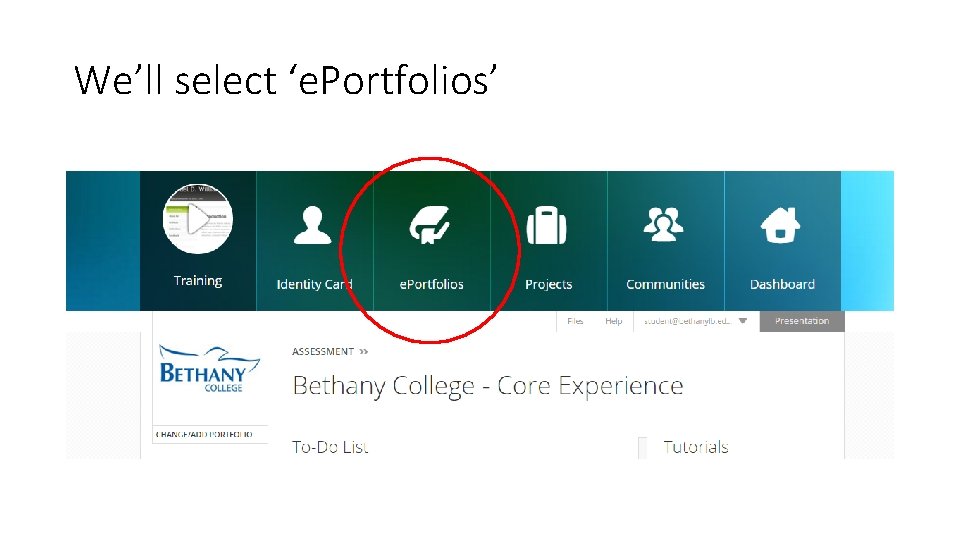
We’ll select ‘e. Portfolios’
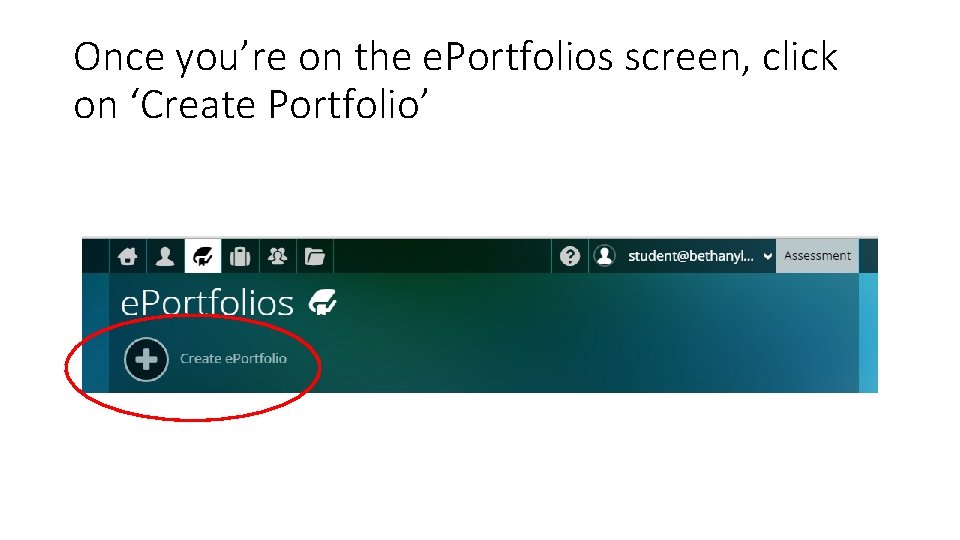
Once you’re on the e. Portfolios screen, click on ‘Create Portfolio’
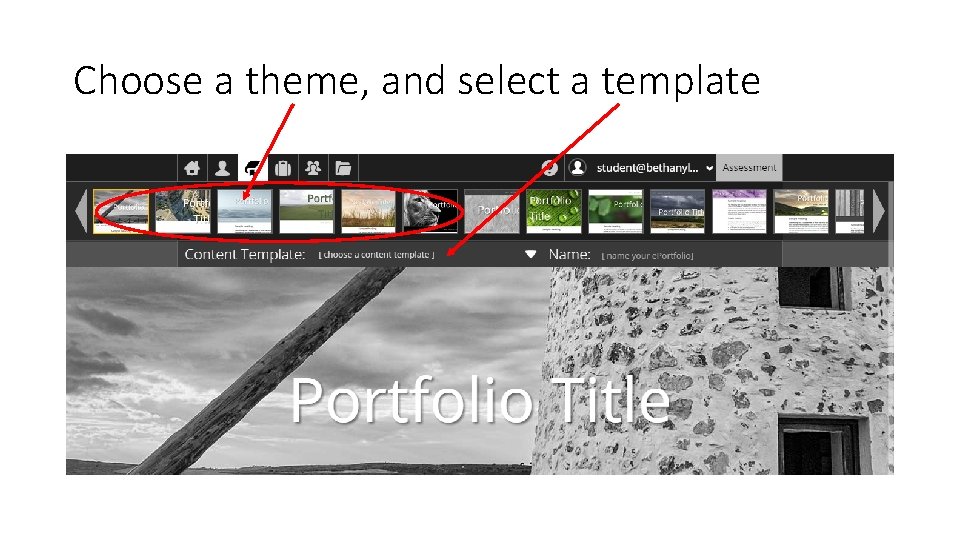
Choose a theme, and select a template
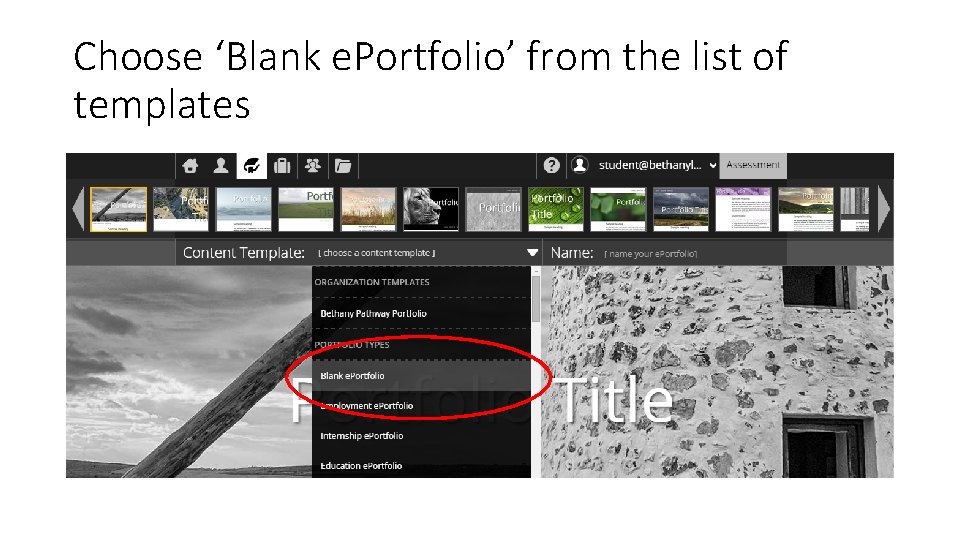
Choose ‘Blank e. Portfolio’ from the list of templates
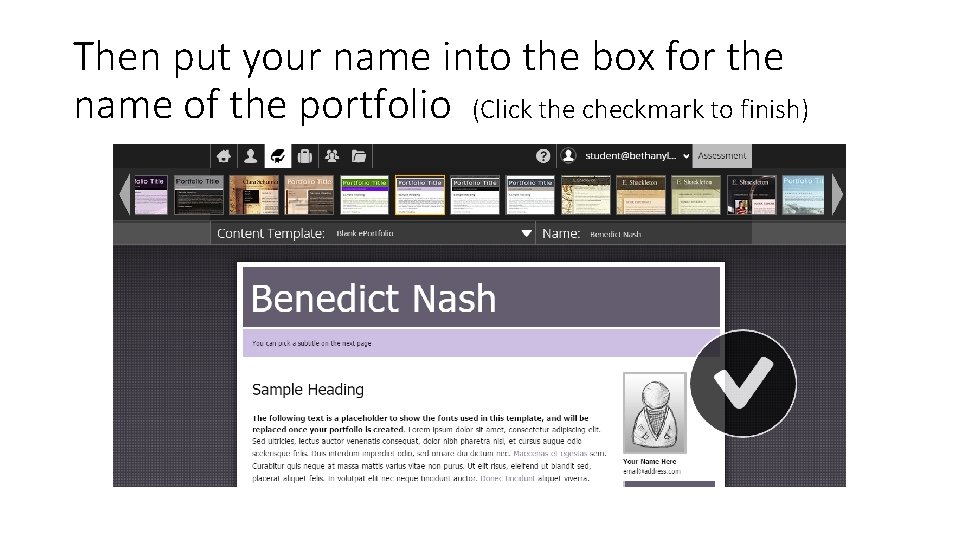
Then put your name into the box for the name of the portfolio (Click the checkmark to finish)
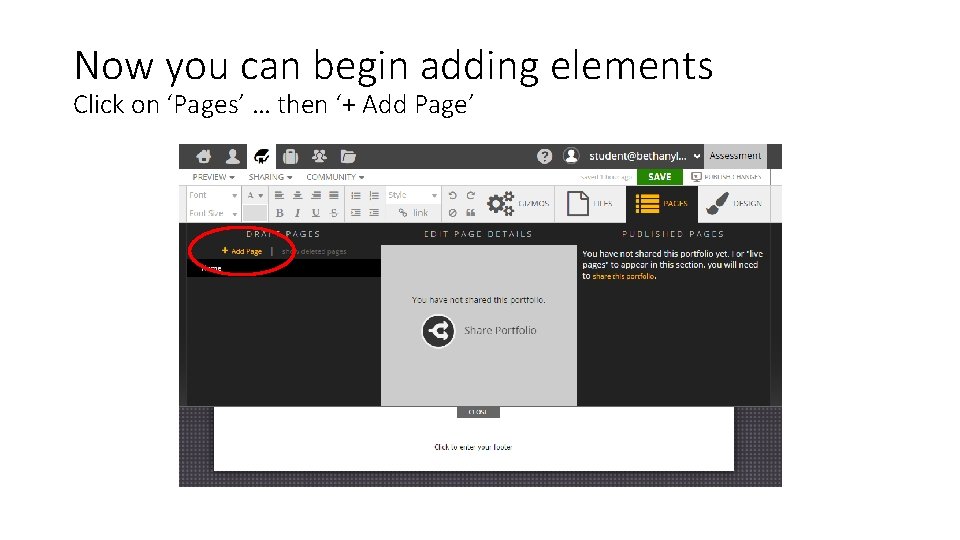
Now you can begin adding elements Click on ‘Pages’ … then ‘+ Add Page’
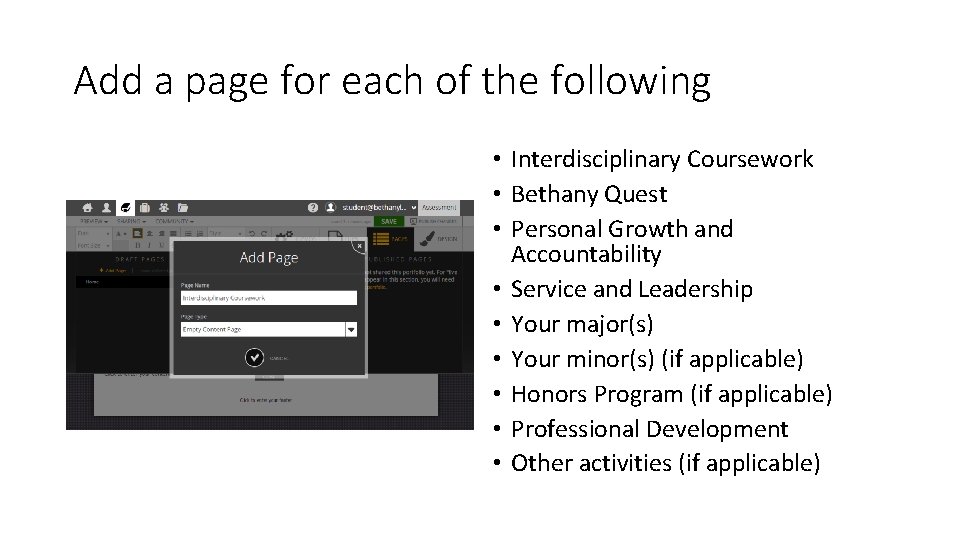
Add a page for each of the following • Interdisciplinary Coursework • Bethany Quest • Personal Growth and Accountability • Service and Leadership • Your major(s) • Your minor(s) (if applicable) • Honors Program (if applicable) • Professional Development • Other activities (if applicable)
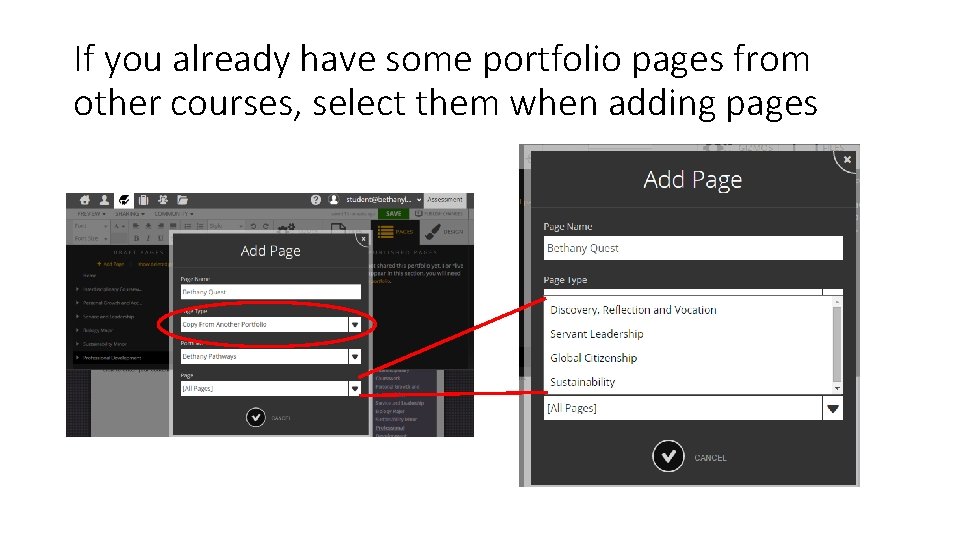
If you already have some portfolio pages from other courses, select them when adding pages
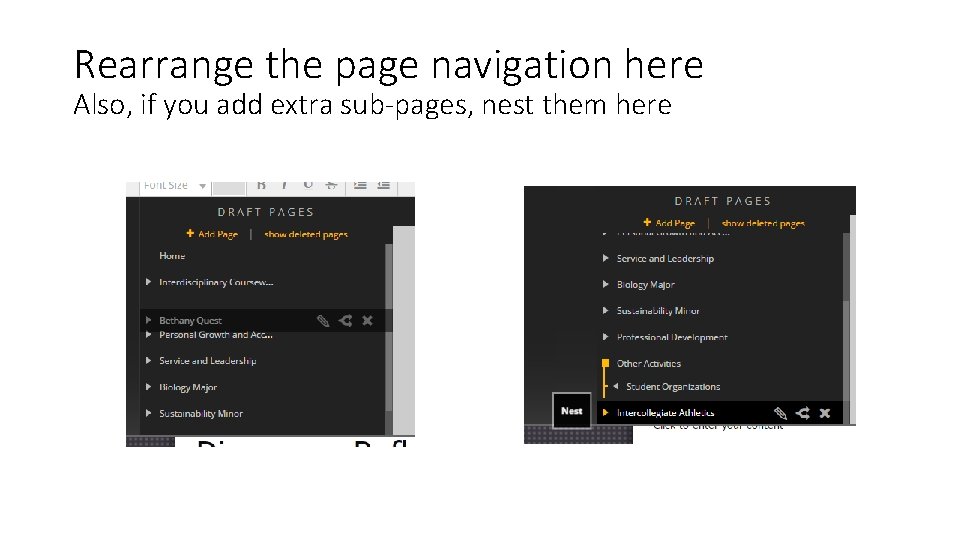
Rearrange the page navigation here Also, if you add extra sub-pages, nest them here
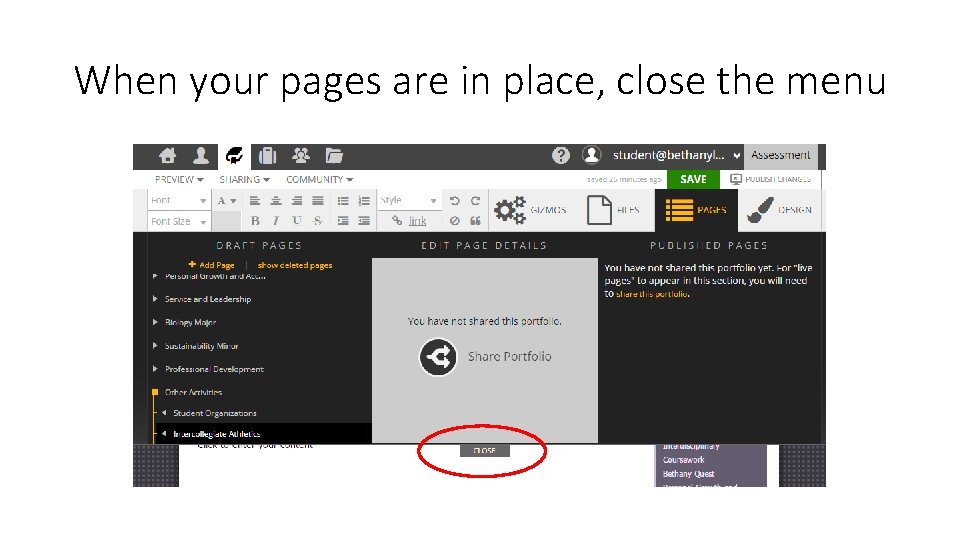
When your pages are in place, close the menu
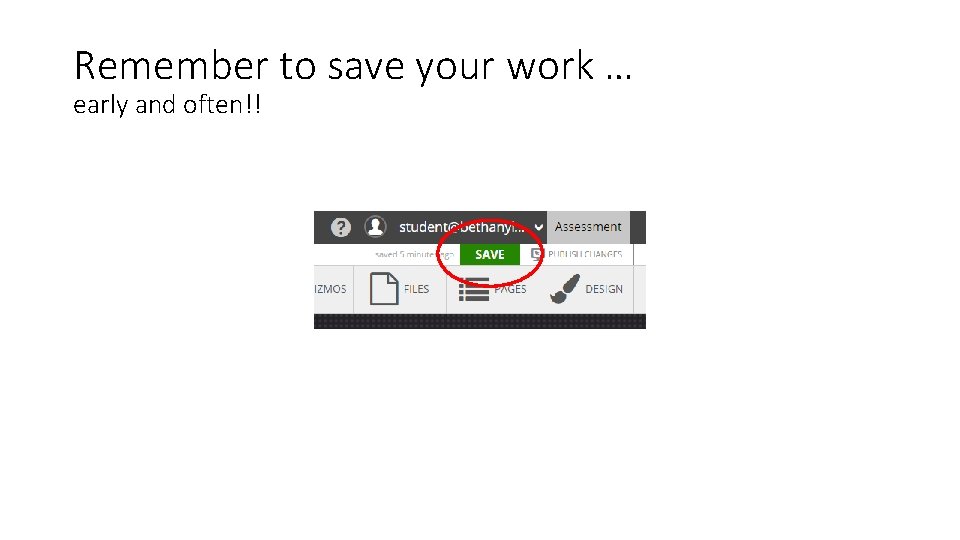
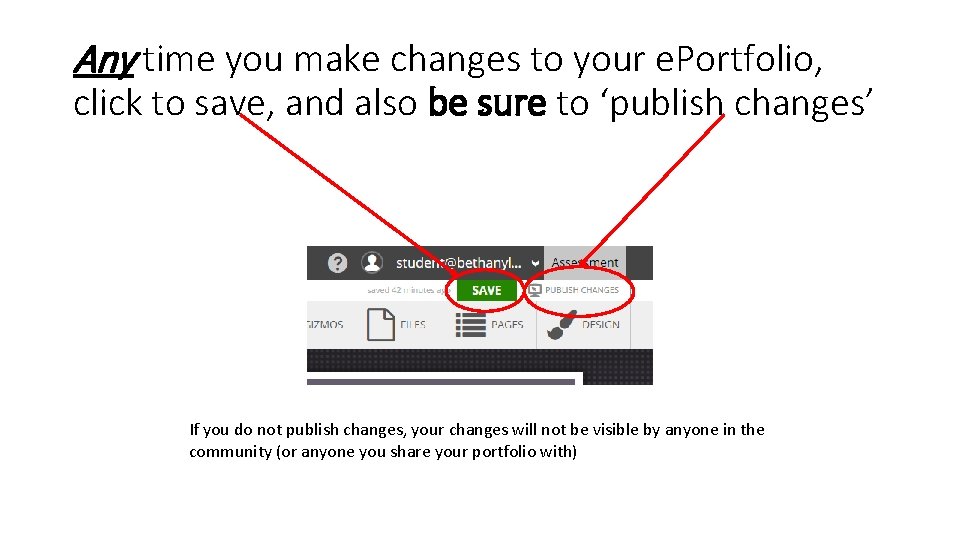
Remember to save your work … early and often!!
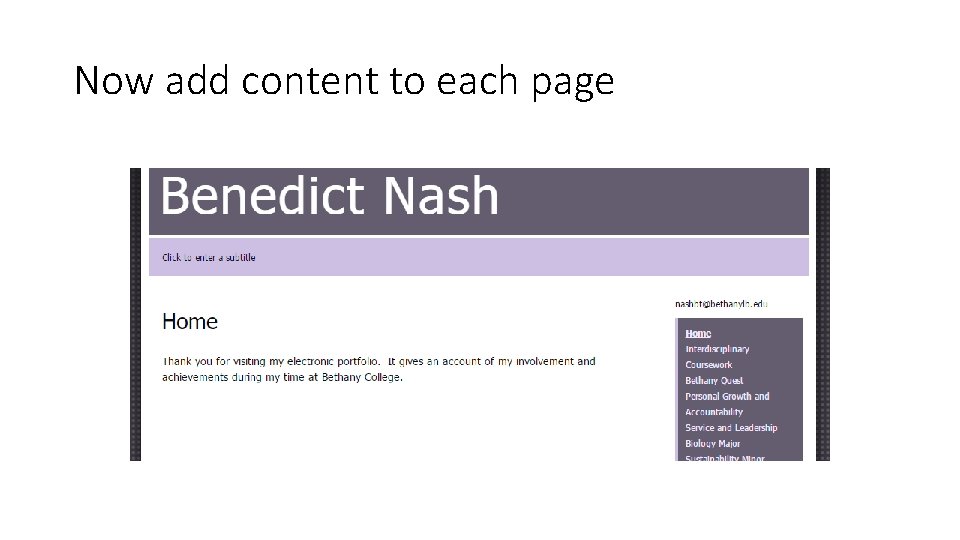
Now add content to each page
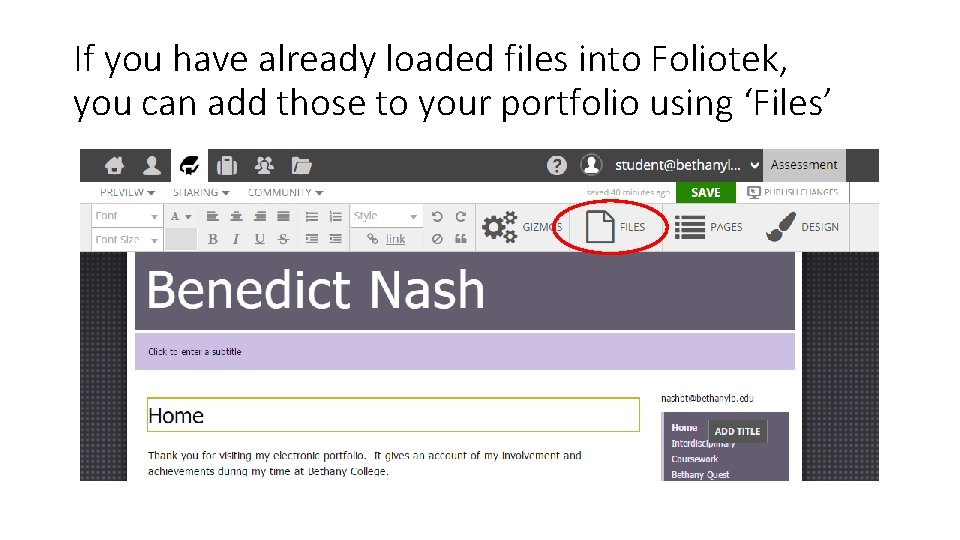
If you have already loaded files into Foliotek, you can add those to your portfolio using ‘Files’
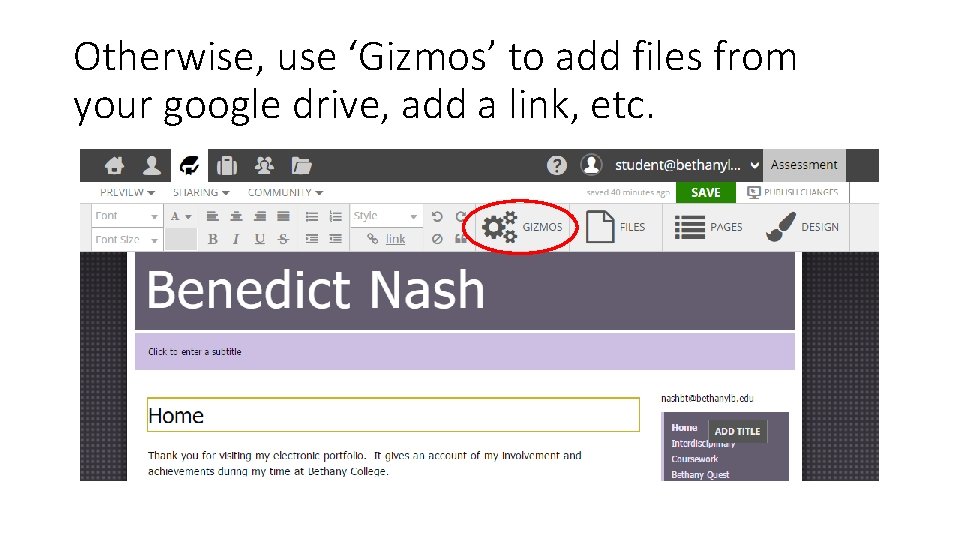
Otherwise, use ‘Gizmos’ to add files from your google drive, add a link, etc.
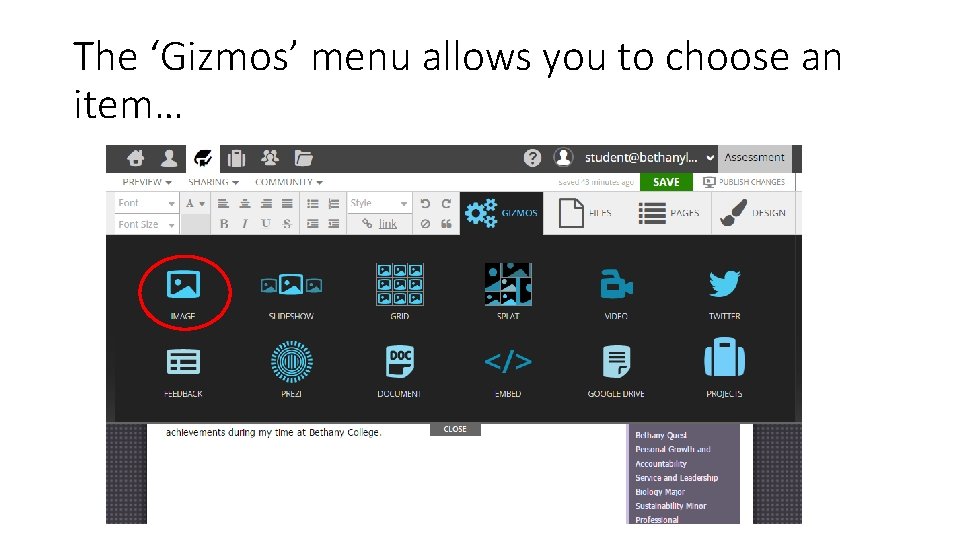
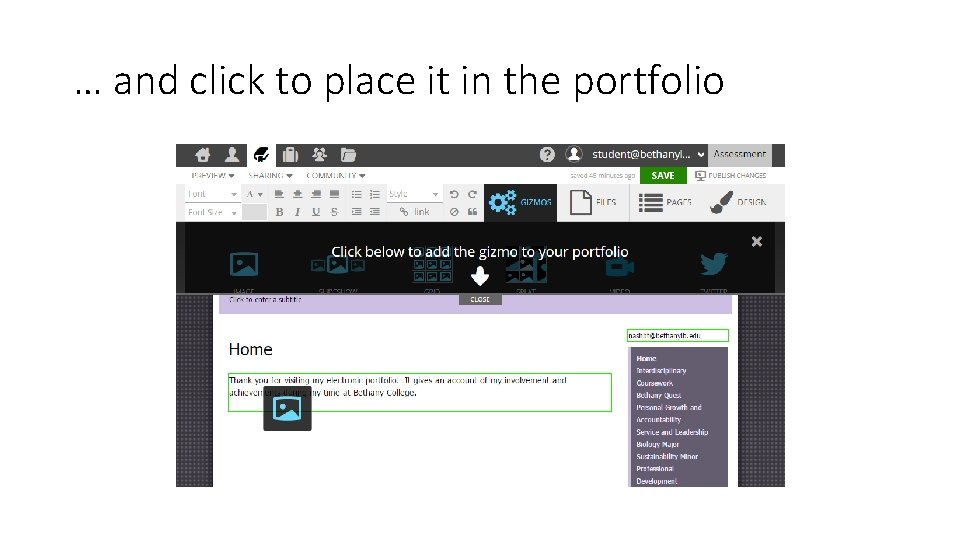
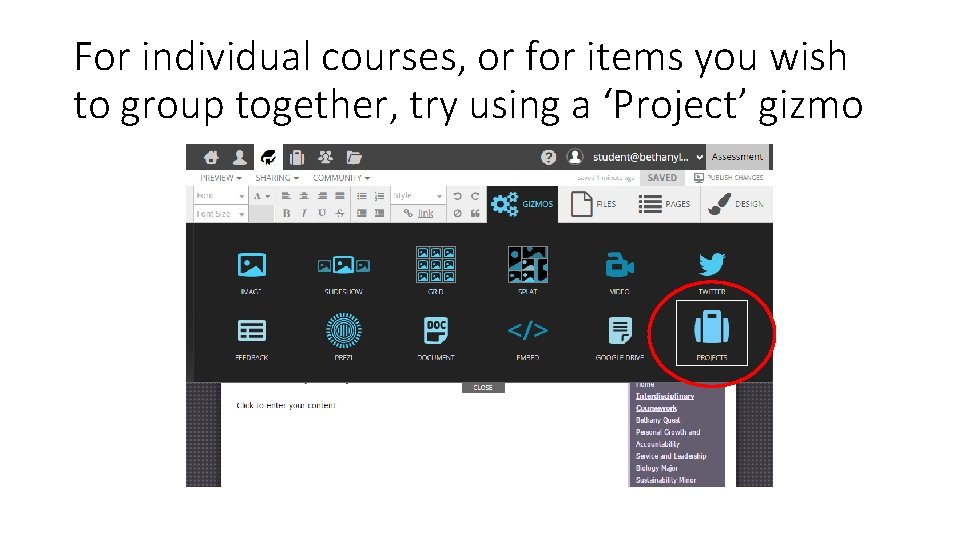
The ‘Gizmos’ menu allows you to choose an item…
… and click to place it in the portfolio
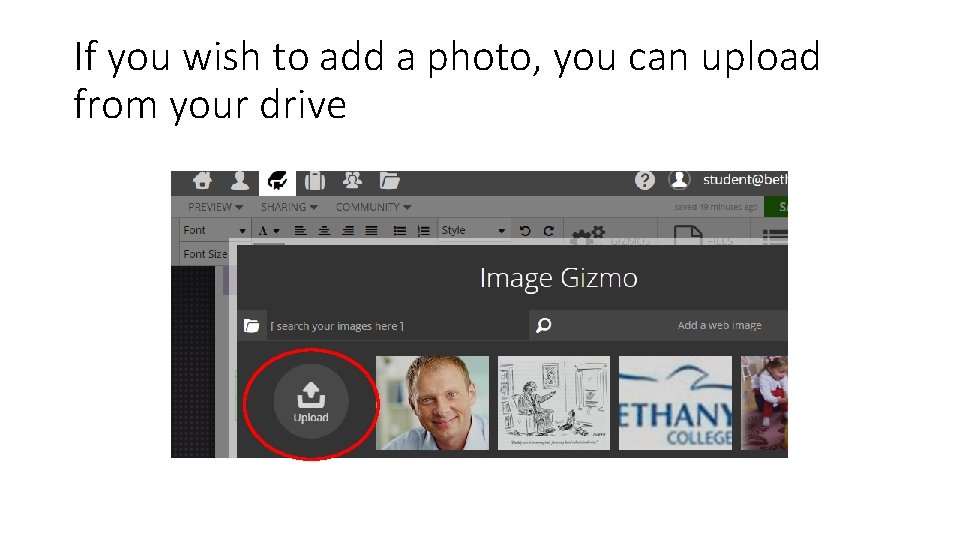
If you wish to add a photo, you can upload from your drive
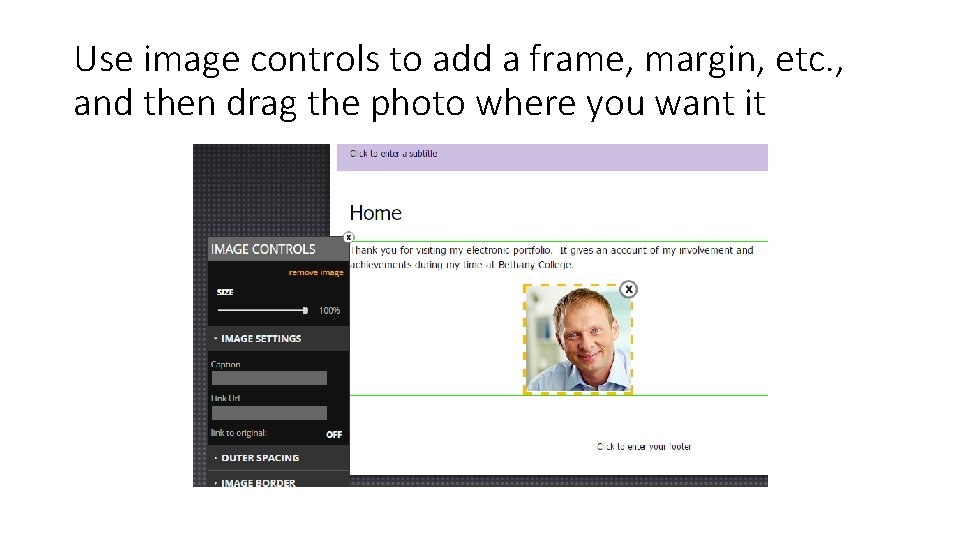
Use image controls to add a frame, margin, etc. , and then drag the photo where you want it
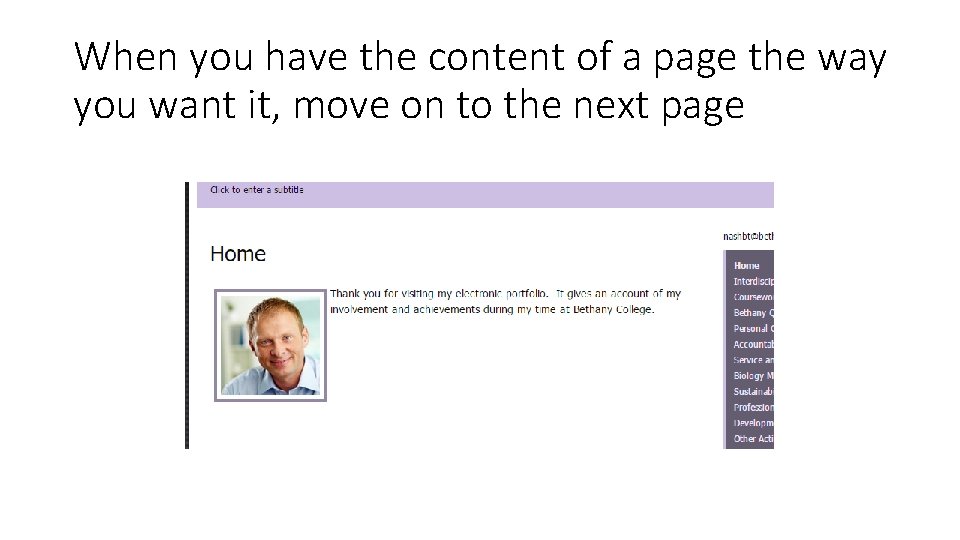
When you have the content of a page the way you want it, move on to the next page
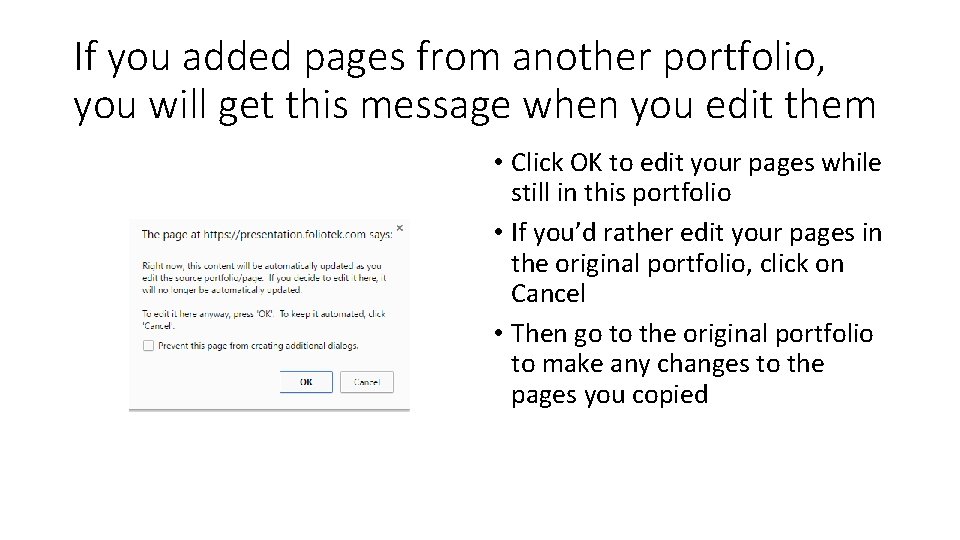
If you added pages from another portfolio, you will get this message when you edit them • Click OK to edit your pages while still in this portfolio • If you’d rather edit your pages in the original portfolio, click on Cancel • Then go to the original portfolio to make any changes to the pages you copied
For individual courses, or for items you wish to group together, try using a ‘Project’ gizmo
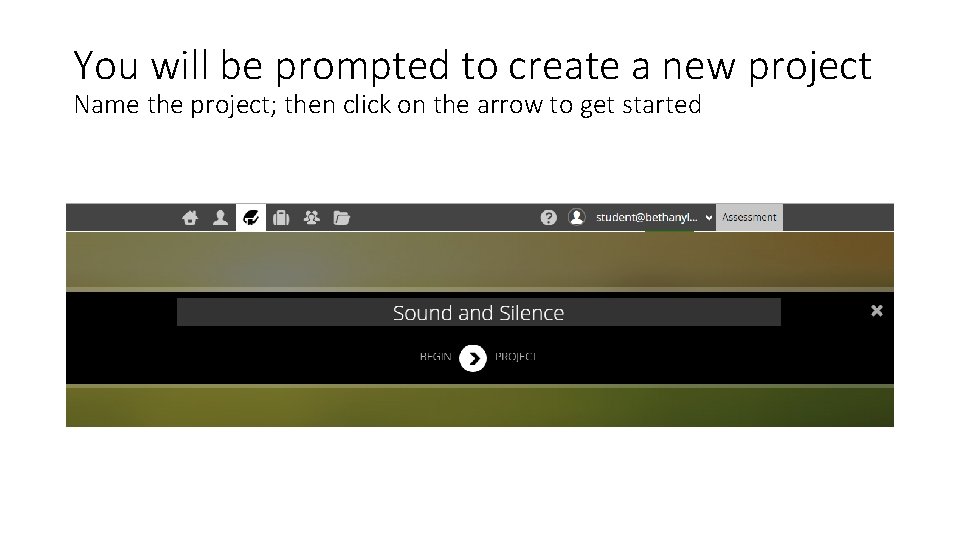
You will be prompted to create a new project Name the project; then click on the arrow to get started
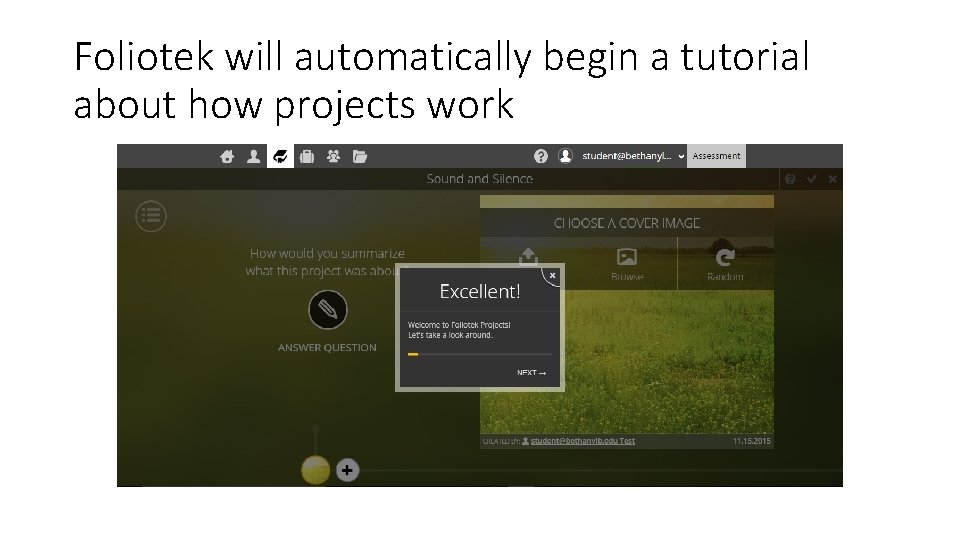
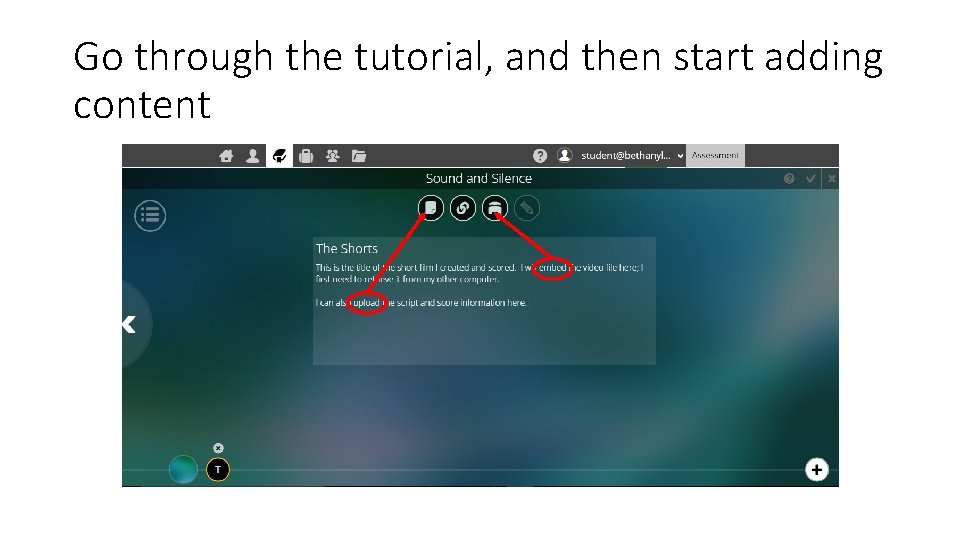
Foliotek will automatically begin a tutorial about how projects work
Go through the tutorial, and then start adding content
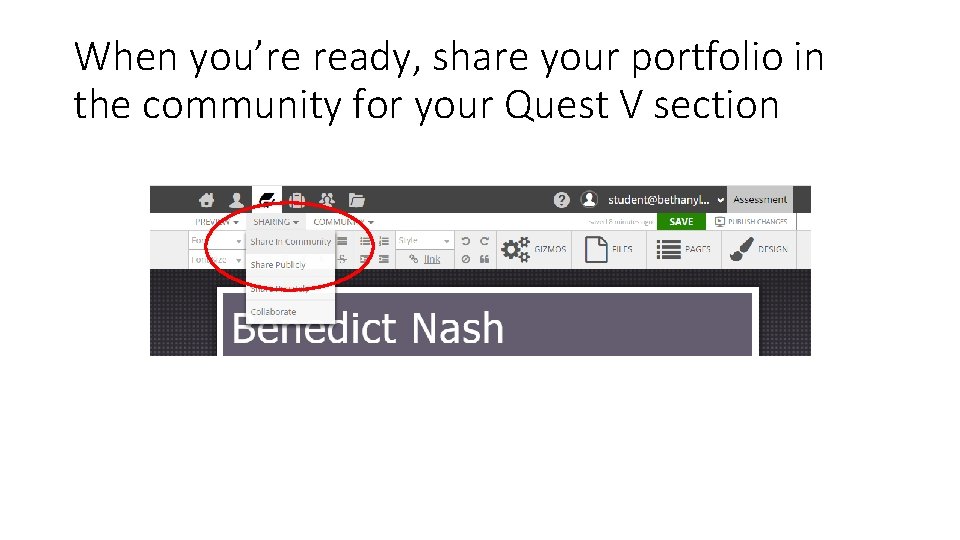
When you’re ready, share your portfolio in the community for your Quest V section
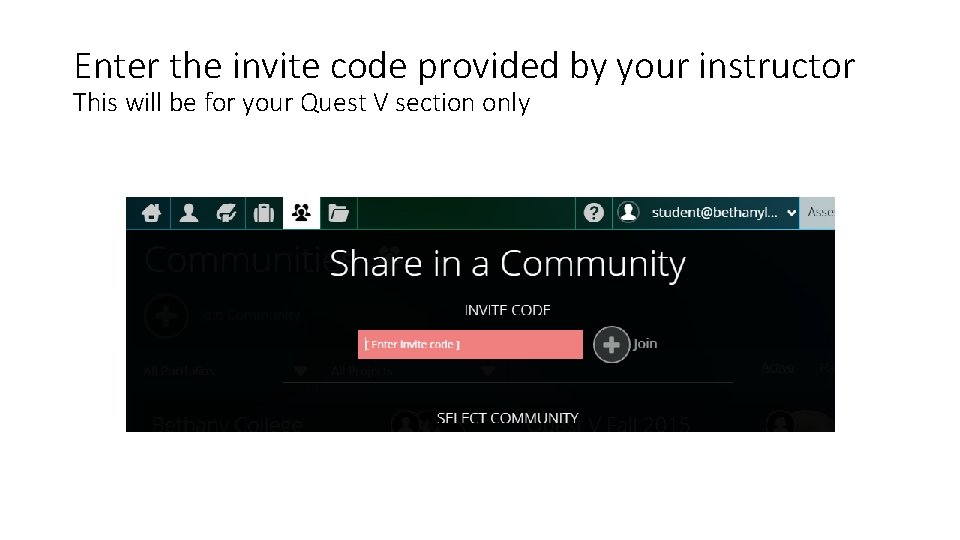
Enter the invite code provided by your instructor This will be for your Quest V section only
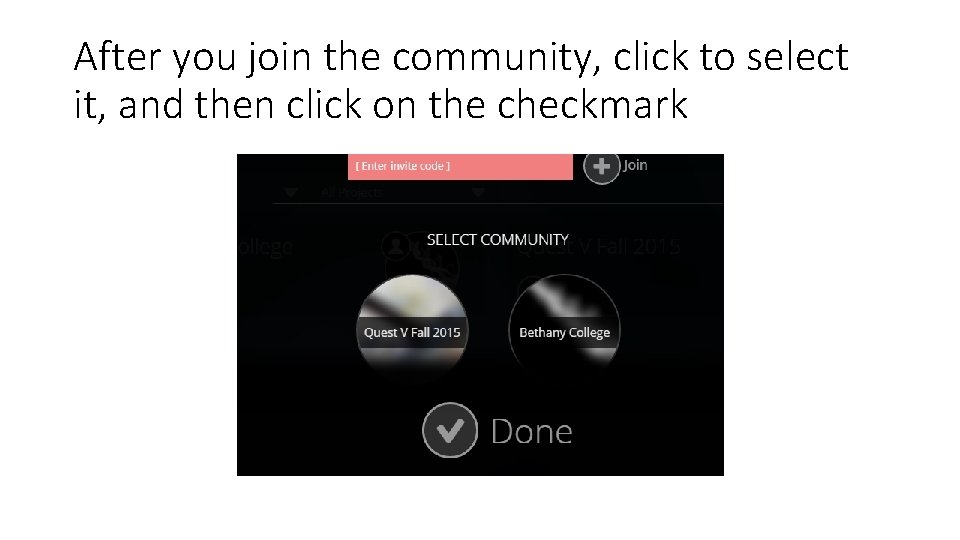
After you join the community, click to select it, and then click on the checkmark
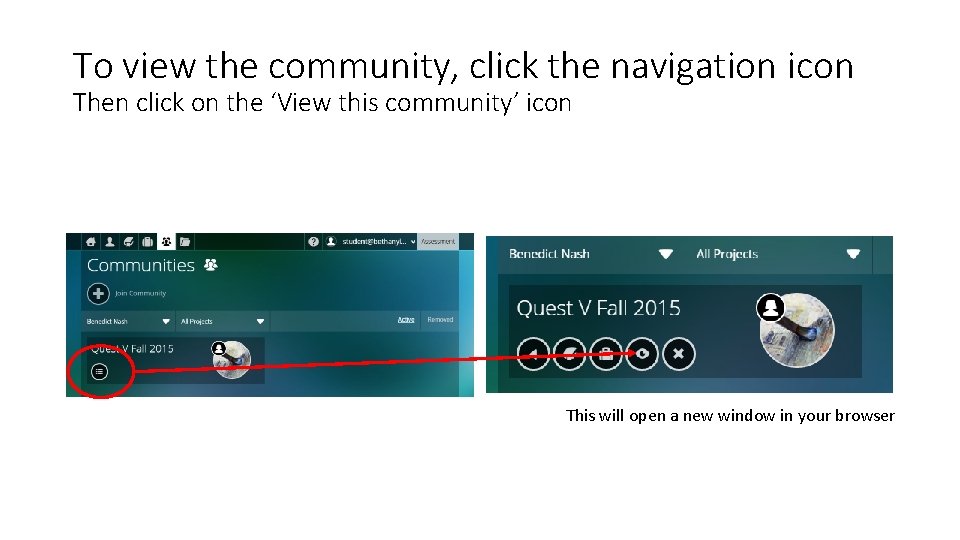
To view the community, click the navigation icon Then click on the ‘View this community’ icon This will open a new window in your browser
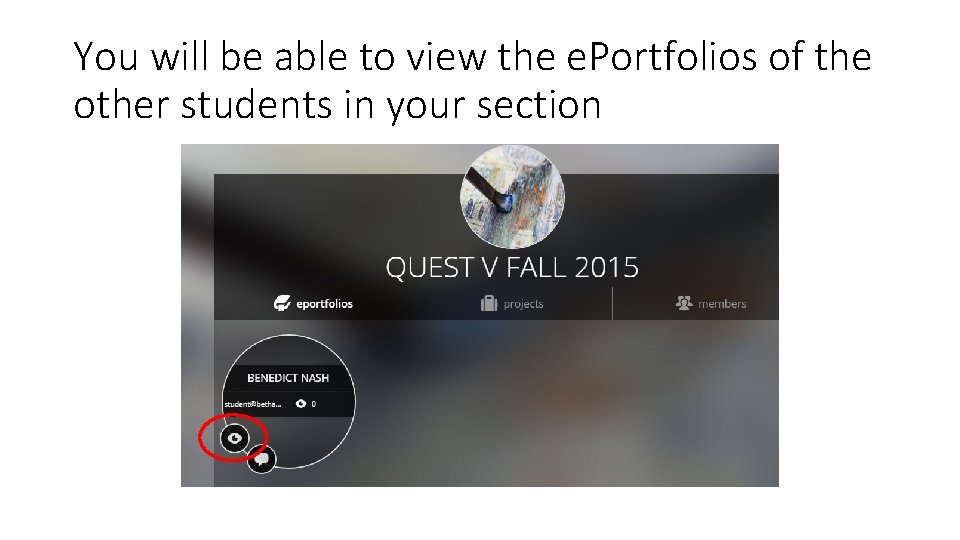
You will be able to view the e. Portfolios of the other students in your section
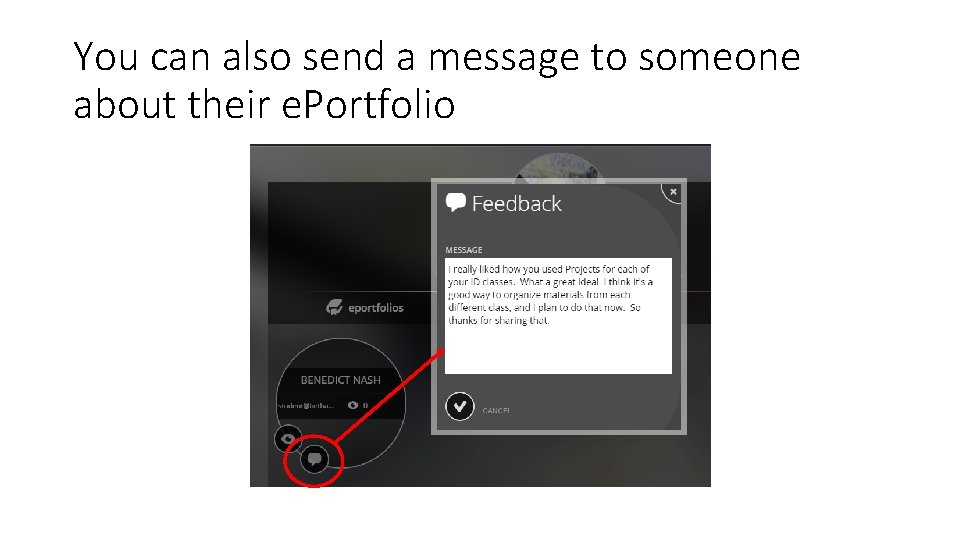
You can also send a message to someone about their e. Portfolio
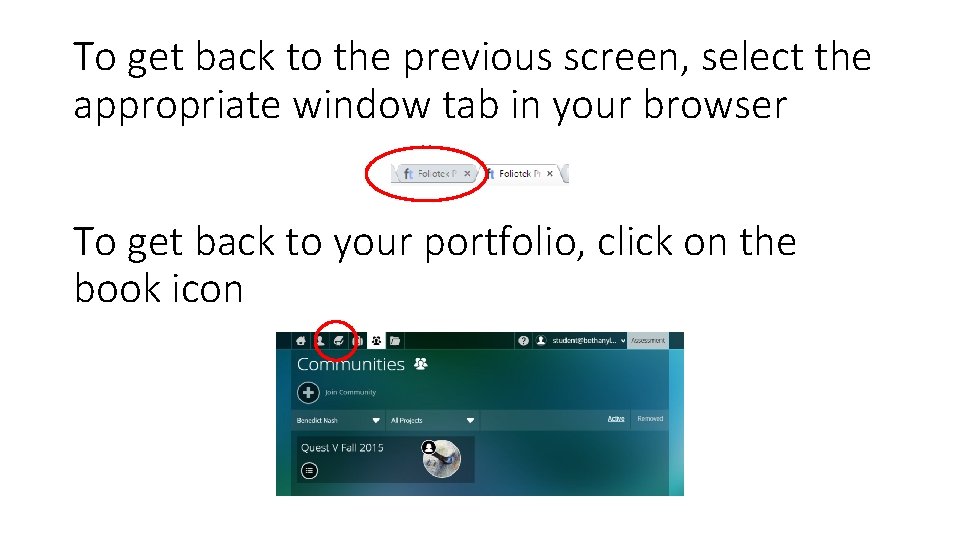
To get back to the previous screen, select the appropriate window tab in your browser To get back to your portfolio, click on the book icon
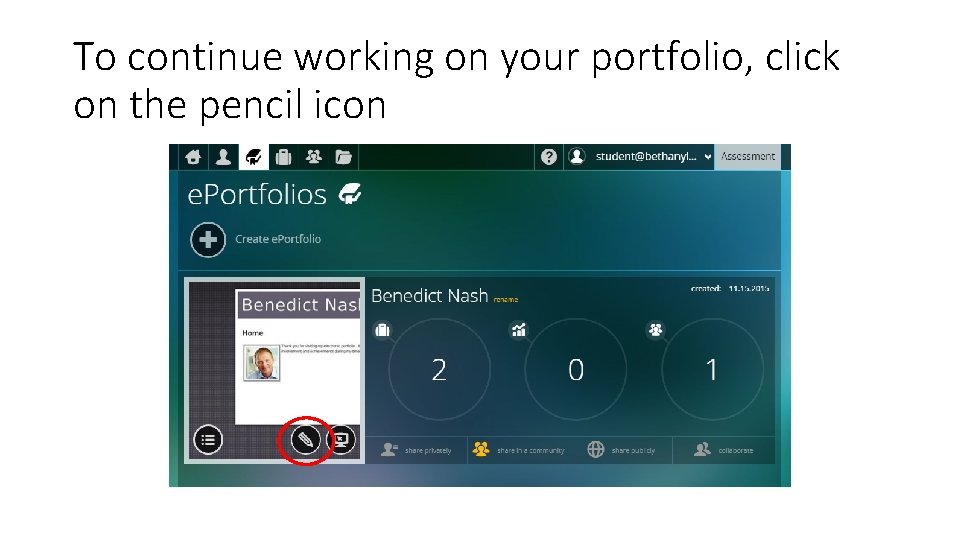
To continue working on your portfolio, click on the pencil icon
Any time you make changes to your e. Portfolio, click to save, and also be sure to ‘publish changes’ If you do not publish changes, your changes will not be visible by anyone in the community (or anyone you share your portfolio with)