
How to Create a Voice Thread Presentation C
- Slides: 26
How to Create a Voice. Thread Presentation C. Babson 1/2011
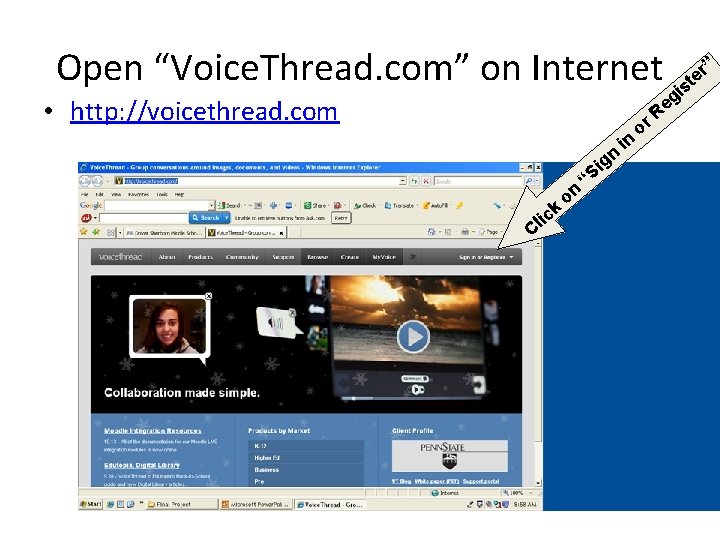
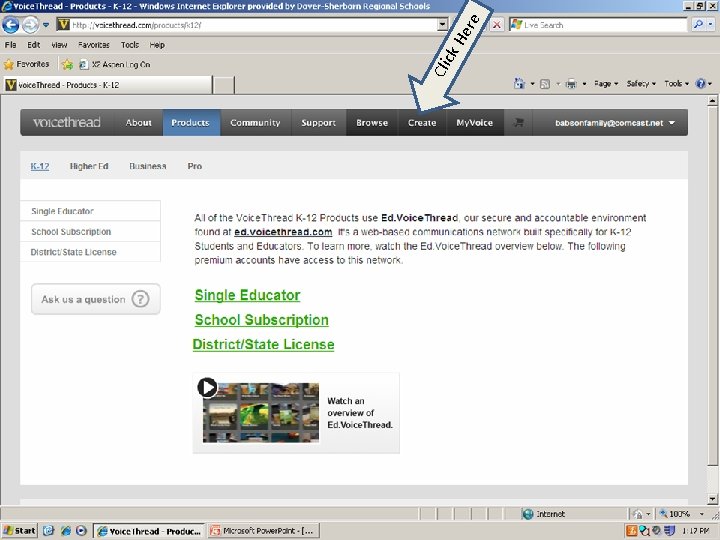
Open “Voice. Thread. com” on Internet • http: //voicethread. com n C k il c on “ g Si in g e r. R o ” er t is
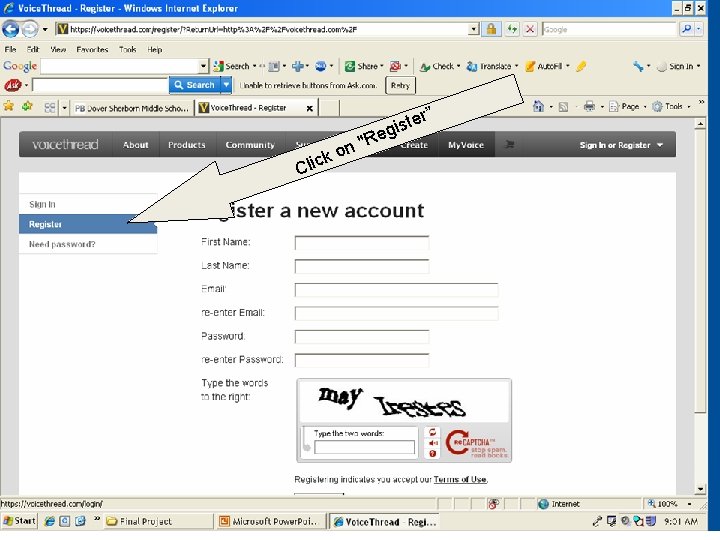
e r” e t s gi k Clic "R on
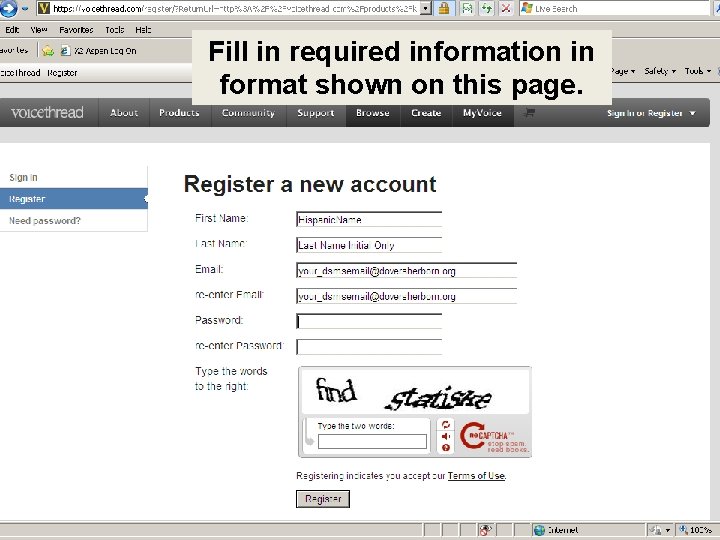
Fill in required information in format shown on this page.
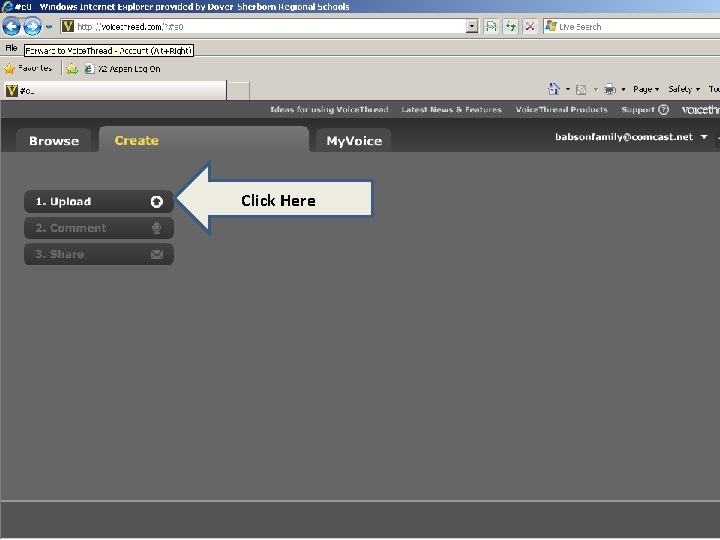
Cli ck He re
Click Here
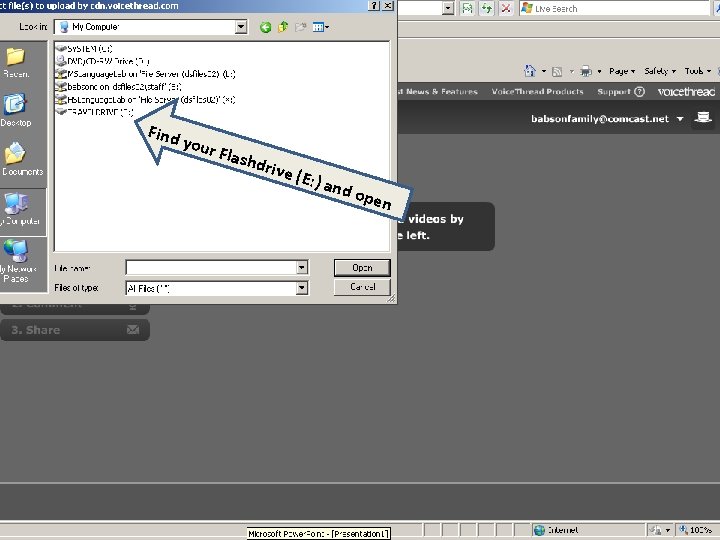
Find your Flash d Insert rive Fla (E: ) a. Click Here e and nd open v i r d sh
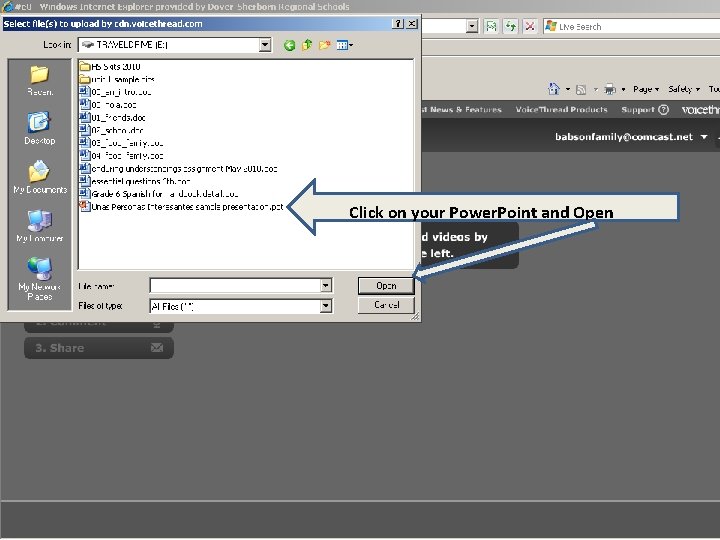
Click on your Power. Point and Open
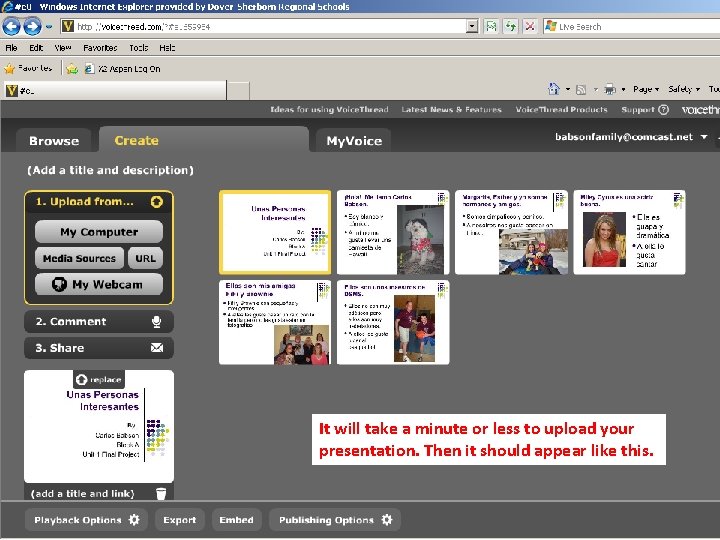
It will take a minute or less to upload your presentation. Then it should appear like this.
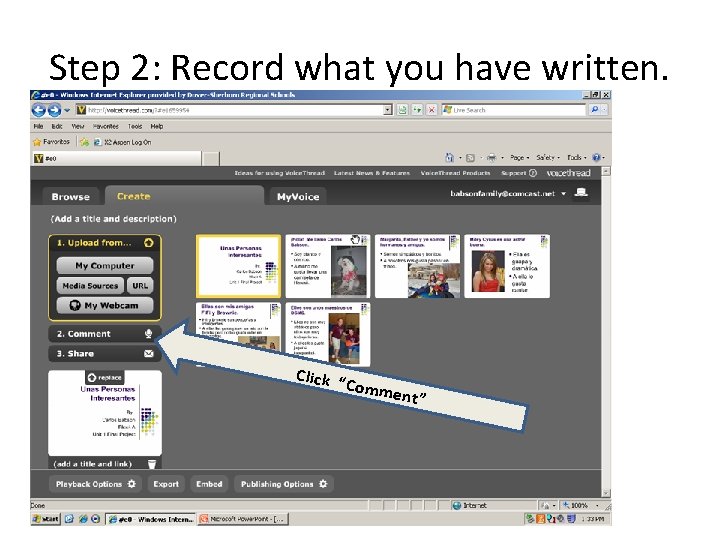
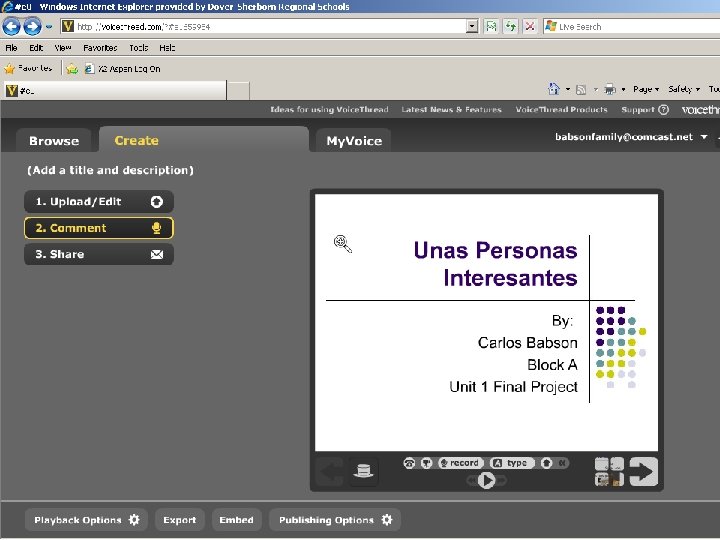
Step 2: Record what you have written. Click “ Comm ent”
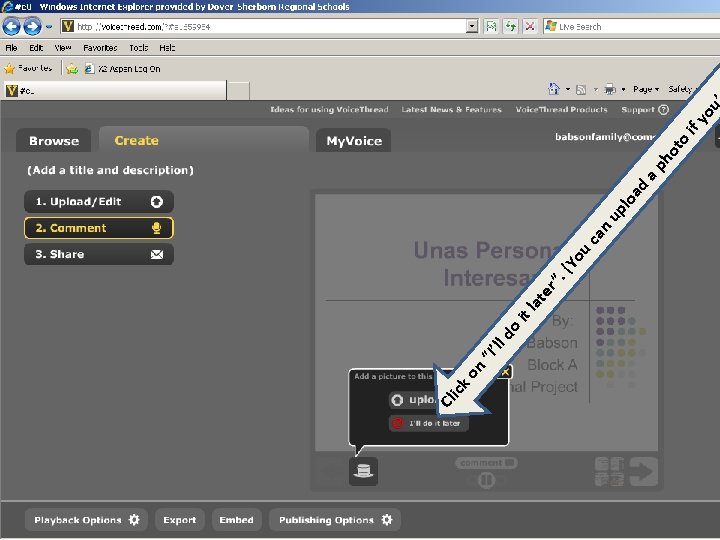
Cl ick on ll d “I’ o it . ( er ” lat u Yo ca n up ad lo ho ap to if yo u
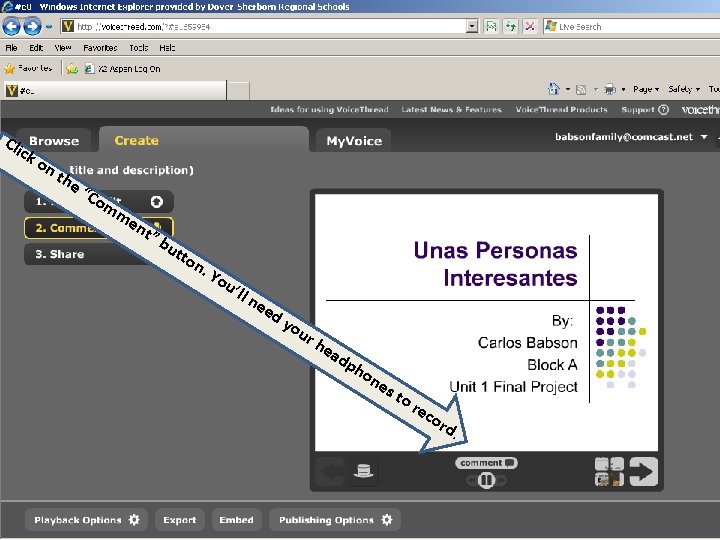
Cli ck on the “C o mm e nt” bu tto n. Y ou ’ll n ee d yo ur he ad ph on e st or ec ord .
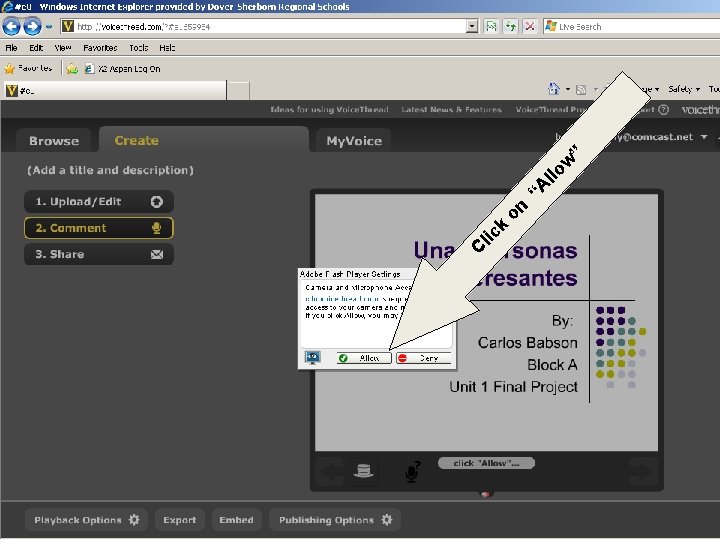
” ow k C lic on ll A “
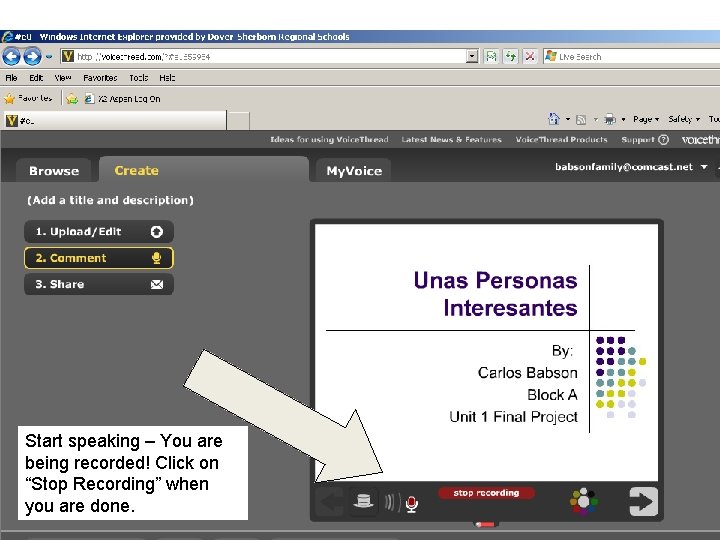
Start speaking – You are being recorded! Click on “Stop Recording” when you are done.
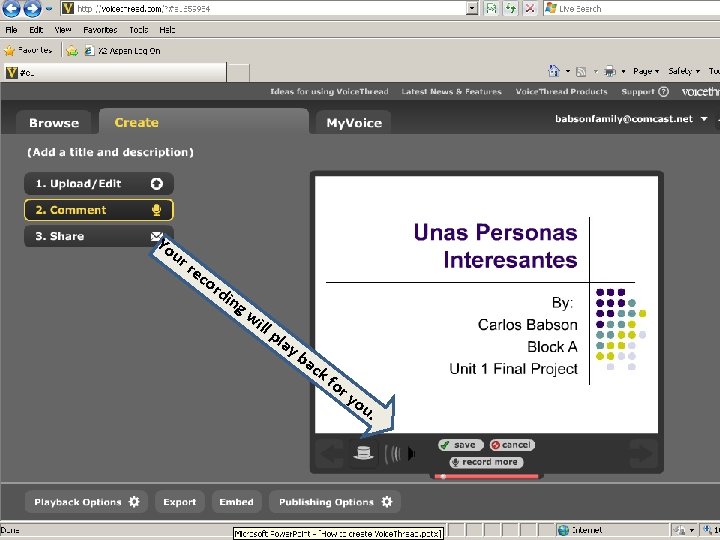
Yo ur r ec o rd ing wi ll p lay ba ck fo ry ou .
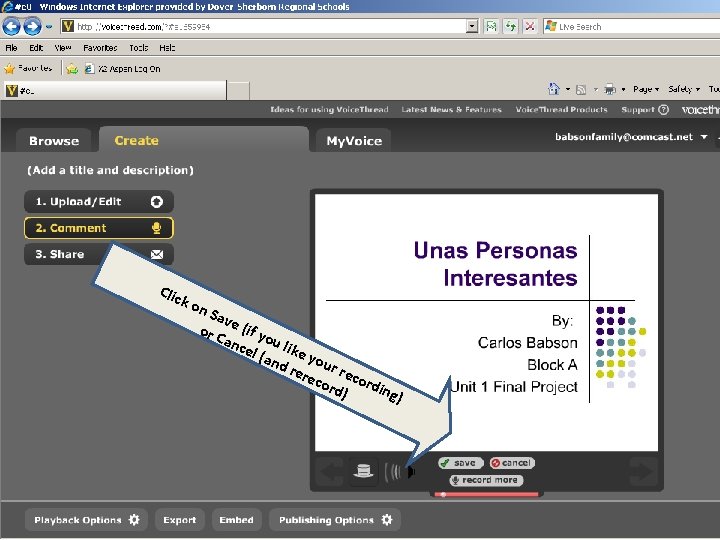
Clic ko n. S av or C e (if yo anc u el ( like y and o rere ur rec o cor d) rding)
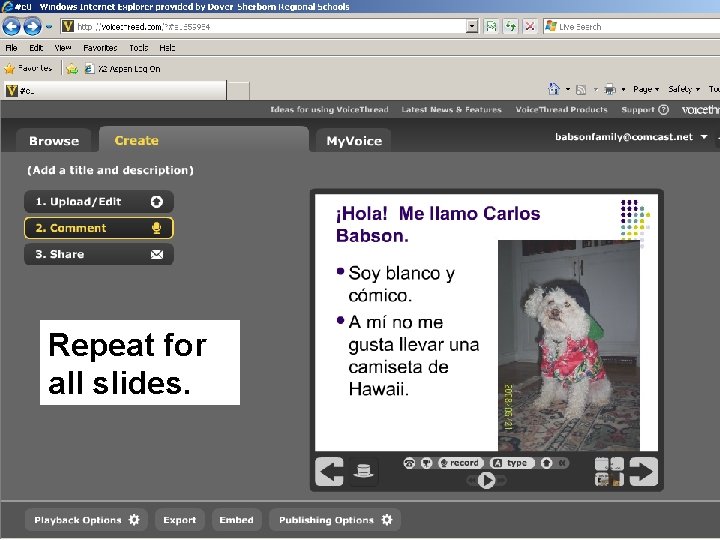
Repeat for all slides.
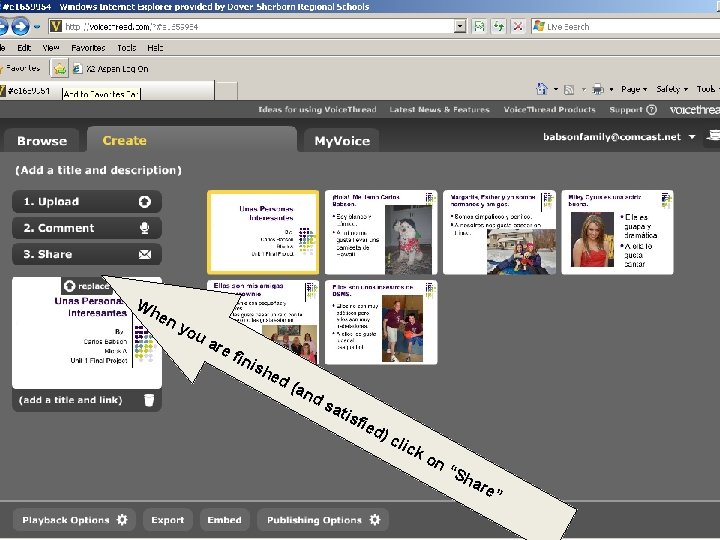
Wh en yo ua re fin ish ed (an ds ati sfi ed )c lic ko n“ Sh are ”
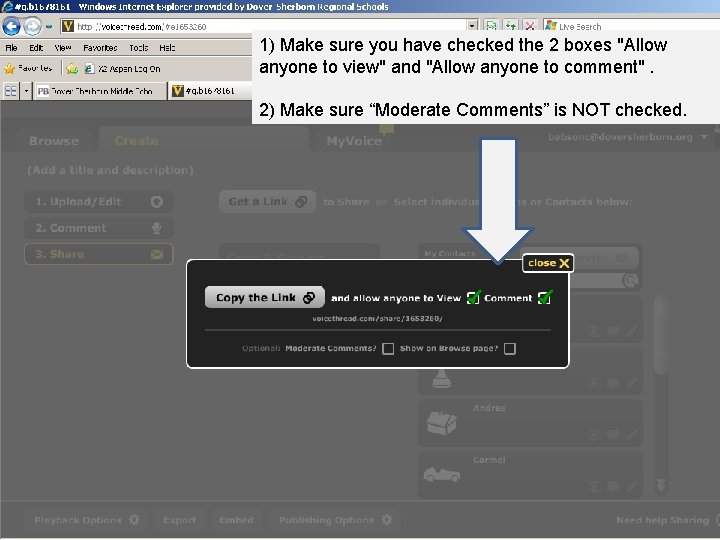
1) Make sure you have checked the 2 boxes "Allow anyone to view" and "Allow anyone to comment". 2) Make sure “Moderate Comments” is NOT checked.
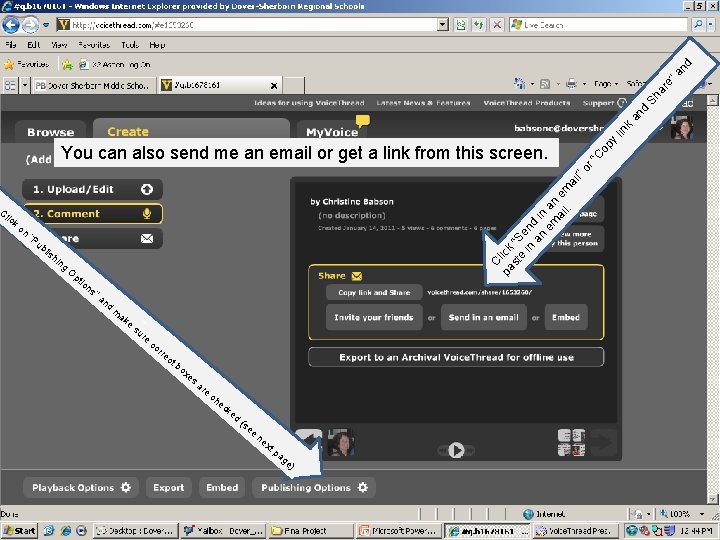
d an Sh ar e” d an k lin op y C pa lick st “S e in end an in em an ai em l. a il” or “ C You can also send me an email or get a link from this screen. Cl on “P ub lis hi n g O pt io ns ”a nd m ak e su S ick re co rre ct bo xe s ar e ch ec ke d (s e e ne x tp ag e )
How to Change Publishing Options: 1) Click on "My Voice" 2) Click on the presentation 3) Click on the "Menu" 4) Click on "Edit" 5) Click on "Publishing Options" at the bottom of the page. 6) Make sure you have checked the 2 boxes "Allow anyone to view" and "Allow anyone to comment". 7) Make sure “Moderate Comments” is NOT checked 8) Click on "Save". 9) Click “Send in an email” or “Copy link and Share” and paste in an email. 10) Send to babsonc@doversherborn. org and yourself.
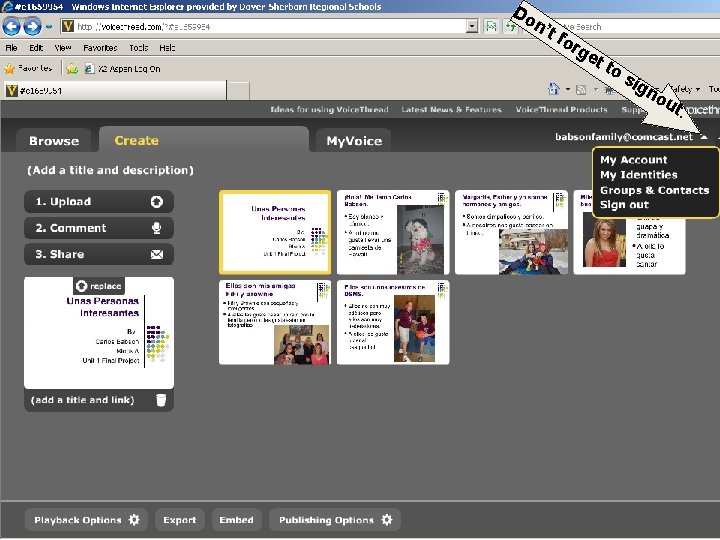
Do n’t f or g et to sig no ut.
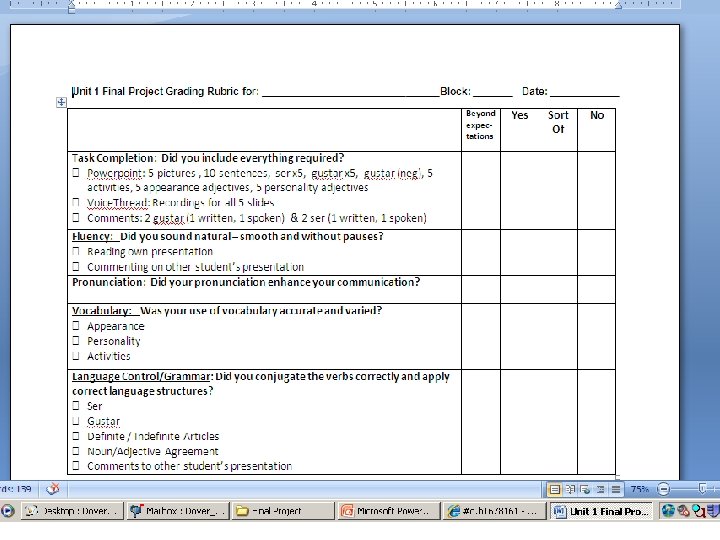
Did it work? ? ? !!!! 1. Open your email. 2. Click on the link to insure you don’t have to log in to see it. (If you can’t, recheck previous slide “Publishing Options”) 3. Run your presentation and proof your work. Make sure you’ve included everything by checking it with the grading rubric. (Next slide)
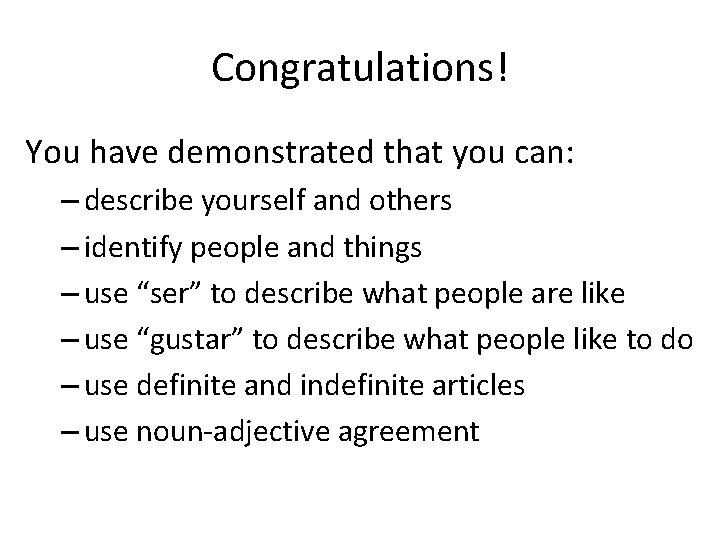
Congratulations! You have demonstrated that you can: – describe yourself and others – identify people and things – use “ser” to describe what people are like – use “gustar” to describe what people like to do – use definite and indefinite articles – use noun-adjective agreement