
How to Create a Custom Requisition Form Effectively
- Slides: 32
How to Create a Custom Requisition Form Effectively utilize the “Custom Req” feature BCM-MEDICAL GENETICS LABORATORIES www. bcmgeneticlabs. org
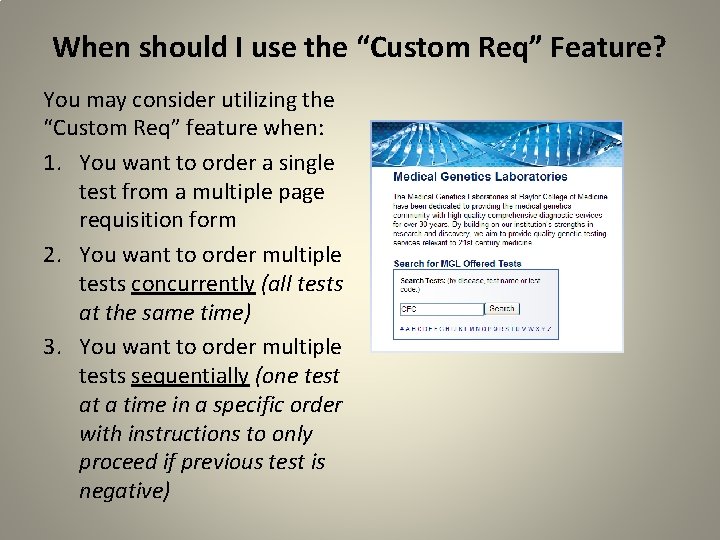
When should I use the “Custom Req” Feature? You may consider utilizing the “Custom Req” feature when: 1. You want to order a single test from a multiple page requisition form 2. You want to order multiple tests concurrently (all tests at the same time) 3. You want to order multiple tests sequentially (one test at a time in a specific order with instructions to only proceed if previous test is negative)
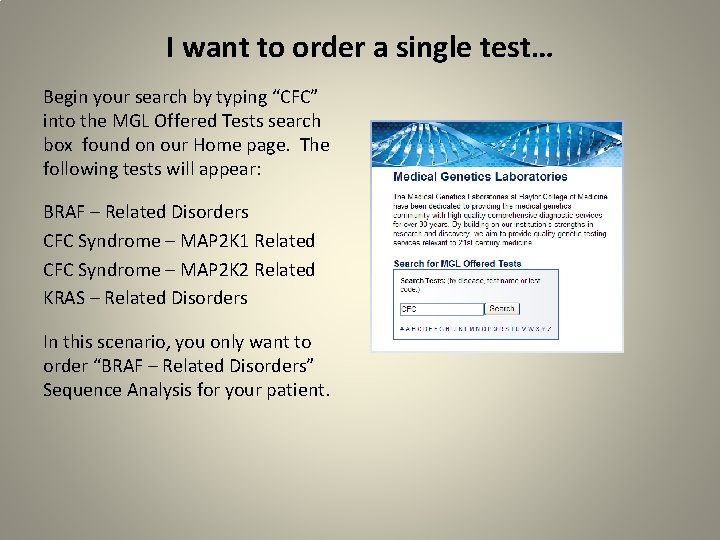
I want to order a single test… Begin your search by typing “CFC” into the MGL Offered Tests search box found on our Home page. The following tests will appear: BRAF – Related Disorders CFC Syndrome – MAP 2 K 1 Related CFC Syndrome – MAP 2 K 2 Related KRAS – Related Disorders In this scenario, you only want to order “BRAF – Related Disorders” Sequence Analysis for your patient.
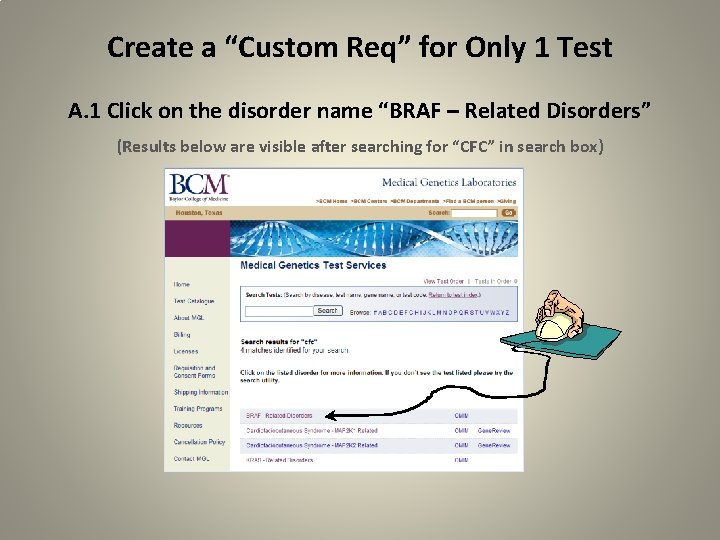
Create a “Custom Req” for Only 1 Test A. 1 Click on the disorder name “BRAF – Related Disorders” (Results below are visible after searching for “CFC” in search box)
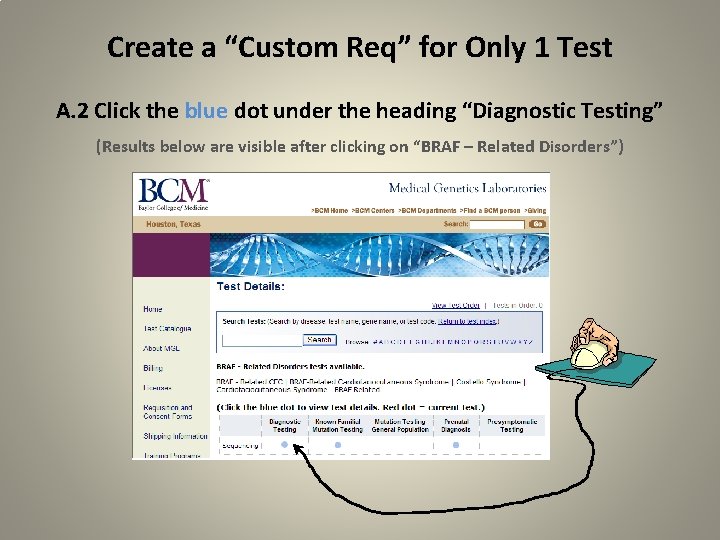
Create a “Custom Req” for Only 1 Test A. 2 Click the blue dot under the heading “Diagnostic Testing” (Results below are visible after clicking on “BRAF – Related Disorders”)
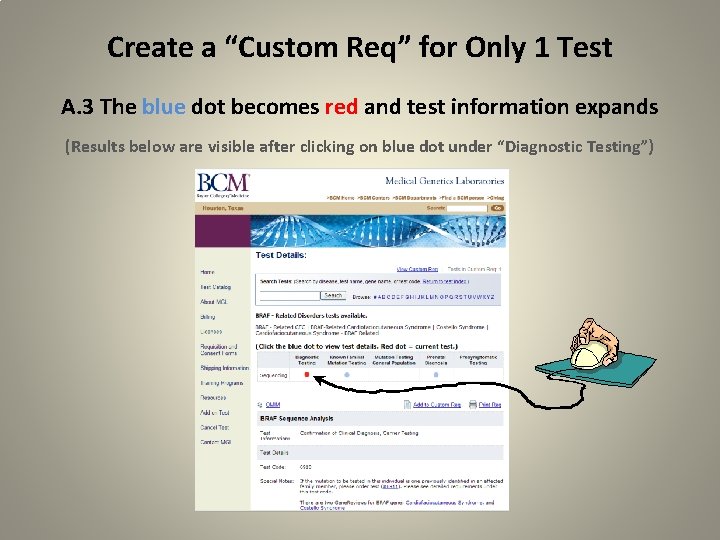
Create a “Custom Req” for Only 1 Test A. 3 The blue dot becomes red and test information expands (Results below are visible after clicking on blue dot under “Diagnostic Testing”)
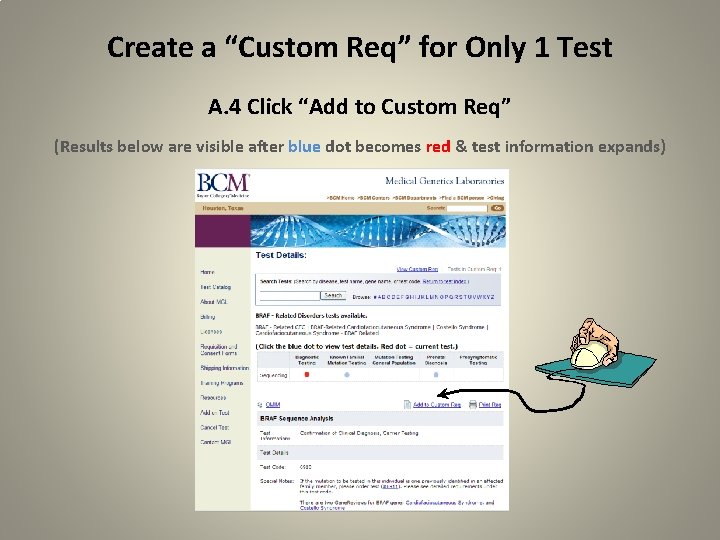
Create a “Custom Req” for Only 1 Test A. 4 Click “Add to Custom Req” (Results below are visible after blue dot becomes red & test information expands)
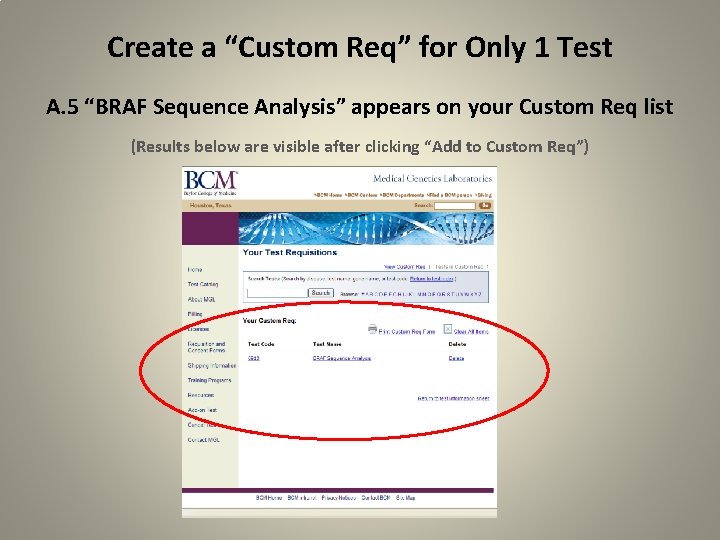
Create a “Custom Req” for Only 1 Test A. 5 “BRAF Sequence Analysis” appears on your Custom Req list (Results below are visible after clicking “Add to Custom Req”)
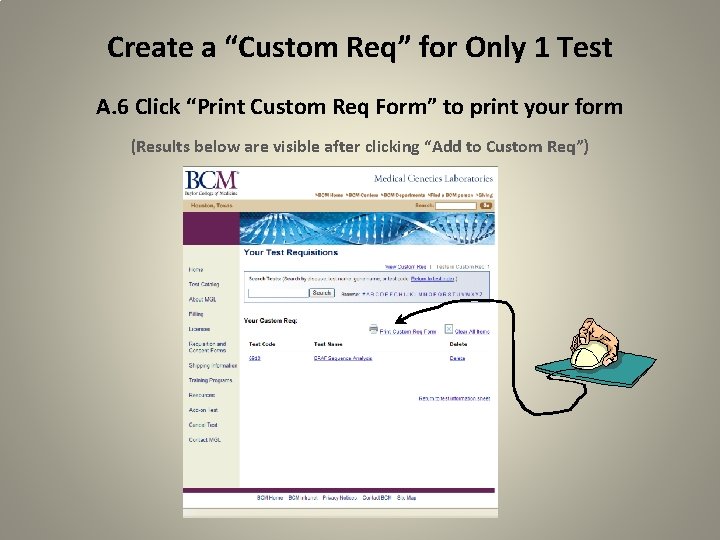
Create a “Custom Req” for Only 1 Test A. 6 Click “Print Custom Req Form” to print your form (Results below are visible after clicking “Add to Custom Req”)
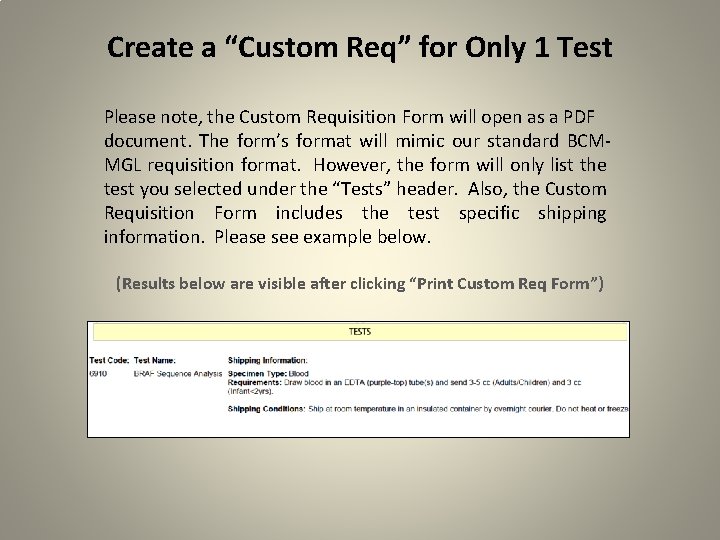
Create a “Custom Req” for Only 1 Test Please note, the Custom Requisition Form will open as a PDF document. The form’s format will mimic our standard BCMMGL requisition format. However, the form will only list the test you selected under the “Tests” header. Also, the Custom Requisition Form includes the test specific shipping information. Please see example below. (Results below are visible after clicking “Print Custom Req Form”)
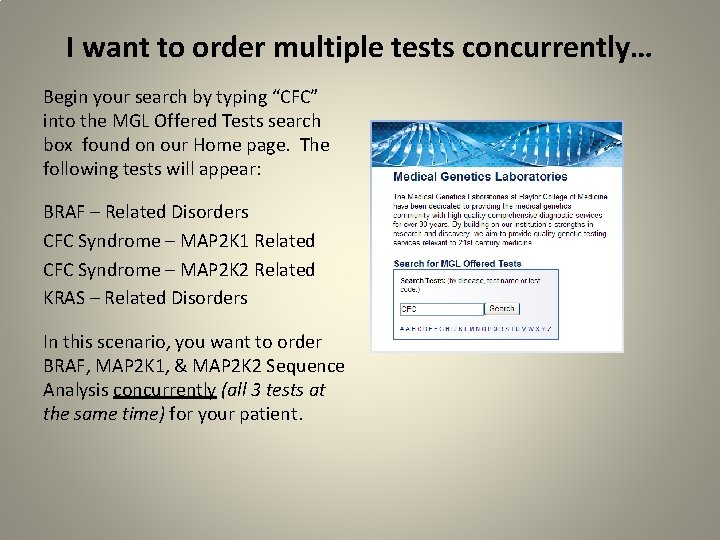
I want to order multiple tests concurrently… Begin your search by typing “CFC” into the MGL Offered Tests search box found on our Home page. The following tests will appear: BRAF – Related Disorders CFC Syndrome – MAP 2 K 1 Related CFC Syndrome – MAP 2 K 2 Related KRAS – Related Disorders In this scenario, you want to order BRAF, MAP 2 K 1, & MAP 2 K 2 Sequence Analysis concurrently (all 3 tests at the same time) for your patient.
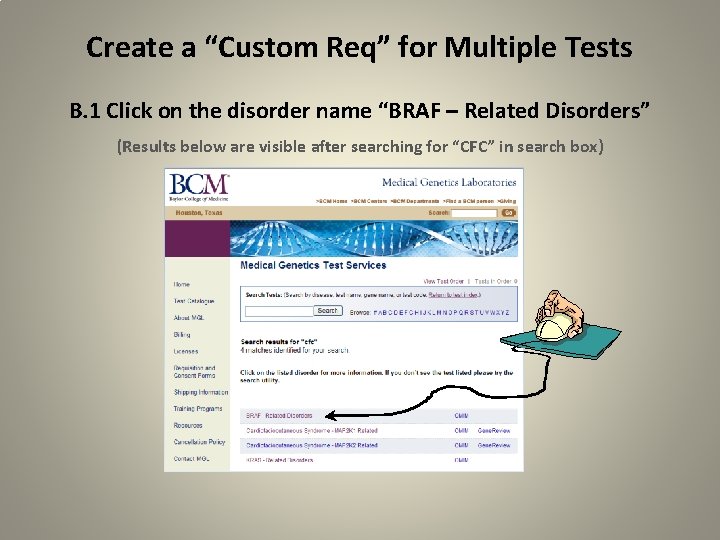
Create a “Custom Req” for Multiple Tests B. 1 Click on the disorder name “BRAF – Related Disorders” (Results below are visible after searching for “CFC” in search box)
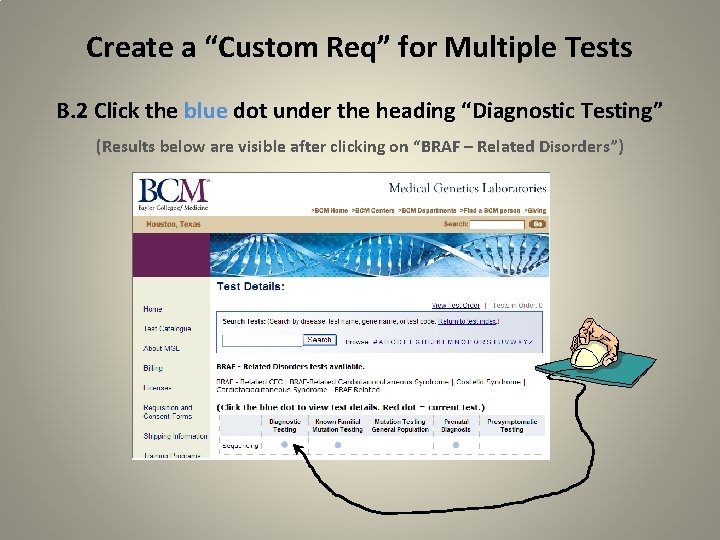
Create a “Custom Req” for Multiple Tests B. 2 Click the blue dot under the heading “Diagnostic Testing” (Results below are visible after clicking on “BRAF – Related Disorders”)
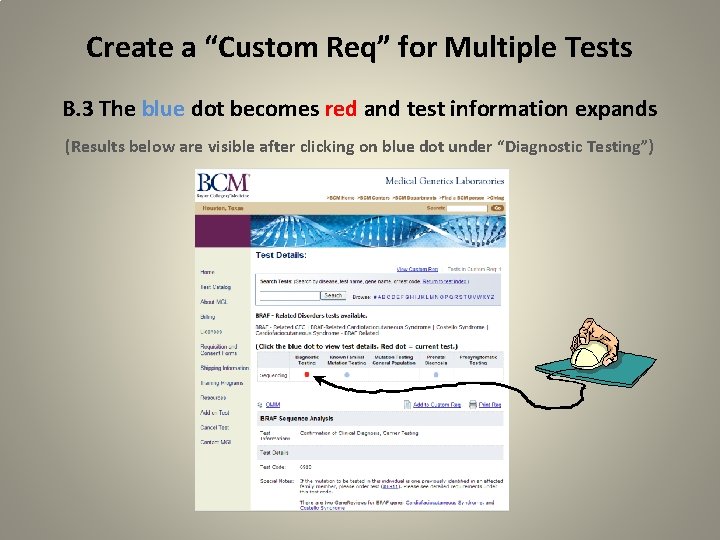
Create a “Custom Req” for Multiple Tests B. 3 The blue dot becomes red and test information expands (Results below are visible after clicking on blue dot under “Diagnostic Testing”)
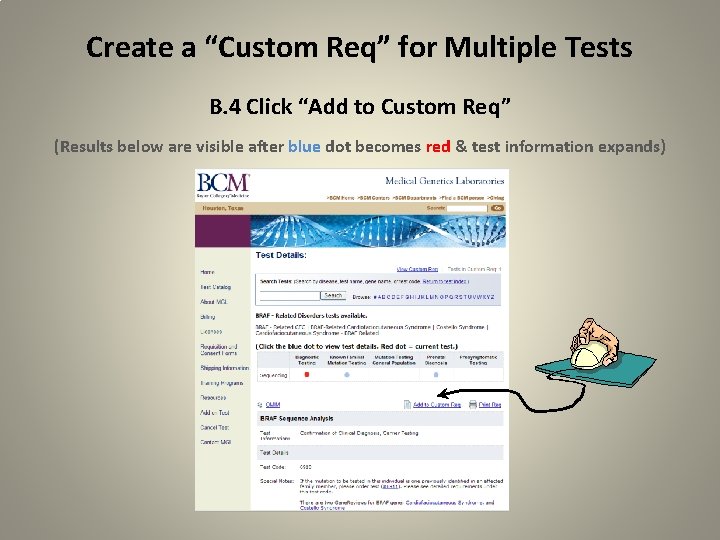
Create a “Custom Req” for Multiple Tests B. 4 Click “Add to Custom Req” (Results below are visible after blue dot becomes red & test information expands)
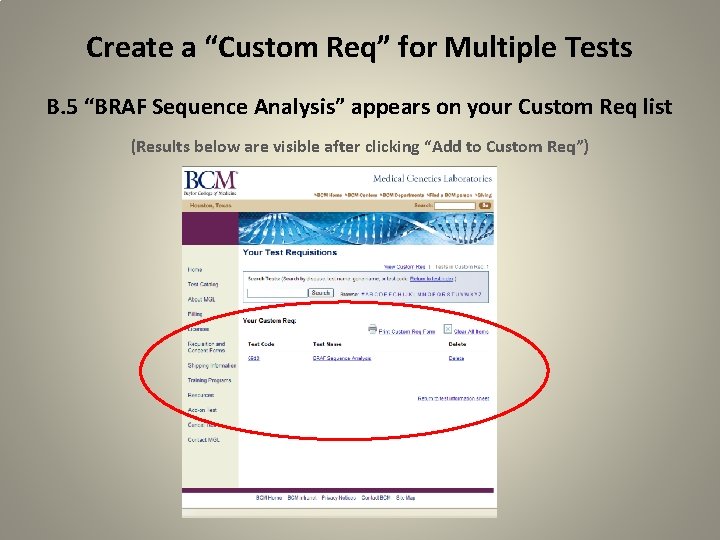
Create a “Custom Req” for Multiple Tests B. 5 “BRAF Sequence Analysis” appears on your Custom Req list (Results below are visible after clicking “Add to Custom Req”)
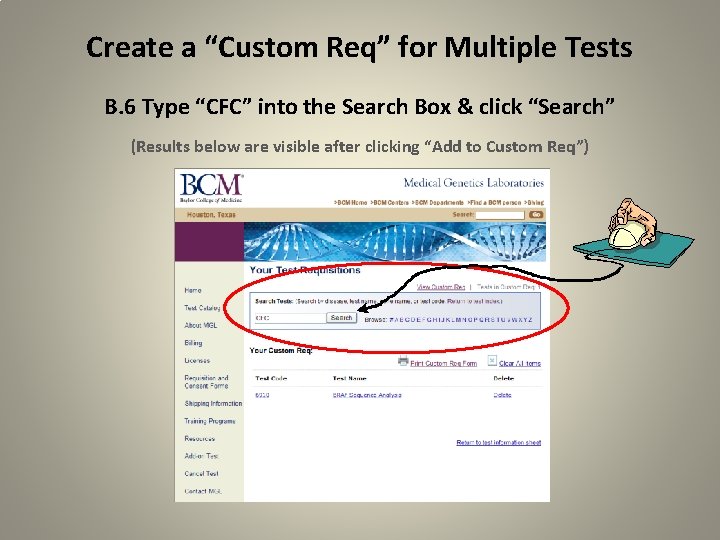
Create a “Custom Req” for Multiple Tests B. 6 Type “CFC” into the Search Box & click “Search” (Results below are visible after clicking “Add to Custom Req”)
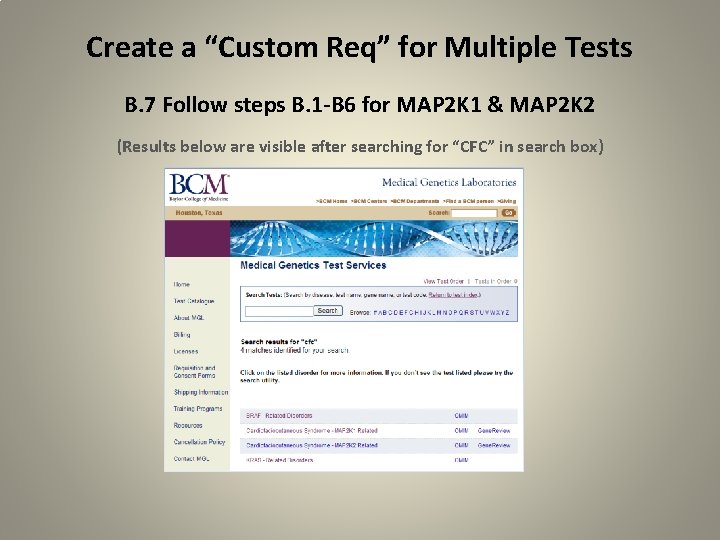
Create a “Custom Req” for Multiple Tests B. 7 Follow steps B. 1 -B 6 for MAP 2 K 1 & MAP 2 K 2 (Results below are visible after searching for “CFC” in search box)
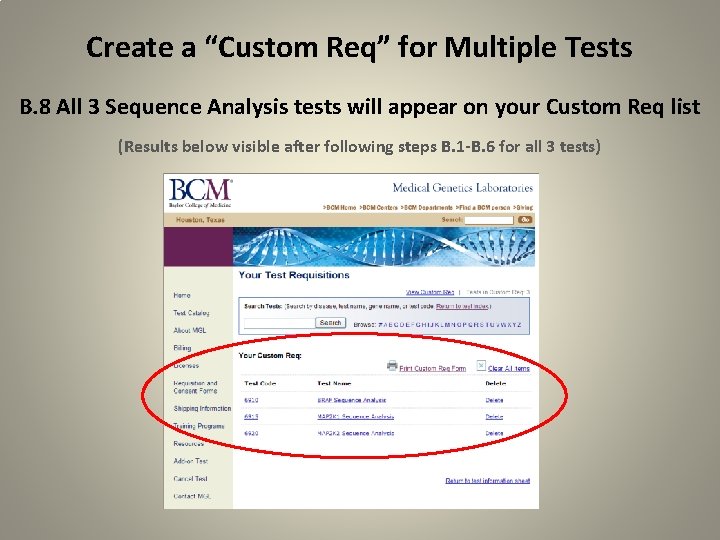
Create a “Custom Req” for Multiple Tests B. 8 All 3 Sequence Analysis tests will appear on your Custom Req list (Results below visible after following steps B. 1 -B. 6 for all 3 tests)
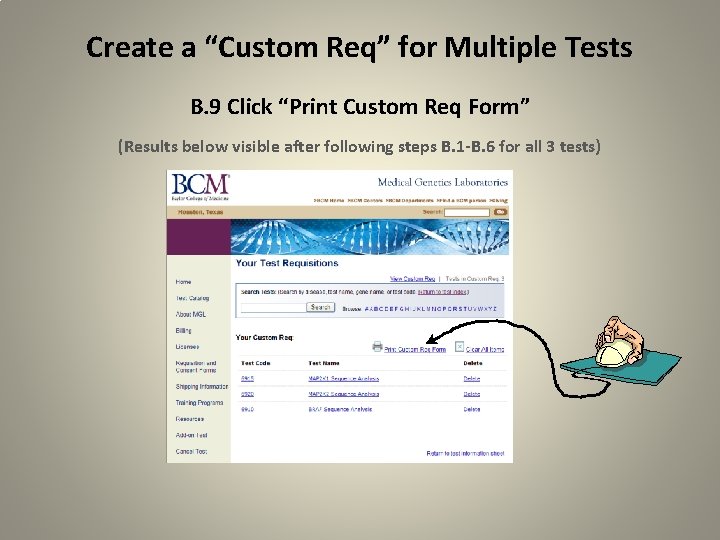
Create a “Custom Req” for Multiple Tests B. 9 Click “Print Custom Req Form” (Results below visible after following steps B. 1 -B. 6 for all 3 tests)
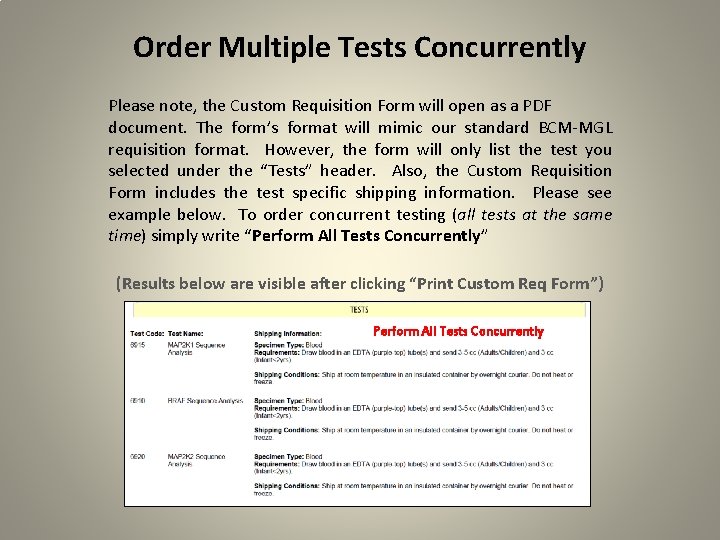
Order Multiple Tests Concurrently Please note, the Custom Requisition Form will open as a PDF document. The form’s format will mimic our standard BCM-MGL requisition format. However, the form will only list the test you selected under the “Tests” header. Also, the Custom Requisition Form includes the test specific shipping information. Please see example below. To order concurrent testing (all tests at the same time) simply write “Perform All Tests Concurrently” (Results below are visible after clicking “Print Custom Req Form”) Perform All Tests Concurrently
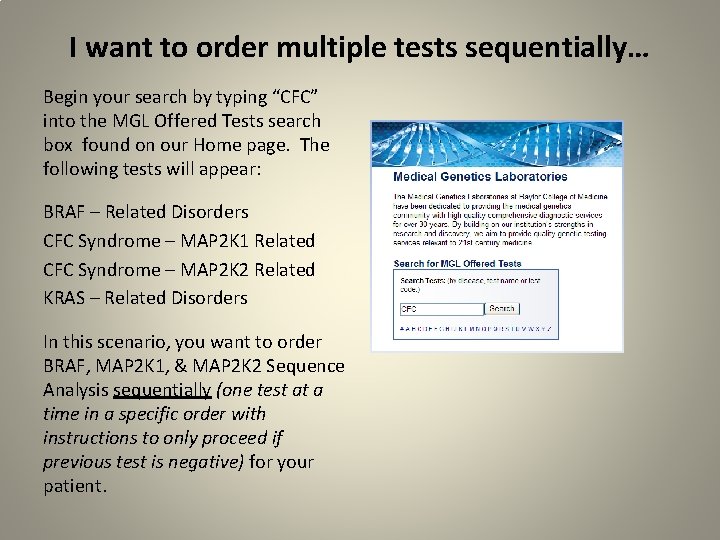
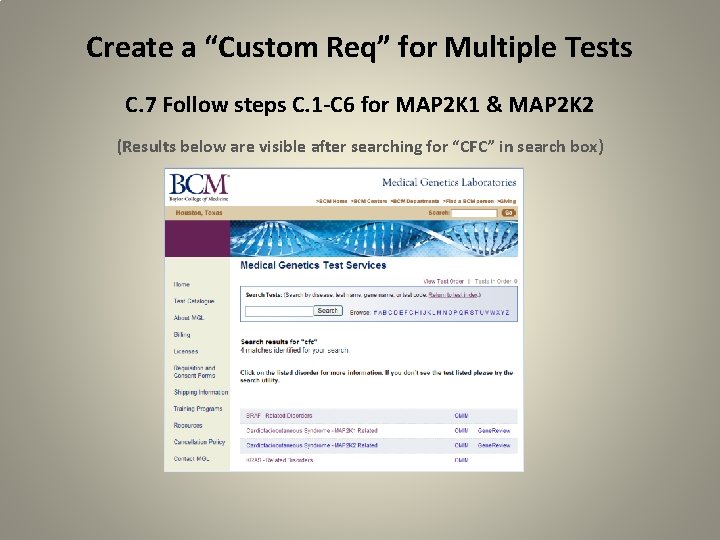
I want to order multiple tests sequentially… Begin your search by typing “CFC” into the MGL Offered Tests search box found on our Home page. The following tests will appear: BRAF – Related Disorders CFC Syndrome – MAP 2 K 1 Related CFC Syndrome – MAP 2 K 2 Related KRAS – Related Disorders In this scenario, you want to order BRAF, MAP 2 K 1, & MAP 2 K 2 Sequence Analysis sequentially (one test at a time in a specific order with instructions to only proceed if previous test is negative) for your patient.
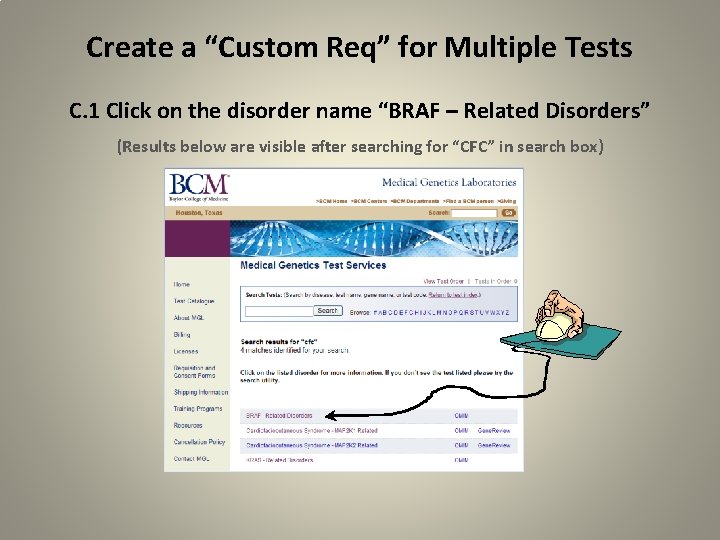
Create a “Custom Req” for Multiple Tests C. 1 Click on the disorder name “BRAF – Related Disorders” (Results below are visible after searching for “CFC” in search box)
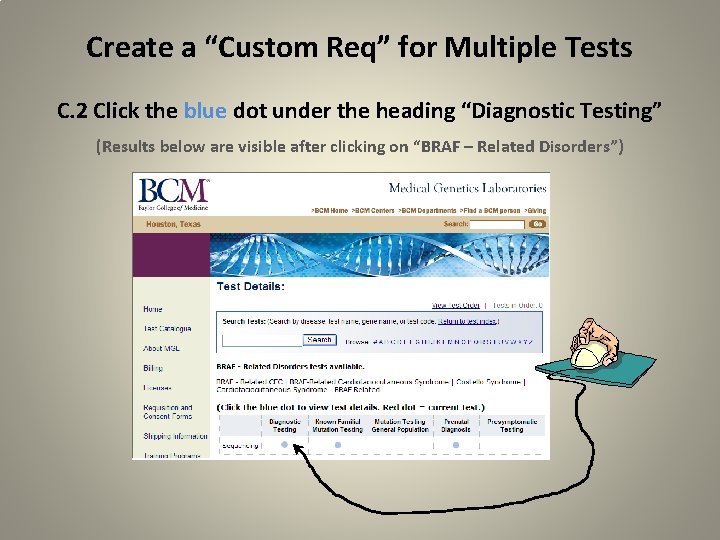
Create a “Custom Req” for Multiple Tests C. 2 Click the blue dot under the heading “Diagnostic Testing” (Results below are visible after clicking on “BRAF – Related Disorders”)
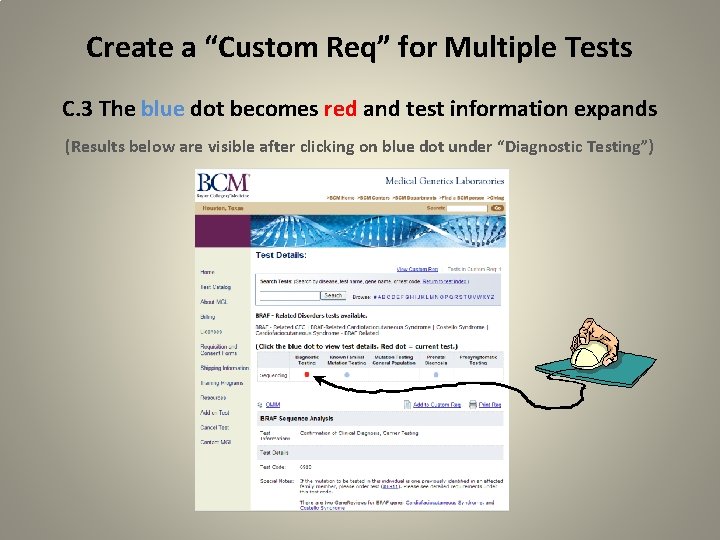
Create a “Custom Req” for Multiple Tests C. 3 The blue dot becomes red and test information expands (Results below are visible after clicking on blue dot under “Diagnostic Testing”)
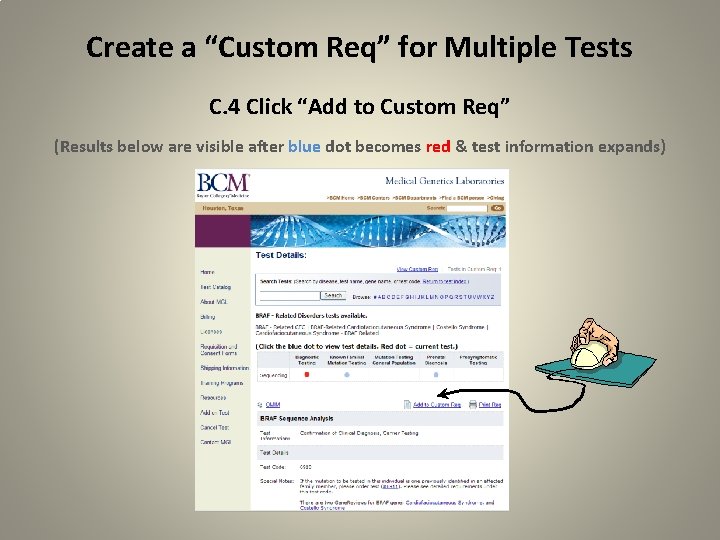
Create a “Custom Req” for Multiple Tests C. 4 Click “Add to Custom Req” (Results below are visible after blue dot becomes red & test information expands)
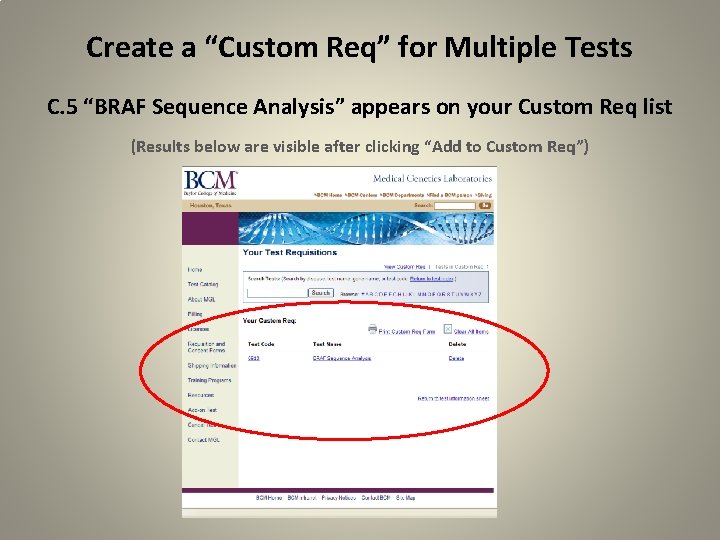
Create a “Custom Req” for Multiple Tests C. 5 “BRAF Sequence Analysis” appears on your Custom Req list (Results below are visible after clicking “Add to Custom Req”)
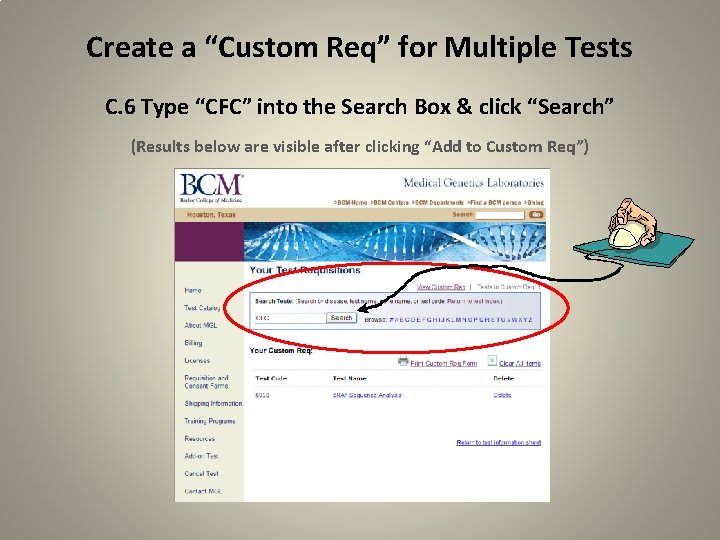
Create a “Custom Req” for Multiple Tests C. 6 Type “CFC” into the Search Box & click “Search” (Results below are visible after clicking “Add to Custom Req”)
Create a “Custom Req” for Multiple Tests C. 7 Follow steps C. 1 -C 6 for MAP 2 K 1 & MAP 2 K 2 (Results below are visible after searching for “CFC” in search box)
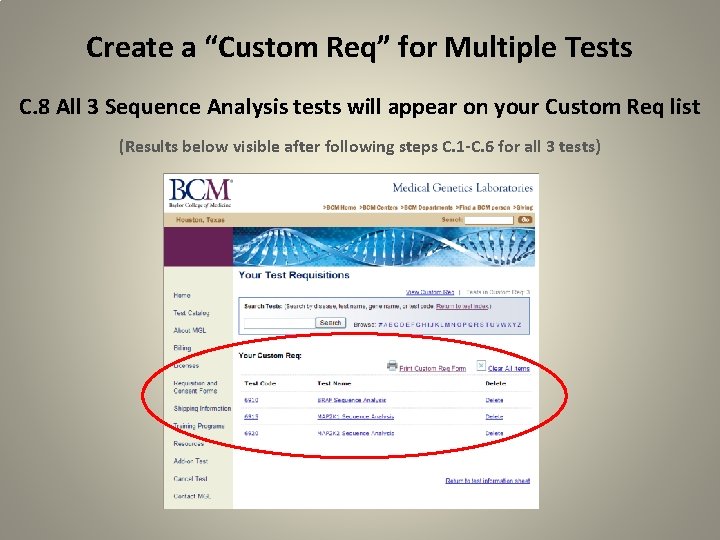
Create a “Custom Req” for Multiple Tests C. 8 All 3 Sequence Analysis tests will appear on your Custom Req list (Results below visible after following steps C. 1 -C. 6 for all 3 tests)
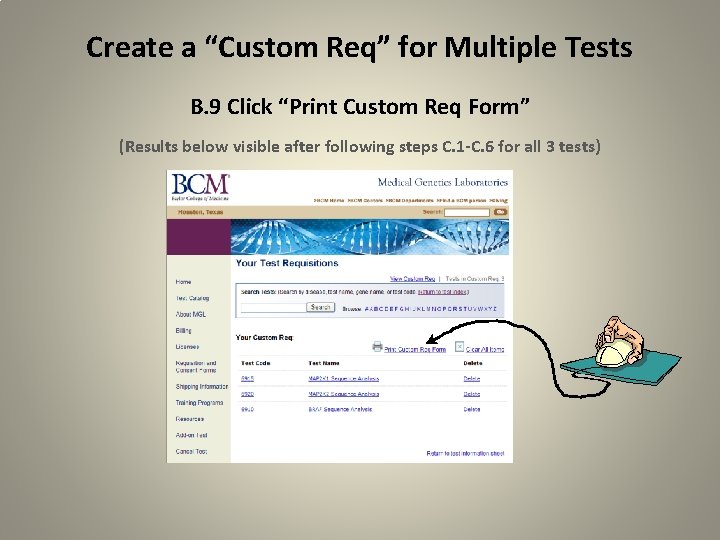
Create a “Custom Req” for Multiple Tests B. 9 Click “Print Custom Req Form” (Results below visible after following steps C. 1 -C. 6 for all 3 tests)
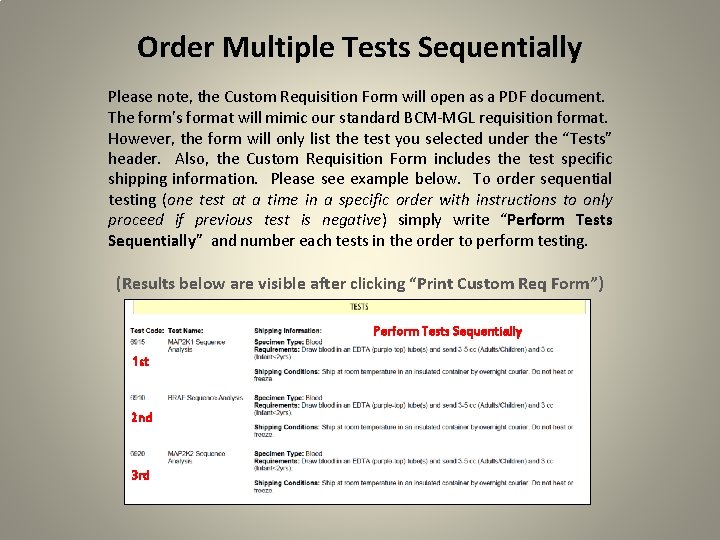
Order Multiple Tests Sequentially Please note, the Custom Requisition Form will open as a PDF document. The form’s format will mimic our standard BCM-MGL requisition format. However, the form will only list the test you selected under the “Tests” header. Also, the Custom Requisition Form includes the test specific shipping information. Please see example below. To order sequential testing (one test at a time in a specific order with instructions to only proceed if previous test is negative) simply write “Perform Tests Sequentially” and number each tests in the order to perform testing. (Results below are visible after clicking “Print Custom Req Form”) Perform Tests Sequentially 1 st 2 nd 3 rd