
How to complete and submit a Final Report
How to complete and submit a Final Report through Mobility Tool+ Technical guidelines Authentication, Completion and Submission 2017 Antonia Gogaki IT Officer 1
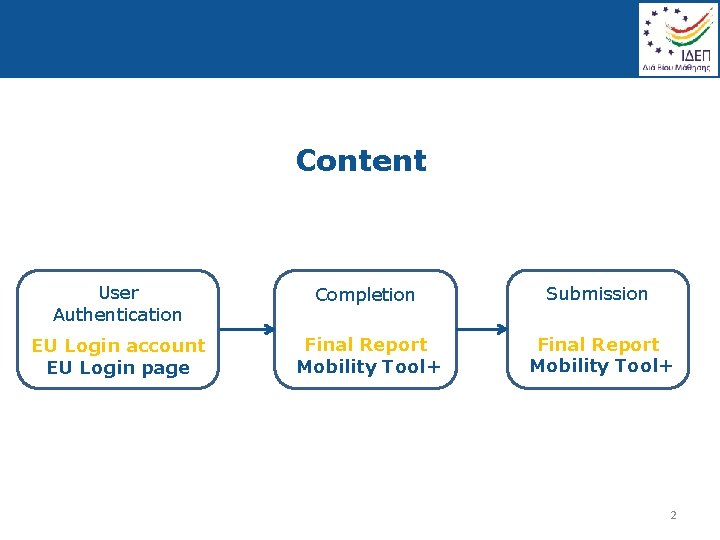
Content User Authentication Completion Submission EU Login account EU Login page Final Report Mobility Tool+ 2
What is Mobility Tool+ • Mobility Tool+ (MT+) is an online System that allows Erasmus+ Beneficiary Organisations to: – access and manage their project's information such as activities and budget – submit final reports to their National Agencies • National Agencies also use Mobility Tool+ to monitor and validate the projects information entered 3
MT+ for KA 1 • MT+ provides all needed functionality to manage a KA 1 project: – Encode activity types of participants, known as mobilities – Mobilities represent the sending of a particular individual from an origin country to a destination country – Depending on the activity type concerned each participant in an Erasmus+ mobility is entitled to receive funds for travel, individual support, special needs, exceptional costs, etc. – Mobility tool allows Beneficiary Organisations to manage all this information in a coherent and meaningful manner. 4
MT+ for KA 2 • MT+ provides all needed functionality to manage a KA 2 project allocation of funds for : – project management and implementation – transnational project meetings – intellectual outputs – multiplier events – learning, teaching and training activities – exceptional costs – special needs support 5
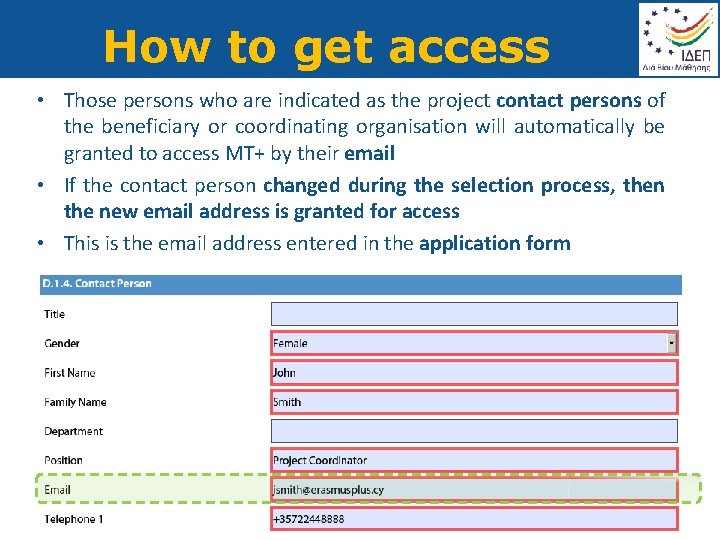
How to get access • Those persons who are indicated as the project contact persons of the beneficiary or coordinating organisation will automatically be granted to access MT+ by their email • If the contact person changed during the selection process, then the new email address is granted for access • This is the email address entered in the application form 6
How to get access • Contact persons will be able to create new contacts who will have access to view or edit the project details in MT+ 7
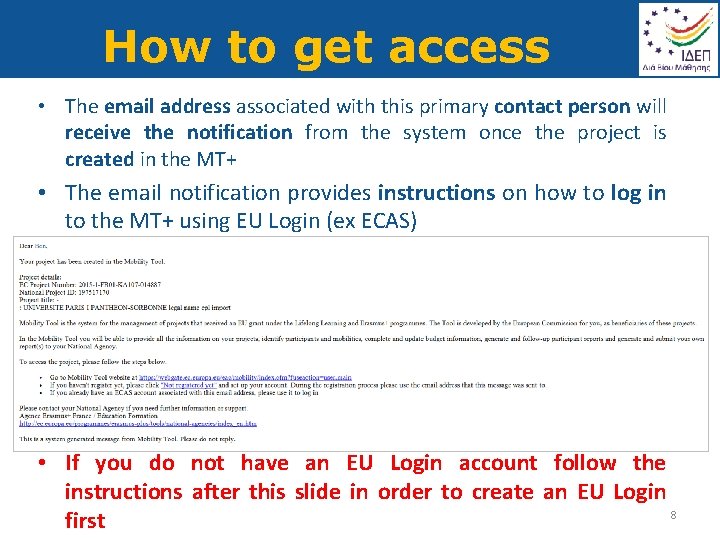
How to get access • The email address associated with this primary contact person will receive the notification from the system once the project is created in the MT+ • The email notification provides instructions on how to log in to the MT+ using EU Login (ex ECAS) • If you do not have an EU Login account follow the instructions after this slide in order to create an EU Login 8 first
User Authentication Completion Submission EU Login account EU Login page Final Report Mobility Tool+ EU LOGIN ACCOUNT 9
How to create an EU Login account • Visit page: https: //webgate. ec. europa. eu/cas/eim/external/register. cgi • Follow the instructions as per next slides 10
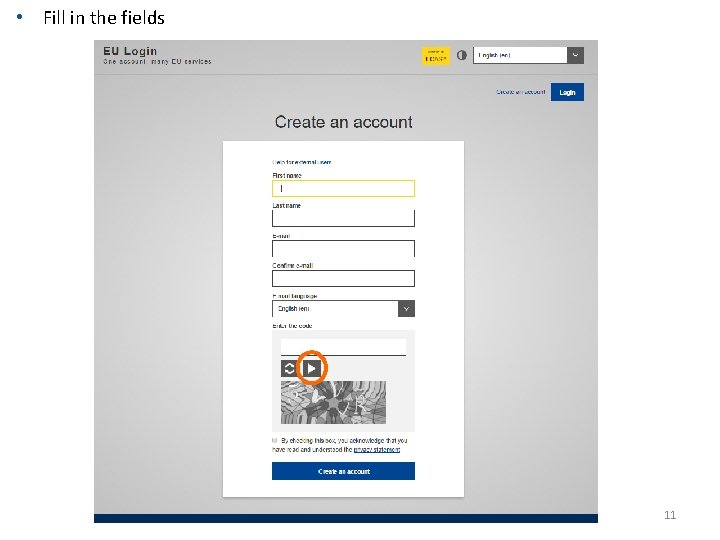
• Fill in the fields 11
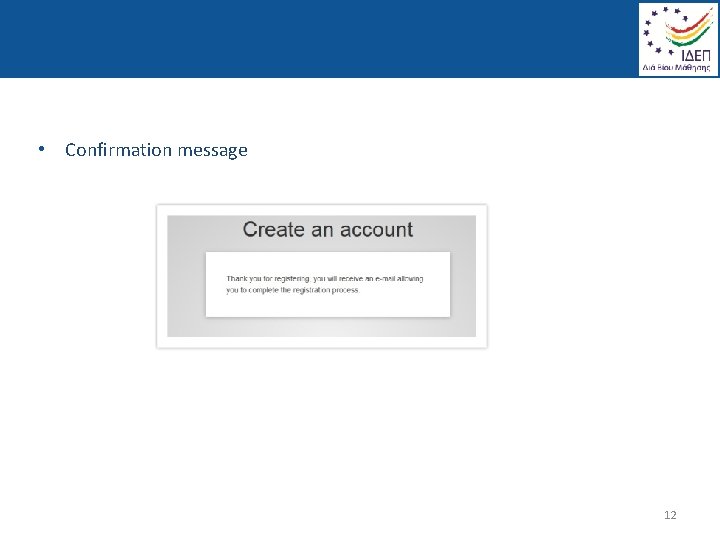
• Confirmation message 12
• An e-mail is sent to you • Click the link in your e-mail for creating your password • You have a maximum of 24 h from the time you receive this email to create your password, but you are encouraged to do so immediately, if possible. • After this time, you can make another request by following the same link: you will then need to re-enter your user name and confirm your request. 13
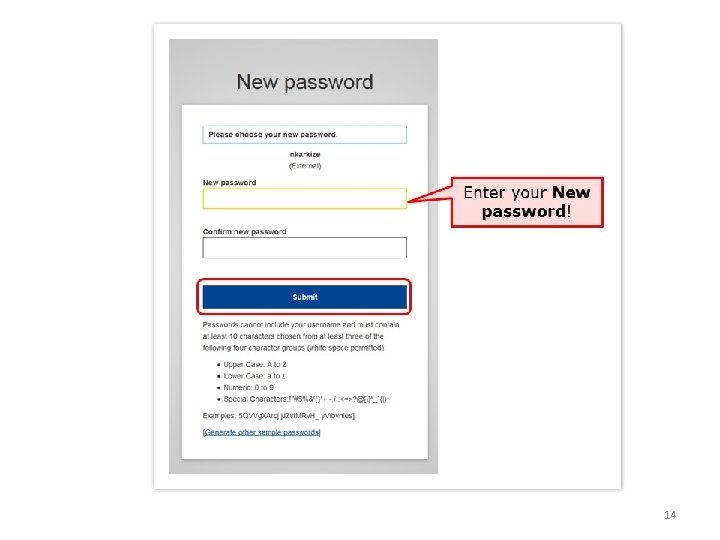
14
Erasmus. Plus CY website www. erasmusplus. cy/Tools In this section of our website, you may find links for: - EU Login account - MT+ And step by step instructions on how to: - Add mobilities (KA 1) - Submit Final Report (KA 1 and KA 2) 15
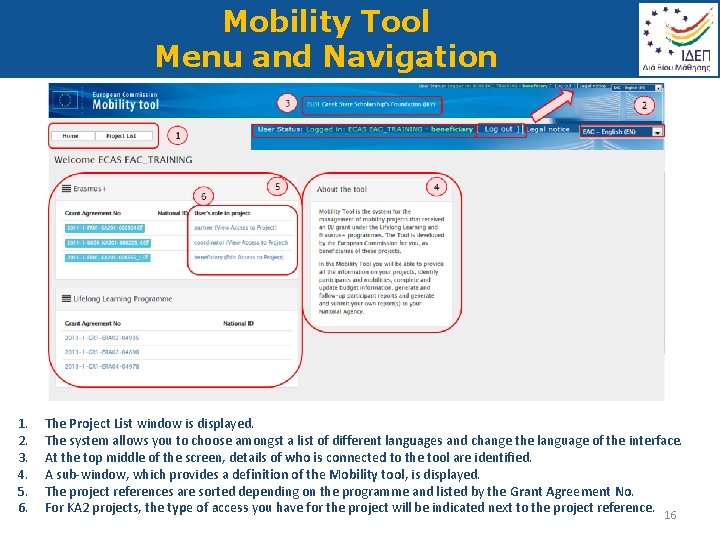
Mobility Tool Menu and Navigation 1. 2. 3. 4. 5. 6. The Project List window is displayed. The system allows you to choose amongst a list of different languages and change the language of the interface. At the top middle of the screen, details of who is connected to the tool are identified. A sub-window, which provides a definition of the Mobility tool, is displayed. The project references are sorted depending on the programme and listed by the Grant Agreement No. For KA 2 projects, the type of access you have for the project will be indicated next to the project reference. 16
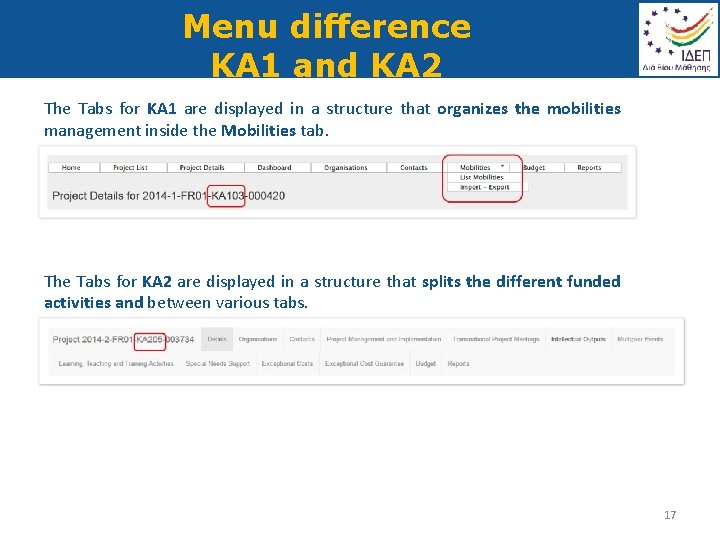
Menu difference KA 1 and KA 2 The Tabs for KA 1 are displayed in a structure that organizes the mobilities management inside the Mobilities tab. The Tabs for KA 2 are displayed in a structure that splits the different funded activities and between various tabs. 17
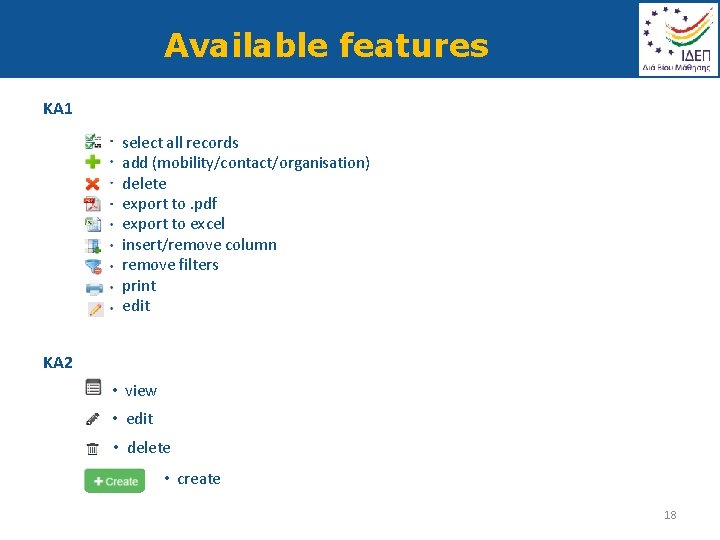
Available features KA 1 select all records add (mobility/contact/organisation) delete export to. pdf export to excel insert/remove column remove filters print edit KA 2 • view • edit • delete • create 18
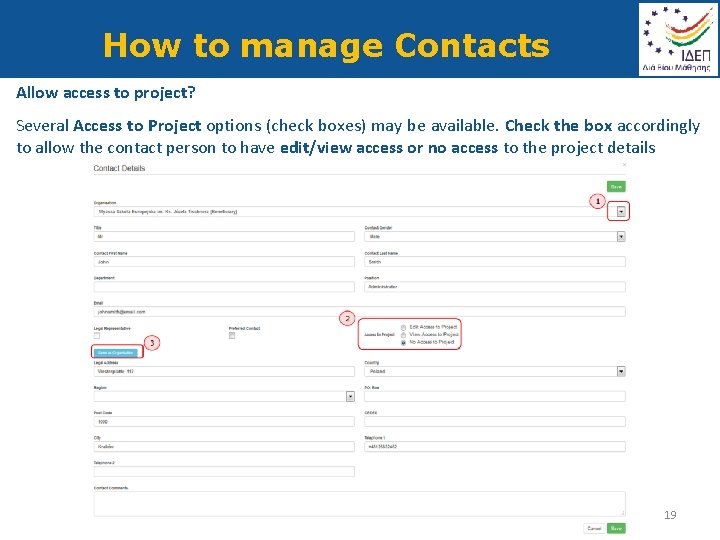
How to manage Contacts Allow access to project? Several Access to Project options (check boxes) may be available. Check the box accordingly to allow the contact person to have edit/view access or no access to the project details 19
How to manage Contacts Who has and which access to project details: KA 1 projects: only possible to grant edit access to contacts of the Beneficiary organisations. KA 2 projects (excluding those indicated as schools only): a contact from a participating organisation may be provided access to view the project but will not have access to edit the project details. KA 2 schools only - KA 201 (2014), KA 219 (2015, 2016): • the partner organisation’s contact persons can be given access to: § view or edit access to their projects § view access to the coordinators project • the coordinating organisation's contact persons can be given access to: § view access to ALL partner organisations 20
User Authentication Completion Submission ECAS account ECAS Final Report Mobility Tool+ FINAL REPORT COMPLETION 21
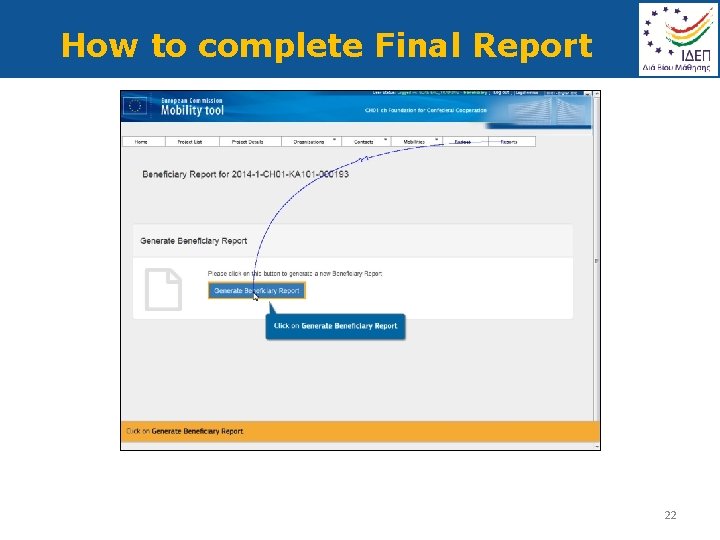
How to complete Final Report 22
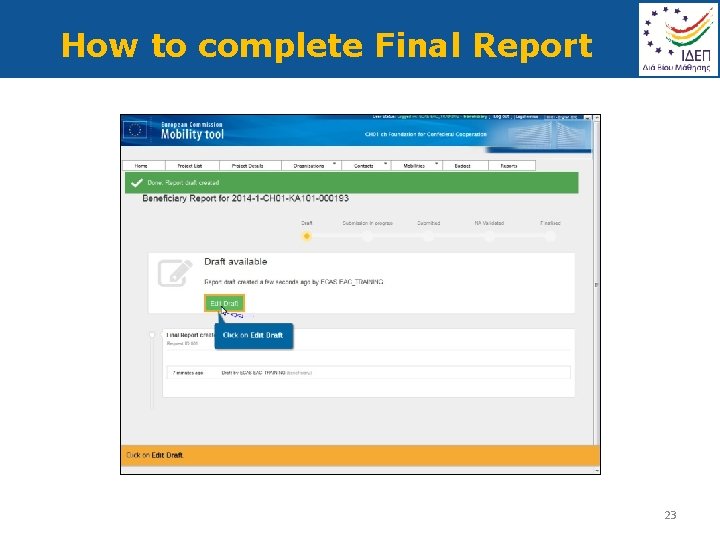
How to complete Final Report 23
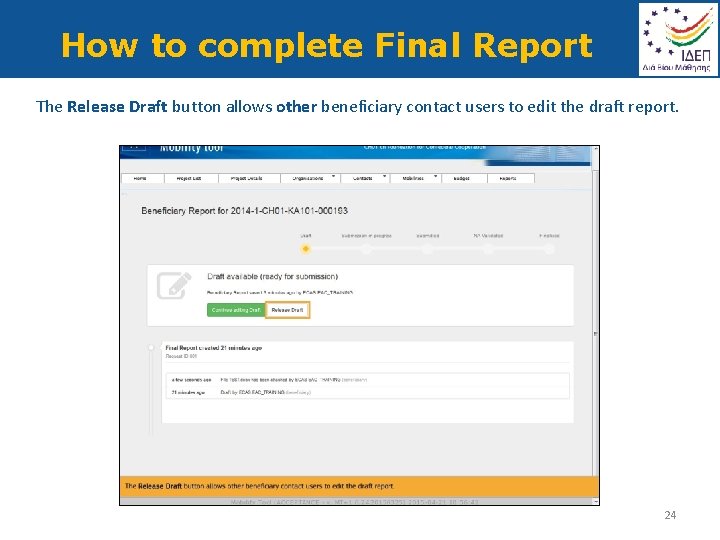
How to complete Final Report The Release Draft button allows other beneficiary contact users to edit the draft report. 24
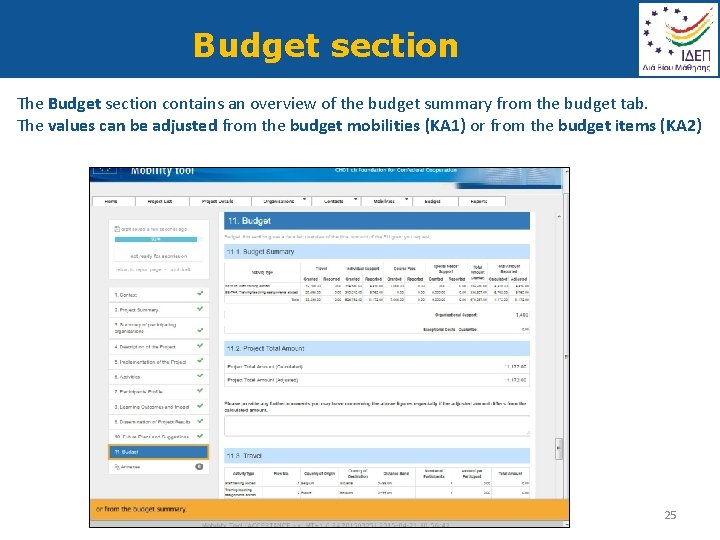
Budget section The Budget section contains an overview of the budget summary from the budget tab. The values can be adjusted from the budget mobilities (KA 1) or from the budget items (KA 2) 25
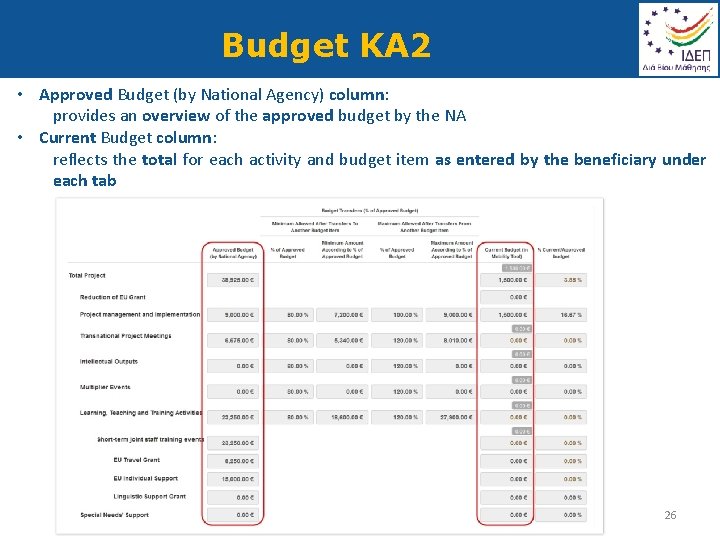
Budget KA 2 • Approved Budget (by National Agency) column: provides an overview of the approved budget by the NA • Current Budget column: reflects the total for each activity and budget item as entered by the beneficiary under each tab 26
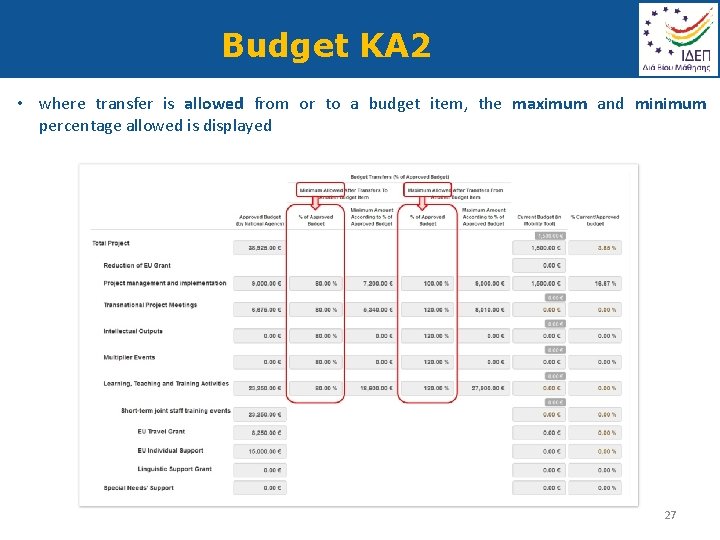
Budget KA 2 • where transfer is allowed from or to a budget item, the maximum and minimum percentage allowed is displayed 27
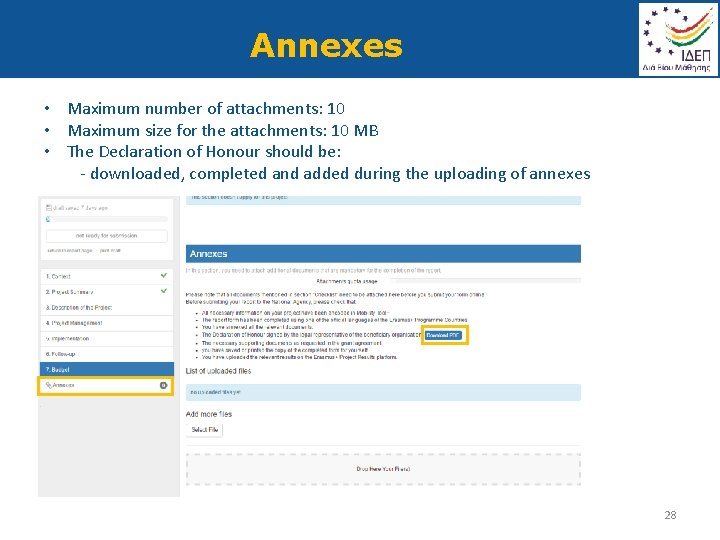
Annexes • Maximum number of attachments: 10 • Maximum size for the attachments: 10 MB • The Declaration of Honour should be: - downloaded, completed and added during the uploading of annexes 28
Before submitting Final Report Before submitting your report to the National Agency, please check that: - All necessary information on your project has been encoded in Mobility Tool+ - The report form has been completed using one of the official languages of the Erasmus+ Programme Countries - You have annexed all the relevant documents: - The Declaration of Honour signed by the legal representative of the beneficiary organisation - The necessary supporting documents as requested in the grant agreement Also make sure you have saved or printed the copy of the completed form for yourself and you have uploaded the relevant results on the Erasmus+ Project Results Platform 30
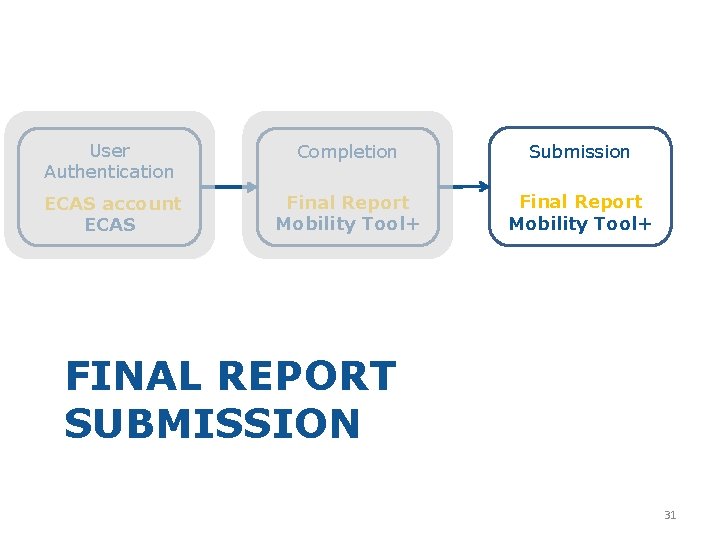
User Authentication Completion Submission ECAS account ECAS Final Report Mobility Tool+ FINAL REPORT SUBMISSION 31
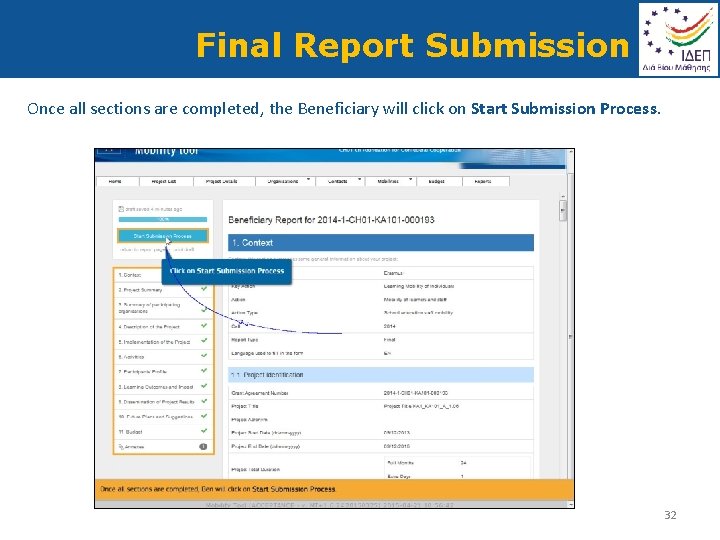
Final Report Submission Once all sections are completed, the Beneficiary will click on Start Submission Process. 32
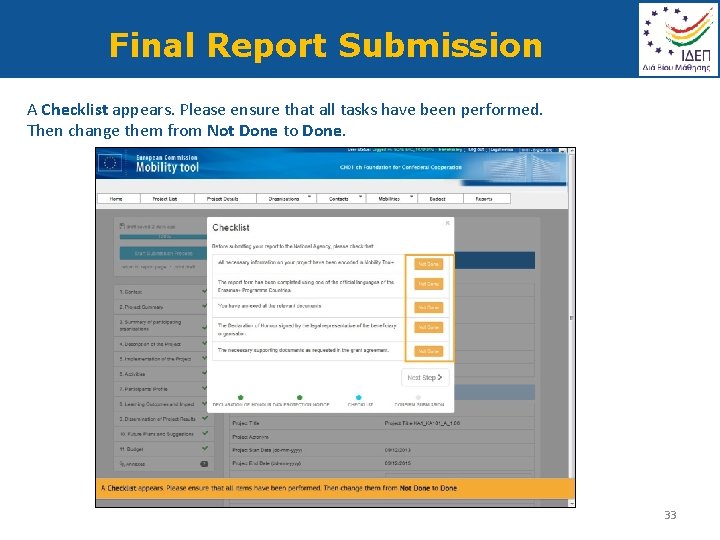
Final Report Submission A Checklist appears. Please ensure that all tasks have been performed. Then change them from Not Done to Done. 33
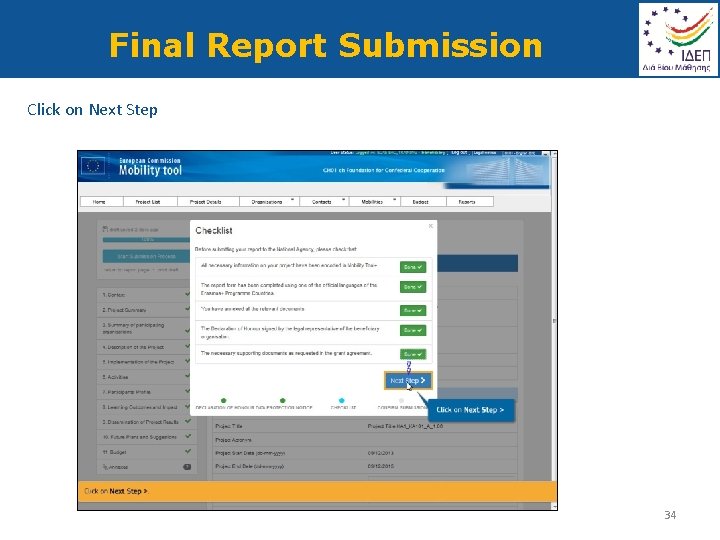
Final Report Submission Click on Next Step 34
Final Report Submission 35
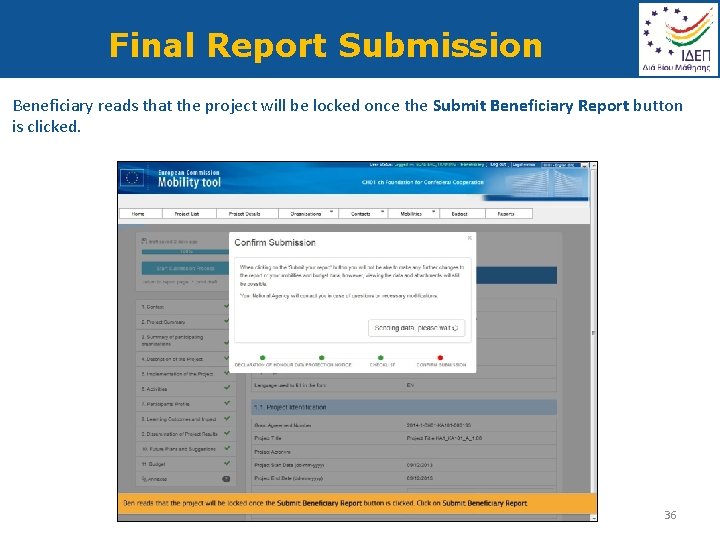
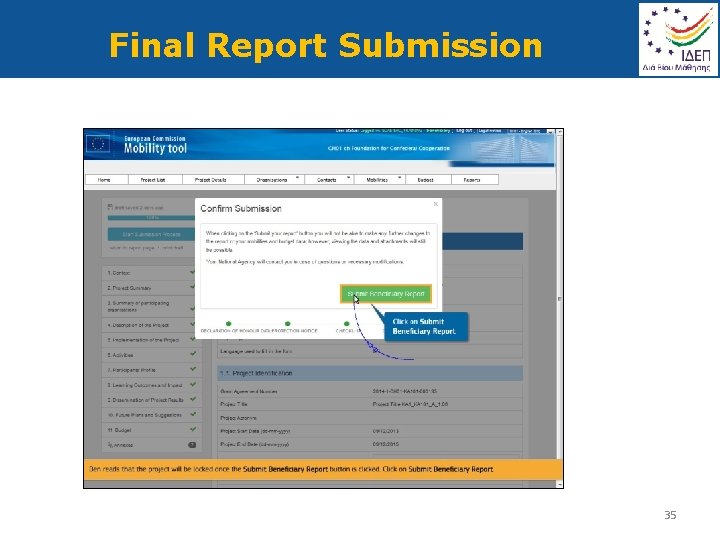
Final Report Submission Beneficiary reads that the project will be locked once the Submit Beneficiary Report button is clicked. 36
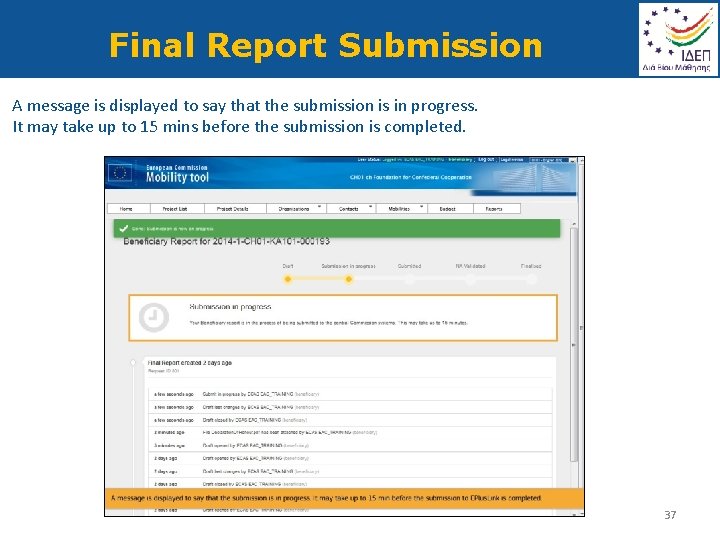
Final Report Submission A message is displayed to say that the submission is in progress. It may take up to 15 mins before the submission is completed. 37
QUESTIONS? 38
- Slides: 38