
How to Check Your EIS Data ESSA Directors






- Slides: 73
How to Check Your EIS Data ESSA Directors Institute Federal Programs and Oversight Trish Kelly| Data Coordinator | August 2019
Agenda § § § Using Your Data Types of Counts for Reporting CPM Data Reviews – District, School, and JDC Data – Examining Your District’s Data – Discrepancies and Revisions § EIS – – § § EIS Home Page and Resources Logging in to EIS Research Queries Viewing and Downloading Data CPM Research Queries Reconciling EIS Data with CPM Data Review Counts – – No Shows Duplicates Multiple Enrollments Varying Enrollment Periods 2
Using Your Data
Using Your Data § You can use data entered into your student information system and uploaded to EIS, the state’s operational database to: – identify changes affecting students, teachers, schools, and the district, – enhance planning and decision making, – maximize funding allocations, and – meet reporting requirements. 4
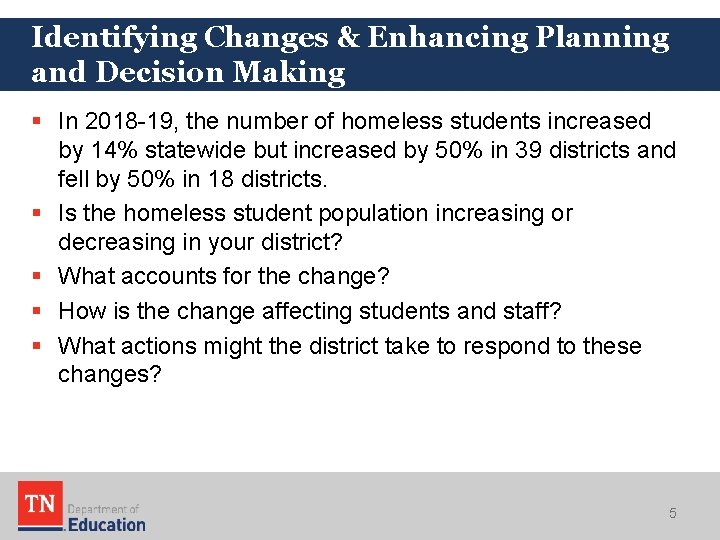
Identifying Changes & Enhancing Planning and Decision Making § In 2018 -19, the number of homeless students increased by 14% statewide but increased by 50% in 39 districts and fell by 50% in 18 districts. § Is the homeless student population increasing or decreasing in your district? § What accounts for the change? § How is the change affecting students and staff? § What actions might the district take to respond to these changes? 5
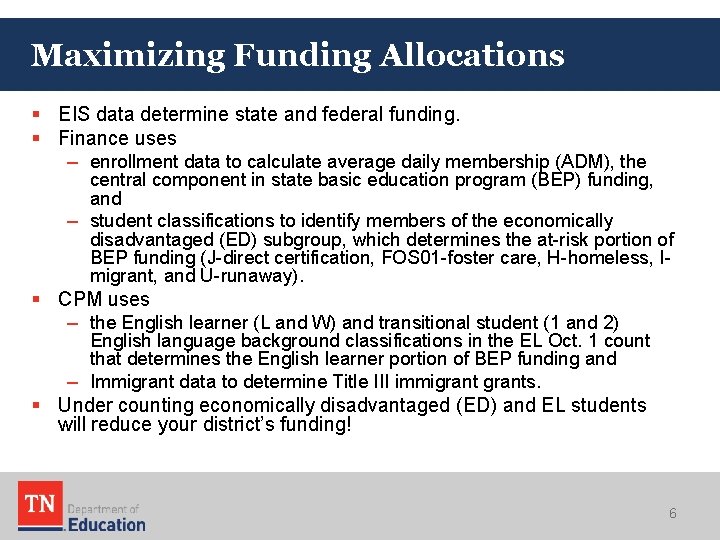
Maximizing Funding Allocations § EIS data determine state and federal funding. § Finance uses – enrollment data to calculate average daily membership (ADM), the central component in state basic education program (BEP) funding, and – student classifications to identify members of the economically disadvantaged (ED) subgroup, which determines the at-risk portion of BEP funding (J-direct certification, FOS 01 -foster care, H-homeless, Imigrant, and U-runaway). § CPM uses – the English learner (L and W) and transitional student (1 and 2) English language background classifications in the EL Oct. 1 count that determines the English learner portion of BEP funding and – Immigrant data to determine Title III immigrants. § Under counting economically disadvantaged (ED) and EL students will reduce your district’s funding! 6
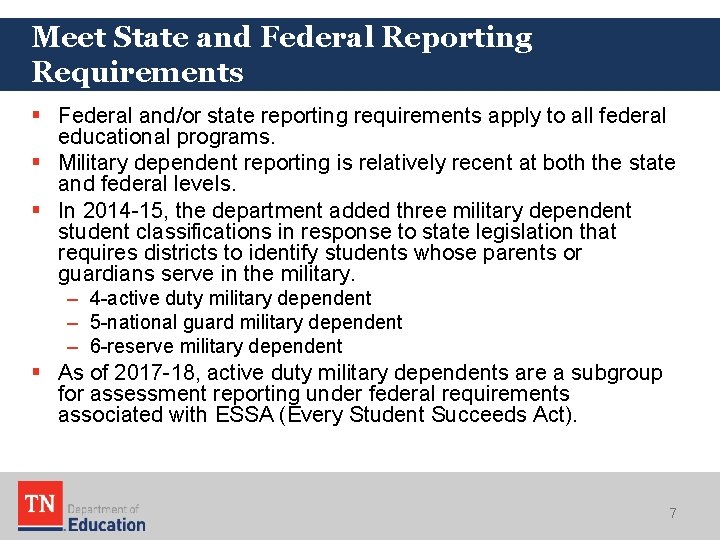
Meet State and Federal Reporting Requirements § Federal and/or state reporting requirements apply to all federal educational programs. § Military dependent reporting is relatively recent at both the state and federal levels. § In 2014 -15, the department added three military dependent student classifications in response to state legislation that requires districts to identify students whose parents or guardians serve in the military. – 4 -active duty military dependent – 5 -national guard military dependent – 6 -reserve military dependent § As of 2017 -18, active duty military dependents are a subgroup for assessment reporting under federal requirements associated with ESSA (Every Student Succeeds Act). 7
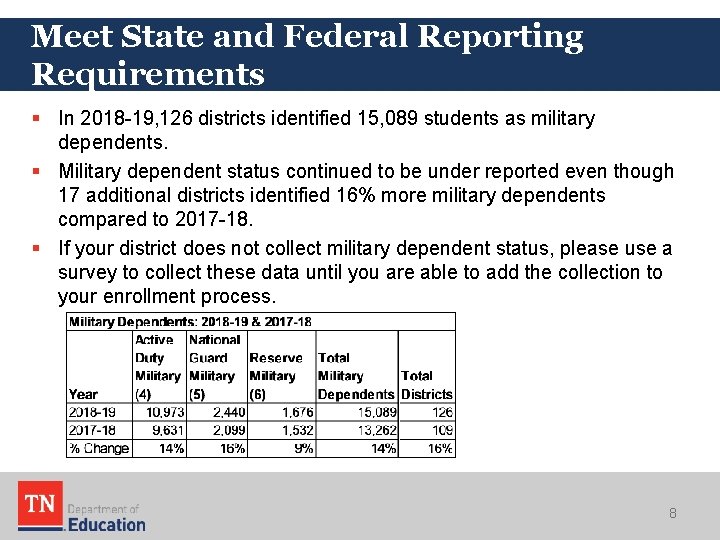
Meet State and Federal Reporting Requirements § In 2018 -19, 126 districts identified 15, 089 students as military dependents. § Military dependent status continued to be under reported even though 17 additional districts identified 16% more military dependents compared to 2017 -18. § If your district does not collect military dependent status, please use a survey to collect these data until you are able to add the collection to your enrollment process. 8
Types of Counts for Reporting
Types of Counts for Reporting § The level and time frame for the count vary depending on the nature of the reporting requirement. § Level – State – District – School § Time Frame – School year – Oct. 1 – Assessment test period (e. g. , TNReady, WIDA) 10
Data Reviews
Data Reviews § To help you check your data and to ensure that the department’s data are complete and accurate for reporting, the division of federal programs and oversight emails federal programs, attendance, and EIS contacts a review of EIS data by program four times during the school year. – – September January March April § In addition, we conduct a variety of other program-specific counts during the school year (e. g. , EL Oct. 1 count). § For details on dates, see the CPM Calendar. 12
District, School, and JDC Data Tables § Data reviews are presented in three tables that are emailed separately. – District Data – School Data – JDC Data § All districts receive the District and School tables. § Districts that host a juvenile detention center also receive a JDC table. 13
Counts Provided in the Tables § To facilitate a comprehensive review of your data, the tables include counts of students enrolled any time during the school year in grades P 3 -12. § In most cases, the counts are unduplicated by district or school. § Migrant counts are the principal exception; they are unduplicated by enrollment. § If you have questions about the data, review the data definitions and count details in the notes below each table. 14
District Data § The district data summary includes a separate table for each area listed below. – – – Direct Certification of Economic Disadvantage English Learners and Transitional Students ESL Teachers Foster Care Homeless Immigrant Juvenile Justice Migratory Military Dependents Residential Mental Health Runaways 15
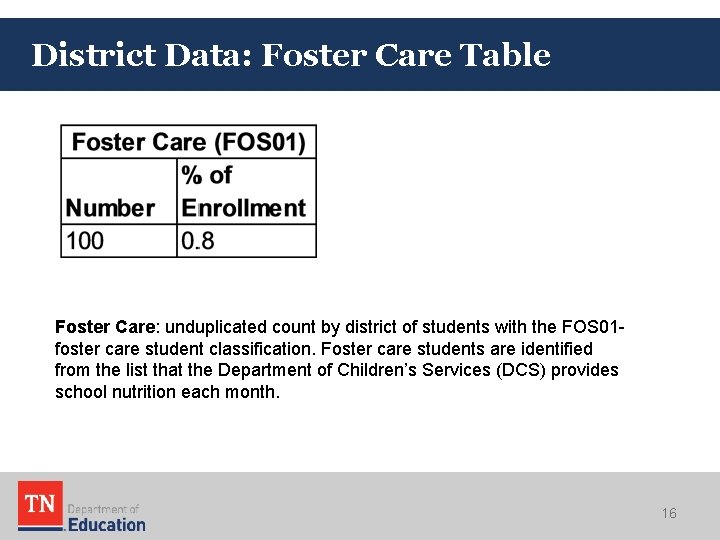
District Data: Foster Care Table Foster Care: unduplicated count by district of students with the FOS 01 foster care student classification. Foster care students are identified from the list that the Department of Children’s Services (DCS) provides school nutrition each month. 16
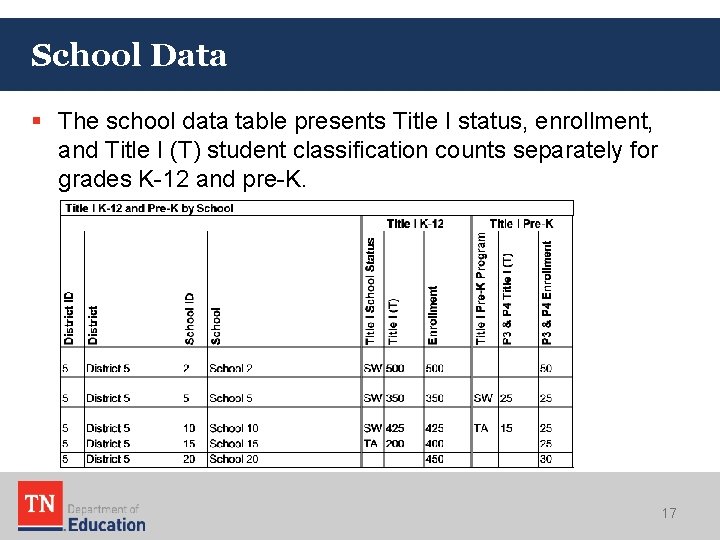
School Data § The school data table presents Title I status, enrollment, and Title I (T) student classification counts separately for grades K-12 and pre-K. 17
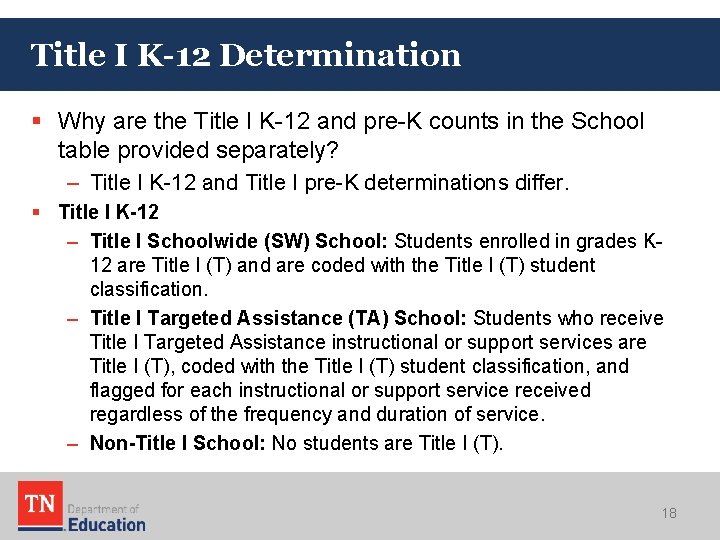
Title I K-12 Determination § Why are the Title I K-12 and pre-K counts in the School table provided separately? – Title I K-12 and Title I pre-K determinations differ. § Title I K-12 – Title I Schoolwide (SW) School: Students enrolled in grades K 12 are Title I (T) and are coded with the Title I (T) student classification. – Title I Targeted Assistance (TA) School: Students who receive Title I Targeted Assistance instructional or support services are Title I (T), coded with the Title I (T) student classification, and flagged for each instructional or support service received regardless of the frequency and duration of service. – Non-Title I School: No students are Title I (T). 18
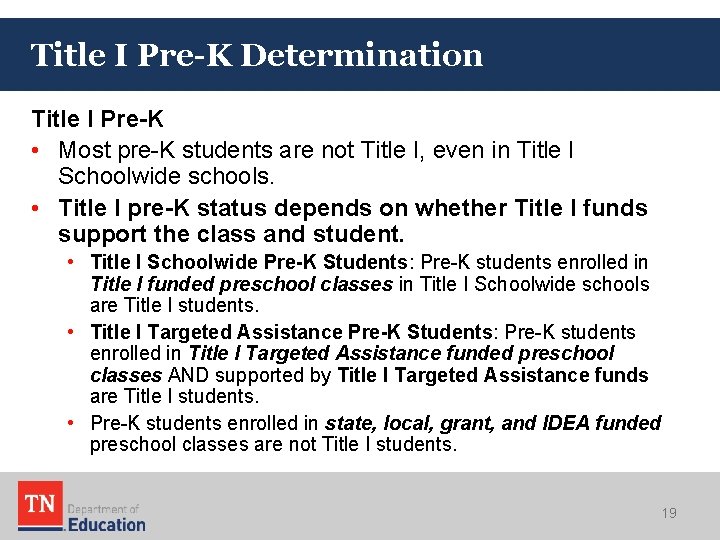
Title I Pre-K Determination Title I Pre-K • Most pre-K students are not Title I, even in Title I Schoolwide schools. • Title I pre-K status depends on whether Title I funds support the class and student. • Title I Schoolwide Pre-K Students: Pre-K students enrolled in Title I funded preschool classes in Title I Schoolwide schools are Title I students. • Title I Targeted Assistance Pre-K Students: Pre-K students enrolled in Title I Targeted Assistance funded preschool classes AND supported by Title I Targeted Assistance funds are Title I students. • Pre-K students enrolled in state, local, grant, and IDEA funded preschool classes are not Title I students. 19
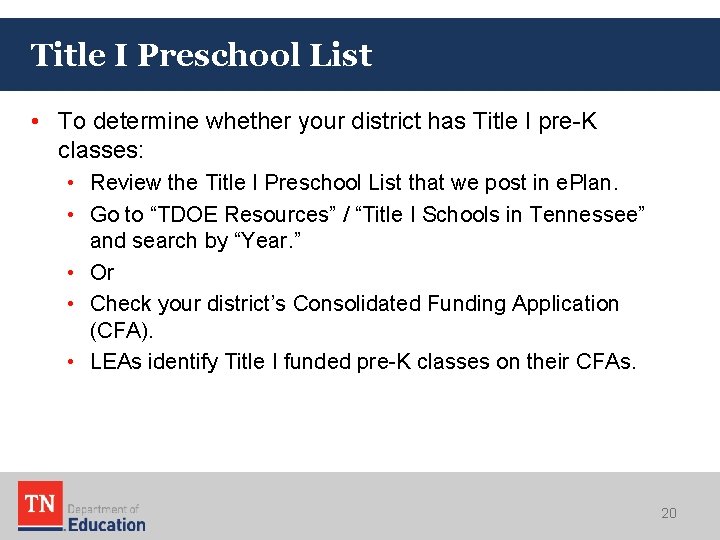
Title I Preschool List • To determine whether your district has Title I pre-K classes: • Review the Title I Preschool List that we post in e. Plan. • Go to “TDOE Resources” / “Title I Schools in Tennessee” and search by “Year. ” • Or • Check your district’s Consolidated Funding Application (CFA). • LEAs identify Title I funded pre-K classes on their CFAs. 20
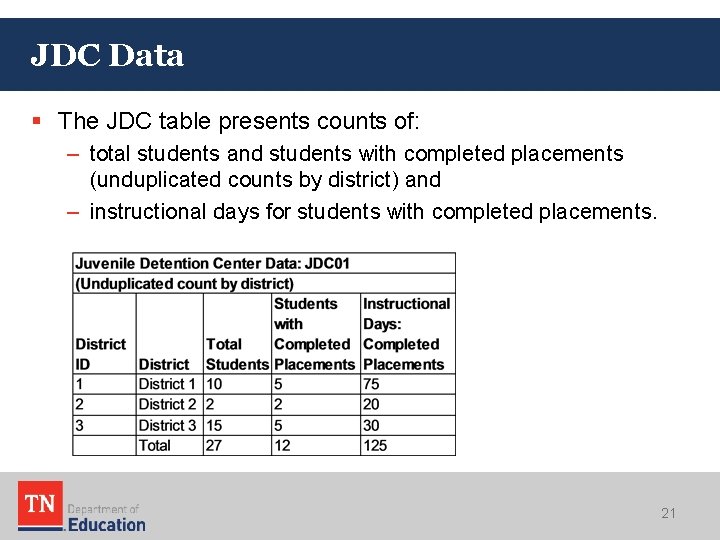
JDC Data § The JDC table presents counts of: – total students and students with completed placements (unduplicated counts by district) and – instructional days for students with completed placements. 21
Examining Your District’s Data § Review the data in the tables and look for anomalies. – Are your data complete and accurate? – Are there unexpected increases or decreases? – Are there inconsistent trends across groups or programs? • Direct certification is high, but no or few homeless students have been identified. • The homeless rate is high, but no or few foster care students have been identified. 22
Discrepancies and Revisions § Consult with colleagues about any discrepancies. § Identify the sources of the discrepancies. § Respond depending on the sources of the discrepancies. – Are there large year-to-year variations in certain subgroups? – Are some subgroups chronically under identified? • If so, it might necessary to modify enrollment and other procedures to address under represented groups and large year-to-year changes in subgroups. – Have there been changes in reporting requirements? • If yes, modify training and enrollment procedures for new data collections. – Do the discrepancies result from data errors? • If yes, determine whether revisions are needed in SIS, EIS, or both. • As you revise your data, use the EIS research queries to confirm that your data uploaded correctly. 23
EIS
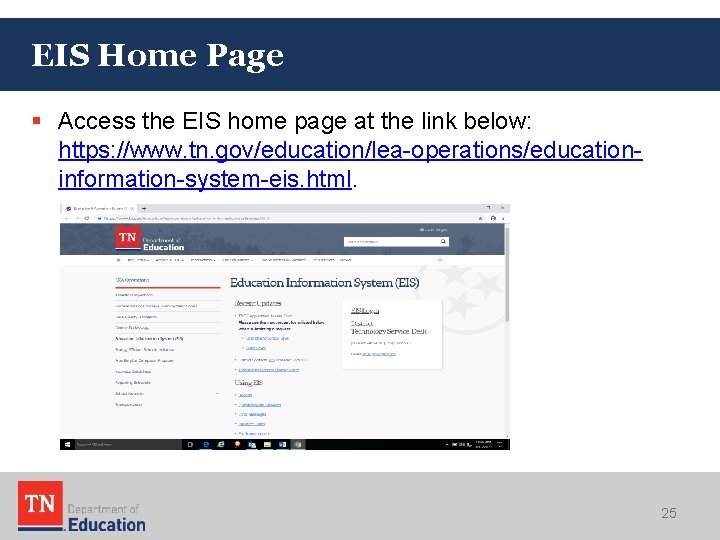
EIS Home Page § Access the EIS home page at the link below: https: //www. tn. gov/education/lea-operations/educationinformation-system-eis. html. 25
EIS Home Page Resources § The EIS home page contains many valuable resources. – – – EIS Access Form EIS Contact List EIS Login Data Dictionary & Appendices Extracts District Technology Support • dt. support@tn. gov • (800) 495 -4154 or (615) 532 -6215 26
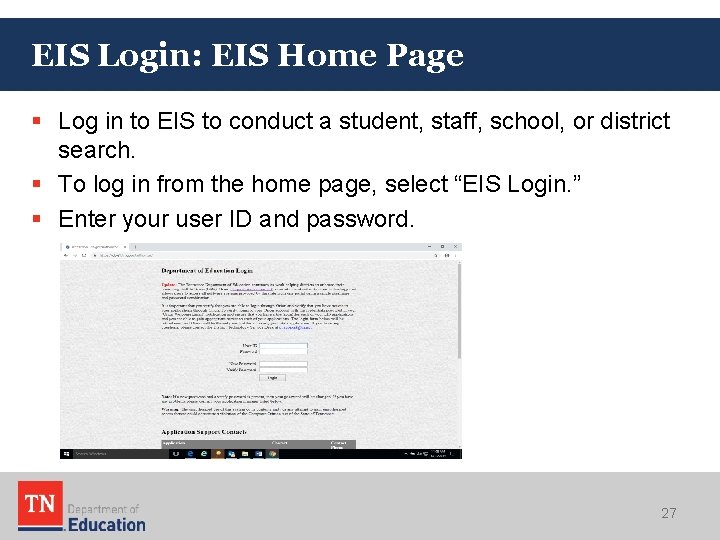
EIS Login: EIS Home Page § Log in to EIS to conduct a student, staff, school, or district search. § To log in from the home page, select “EIS Login. ” § Enter your user ID and password. 27
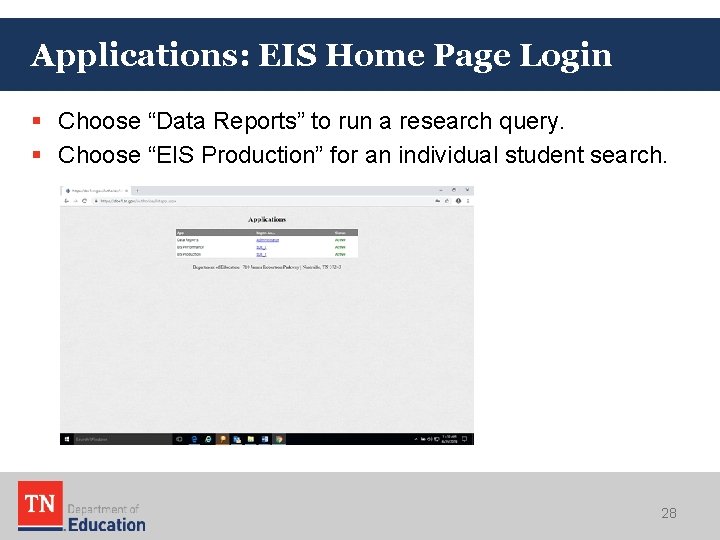
Applications: EIS Home Page Login § Choose “Data Reports” to run a research query. § Choose “EIS Production” for an individual student search. 28
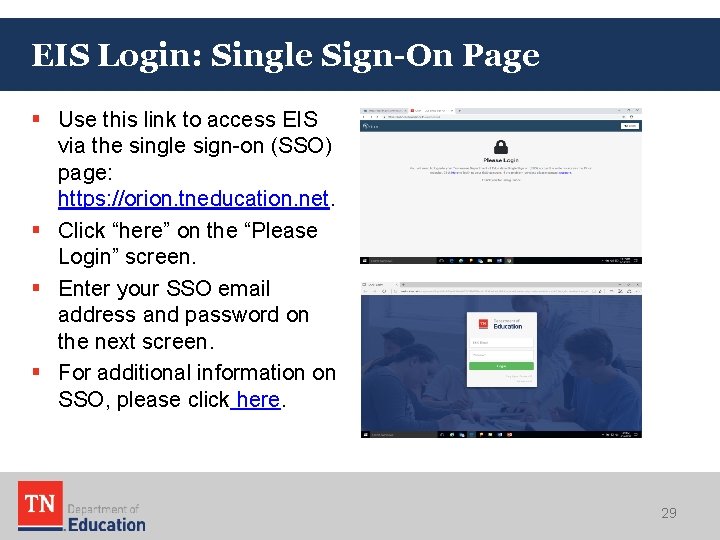
EIS Login: Single Sign-On Page § Use this link to access EIS via the single sign-on (SSO) page: https: //orion. tneducation. net. § Click “here” on the “Please Login” screen. § Enter your SSO email address and password on the next screen. § For additional information on SSO, please click here. 29
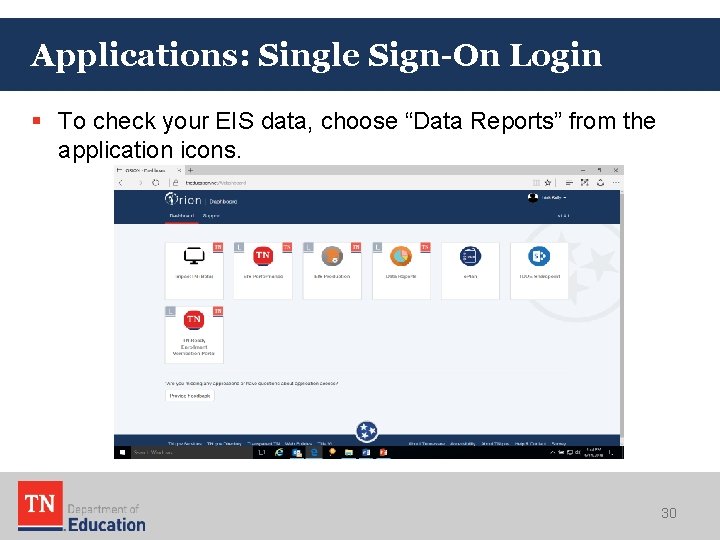
Applications: Single Sign-On Login § To check your EIS data, choose “Data Reports” from the application icons. 30
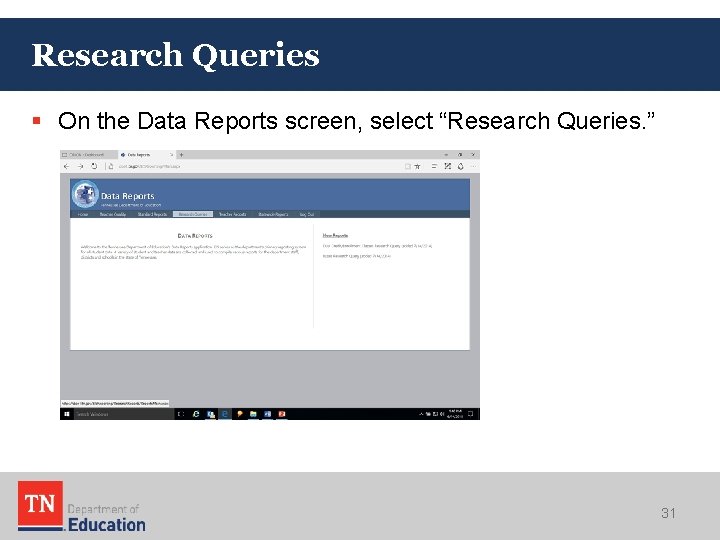
Research Queries § On the Data Reports screen, select “Research Queries. ” 31
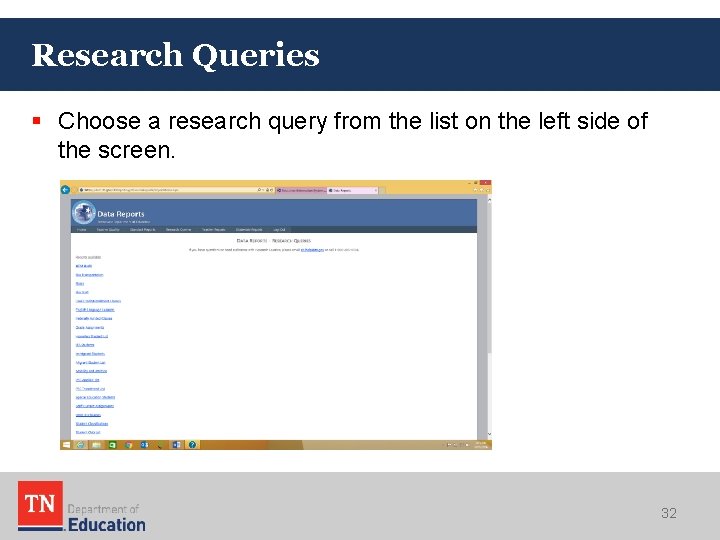
Research Queries § Choose a research query from the list on the left side of the screen. 32
Student Classifications Research Query § The student classifications research query addresses many key fields including: – – – – – active duty military dependent (4), direct certification of economic disadvantage (J), foster care (FOS 01), juvenile detention centers (JDC 01 -JDC 17), migrant (I), national guard military dependent (5), reserve military dependent (6), runaway (U), and Title I (T). 33
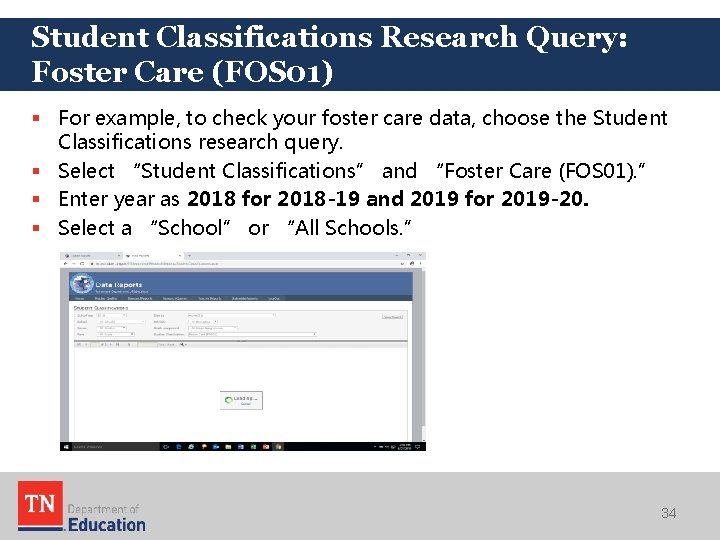
Student Classifications Research Query: Foster Care (FOS 01) § For example, to check your foster care data, choose the Student Classifications research query. § Select “Student Classifications” and “Foster Care (FOS 01). ” § Enter year as 2018 for 2018 -19 and 2019 for 2019 -20. § Select a “School” or “All Schools. ” 34
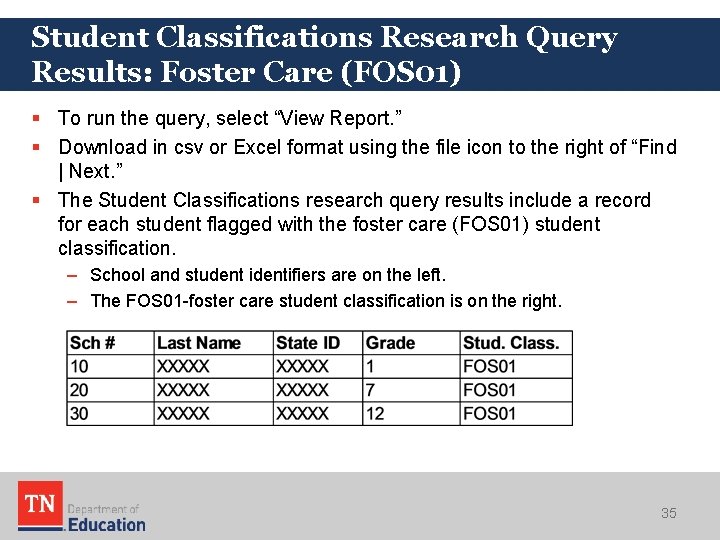
Student Classifications Research Query Results: Foster Care (FOS 01) § To run the query, select “View Report. ” § Download in csv or Excel format using the file icon to the right of “Find | Next. ” § The Student Classifications research query results include a record for each student flagged with the foster care (FOS 01) student classification. – School and student identifiers are on the left. – The FOS 01 -foster care student classification is on the right. 35
Research Queries
Research Queries § To review data, use the research queries listed below. – – – English Language Learners Homeless Student List Immigrant Students Staff Current Assignments Student Classifications Targeted Assistance List 37
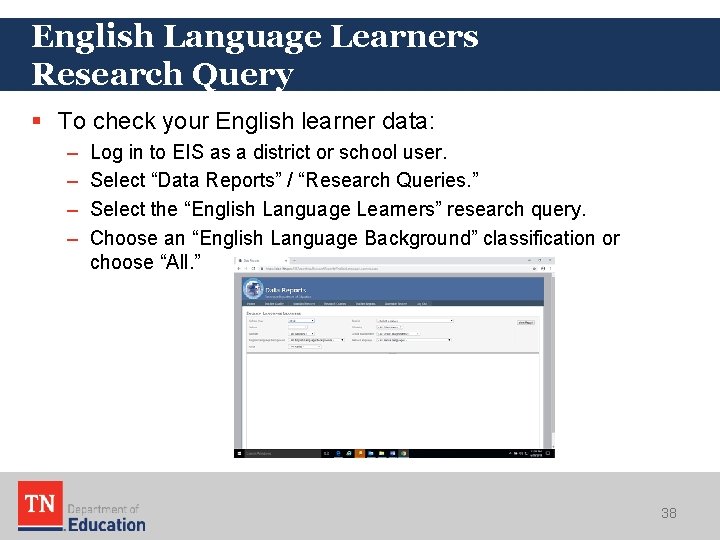
English Language Learners Research Query § To check your English learner data: – – Log in to EIS as a district or school user. Select “Data Reports” / “Research Queries. ” Select the “English Language Learners” research query. Choose an “English Language Background” classification or choose “All. ” 38
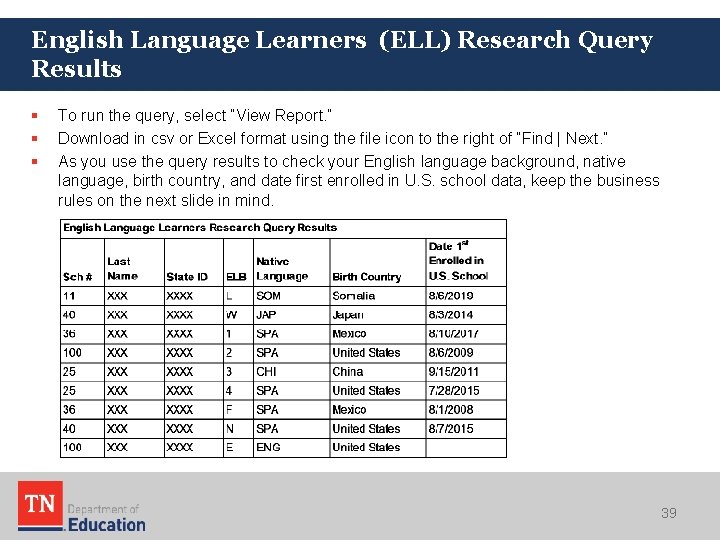
English Language Learners (ELL) Research Query Results § § § To run the query, select “View Report. ” Download in csv or Excel format using the file icon to the right of “Find | Next. ” As you use the query results to check your English language background, native language, birth country, and date first enrolled in U. S. school data, keep the business rules on the next slide in mind. 39
English Learner Business Rules § Native Language – Native language is never English for L, W, 1, 2, 3, 4, F, and N. – Be sure to enter native language in SIS because SIS packages may default to English if no language is entered. § Birth Country – Complete birth country for all students. § Date First Enrolled in U. S. school – Date first enrolled in U. S. school cannot be uploaded as blank if: • English language background was L, W, 1, 2, 3, 4, F, or N in 2017 -18 or later; or • the immigrant flag was “Y” in 2017 -18 or later. § Date First Enrolled in ESL – As of 2017 -18, date first enrolled in ESL is no longer collected in EIS. 40
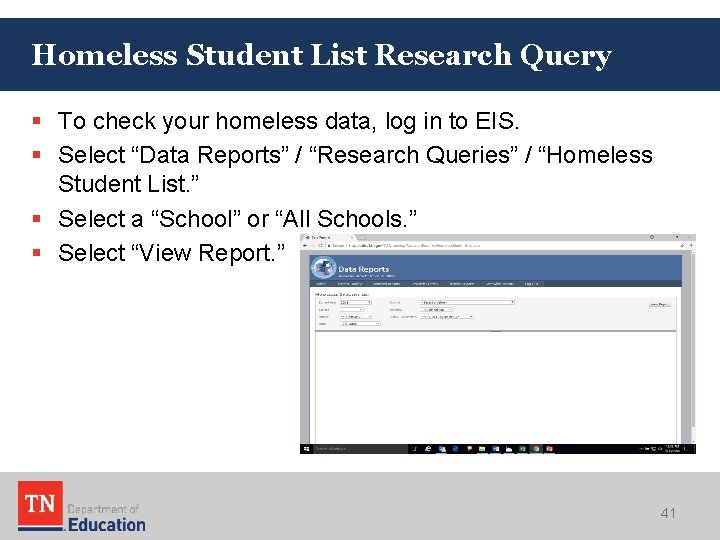
Homeless Student List Research Query § To check your homeless data, log in to EIS. § Select “Data Reports” / “Research Queries” / “Homeless Student List. ” § Select a “School” or “All Schools. ” § Select “View Report. ” 41
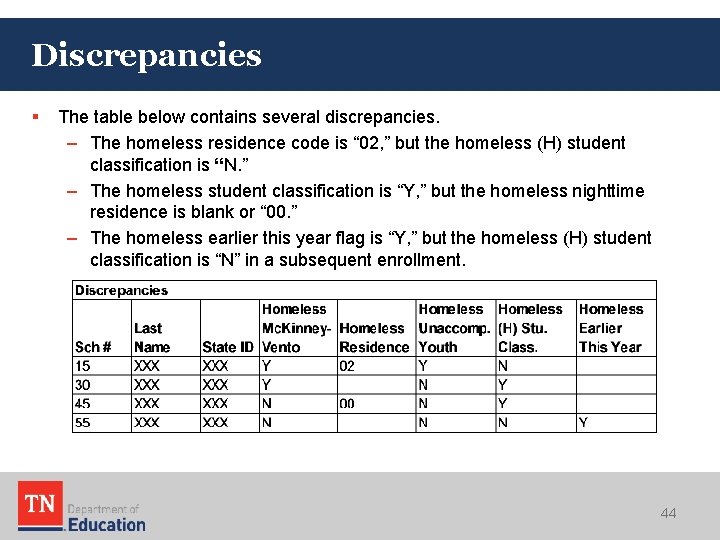
Checking for Homeless Discrepancies § Download the query results to in csv or Excel format by selecting the file icon to the right of “Find | Next. ” § Use the filter function in Excel to identify discrepancies between: – the homeless primary nighttime residence column (fourth column from the right) and the homeless (H) student classification column (far right), and – the homeless (H) student classification (second from right) and the homeless earlier this year flag (far right). • The “No Discrepancies” and “Discrepancies” slides illustrate how to use the homeless student list research query to identify these discrepancies. 42
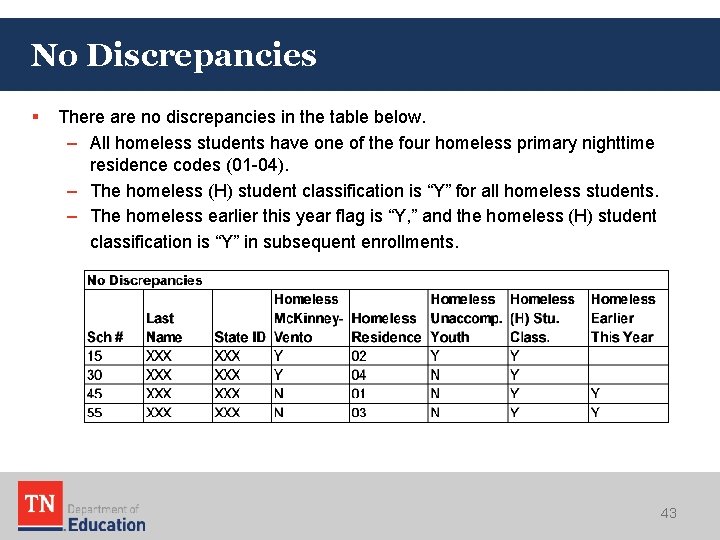
No Discrepancies § There are no discrepancies in the table below. – All homeless students have one of the four homeless primary nighttime residence codes (01 -04). – The homeless (H) student classification is “Y” for all homeless students. – The homeless earlier this year flag is “Y, ” and the homeless (H) student classification is “Y” in subsequent enrollments. 43
Discrepancies § The table below contains several discrepancies. – The homeless residence code is “ 02, ” but the homeless (H) student classification is “N. ” – The homeless student classification is “Y, ” but the homeless nighttime residence is blank or “ 00. ” – The homeless earlier this year flag is “Y, ” but the homeless (H) student classification is “N” in a subsequent enrollment. 44
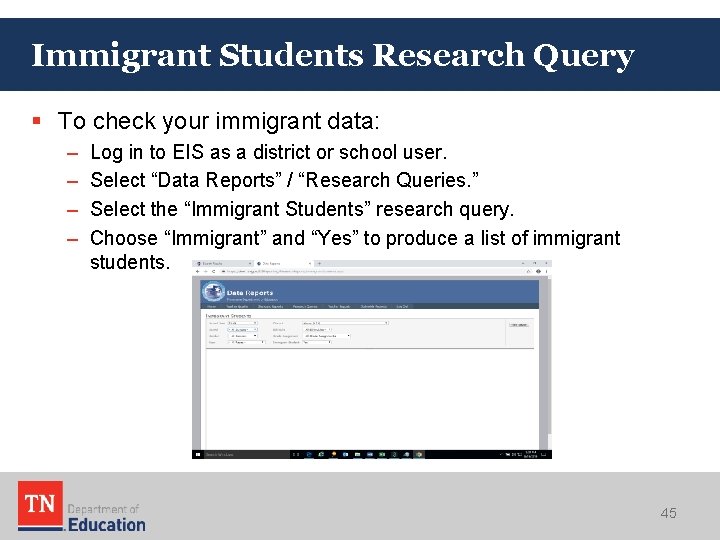
Immigrant Students Research Query § To check your immigrant data: – – Log in to EIS as a district or school user. Select “Data Reports” / “Research Queries. ” Select the “Immigrant Students” research query. Choose “Immigrant” and “Yes” to produce a list of immigrant students. 45
Immigrant Research Query Results § § § To run the query, select “View Report. ” Download in csv or Excel format using the file icon to the right of “Find | Next. ” As shown in the table below, – Immigrant students are coded “Y” not “N. ” – Date first enrolled in U. S. school is complete and appears as “Month/Day/Year. ” – Birth country is complete and is neither “U. S. ” nor “Puerto Rico. ” 46
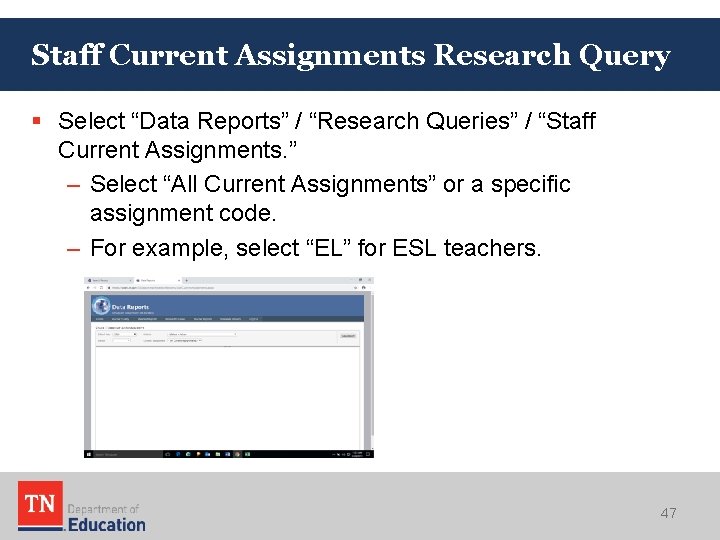
Staff Current Assignments Research Query § Select “Data Reports” / “Research Queries” / “Staff Current Assignments. ” – Select “All Current Assignments” or a specific assignment code. – For example, select “EL” for ESL teachers. 47
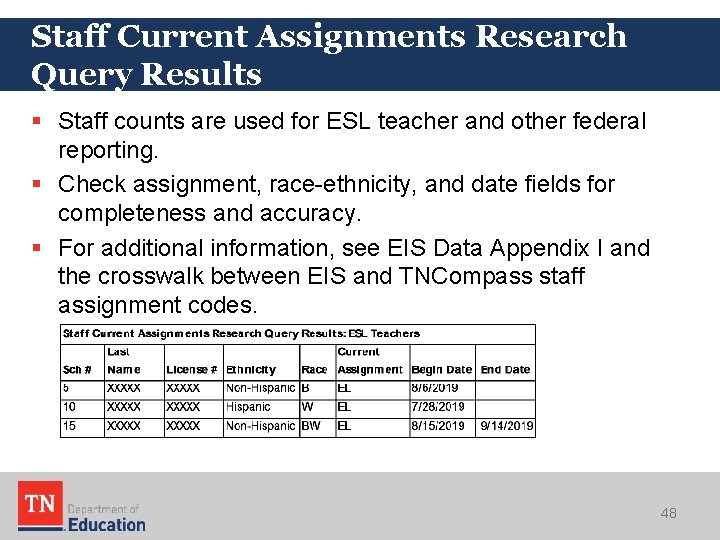
Staff Current Assignments Research Query Results § Staff counts are used for ESL teacher and other federal reporting. § Check assignment, race-ethnicity, and date fields for completeness and accuracy. § For additional information, see EIS Data Appendix I and the crosswalk between EIS and TNCompass staff assignment codes. 48
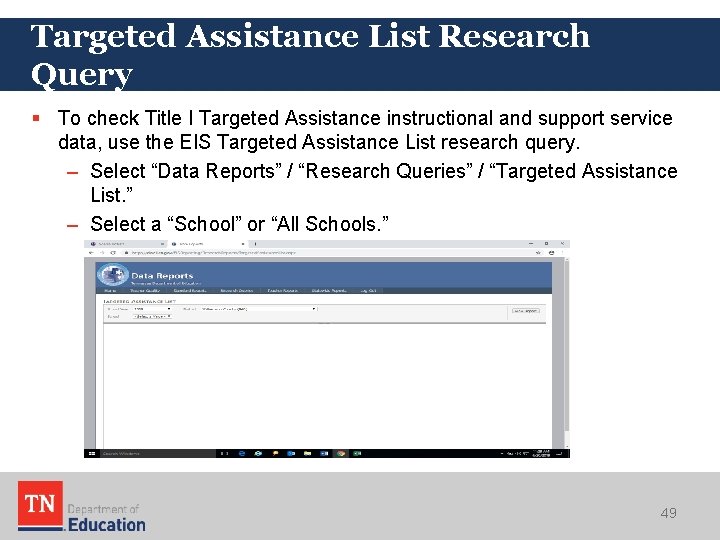
Targeted Assistance List Research Query § To check Title I Targeted Assistance instructional and support service data, use the EIS Targeted Assistance List research query. – Select “Data Reports” / “Research Queries” / “Targeted Assistance List. ” – Select a “School” or “All Schools. ” 49
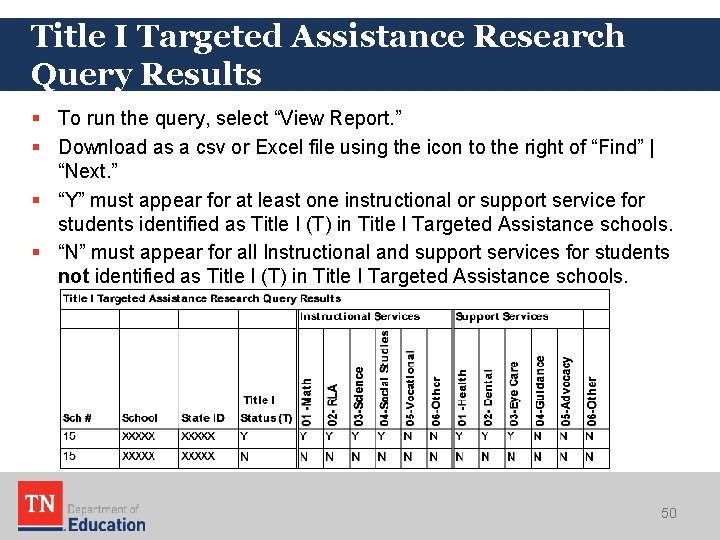
Title I Targeted Assistance Research Query Results § To run the query, select “View Report. ” § Download as a csv or Excel file using the icon to the right of “Find” | “Next. ” § “Y” must appear for at least one instructional or support service for students identified as Title I (T) in Title I Targeted Assistance schools. § “N” must appear for all Instructional and support services for students not identified as Title I (T) in Title I Targeted Assistance schools. 50
Reconciling EIS Data with CPM Data Review Counts
No Shows, Duplicates, Multiple Enrollments, and Varying Enrollment Periods § EIS Research query results include no shows, duplicates, multiple enrollments, and varying enrollment periods. § To confirm the counts that federal programs and other teams generate from EIS for your district, you must: – eliminate no shows and duplicates, – address multiple enrollments, and – only include enrollments that are relevant for the count. 52
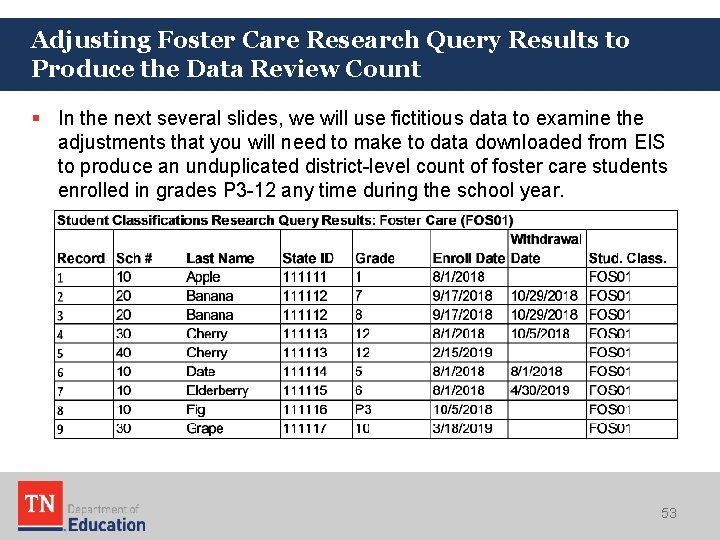
Adjusting Foster Care Research Query Results to Produce the Data Review Count § In the next several slides, we will use fictitious data to examine the adjustments that you will need to make to data downloaded from EIS to produce an unduplicated district-level count of foster care students enrolled in grades P 3 -12 any time during the school year. 53
No Shows: Overview § “No shows” are students whose enrollment rolled over to the next school year but who did not matriculate that year. § No shows must be excluded from your counts. § No shows are a concern primarily for “for the year” counts rather than “day of” counts (e. g. , October 1) due to the way that districts flag no show students. § Districts use two main methods to identify no shows. – Enrollment begin date equals withdrawal date. – Withdrawal date equals school attendance start date (or variant of same). § This presentation will focus on the enrollment begin date equals withdrawal date approach. 54
No Shows: Withdrawal Date = Attendance Start Date § The withdrawal date equals school attendance start date approach (or variant of same) is more complicated and works best for individual districts or schools. § For district-level data, users must know or have access to attendance start dates for each school in the district and use filters, sorts, or conditional formatting to exclude no shows included in data downloaded from EIS. § For multi-district reports: – Users must know or have access to attendance start dates for all schools in all districts. – Using these data manually for individual districts is inefficient. – The department uses EIS Discoverer queries, which produce statewide results and exclude records for which withdrawal date equals attendance start (and variants of same) in all schools and all districts. 55
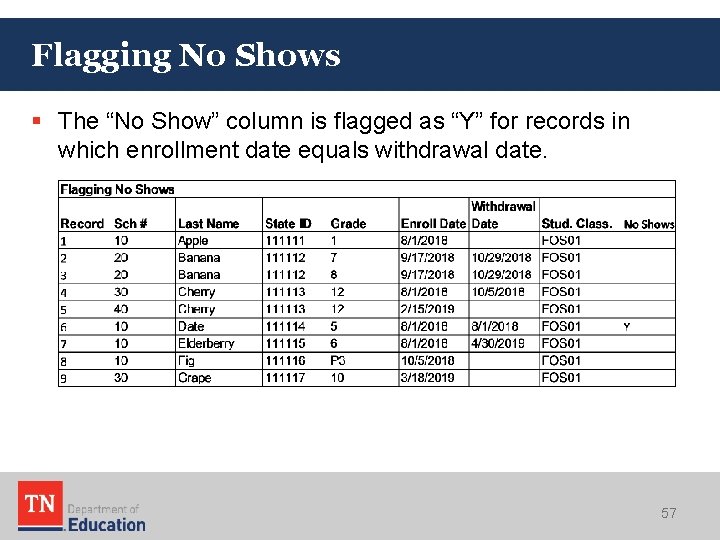
No Shows: Enrollment Begin Date = Withdrawal Date § Using an Excel formula to identify no show records in which the enrollment begin date equals withdrawal date is straightforward. § On the right side of the spreadsheet, add a new column and insert “No Shows” as a column header in row 1. For this example, column I is the “No Shows” column. § In cell I 2, enter a formula using a column letter and row number that will generate “Y” for no show records. – Suppose enrollment date is in column F, withdrawal date is in column G, and the first row contains column headings. – In cell I 2 enter: =IF(F 2=G 2, “Y”, “”). § Copy the formula to the rest of the column. – Right click on the bottom right hand corner of the cell. – When the black cross appears, drag it down the rest of the column. – As shown on the next slide, the “No Show” column is flagged as “Y” for records in which enrollment date equals withdrawal date. 56
Flagging No Shows § The “No Show” column is flagged as “Y” for records in which enrollment date equals withdrawal date. 57
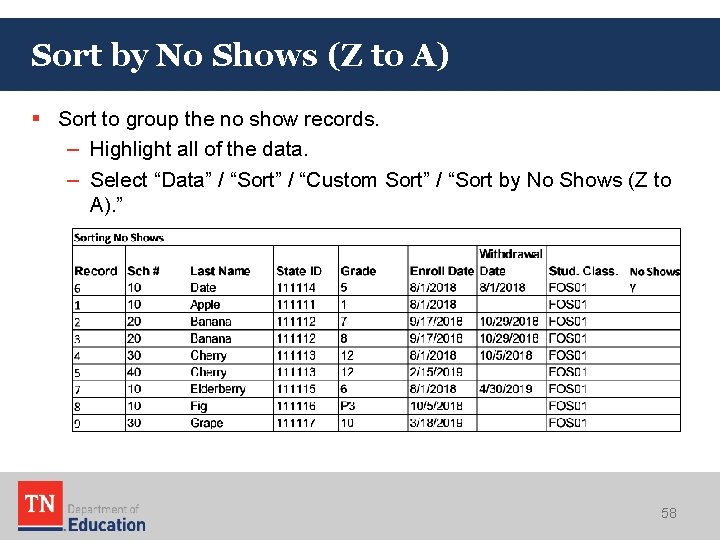
Sort by No Shows (Z to A) § Sort to group the no show records. – Highlight all of the data. – Select “Data” / “Sort” / “Custom Sort” / “Sort by No Shows (Z to A). ” 58
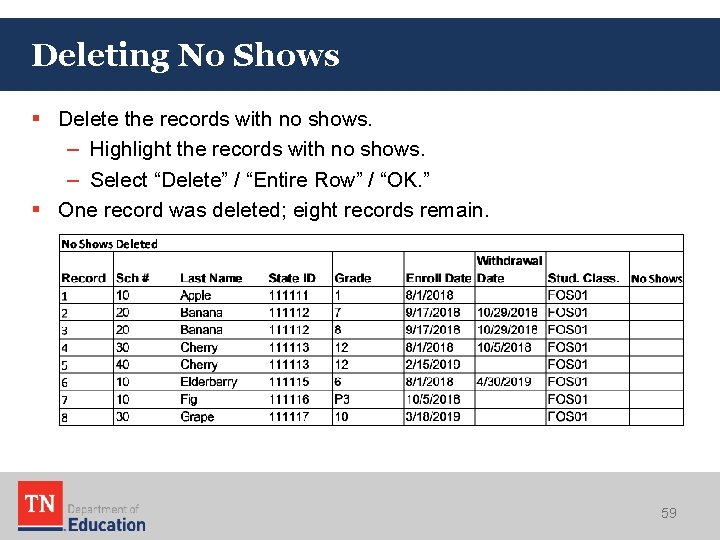
Deleting No Shows § Delete the records with no shows. – Highlight the records with no shows. – Select “Delete” / “Entire Row” / “OK. ” § One record was deleted; eight records remain. 59
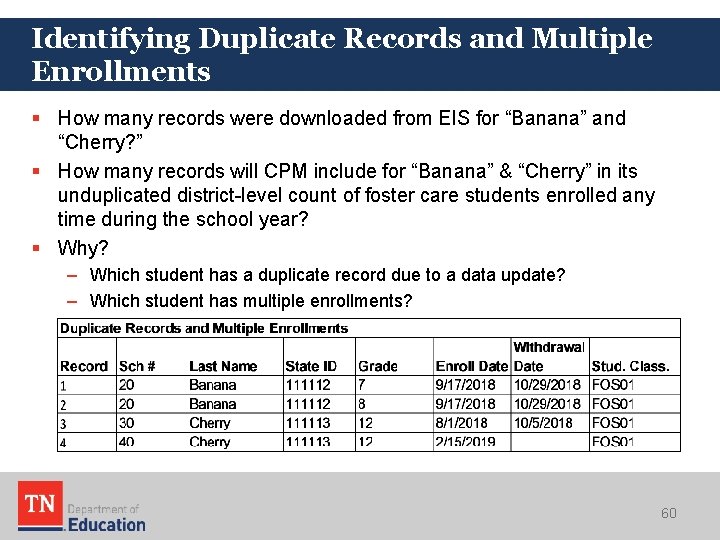
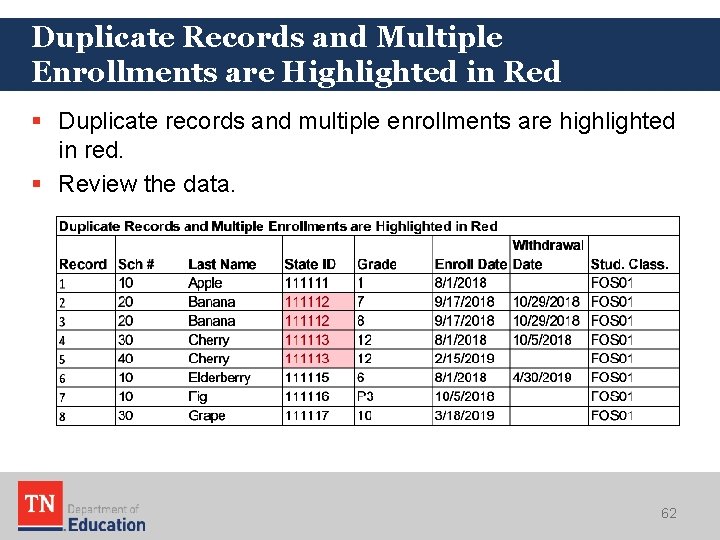
Identifying Duplicate Records and Multiple Enrollments § How many records were downloaded from EIS for “Banana” and “Cherry? ” § How many records will CPM include for “Banana” & “Cherry” in its unduplicated district-level count of foster care students enrolled any time during the school year? § Why? – Which student has a duplicate record due to a data update? – Which student has multiple enrollments? 60
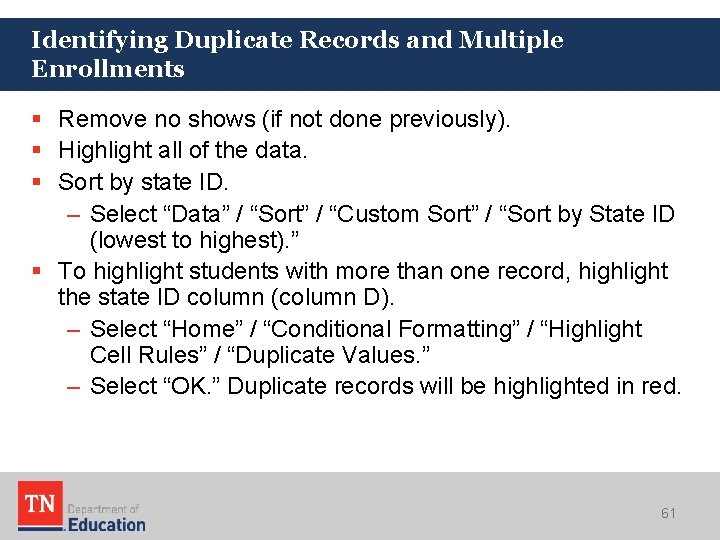
Identifying Duplicate Records and Multiple Enrollments § Remove no shows (if not done previously). § Highlight all of the data. § Sort by state ID. – Select “Data” / “Sort” / “Custom Sort” / “Sort by State ID (lowest to highest). ” § To highlight students with more than one record, highlight the state ID column (column D). – Select “Home” / “Conditional Formatting” / “Highlight Cell Rules” / “Duplicate Values. ” – Select “OK. ” Duplicate records will be highlighted in red. 61
Duplicate Records and Multiple Enrollments are Highlighted in Red § Duplicate records and multiple enrollments are highlighted in red. § Review the data. 62
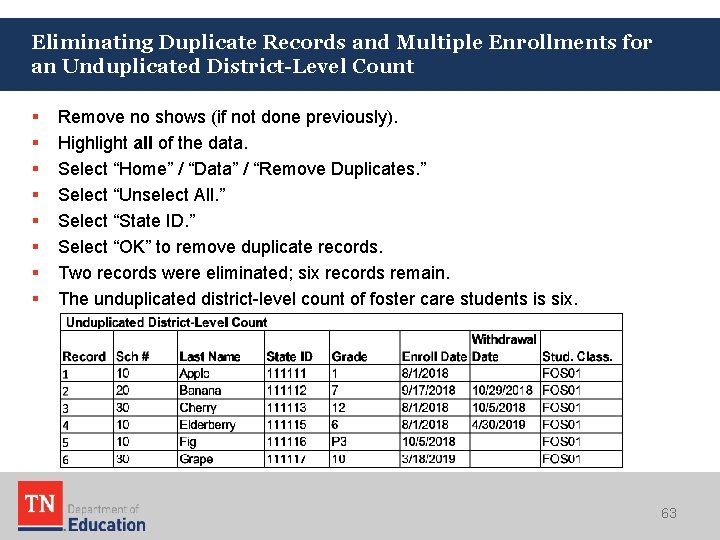
Eliminating Duplicate Records and Multiple Enrollments for an Unduplicated District-Level Count § § § § Remove no shows (if not done previously). Highlight all of the data. Select “Home” / “Data” / “Remove Duplicates. ” Select “Unselect All. ” Select “State ID. ” Select “OK” to remove duplicate records. Two records were eliminated; six records remain. The unduplicated district-level count of foster care students is six. 63
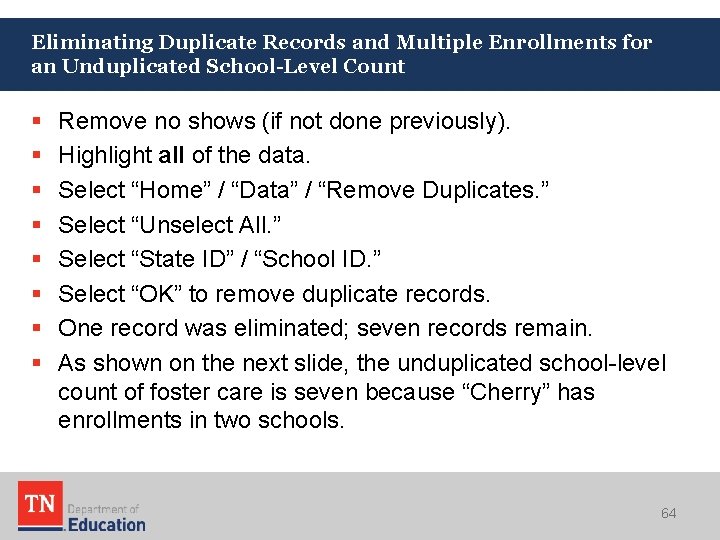
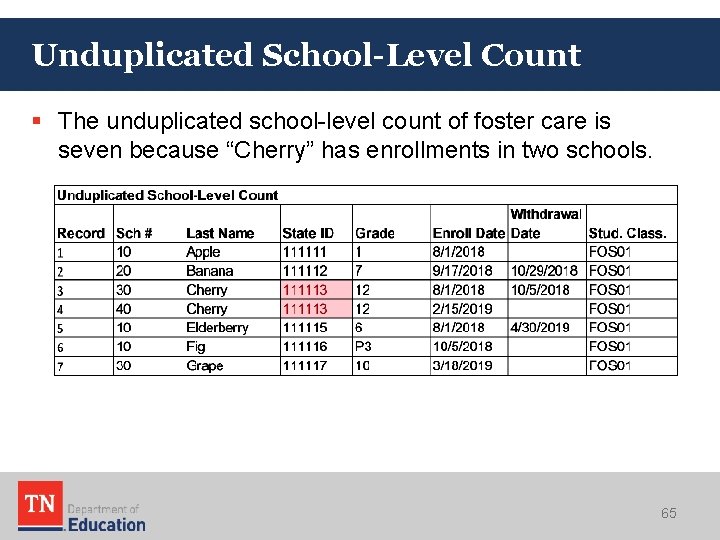
Eliminating Duplicate Records and Multiple Enrollments for an Unduplicated School-Level Count § § § § Remove no shows (if not done previously). Highlight all of the data. Select “Home” / “Data” / “Remove Duplicates. ” Select “Unselect All. ” Select “State ID” / “School ID. ” Select “OK” to remove duplicate records. One record was eliminated; seven records remain. As shown on the next slide, the unduplicated school-level count of foster care is seven because “Cherry” has enrollments in two schools. 64
Unduplicated School-Level Count § The unduplicated school-level count of foster care is seven because “Cherry” has enrollments in two schools. 65
Count for BEP Funding § BEP funding is limited to students enrolled in grades K-12 on Oct. 1. § Using the unduplicated district-level count as the baseline, which foster care students/enrollments would be included in the economically disadvantaged (ED) subgroup for BEP funding? § How would you identify these students/enrollments and/or exclude other students? 66
Count for TNReady Provisioning and Reporting § TNReady assessment provisioning and reporting is limited to students enrolled in grades 3 -12 during assessment test periods. § Using the unduplicated school-level count as the baseline, which students/enrollments would be included in the foster care (FOS 01) subgroup for assessment provisioning and reporting? § How would you identify these students/enrollments and/or exclude other students? 67
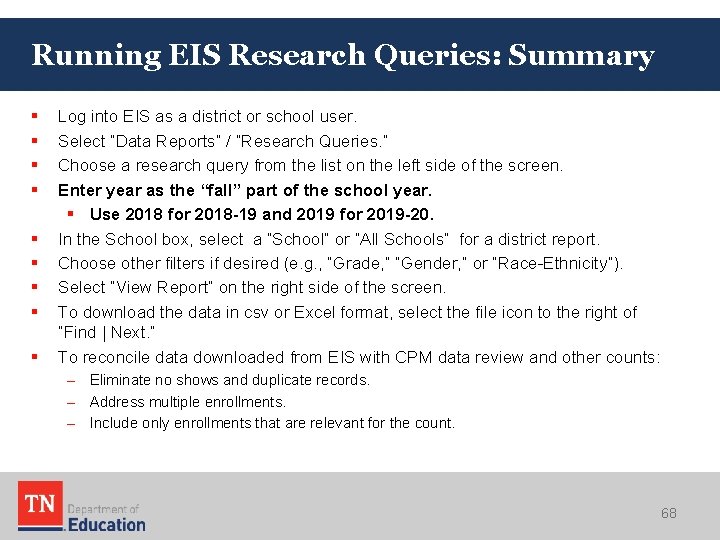
Running EIS Research Queries: Summary § § § § § Log into EIS as a district or school user. Select “Data Reports” / “Research Queries. ” Choose a research query from the list on the left side of the screen. Enter year as the “fall” part of the school year. § Use 2018 for 2018 -19 and 2019 for 2019 -20. In the School box, select a “School” or “All Schools” for a district report. Choose other filters if desired (e. g. , “Grade, ” ”Gender, ” or “Race-Ethnicity”). Select “View Report” on the right side of the screen. To download the data in csv or Excel format, select the file icon to the right of “Find | Next. ” To reconcile data downloaded from EIS with CPM data review and other counts: – Eliminate no shows and duplicate records. – Address multiple enrollments. – Include only enrollments that are relevant for the count. 68
Resources and Contacts
After the Session § Collaborate with attendance, early learning, EIS, federal programs, and technology contacts to ensure that your data are coded properly. § Regularly check your data in your student information system (SIS) and EIS, and upload revisions as needed. § For additional information about EIS and federal programs data, please refer to the CPM Data Manual, which is located in § e. Plan / TDOE Resources / CPM Data and the § department’s Planning and Monitoring, Guidance & Reference Materials web page. § Contact the department if you have questions. 70
Contact Information § If you have questions about coding and data, contact Trish Kelly (Trish. Kelly@tn. gov), Federal Programs Data Coordinator. § For EIS errors and restaging problems, please contact the District Technology Support Team (dt. support@tn. gov). 71
Districts and schools in Tennessee will exemplify excellence and equity such that all students are equipped with the knowledge and skills to successfully embark on their chosen path in life. Excellence | Optimism | Judgment | Courage | Teamwork
FRAUD, WASTE, or ABUSE Citizens and agencies are encouraged to report fraud, waste, or abuse in State and Local government. NOTICE: This agency is a recipient of taxpayer funding. If you observe an agency director or employee engaging in any activity which you consider to be illegal, improper or wasteful, please call the state Comptroller’s toll-free Hotline: 1 -800 -232 -5454 Notifications can also be submitted electronically at: http: //www. comptroller. tn. gov/hotline 73