
How to Build MacroModels in Tina SPICE Part
How to Build Macro-Models in Tina SPICE Part 1: Text Macro-Model Creation Text Sub. Circuit Creation Symbol Creation Macro-Model Creation Part 2: Schematic Macro-Model Creation Schematic Sub. Circuit Creation Symbol Creation Macro-Model Creation Tim Green May 4, 2006
Part 1: Text Macro-Model Creation Text Sub. Circuit Creation Symbol Creation Macro-Model Creation
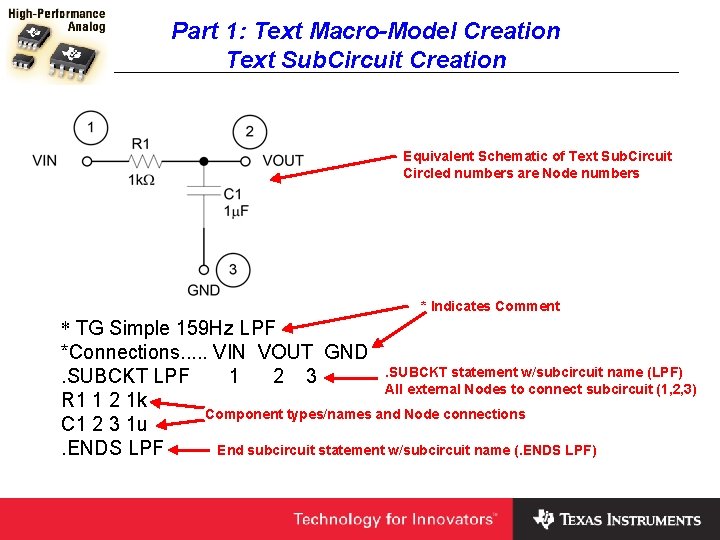
Part 1: Text Macro-Model Creation Text Sub. Circuit Creation Equivalent Schematic of Text Sub. Circuit Circled numbers are Node numbers * Indicates Comment * TG Simple 159 Hz LPF *Connections. . . VIN VOUT GND. SUBCKT statement w/subcircuit name (LPF). SUBCKT LPF 1 2 3 All external Nodes to connect subcircuit (1, 2, 3) R 1 1 2 1 k Component types/names and Node connections C 1 2 3 1 u. ENDS LPF End subcircuit statement w/subcircuit name (. ENDS LPF)
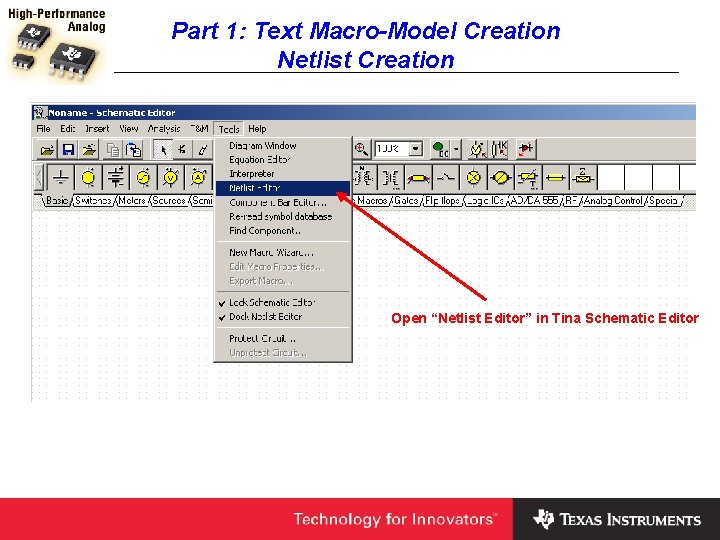
Part 1: Text Macro-Model Creation Netlist Creation Open “Netlist Editor” in Tina Schematic Editor
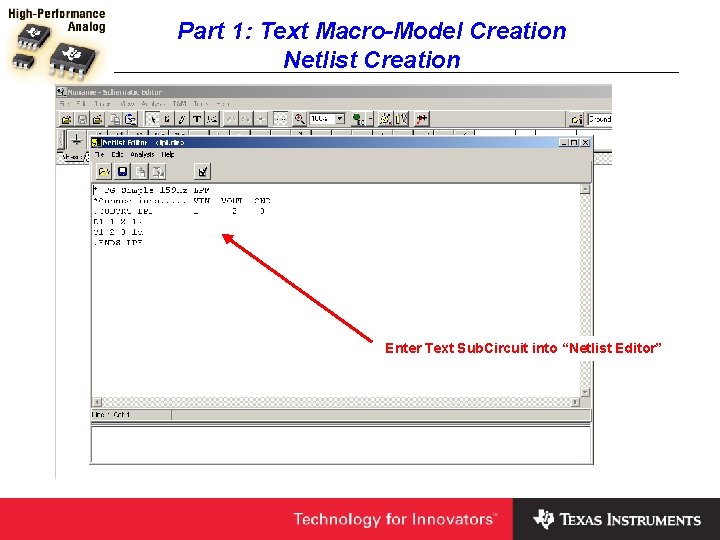
Part 1: Text Macro-Model Creation Netlist Creation Enter Text Sub. Circuit into “Netlist Editor”
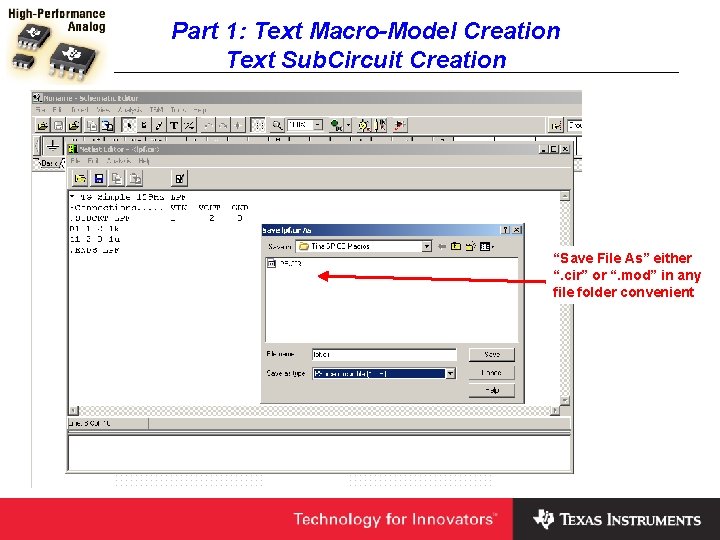
Part 1: Text Macro-Model Creation Text Sub. Circuit Creation “Save File As” either “. cir” or “. mod” in any file folder convenient
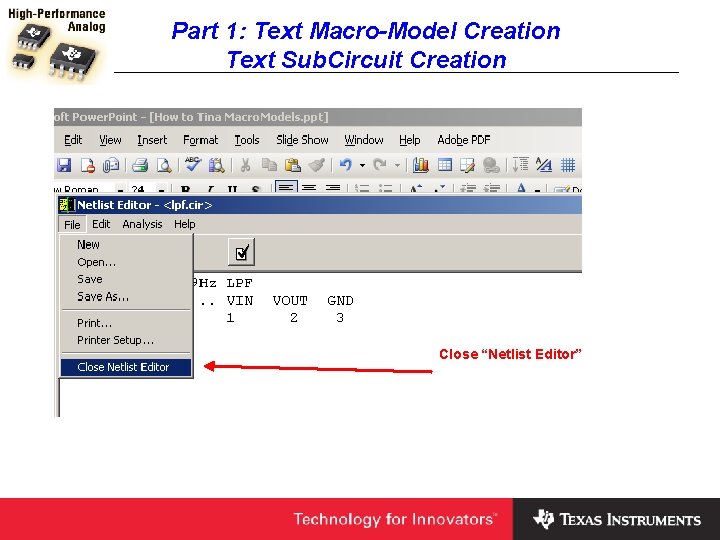
Part 1: Text Macro-Model Creation Text Sub. Circuit Creation Close “Netlist Editor”
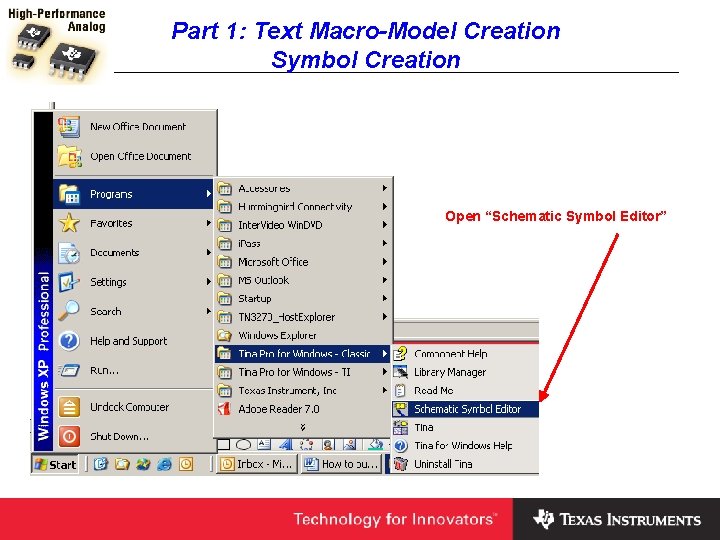
Part 1: Text Macro-Model Creation Symbol Creation Open “Schematic Symbol Editor”
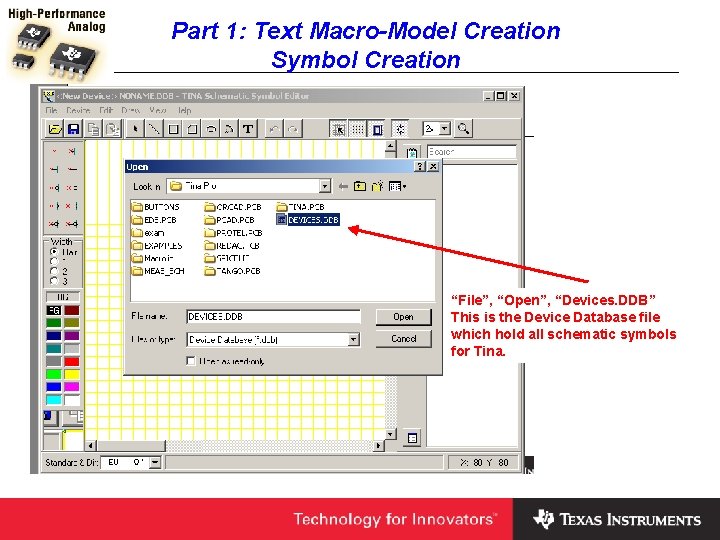
Part 1: Text Macro-Model Creation Symbol Creation “File”, “Open”, “Devices. DDB” This is the Device Database file which hold all schematic symbols for Tina.
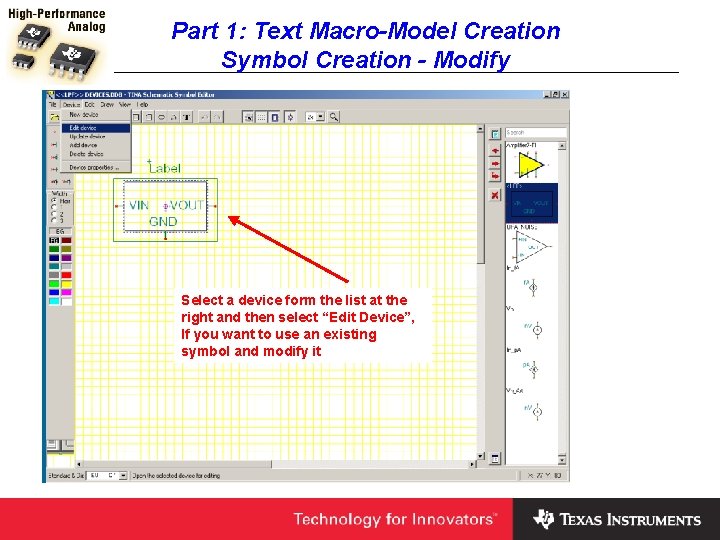
Part 1: Text Macro-Model Creation Symbol Creation - Modify Select a device form the list at the right and then select “Edit Device”, If you want to use an existing symbol and modify it
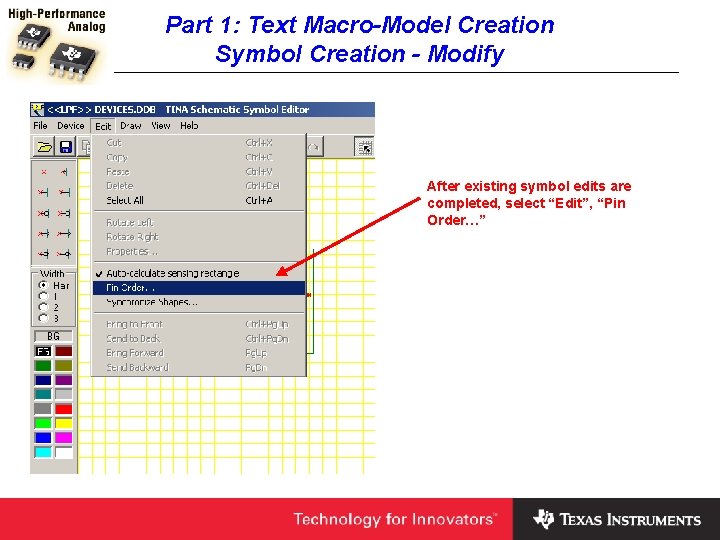
Part 1: Text Macro-Model Creation Symbol Creation - Modify After existing symbol edits are completed, select “Edit”, “Pin Order…”
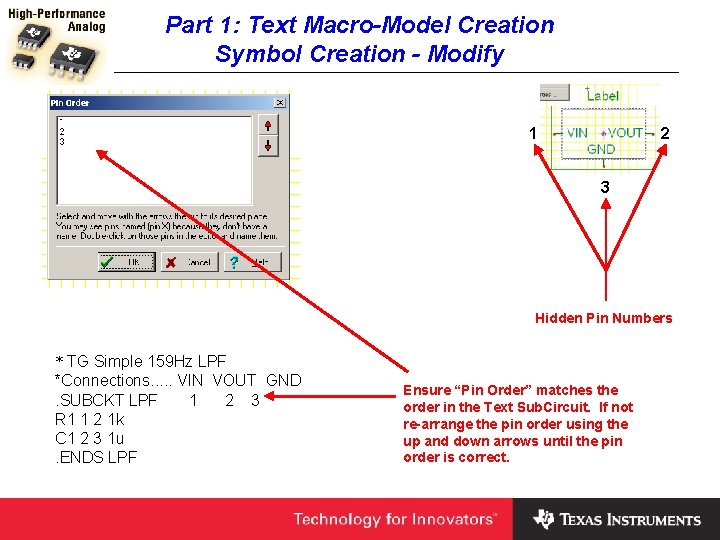
Part 1: Text Macro-Model Creation Symbol Creation - Modify 1 2 3 Hidden Pin Numbers * TG Simple 159 Hz LPF *Connections. . . VIN VOUT GND. SUBCKT LPF 1 2 3 R 1 1 2 1 k C 1 2 3 1 u. ENDS LPF Ensure “Pin Order” matches the order in the Text Sub. Circuit. If not re-arrange the pin order using the up and down arrows until the pin order is correct.
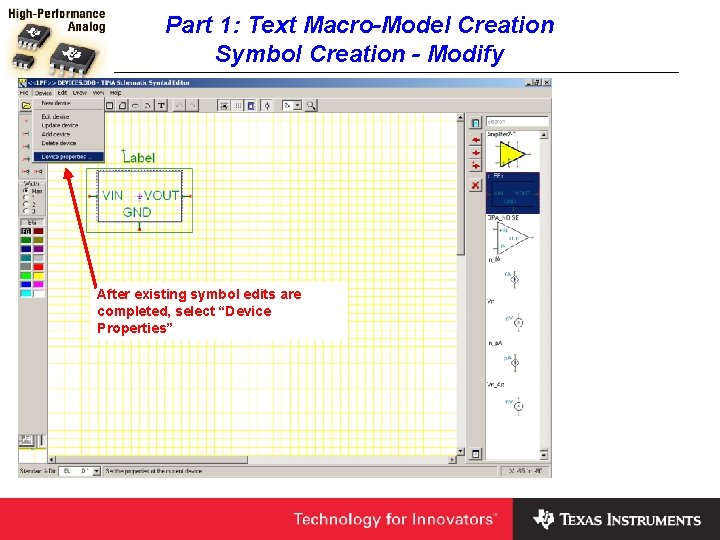
Part 1: Text Macro-Model Creation Symbol Creation - Modify After existing symbol edits are completed, select “Device Properties”
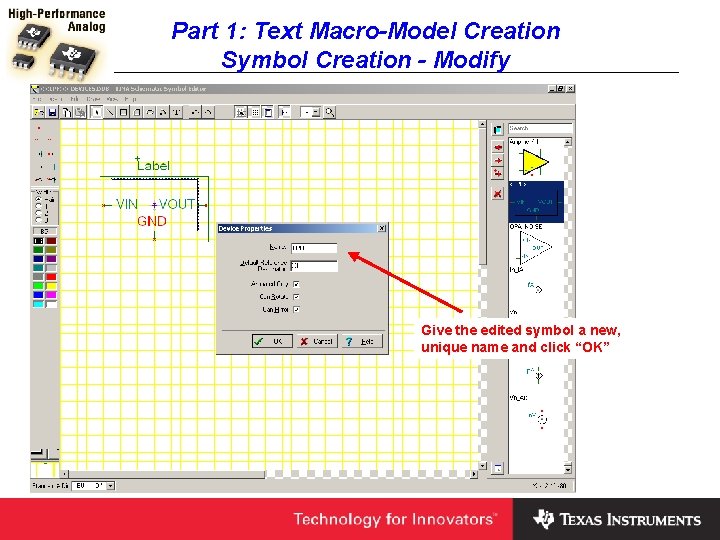
Part 1: Text Macro-Model Creation Symbol Creation - Modify Give the edited symbol a new, unique name and click “OK”
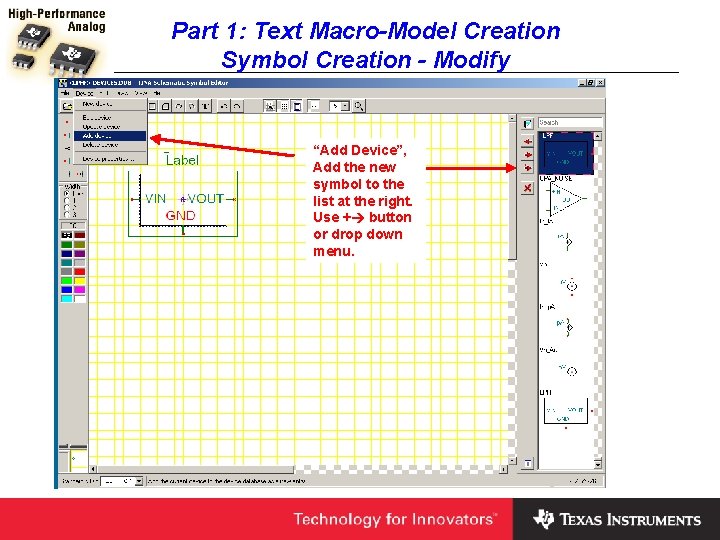
Part 1: Text Macro-Model Creation Symbol Creation - Modify “Add Device”, Add the new symbol to the list at the right. Use + button or drop down menu.
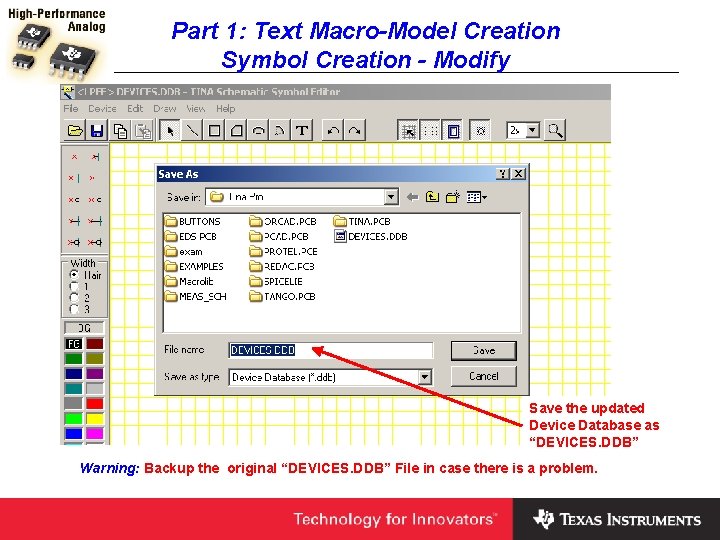
Part 1: Text Macro-Model Creation Symbol Creation - Modify Save the updated Device Database as “DEVICES. DDB” Warning: Backup the original “DEVICES. DDB” File in case there is a problem.
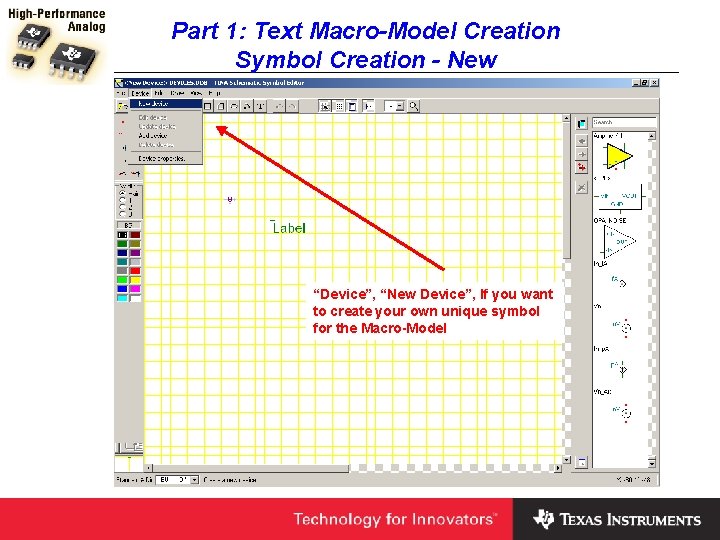
Part 1: Text Macro-Model Creation Symbol Creation - New “Device”, “New Device”, If you want to create your own unique symbol for the Macro-Model
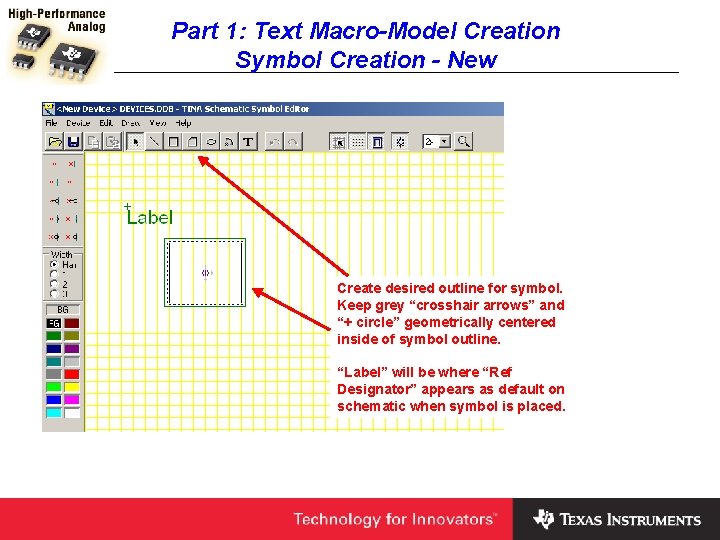
Part 1: Text Macro-Model Creation Symbol Creation - New Create desired outline for symbol. Keep grey “crosshair arrows” and “+ circle” geometrically centered inside of symbol outline. “Label” will be where “Ref Designator” appears as default on schematic when symbol is placed.
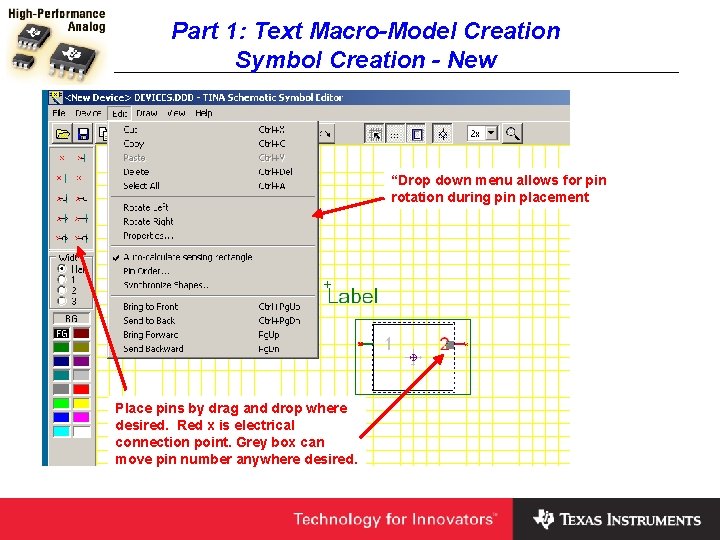
Part 1: Text Macro-Model Creation Symbol Creation - New “Drop down menu allows for pin rotation during pin placement Place pins by drag and drop where desired. Red x is electrical connection point. Grey box can move pin number anywhere desired.
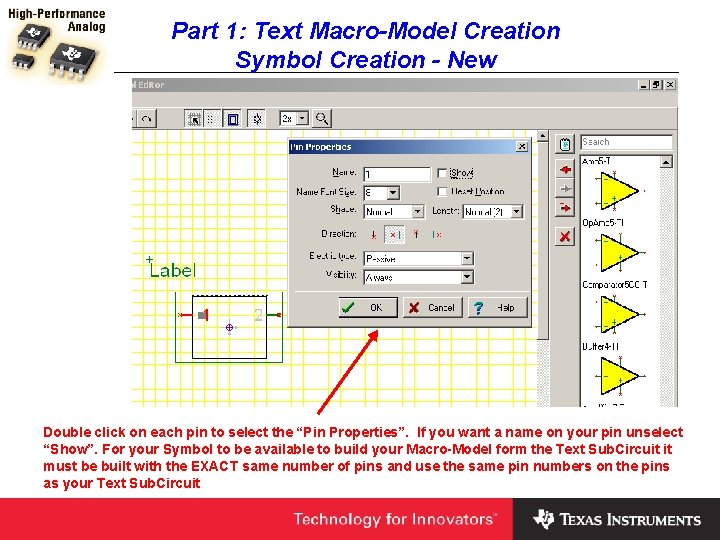
Part 1: Text Macro-Model Creation Symbol Creation - New Double click on each pin to select the “Pin Properties”. If you want a name on your pin unselect “Show”. For your Symbol to be available to build your Macro-Model form the Text Sub. Circuit it must be built with the EXACT same number of pins and use the same pin numbers on the pins as your Text Sub. Circuit
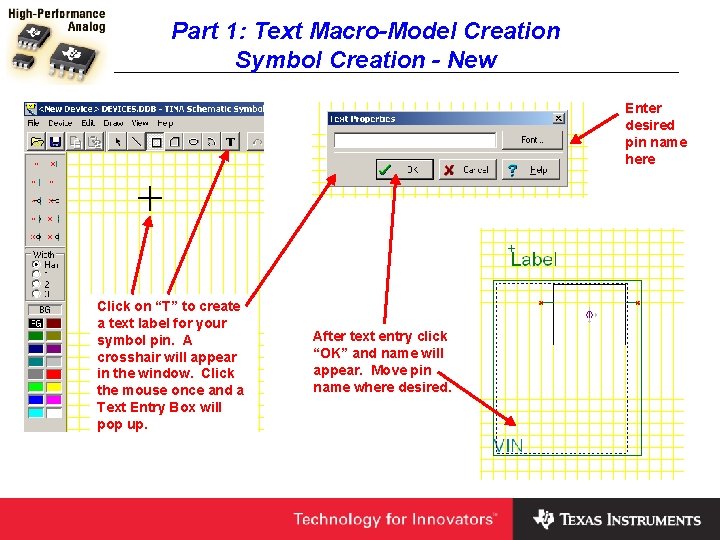
Part 1: Text Macro-Model Creation Symbol Creation - New Enter desired pin name here Click on “T” to create a text label for your symbol pin. A crosshair will appear in the window. Click the mouse once and a Text Entry Box will pop up. After text entry click “OK” and name will appear. Move pin name where desired.
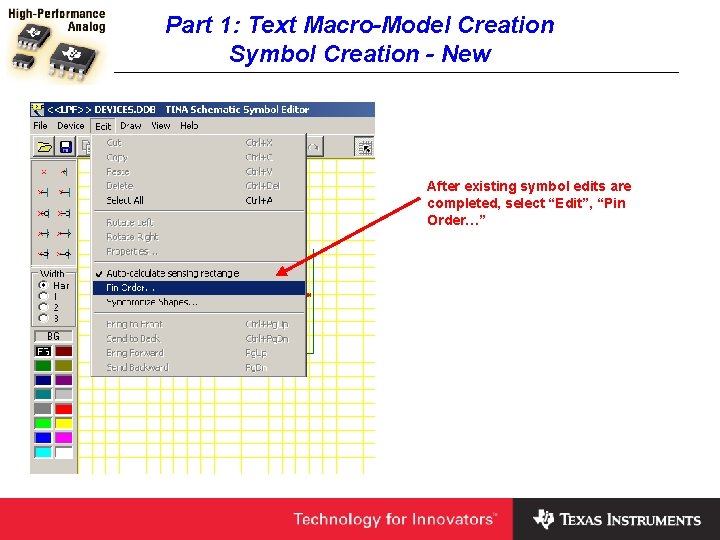
Part 1: Text Macro-Model Creation Symbol Creation - New After existing symbol edits are completed, select “Edit”, “Pin Order…”
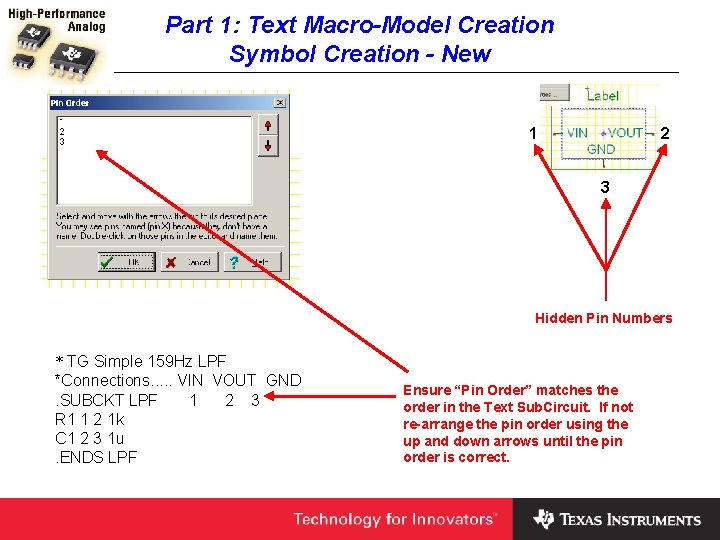
Part 1: Text Macro-Model Creation Symbol Creation - New 1 2 3 Hidden Pin Numbers * TG Simple 159 Hz LPF *Connections. . . VIN VOUT GND. SUBCKT LPF 1 2 3 R 1 1 2 1 k C 1 2 3 1 u. ENDS LPF Ensure “Pin Order” matches the order in the Text Sub. Circuit. If not re-arrange the pin order using the up and down arrows until the pin order is correct.
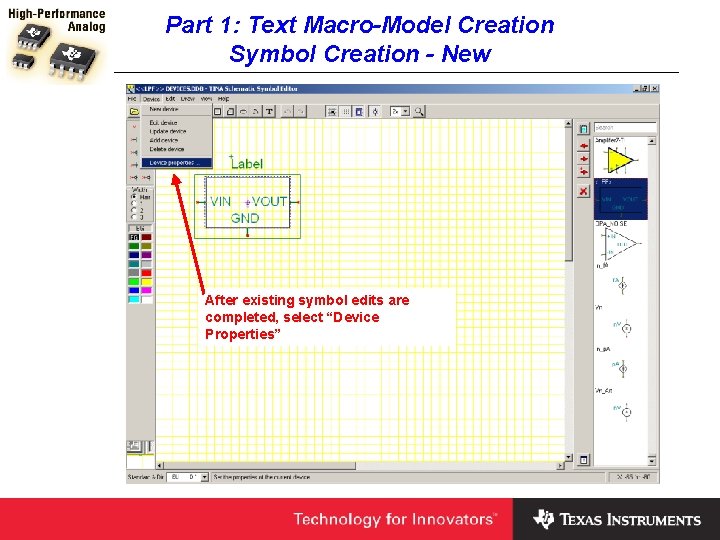
Part 1: Text Macro-Model Creation Symbol Creation - New After existing symbol edits are completed, select “Device Properties”
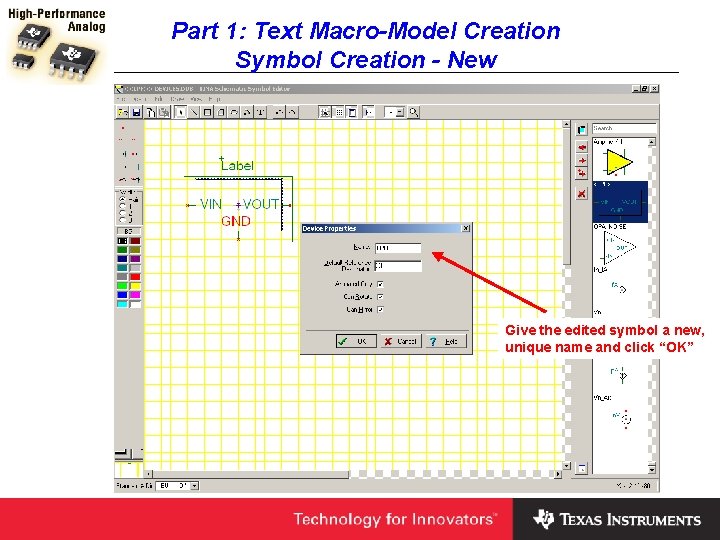
Part 1: Text Macro-Model Creation Symbol Creation - New Give the edited symbol a new, unique name and click “OK”
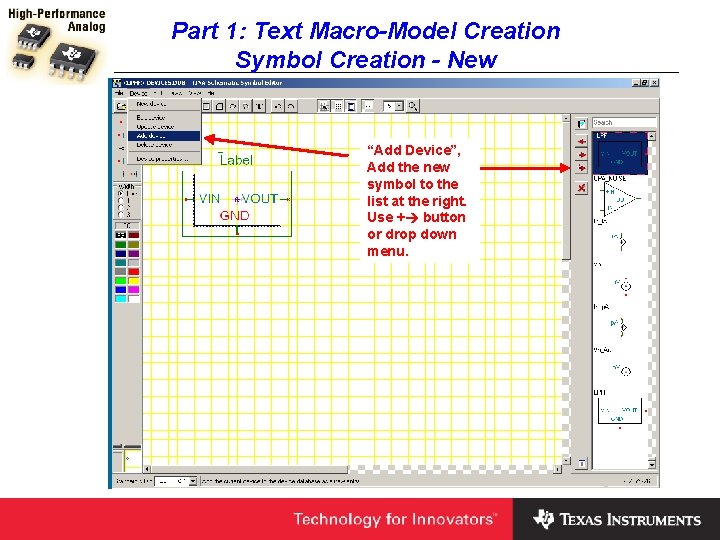
Part 1: Text Macro-Model Creation Symbol Creation - New “Add Device”, Add the new symbol to the list at the right. Use + button or drop down menu.
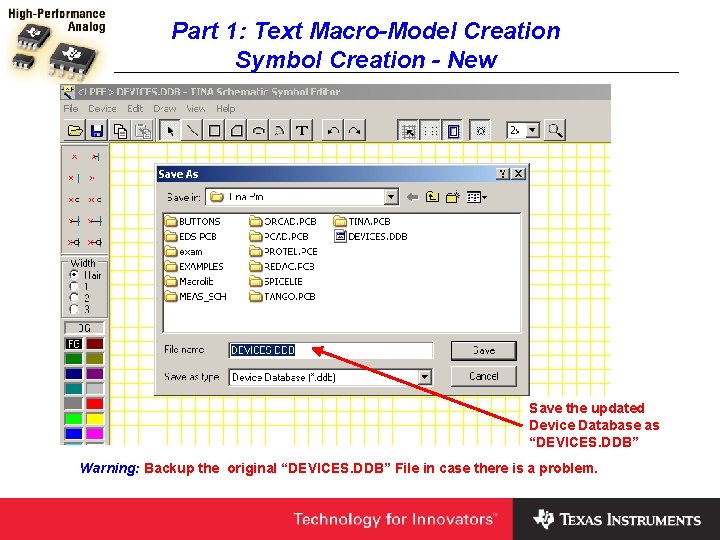
Part 1: Text Macro-Model Creation Symbol Creation - New Save the updated Device Database as “DEVICES. DDB” Warning: Backup the original “DEVICES. DDB” File in case there is a problem.
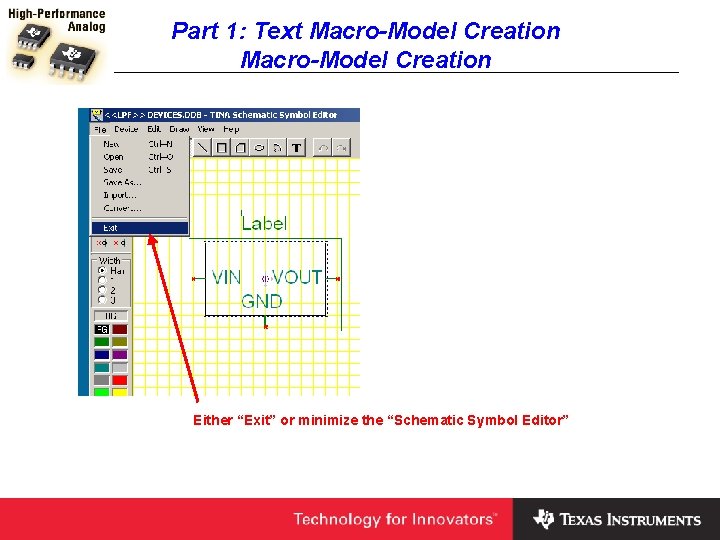
Part 1: Text Macro-Model Creation Either “Exit” or minimize the “Schematic Symbol Editor”
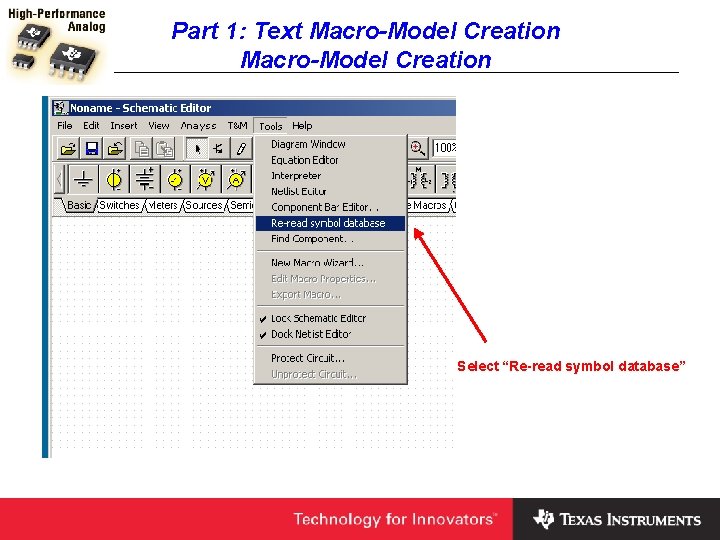
Part 1: Text Macro-Model Creation Select “Re-read symbol database”
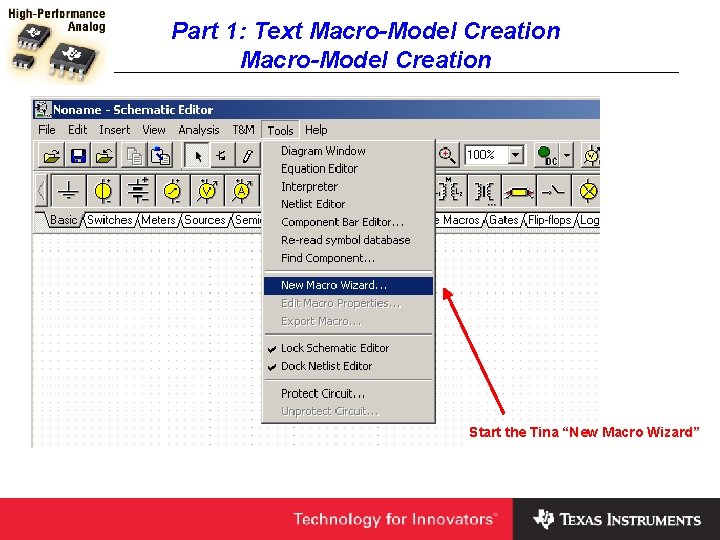
Part 1: Text Macro-Model Creation Start the Tina “New Macro Wizard”
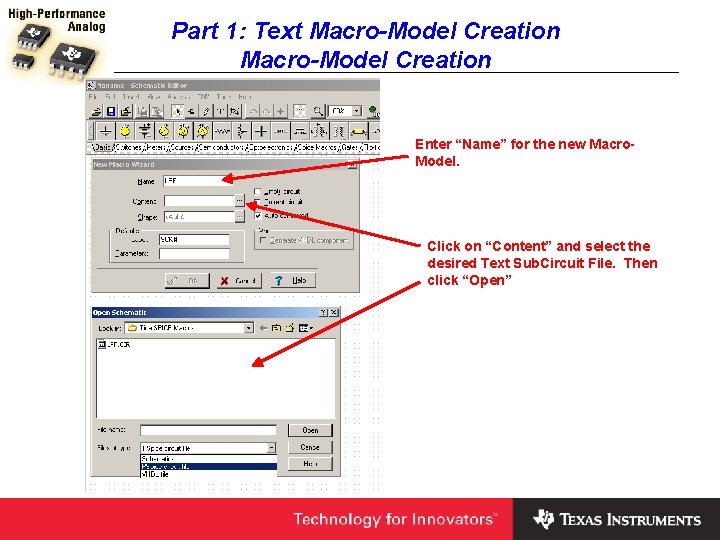
Part 1: Text Macro-Model Creation Enter “Name” for the new Macro. Model. Click on “Content” and select the desired Text Sub. Circuit File. Then click “Open”
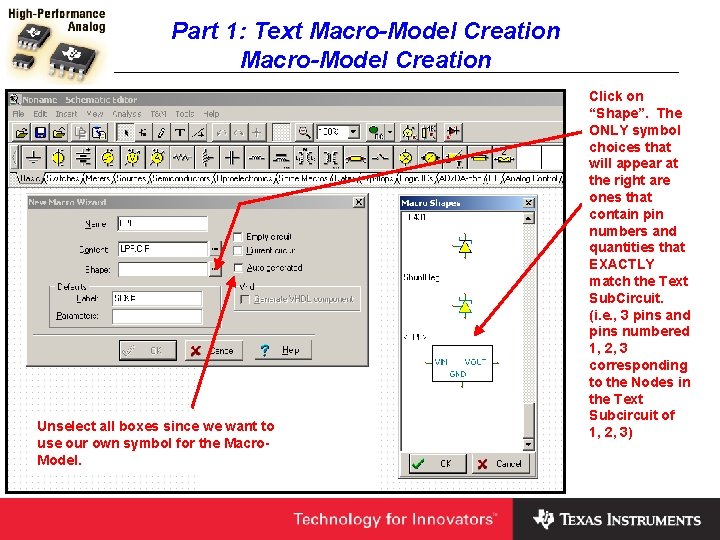
Part 1: Text Macro-Model Creation Unselect all boxes since we want to use our own symbol for the Macro. Model. Click on “Shape”. The ONLY symbol choices that will appear at the right are ones that contain pin numbers and quantities that EXACTLY match the Text Sub. Circuit. (i. e. , 3 pins and pins numbered 1, 2, 3 corresponding to the Nodes in the Text Subcircuit of 1, 2, 3)
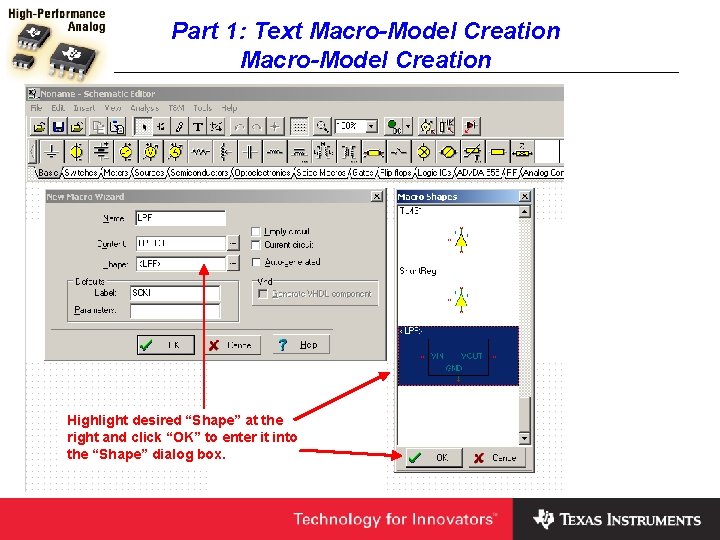
Part 1: Text Macro-Model Creation Highlight desired “Shape” at the right and click “OK” to enter it into the “Shape” dialog box.
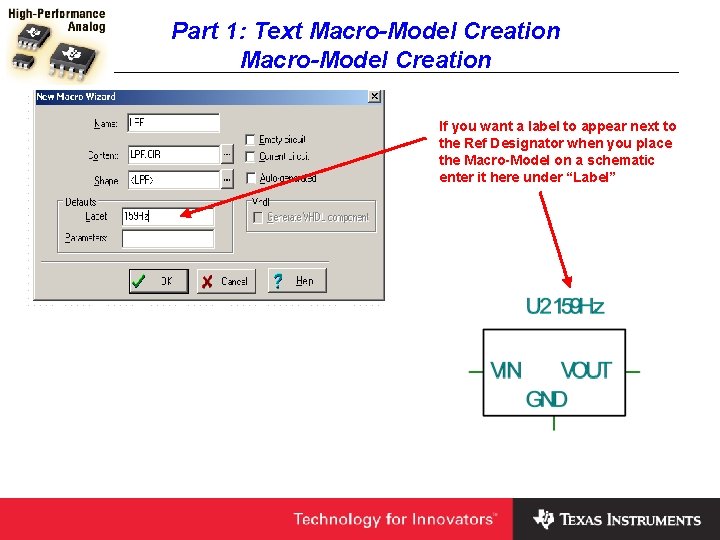
Part 1: Text Macro-Model Creation If you want a label to appear next to the Ref Designator when you place the Macro-Model on a schematic enter it here under “Label”
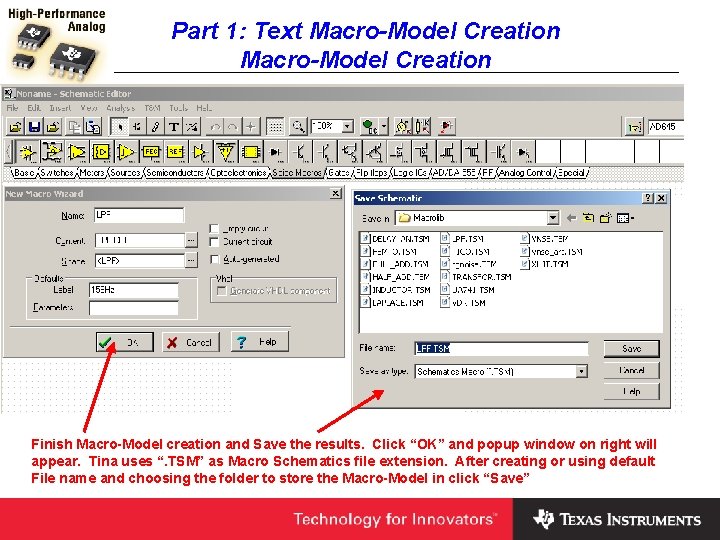
Part 1: Text Macro-Model Creation Finish Macro-Model creation and Save the results. Click “OK” and popup window on right will appear. Tina uses “. TSM” as Macro Schematics file extension. After creating or using default File name and choosing the folder to store the Macro-Model in click “Save”
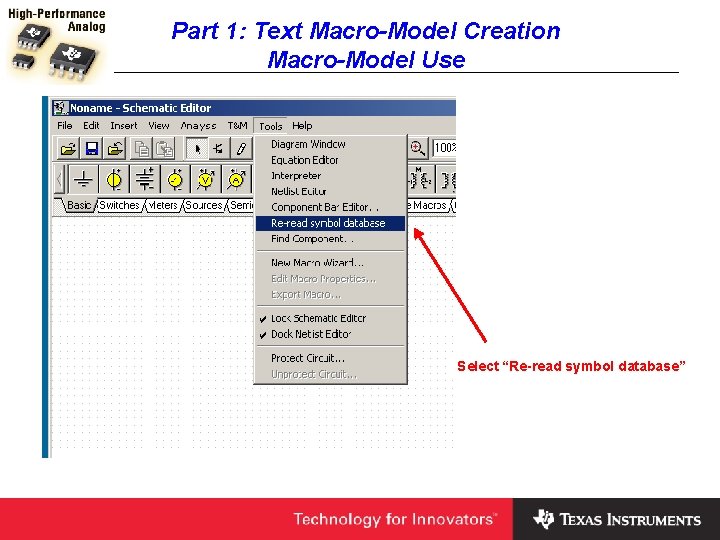
Part 1: Text Macro-Model Creation Macro-Model Use Select “Re-read symbol database”
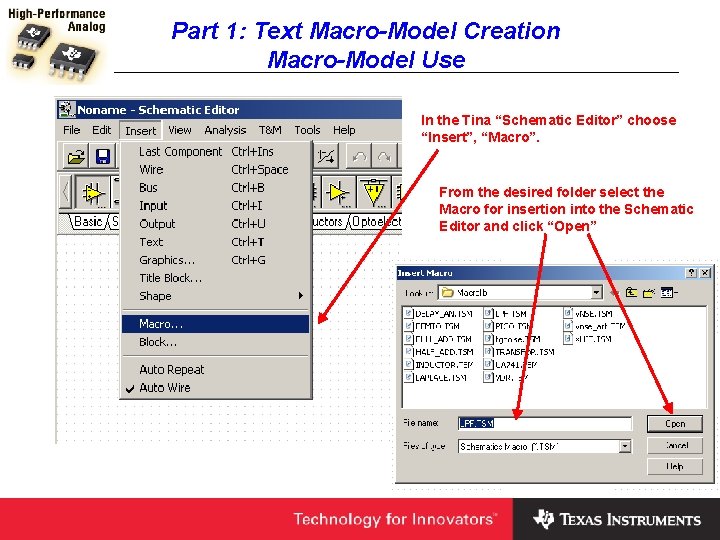
Part 1: Text Macro-Model Creation Macro-Model Use In the Tina “Schematic Editor” choose “Insert”, “Macro”. From the desired folder select the Macro for insertion into the Schematic Editor and click “Open”
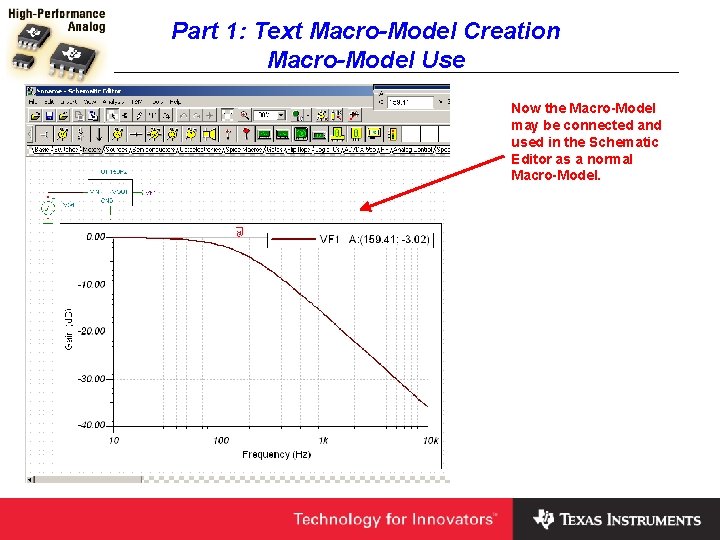
Part 1: Text Macro-Model Creation Macro-Model Use Now the Macro-Model may be connected and used in the Schematic Editor as a normal Macro-Model.
Part 2: Schematic Macro-Model Creation Schematic Sub. Circuit Creation Symbol Creation Macro-Model Creation
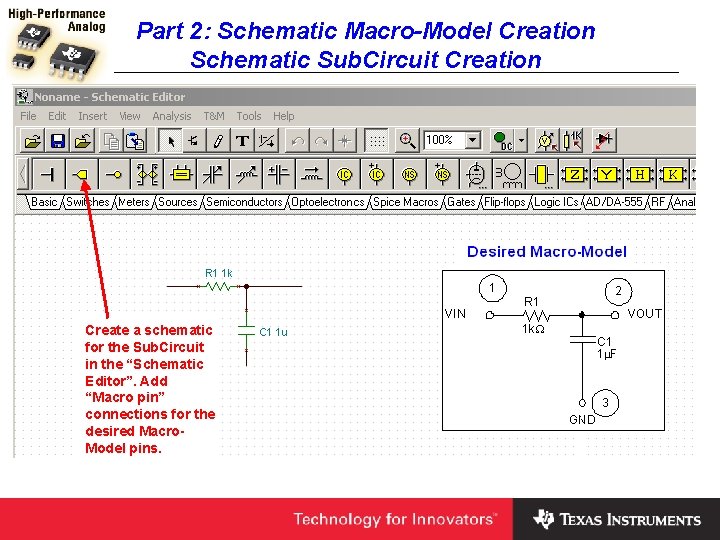
Part 2: Schematic Macro-Model Creation Schematic Sub. Circuit Creation Create a schematic for the Sub. Circuit in the “Schematic Editor”. Add “Macro pin” connections for the desired Macro. Model pins.
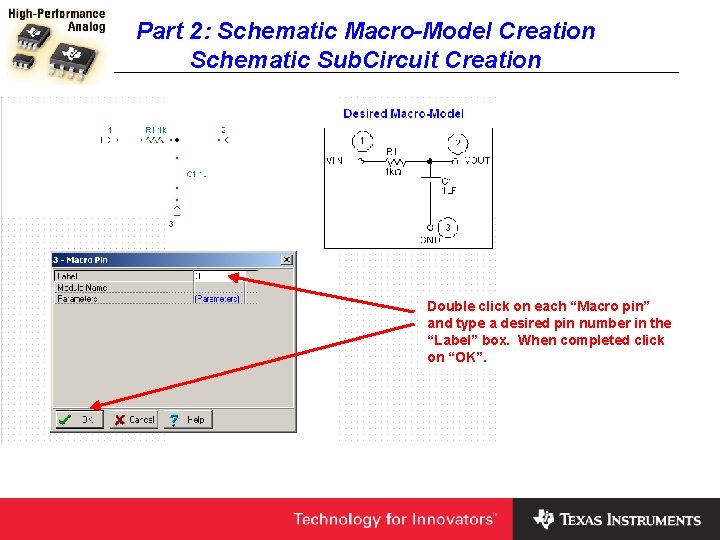
Part 2: Schematic Macro-Model Creation Schematic Sub. Circuit Creation Double click on each “Macro pin” and type a desired pin number in the “Label” box. When completed click on “OK”.
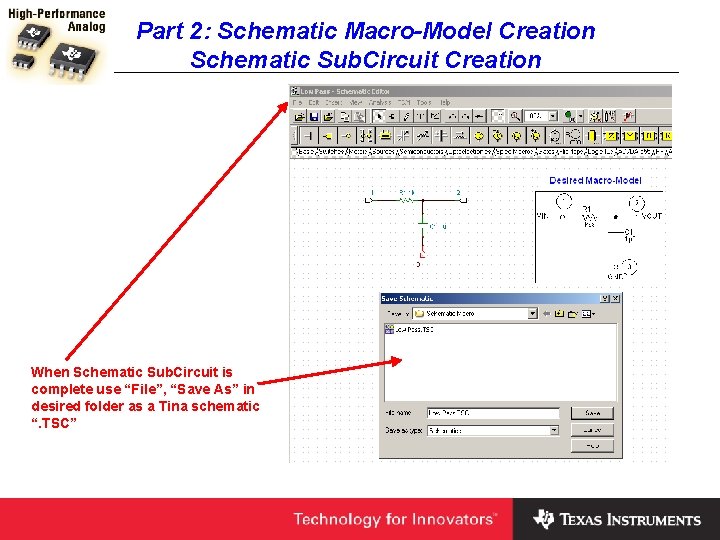
Part 2: Schematic Macro-Model Creation Schematic Sub. Circuit Creation When Schematic Sub. Circuit is complete use “File”, “Save As” in desired folder as a Tina schematic “. TSC”
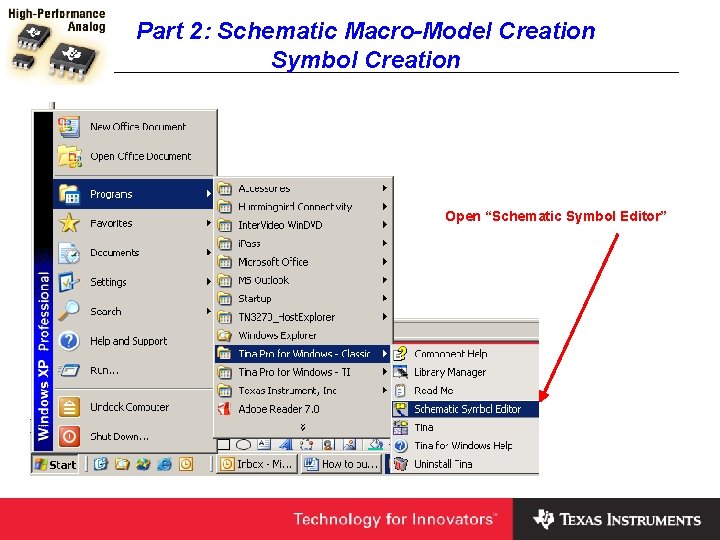
Part 2: Schematic Macro-Model Creation Symbol Creation Open “Schematic Symbol Editor”
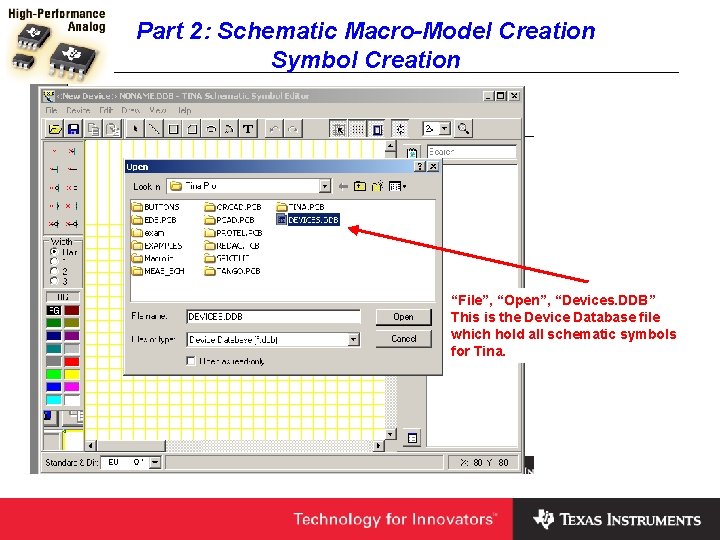
Part 2: Schematic Macro-Model Creation Symbol Creation “File”, “Open”, “Devices. DDB” This is the Device Database file which hold all schematic symbols for Tina.
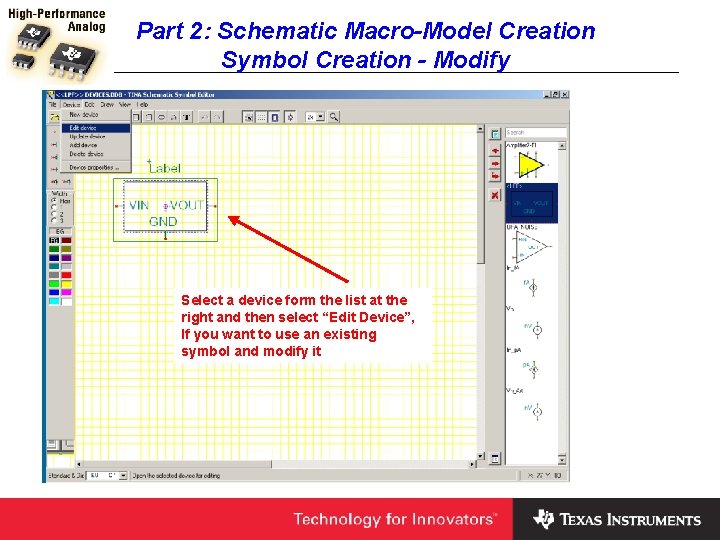
Part 2: Schematic Macro-Model Creation Symbol Creation - Modify Select a device form the list at the right and then select “Edit Device”, If you want to use an existing symbol and modify it
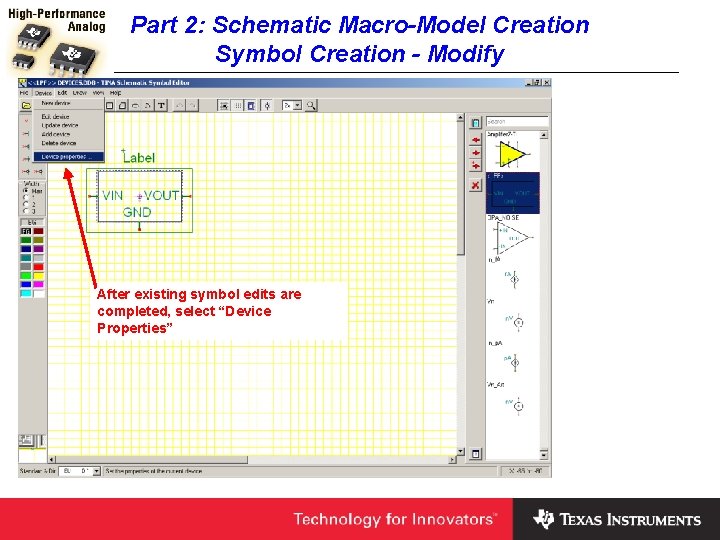
Part 2: Schematic Macro-Model Creation Symbol Creation - Modify After existing symbol edits are completed, select “Device Properties”
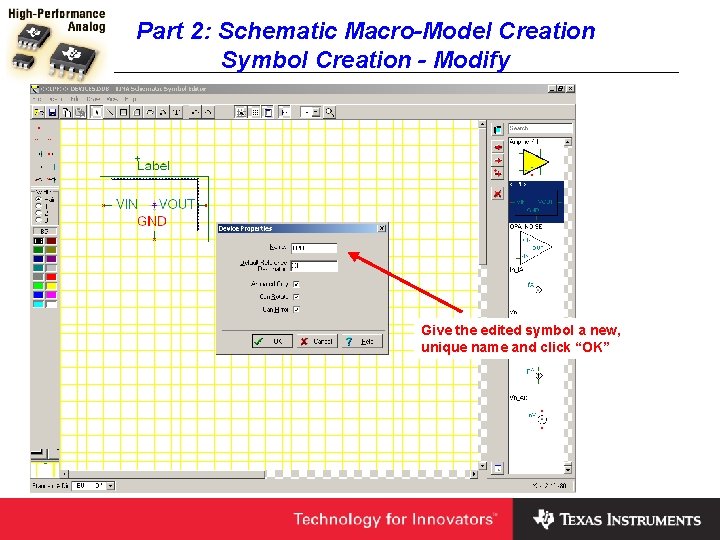
Part 2: Schematic Macro-Model Creation Symbol Creation - Modify Give the edited symbol a new, unique name and click “OK”
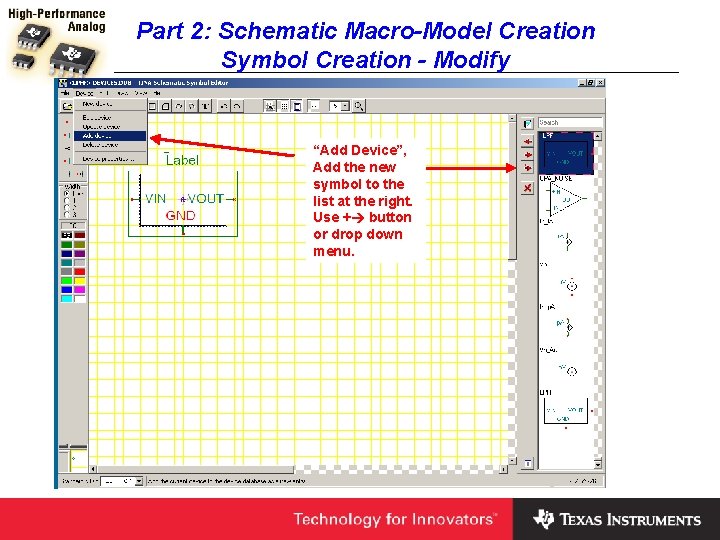
Part 2: Schematic Macro-Model Creation Symbol Creation - Modify “Add Device”, Add the new symbol to the list at the right. Use + button or drop down menu.
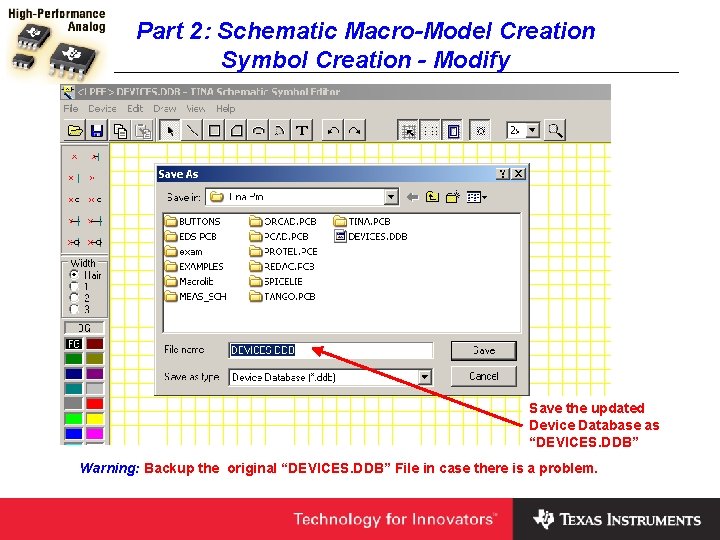
Part 2: Schematic Macro-Model Creation Symbol Creation - Modify Save the updated Device Database as “DEVICES. DDB” Warning: Backup the original “DEVICES. DDB” File in case there is a problem.
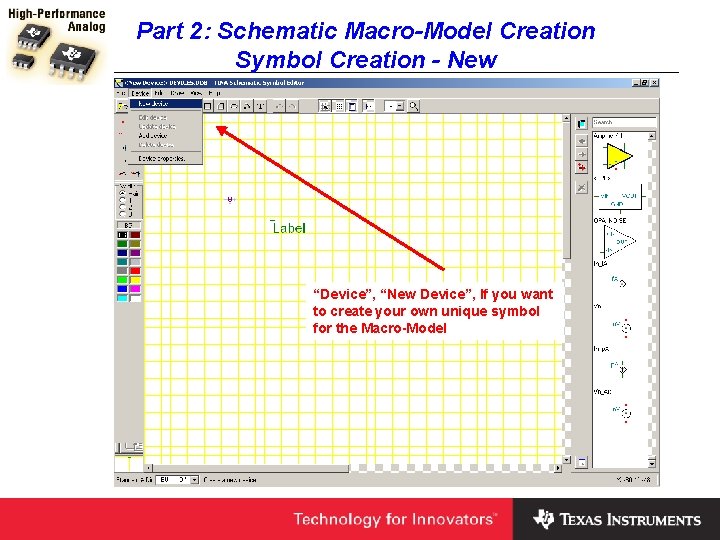
Part 2: Schematic Macro-Model Creation Symbol Creation - New “Device”, “New Device”, If you want to create your own unique symbol for the Macro-Model
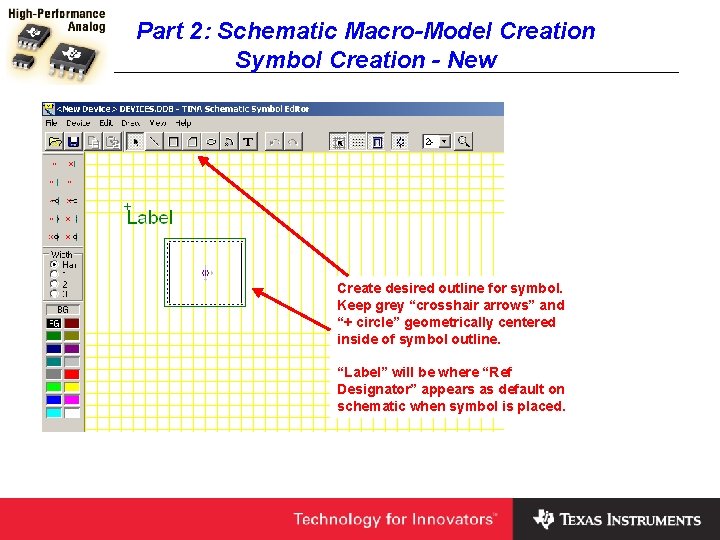
Part 2: Schematic Macro-Model Creation Symbol Creation - New Create desired outline for symbol. Keep grey “crosshair arrows” and “+ circle” geometrically centered inside of symbol outline. “Label” will be where “Ref Designator” appears as default on schematic when symbol is placed.
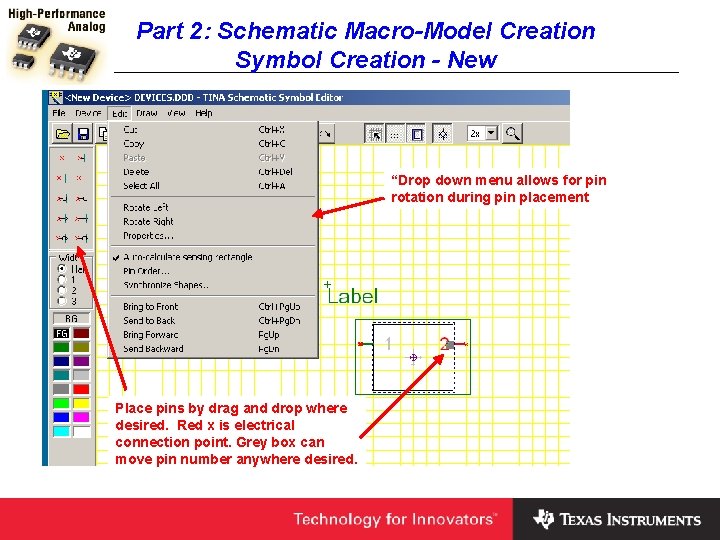
Part 2: Schematic Macro-Model Creation Symbol Creation - New “Drop down menu allows for pin rotation during pin placement Place pins by drag and drop where desired. Red x is electrical connection point. Grey box can move pin number anywhere desired.
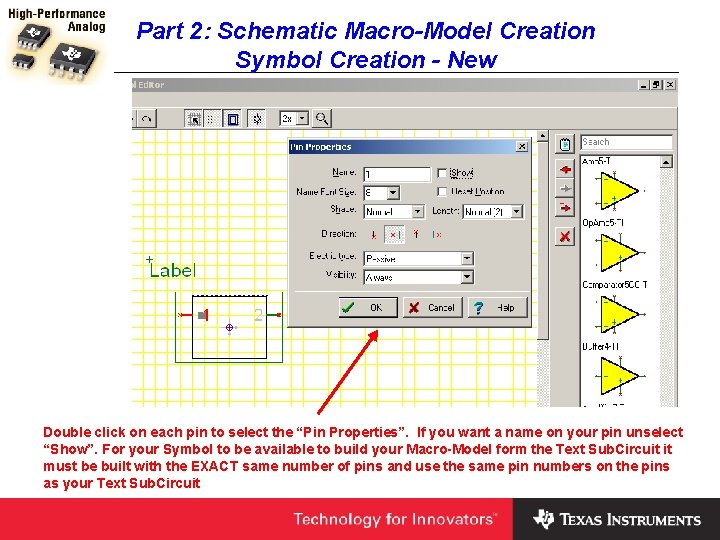
Part 2: Schematic Macro-Model Creation Symbol Creation - New Double click on each pin to select the “Pin Properties”. If you want a name on your pin unselect “Show”. For your Symbol to be available to build your Macro-Model form the Text Sub. Circuit it must be built with the EXACT same number of pins and use the same pin numbers on the pins as your Text Sub. Circuit
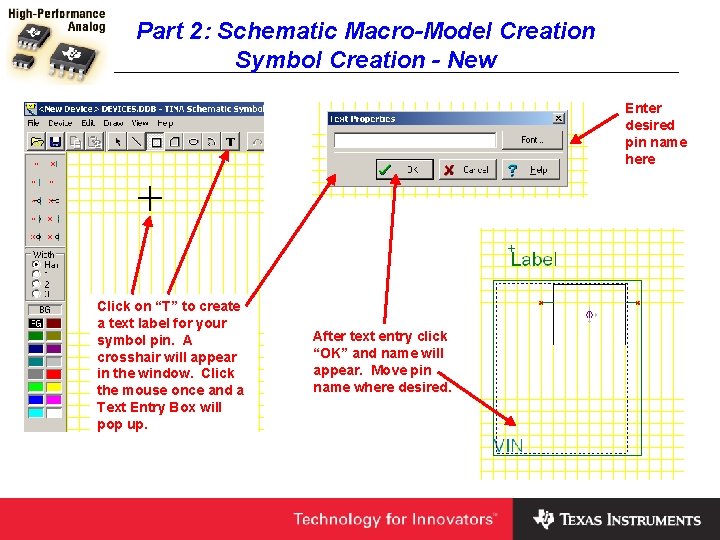
Part 2: Schematic Macro-Model Creation Symbol Creation - New Enter desired pin name here Click on “T” to create a text label for your symbol pin. A crosshair will appear in the window. Click the mouse once and a Text Entry Box will pop up. After text entry click “OK” and name will appear. Move pin name where desired.
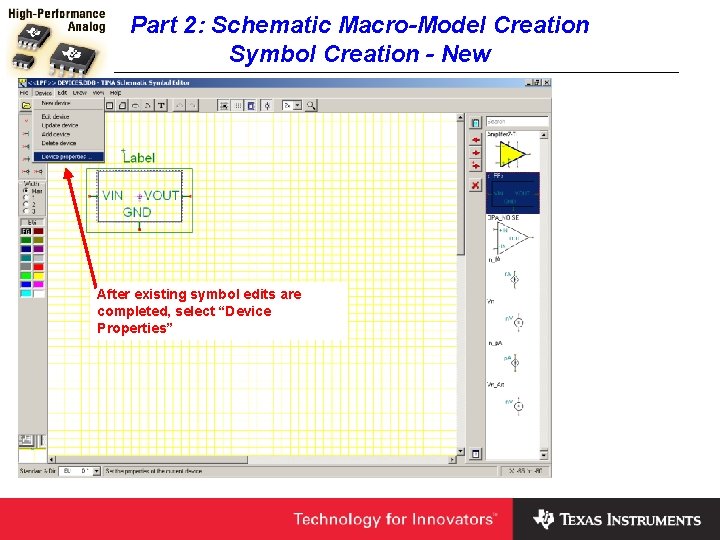
Part 2: Schematic Macro-Model Creation Symbol Creation - New After existing symbol edits are completed, select “Device Properties”
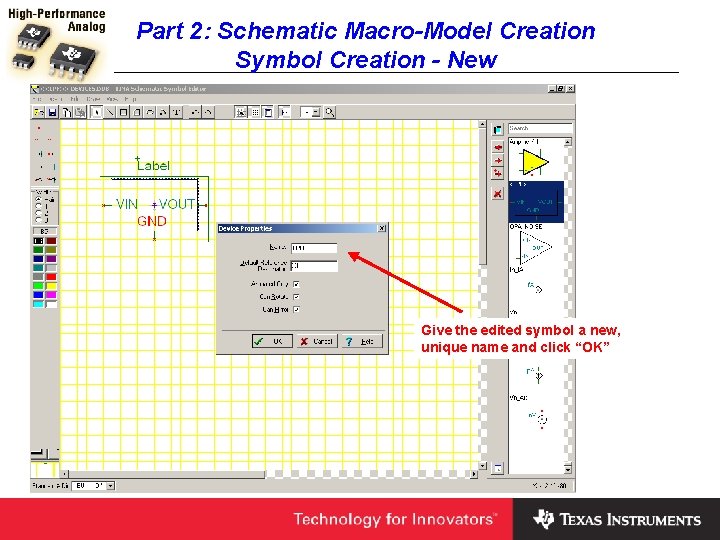
Part 2: Schematic Macro-Model Creation Symbol Creation - New Give the edited symbol a new, unique name and click “OK”
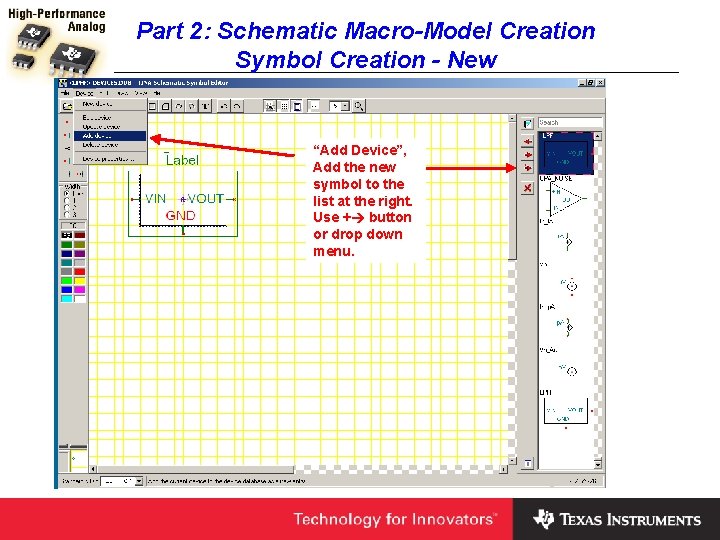
Part 2: Schematic Macro-Model Creation Symbol Creation - New “Add Device”, Add the new symbol to the list at the right. Use + button or drop down menu.
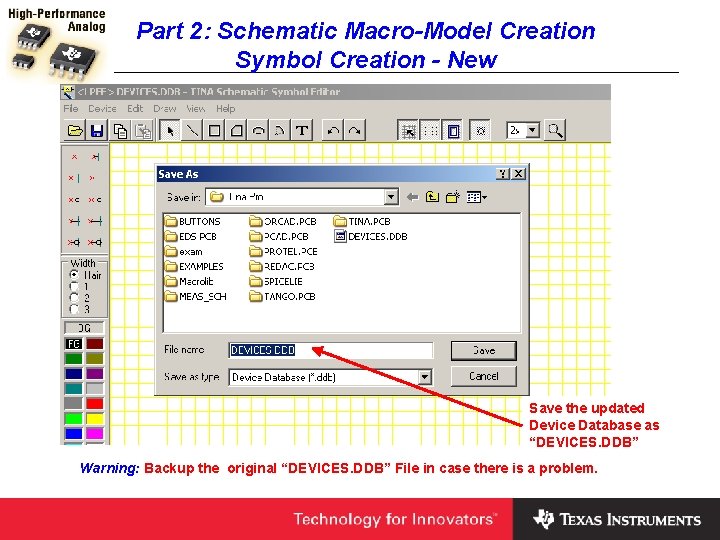
Part 2: Schematic Macro-Model Creation Symbol Creation - New Save the updated Device Database as “DEVICES. DDB” Warning: Backup the original “DEVICES. DDB” File in case there is a problem.
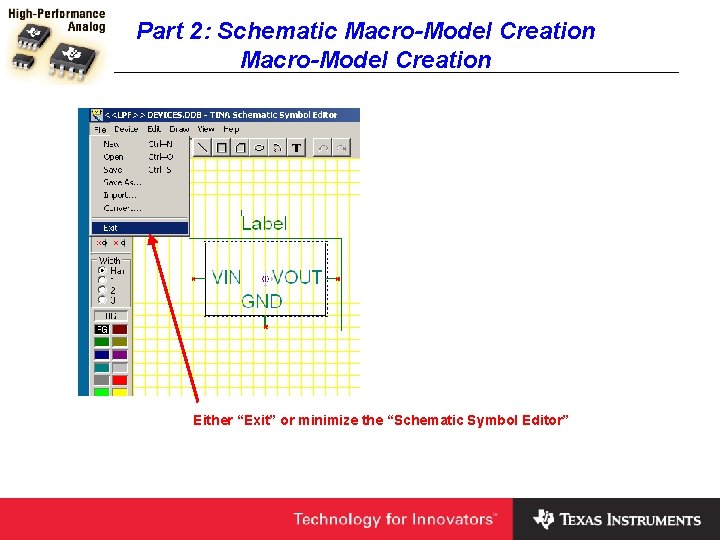
Part 2: Schematic Macro-Model Creation Either “Exit” or minimize the “Schematic Symbol Editor”
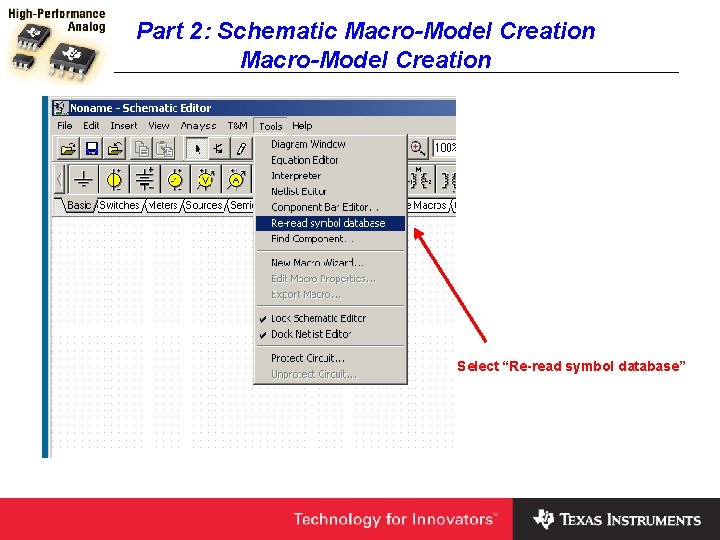
Part 2: Schematic Macro-Model Creation Select “Re-read symbol database”
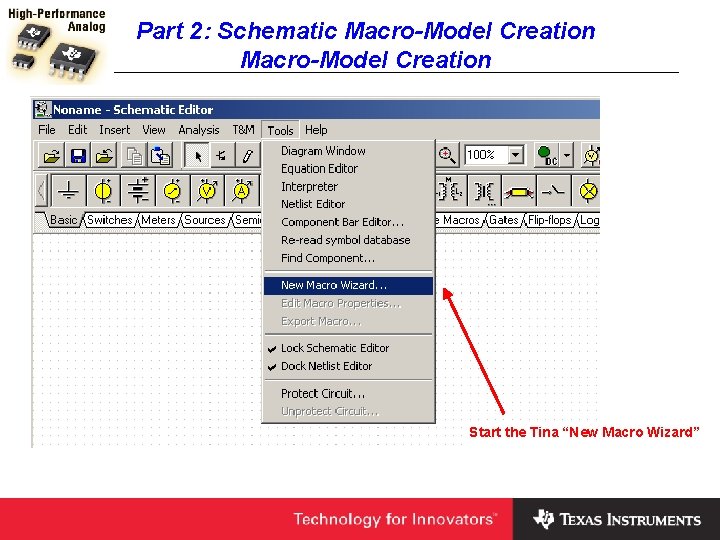
Part 2: Schematic Macro-Model Creation Start the Tina “New Macro Wizard”
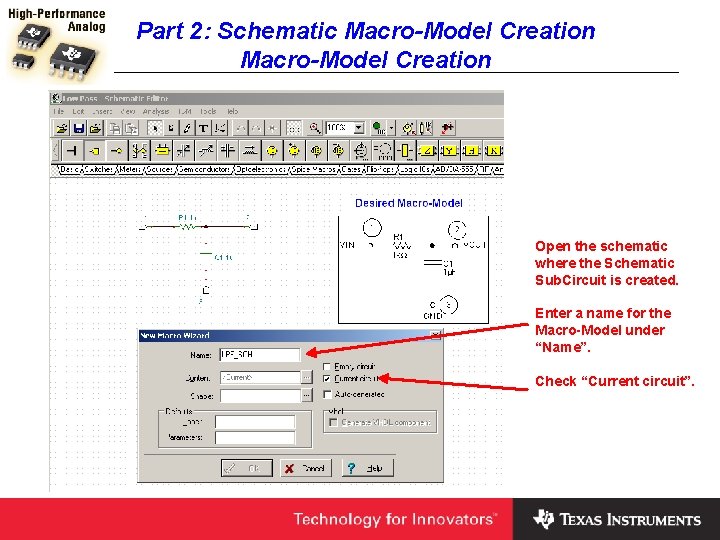
Part 2: Schematic Macro-Model Creation Open the schematic where the Schematic Sub. Circuit is created. Enter a name for the Macro-Model under “Name”. Check “Current circuit”.
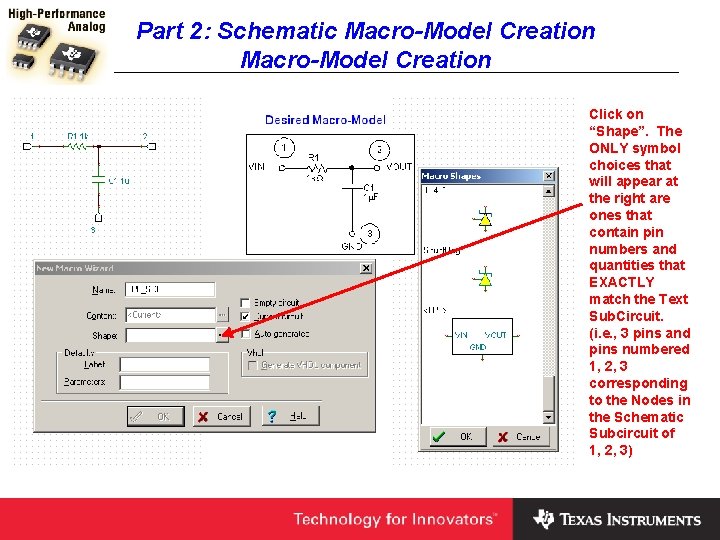
Part 2: Schematic Macro-Model Creation Click on “Shape”. The ONLY symbol choices that will appear at the right are ones that contain pin numbers and quantities that EXACTLY match the Text Sub. Circuit. (i. e. , 3 pins and pins numbered 1, 2, 3 corresponding to the Nodes in the Schematic Subcircuit of 1, 2, 3)
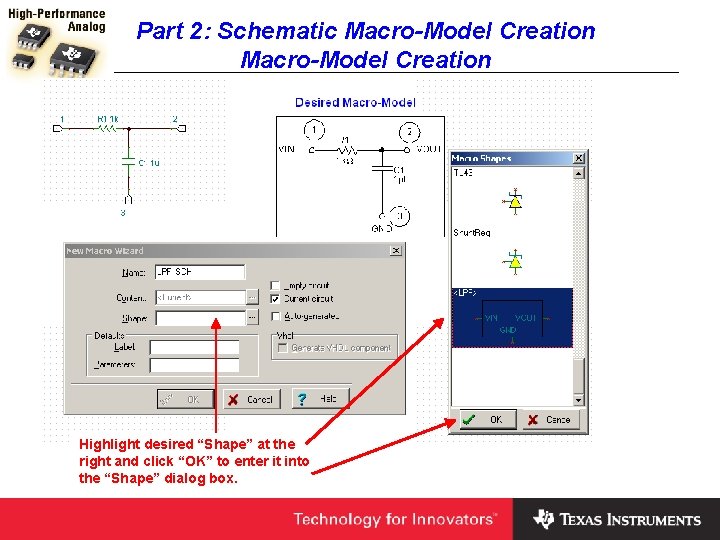
Part 2: Schematic Macro-Model Creation Highlight desired “Shape” at the right and click “OK” to enter it into the “Shape” dialog box.
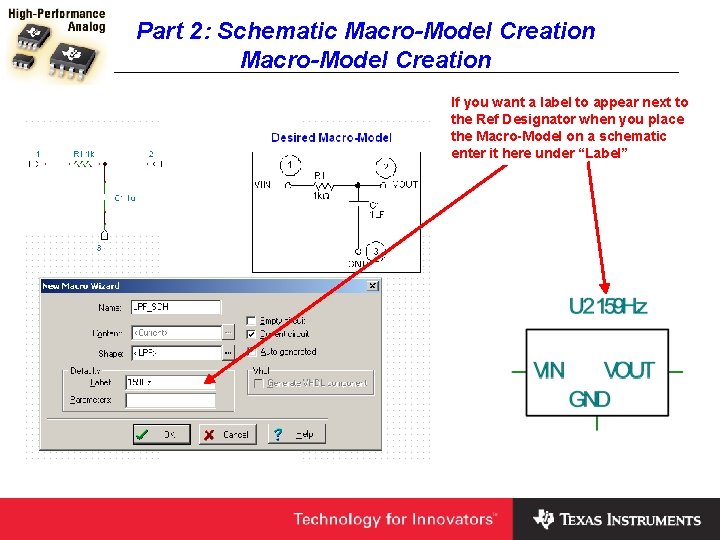
Part 2: Schematic Macro-Model Creation If you want a label to appear next to the Ref Designator when you place the Macro-Model on a schematic enter it here under “Label”
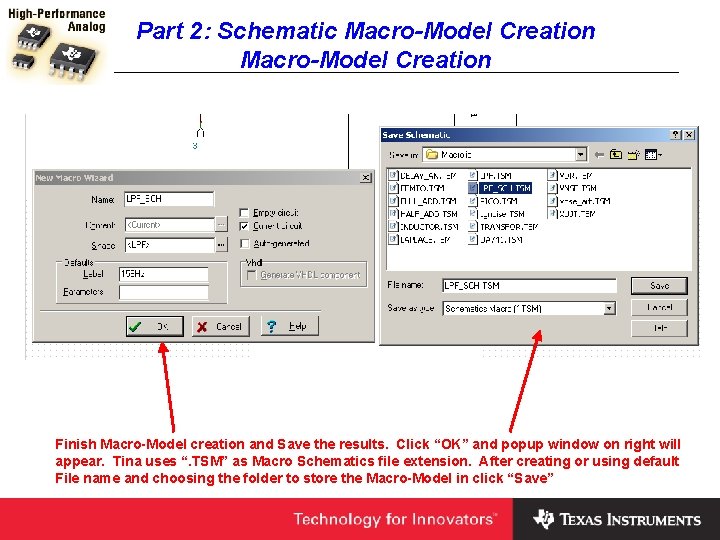
Part 2: Schematic Macro-Model Creation Finish Macro-Model creation and Save the results. Click “OK” and popup window on right will appear. Tina uses “. TSM” as Macro Schematics file extension. After creating or using default File name and choosing the folder to store the Macro-Model in click “Save”
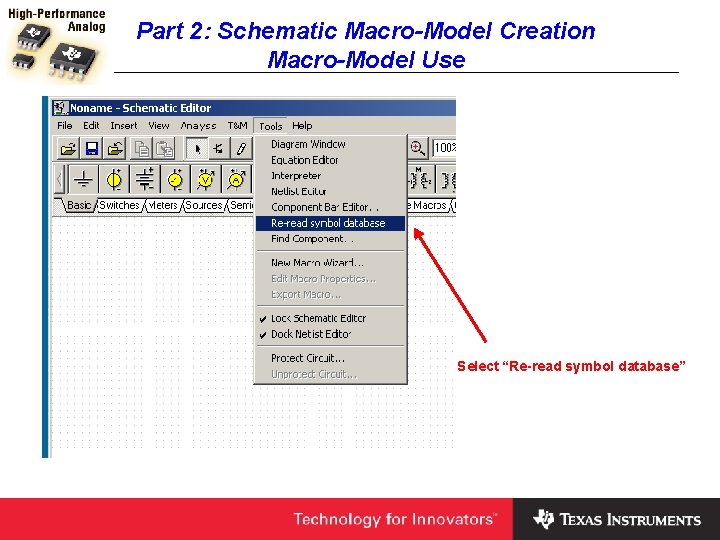
Part 2: Schematic Macro-Model Creation Macro-Model Use Select “Re-read symbol database”
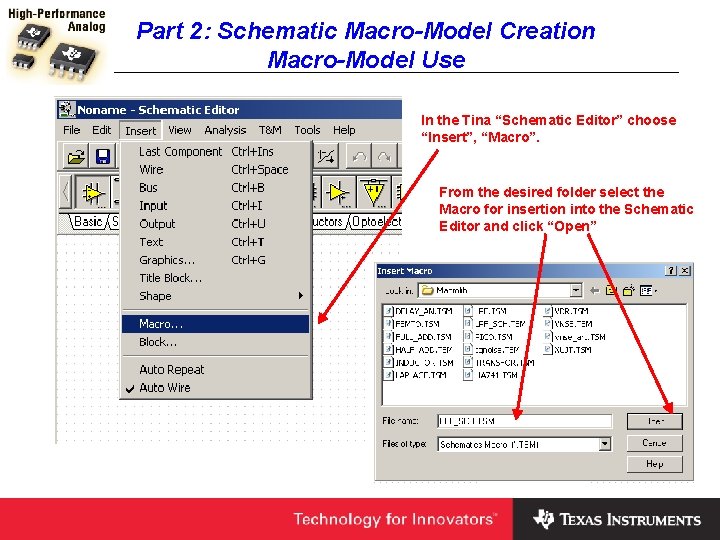
Part 2: Schematic Macro-Model Creation Macro-Model Use In the Tina “Schematic Editor” choose “Insert”, “Macro”. From the desired folder select the Macro for insertion into the Schematic Editor and click “Open”
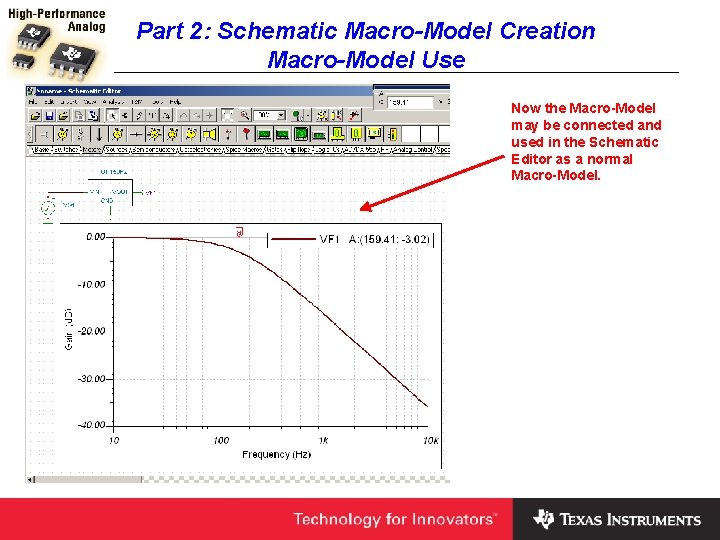
Part 2: Schematic Macro-Model Creation Macro-Model Use Now the Macro-Model may be connected and used in the Schematic Editor as a normal Macro-Model.
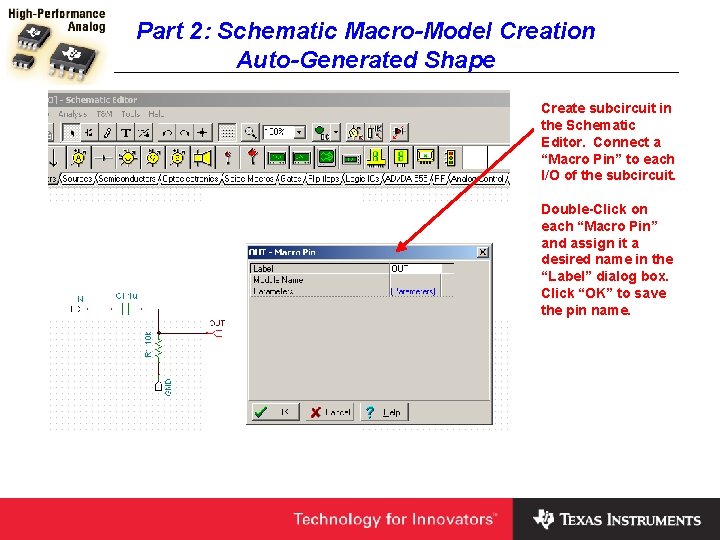
Part 2: Schematic Macro-Model Creation Auto-Generated Shape Create subcircuit in the Schematic Editor. Connect a “Macro Pin” to each I/O of the subcircuit. Double-Click on each “Macro Pin” and assign it a desired name in the “Label” dialog box. Click “OK” to save the pin name.
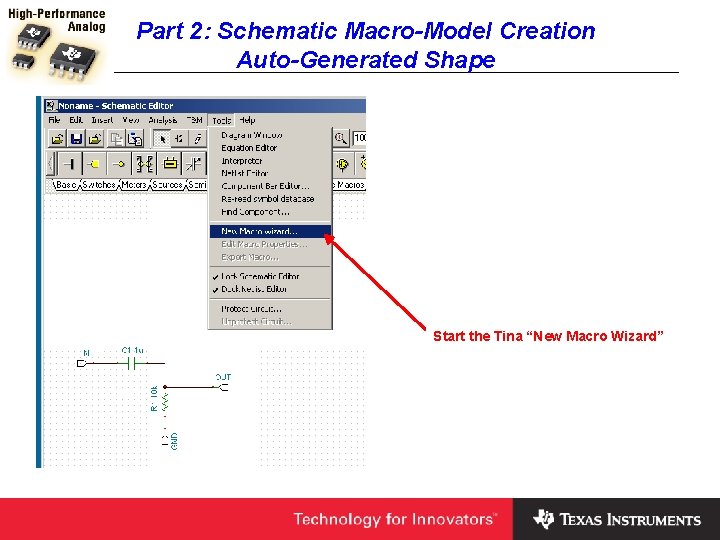
Part 2: Schematic Macro-Model Creation Auto-Generated Shape Start the Tina “New Macro Wizard”
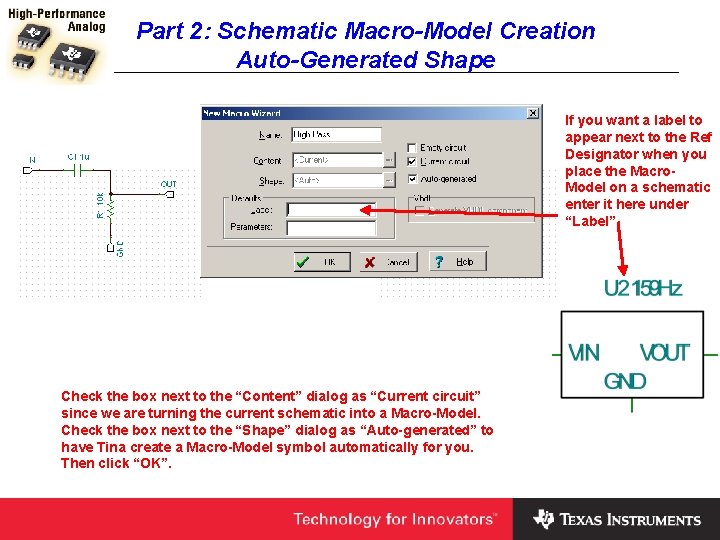
Part 2: Schematic Macro-Model Creation Auto-Generated Shape If you want a label to appear next to the Ref Designator when you place the Macro. Model on a schematic enter it here under “Label” Check the box next to the “Content” dialog as “Current circuit” since we are turning the current schematic into a Macro-Model. Check the box next to the “Shape” dialog as “Auto-generated” to have Tina create a Macro-Model symbol automatically for you. Then click “OK”.
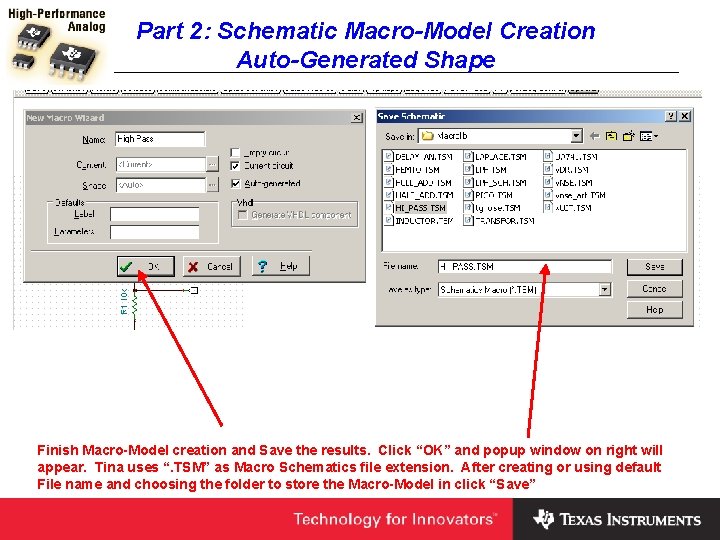
Part 2: Schematic Macro-Model Creation Auto-Generated Shape Finish Macro-Model creation and Save the results. Click “OK” and popup window on right will appear. Tina uses “. TSM” as Macro Schematics file extension. After creating or using default File name and choosing the folder to store the Macro-Model in click “Save”
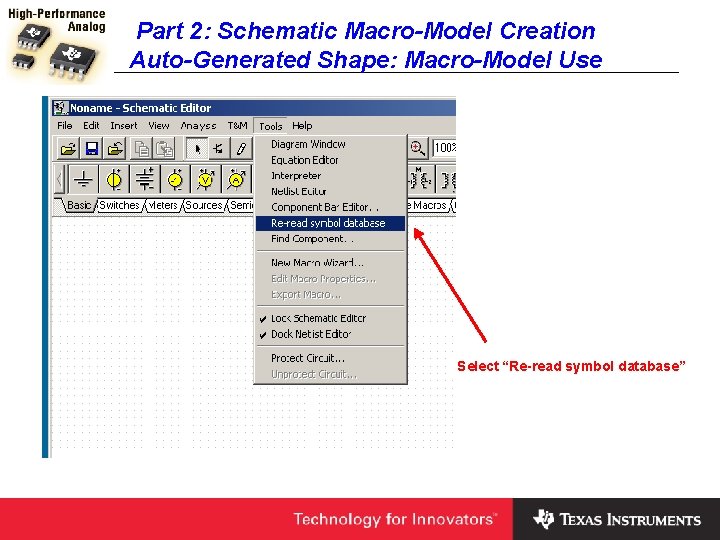
Part 2: Schematic Macro-Model Creation Auto-Generated Shape: Macro-Model Use Select “Re-read symbol database”
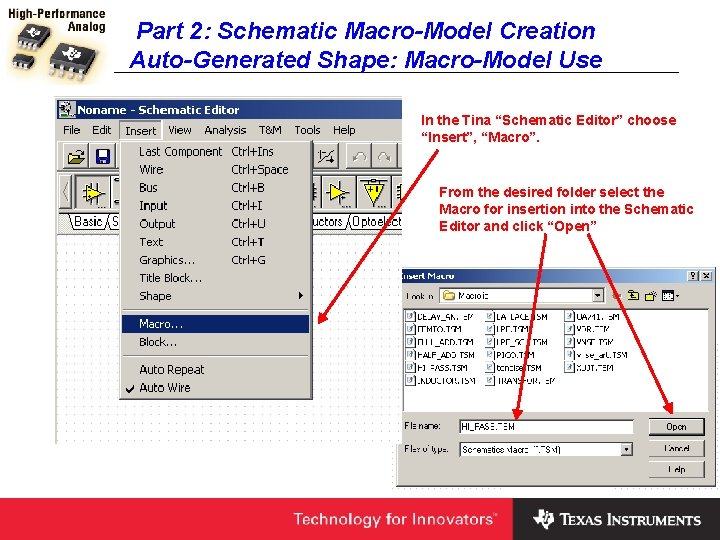
Part 2: Schematic Macro-Model Creation Auto-Generated Shape: Macro-Model Use In the Tina “Schematic Editor” choose “Insert”, “Macro”. From the desired folder select the Macro for insertion into the Schematic Editor and click “Open”
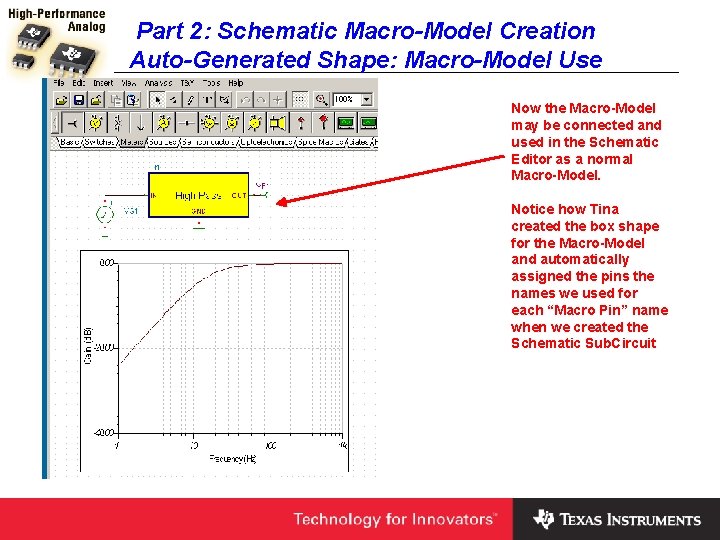
Part 2: Schematic Macro-Model Creation Auto-Generated Shape: Macro-Model Use Now the Macro-Model may be connected and used in the Schematic Editor as a normal Macro-Model. Notice how Tina created the box shape for the Macro-Model and automatically assigned the pins the names we used for each “Macro Pin” name when we created the Schematic Sub. Circuit
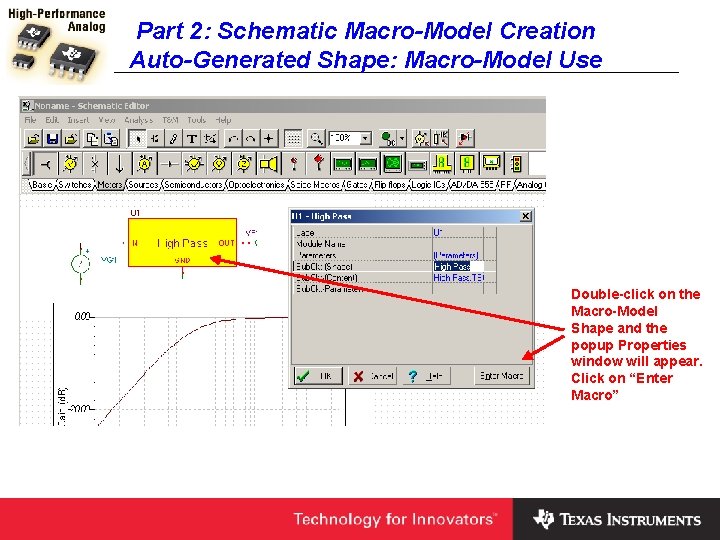
Part 2: Schematic Macro-Model Creation Auto-Generated Shape: Macro-Model Use Double-click on the Macro-Model Shape and the popup Properties window will appear. Click on “Enter Macro”
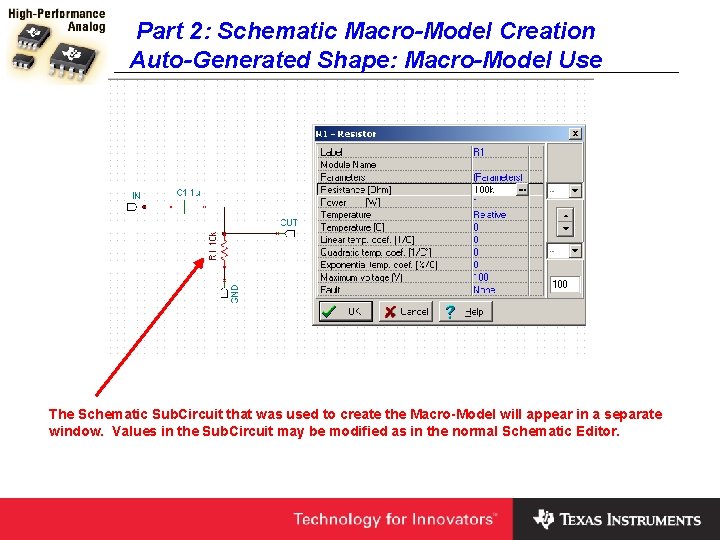
Part 2: Schematic Macro-Model Creation Auto-Generated Shape: Macro-Model Use The Schematic Sub. Circuit that was used to create the Macro-Model will appear in a separate window. Values in the Sub. Circuit may be modified as in the normal Schematic Editor.
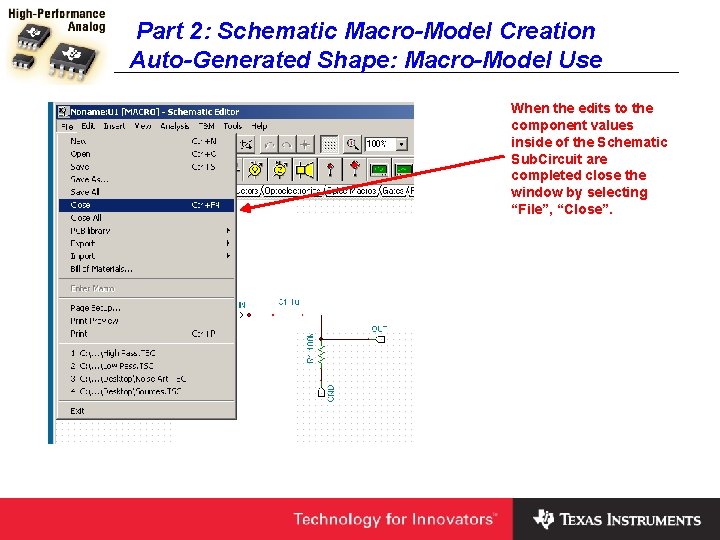
Part 2: Schematic Macro-Model Creation Auto-Generated Shape: Macro-Model Use When the edits to the component values inside of the Schematic Sub. Circuit are completed close the window by selecting “File”, “Close”.
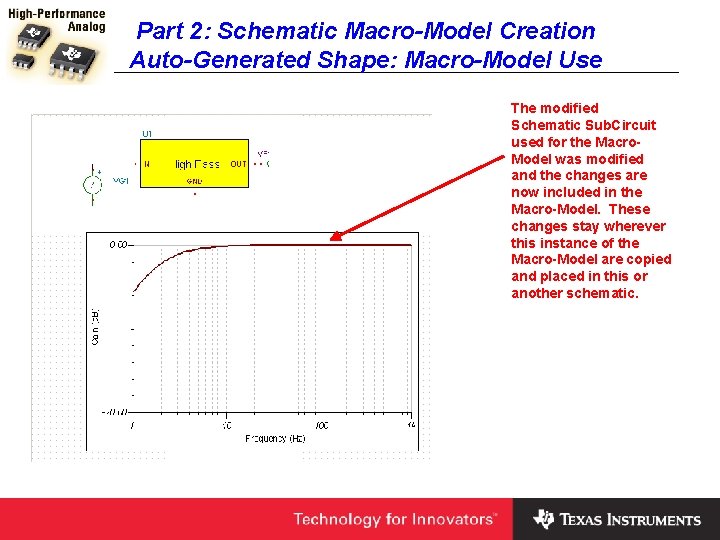
Part 2: Schematic Macro-Model Creation Auto-Generated Shape: Macro-Model Use The modified Schematic Sub. Circuit used for the Macro. Model was modified and the changes are now included in the Macro-Model. These changes stay wherever this instance of the Macro-Model are copied and placed in this or another schematic.
- Slides: 80