
How to Add Pictures to SOF Gallery STEP

![STEP 1 Select and Click onto [PHOTO GALLERY]](https://slidetodoc.com/presentation_image_h2/1747230d4d9a2ab8f674805dcd315c20/image-2.jpg "STEP 1 Select and Click onto [PHOTO GALLERY]")
![STEP 2 Select [ ADD NEW ]](https://slidetodoc.com/presentation_image_h2/1747230d4d9a2ab8f674805dcd315c20/image-3.jpg "STEP 2 Select [ ADD NEW ]")
![4 P ST E Select [ ADD IMAGES ]](https://slidetodoc.com/presentation_image_h2/1747230d4d9a2ab8f674805dcd315c20/image-5.jpg "4 P ST E Select [ ADD IMAGES ]")
![EP ST 5 Click onto the [MAKE A DIRECTORY ICON]](https://slidetodoc.com/presentation_image_h2/1747230d4d9a2ab8f674805dcd315c20/image-6.jpg "EP ST 5 Click onto the [MAKE A DIRECTORY ICON]")
![STEP 8 Select and Depress [OK]](https://slidetodoc.com/presentation_image_h2/1747230d4d9a2ab8f674805dcd315c20/image-8.jpg "STEP 8 Select and Depress [OK]")
![STEP 11 Click onto [UPLOAD FILES]](https://slidetodoc.com/presentation_image_h2/1747230d4d9a2ab8f674805dcd315c20/image-11.jpg "STEP 11 Click onto [UPLOAD FILES]")
![STEP 12 Select and Depress [CHOOSE FILES]](https://slidetodoc.com/presentation_image_h2/1747230d4d9a2ab8f674805dcd315c20/image-12.jpg "STEP 12 Select and Depress [CHOOSE FILES]")
![15 EP ST Select / Depress [ OPEN]](https://slidetodoc.com/presentation_image_h2/1747230d4d9a2ab8f674805dcd315c20/image-15.jpg "15 EP ST Select / Depress [ OPEN]")
![17 EP ST Select/Depress [SELECT ALL]](https://slidetodoc.com/presentation_image_h2/1747230d4d9a2ab8f674805dcd315c20/image-17.jpg "17 EP ST Select/Depress [SELECT ALL]")
![18 EP ST Select/Depress [ADD SELECTED IMAGES TO GALLERY]](https://slidetodoc.com/presentation_image_h2/1747230d4d9a2ab8f674805dcd315c20/image-18.jpg "18 EP ST Select/Depress [ADD SELECTED IMAGES TO GALLERY]")
![19 EP ST Select/Depress [APPLY]](https://slidetodoc.com/presentation_image_h2/1747230d4d9a2ab8f674805dcd315c20/image-19.jpg "19 EP ST Select/Depress [APPLY]")
![STEP 20 Select/Depress [GENERATE SHORTCODE]](https://slidetodoc.com/presentation_image_h2/1747230d4d9a2ab8f674805dcd315c20/image-20.jpg "STEP 20 Select/Depress [GENERATE SHORTCODE]")
![STEP 21 Open [SELECT GALLERY] & Select your Gallery](https://slidetodoc.com/presentation_image_h2/1747230d4d9a2ab8f674805dcd315c20/image-21.jpg "STEP 21 Open [SELECT GALLERY] & Select your Gallery")
![STEP 22 Switch [TIME INTERVAL] from 5 to 3](https://slidetodoc.com/presentation_image_h2/1747230d4d9a2ab8f674805dcd315c20/image-22.jpg "STEP 22 Switch [TIME INTERVAL] from 5 to 3")
![STEP 23 Scroll to bottom & Select/Depress [GENERATE]](https://slidetodoc.com/presentation_image_h2/1747230d4d9a2ab8f674805dcd315c20/image-23.jpg "STEP 23 Scroll to bottom & Select/Depress [GENERATE]")
![STEP 24 Highlight, Right Click, Copy [SHORTCODE]](https://slidetodoc.com/presentation_image_h2/1747230d4d9a2ab8f674805dcd315c20/image-24.jpg "STEP 24 Highlight, Right Click, Copy [SHORTCODE]")
![STEP 25 Scroll to the top on the sidebar and select [POST]](https://slidetodoc.com/presentation_image_h2/1747230d4d9a2ab8f674805dcd315c20/image-25.jpg "STEP 25 Scroll to the top on the sidebar and select [POST]")
![STEP 26 Select [EDIT] under the desired Post](https://slidetodoc.com/presentation_image_h2/1747230d4d9a2ab8f674805dcd315c20/image-26.jpg "STEP 26 Select [EDIT] under the desired Post")
![STEP 28 Select/Depress [UPDATE]](https://slidetodoc.com/presentation_image_h2/1747230d4d9a2ab8f674805dcd315c20/image-28.jpg "STEP 28 Select/Depress [UPDATE]")
![EP ST 29 Select/Depress [VIEW POST]](https://slidetodoc.com/presentation_image_h2/1747230d4d9a2ab8f674805dcd315c20/image-29.jpg "EP ST 29 Select/Depress [VIEW POST]")


- Slides: 31
How to Add Pictures to SOF Gallery
STEP 1 Select and Click onto [PHOTO GALLERY]
STEP 2 Select [ ADD NEW ]
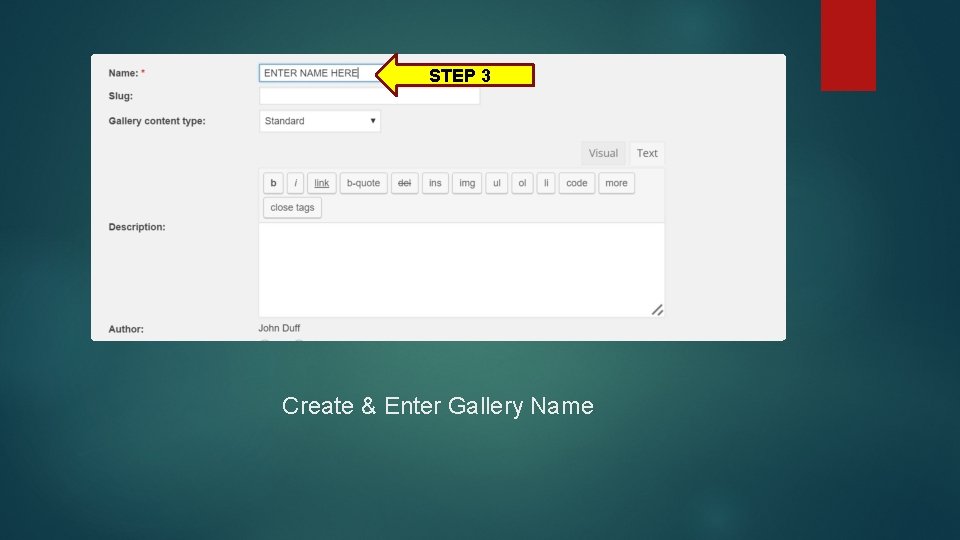
STEP 3 Create & Enter Gallery Name
4 P ST E Select [ ADD IMAGES ]
EP ST 5 Click onto the [MAKE A DIRECTORY ICON]
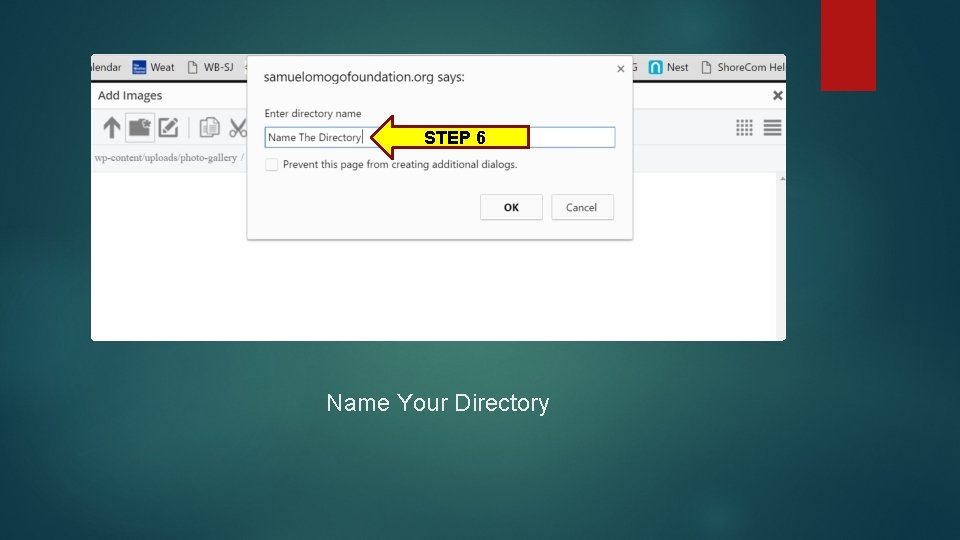
STEP 6 Name Your Directory
STEP 8 Select and Depress [OK]
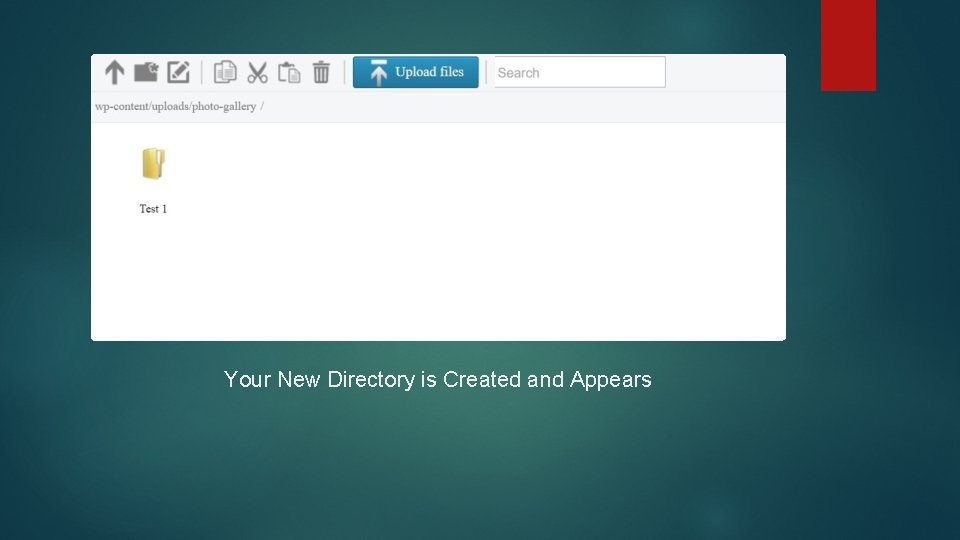
Your New Directory is Created and Appears
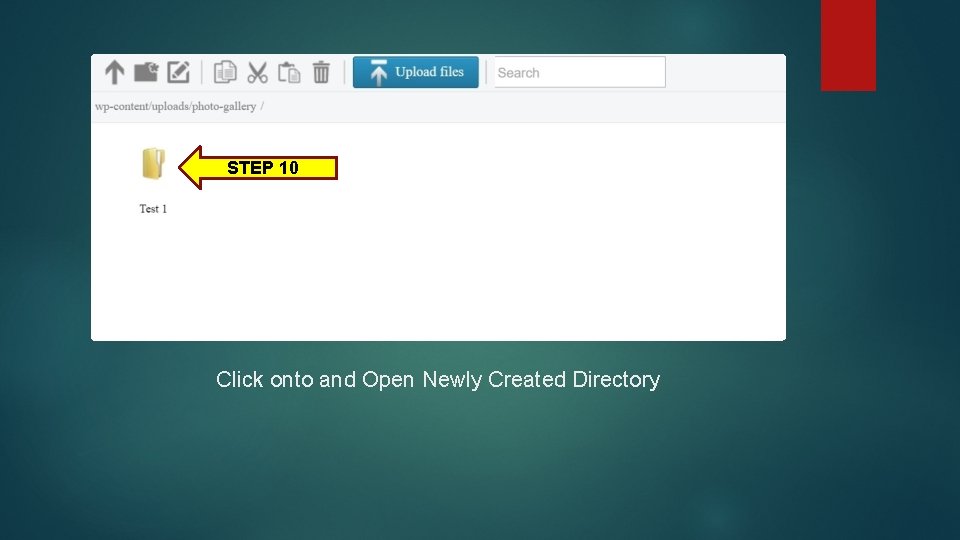
STEP 10 Click onto and Open Newly Created Directory
STEP 11 Click onto [UPLOAD FILES]
STEP 12 Select and Depress [CHOOSE FILES]
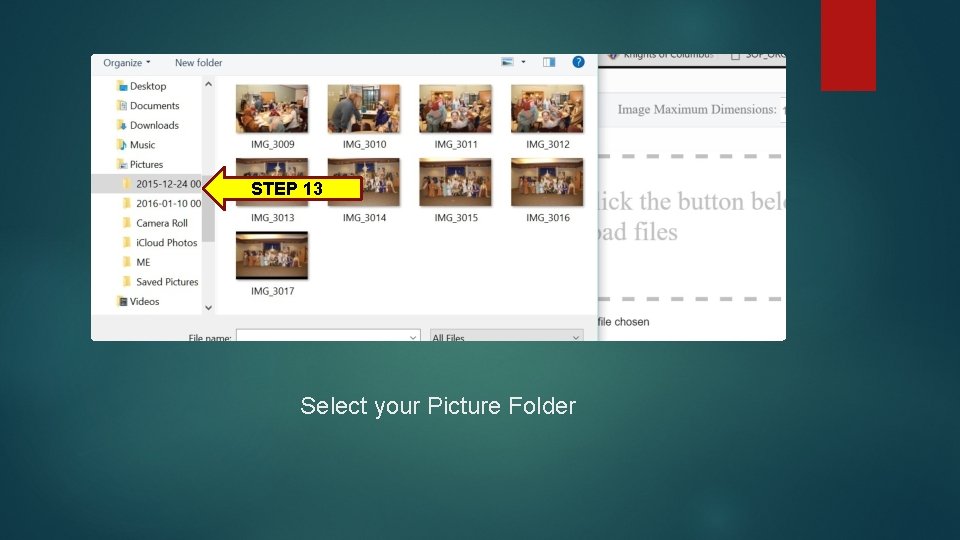
STEP 13 Select your Picture Folder
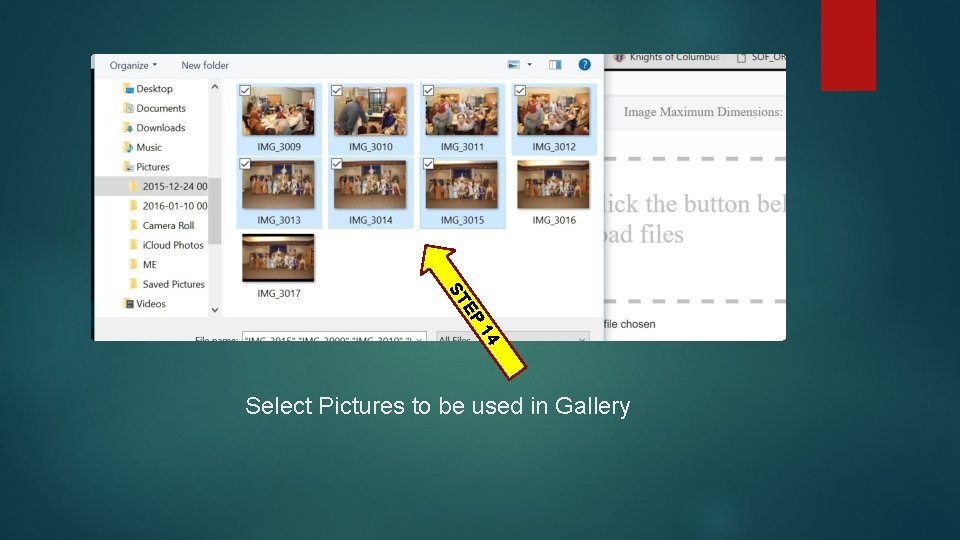
EP ST 14 Select Pictures to be used in Gallery
15 EP ST Select / Depress [ OPEN]
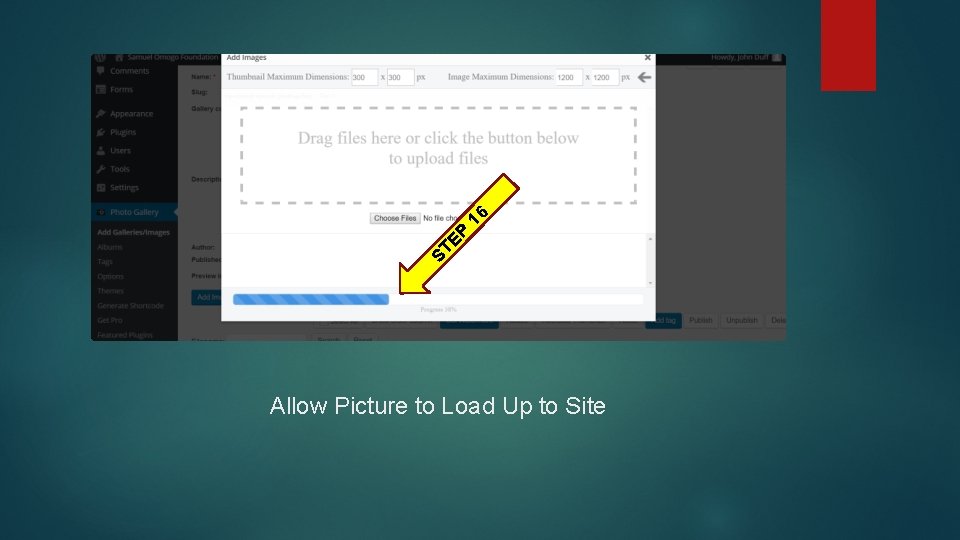
16 P ST E Allow Picture to Load Up to Site
17 EP ST Select/Depress [SELECT ALL]
18 EP ST Select/Depress [ADD SELECTED IMAGES TO GALLERY]
19 EP ST Select/Depress [APPLY]
STEP 20 Select/Depress [GENERATE SHORTCODE]
STEP 21 Open [SELECT GALLERY] & Select your Gallery
STEP 22 Switch [TIME INTERVAL] from 5 to 3
STEP 23 Scroll to bottom & Select/Depress [GENERATE]
STEP 24 Highlight, Right Click, Copy [SHORTCODE]
STEP 25 Scroll to the top on the sidebar and select [POST]
STEP 26 Select [EDIT] under the desired Post
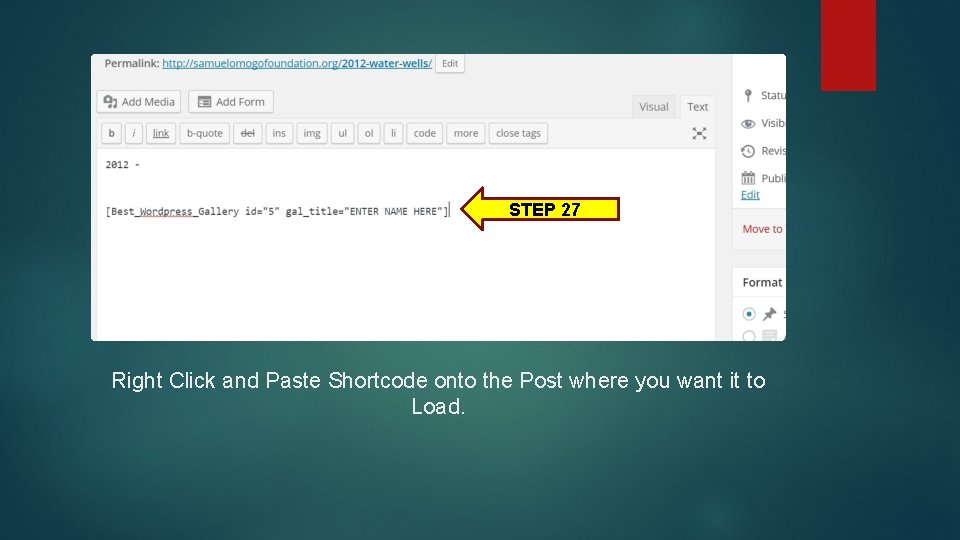
STEP 27 Right Click and Paste Shortcode onto the Post where you want it to Load.
STEP 28 Select/Depress [UPDATE]
EP ST 29 Select/Depress [VIEW POST]
Your Pictures Are Now Loaded & Ready To View