
How to Access the Microsoft Teams CSI Student
- Slides: 8
How to Access the Microsoft Teams CSI Student Organization Collaboration Space
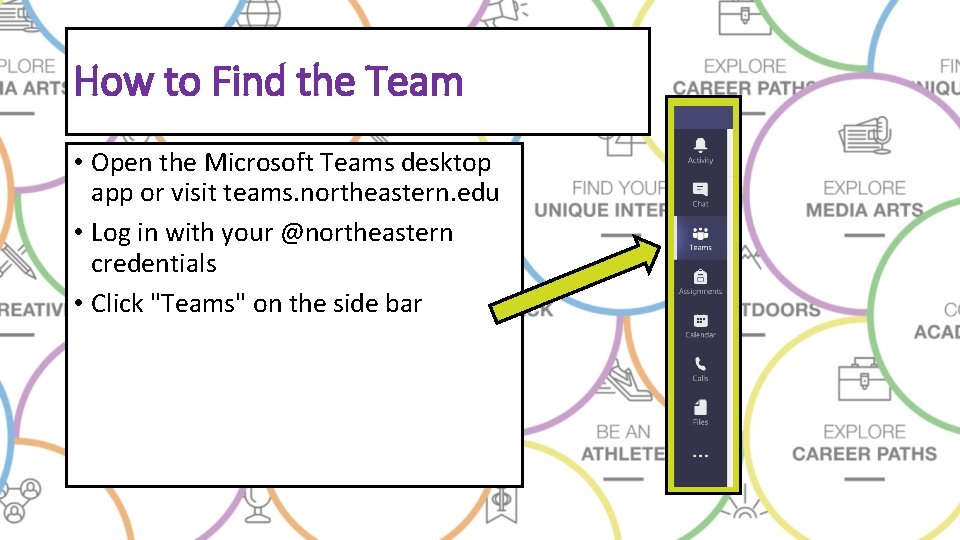
How to Find the Team • Open the Microsoft Teams desktop app or visit teams. northeastern. edu • Log in with your @northeastern credentials • Click "Teams" on the side bar
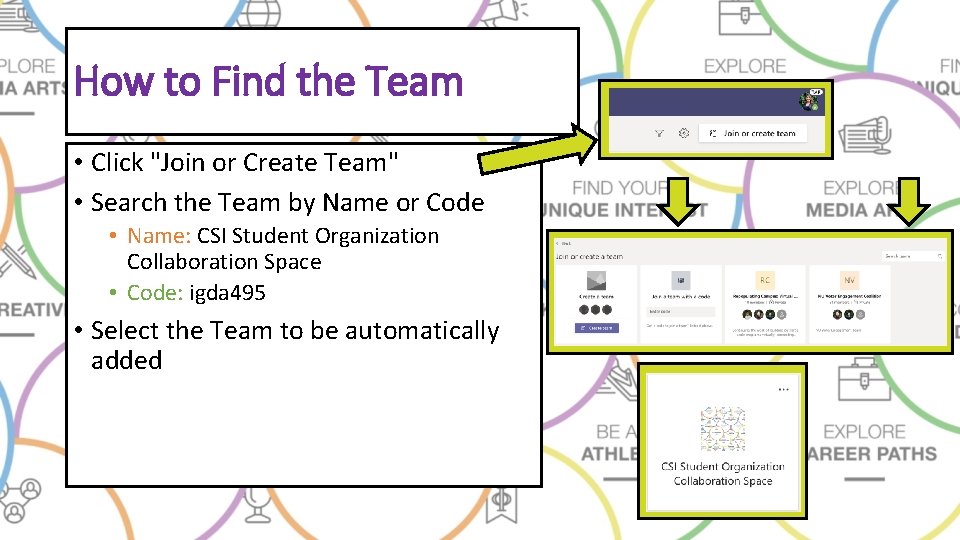
How to Find the Team • Click "Join or Create Team" • Search the Team by Name or Code • Name: CSI Student Organization Collaboration Space • Code: igda 495 • Select the Team to be automatically added
How to Use the Team This Team is designed to provide open space for collaboration, connection, idea-sharing, community building, and networking amongst student leaders.
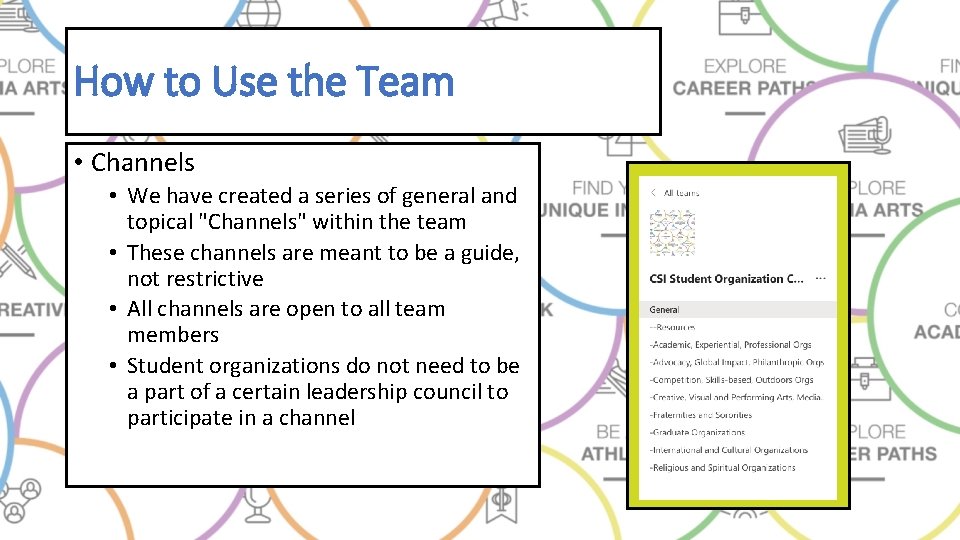
How to Use the Team • Channels • We have created a series of general and topical "Channels" within the team • These channels are meant to be a guide, not restrictive • All channels are open to all team members • Student organizations do not need to be a part of a certain leadership council to participate in a channel
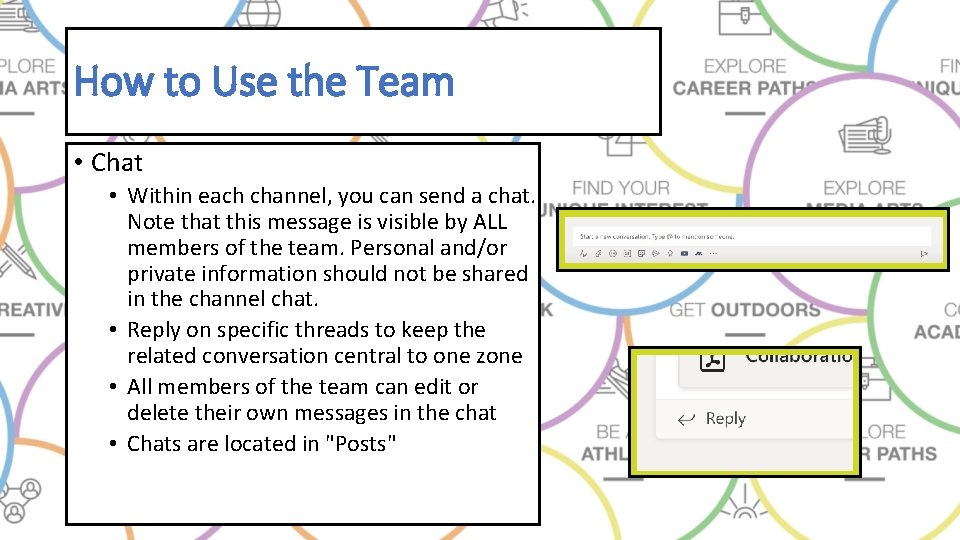
How to Use the Team • Chat • Within each channel, you can send a chat. Note that this message is visible by ALL members of the team. Personal and/or private information should not be shared in the channel chat. • Reply on specific threads to keep the related conversation central to one zone • All members of the team can edit or delete their own messages in the chat • Chats are located in "Posts"
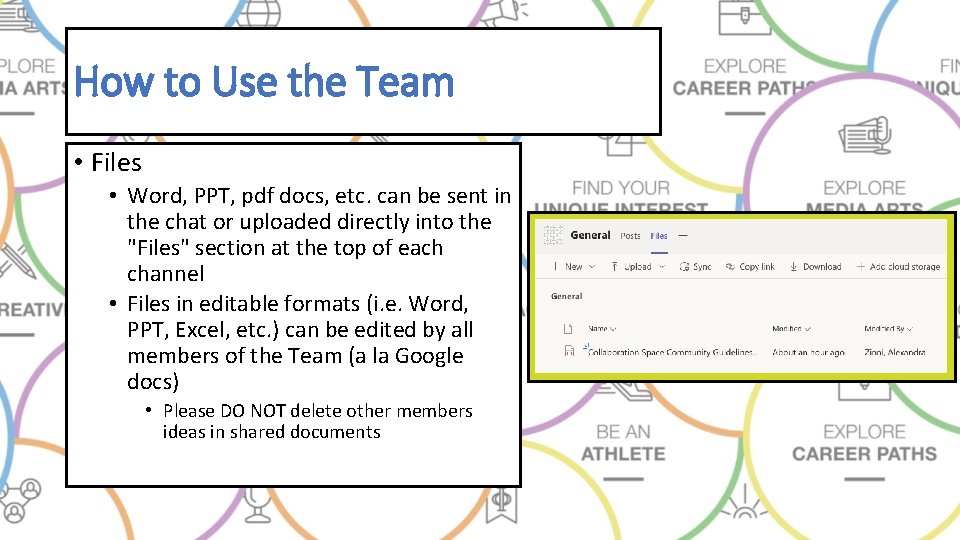
How to Use the Team • Files • Word, PPT, pdf docs, etc. can be sent in the chat or uploaded directly into the "Files" section at the top of each channel • Files in editable formats (i. e. Word, PPT, Excel, etc. ) can be edited by all members of the Team (a la Google docs) • Please DO NOT delete other members ideas in shared documents
Important Files in the Team • Community Guidelines • • All members must review the "Community Guidelines" file in the "General" channel when joining the Team By participating in the Team, all members are acknowledging and agreeing to uphold the Community Guidelines • Main Org Tips Document • • This file is located in the "Resources" channel Use this document to share and track ideas, tips, and tricks that you think would be helpful for other organizations to know • This document is used in collaboration with other ongoing idea-sharing chats in channels