
How to Access and Use Electronic RWPs Maddie
- Slides: 13
How to Access and Use Electronic RWPs Maddie Schoell 22 March 2020
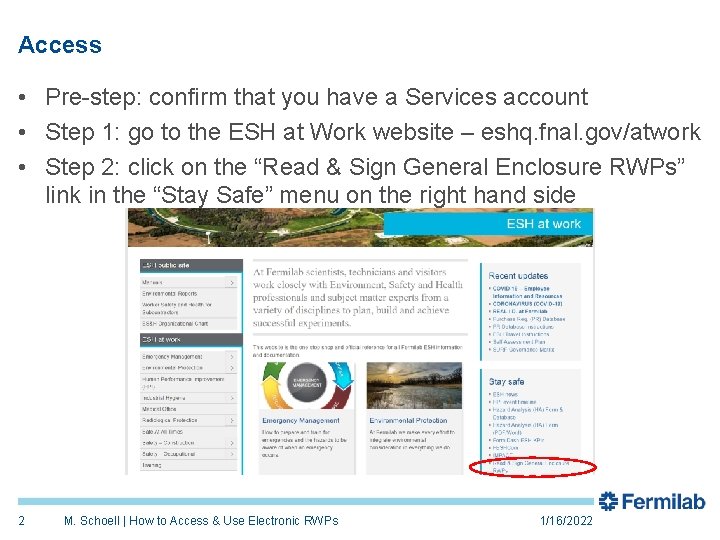
Access • Pre-step: confirm that you have a Services account • Step 1: go to the ESH at Work website – eshq. fnal. gov/atwork • Step 2: click on the “Read & Sign General Enclosure RWPs” link in the “Stay Safe” menu on the right hand side 2 M. Schoell | How to Access & Use Electronic RWPs 1/16/2022
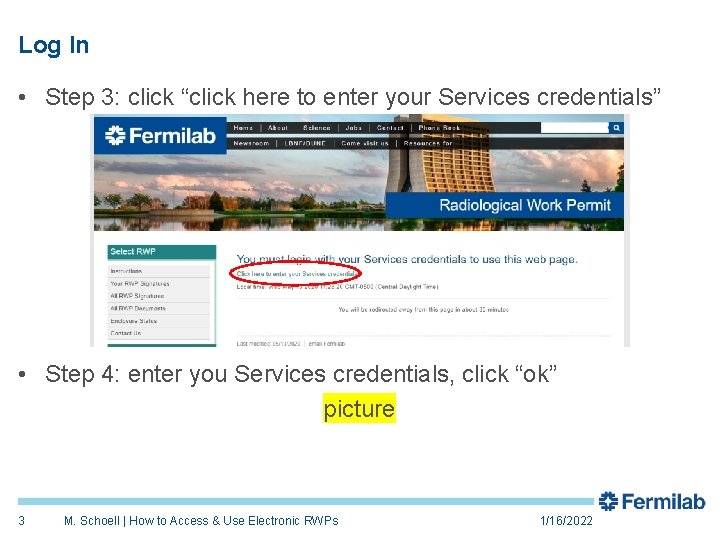
Log In • Step 3: click “click here to enter your Services credentials” • Step 4: enter you Services credentials, click “ok” picture 3 M. Schoell | How to Access & Use Electronic RWPs 1/16/2022
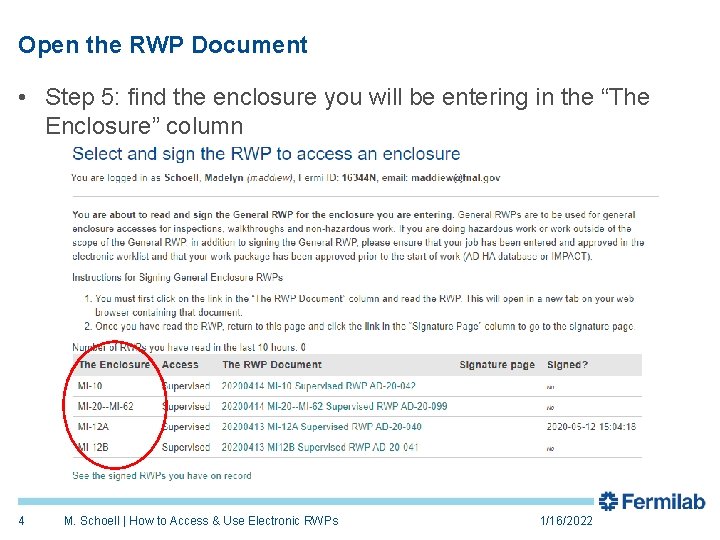
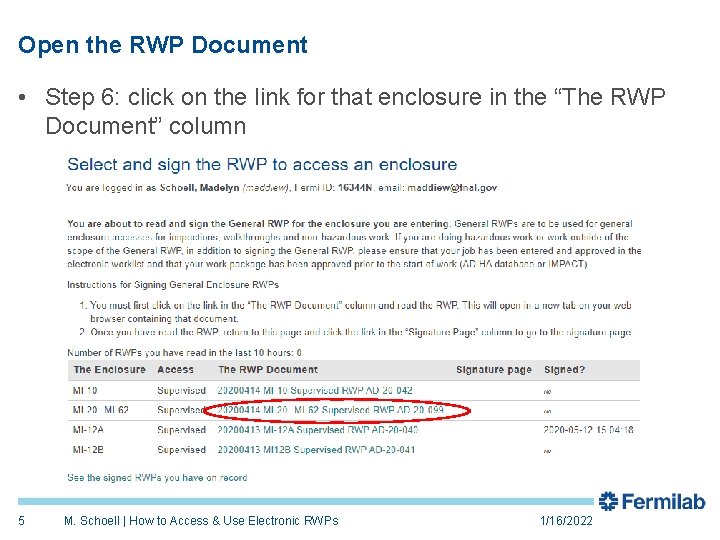
Open the RWP Document • Step 5: find the enclosure you will be entering in the “The Enclosure” column 4 M. Schoell | How to Access & Use Electronic RWPs 1/16/2022
Open the RWP Document • Step 6: click on the link for that enclosure in the “The RWP Document” column 5 M. Schoell | How to Access & Use Electronic RWPs 1/16/2022
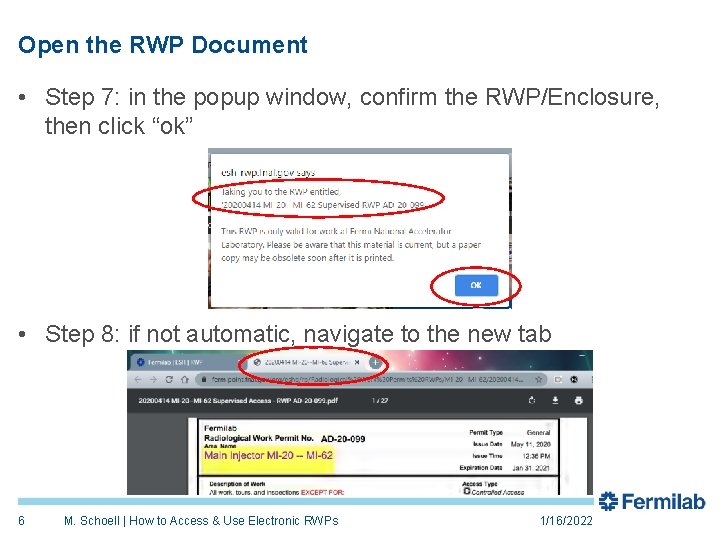
Open the RWP Document • Step 7: in the popup window, confirm the RWP/Enclosure, then click “ok” • Step 8: if not automatic, navigate to the new tab 6 M. Schoell | How to Access & Use Electronic RWPs 1/16/2022
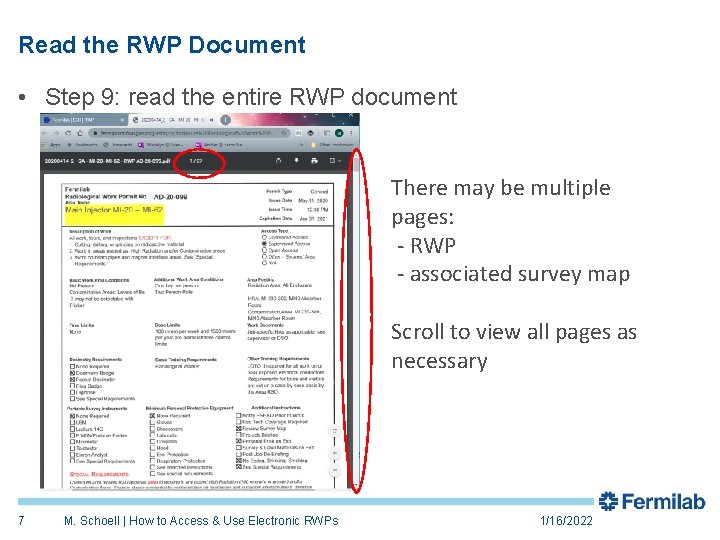
Read the RWP Document • Step 9: read the entire RWP document There may be multiple pages: - RWP - associated survey map Scroll to view all pages as necessary 7 M. Schoell | How to Access & Use Electronic RWPs 1/16/2022
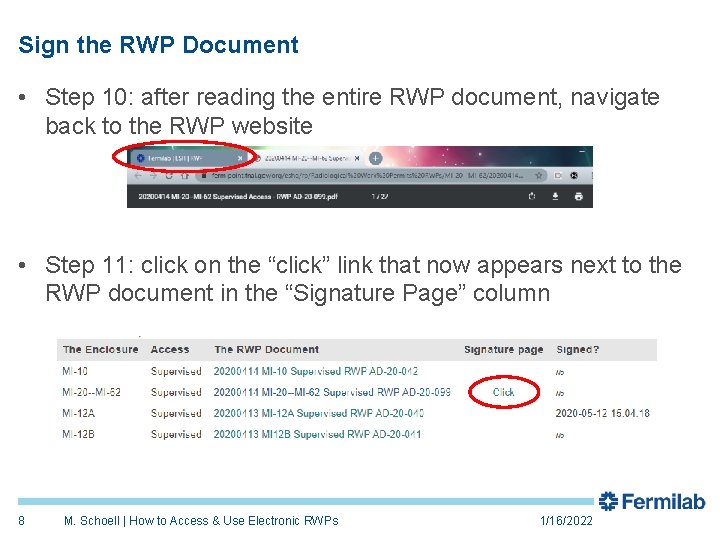
Sign the RWP Document • Step 10: after reading the entire RWP document, navigate back to the RWP website • Step 11: click on the “click” link that now appears next to the RWP document in the “Signature Page” column 8 M. Schoell | How to Access & Use Electronic RWPs 1/16/2022
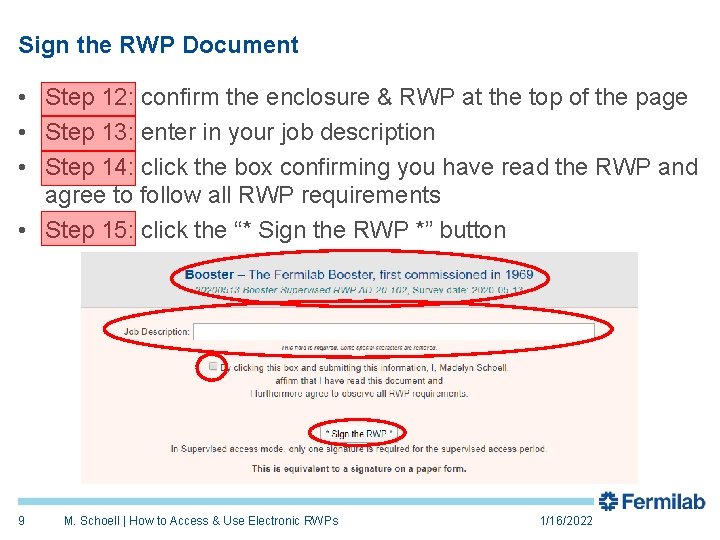
Sign the RWP Document • Step 12: confirm the enclosure & RWP at the top of the page • Step 13: enter in your job description • Step 14: click the box confirming you have read the RWP and agree to follow all RWP requirements • Step 15: click the “* Sign the RWP *” button 9 M. Schoell | How to Access & Use Electronic RWPs 1/16/2022
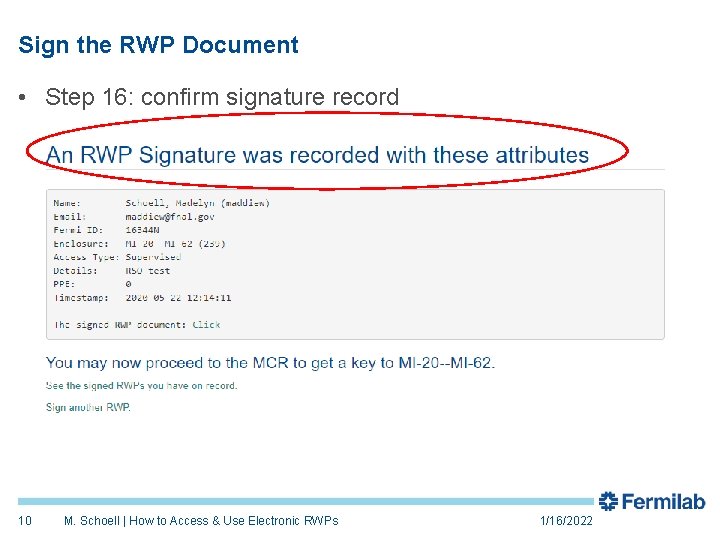
Sign the RWP Document • Step 16: confirm signature record 10 M. Schoell | How to Access & Use Electronic RWPs 1/16/2022
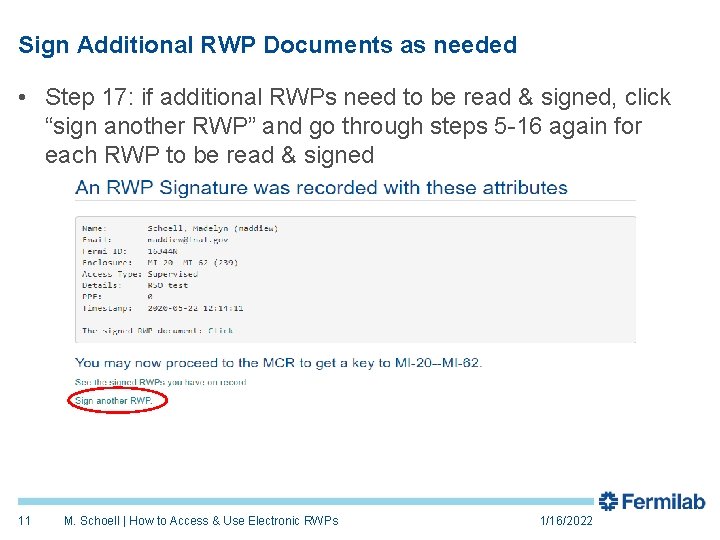
Sign Additional RWP Documents as needed • Step 17: if additional RWPs need to be read & signed, click “sign another RWP” and go through steps 5 -16 again for each RWP to be read & signed 11 M. Schoell | How to Access & Use Electronic RWPs 1/16/2022
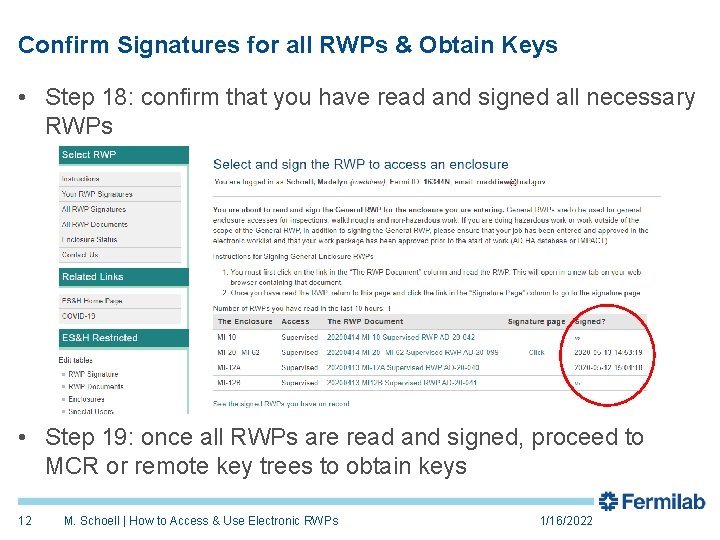
Confirm Signatures for all RWPs & Obtain Keys • Step 18: confirm that you have read and signed all necessary RWPs • Step 19: once all RWPs are read and signed, proceed to MCR or remote key trees to obtain keys 12 M. Schoell | How to Access & Use Electronic RWPs 1/16/2022
If you have any questions about electronic RWPs, please call or email Maddie Schoell (maddiew@fnal. gov, 574 -229 -0659) For questions about specific jobs or RWPs, please contact the assigned RSO: Nino Chelidze – chelidze@fnal. gov, 208 -840 -0431 Sue Mc. Gimpsey – susanm@fnal. gov, 630 -917 -5081 13 M. Schoell | How to Access & Use Electronic RWPs 5/22/2020