
How Computers Work The Four Basic Operations The
How Computers Work • The Four Basic Operations • The Boot Process • Hardware Components & Their Functions • Differences in Portable Devices
The Four Basic Computer Operations Input – Getting data from the outside world into the computer Processing – Manipulating the information Output – Presenting data from the computer to the outside Storage – Efficiently and inexpensively holding data for later use.
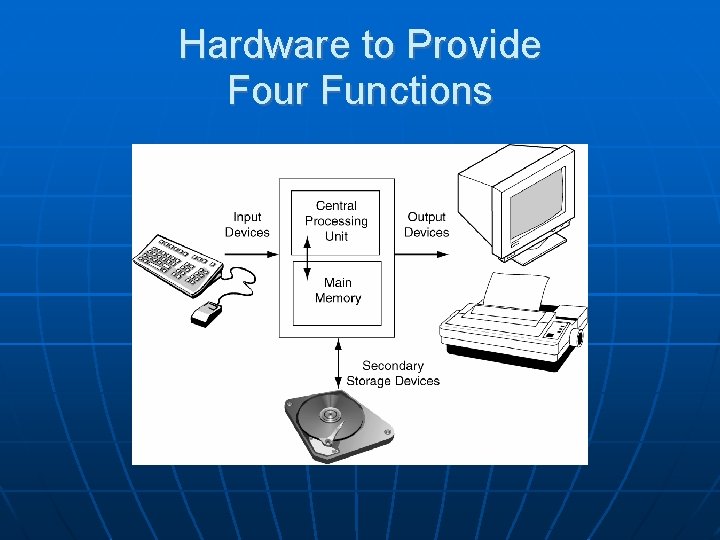
Hardware to Provide Four Functions
The Boot Process 1. The Basic Input/Output System (BIOS) setup program loads and runs 2. The Power-On-Self-Test (POST) runs 3. The Operating System loads 4. System Configuration 5. System utilities load
PC Components Case Processor Power Supply Motherboard Memory Hard Drives Removable Media Drives Video, Audio Functionality Monitor Mouse, Keyboard

The Processor Single core vs. Dual core Intel vs. AMD Trade-off between price and speed • The newest, fastest processors are always overpriced. Best "bang for the buck" is with the next step down.
System Memory How much? • Single core or dual core processor • Types of applications What kind? • Types SDRAM DDR 2 SDRAM • Motherboard and CPU must support.
Choosing a Power Supply Enough power for high class video cards Special connectors available for SATA Hard Drives and PCI-E video cards Motherboard may have a 20 -pin or 24 -pin main connector
Storage Hard Drives • How much, based on applications used • What type (SATA or PATA)? Optical Drives • CD Burner, DVD-ROM, DVD Burner (Single Layer or Dual Layer) • How many? Two really make copying disks easy. Floppy Drive?
Hard Drives IDE (ATA) • EIDE – ATA 2 aka Fast ATA • ATA 3 – Ultra ATA - Improved interface, hard drives can report status information to the MB. • Two devices per channel (or cable) SATA – Serial ATA • One device per channel SCSI – Many devices can be daisychained.
![Choosing a Motherboard Supports the chosen Processor Storage connectors ( PATA [aka IDE], SATA](http://slidetodoc.com/presentation_image_h2/b90d8958b6f37093ecf6b8e641eb2d28/image-11.jpg "Choosing a Motherboard Supports the chosen Processor Storage connectors ( PATA [aka IDE], SATA")
Choosing a Motherboard Supports the chosen Processor Storage connectors ( PATA [aka IDE], SATA 150, SATA 3. 0) Memory type and amount Built-ins (Video, Audio, LAN) Graphic Card support (PCI-e, AGP) PCI Expansion slots RAID support
Factors in Choosing a Case 4 Form Factors • Desktop • Mid-Size Tower • Full-Size Tower • Little, Teeny, Tiny Cases (VSFF) External and Internal Drive Bays Front (Top) Panel Multi-Media Connectors Cooling System (can also add-on)
Display Made up of two components • Monitor • Video card or circuitry
Monitors CRT • Cheaper • Takes up more desktop real estate • Can tire your eyes Flat Panel • More expensive • Saves space • Sharper Image
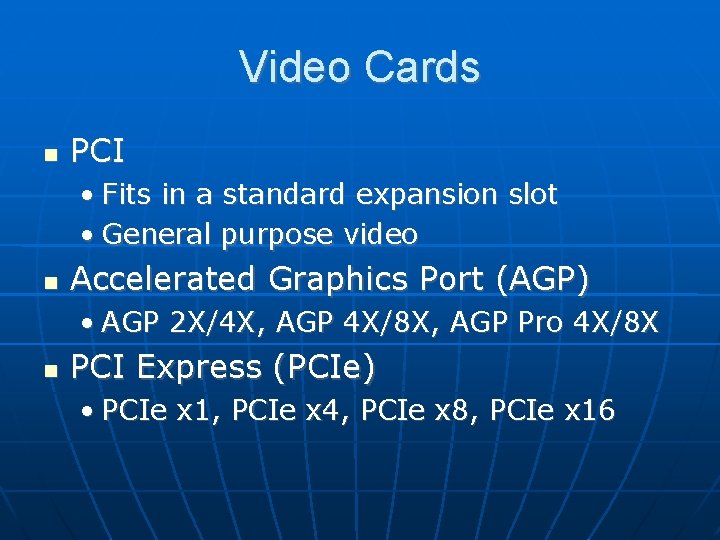
Video Cards PCI • Fits in a standard expansion slot • General purpose video Accelerated Graphics Port (AGP) • AGP 2 X/4 X, AGP 4 X/8 X, AGP Pro 4 X/8 X PCI Express (PCIe) • PCIe x 1, PCIe x 4, PCIe x 8, PCIe x 16
Replacing a Video Card Make sure you don't buy too much card for the monitor. It doesn't matter if the original video was built-in to the motherboard. Installing a video card and loading drivers "takes over" from the old video. Get a card the motherboard supports.
- Slides: 16