
How Canvas Links Pages and Files Canvas You
- Slides: 15
How Canvas Links Pages and Files
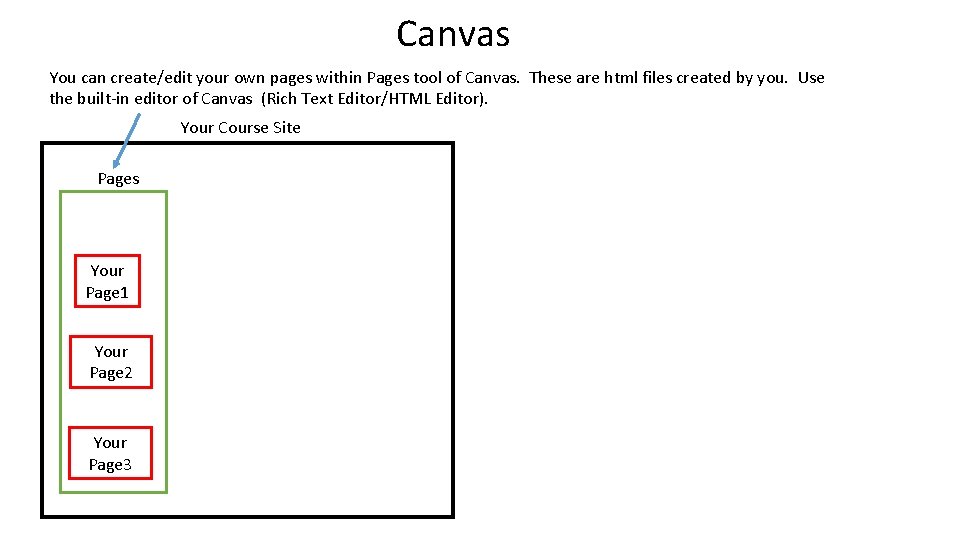
Canvas You can create/edit your own pages within Pages tool of Canvas. These are html files created by you. Use the built-in editor of Canvas (Rich Text Editor/HTML Editor). Your Course Site Pages Your Page 1 Your Page 2 Your Page 3
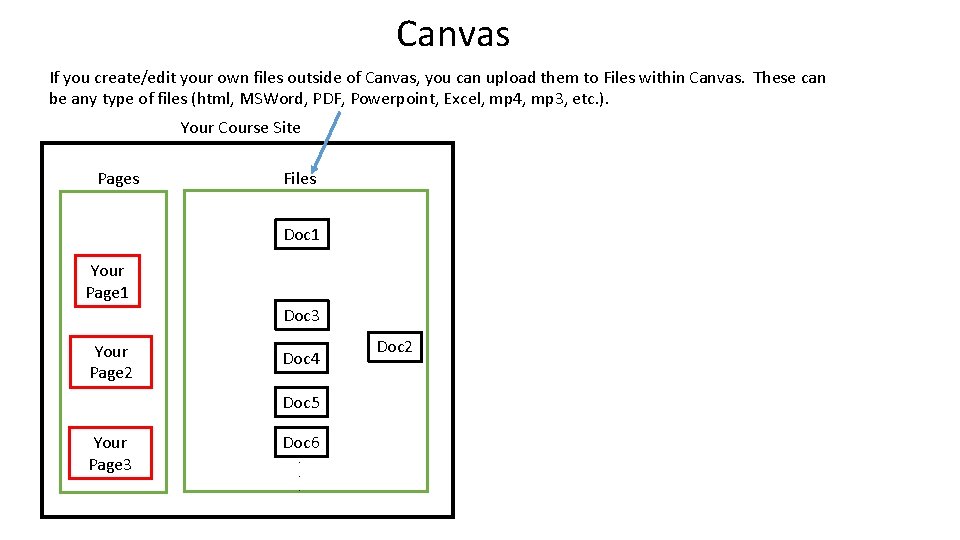
Canvas If you create/edit your own files outside of Canvas, you can upload them to Files within Canvas. These can be any type of files (html, MSWord, PDF, Powerpoint, Excel, mp 4, mp 3, etc. ). Your Course Site Pages Files Doc 1 Your Page 1 Doc 3 Your Page 2 Doc 4 Doc 5 Your Page 3 Doc 6. . . Doc 2
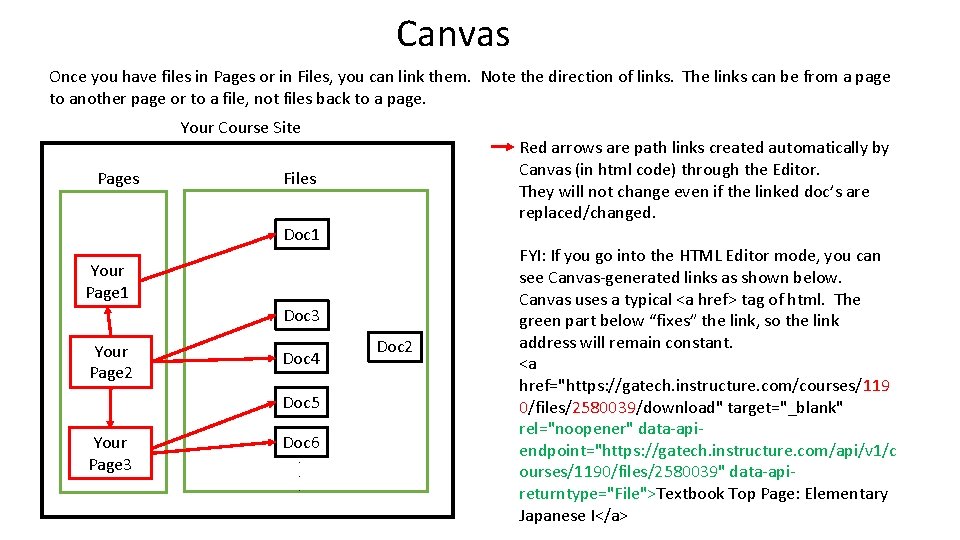
Canvas Once you have files in Pages or in Files, you can link them. Note the direction of links. The links can be from a page to another page or to a file, not files back to a page. Your Course Site Pages Red arrows are path links created automatically by Canvas (in html code) through the Editor. They will not change even if the linked doc’s are replaced/changed. Files Doc 1 Your Page 1 Doc 3 Your Page 2 Doc 4 Doc 5 Your Page 3 Doc 6. . . Doc 2 FYI: If you go into the HTML Editor mode, you can see Canvas-generated links as shown below. Canvas uses a typical <a href> tag of html. The green part below “fixes” the link, so the link address will remain constant. <a href="https: //gatech. instructure. com/courses/119 0/files/2580039/download" target="_blank" rel="noopener" data-apiendpoint="https: //gatech. instructure. com/api/v 1/c ourses/1190/files/2580039" data-apireturntype="File">Textbook Top Page: Elementary Japanese I</a>
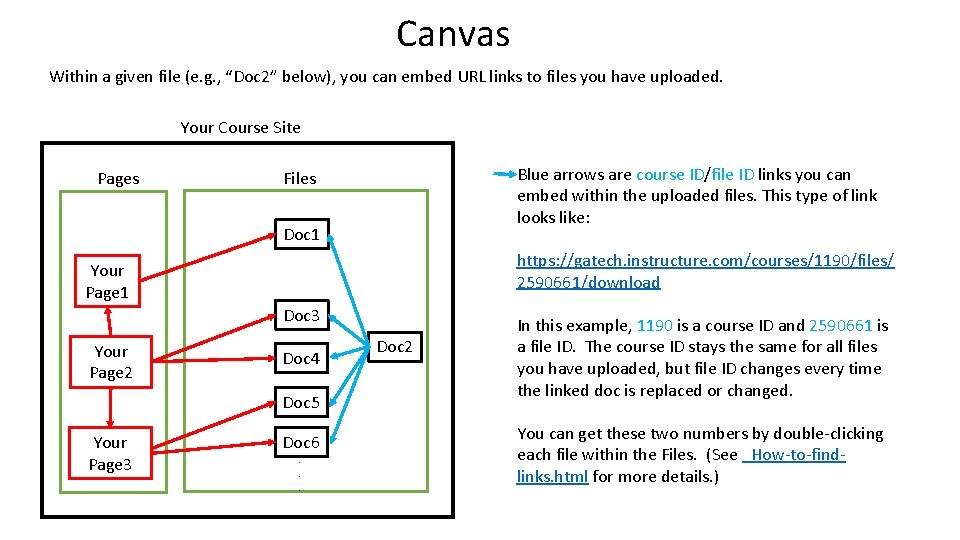
Canvas Within a given file (e. g. , “Doc 2” below), you can embed URL links to files you have uploaded. Your Course Site Pages Blue arrows are course ID/file ID links you can embed within the uploaded files. This type of link looks like: Files Doc 1 https: //gatech. instructure. com/courses/1190/files/ 2590661/download Your Page 1 Doc 3 Your Page 2 Doc 4 Doc 5 Your Page 3 Doc 6. . . Doc 2 In this example, 1190 is a course ID and 2590661 is a file ID. The course ID stays the same for all files you have uploaded, but file ID changes every time the linked doc is replaced or changed. You can get these two numbers by double-clicking each file within the Files. (See _How-to-findlinks. html for more details. )
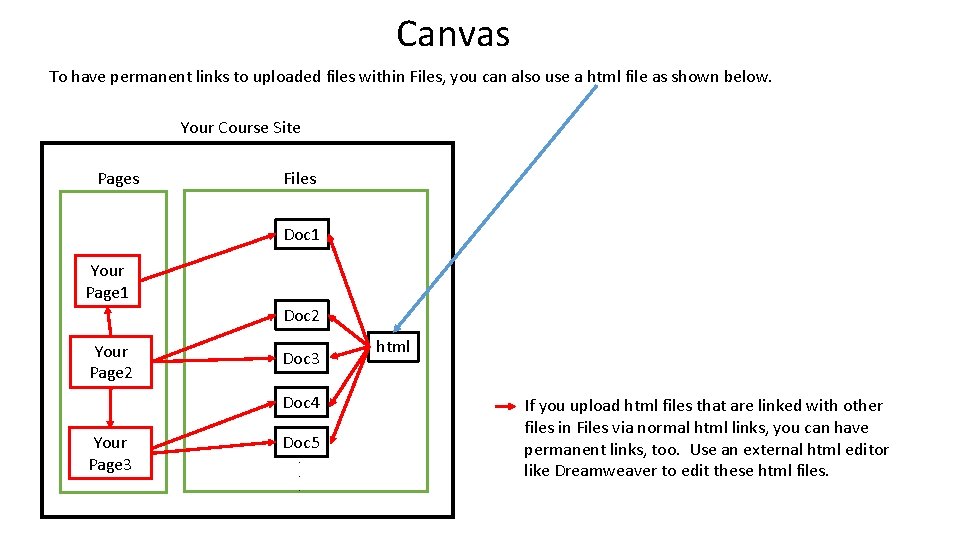
Canvas To have permanent links to uploaded files within Files, you can also use a html file as shown below. Your Course Site Pages Files Doc 1 Your Page 1 Doc 2 Your Page 2 Doc 3 Doc 4 Your Page 3 Doc 5. . . html If you upload html files that are linked with other files in Files via normal html links, you can have permanent links, too. Use an external html editor like Dreamweaver to edit these html files.
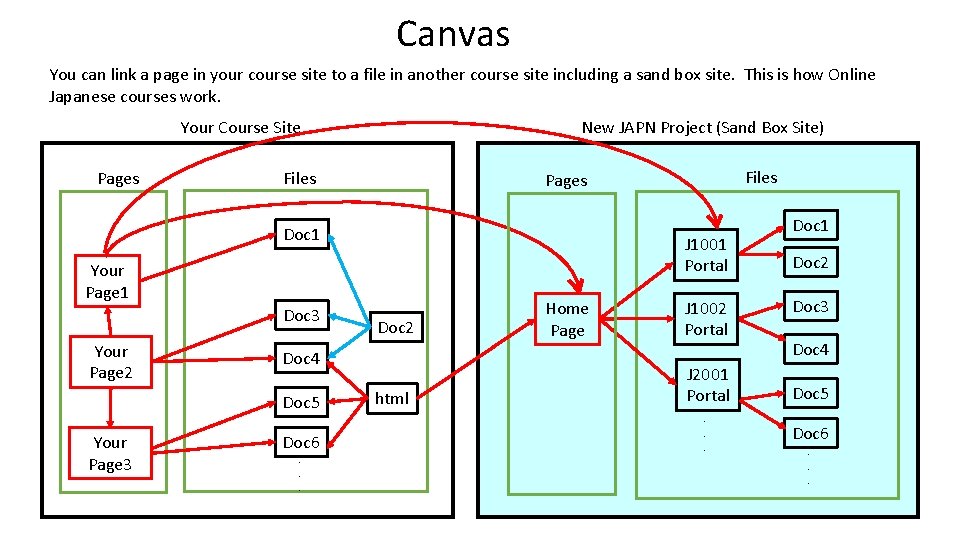
Canvas You can link a page in your course site to a file in another course site including a sand box site. This is how Online Japanese courses work. Your Course Site Pages New JAPN Project (Sand Box Site) Files Doc 1 J 1001 Portal Your Page 1 Doc 3 Your Page 2 Your Page 3 Doc 2 Doc 4 Doc 5 Doc 6. . . Files Pages html Home Page J 1002 Portal J 2001 Portal. . . Doc 1 Doc 2 Doc 3 Doc 4 Doc 5 Doc 6. . .
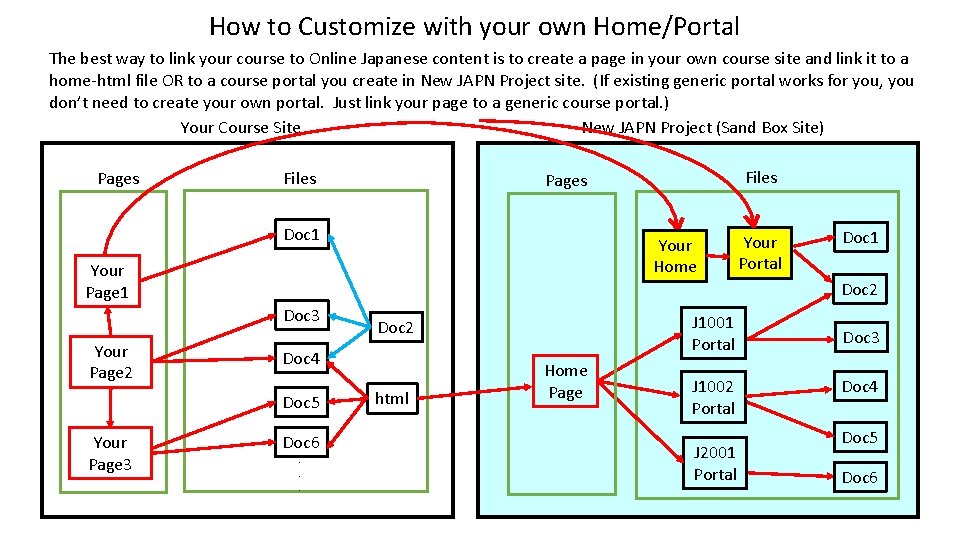
How to Customize with your own Home/Portal The best way to link your course to Online Japanese content is to create a page in your own course site and link it to a home-html file OR to a course portal you create in New JAPN Project site. (If existing generic portal works for you, you don’t need to create your own portal. Just link your page to a generic course portal. ) Your Course Site New JAPN Project (Sand Box Site) Pages Files Doc 1 Your Home Your Page 1 Doc 6. . . J 1001 Portal Doc 2 Doc 4 Doc 5 Your Page 3 Your Portal Doc 1 Doc 2 Doc 3 Your Page 2 Files Pages html Home Page J 1002 Portal J 2001 Portal Doc 3 Doc 4 Doc 5 Doc 6
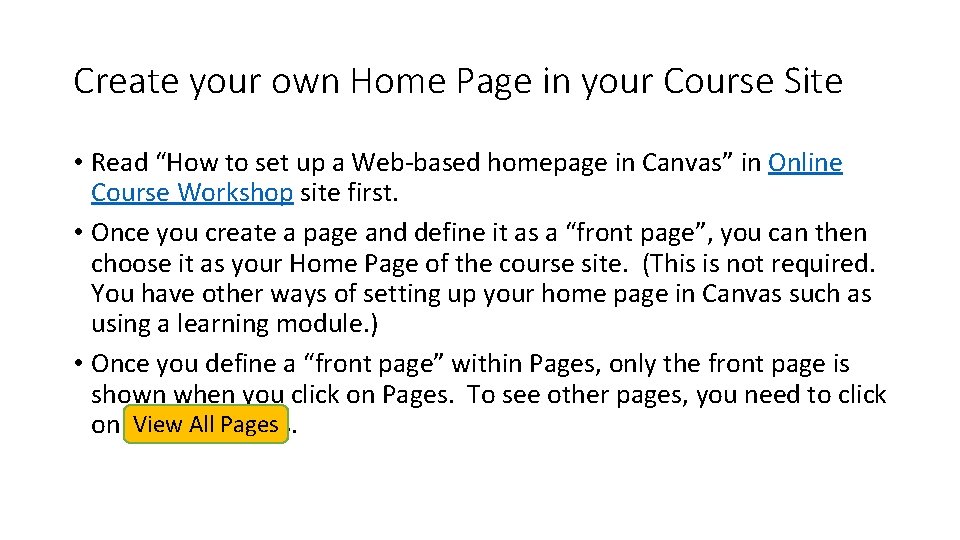
Create your own Home Page in your Course Site • Read “How to set up a Web-based homepage in Canvas” in Online Course Workshop site first. • Once you create a page and define it as a “front page”, you can then choose it as your Home Page of the course site. (This is not required. You have other ways of setting up your home page in Canvas such as using a learning module. ) • Once you define a “front page” within Pages, only the front page is shown when you click on Pages. To see other pages, you need to click View All on View All Pages.
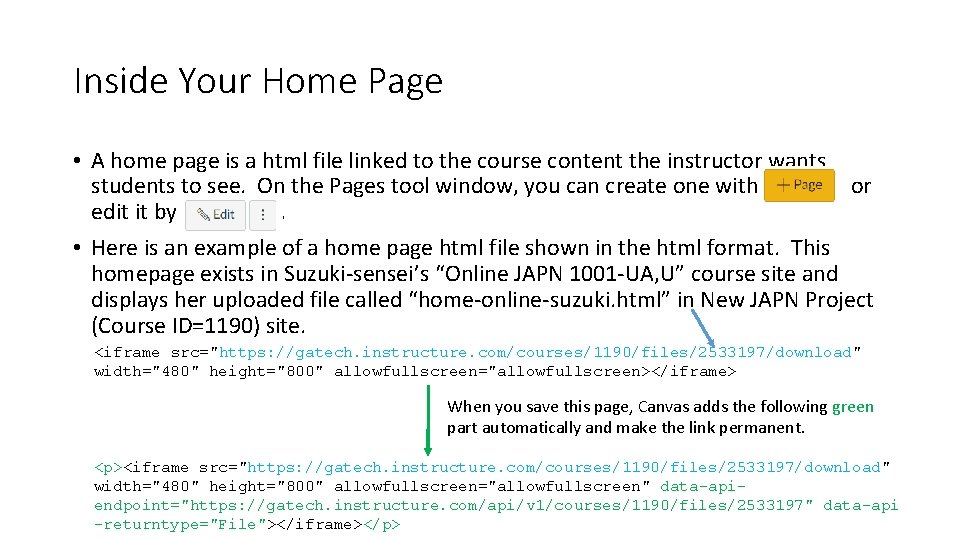
Inside Your Home Page • A home page is a html file linked to the course content the instructor wants students to see. On the Pages tool window, you can create one with or edit it by. • Here is an example of a home page html file shown in the html format. This homepage exists in Suzuki-sensei’s “Online JAPN 1001 -UA, U” course site and displays her uploaded file called “home-online-suzuki. html” in New JAPN Project (Course ID=1190) site. <iframe src="https: //gatech. instructure. com/courses/1190/files/2533197/download" width="480" height="800" allowfullscreen="allowfullscreen></iframe> When you save this page, Canvas adds the following green part automatically and make the link permanent. <p><iframe src="https: //gatech. instructure. com/courses/1190/files/2533197/download" width="480" height="800" allowfullscreen="allowfullscreen" data-apiendpoint="https: //gatech. instructure. com/api/v 1/courses/1190/files/2533197" data-api -returntype="File"></iframe></p>
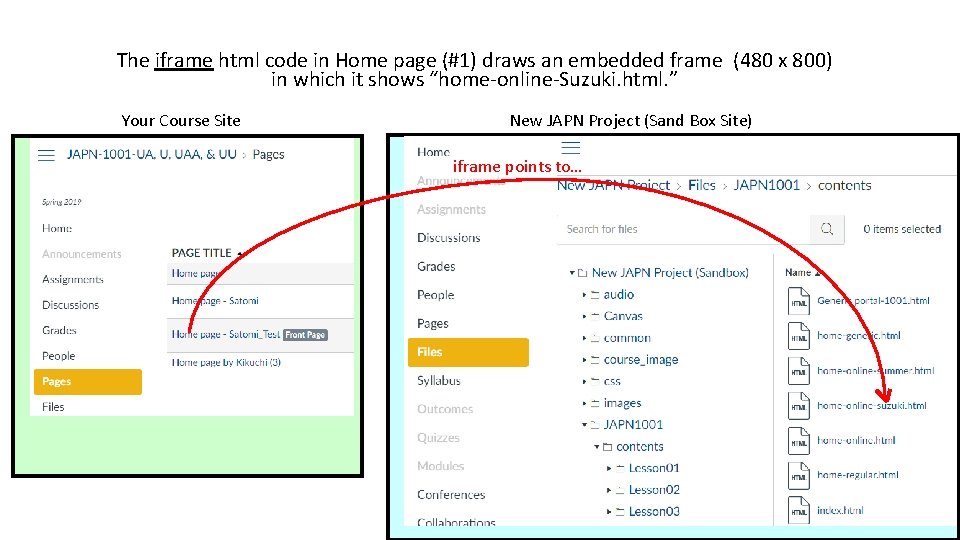
The iframe html code in Home page (#1) draws an embedded frame (480 x 800) in which it shows “home-online-Suzuki. html. ” Your Course Site New JAPN Project (Sand Box Site) iframe points to…
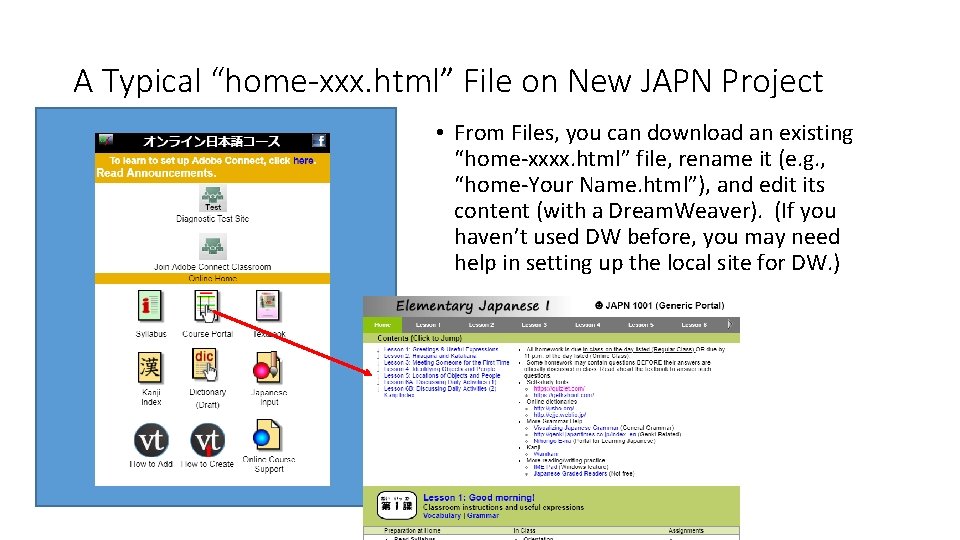
A Typical “home-xxx. html” File on New JAPN Project • From Files, you can download an existing “home-xxxx. html” file, rename it (e. g. , “home-Your Name. html”), and edit its content (with a Dream. Weaver). (If you haven’t used DW before, you may need help in setting up the local site for DW. )
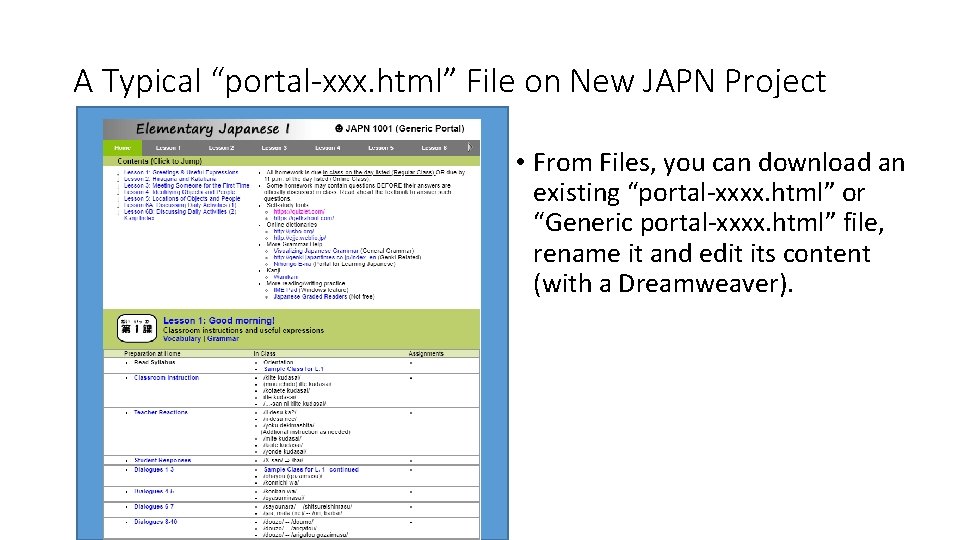
A Typical “portal-xxx. html” File on New JAPN Project • From Files, you can download an existing “portal-xxxx. html” or “Generic portal-xxxx. html” file, rename it and edit its content (with a Dreamweaver).
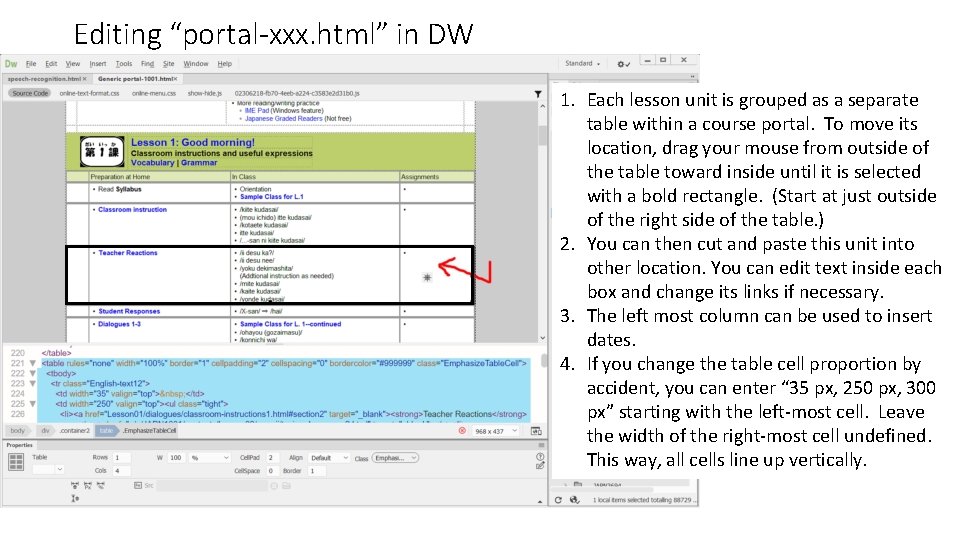
Editing “portal-xxx. html” in DW 1. Each lesson unit is grouped as a separate table within a course portal. To move its location, drag your mouse from outside of the table toward inside until it is selected with a bold rectangle. (Start at just outside of the right side of the table. ) 2. You can then cut and paste this unit into other location. You can edit text inside each box and change its links if necessary. 3. The left most column can be used to insert dates. 4. If you change the table cell proportion by accident, you can enter “ 35 px, 250 px, 300 px” starting with the left-most cell. Leave the width of the right-most cell undefined. This way, all cells line up vertically.
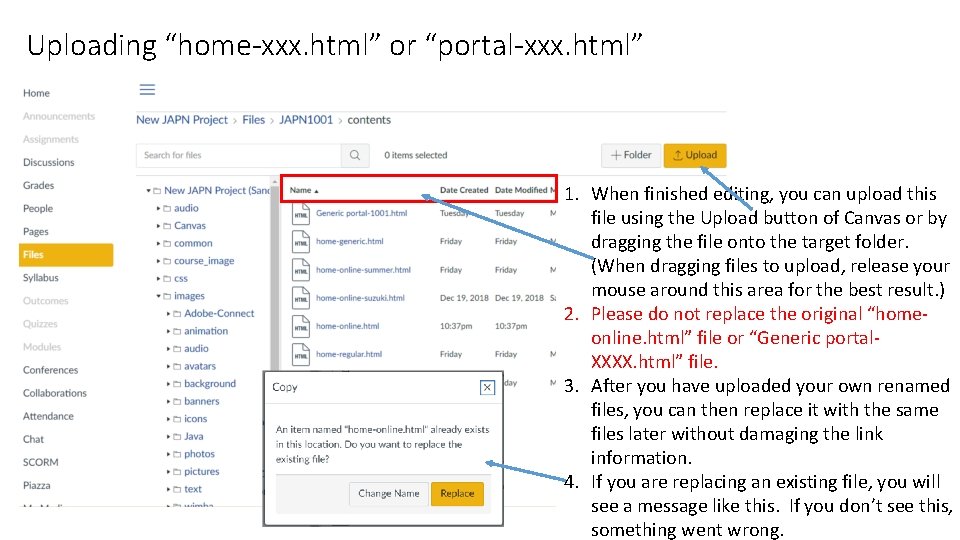
Uploading “home-xxx. html” or “portal-xxx. html” 1. When finished editing, you can upload this file using the Upload button of Canvas or by dragging the file onto the target folder. (When dragging files to upload, release your mouse around this area for the best result. ) 2. Please do not replace the original “homeonline. html” file or “Generic portal. XXXX. html” file. 3. After you have uploaded your own renamed files, you can then replace it with the same files later without damaging the link information. 4. If you are replacing an existing file, you will see a message like this. If you don’t see this, something went wrong.