
Hours of Service IVG Driver Training Presented By
Hours of Service IVG Driver Training Presented By:
Overview • HOS automatically detects driving time using vehicle sensor data. • The information is collected through a connection to the vehicle ECM. • All information for the drivers log is stored on the unit so you will always have access to real time data. • The system transmits the data at every change of duty status to our severs where the information is then stored for 6 months and viewable on the Driver & Administration web portals. • If the driver is in an area with no cellular coverage the unit will store the data until it is in an area with coverage and then transmit stored data.
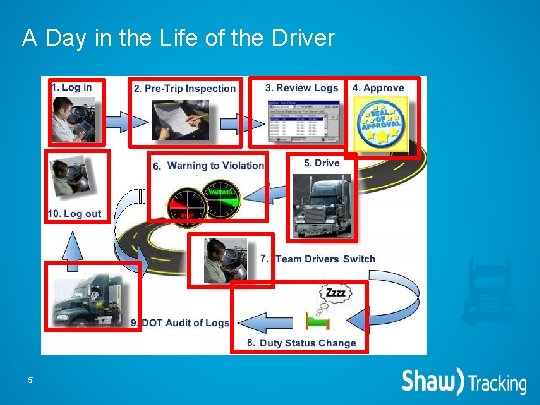
A Day in the Life of the Driver 5
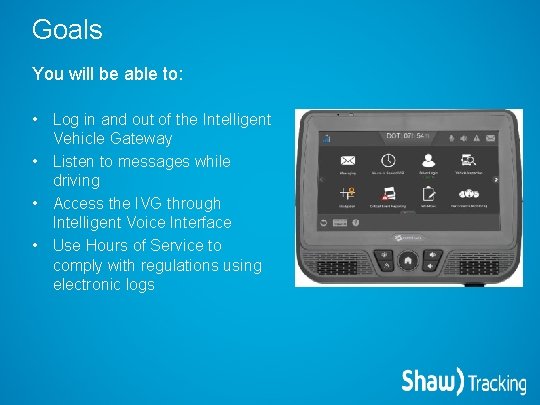
Goals You will be able to: • Log in and out of the Intelligent Vehicle Gateway • Listen to messages while driving • Access the IVG through Intelligent Voice Interface • Use Hours of Service to comply with regulations using electronic logs
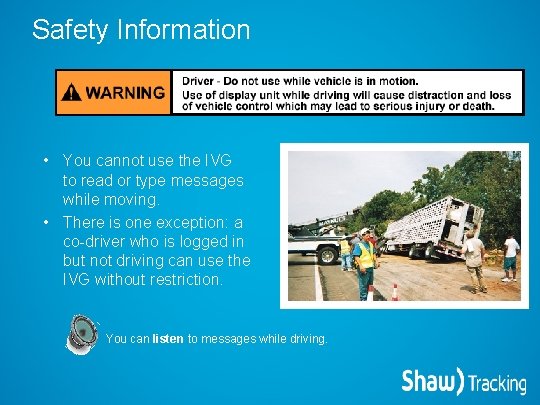
Safety Information • You cannot use the IVG to read or type messages while moving. • There is one exception: a co-driver who is logged in but not driving can use the IVG without restriction. You can listen to messages while driving.
Stopped vs. Moving • While stopped: – You can use any application that is enabled on the IVG – You tap an icon on the Home screen to access applications • While moving, you can access the following, with the limited functionality as described: – Messages (via text-to-speech) – Hours of Service (view available hours and retrieve through Intelligent Voice Interface) – Navigation (a map displays the next turn as text-to speech announces it)
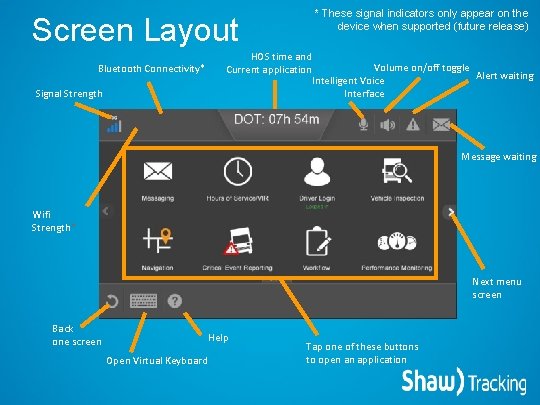
Screen Layout Bluetooth Connectivity* Signal Strength * These signal indicators only appear on the device when supported (future release) HOS time and Volume on/off toggle Current application Alert waiting Intelligent Voice Interface Message waiting Wifi Strength* Next menu screen Back one screen Help Open Virtual Keyboard Tap one of these buttons to open an application
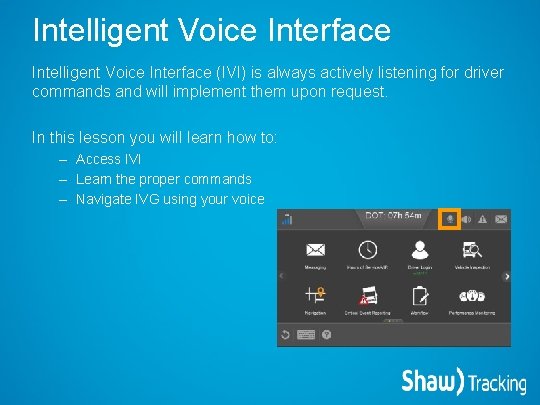
Intelligent Voice Interface (IVI) is always actively listening for driver commands and will implement them upon request. In this lesson you will learn how to: – Access IVI – Learn the proper commands – Navigate IVG using your voice
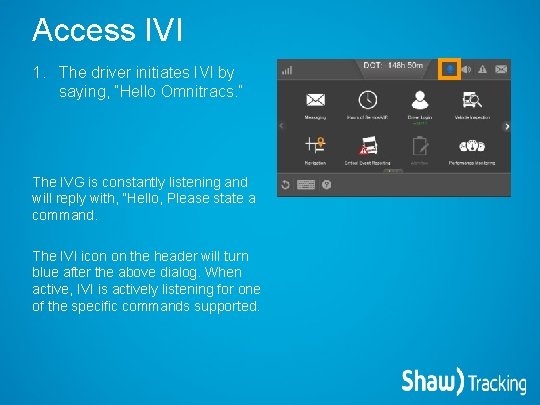
Access IVI 1. The driver initiates IVI by saying, “Hello Omnitracs. ” The IVG is constantly listening and will reply with, “Hello, Please state a command. The IVI icon on the header will turn blue after the above dialog. When active, IVI is actively listening for one of the specific commands supported.
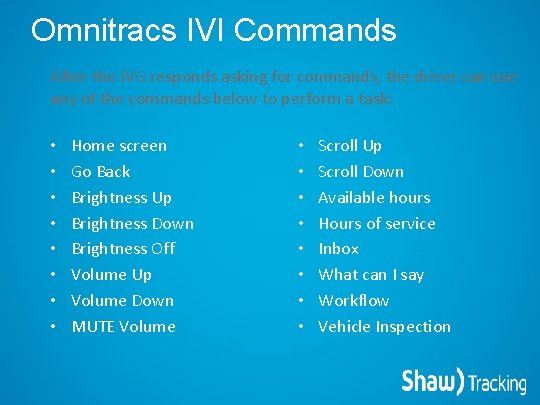
Omnitracs IVI Commands After the IVG responds asking for commands, the driver can use any of the commands below to perform a task: • • Home screen Go Back Brightness Up Brightness Down Brightness Off Volume Up Volume Down MUTE Volume • • Scroll Up Scroll Down Available hours Hours of service Inbox What can I say Workflow Vehicle Inspection
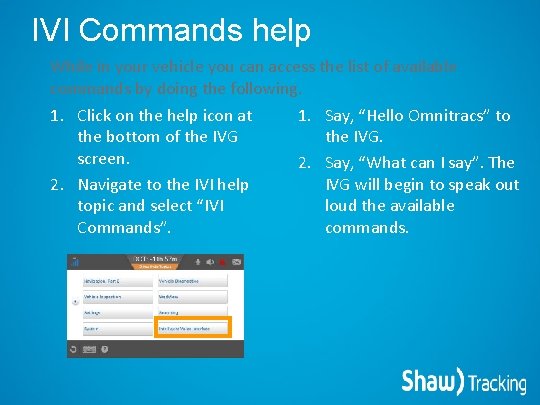
IVI Commands help While in your vehicle you can access the list of available commands by doing the following. 1. Click on the help icon at the bottom of the IVG screen. 2. Navigate to the IVI help topic and select “IVI Commands”. 1. Say, “Hello Omnitracs” to the IVG. 2. Say, “What can I say”. The IVG will begin to speak out loud the available commands.
Logging In and Out Basic Driver Services
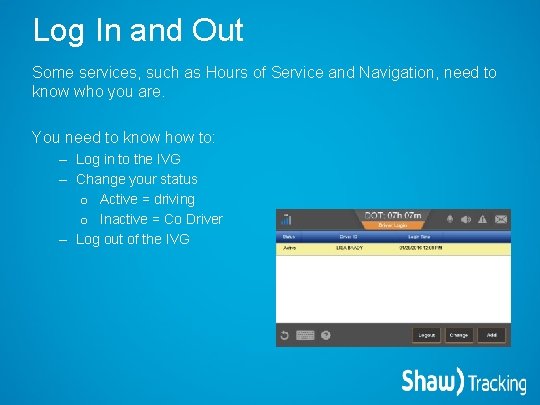
Log In and Out Some services, such as Hours of Service and Navigation, need to know who you are. You need to know how to: – Log in to the IVG – Change your status o Active = driving o Inactive = Co Driver – Log out of the IVG
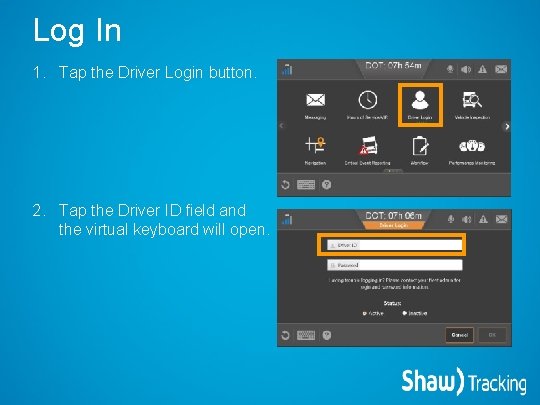
Log In 1. Tap the Driver Login button. 2. Tap the Driver ID field and the virtual keyboard will open.
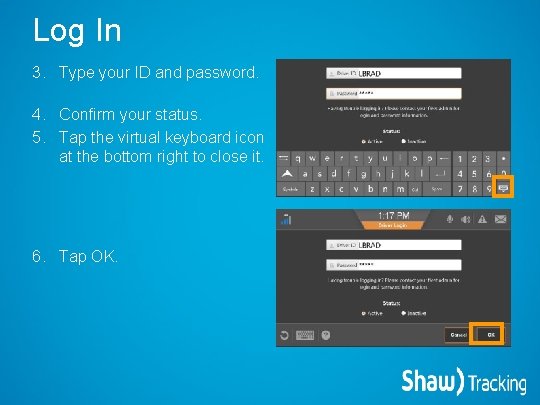
Log In 3. Type your ID and password. 4. Confirm your status. 5. Tap the virtual keyboard icon at the bottom right to close it. 6. Tap OK.
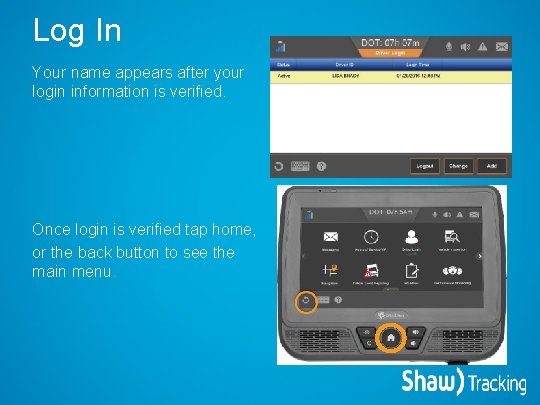
Log In Your name appears after your login information is verified. Once login is verified tap home, or the back button to see the main menu.
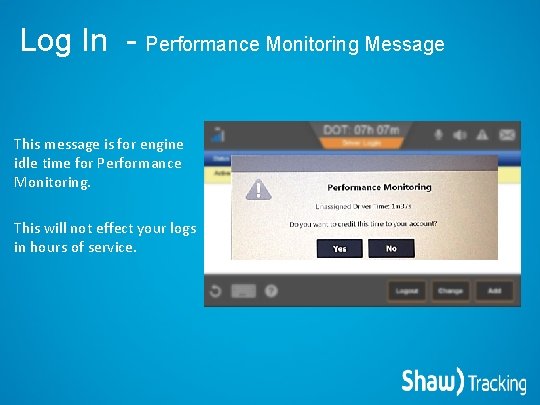
Log In - Performance Monitoring Message This message is for engine idle time for Performance Monitoring. This will not effect your logs in hours of service.
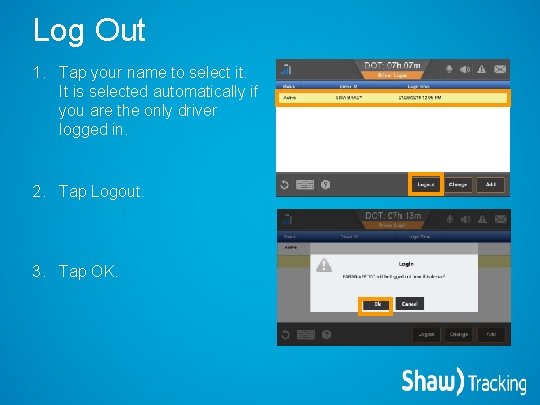
Log Out 1. Tap your name to select it. It is selected automatically if you are the only driver logged in. 2. Tap Logout. 3. Tap OK.
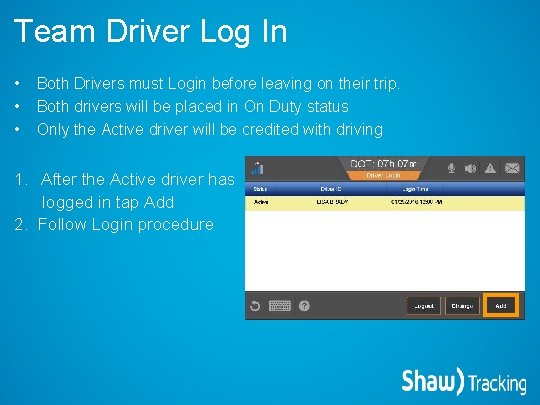
Team Driver Log In • • • Both Drivers must Login before leaving on their trip. Both drivers will be placed in On Duty status Only the Active driver will be credited with driving 1. After the Active driver has logged in tap Add 2. Follow Login procedure
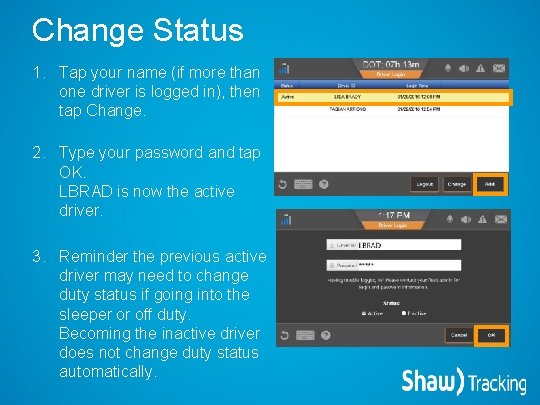
Change Status 1. Tap your name (if more than one driver is logged in), then tap Change. 2. Type your password and tap OK. LBRAD is now the active driver. 3. Reminder the previous active driver may need to change duty status if going into the sleeper or off duty. Becoming the inactive driver does not change duty status automatically.
Hours of Service Safety and Compliance Services
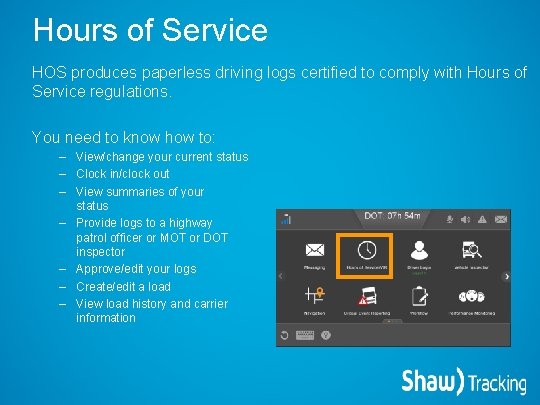
Hours of Service HOS produces paperless driving logs certified to comply with Hours of Service regulations. You need to know how to: – View/change your current status – Clock in/clock out – View summaries of your status – Provide logs to a highway patrol officer or MOT or DOT inspector – Approve/edit your logs – Create/edit a load – View load history and carrier information
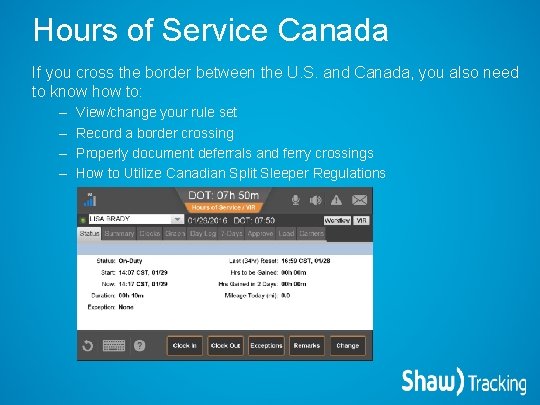
Hours of Service Canada If you cross the border between the U. S. and Canada, you also need to know how to: – – View/change your rule set Record a border crossing Properly document deferrals and ferry crossings How to Utilize Canadian Split Sleeper Regulations
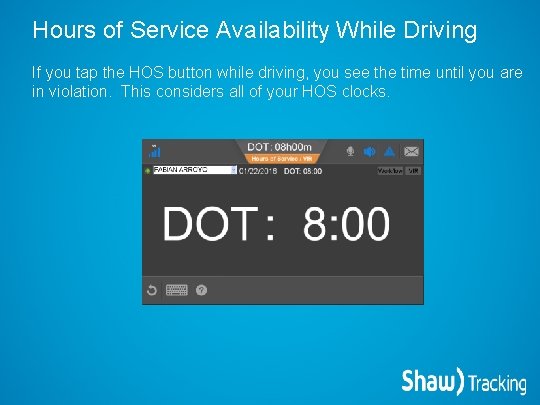
Hours of Service Availability While Driving If you tap the HOS button while driving, you see the time until you are in violation. This considers all of your HOS clocks.

Status Tab Statuses include: • • • This green circle means the driver is the active driver and gets all driving time applied to his/her logs. OFF: Off-Duty SB: Sleeper Berth DRV: Driving ON: On-Duty, not driving OFF DRV: Off-Duty driving (appears only if it enabled by your company) HOS automatically puts the all drivers: • In DRV when the truck is in motion • In ON when the truck is stopped • In ON when the driver logs in • In OFF when the driver logs out All other statuses must be changed manually. Minimum duty status time = 5 min. If status changes within 5 min, previous status is replaced with the new status. Driver should manually change status to DRV if: • Truck goes to ON while stopped (traffic) • Pulling on to a public road or highway
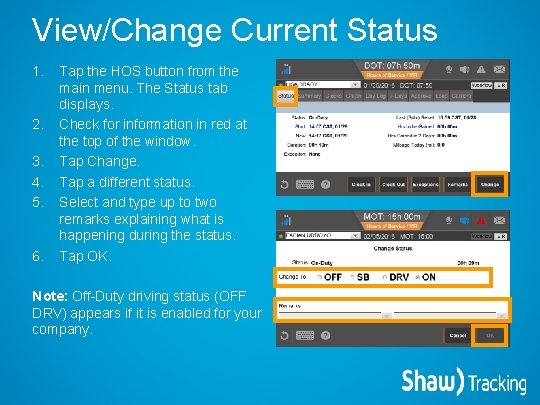
View/Change Current Status 1. 2. 3. 4. 5. 6. Tap the HOS button from the main menu. The Status tab displays. Check for information in red at the top of the window. Tap Change. Tap a different status. Select and type up to two remarks explaining what is happening during the status. Tap OK. Note: Off-Duty driving status (OFF DRV) appears if it is enabled for your company.
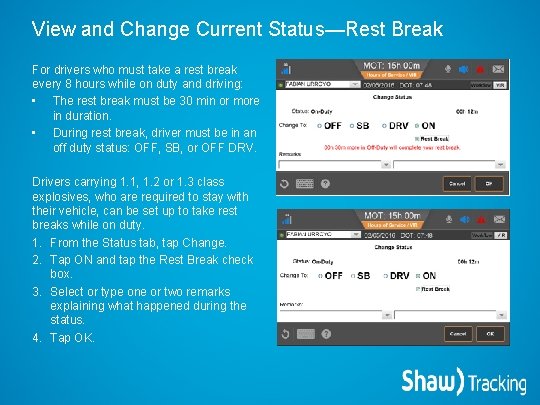
View and Change Current Status—Rest Break For drivers who must take a rest break every 8 hours while on duty and driving: • The rest break must be 30 min or more in duration. • During rest break, driver must be in an off duty status: OFF, SB, or OFF DRV. Drivers carrying 1. 1, 1. 2 or 1. 3 class explosives, who are required to stay with their vehicle, can be set up to take rest breaks while on duty. 1. From the Status tab, tap Change. 2. Tap ON and tap the Rest Break check box. 3. Select or type one or two remarks explaining what happened during the status. 4. Tap OK.
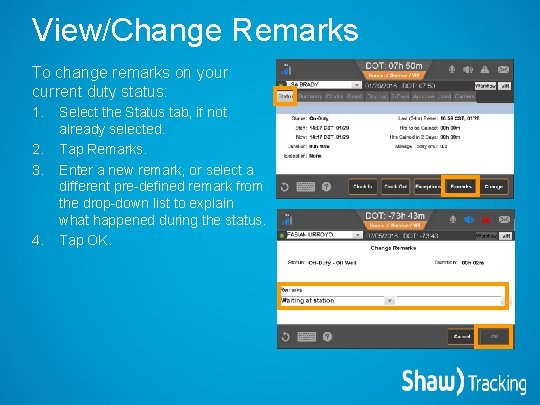
View/Change Remarks To change remarks on your current duty status: 1. 2. 3. 4. Select the Status tab, if not already selected. Tap Remarks. Enter a new remark, or select a different pre-defined remark from the drop-down list to explain what happened during the status. Tap OK.
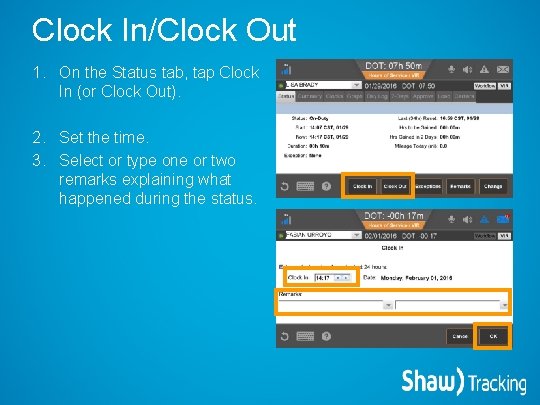
Clock In/Clock Out 1. On the Status tab, tap Clock In (or Clock Out). 2. Set the time. 3. Select or type one or two remarks explaining what happened during the status.
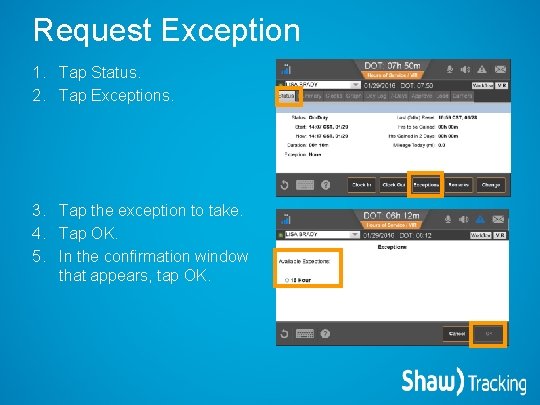
Request Exception 1. Tap Status. 2. Tap Exceptions. 3. Tap the exception to take. 4. Tap OK. 5. In the confirmation window that appears, tap OK.
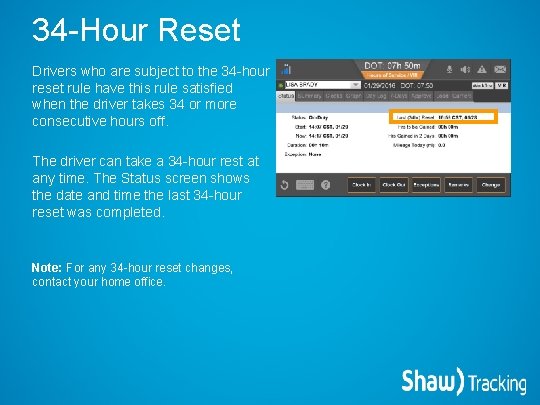
34 -Hour Reset Drivers who are subject to the 34 -hour reset rule have this rule satisfied when the driver takes 34 or more consecutive hours off. The driver can take a 34 -hour rest at any time. The Status screen shows the date and time the last 34 -hour reset was completed. Note: For any 34 -hour reset changes, contact your home office.
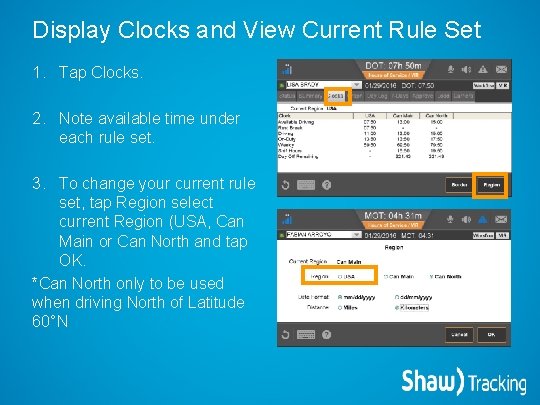
Display Clocks and View Current Rule Set 1. Tap Clocks. 2. Note available time under each rule set. 3. To change your current rule set, tap Region select current Region (USA, Can Main or Can North and tap OK. *Can North only to be used when driving North of Latitude 60°N
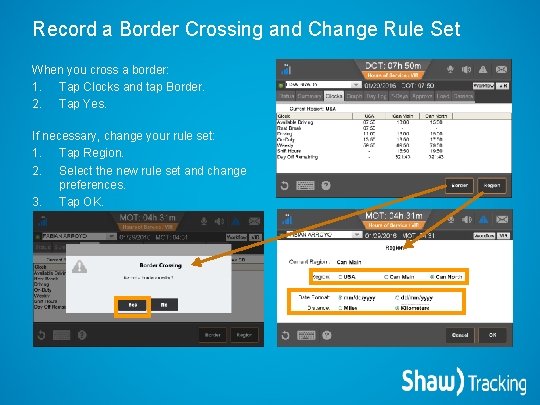
Record a Border Crossing and Change Rule Set When you cross a border: 1. Tap Clocks and tap Border. 2. Tap Yes. If necessary, change your rule set: 1. Tap Region. 2. Select the new rule set and change preferences. 3. Tap OK.
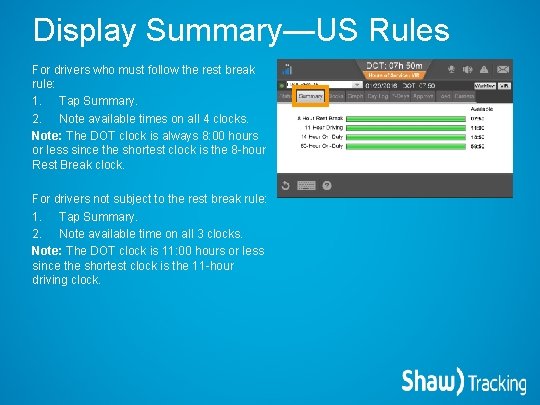
Display Summary—US Rules For drivers who must follow the rest break rule: 1. Tap Summary. 2. Note available times on all 4 clocks. Note: The DOT clock is always 8: 00 hours or less since the shortest clock is the 8 -hour Rest Break clock. For drivers not subject to the rest break rule: 1. Tap Summary. 2. Note available time on all 3 clocks. Note: The DOT clock is 11: 00 hours or less since the shortest clock is the 11 -hour driving clock.
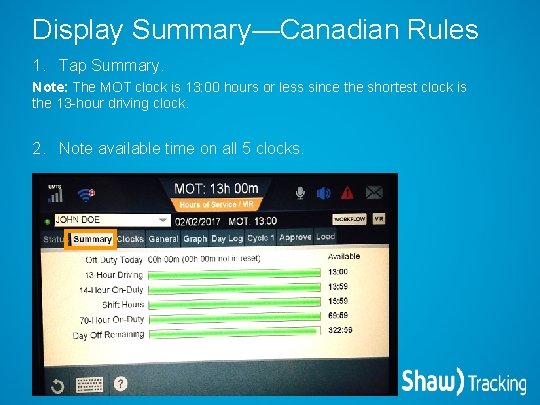
Display Summary—Canadian Rules 1. Tap Summary. Note: The MOT clock is 13: 00 hours or less since the shortest clock is the 13 -hour driving clock. 2. Note available time on all 5 clocks.
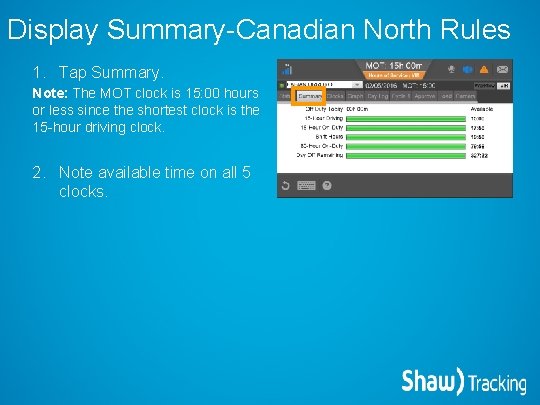
Display Summary-Canadian North Rules 1. Tap Summary. Note: The MOT clock is 15: 00 hours or less since the shortest clock is the 15 -hour driving clock. 2. Note available time on all 5 clocks.
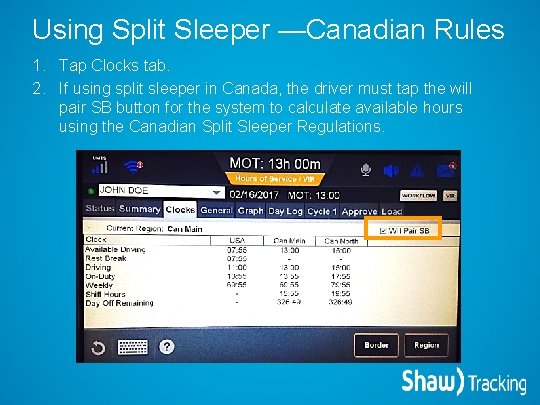
Using Split Sleeper —Canadian Rules 1. Tap Clocks tab. 2. If using split sleeper in Canada, the driver must tap the will pair SB button for the system to calculate available hours using the Canadian Split Sleeper Regulations.
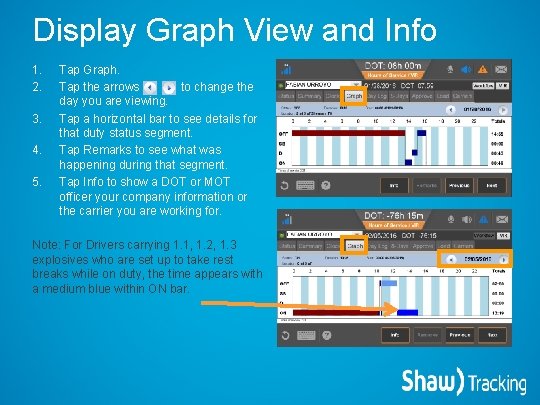
Display Graph View and Info 1. 2. 3. 4. 5. Tap Graph. Tap the arrows to change the day you are viewing. Tap a horizontal bar to see details for that duty status segment. Tap Remarks to see what was happening during that segment. Tap Info to show a DOT or MOT officer your company information or the carrier you are working for. Note: For Drivers carrying 1. 1, 1. 2, 1. 3 explosives who are set up to take rest breaks while on duty, the time appears with a medium blue within ON bar.
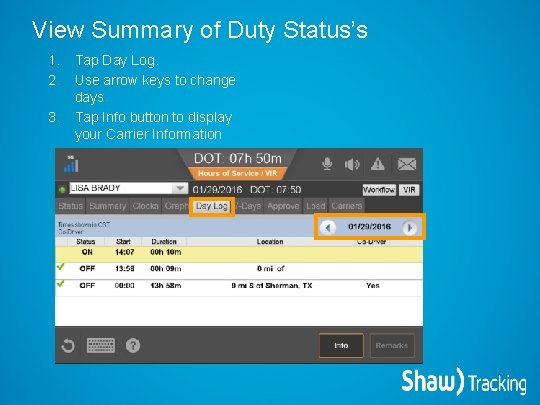
View Summary of Duty Status’s 1. 2. 3. Tap Day Log. Use arrow keys to change days. Tap Info button to display your Carrier Information
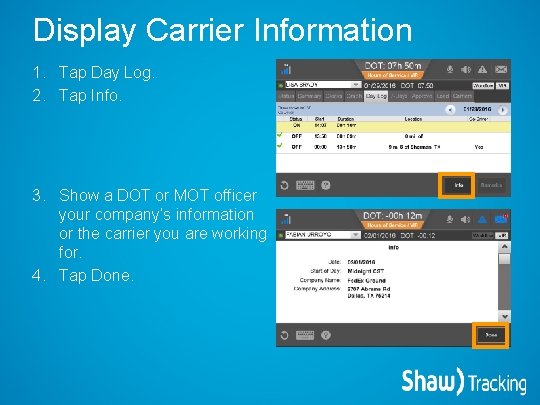
Display Carrier Information 1. Tap Day Log. 2. Tap Info. 3. Show a DOT or MOT officer your company’s information or the carrier you are working for. 4. Tap Done.
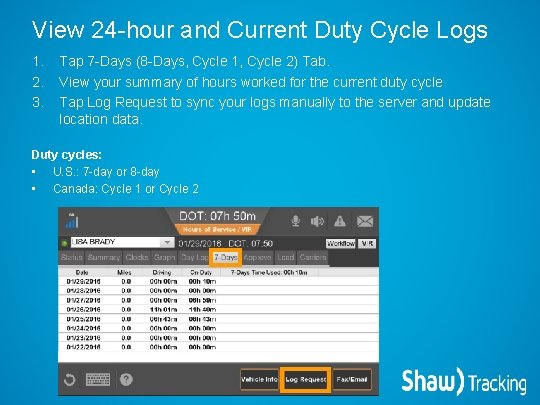
View 24 -hour and Current Duty Cycle Logs 1. 2. 3. Tap 7 -Days (8 -Days, Cycle 1, Cycle 2) Tab. View your summary of hours worked for the current duty cycle Tap Log Request to sync your logs manually to the server and update location data. Duty cycles: • U. S. : 7 -day or 8 -day • Canada: Cycle 1 or Cycle 2
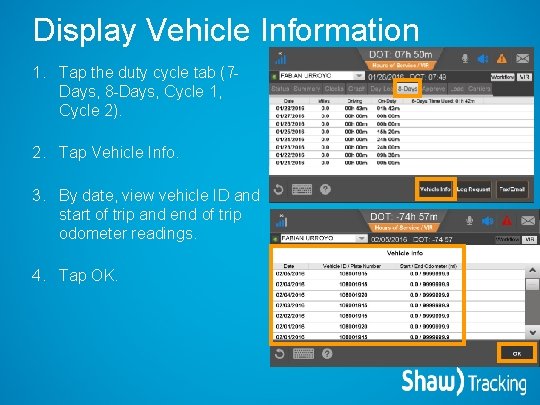
Display Vehicle Information 1. Tap the duty cycle tab (7 Days, 8 -Days, Cycle 1, Cycle 2). 2. Tap Vehicle Info. 3. By date, view vehicle ID and start of trip and end of trip odometer readings. 4. Tap OK.
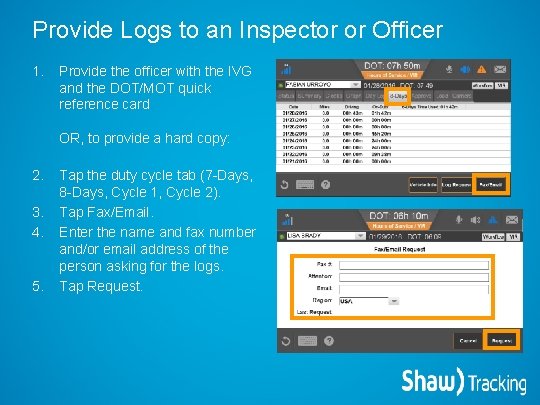
Provide Logs to an Inspector or Officer 1. Provide the officer with the IVG and the DOT/MOT quick reference card OR, to provide a hard copy: 2. 3. 4. 5. Tap the duty cycle tab (7 -Days, 8 -Days, Cycle 1, Cycle 2). Tap Fax/Email. Enter the name and fax number and/or email address of the person asking for the logs. Tap Request.
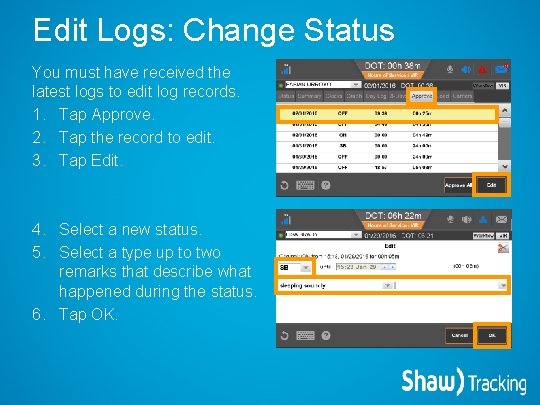
Edit Logs: Change Status You must have received the latest logs to edit log records. 1. Tap Approve. 2. Tap the record to edit. 3. Tap Edit. 4. Select a new status. 5. Select a type up to two remarks that describe what happened during the status. 6. Tap OK.
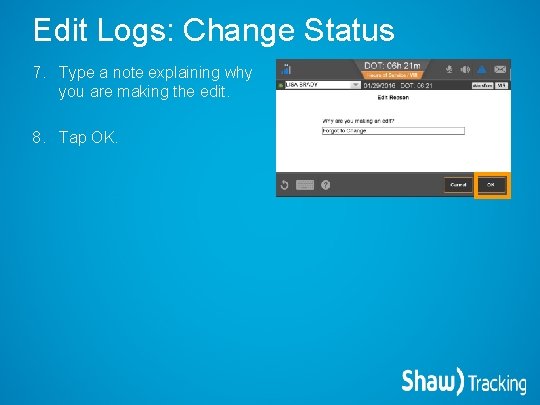
Edit Logs: Change Status 7. Type a note explaining why you are making the edit. 8. Tap OK.
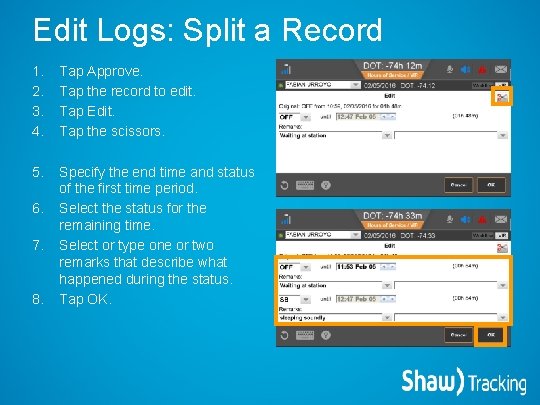
Edit Logs: Split a Record 1. 2. 3. 4. Tap Approve. Tap the record to edit. Tap Edit. Tap the scissors. 5. Specify the end time and status of the first time period. Select the status for the remaining time. Select or type one or two remarks that describe what happened during the status. Tap OK. 6. 7. 8.
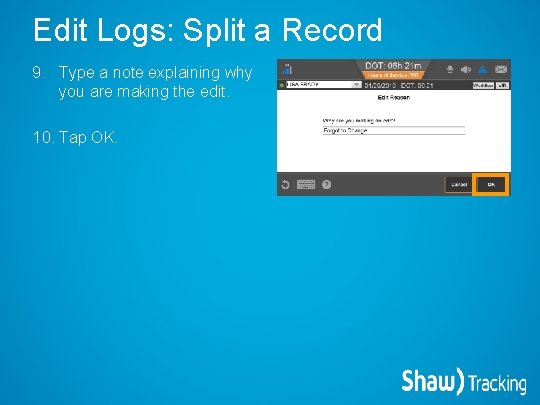
Edit Logs: Split a Record 9. Type a note explaining why you are making the edit. 10. Tap OK.
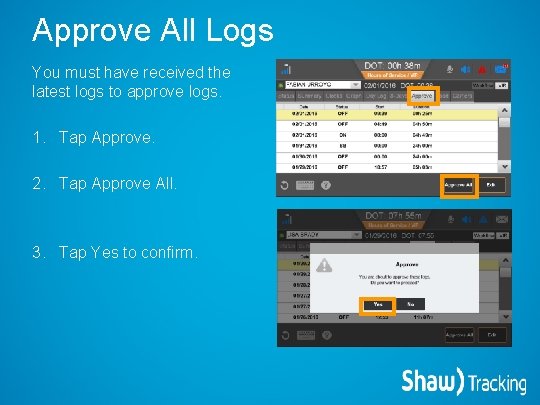
Approve All Logs You must have received the latest logs to approve logs. 1. Tap Approve. 2. Tap Approve All. 3. Tap Yes to confirm.
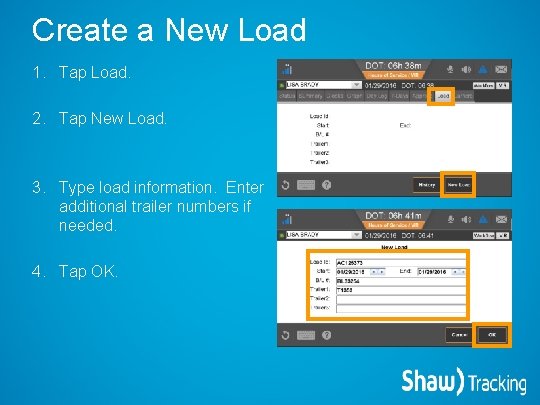
Create a New Load 1. Tap Load. 2. Tap New Load. 3. Type load information. Enter additional trailer numbers if needed. 4. Tap OK.
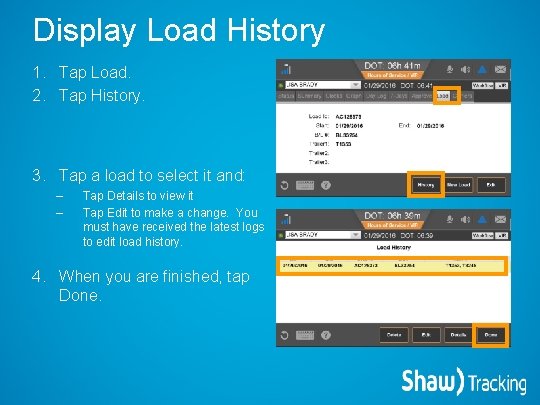
Display Load History 1. Tap Load. 2. Tap History. 3. Tap a load to select it and: – – Tap Details to view it Tap Edit to make a change. You must have received the latest logs to edit load history. 4. When you are finished, tap Done.
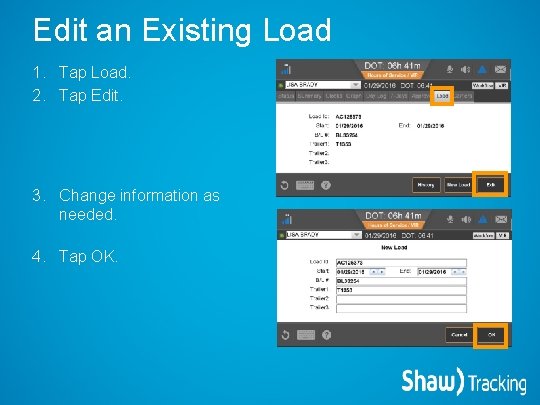
Edit an Existing Load 1. Tap Load. 2. Tap Edit. 3. Change information as needed. 4. Tap OK.
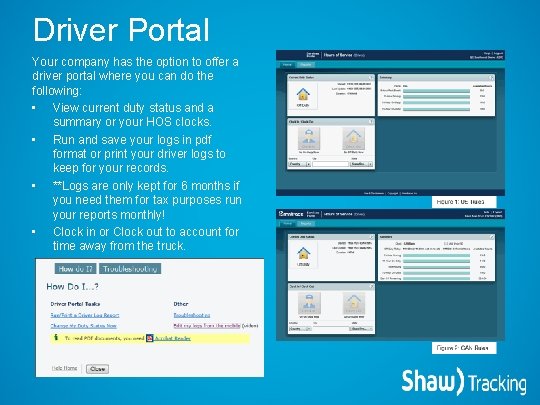
Driver Portal Your company has the option to offer a driver portal where you can do the following: • View current duty status and a summary or your HOS clocks. • Run and save your logs in pdf format or print your driver logs to keep for your records. • **Logs are only kept for 6 months if you need them for tax purposes run your reports monthly! • Clock in or Clock out to account for time away from the truck.
IVG Driver Training This concludes the Hours of Service training.
- Slides: 54