
Hours of Service Driver Training Presented By Overview
Hours of Service Driver Training Presented By:

Overview • HOS automatically detects driving time using vehicle sensor data. • Sensors are attached to the J-1708/J 1939 data bus (ECM) of the vehicle. 2

Overview • • • 3 Log is always up to date Many of the required fields are automatically completed for you Full driving time (no more rounding to the nearest 15 minutes) Automatically Calculates your available hours Gives you an Audible Message when running out of drive time!

Overview • HOS sends a signal to the system at two points through the use of two triggers: • BOT: Beginning of Trip trigger (Driving) BOT signal is sent when the vehicle has moved 1 Kilometer • Or 35 kph - Speed • EOT: End of Trip trigger (On Duty) 4

Overview - BOT Distance Threshold 5 Activity Empty Trailer Search Elog Before Change 0830 – 0840 (10 min) arrive at a yard and stop for 10 minutes On-duty not driving Elog After Change On-duty not driving 0841 - 0843 start moving down aisle of a yard 0843 - 0844 (1 min) stop and check a trailer 0844 - 0846 start moving again to the next aisle 0846 – 0847 (1 min) stop and check another trailer 0847 – 0850 start moving again to the next aisle 0850 – 0851 (1 min) stop and check another trailer 0851 – 0854 start moving again 0854 – 0855 (1 min) stop and check another trailer 0855 – 0859 go to farther end of yard 0859 – 0900 (1 min) stop and check another trailer 0900 – 0902 start moving again 0902 – reach the 2 mile threshold 0908 – 0915 (7 min) stop and finally find an empty trailer Driving Driving Driving On-duty not driving On-duty not driving On-duty not driving Driving On-duty not driving

Overview – BOT Speed Threshold 6 Activity Guard Shack Short Stop Elog Before Change Elog After Change 0830 on-duty not driving pre-trip inspection On-duty not driving 0900 pull out of parking spot (drive 1/8 of a mile) On-duty not driving Driving 0904 stop at guard shack (sit for 4 minutes) On-duty not driving Driving 0908 pull forward from guard shack and start driving On-duty not driving Driving 0913 continue driving and reach 15 MPH threshold Driving

A Day in the Life of the Driver 7

Driver Login 2 • 1 st and most important, a Driver must login to the MCP unit for the Hours of Service application to work. • Your Driver ID and Password will be provided by your HOS administrator. Keep your Driver ID and Password secure. • Once Logged into the MCP your Hours of Service logs will download to the unit. The download takes between 5 -7 minutes. • Team Drivers - both drivers must login at the beginning of the trip.

Driver Login • • • 3 Tap on the login Icon Enter your Driver ID Enter your Password Make sure your Status is Active Tap on OK
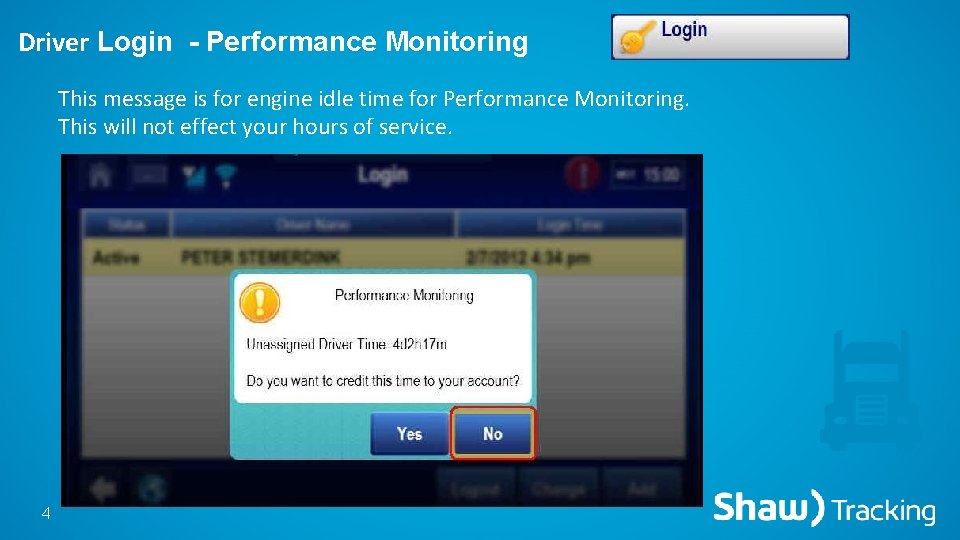
Driver Login - Performance Monitoring This message is for engine idle time for Performance Monitoring. This will not effect your hours of service. 4
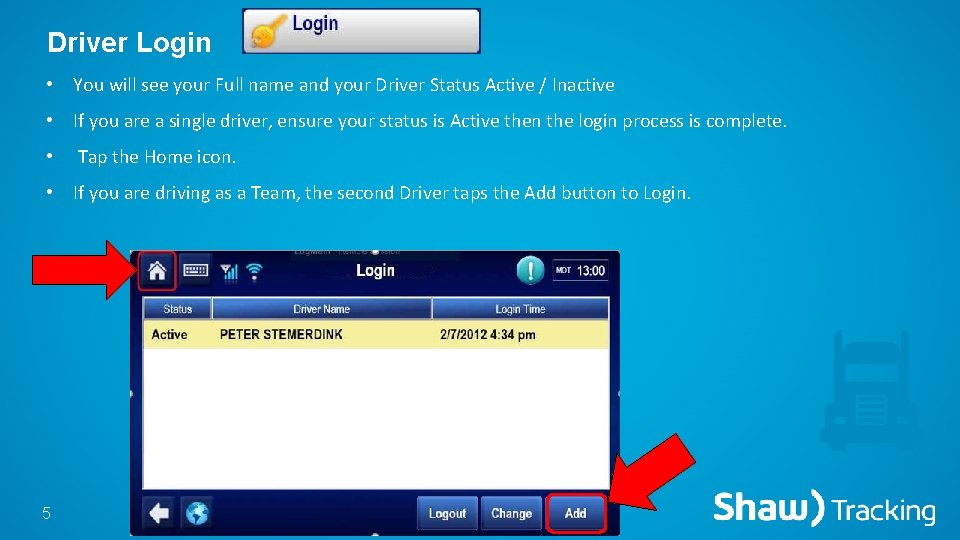
Driver Login • You will see your Full name and your Driver Status Active / Inactive • If you are a single driver, ensure your status is Active then the login process is complete. • Tap the Home icon. • If you are driving as a Team, the second Driver taps the Add button to Login. 5
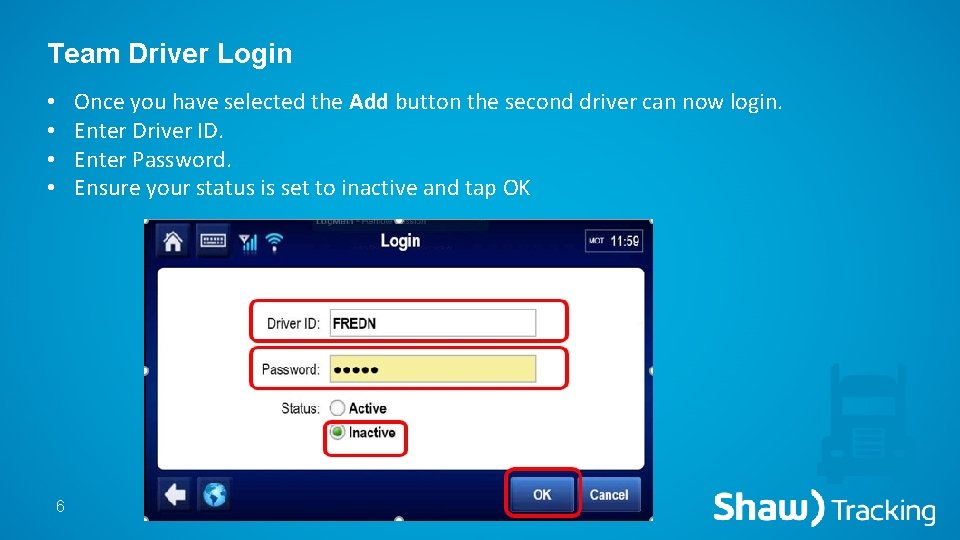
Team Driver Login Once you have selected the Add button the second driver can now login. Enter Driver ID. Enter Password. Ensure your status is set to inactive and tap OK • • 6
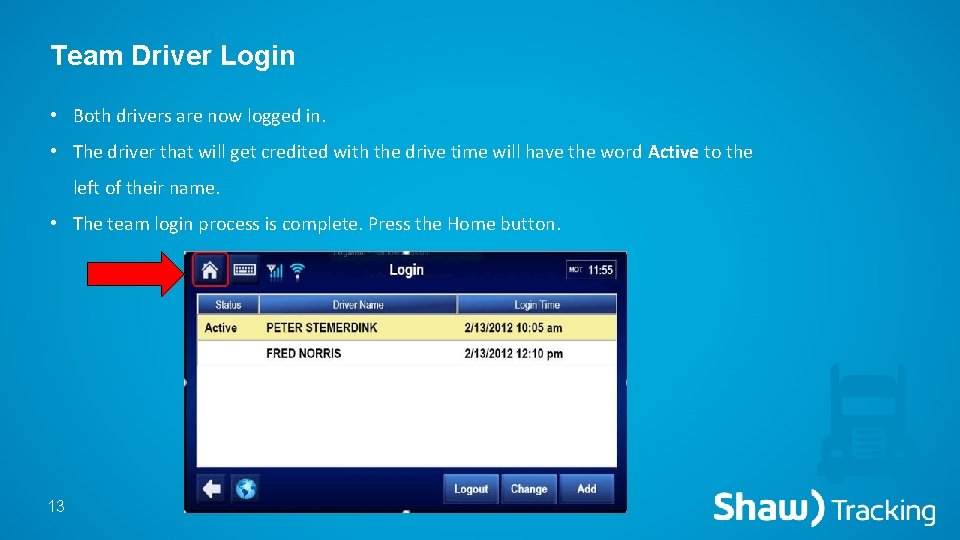
Team Driver Login • Both drivers are now logged in. • The driver that will get credited with the drive time will have the word Active to the left of their name. • The team login process is complete. Press the Home button. 13

Log Update in Progress Editing & Approving Disabled Notification • Immediately after Logging in You will receive this Message this is normal • The system needs time to download your previous 14 days logs, create off duty logs and start your log for today. This process could take up to 5 minutes, you are able to change your current duty status you just can not Edit/Approve previous logs until they are Downloaded 14
Changing Duty Status • After logging in you can access the Hours of Service application. • Tap the Hours of Service icon. 15
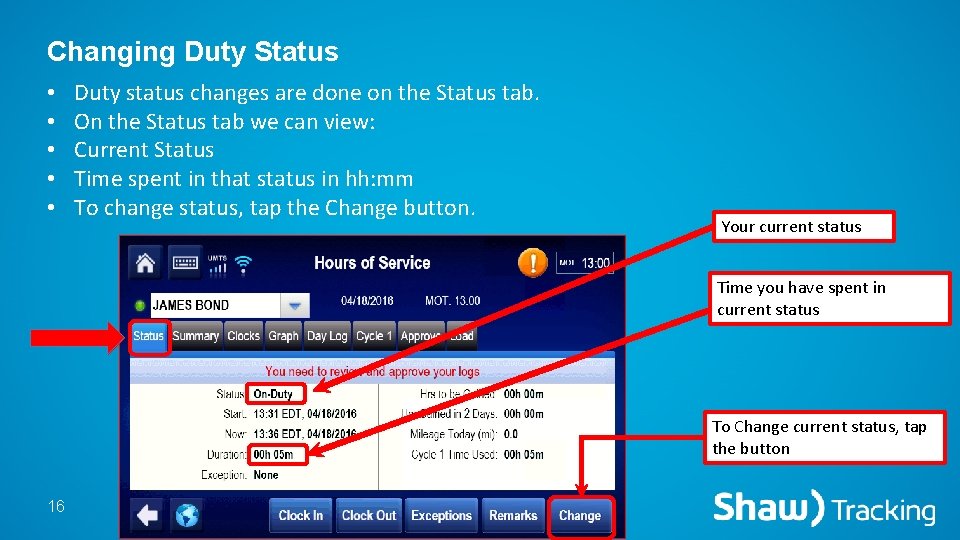
Changing Duty Status • • • Duty status changes are done on the Status tab. On the Status tab we can view: Current Status Time spent in that status in hh: mm To change status, tap the Change button. Your current status Time you have spent in current status To Change current status, tap the button 16
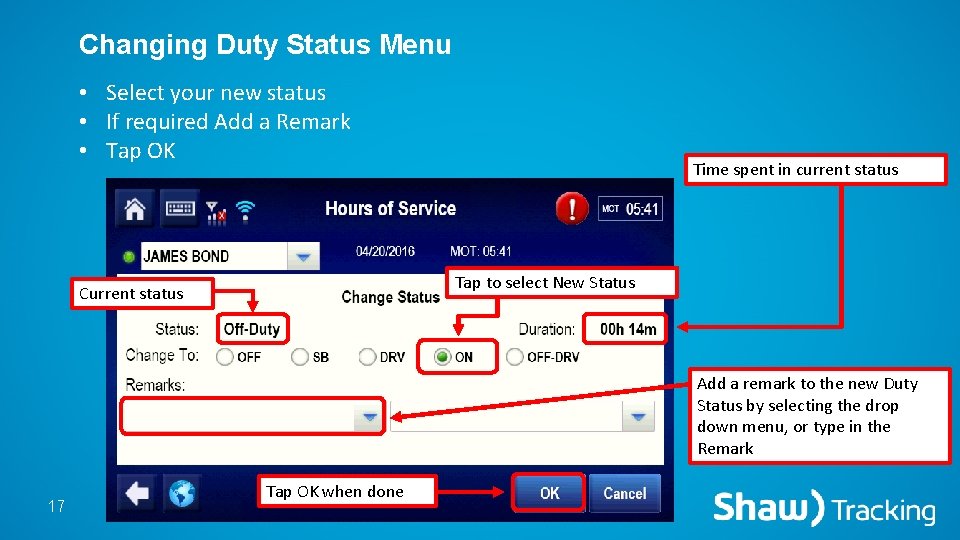
Changing Duty Status Menu • Select your new status • If required Add a Remark • Tap OK Time spent in current status Tap to select New Status Current status Add a remark to the new Duty Status by selecting the drop down menu, or type in the Remark 17 Tap OK when done
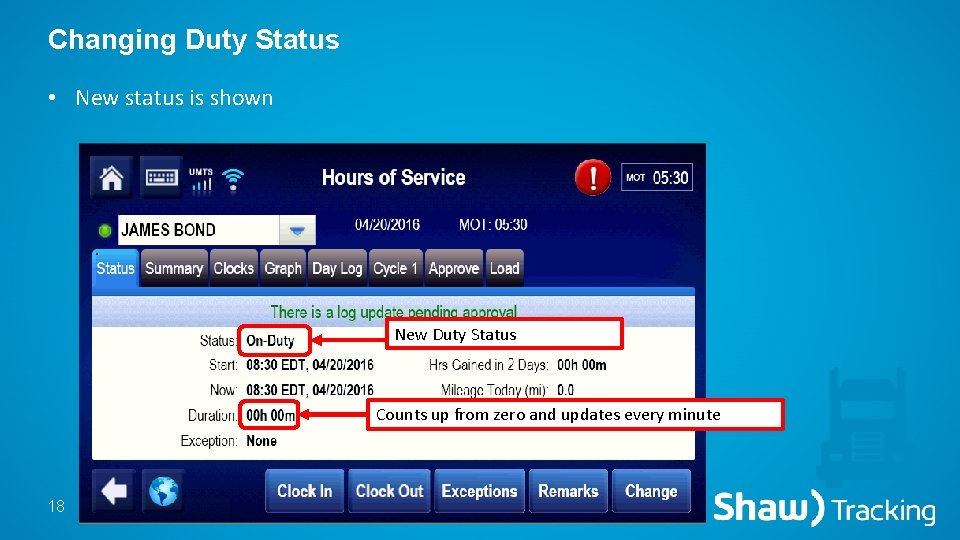
Changing Duty Status • New status is shown New Duty Status Counts up from zero and updates every minute 18
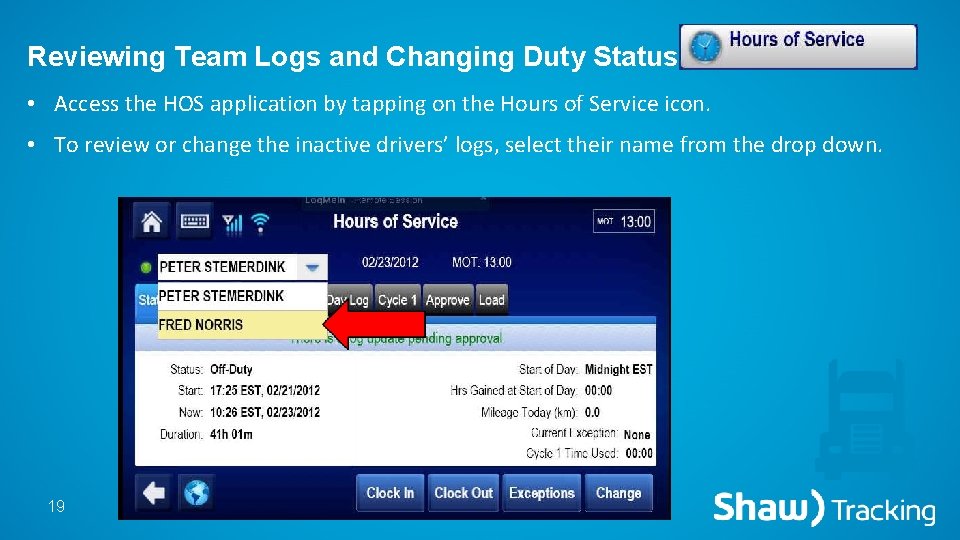
Reviewing Team Logs and Changing Duty Status • Access the HOS application by tapping on the Hours of Service icon. • To review or change the inactive drivers’ logs, select their name from the drop down. 19

Reviewing Team Logs and Changing Duty Status • The inactive drivers logs now appear on screen. • This driver should change their duty status to OFF or SB 20
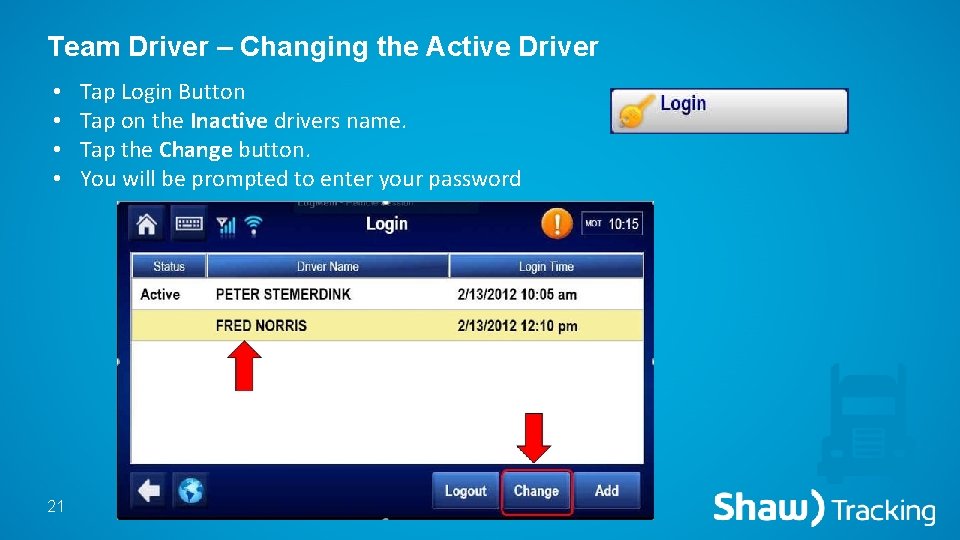
Team Driver – Changing the Active Driver • • 21 Tap Login Button Tap on the Inactive drivers name. Tap the Change button. You will be prompted to enter your password

Adding a Remark to a Current Duty Status • You can tag 2 remarks to every duty status. • To add a remark, access the Status tab. • Tap the Remarks Button. Tap Remarks button to add a remark to your current Duty Status 22
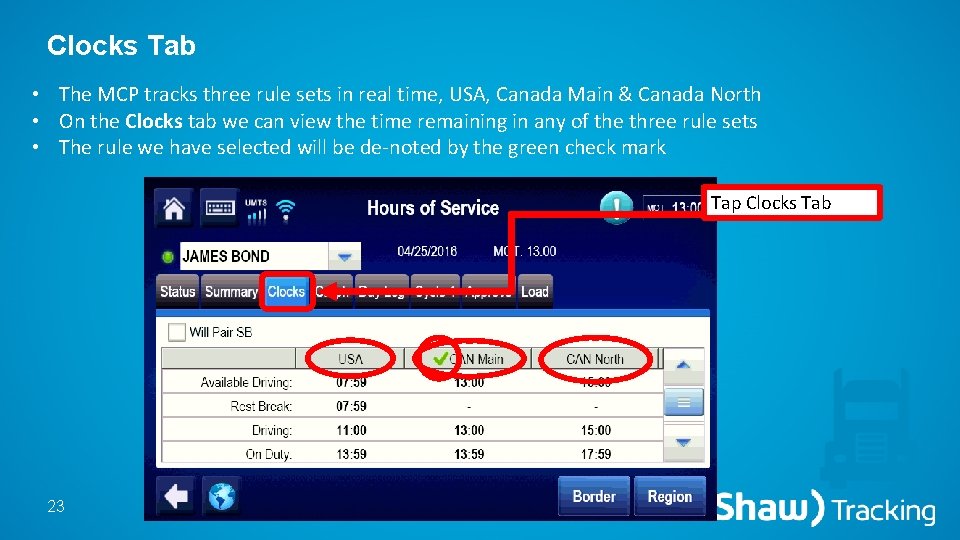
Clocks Tab • The MCP tracks three rule sets in real time, USA, Canada Main & Canada North • On the Clocks tab we can view the time remaining in any of the three rule sets • The rule we have selected will be de-noted by the green check mark Tap Clocks Tab 23
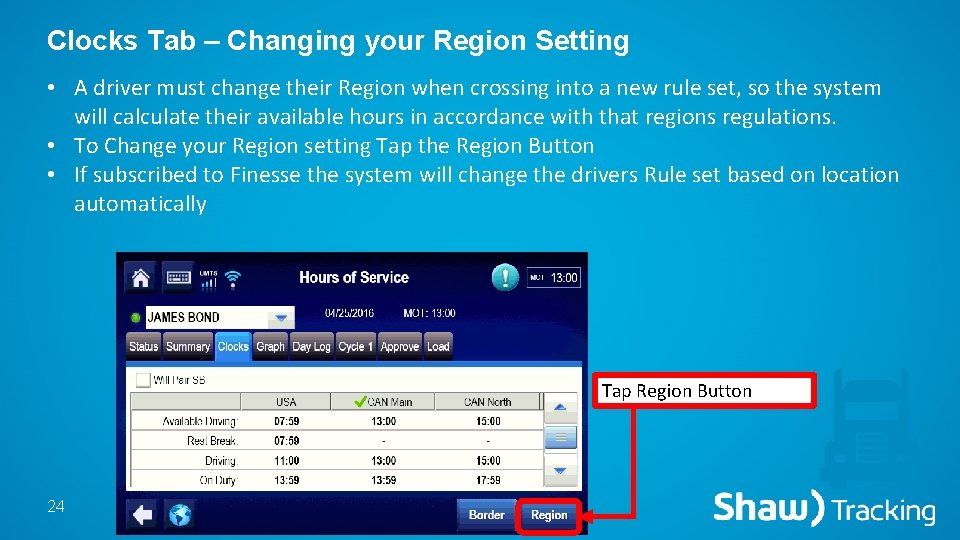
Clocks Tab – Changing your Region Setting • A driver must change their Region when crossing into a new rule set, so the system will calculate their available hours in accordance with that regions regulations. • To Change your Region setting Tap the Region Button • If subscribed to Finesse the system will change the drivers Rule set based on location automatically Tap Region Button 24
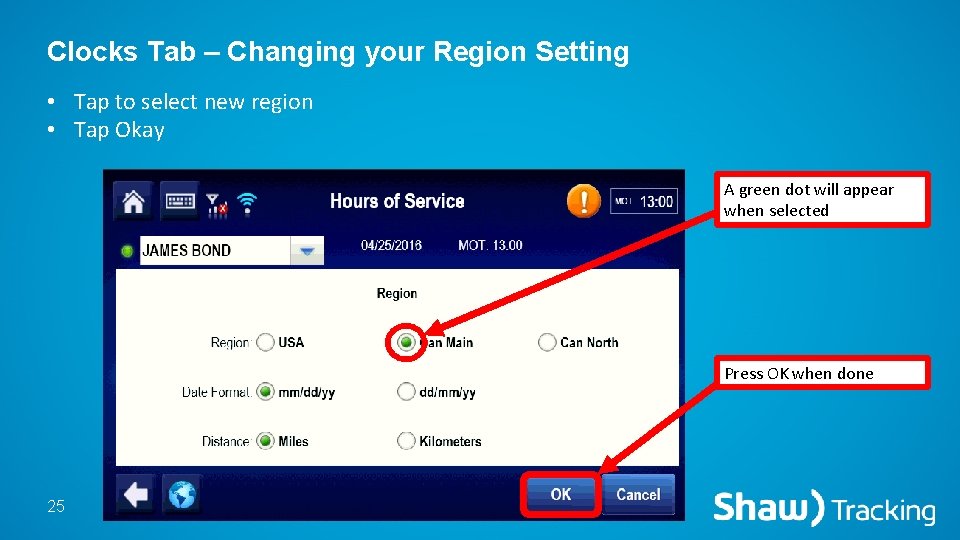
Clocks Tab – Changing your Region Setting • Tap to select new region • Tap Okay A green dot will appear when selected Press OK when done 25
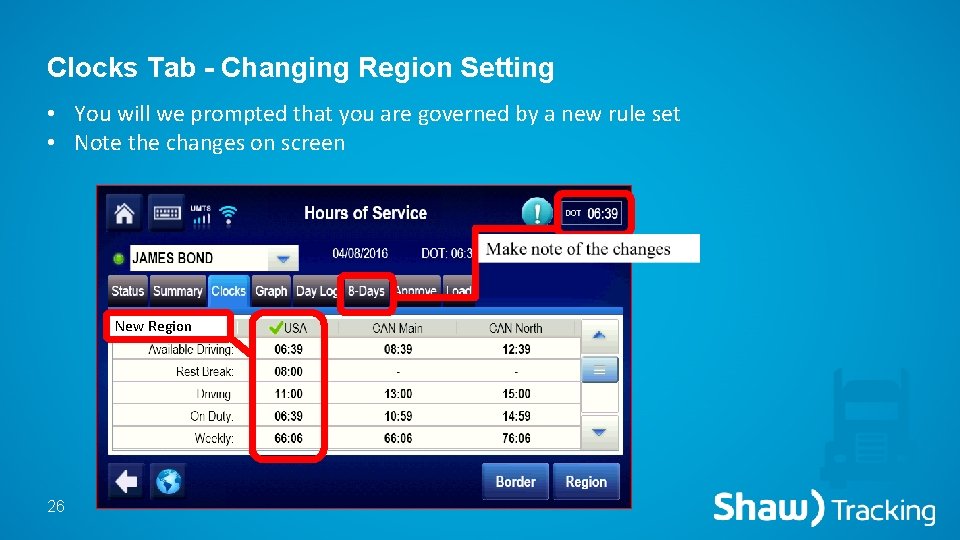
Clocks Tab - Changing Region Setting • You will we prompted that you are governed by a new rule set • Note the changes on screen New Region 26
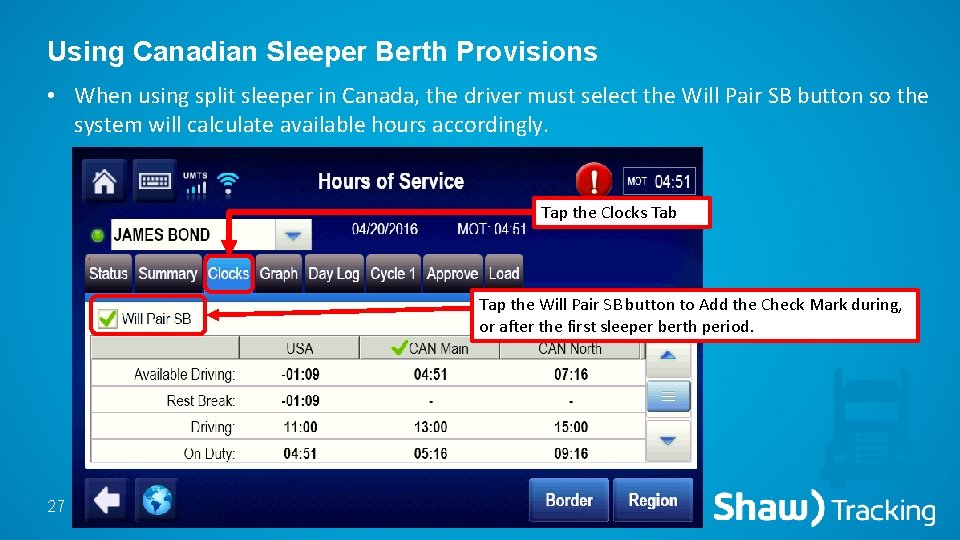
Using Canadian Sleeper Berth Provisions • When using split sleeper in Canada, the driver must select the Will Pair SB button so the system will calculate available hours accordingly. Tap the Clocks Tab Tap the Will Pair SB button to Add the Check Mark during, or after the first sleeper berth period. 27

Reviewing your Logs - Summary Tab • Provides an overall view of available hours in the current Rule set • The count down clock above the tabs provides the remaining drive time for the driver at all times 28

Reviewing your Logs - Graph • • 29 On the Graph tab we can review our log history Previous 14 days in Cdn rule set and Prev. 8 days in US rule set Tap the arrows to select the day you would like to review Tap on a bar to review more info about a duty status.

Reviewing your Logs - Graph • You can use the Previous Next buttons to step through each status • Tapping the Info button will display who you are working for • Tapping the Remarks button will display any remark that were tagged to that status. 30

Reviewing your Logs – Day Log • On the Day log tab you can review past log activity in a text list format • Here we see the Status, Start time, Duration and location • Select a date by tapping on the arrows. 31

Fax or E-mail your Logs (Cycle Tab) • The Cycle tab displays daily Driving and On-Duty activity & Vehicle Data available when selecting Vehicle info button • Tap Log Request button to ensure locations are up dated to current duty status • To fax a paper copy of yours logs, tap on the Fax button. 32

Cycle Tab (Fax or E-mail your Logs ) • The Cycle tab displays daily Driving and On-Duty activity & Vehicle Data available when selecting Vehicle info button • Tap Log Request button to ensure locations are up dated to current duty status • To fax a paper copy of yours logs, tap on the Fax button. 33

Faxing Or E-mailing your Logs 34

Editing your Log • Log Edits are done on the Approve tab • The only status you cannot Edit is Driving. To Edit a status, select the status by tapping on it. • Then tap the Edit button. 35

Editing your Log • Select the new status from the drop down menu • OFF – Off-duty, SB – Sleeper Birth, D – Driving, ON – On-duty, OD – Off Duty Driving. 36

Editing your Log • New Status Selected • You can add a Remark (not mandatory) to better explain your activity during this status • Tap OK 37
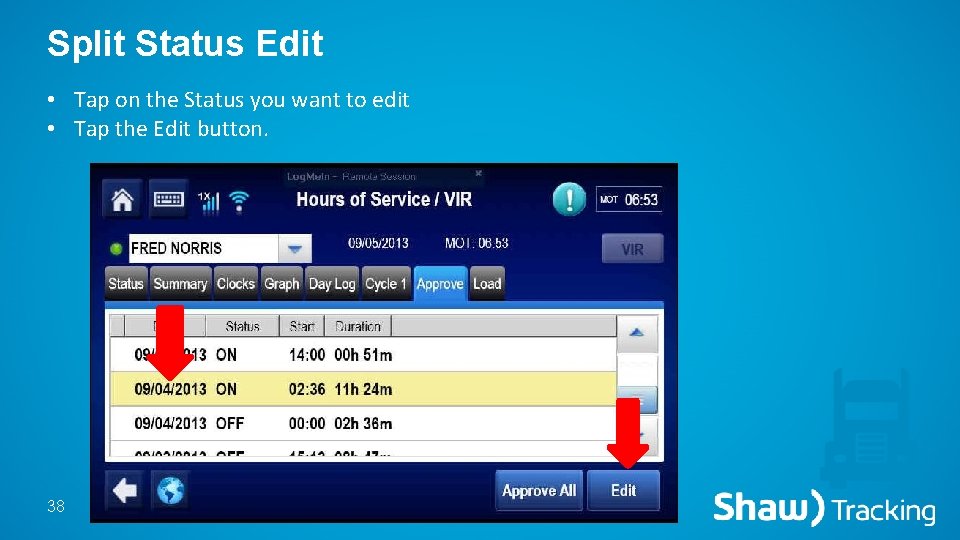
Split Status Edit • Tap on the Status you want to edit • Tap the Edit button. 38
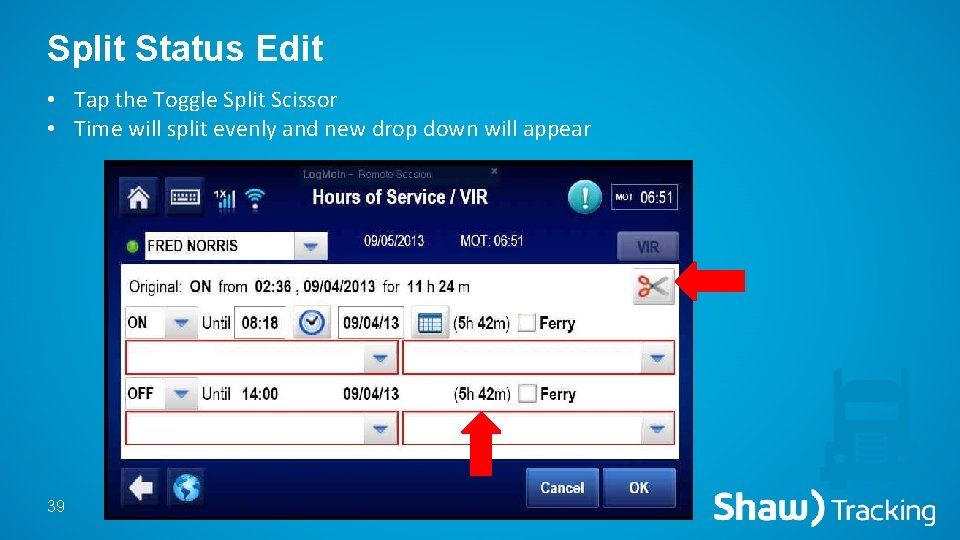
Split Status Edit • Tap the Toggle Split Scissor • Time will split evenly and new drop down will appear 39

Split Status Edit • Select new Status and adjust the time • Add a Remark to explain activitie during that status (not mandatory) • Tap OK 40

Editing Your Log • Any time you edit your log you will be prompted to enter an reason for your edit 41

Approve and Editing • You will be prompted on the Status tab to approve your logs • When this message appears, continue to the Approve tab. 42
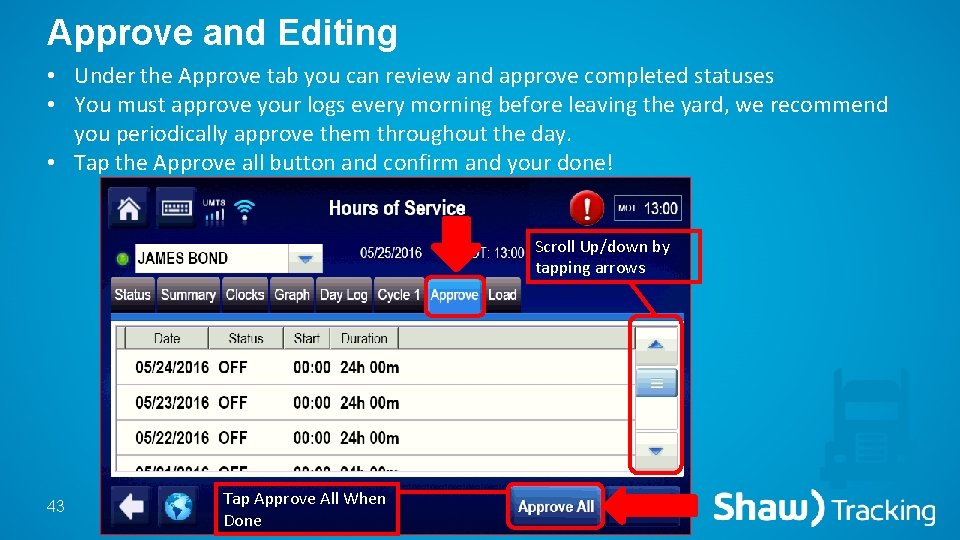
Approve and Editing • Under the Approve tab you can review and approve completed statuses • You must approve your logs every morning before leaving the yard, we recommend you periodically approve them throughout the day. • Tap the Approve all button and confirm and your done! Scroll Up/down by tapping arrows 43 Tap Approve All When Done

Approving your Logs • After you approve your logs the page will appear blank until you complete your next status. All statuses that have been approved can still be viewed under the Graph tab or Day log tab. • All approved statuses can no longer be edited by the driver, your administrator will still have access if necessary. 44

Entering Load & Trailer Information • Tap on the Load tab to enter in load information • To enter in new information, Tap New Load. 45

Entering Load & Trailer Information • Enter your load info • Tap OK when done 46

View or Edit Load & Trailer Information • You can review & Edit past load info by tapping the History button • You must enter in new load information every day if you don’t select a date range when entering the load info. 47

View or Edit Load & Trailer Information • You can View/Edit or Delete previous loads in the History Tab • Tap the load you would like and the desired function • When done viewing load history tap Done 48

Logging Out • When you have completed your work day and are ready to go home Ensure that you Logout of the system • Tap the Login Button • Select your name and then select Logout Button 49
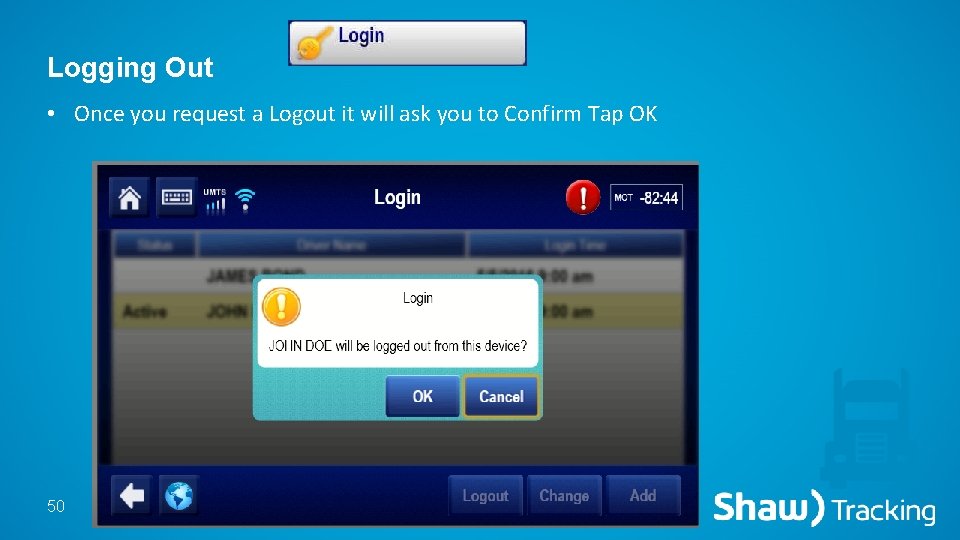
Logging Out • Once you request a Logout it will ask you to Confirm Tap OK 50
- Slides: 50