
Host Hardening Chapter 7 Copyright Pearson Prentice Hall
- Slides: 90
Host Hardening Chapter 7 Copyright Pearson Prentice Hall 2013
Define the elements of host hardening, security baselines and images, and systems administration. Know important server operating systems. Describe vulnerabilities and patches. Explain how to manage users and groups. Explain how to manage permissions. Know Windows client PC security, including centralized PC security management. Explain how to create strong passwords. Describe how to test for vulnerabilities. 2 Copyright Pearson Prentice Hall 2013
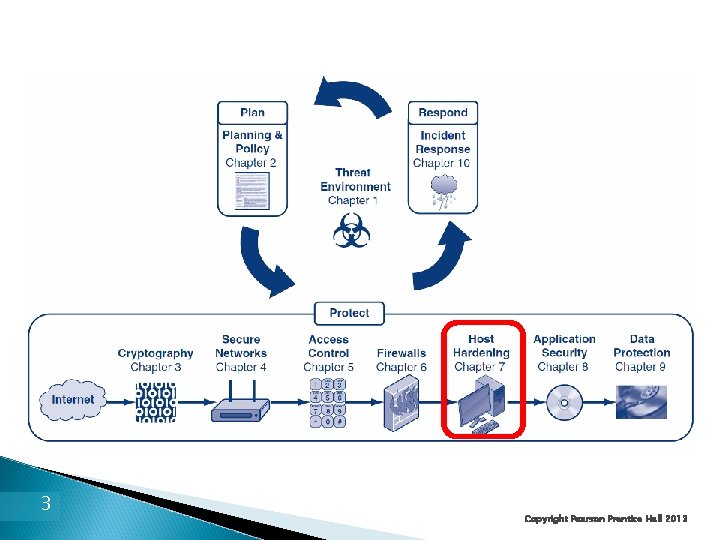
3 Copyright Pearson Prentice Hall 2013
4 Inevitably, some attacks will get through network safeguards and reach individual hosts Host hardening is a series of actions taken to make hosts more difficult to take over Chapter 7 focuses on host operating system hardening Chapter 8 focuses on application protection Copyright Pearson Prentice Hall 2013
What’s Next? 7. 1 Introduction 7. 2 Important Server Operating Systems 7. 3 Vulnerabilities and Patches 7. 4 Managing Users and Groups 7. 5 Managing Permissions 7. 6 Creating Strong Passwords 7. 7 Testing for Vulnerabilities 5 Copyright Pearson Prentice Hall 2013
7. 1: Threats to Hosts The Problem ◦ Some attacks inevitably reach host computers ◦ So servers and other hosts must be hardened— a complex process that requires a diverse set of protections to be implemented on each host 6 Copyright Pearson Prentice Hall 2013
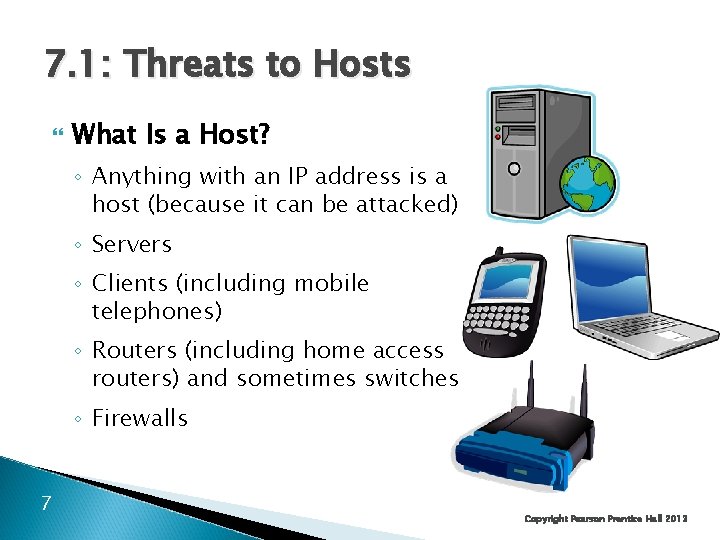
7. 1: Threats to Hosts What Is a Host? ◦ Anything with an IP address is a host (because it can be attacked) ◦ Servers ◦ Clients (including mobile telephones) ◦ Routers (including home access routers) and sometimes switches ◦ Firewalls 7 Copyright Pearson Prentice Hall 2013
7. 1: Elements of Host Hardening § Backup § § Restrict physical access to hosts (see Chapter 5) Install the operating system with secure configuration options Change all default passwords, etc. 8 Copyright Pearson Prentice Hall 2013
7. 1: Elements of Host Hardening § § § 9 Minimize the applications that run on the host Harden all remaining applications on the host (see Chapter 8) Download and install patches for operating vulnerabilities Manage users and groups securely Manage access permissions for users and groups securely Copyright Pearson Prentice Hall 2013
7. 1: Elements of Host Hardening § Encrypt data if appropriate § Add a host firewall § § 10 Read operating system log files regularly for suspicious activity Run vulnerability tests frequently Copyright Pearson Prentice Hall 2013
7. 1: Security Baselines and Systems Administrators Security Baselines Guide the Hardening Effort ◦ Specifications for how hardening should be done ◦ Needed because it is easy to forget a step ◦ Different baselines for different operating systems and versions ◦ Different baselines for servers with different functions (webservers, mail servers, etc. ) ◦ Used by systems administrators (server administrators) Usually do not manage the network 11 Copyright Pearson Prentice Hall 2013
7. 1: Security Baselines and Systems Administrators Security Baselines Guide the Hardening Effort ◦ Disk Images Can also create a well-tested secure implementation for each operating system versions and server function Save as a disk image Load the new disk image on new servers 12 Copyright Pearson Prentice Hall 2013
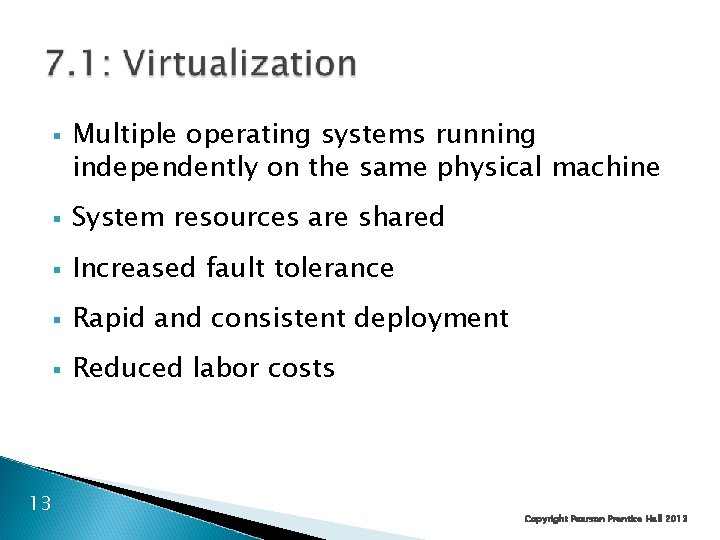
§ Multiple operating systems running independently on the same physical machine § System resources are shared § Increased fault tolerance § Rapid and consistent deployment § Reduced labor costs 13 Copyright Pearson Prentice Hall 2013
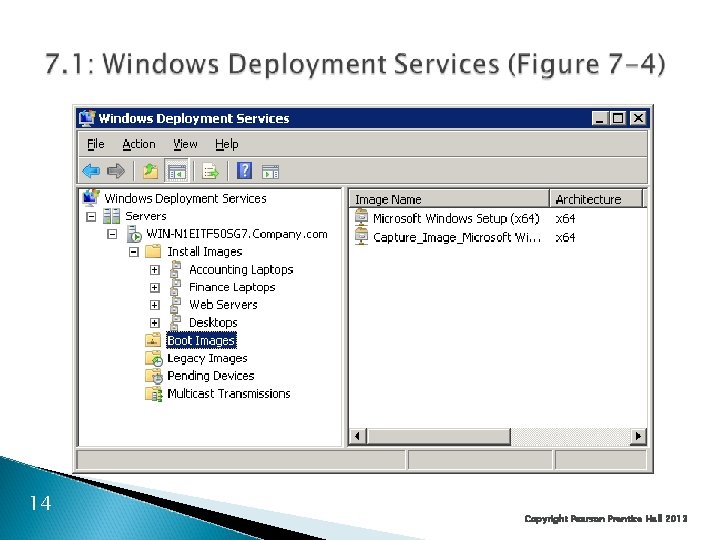
14 Copyright Pearson Prentice Hall 2013
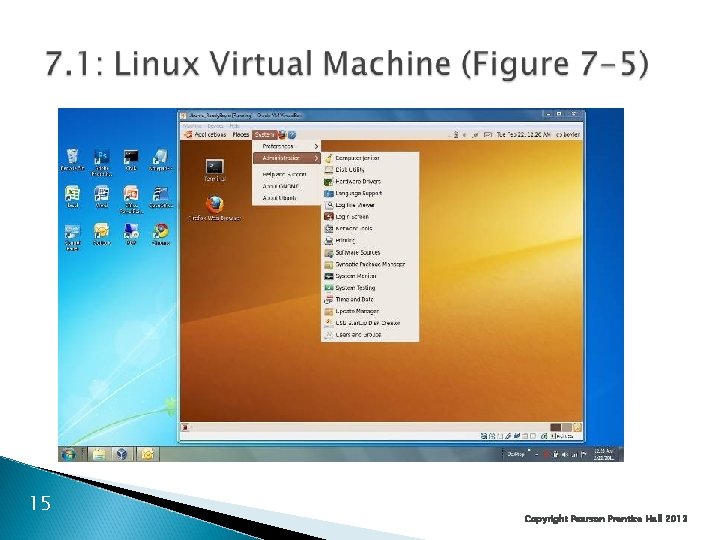
15 Copyright Pearson Prentice Hall 2013
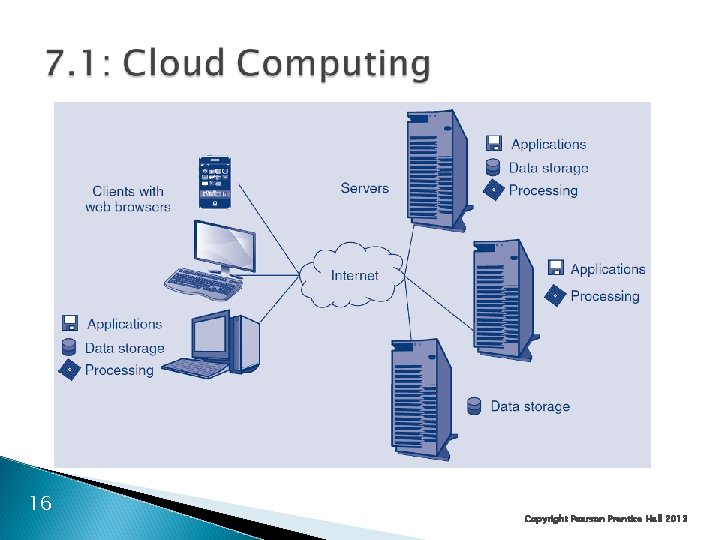
16 Copyright Pearson Prentice Hall 2013
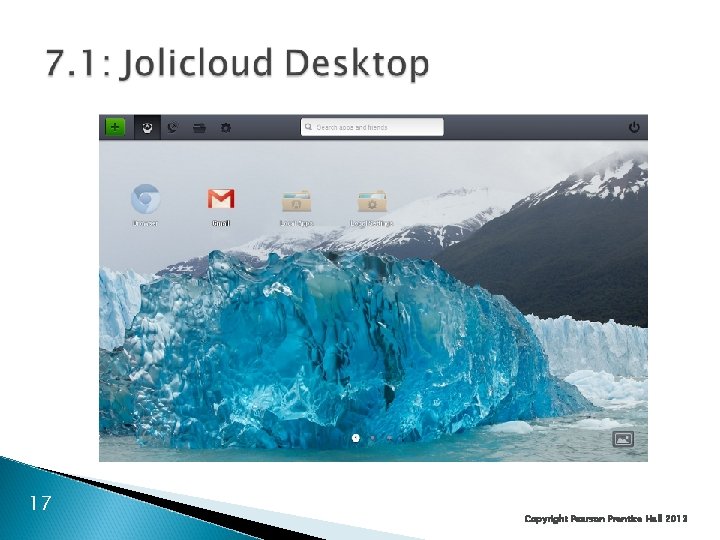
17 Copyright Pearson Prentice Hall 2013
What’s Next? 7. 1 Introduction 7. 2 Important Server Operating Systems 7. 3 Vulnerabilities and Patches 7. 4 Managing Users and Groups 7. 5 Managing Permissions 7. 6 Creating Strong Passwords 7. 7 Testing for Vulnerabilities 18 Copyright Pearson Prentice Hall 2013
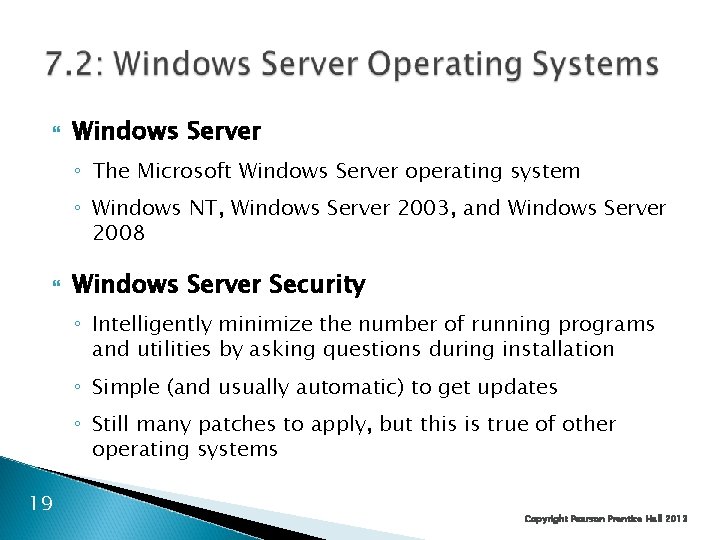
Windows Server ◦ The Microsoft Windows Server operating system ◦ Windows NT, Windows Server 2003, and Windows Server 2008 Windows Server Security ◦ Intelligently minimize the number of running programs and utilities by asking questions during installation ◦ Simple (and usually automatic) to get updates ◦ Still many patches to apply, but this is true of other operating systems 19 Copyright Pearson Prentice Hall 2013
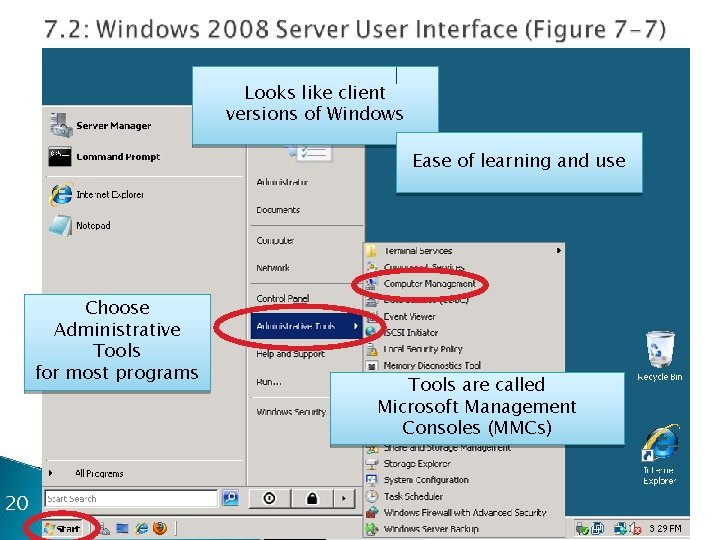
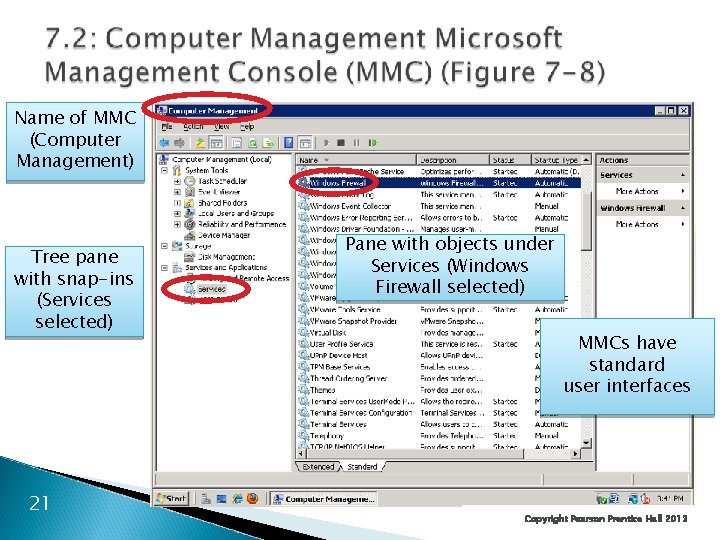
Looks like client versions of Windows Ease of learning and use Choose Administrative Tools for most programs 20 Tools are called Microsoft Management Consoles (MMCs) Copyright Pearson Prentice-Hall 2013
Name of MMC (Computer Management) Tree pane with snap-ins (Services selected) 21 Pane with objects under Services (Windows Firewall selected) MMCs have standard user interfaces Copyright Pearson Prentice Hall 2013
7. 2: UNIX Operating Systems Many Versions of UNIX ◦ There are many commercial versions of UNIX for large servers Compatible in the kernel (core part) of the operating system Can generally run the same applications But may run many different management utilities, making cross-learning difficult 22 Copyright Pearson Prentice Hall 2013
23 Copyright Pearson Prentice Hall 2013
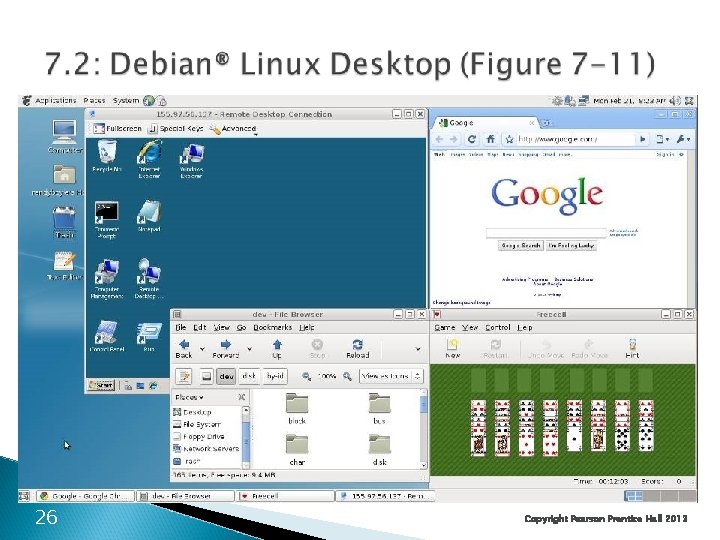
7. 2: UNIX Operating Systems Many Versions of UNIX ◦ LINUX is a version of UNIX created for PCs Many different LINUX distributions Distributions include the LINUX kernel plus application and programs, usually from the GNU project Each distribution and version needs a different baseline to guide hardening 24 Copyright Pearson Prentice Hall 2013
7. 2: UNIX Operating Systems Many Versions of UNIX ◦ LINUX is a version of UNIX created for PCs ◦ Free or inexpensive to buy ◦ But may take more labor to administer ◦ Has moved beyond PC, to use on servers and some desktops LINUX 25 Copyright Pearson Prentice Hall 2013
26 Copyright Pearson Prentice Hall 2013
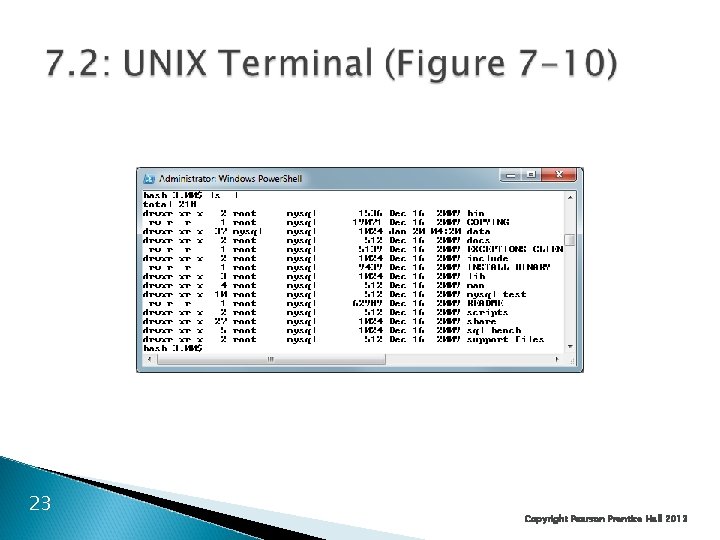
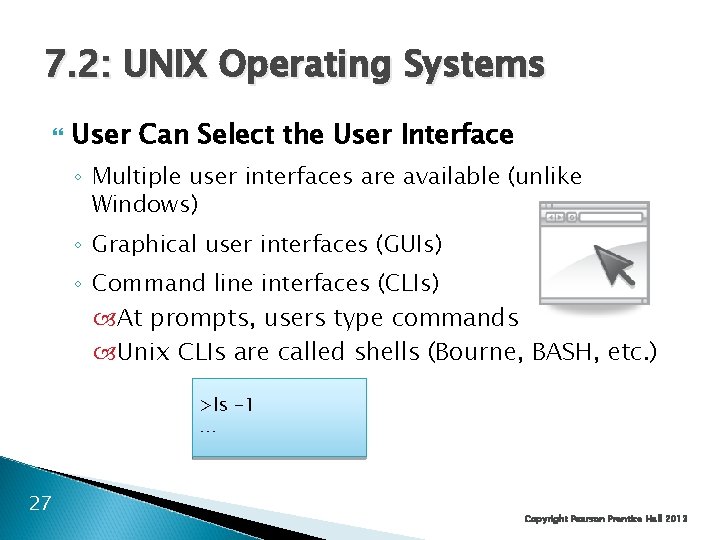
7. 2: UNIX Operating Systems User Can Select the User Interface ◦ Multiple user interfaces are available (unlike Windows) ◦ Graphical user interfaces (GUIs) ◦ Command line interfaces (CLIs) At prompts, users type commands Unix CLIs are called shells (Bourne, BASH, etc. ) >ls -1 … 27 Copyright Pearson Prentice Hall 2013
What’s Next? 7. 1 Introduction 7. 2 Important Server Operating Systems 7. 3 Vulnerabilities and Patches 7. 4 Managing Users and Groups 7. 5 Managing Permissions 7. 6 Creating Strong Passwords 7. 7 Testing for Vulnerabilities 28 Copyright Pearson Prentice Hall 2013
7. 3: Vulnerabilities and Exploits Vulnerabilities ◦ Security weaknesses that open a program to attack ◦ An exploit takes advantage of a vulnerability ◦ Vendors develop fixes ◦ Zero-day exploits: exploits that occur before fixes are released ◦ Exploits often follow the vendor release of fixes within days or even hours ◦ Companies must apply fixes quickly 29 Copyright Pearson Prentice Hall 2013
7. 3: Vulnerabilities and Exploits Fixes ◦ Work-arounds Manual actions to be taken Labor-intensive so expensive and error-prone ◦ Patches: Small programs that fix vulnerabilities Usually easy to download and install ◦ Service packs (groups of fixes in Windows) ◦ Version upgrades 30 Copyright Pearson Prentice Hall 2013
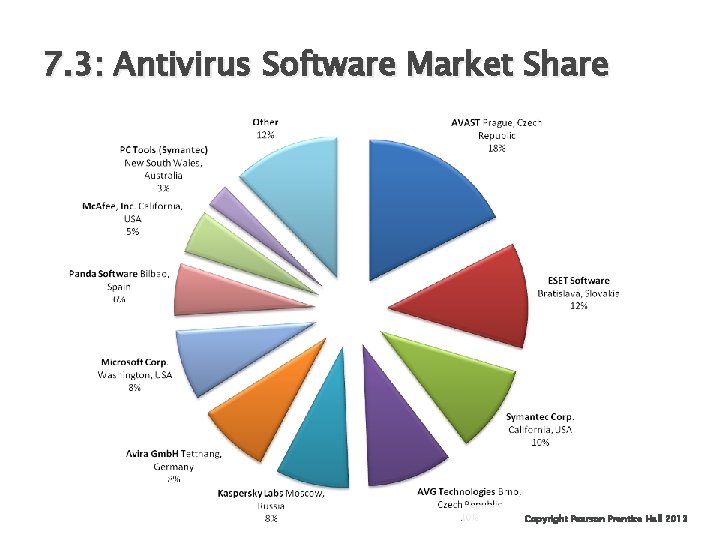
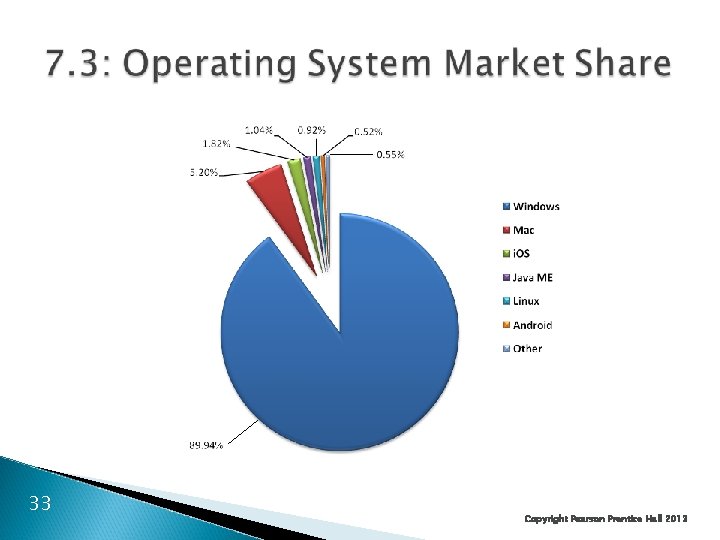
7. 3: Antivirus Software Market Share 31 Copyright Pearson Prentice Hall 2013
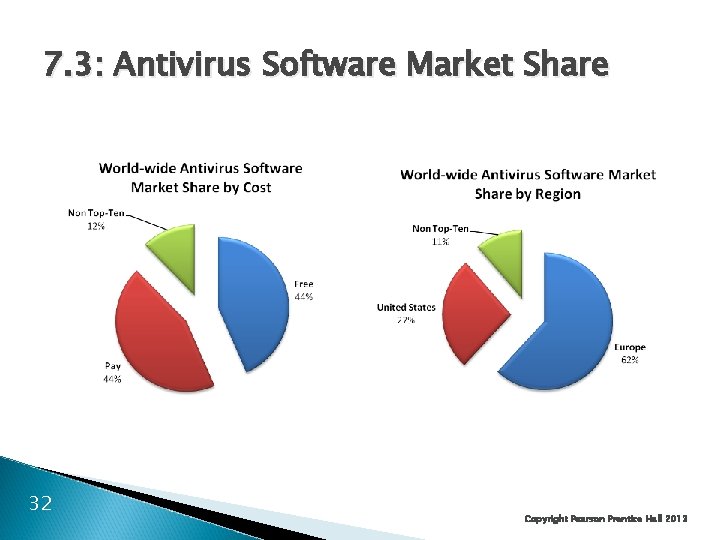
7. 3: Antivirus Software Market Share 32 Copyright Pearson Prentice Hall 2013
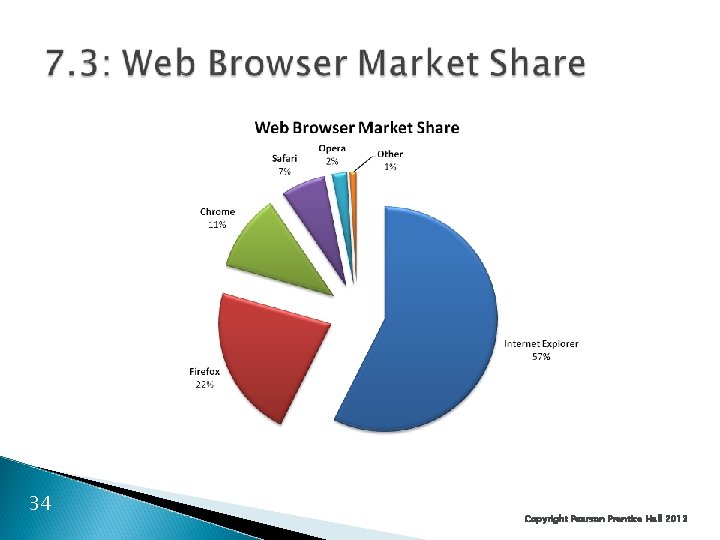
33 Copyright Pearson Prentice Hall 2013
34 Copyright Pearson Prentice Hall 2013
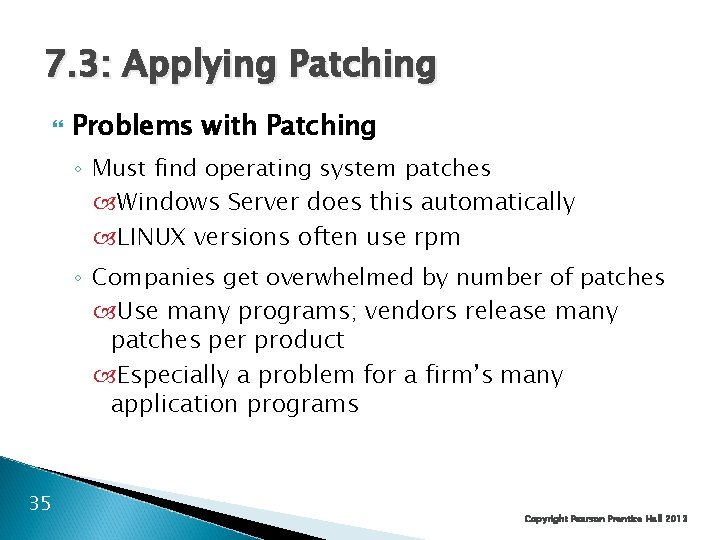
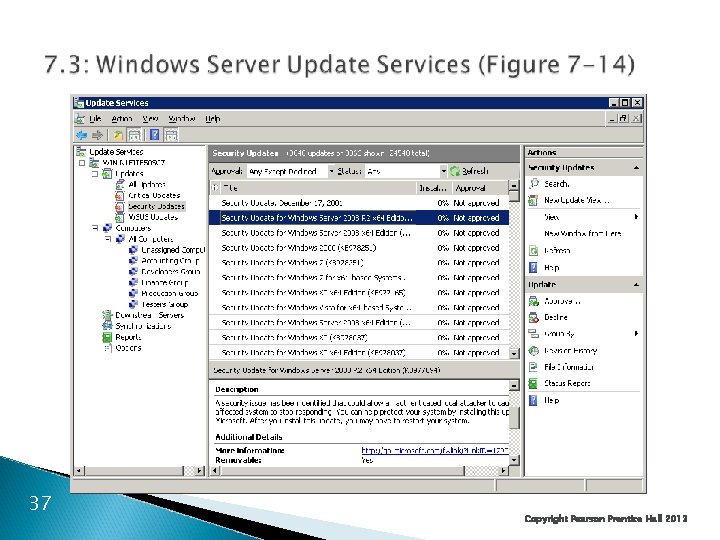
7. 3: Applying Patching Problems with Patching ◦ Must find operating system patches Windows Server does this automatically LINUX versions often use rpm ◦ Companies get overwhelmed by number of patches Use many programs; vendors release many patches per product Especially a problem for a firm’s many application programs 35 Copyright Pearson Prentice Hall 2013
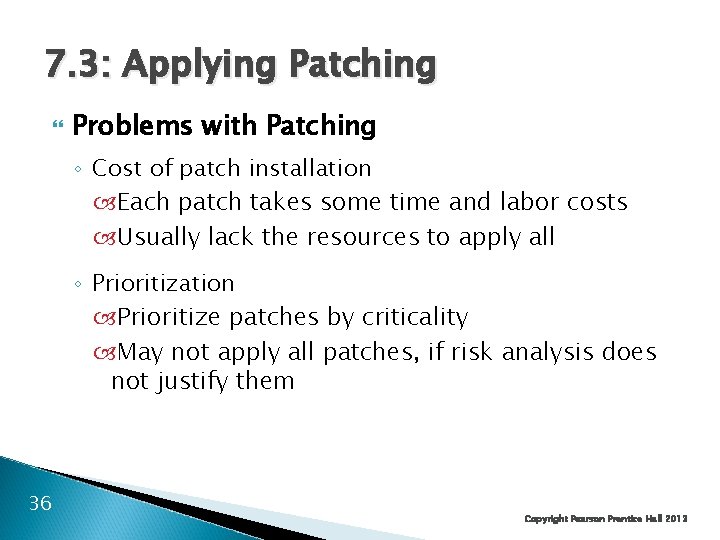
7. 3: Applying Patching Problems with Patching ◦ Cost of patch installation Each patch takes some time and labor costs Usually lack the resources to apply all ◦ Prioritization Prioritize patches by criticality May not apply all patches, if risk analysis does not justify them 36 Copyright Pearson Prentice Hall 2013
37 Copyright Pearson Prentice Hall 2013
7. 3: Applying Patching Problems with Patching ◦ Risks of patch installation Reduced functionality Freeze machines, do other damage—sometimes with no uninstall possible Should test on a test system before deployment on servers 38 Copyright Pearson Prentice Hall 2013
What’s Next? 7. 1 Introduction 7. 2 Important Server Operating Systems 7. 3 Vulnerabilities and Patches 7. 4 Managing Users and Groups 7. 5 Managing Permissions 7. 6 Creating Strong Passwords 7. 7 Testing for Vulnerabilities 39 Copyright Pearson Prentice Hall 2013
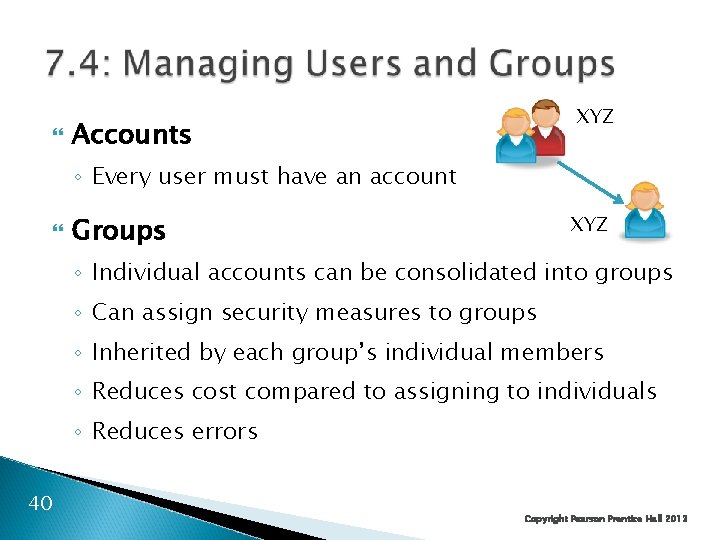
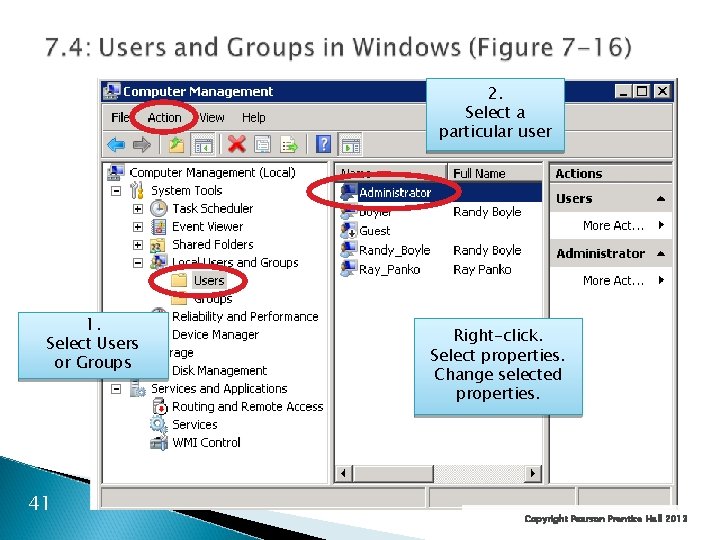
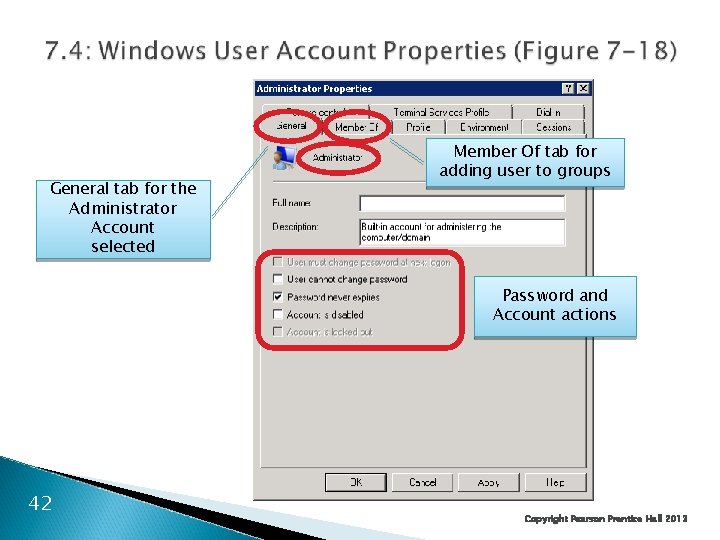
XYZ Accounts ◦ Every user must have an account XYZ Groups ◦ Individual accounts can be consolidated into groups ◦ Can assign security measures to groups ◦ Inherited by each group’s individual members ◦ Reduces cost compared to assigning to individuals ◦ Reduces errors 40 Copyright Pearson Prentice Hall 2013
2. Select a particular user 1. Select Users or Groups 41 Right-click. Select properties. Change selected properties. Copyright Pearson Prentice Hall 2013
General tab for the Administrator Account selected Member Of tab for adding user to groups Password and Account actions 42 Copyright Pearson Prentice Hall 2013
7. 4: The Super User Account ◦ Every operating system has a super user account ◦ The owner of this account can do anything ◦ Called Administrator in Windows ◦ Called root in UNIX Hacking Root ◦ Goal is to take over the super user account ◦ Will then “own the box” ◦ Generically called hacking root 43 Copyright Pearson Prentice Hall 2013
7. 4: The Super User Account Appropriate Use of a Super User Account ◦ Log in as an ordinary user ◦ Switch to super user only when needed In Windows, the command is Run. As In UNIX, the command is su (switch user) ◦ Quickly revert to ordinary account when super user privileges are no longer needed 44 Copyright Pearson Prentice Hall 2013
What’s Next? 7. 1 Introduction 7. 2 Important Server Operating Systems 7. 3 Vulnerabilities and Patches 7. 4 Managing Users and Groups 7. 5 Managing Permissions 7. 6 Creating Strong Passwords 7. 7 Testing for Vulnerabilities 45 Copyright Pearson Prentice Hall 2013
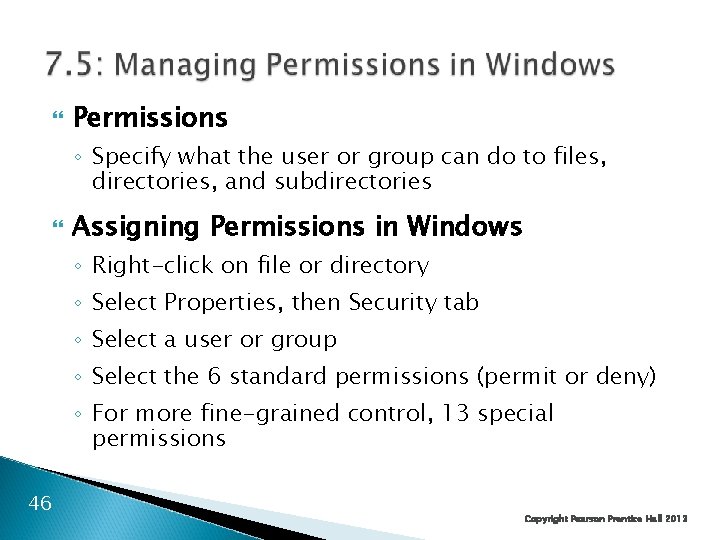
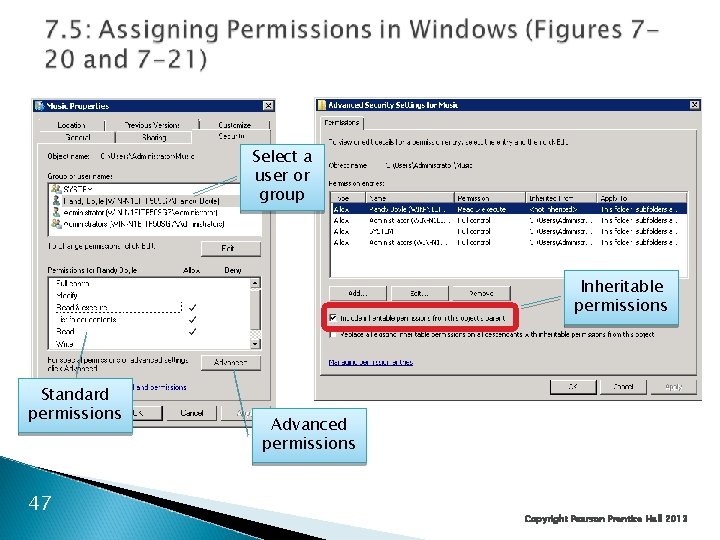
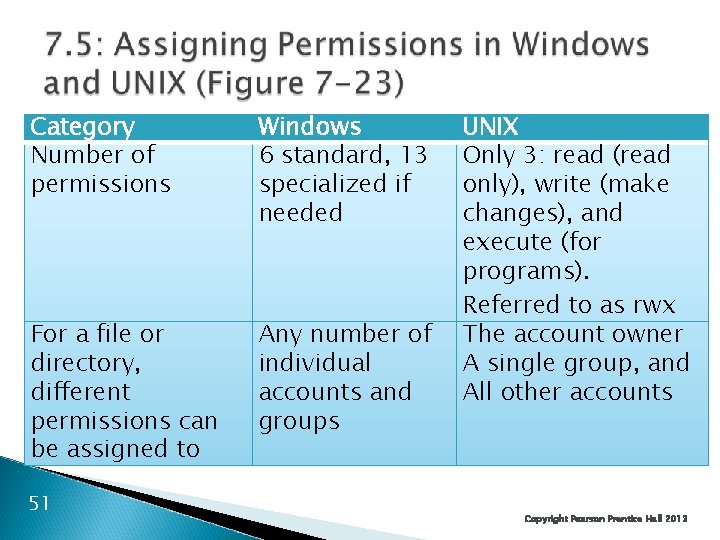
Permissions ◦ Specify what the user or group can do to files, directories, and subdirectories Assigning Permissions in Windows ◦ Right-click on file or directory ◦ Select Properties, then Security tab ◦ Select a user or group ◦ Select the 6 standard permissions (permit or deny) ◦ For more fine-grained control, 13 special permissions 46 Copyright Pearson Prentice Hall 2013
Select a user or group Inheritable permissions Standard permissions 47 Advanced permissions Copyright Pearson Prentice Hall 2013
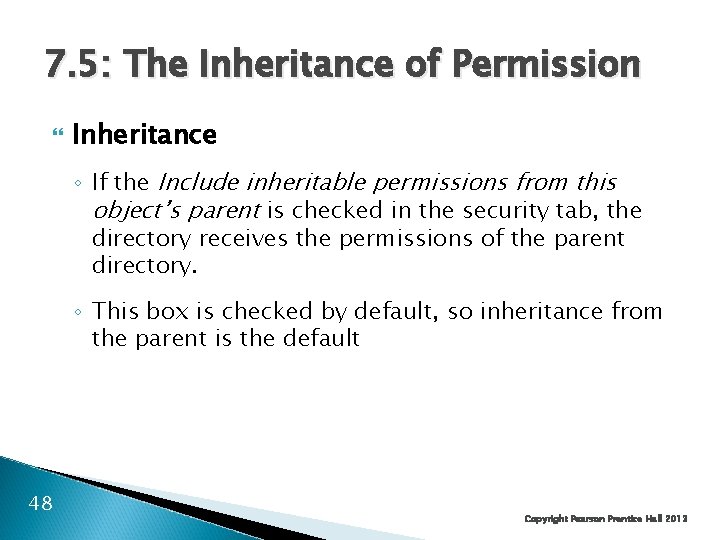
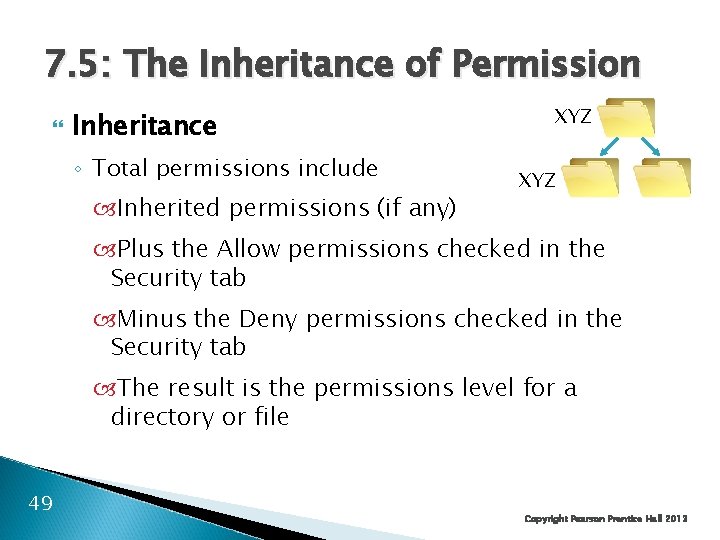
7. 5: The Inheritance of Permission Inheritance ◦ If the Include inheritable permissions from this object’s parent is checked in the security tab, the directory receives the permissions of the parent directory. ◦ This box is checked by default, so inheritance from the parent is the default 48 Copyright Pearson Prentice Hall 2013
7. 5: The Inheritance of Permission Inheritance ◦ Total permissions include Inherited permissions (if any) XYZ Plus the Allow permissions checked in the Security tab Minus the Deny permissions checked in the Security tab The result is the permissions level for a directory or file 49 Copyright Pearson Prentice Hall 2013
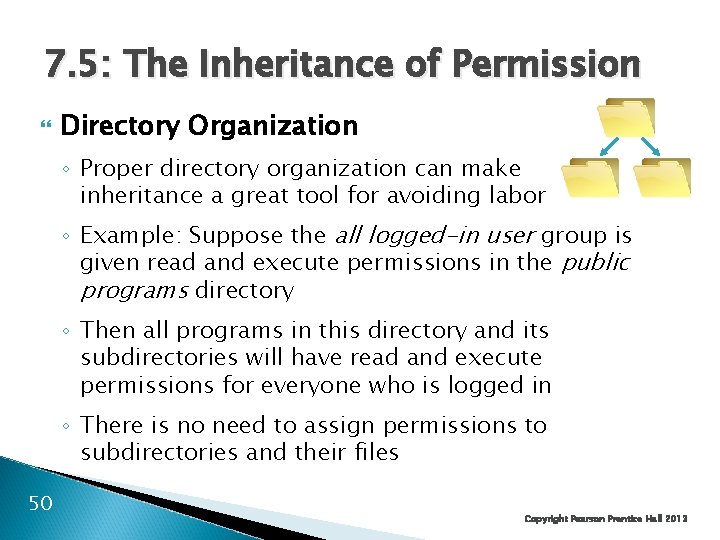
7. 5: The Inheritance of Permission Directory Organization ◦ Proper directory organization can make inheritance a great tool for avoiding labor ◦ Example: Suppose the all logged-in user group is given read and execute permissions in the public programs directory ◦ Then all programs in this directory and its subdirectories will have read and execute permissions for everyone who is logged in ◦ There is no need to assign permissions to subdirectories and their files 50 Copyright Pearson Prentice Hall 2013
Category Number of permissions Windows 6 standard, 13 specialized if needed For a file or directory, different permissions can be assigned to Any number of individual accounts and groups 51 UNIX Only 3: read (read only), write (make changes), and execute (for programs). Referred to as rwx The account owner A single group, and All other accounts Copyright Pearson Prentice Hall 2013
What’s Next? 7. 1 Introduction 7. 2 Important Server Operating Systems 7. 3 Vulnerabilities and Patches 7. 4 Managing Users and Groups 7. 5 Managing Permissions 7. 6 Creating Strong Passwords 7. 7 Testing for Vulnerabilities 52 Copyright Pearson Prentice Hall 2013
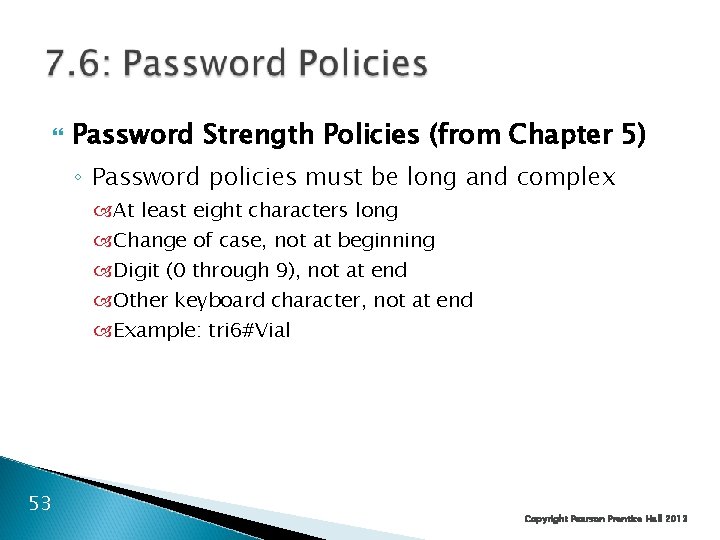
Password Strength Policies (from Chapter 5) ◦ Password policies must be long and complex At least eight characters long Change of case, not at beginning Digit (0 through 9), not at end Other keyboard character, not at end Example: tri 6#Vial 53 Copyright Pearson Prentice Hall 2013
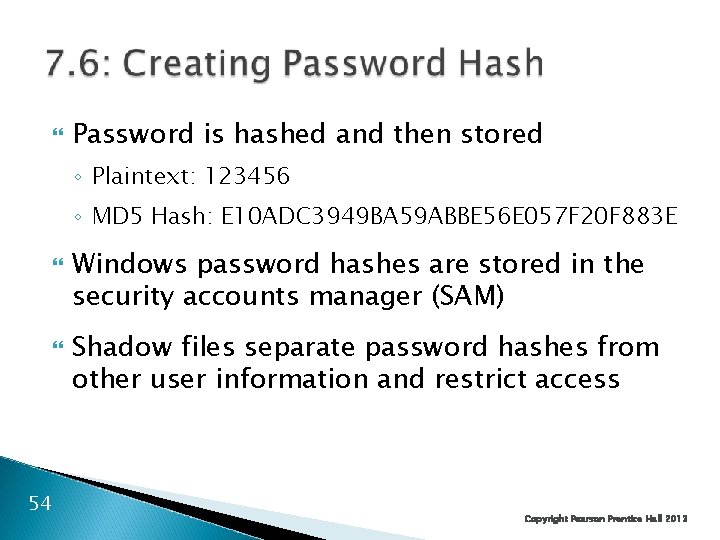
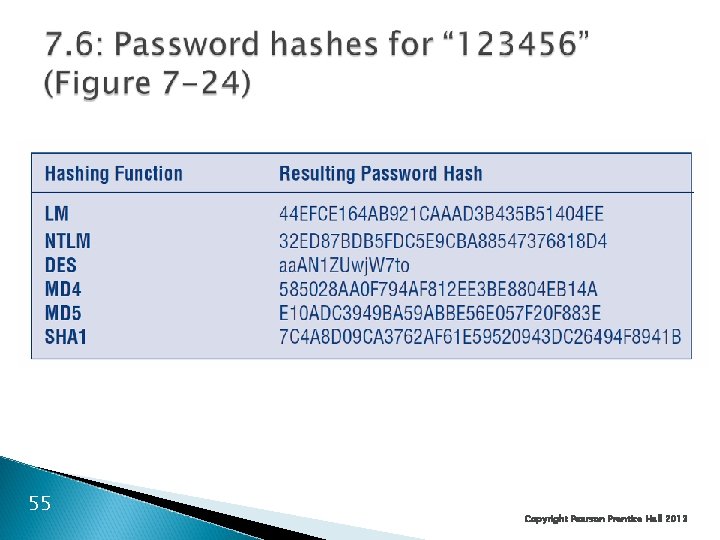
Password is hashed and then stored ◦ Plaintext: 123456 ◦ MD 5 Hash: E 10 ADC 3949 BA 59 ABBE 56 E 057 F 20 F 883 E 54 Windows password hashes are stored in the security accounts manager (SAM) Shadow files separate password hashes from other user information and restrict access Copyright Pearson Prentice Hall 2013
55 Copyright Pearson Prentice Hall 2013
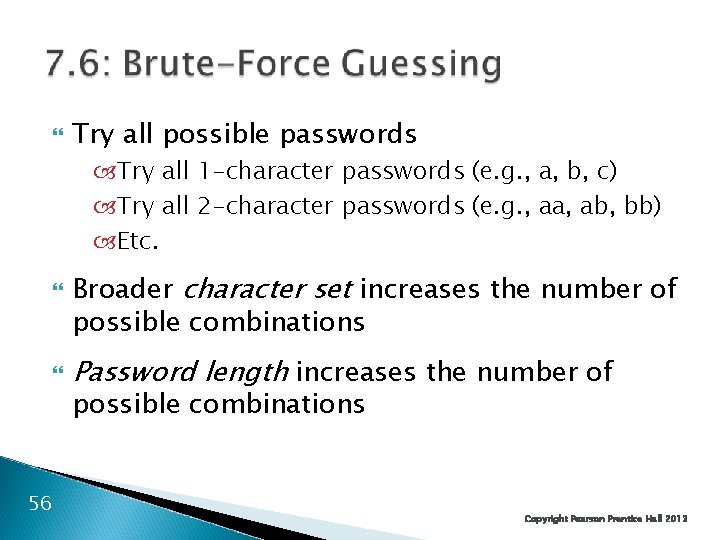
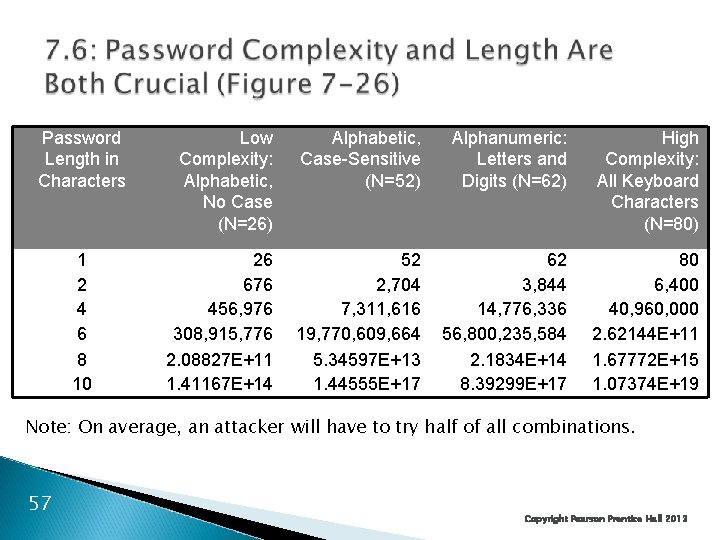
Try all possible passwords Try all 1 -character passwords (e. g. , a, b, c) Try all 2 -character passwords (e. g. , aa, ab, bb) Etc. 56 Broader character set increases the number of possible combinations Password length increases the number of possible combinations Copyright Pearson Prentice Hall 2013
Password Length in Characters 1 2 4 6 8 10 Low Complexity: Alphabetic, No Case (N=26) Alphabetic, Case-Sensitive (N=52) Alphanumeric: Letters and Digits (N=62) High Complexity: All Keyboard Characters (N=80) 26 676 456, 976 308, 915, 776 2. 08827 E+11 1. 41167 E+14 52 2, 704 7, 311, 616 19, 770, 609, 664 5. 34597 E+13 1. 44555 E+17 62 3, 844 14, 776, 336 56, 800, 235, 584 2. 1834 E+14 8. 39299 E+17 80 6, 400 40, 960, 000 2. 62144 E+11 1. 67772 E+15 1. 07374 E+19 Note: On average, an attacker will have to try half of all combinations. 57 Copyright Pearson Prentice Hall 2013
58 Copyright Pearson Prentice Hall 2013
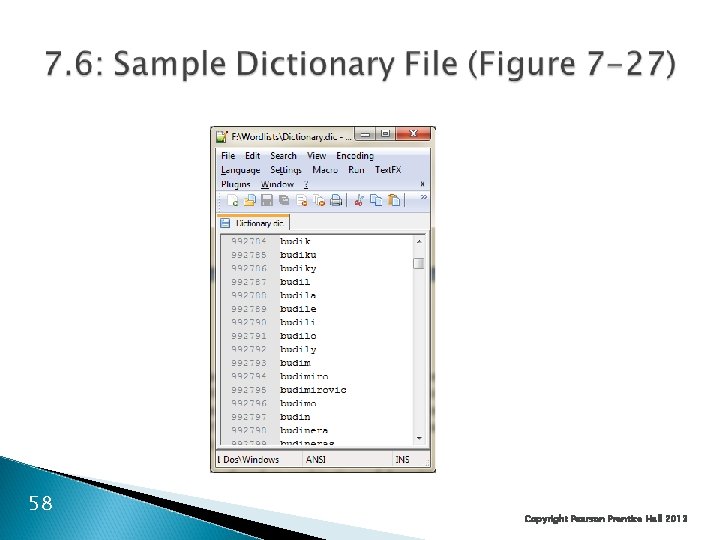
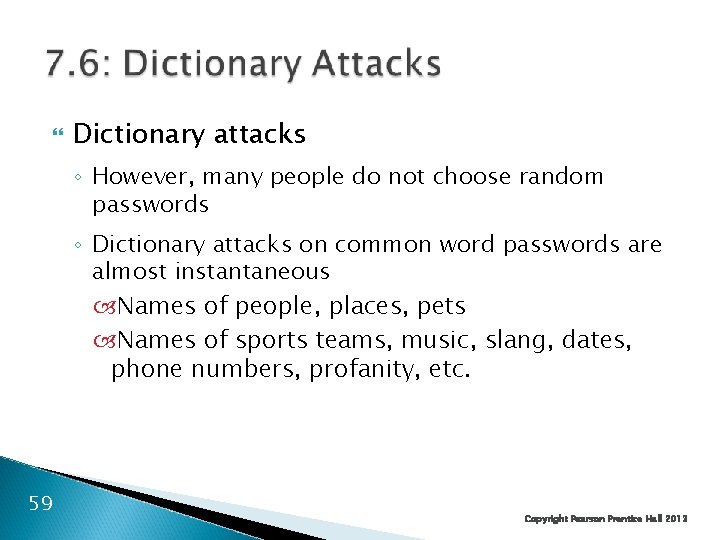
Dictionary attacks ◦ However, many people do not choose random passwords ◦ Dictionary attacks on common word passwords are almost instantaneous Names of people, places, pets Names of sports teams, music, slang, dates, phone numbers, profanity, etc. 59 Copyright Pearson Prentice Hall 2013
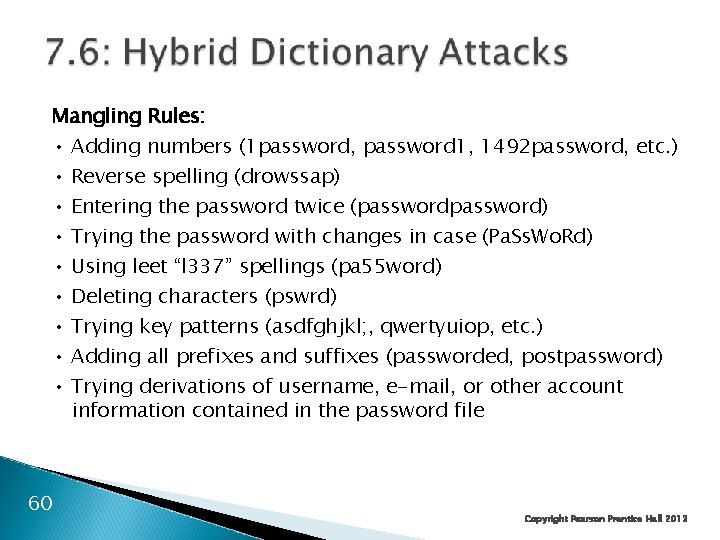
Mangling Rules: • Adding numbers (1 password, password 1, 1492 password, etc. ) • Reverse spelling (drowssap) • Entering the password twice (password) • Trying the password with changes in case (Pa. Ss. Wo. Rd) • Using leet “l 337” spellings (pa 55 word) • Deleting characters (pswrd) • Trying key patterns (asdfghjkl; , qwertyuiop, etc. ) • Adding all prefixes and suffixes (passworded, postpassword) • Trying derivations of username, e-mail, or other account information contained in the password file 60 Copyright Pearson Prentice Hall 2013
List of pre-computed password hashes Results in a time-memory tradeoff More memory used to store rainbow tables 61 The time required to crack a password is greatly reduced Copyright Pearson Prentice Hall 2013
Almost impossible for users to memorize Users tend to write them down 62 Administrator accounts must use long random passwords Copies of administrator account passwords must be written down and securely stored Testing and enforcing password policies Copyright Pearson Prentice Hall 2013
Other Password Threats ◦ Keystroke Capture Software Trojan horse displays a fake login screen, reports its finding to attackers ◦ Shoulder Surfing Attacker watches as the victim types a password Even partial information can be useful Part of the password: P_ _sw_ _d Length of the password (reduces time to do brute-force cracking) 63 Copyright Pearson Prentice Hall 2013
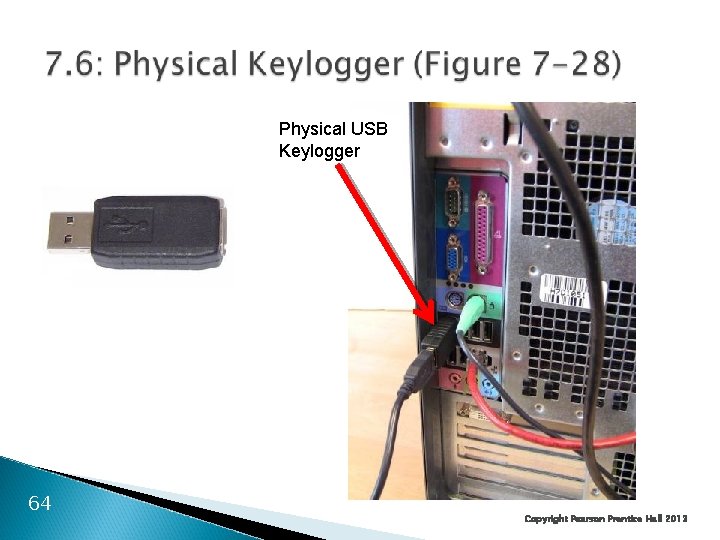
Physical USB Keylogger 64 Copyright Pearson Prentice Hall 2013
What’s Next? 7. 1 Introduction 7. 2 Important Server Operating Systems 7. 3 Vulnerabilities and Patches 7. 4 Managing Users and Groups 7. 5 Managing Permissions 7. 6 Creating Strong Passwords 7. 7 Testing for Vulnerabilities 65 Copyright Pearson Prentice Hall 2013
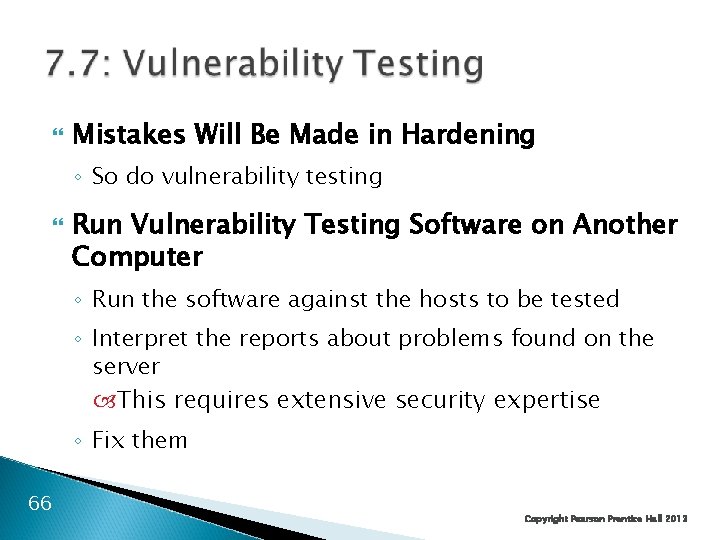
Mistakes Will Be Made in Hardening ◦ So do vulnerability testing Run Vulnerability Testing Software on Another Computer ◦ Run the software against the hosts to be tested ◦ Interpret the reports about problems found on the server This requires extensive security expertise ◦ Fix them 66 Copyright Pearson Prentice Hall 2013
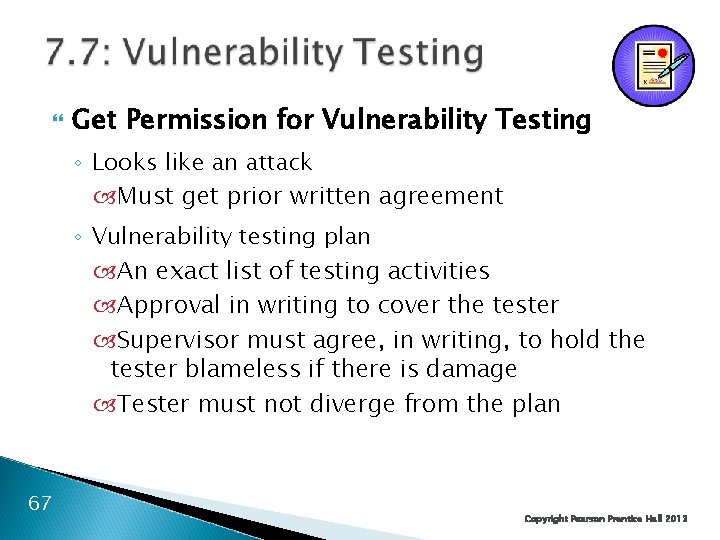
Get Permission for Vulnerability Testing ◦ Looks like an attack Must get prior written agreement ◦ Vulnerability testing plan An exact list of testing activities Approval in writing to cover the tester Supervisor must agree, in writing, to hold the tester blameless if there is damage Tester must not diverge from the plan 67 Copyright Pearson Prentice Hall 2013
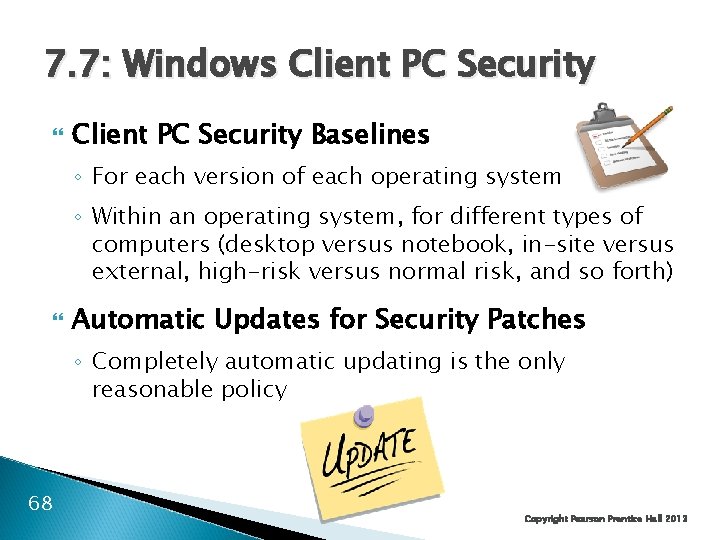
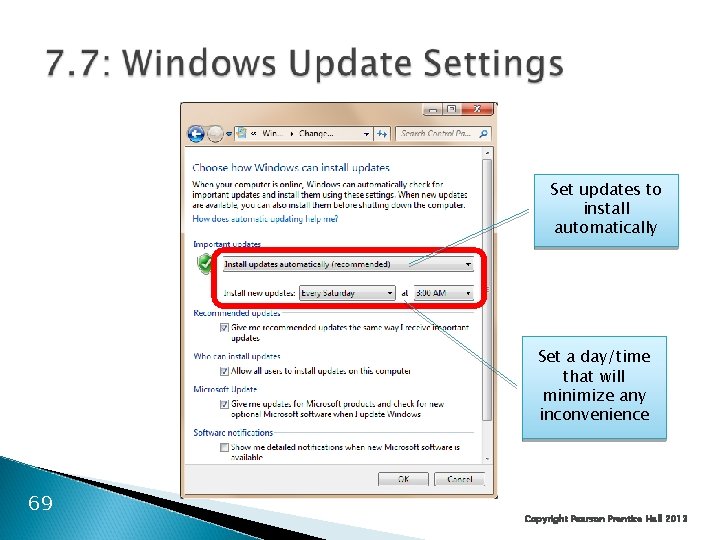
7. 7: Windows Client PC Security Baselines ◦ For each version of each operating system ◦ Within an operating system, for different types of computers (desktop versus notebook, in-site versus external, high-risk versus normal risk, and so forth) Automatic Updates for Security Patches ◦ Completely automatic updating is the only reasonable policy 68 Copyright Pearson Prentice Hall 2013
Set updates to install automatically Set a day/time that will minimize any inconvenience 69 Copyright Pearson Prentice Hall 2013
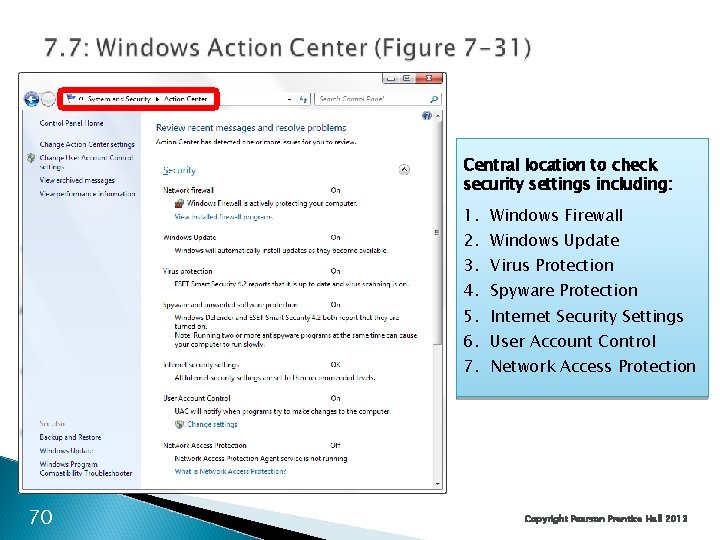
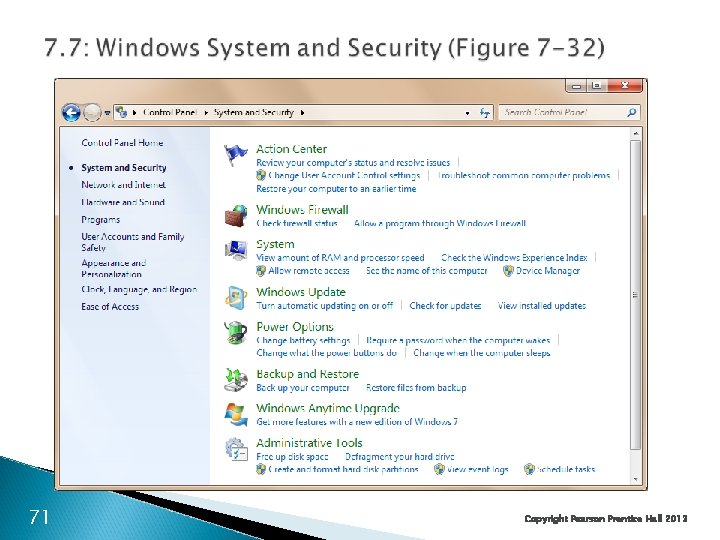
Central location to check security settings including: 1. Windows Firewall 2. Windows Update 3. Virus Protection 4. Spyware Protection 5. Internet Security Settings 6. User Account Control 7. Network Access Protection 70 Copyright Pearson Prentice Hall 2013
71 Copyright Pearson Prentice Hall 2013
7. 7: Windows Client PC Security Antivirus and Antispyware Protection ◦ Important to know the status of antivirus protection ◦ Users turn off deliberately or turn off automatic updating for virus signatures ◦ Users do not pay the annual subscription and so get no more updates Windows Advanced Firewall ◦ Stateful inspection firewall ◦ Accessed through the Windows Action Center 72 Copyright Pearson Prentice Hall 2013
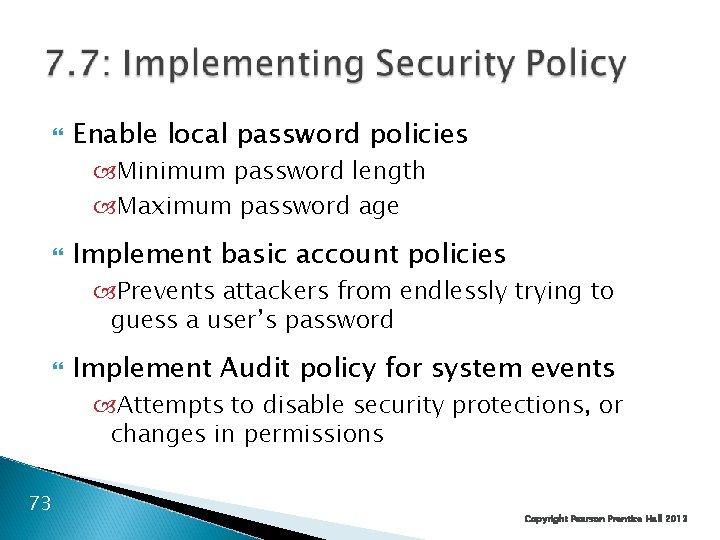
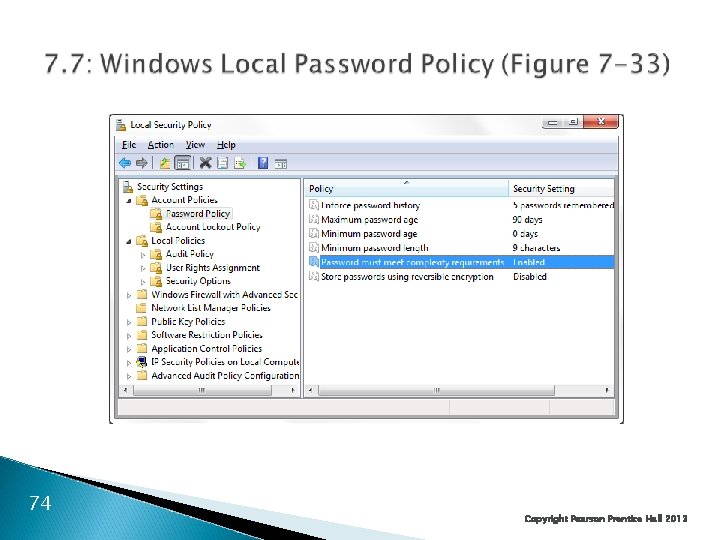
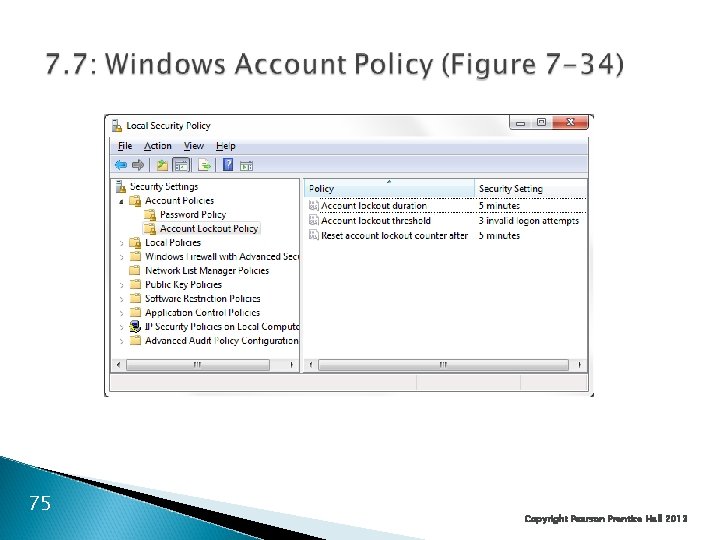
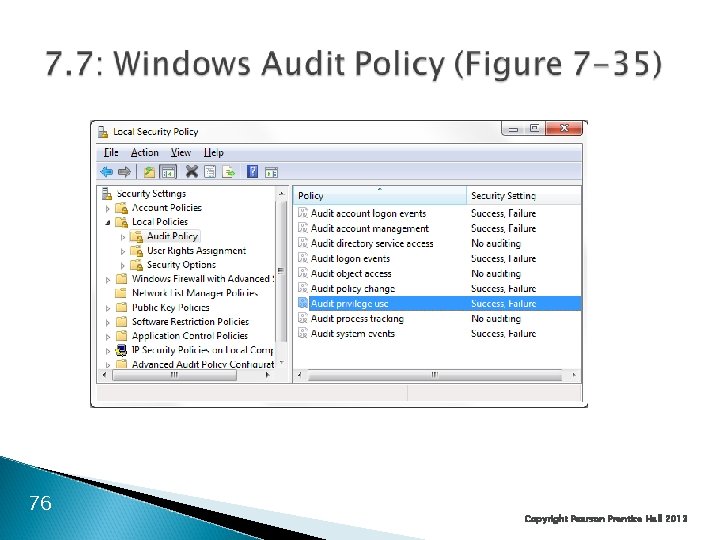
Enable local password policies Minimum password length Maximum password age Implement basic account policies Prevents attackers from endlessly trying to guess a user’s password Implement Audit policy for system events Attempts to disable security protections, or changes in permissions 73 Copyright Pearson Prentice Hall 2013
74 Copyright Pearson Prentice Hall 2013
75 Copyright Pearson Prentice Hall 2013
76 Copyright Pearson Prentice Hall 2013
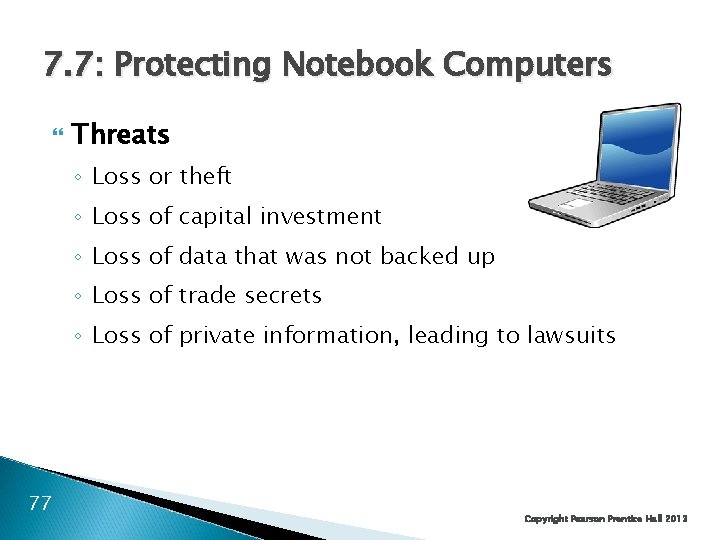
7. 7: Protecting Notebook Computers Threats ◦ Loss or theft ◦ Loss of capital investment ◦ Loss of data that was not backed up ◦ Loss of trade secrets ◦ Loss of private information, leading to lawsuits 77 Copyright Pearson Prentice Hall 2013
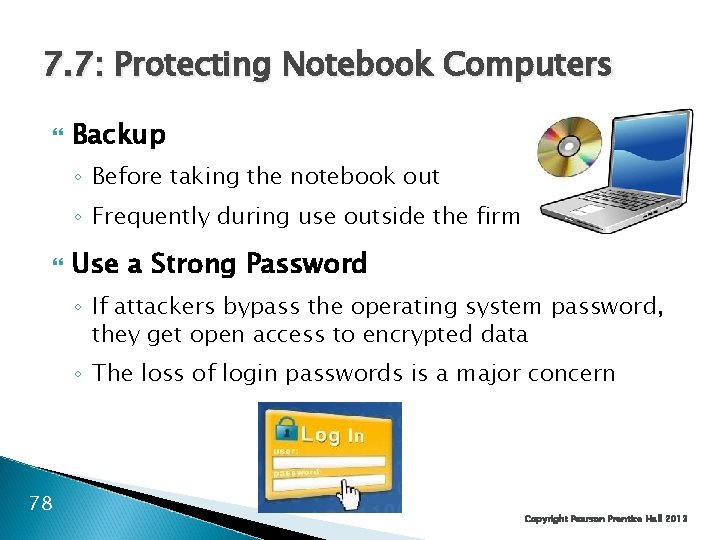
7. 7: Protecting Notebook Computers Backup ◦ Before taking the notebook out ◦ Frequently during use outside the firm Use a Strong Password ◦ If attackers bypass the operating system password, they get open access to encrypted data ◦ The loss of login passwords is a major concern 78 Copyright Pearson Prentice Hall 2013
7. 7: Protecting Notebook Computers Policies for Sensitive Data ◦ Four main policies: Limit what sensitive data can be stored on all mobile devices Require data encryption for all data Protect the notebook with a strong login password Audit for the previous two policies ◦ Apply policies to all mobile data on disk drives, USB RAM drives, MP 3 players that store data, and even mobile phones that can store data 79 Copyright Pearson Prentice Hall 2013
7. 7: Protecting Notebook Computers Other Measures ◦ Teach users loss and theft protection techniques ◦ Use notebook recovery software Contacts the recovery company the next time the computer connects to the Internet The recover company contacts local police to recover the software 80 Copyright Pearson Prentice Hall 2013
7. 7: Centralized PC Security Management Importance ◦ Ordinary users lack the knowledge to manage security on their PCs ◦ They sometimes knowingly violate security policies ◦ Also, centralized management often can reduce costs through automation 81 Copyright Pearson Prentice Hall 2013
Standard Configurations for PCs ◦ May restrict applications, configuration settings, and even the user interface ◦ Ensure that the software is configured safely ◦ Enforce policies ◦ More generally, reduce maintenance costs by making it easier to diagnose errors 82 Copyright Pearson Prentice Hall 2013
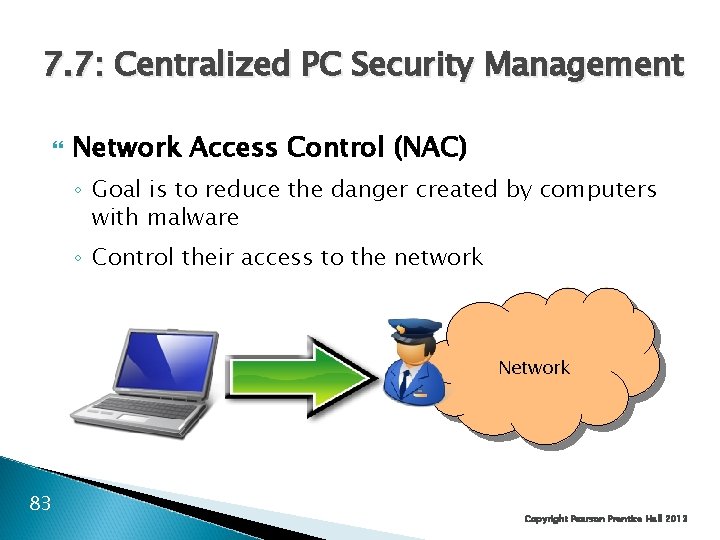
7. 7: Centralized PC Security Management Network Access Control (NAC) ◦ Goal is to reduce the danger created by computers with malware ◦ Control their access to the network Network 83 Copyright Pearson Prentice Hall 2013
7. 7: Centralized PC Security Management Network Access Control (NAC) ◦ Stage 1: Initial Health Checks the “health” of the computer before allowing it into the network Choices: Accept it Reject it Quarantine and pass it to a remediation server; retest after remediation 84 Copyright Pearson Prentice Hall 2013
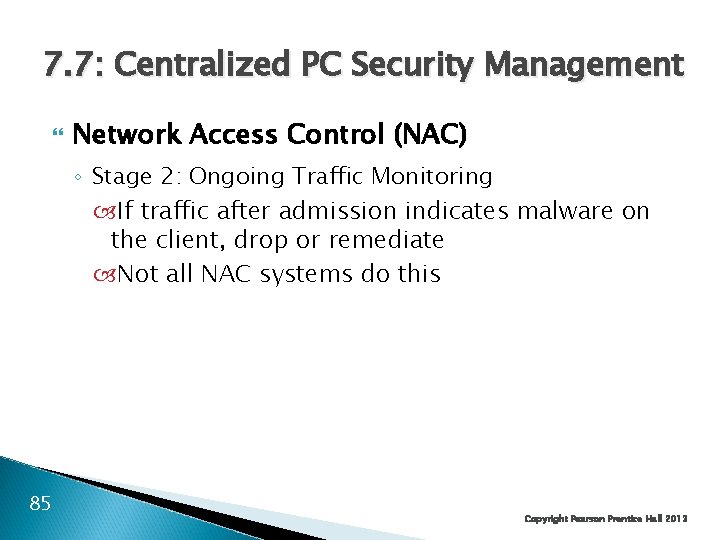
7. 7: Centralized PC Security Management Network Access Control (NAC) ◦ Stage 2: Ongoing Traffic Monitoring If traffic after admission indicates malware on the client, drop or remediate Not all NAC systems do this 85 Copyright Pearson Prentice Hall 2013
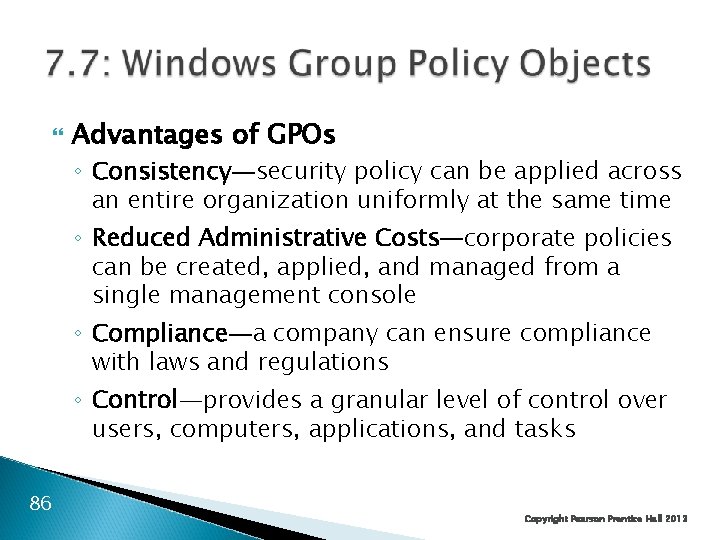
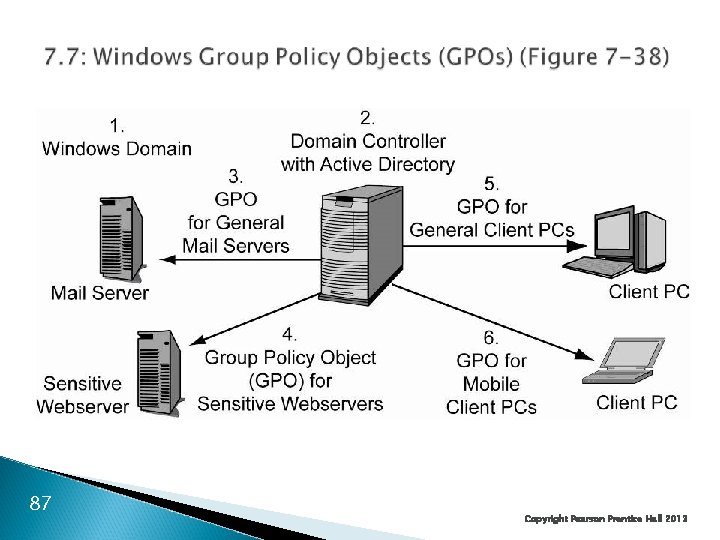
Advantages of GPOs ◦ Consistency—security policy can be applied across an entire organization uniformly at the same time ◦ Reduced Administrative Costs—corporate policies can be created, applied, and managed from a single management console ◦ Compliance—a company can ensure compliance with laws and regulations ◦ Control—provides a granular level of control over users, computers, applications, and tasks 86 Copyright Pearson Prentice Hall 2013
87 Copyright Pearson Prentice Hall 2013
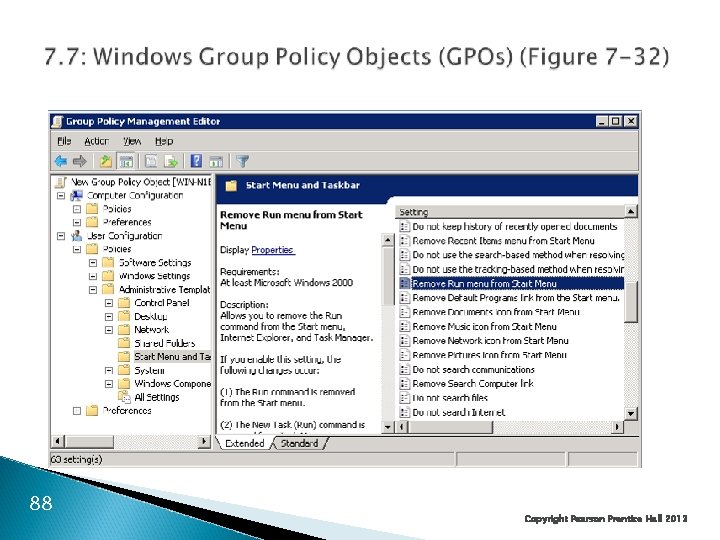
88 Copyright Pearson Prentice Hall 2013
Copyright © 2013 Pearson Education, Inc. Publishing as Prentice Hall