
Homeland Security Exercise and Evaluation Program HSEEP Toolkit


- Slides: 158
Homeland Security Exercise and Evaluation Program (HSEEP) Toolkit Training
Introductions § Name § Agency § What do you hope to learn from this course § Specific HSEEP and Toolkit experience
Agenda The course will include a mix of lecture and video demonstrations. § Introductions § HSEEP Review & Toolkit Overview § National Exercise Schedule (NEXS) System Overview § NEXS System video § Design and Development System (DDS) Overview § DDS video § Exercise Evaluation Guide (EEG) Builder Overview § EEG Builder video § Master Scenario Events List (MSEL) Builder Overview § MSEL Builder video § Corrective Action Program (CAP) System Overview § CAP System videos
Course Objectives By the end of this course, participants will: § Understand how to use the HSEEP Toolkit to support their exercise program. § Be familiar with the HSEEP Web site and HSEEP Library as exercise resources that support HSEEP. § Be familiar with the NEXS System including how to create events and view the NEXS Calendar. § Be familiar with the DDS, EEG Builder, and MSEL Builder in order to support exercise development. § Be familiar with the CAP System to track and analyze corrective action implementation.
Course Materials § Demonstration Videos § Quick Reference Guide
Introduction to HSEEP
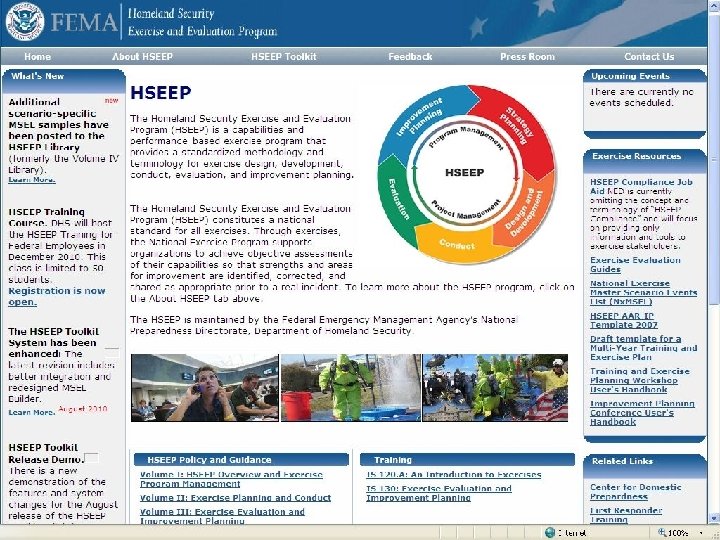
What is HSEEP? All-hazards, capabilities-based exercise program that provides a standardized methodology and consistent terminology for exercise design, development, conduct, evaluation, and improvement planning. A building block approach to training and exercises that encourages progressive complexity in preparedness efforts and objectives.
Exercise Program Management Key Concept: Exercise program management sets the strategic goals exercising organizations wish to achieve, and implements and tracks corrective actions for improvement planning purposes. An exercise program accounts for resources and strategic goals for an organization's exercise and training efforts. This includes: § Multiyear training and exercise program planning. §Project management standards § Budgeting and expenditure tracking § Resource management §Stakeholder engagement. The implementation and sustainment of corrective actions – derived from preparedness exercises and real-world events – guide exercise program management and enhances an organization’s overall level of readiness.
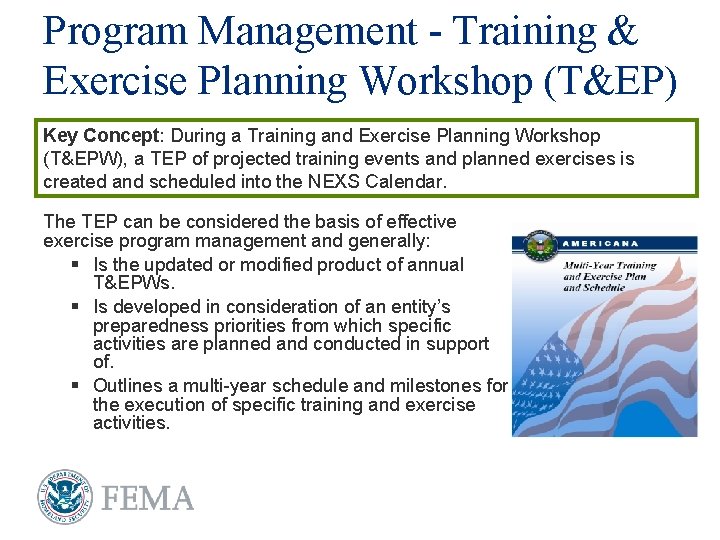
Program Management - Training & Exercise Planning Workshop (T&EP) Key Concept: During a Training and Exercise Planning Workshop (T&EPW), a TEP of projected training events and planned exercises is created and scheduled into the NEXS Calendar. The TEP can be considered the basis of effective exercise program management and generally: § Is the updated or modified product of annual T&EPWs. § Is developed in consideration of an entity’s preparedness priorities from which specific activities are planned and conducted in support of. § Outlines a multi-year schedule and milestones for the execution of specific training and exercise activities.
Exercise Project Management Key Concept: Project managers are responsible for the design, development, conduct, and evaluation of an individual exercise. The majority of these tasks can be accomplished using HSEEP Toolkit systems and tools – DDS, EEG Builder, and MSEL Builder. Best practices for exercise project management include: § Developing a project management timeline. § Establishing project milestones. § Identifying the exercise planning team. § Scheduling planning conferences. Exercise evaluation is a fundamental link to improvement planning as it assesses an organization’s performance and identifies strengths and areas for improvement.
Project Management - Exercise Objectives Key Concept: Objectives are the cornerstone of exercise project management as they drive the planning, conduct, and evaluation efforts of individual exercises. Well-phrased, S. M. A. R. T. objectives are essential to the success of exercise planning, conduct, and particularly evaluation. § Good objectives are focused on participant performance and state who should do what under what conditions and according to what standards. § Objectives guide the development of exercise documentation, templates, and tools used during exercise conduct and evaluation, such as the Master Scenario Events List (MSEL) and Exercise Evaluation Guides (EEG)s and are the platform from which corrective actions are built.
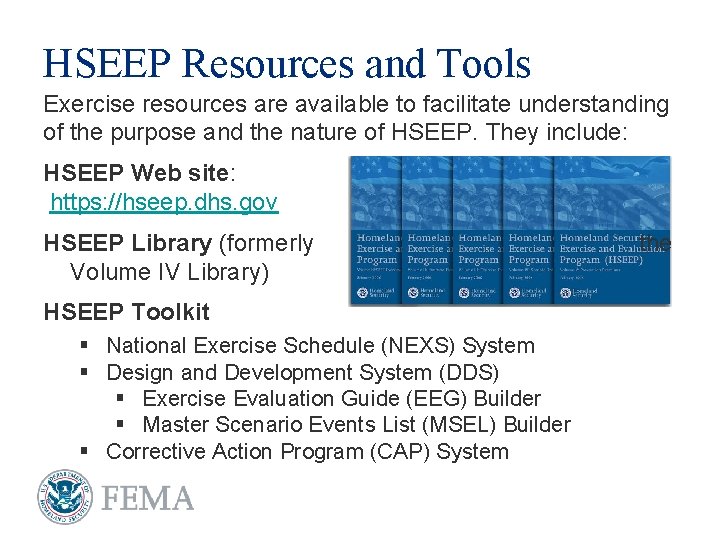
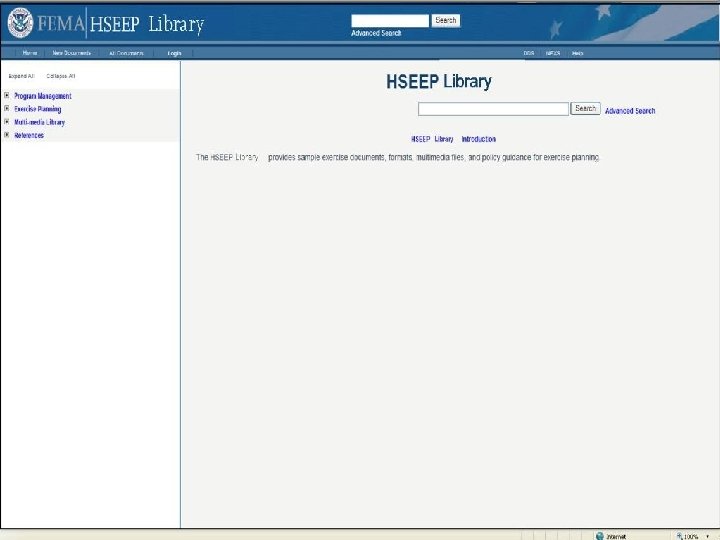
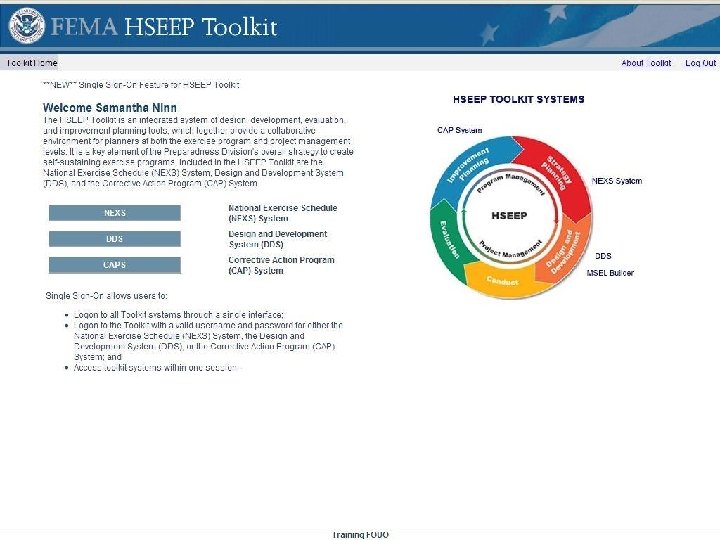
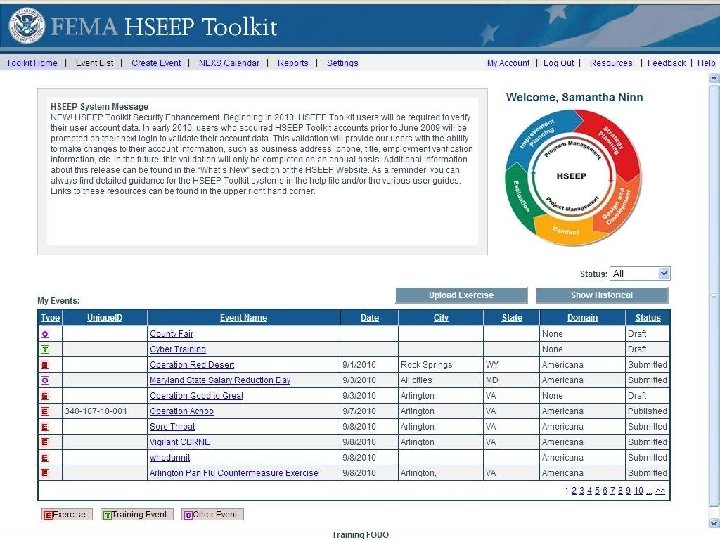
HSEEP Resources and Tools Exercise resources are available to facilitate understanding of the purpose and the nature of HSEEP. They include: HSEEP Web site: https: //hseep. dhs. gov HSEEP Library (formerly the Volume IV Library) HSEEP Toolkit § National Exercise Schedule (NEXS) System § Design and Development System (DDS) § Exercise Evaluation Guide (EEG) Builder § Master Scenario Events List (MSEL) Builder § Corrective Action Program (CAP) System
National Exercise Schedule (NEXS) System
National Exercise Schedule (NEXS) System Lesson Overview § Lesson 1: Creating and Scheduling Exercises § Lesson 2: Exercise Deconfliction and Synchronization § Lesson 3: Submission and Approval of Exercises § Lesson 4: Viewing and Reporting on Published Exercises
NEXS System Lesson Objectives § After completing this module, participants will: § Be familiar with the NEXS System in order to create exercises and enter exercise overview data. § Understand how to check for exercise conflicts and opportunities for synchronization. § Understand how to view the NEXS Calendar and reporting function to find historical and upcoming exercises and conferences.
NEXS System Benefits § Identify conflicts. § Facilitate synchronization and linking. § View the NEXS Calendar. § Run reports against exercises, trainings, and other planned events on the NEXS Calendar.
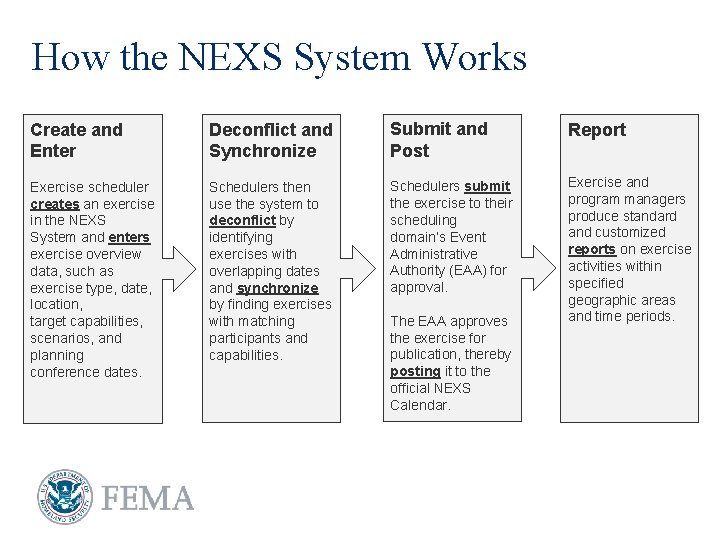
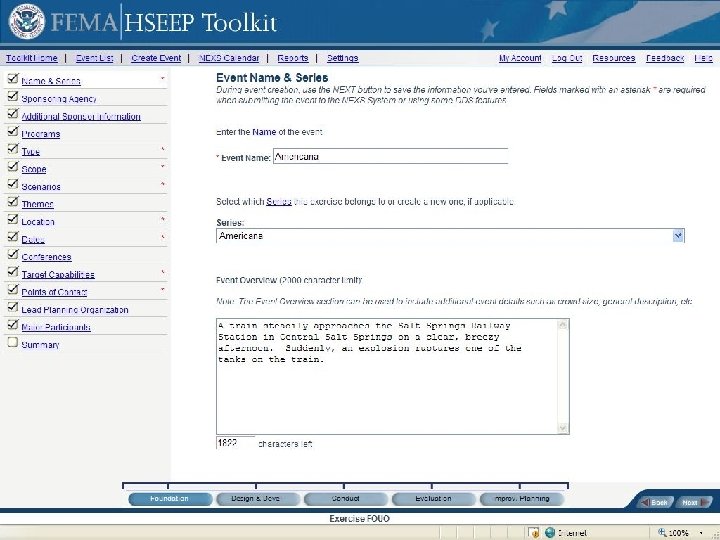
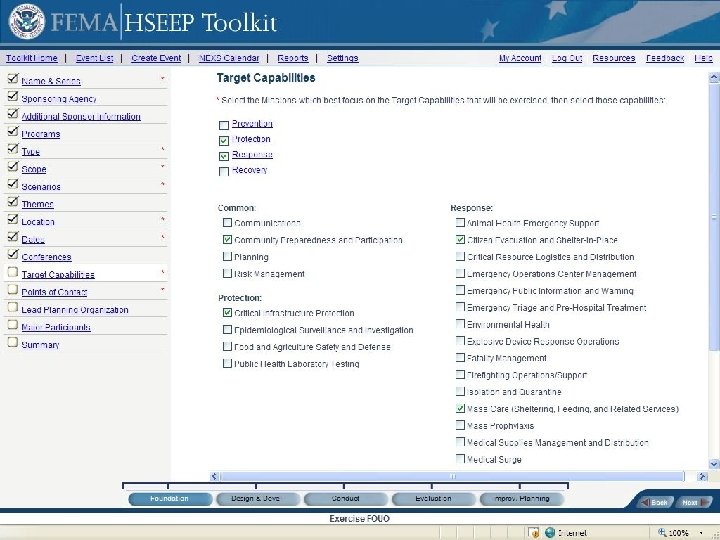
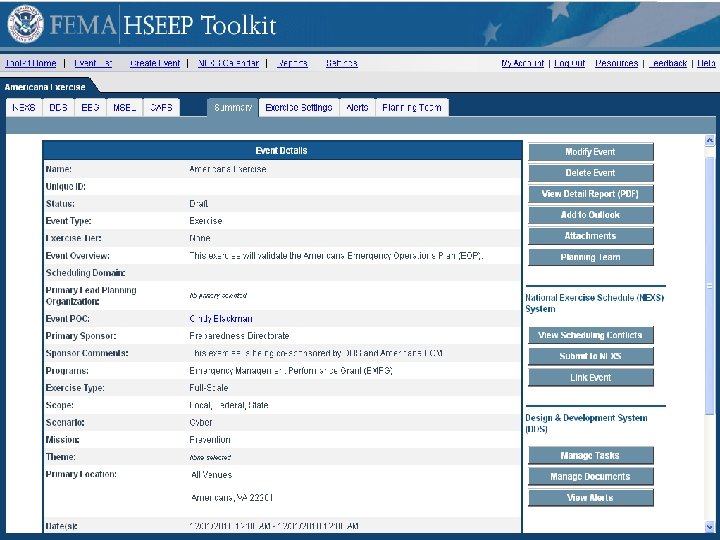
How the NEXS System Works Create and Enter Deconflict and Synchronize Submit and Post Report Exercise scheduler creates an exercise in the NEXS System and enters exercise overview data, such as exercise type, date, location, target capabilities, scenarios, and planning conference dates. Schedulers then use the system to deconflict by identifying exercises with overlapping dates and synchronize by finding exercises with matching participants and capabilities. Schedulers submit the exercise to their scheduling domain’s Event Administrative Authority (EAA) for approval. Exercise and program managers produce standard and customized reports on exercise activities within specified geographic areas and time periods. The EAA approves the exercise for publication, thereby posting it to the official NEXS Calendar.
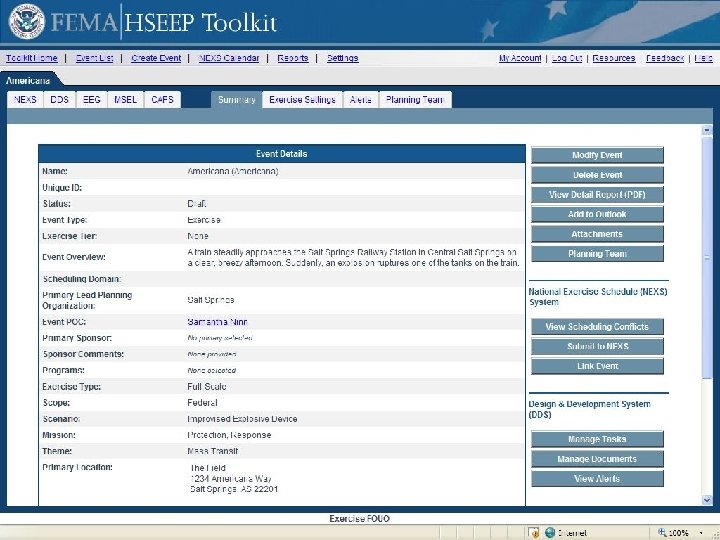
NEXS Event Creation § Users have the ability to create various preparedness related events for publication on the NEXS Calendar. § Event Creation Options: § Exercise § Training event § Planned Other Event § Requested and required event information varies slightly depending on the selected event option. § Events can be synchronized and deconflicted with published events.
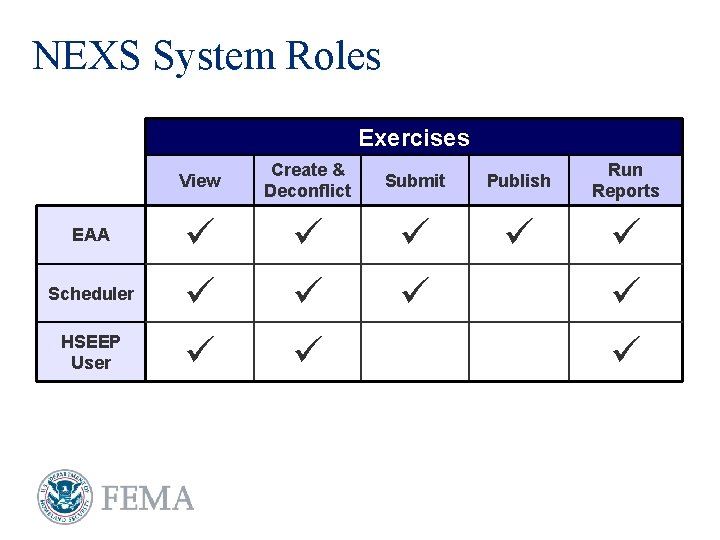
NEXS System Roles Exercises EAA Scheduler HSEEP User View Create & Deconflict Submit Publish Run Reports
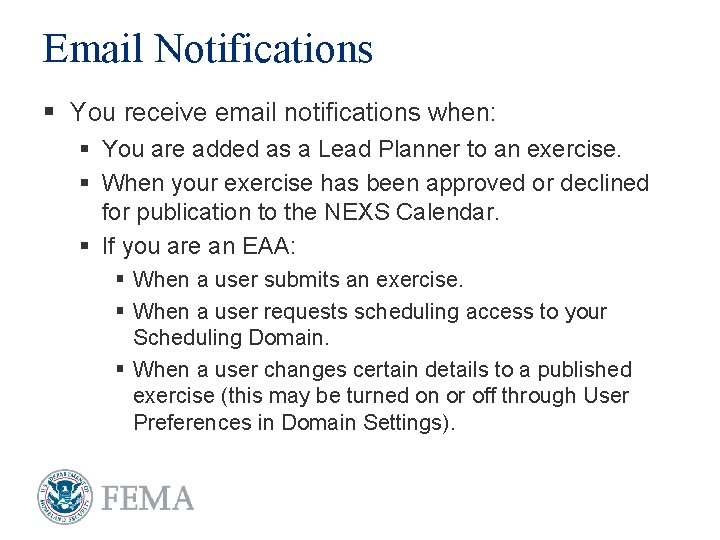
Email Notifications § You receive email notifications when: § You are added as a Lead Planner to an exercise. § When your exercise has been approved or declined for publication to the NEXS Calendar. § If you are an EAA: § When a user submits an exercise. § When a user requests scheduling access to your Scheduling Domain. § When a user changes certain details to a published exercise (this may be turned on or off through User Preferences in Domain Settings).
NEXS System Lesson 1 Creating and Scheduling Exercises
Lesson 1 Review In this lesson, we have discussed: REVIEW How to create a new exercise in the NEXS System. How to enter exercise information.
NEXS System Lesson 2 Exercise Deconfliction and Synchronization
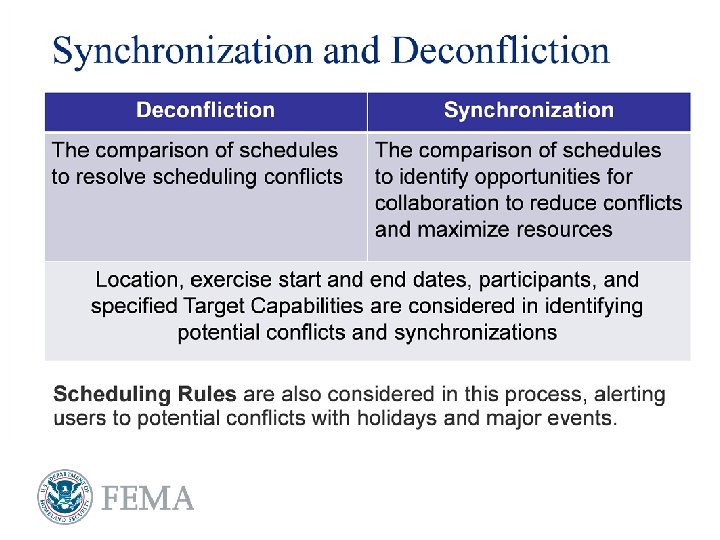
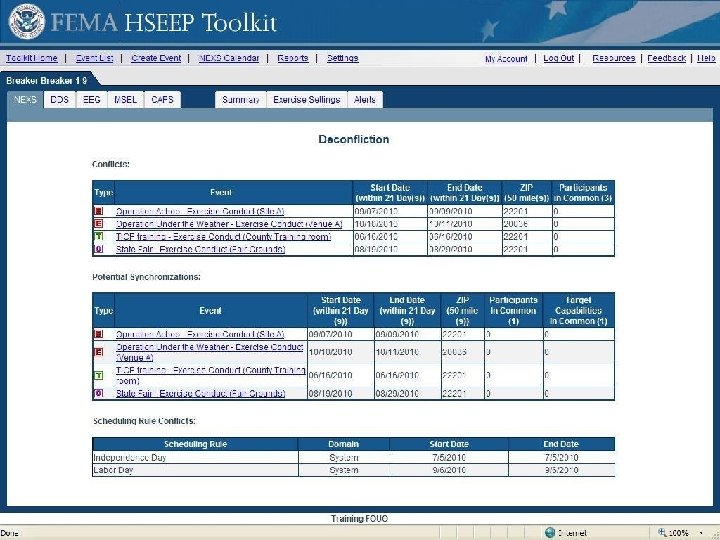
Lesson 2 Review In this lesson, we have discussed: REVIEW Using the deconfliction and synchronization area of the NEXS System. Identifying exercise conflicts. Identifying possibilities for collaboration.
NEXS System Lesson 3 Submission and Approval of Exercises
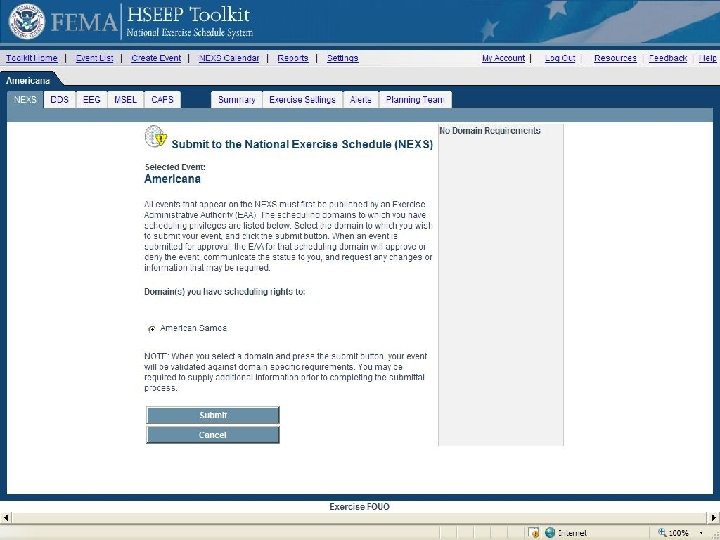
Submission & Approval of Exercises § What is a Scheduling Domain? § Political area (States and territories) § Geographic area (FEMA Regions) § Federal authorities (Federal departments and agencies) § Process § Schedulers submit exercises to domain EAAs. § EAAs approve exercises to publish them to the NEXS Calendar.
Lesson 3 Review In this lesson, we have discussed: REVIEW How to submit exercises to the NEXS. How EAAs approve and decline exercises in the NEXS.
NEXS System Lesson 4 Viewing and Reporting on Scheduled Exercises
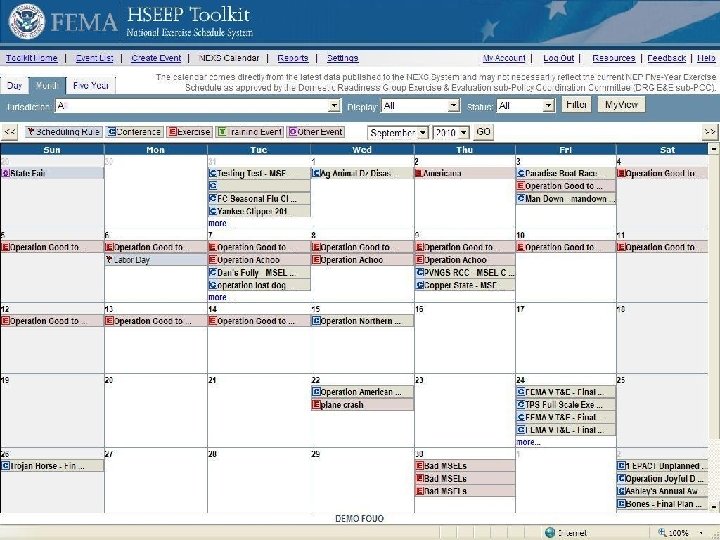
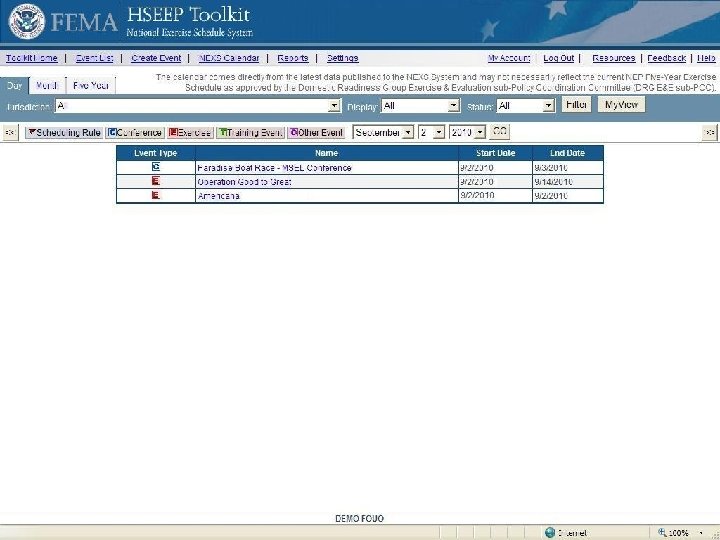
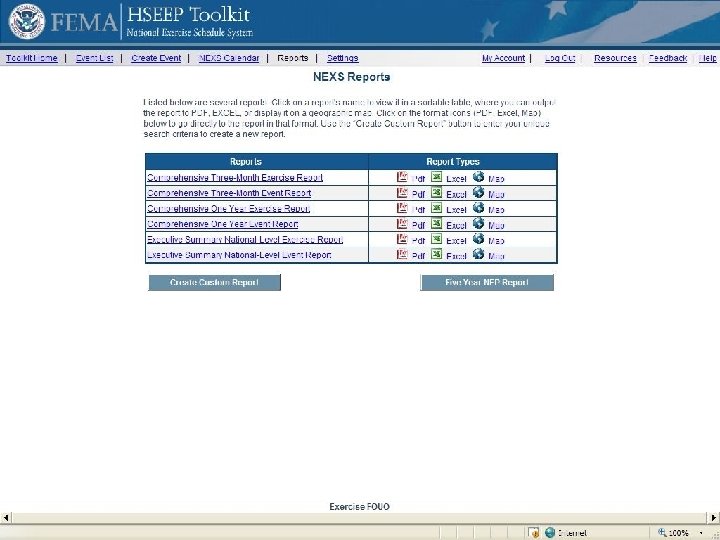
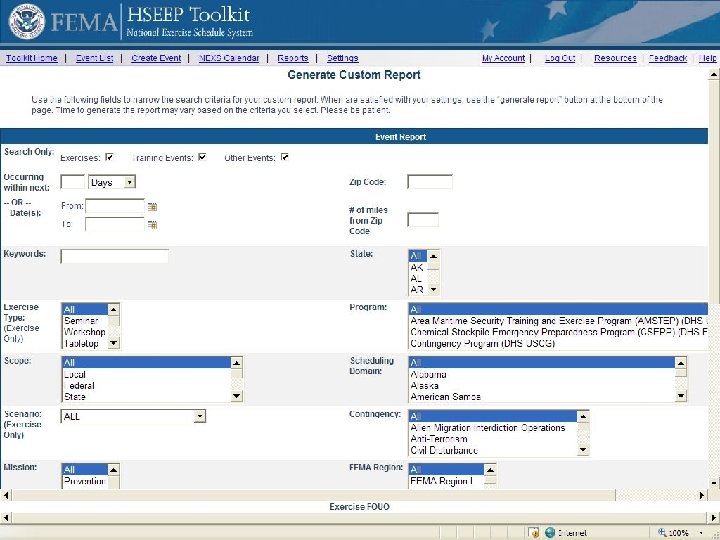
Lesson 4 Review In this lesson, we have discussed: REVIEW Viewing the NEXS Calendar. Using filters to modify data shown on the NEXS Calendar. Viewing pre-defined exercise and event reports. Customizing report criteria to locate exercises.
Play the NEXS System Demonstration Video
Design and Development System (DDS)
Design and Development System (DDS) Lesson Overview § Lesson 1: Identifying and Assigning Tasks § Lesson 2: Completing Tasks and Documentation § Lesson 3: The Exercise Walkthrough
DDS Lesson Objectives § After completing this module, participants will: § Understand how to Identify Planning Team members. § Be able to use the DDS to assign tasks to their Exercise Planning Team. § Understand how to use the included document templates.
DDS Benefits § Use to create project timelines. § Use to assign tasks to Planning Team members. § Facilitates creation of exercise documentation. § Provides document templates. § Can serve as a document repository.
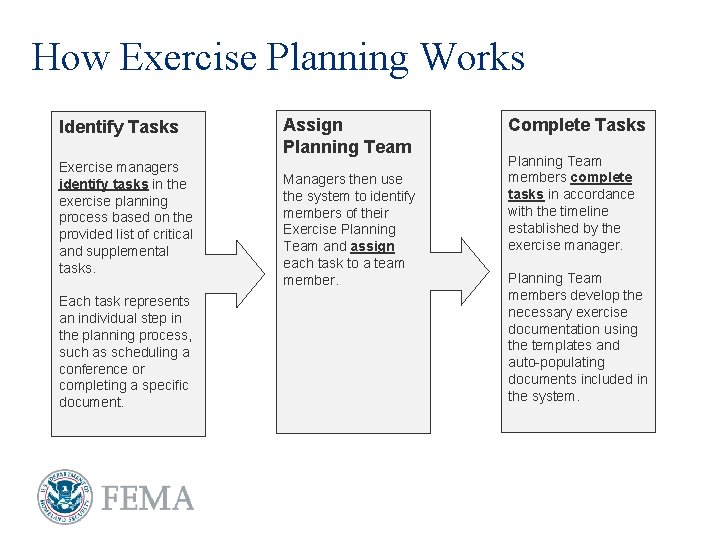
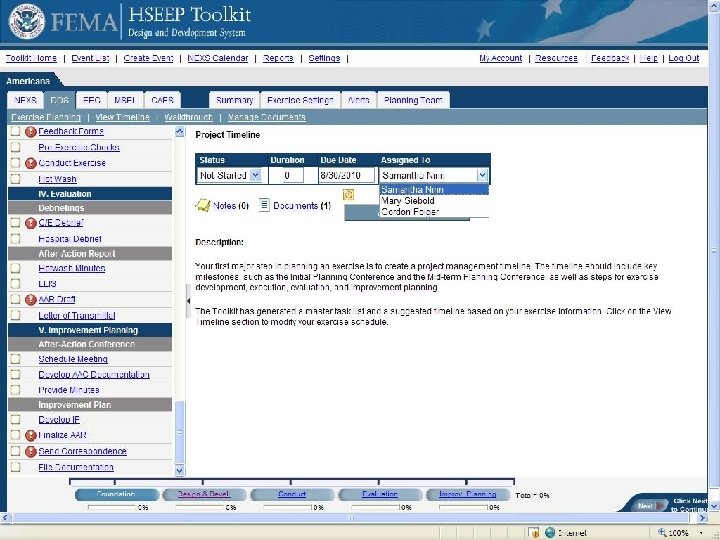
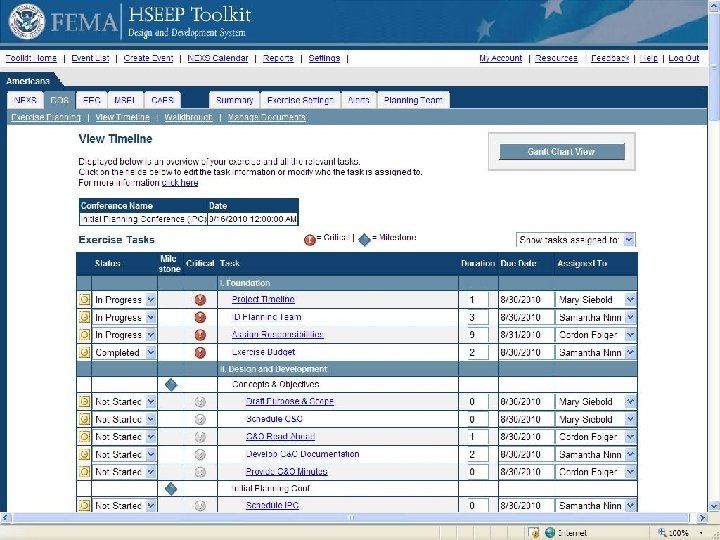
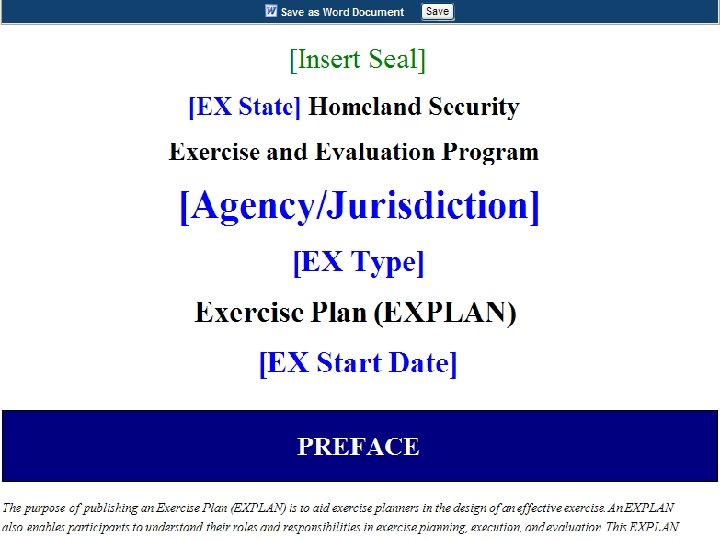
How Exercise Planning Works Identify Tasks Exercise managers identify tasks in the exercise planning process based on the provided list of critical and supplemental tasks. Each task represents an individual step in the planning process, such as scheduling a conference or completing a specific document. Assign Planning Team Managers then use the system to identify members of their Exercise Planning Team and assign each task to a team member. Complete Tasks Planning Team members complete tasks in accordance with the timeline established by the exercise manager. Planning Team members develop the necessary exercise documentation using the templates and auto-populating documents included in the system.
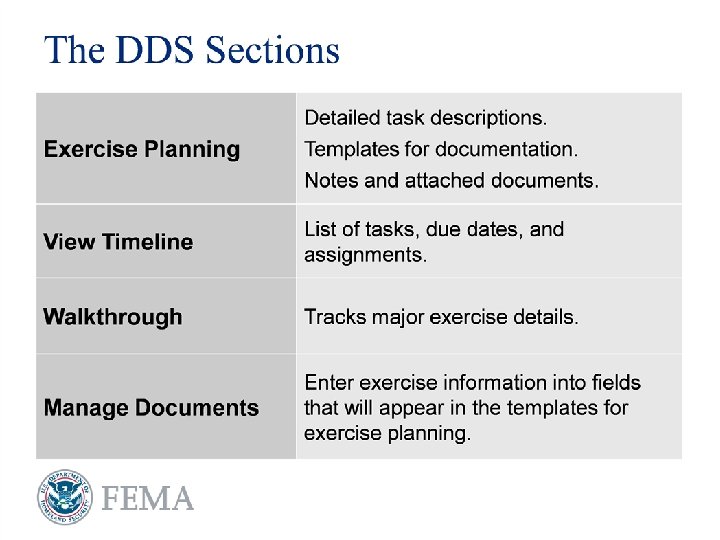
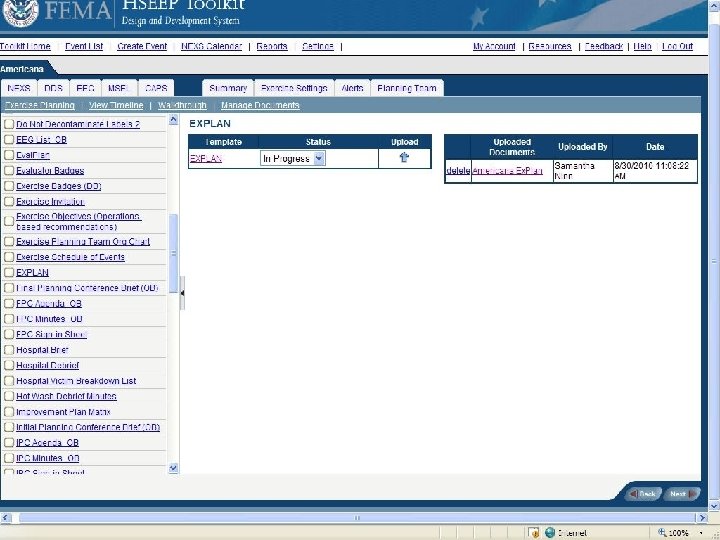
The DDS Sections § Exercise Planning § Detailed task descriptions. § Templates for documentation. § Notes and attached documents. § View Timeline § List of tasks, due dates and assignments. § Walkthrough § Tracks major exercise details. § Manage Documents § Enter exercise information into fields that will appear in the templates for exercise planning.
DDS Lesson 1 Identifying and Assigning Tasks
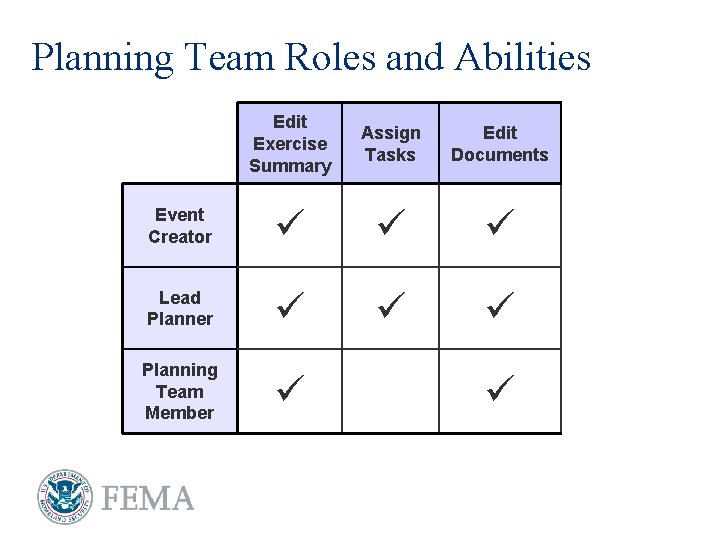
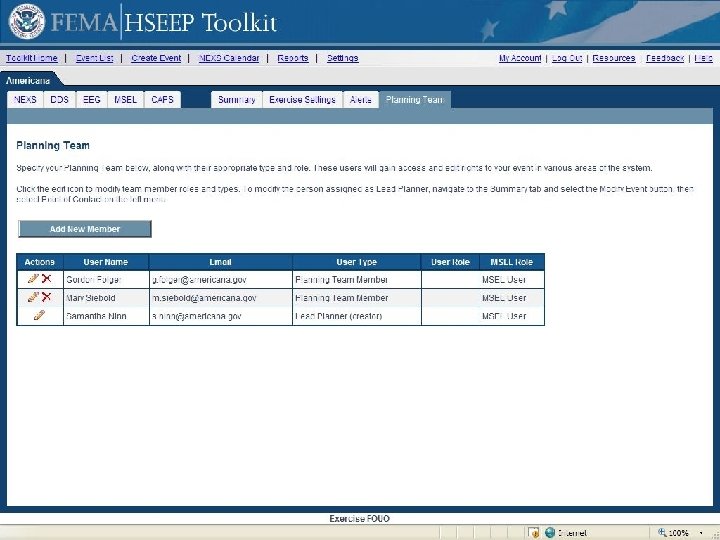
Planning Team Roles and Abilities Edit Exercise Summary Assign Tasks Edit Documents Event Creator Lead Planner Planning Team Member
Lesson 1 Review In this lesson, we have discussed: REVIEW How to use the Exercise Planning and View Timeline sections to identify completion dates and assign tasks. Adding members to your Planning Team.
DDS Lesson 2 Exercise Walkthrough and Exercise Setting
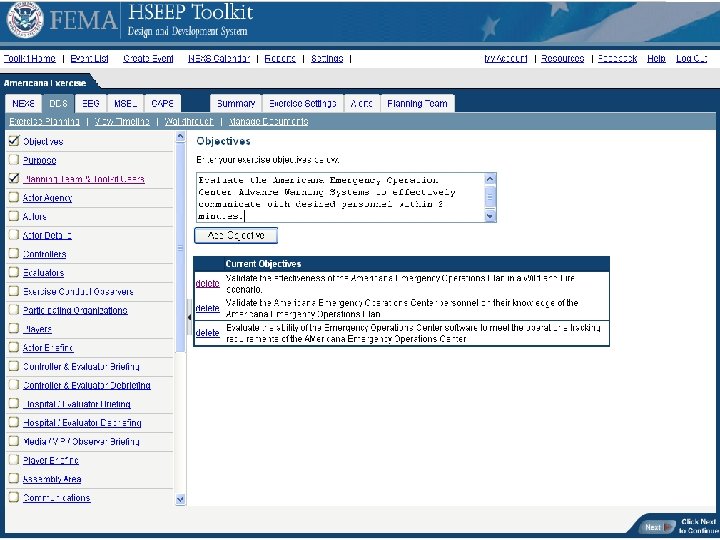
Exercise Walkthrough Purpose § The Walkthrough section is a way to track exercise data and facility/personnel information. § The Walkthrough covers the major areas of planning but does not get into the same level of detail as Exercise Planning for the purpose of document creation. § The Walkthrough allows the input of major exercise detail information.
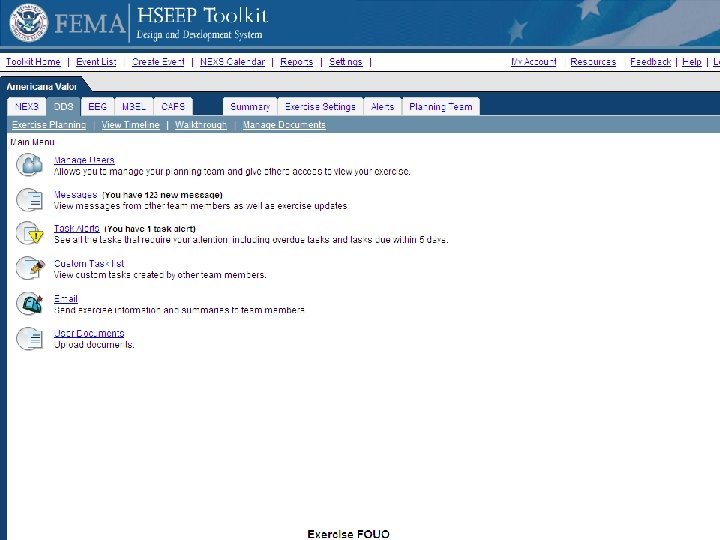
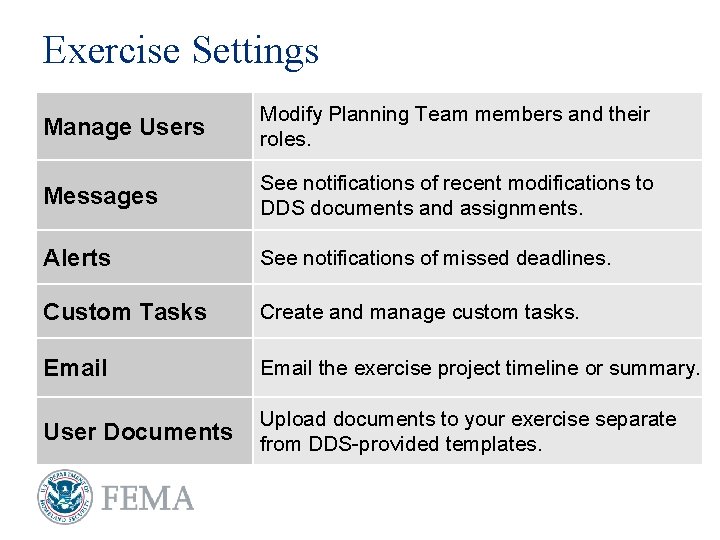
Exercise Settings Manage Users Modify Planning Team members and their roles. Messages See notifications of recent modifications to DDS documents and assignments. Alerts See notifications of missed deadlines. Custom Tasks Create and manage custom tasks. Email the exercise project timeline or summary. User Documents Upload documents to your exercise separate from DDS-provided templates.
Lesson 2 Review § In this lesson, we have discussed: REVIEW The purpose of the exercise Walkthrough. Entering information into the Walkthrough. What information can be managed and distributed through Exercise Settings.
DDS Lesson 3 Managing Exercise Documents
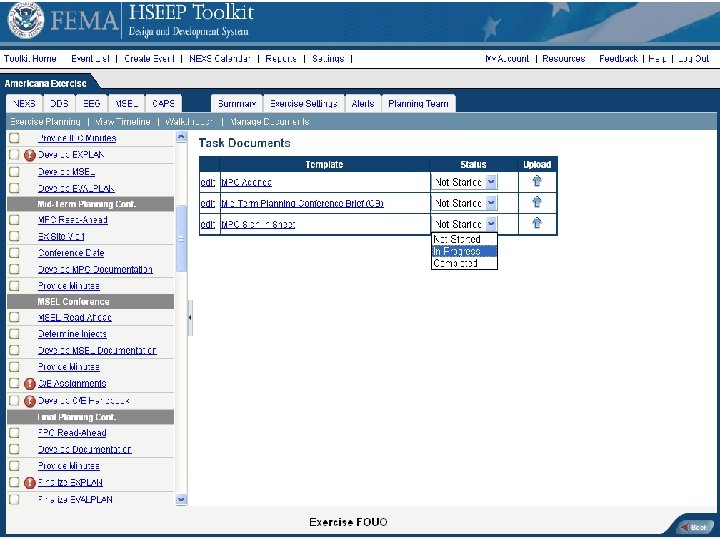
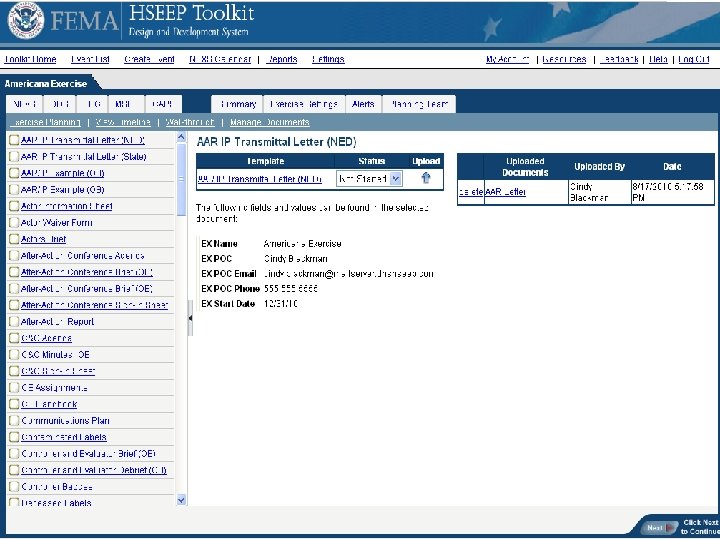
Lesson 3 Review In this lesson, we have discussed: REVIEW Updating the status of assigned tasks. Making notes to identify progress. Using document templates. Utilizing auto-populating fields to add key exercise data to documents. Downloading and uploading exercise documents.
Play the DDS Demonstration Video
The Exercise Evaluation Guide (EEG) Builder
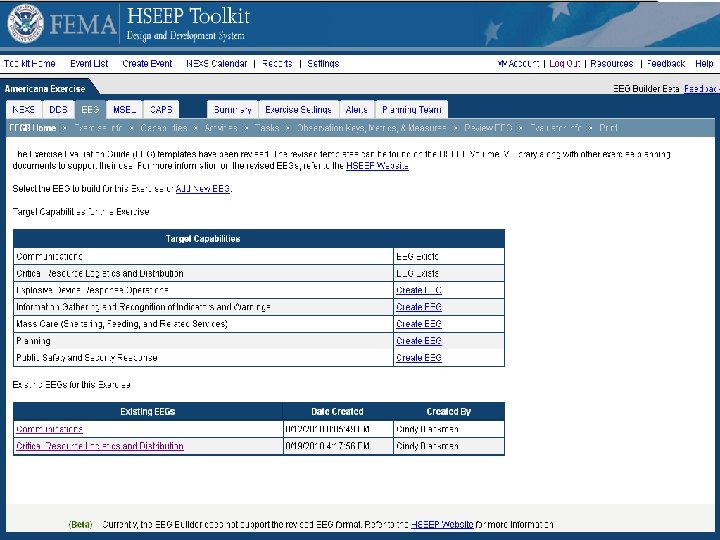
Exercise Evaluation Guide (EEG) Builder Lesson Overview § Lesson 1: Develop an EEG
EEG Builder Lesson Objectives § After completing this module, participants will: § Understand how to customize EEGs through the HSEEP Toolkit and Standalone Builder. § Understand how to Save/Print EEGs.
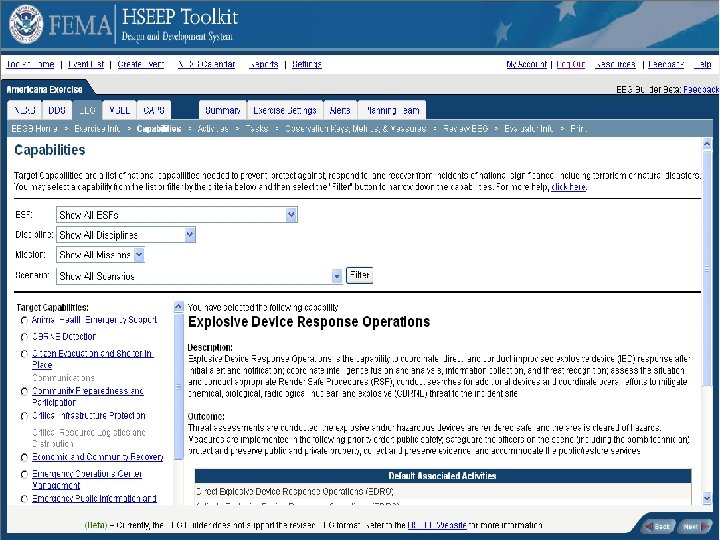
Target Capabilities List (TCL) and EEGs § The TCL provides guidance on the specific capabilities that Federal, State, tribal, and local entities are expected to develop and maintain to prevent, protect against, respond to, and recover from incidents of national significance, in order to maintain the level of preparedness set forth in the National Preparedness Guidelines. § EEGs are based on capabilities.
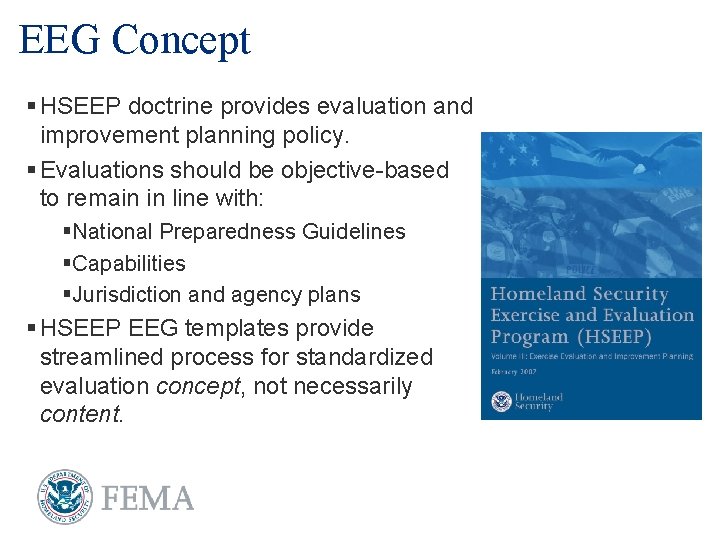
EEG Concept § HSEEP doctrine provides evaluation and improvement planning policy. § Evaluations should be objective-based to remain in line with: §National Preparedness Guidelines §Capabilities §Jurisdiction and agency plans § HSEEP EEG templates provide streamlined process for standardized evaluation concept, not necessarily content.
Overview
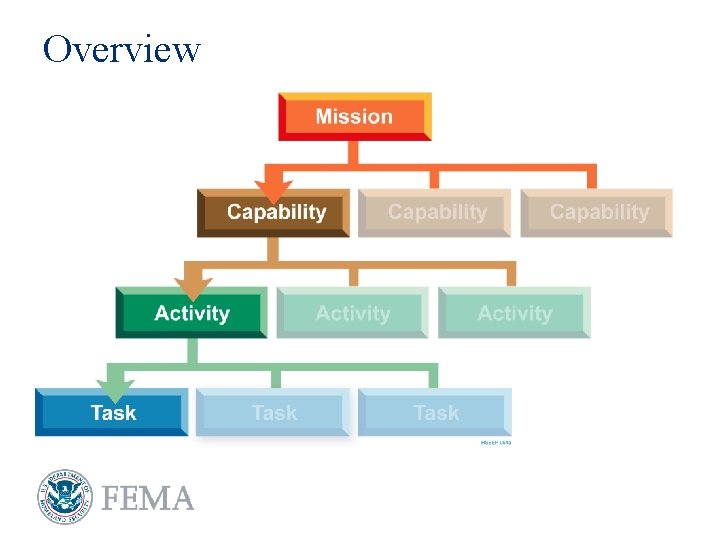
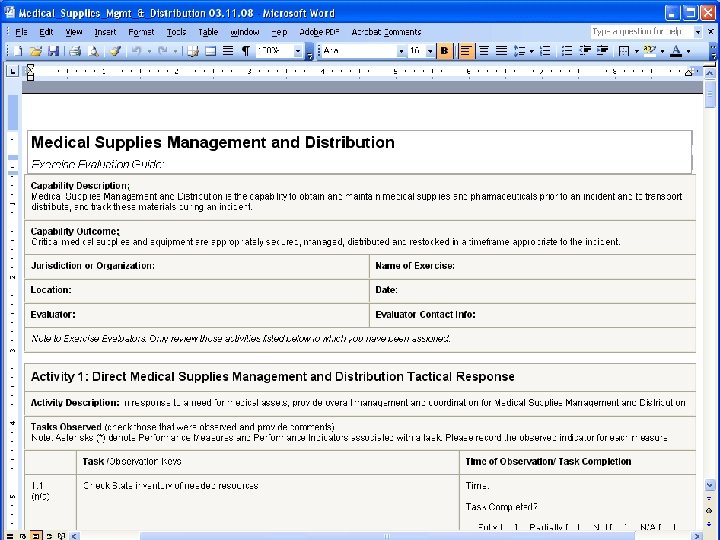
What is an EEG? § EEGs are documents that provide evaluators with consistent standards for observation, analysis, and after-action reporting. § Each EEG is linked to a capability that provides standard activities, tasks and performance measures to be evaluated based on exercise objectives. § The guidelines provided in EEGs facilitate creation of AARs, resulting in IPs that target specific personnel, planning, organization, equipment, and training needs.
EEG Builder Benefits § Enhance the usability of the EEG content during exercise conduct. § Provides users the ability to generate custom evaluation tools, combining existing DHS content with additional jurisdiction- or organization-specific tasks, measures and metrics. § The EEG Builder is available in the HSEEP Toolkit but also independently from the HSEEP Web site as a standalone, without logging in.
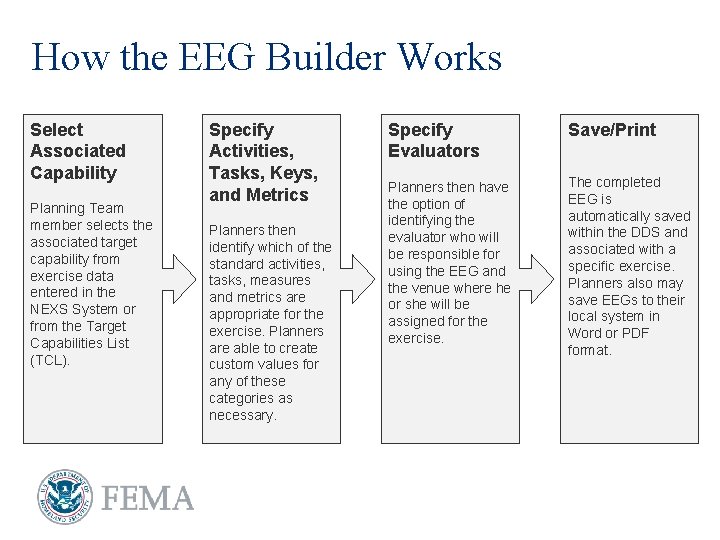
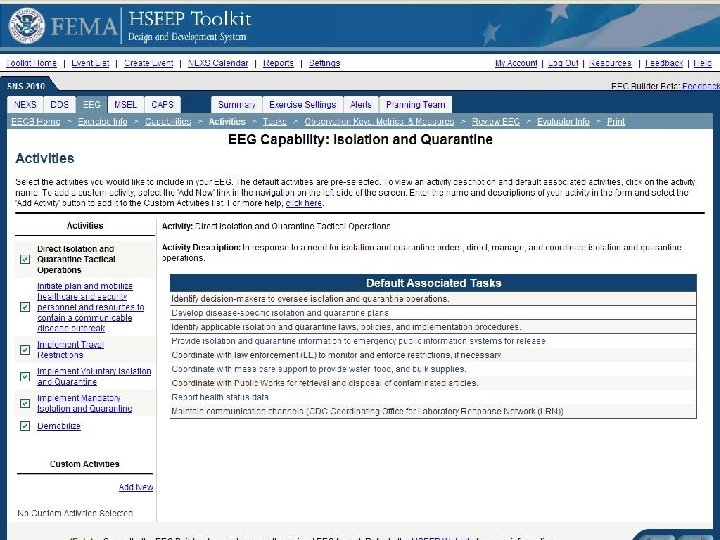
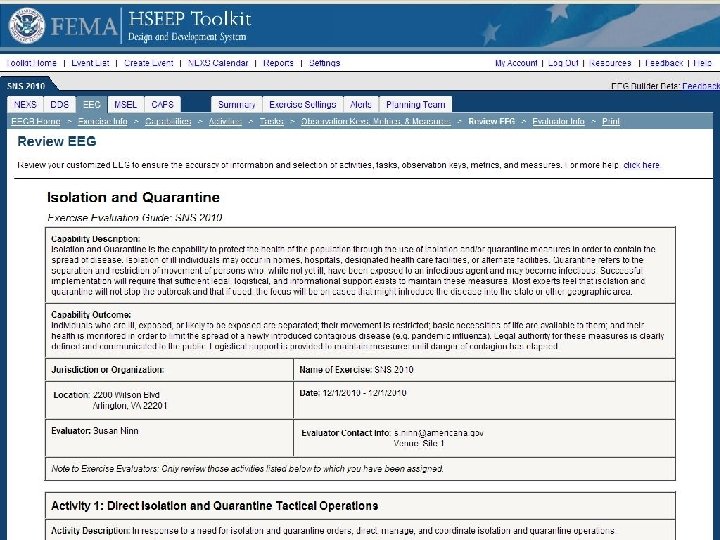
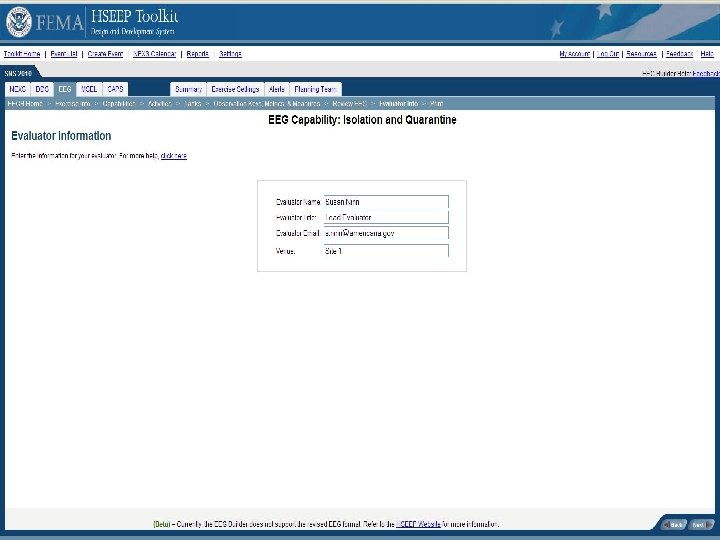
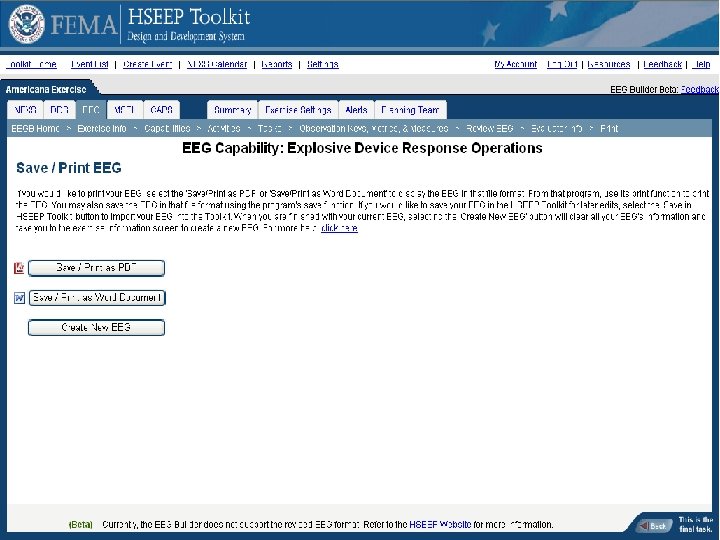
How the EEG Builder Works Select Associated Capability Planning Team member selects the associated target capability from exercise data entered in the NEXS System or from the Target Capabilities List (TCL). Specify Activities, Tasks, Keys, and Metrics Planners then identify which of the standard activities, tasks, measures and metrics are appropriate for the exercise. Planners are able to create custom values for any of these categories as necessary. Specify Evaluators Save/Print Planners then have the option of identifying the evaluator who will be responsible for using the EEG and the venue where he or she will be assigned for the exercise. The completed EEG is automatically saved within the DDS and associated with a specific exercise. Planners also may save EEGs to their local system in Word or PDF format.
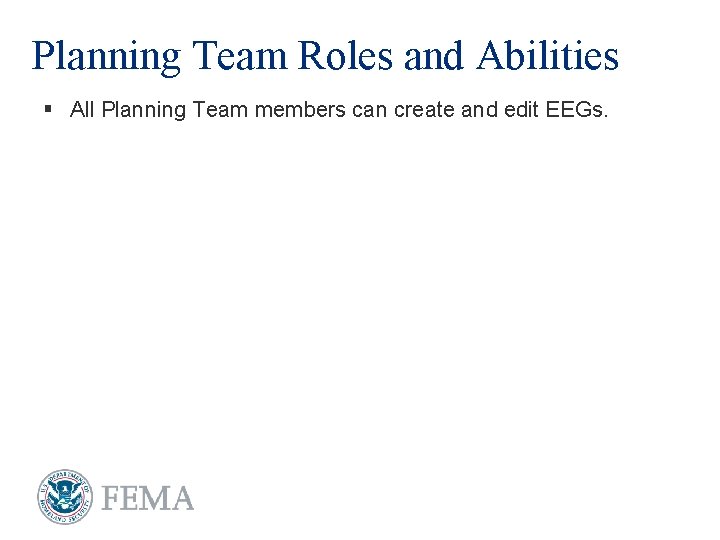
Planning Team Roles and Abilities § All Planning Team members can create and edit EEGs.
The EEG Builder Lesson 1 The EEG Builder
Lesson 1 Review § In this lesson, we have discussed: REVIEW Using the EEG Builder to create an EEG. How to customize EEGs by selecting standard activities and tasks and also by adding custom activities, tasks, and performance metrics.
Play the EEG Builder Demonstration Video
The Master Scenario Events List (MSEL) Builder
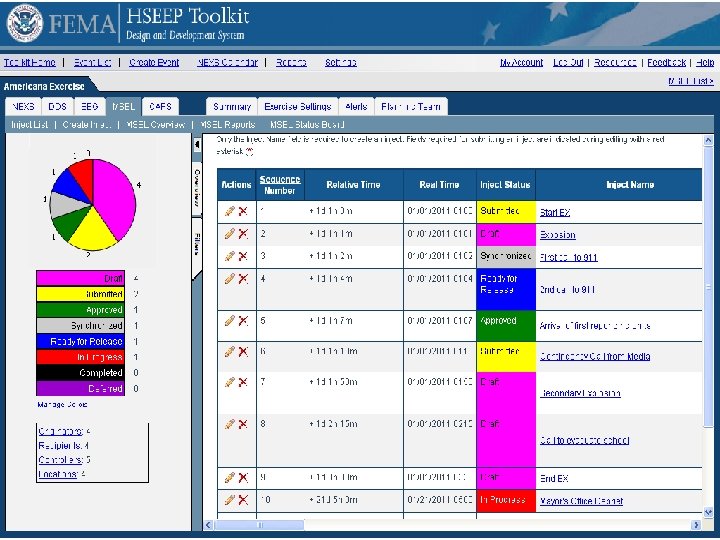
Master Scenario Events List (MSEL) Definition § The MSEL is a chronological timeline of expected actions and scripted events to be injected into exercise play by controllers to generate or prompt player activity. § A MSEL: § Links simulation to action. § Enhances the exercise experience for players. § Reflects an incident or activity meant to prompt players to action.
MSEL Builder Lesson Overview § Lesson 1: Develop a MSEL Foundation § Lesson 2: Create Injects § Lesson 3: Using your MSEL
MSEL Lesson Objectives § After completing this module, participants will: § Understand how to use the MSEL Builder to create a MSEL and enter injects.
MSEL Builder Benefits § The MSEL Builder allows exercise planners to create customized MSEL formats. § The MSEL Builder provides a web-based forum for data collaboration to draft injects.
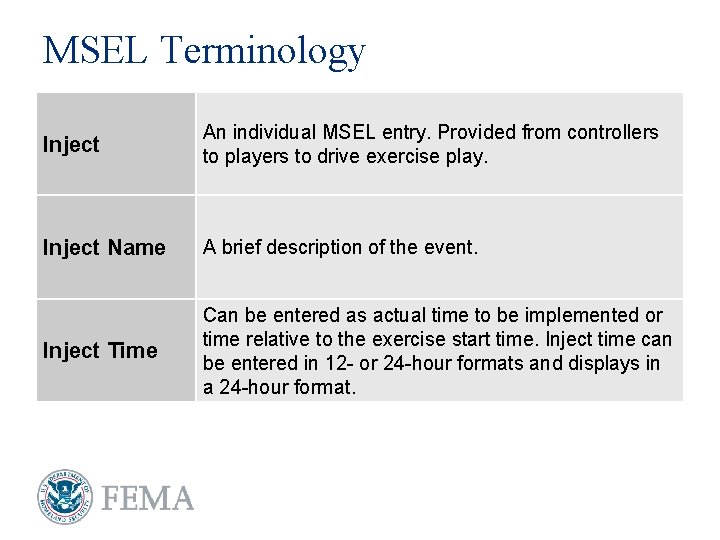
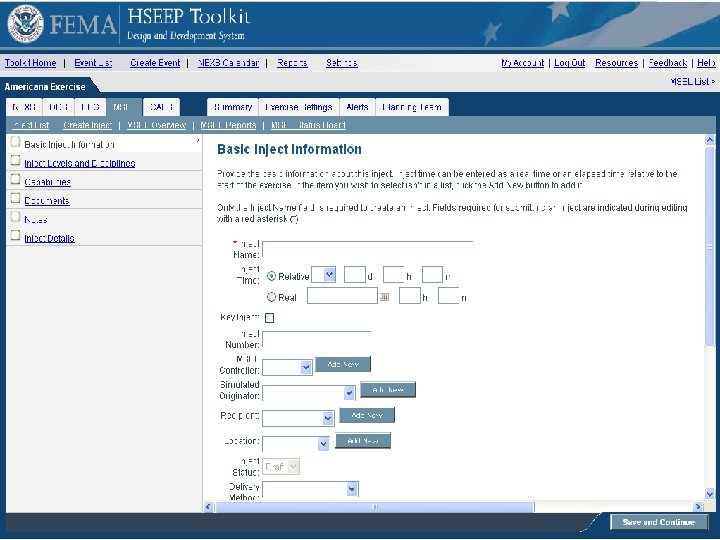
MSEL Terminology Inject An individual MSEL entry. Provided from controllers to players to drive exercise play. Inject Name A brief description of the event. Inject Time Can be entered as actual time to be implemented or time relative to the exercise start time. Inject time can be entered in 12 - or 24 -hour formats and displays in a 24 -hour format.
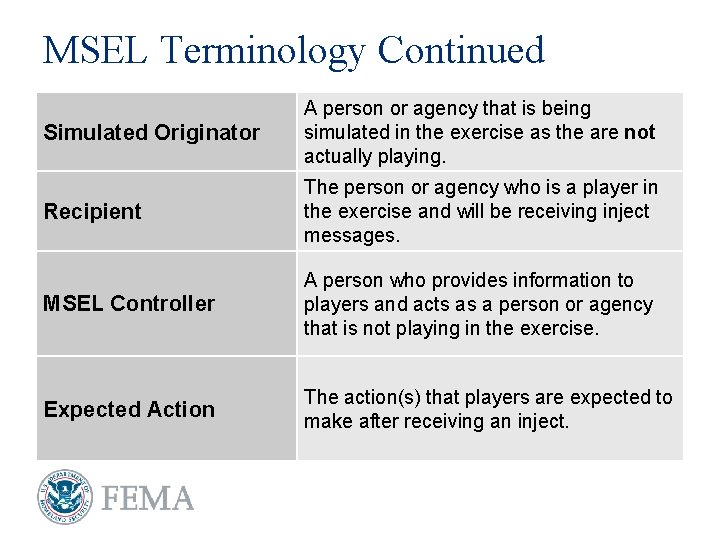
MSEL Terminology Continued Simulated Originator A person or agency that is being simulated in the exercise as the are not actually playing. Recipient The person or agency who is a player in the exercise and will be receiving inject messages. MSEL Controller A person who provides information to players and acts as a person or agency that is not playing in the exercise. Expected Action The action(s) that players are expected to make after receiving an inject.
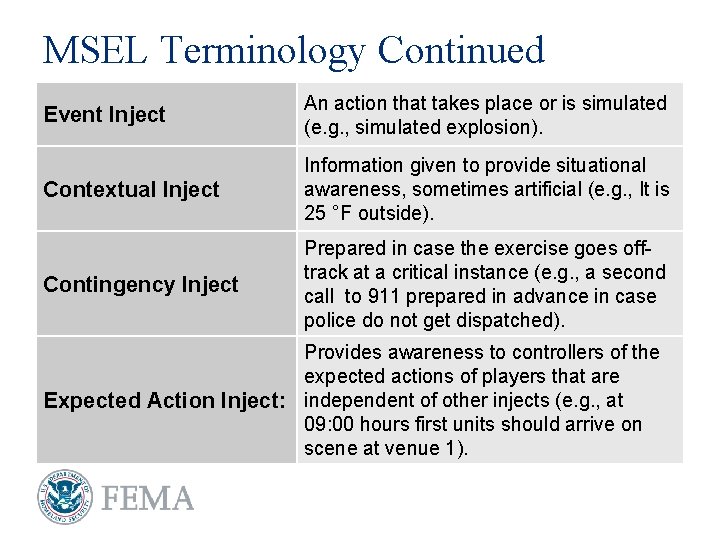
MSEL Terminology Continued Event Inject An action that takes place or is simulated (e. g. , simulated explosion). Contextual Inject Information given to provide situational awareness, sometimes artificial (e. g. , It is 25 °F outside). Contingency Inject Prepared in case the exercise goes offtrack at a critical instance (e. g. , a second call to 911 prepared in advance in case police do not get dispatched). Provides awareness to controllers of the expected actions of players that are Expected Action Inject: independent of other injects (e. g. , at 09: 00 hours first units should arrive on scene at venue 1).
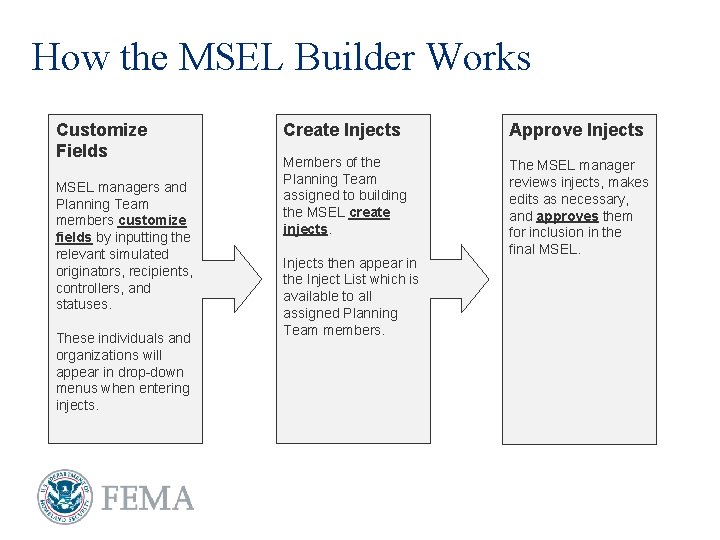
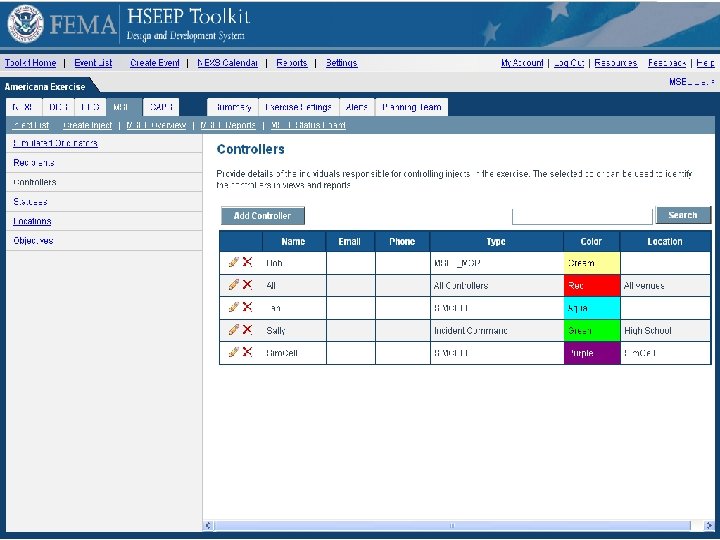
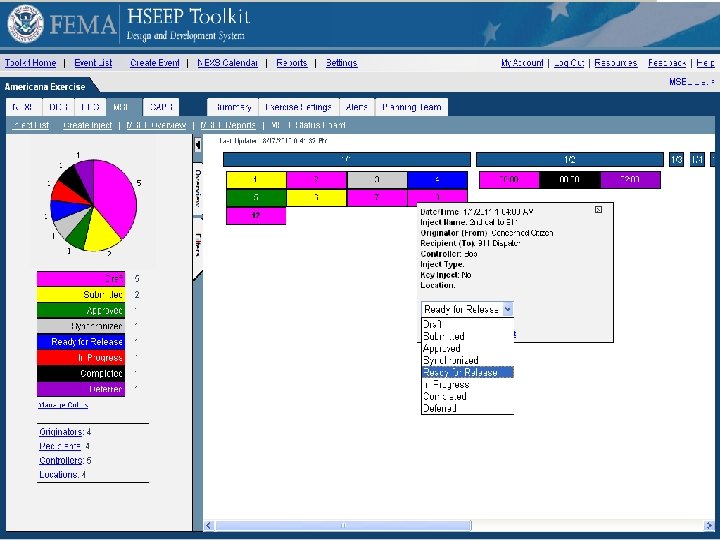
How the MSEL Builder Works Customize Fields MSEL managers and Planning Team members customize fields by inputting the relevant simulated originators, recipients, controllers, and statuses. These individuals and organizations will appear in drop-down menus when entering injects. Create Injects Approve Injects Members of the Planning Team assigned to building the MSEL create injects. The MSEL manager reviews injects, makes edits as necessary, and approves them for inclusion in the final MSEL. Injects then appear in the Inject List which is available to all assigned Planning Team members.
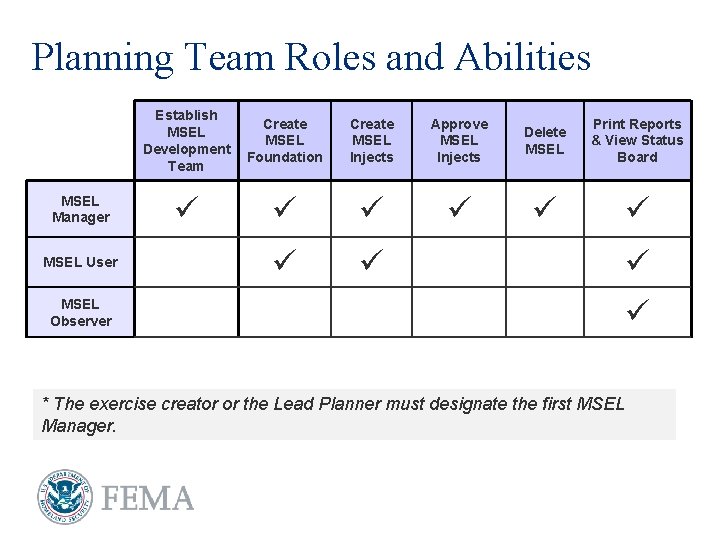
Planning Team Roles and Abilities MSEL Manager MSEL User Establish MSEL Development Team Create MSEL Foundation Create MSEL Injects Approve MSEL Injects Delete MSEL Print Reports & View Status Board MSEL Observer * The exercise creator or the Lead Planner must designate the first MSEL Manager.
The MSEL Builder Lesson 1 Develop MSEL Foundation
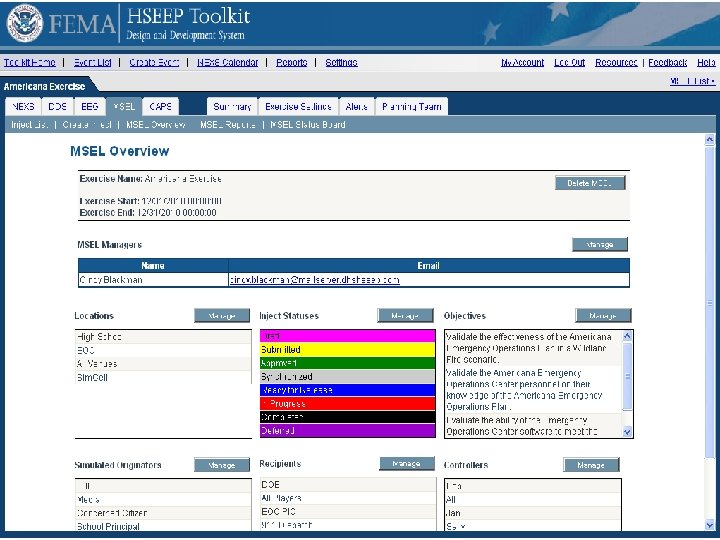
Lesson 1 Review § In this lesson, we have discussed: REVIEW How to generate the MSEL in the MSEL Builder. Customizing data fields in the MSEL Builder.
The MSEL Builder Lesson 2 Develop Injects
Lesson 2 Review § In this lesson, we have discussed: Creating injects. Viewing injects. REVIEW
The MSEL Builder Lesson 3 Using Your MSEL
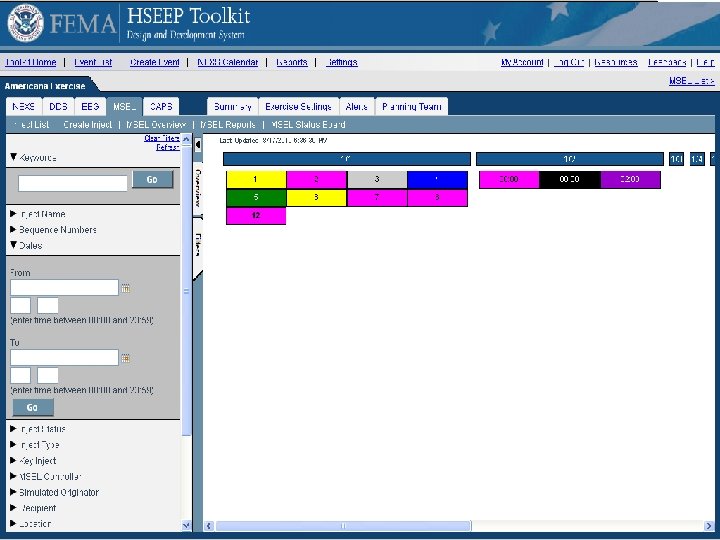
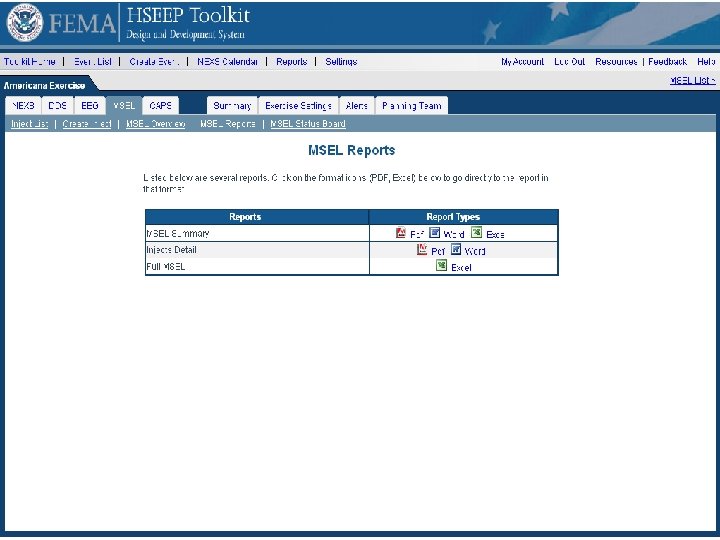
Lesson 3 Review § In this lesson, we have discussed: REVIEW Viewing the MSEL Overview page. Approving injects. Exporting the MSEL to other formats for MSEL Reports.
Play the MSEL Builder Demonstration Video
Corrective Action Program (CAP) System
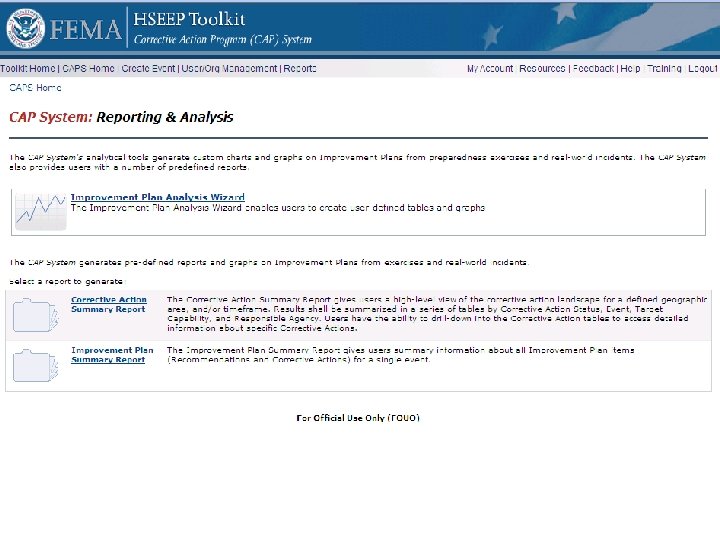
Corrective Action Program (CAP) System Lesson Overview § Lesson 1: Entering Event Information into the CAP System § Lesson 2: Tracking Corrective Action Implementation § Lesson 3: CAP System Reporting and Analysis Tools
CAP System Lesson Objectives § After completing this module, participants will: § Understand how the CAP System fits into the HSEEP cycle. § Understand how to use the CAP System to enter and track recommendations and corrective actions. § Understand how to use the CAP System to identify areas to focus on in future training and exercises.
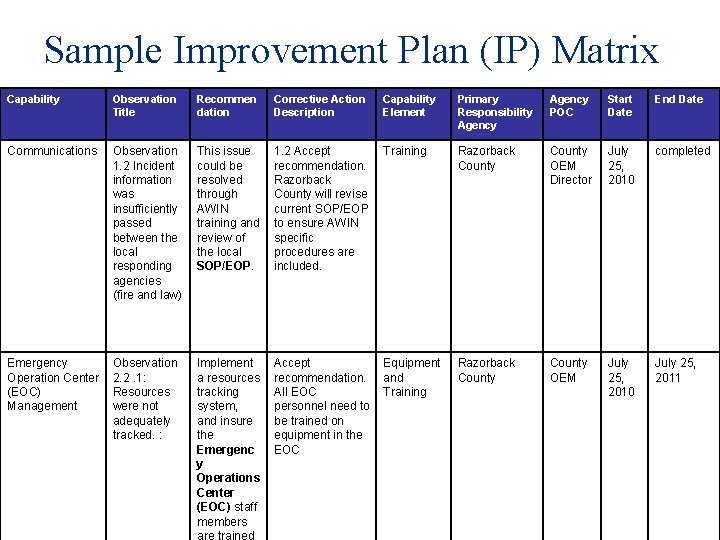
Sample Improvement Plan (IP) Matrix Capability Observation Title Recommen dation Corrective Action Description Communications Observation 1. 2 Incident information was insufficiently passed between the local responding agencies (fire and law) This issue could be resolved through AWIN training and review of the local SOP/EOP. Emergency Operation Center (EOC) Management Observation 2. 2. 1: Resources were not adequately tracked. : Implement a resources tracking system, and insure the Emergenc y Operations Center (EOC) staff members Capability Element Primary Responsibility Agency POC Start Date End Date 1. 2 Accept Training recommendation. Razorback County will revise current SOP/EOP to ensure AWIN specific procedures are included. Razorback County OEM Director July 25, 2010 completed Accept Equipment recommendation. and All EOC Training personnel need to be trained on equipment in the EOC Razorback County OEM July 25, 2010 July 25, 2011
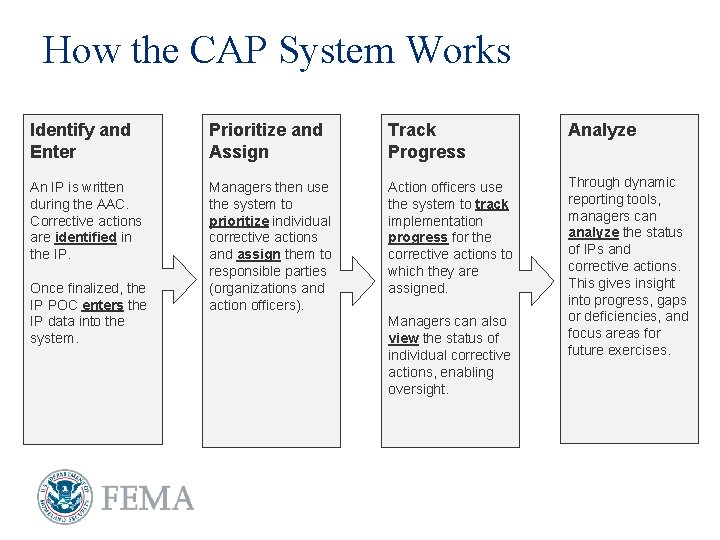
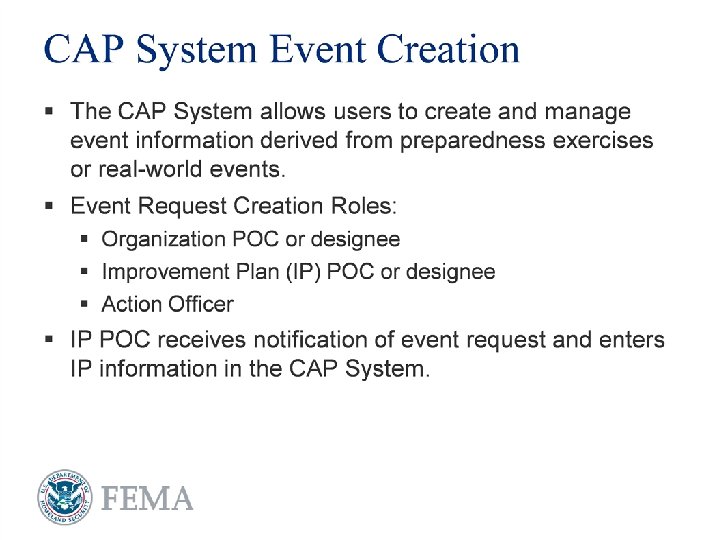
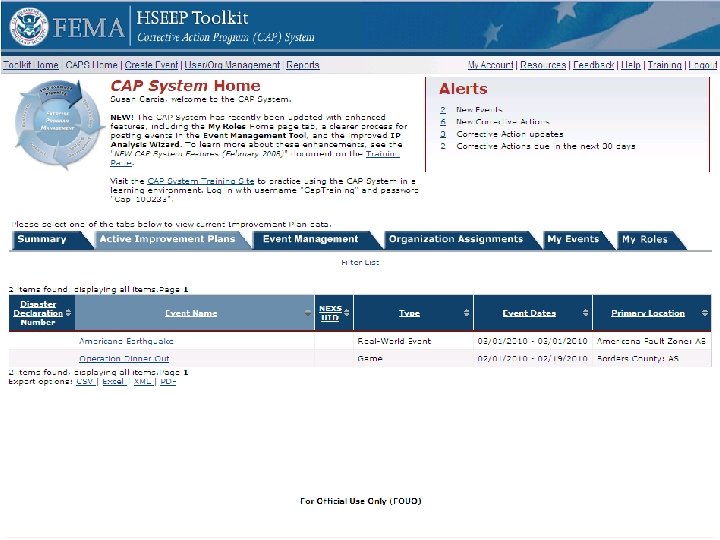
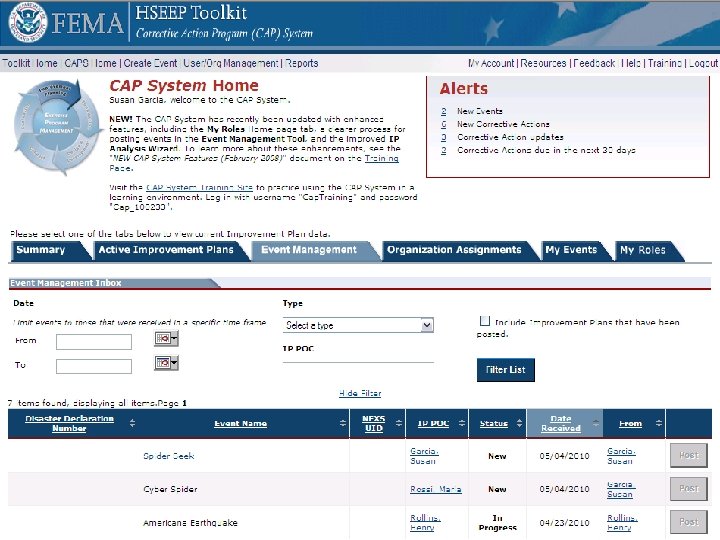
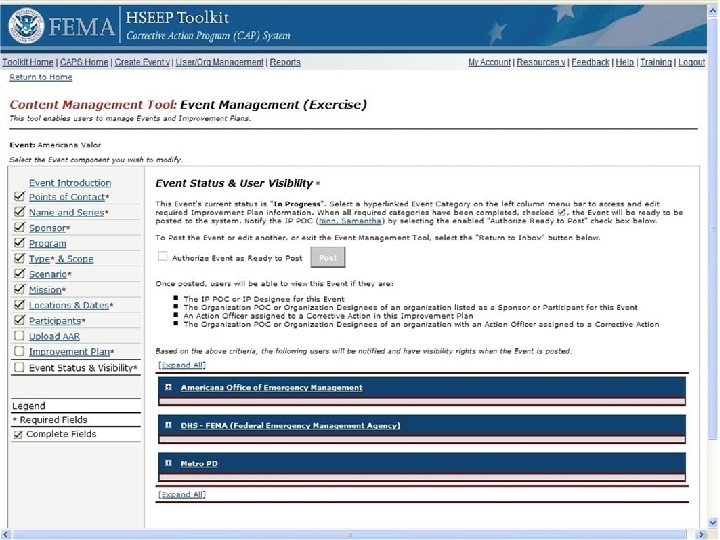
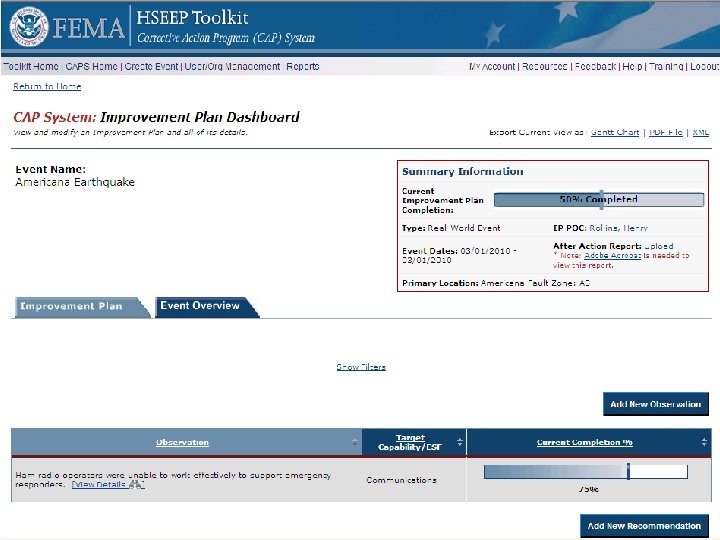
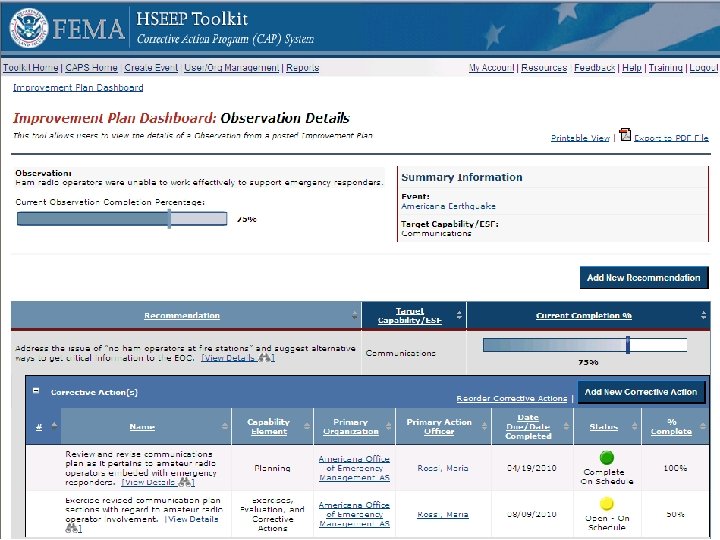
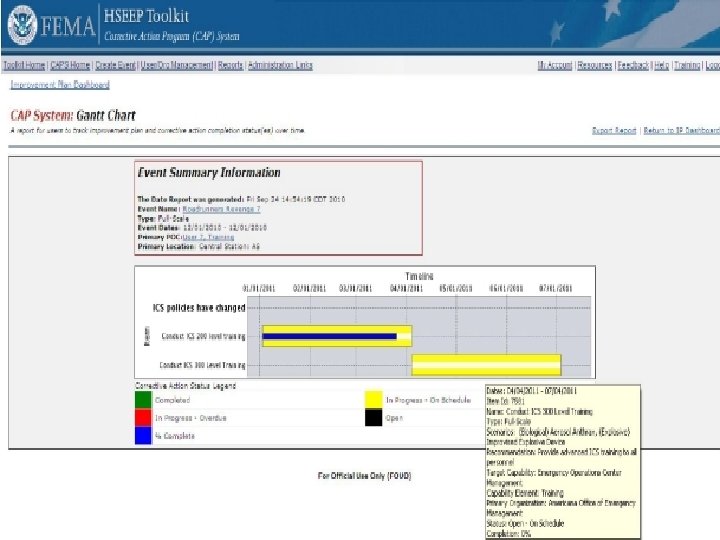
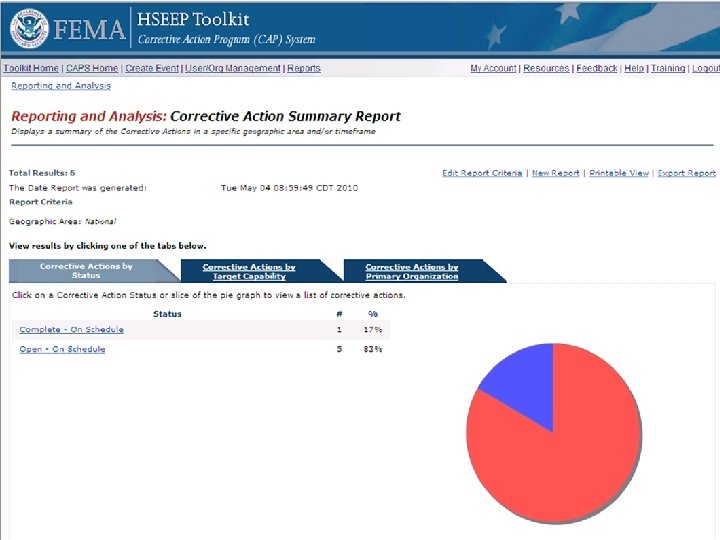
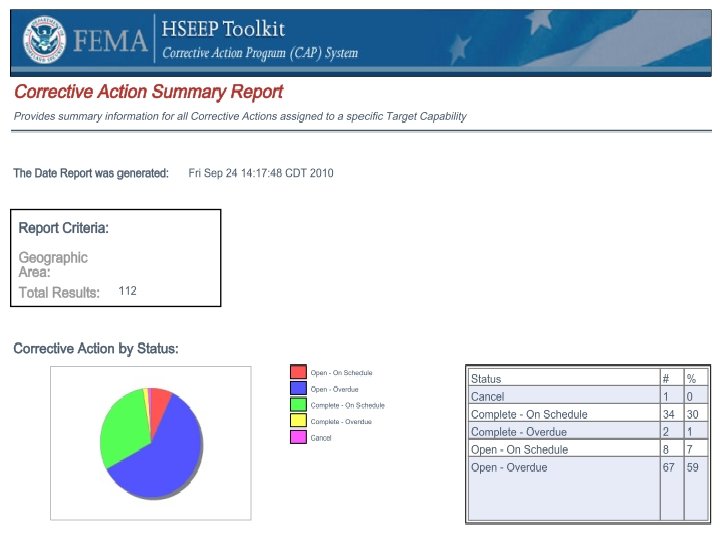
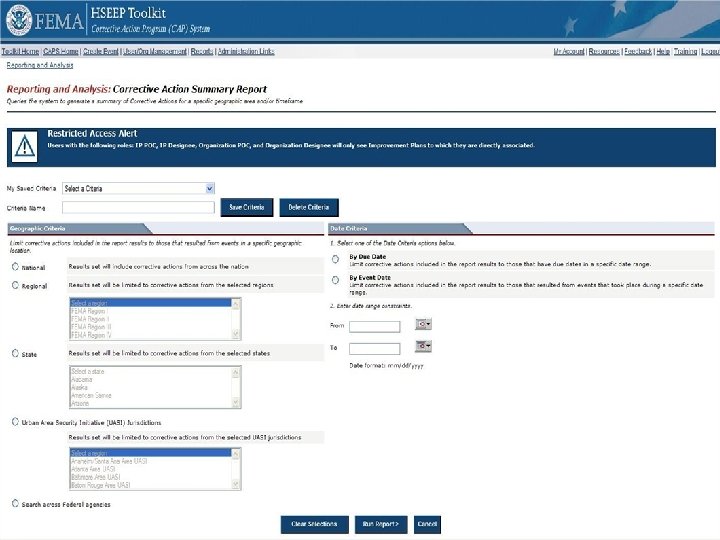
How the CAP System Works Identify and Enter Prioritize and Assign Track Progress Analyze An IP is written during the AAC. Corrective actions are identified in the IP. Managers then use the system to prioritize individual corrective actions and assign them to responsible parties (organizations and action officers). Action officers use the system to track implementation progress for the corrective actions to which they are assigned. Through dynamic reporting tools, managers can analyze the status of IPs and corrective actions. This gives insight into progress, gaps or deficiencies, and focus areas for future exercises. Once finalized, the IP POC enters the IP data into the system. Managers can also view the status of individual corrective actions, enabling oversight.
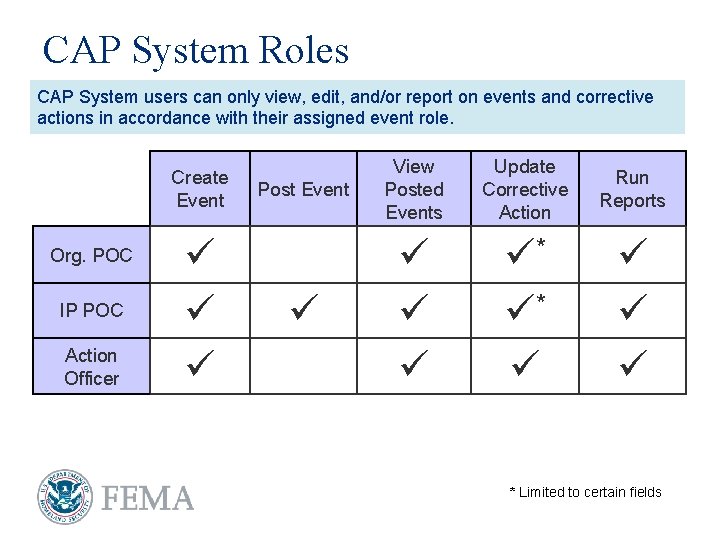
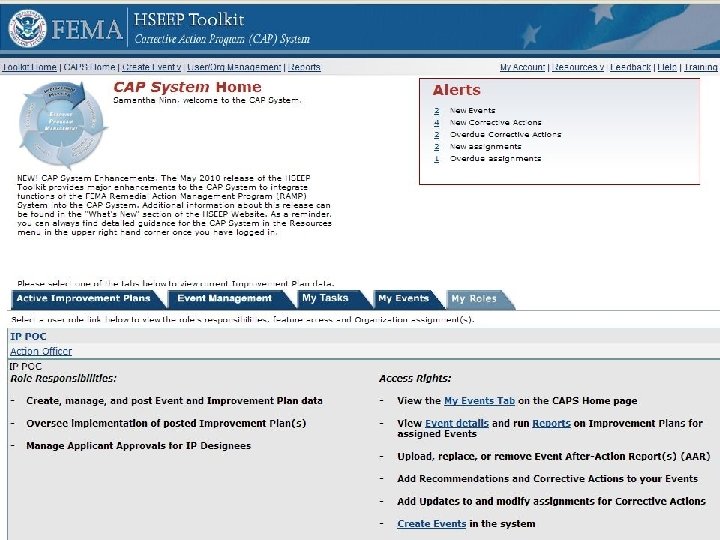
CAP System Roles CAP System users can only view, edit, and/or report on events and corrective actions in accordance with their assigned event role. Create Event Org. POC IP POC Action Officer Post Event View Posted Events Update Corrective Action Run Reports * * * Limited to certain fields
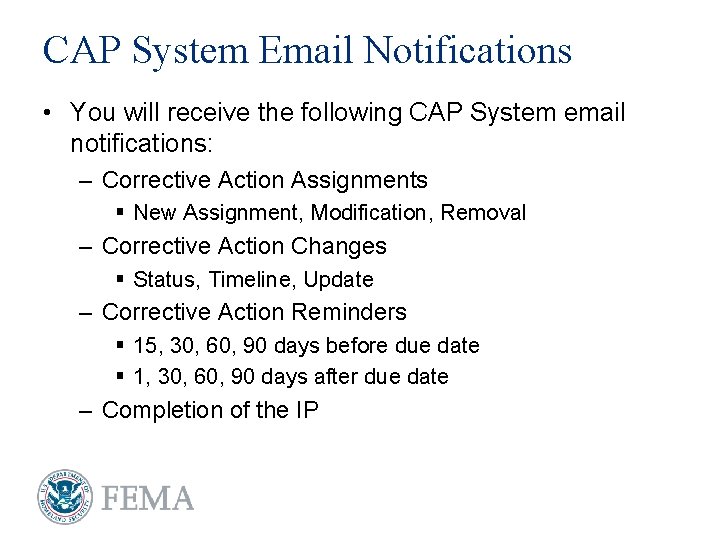
CAP System Email Notifications • You will receive the following CAP System email notifications: – Corrective Action Assignments § New Assignment, Modification, Removal – Corrective Action Changes § Status, Timeline, Update – Corrective Action Reminders § 15, 30, 60, 90 days before due date § 1, 30, 60, 90 days after due date – Completion of the IP
CAP System Lesson 1 Entering Event Info into the CAP System
Play the CAP System (Exercise Creation & IP Entry) Demonstration Video
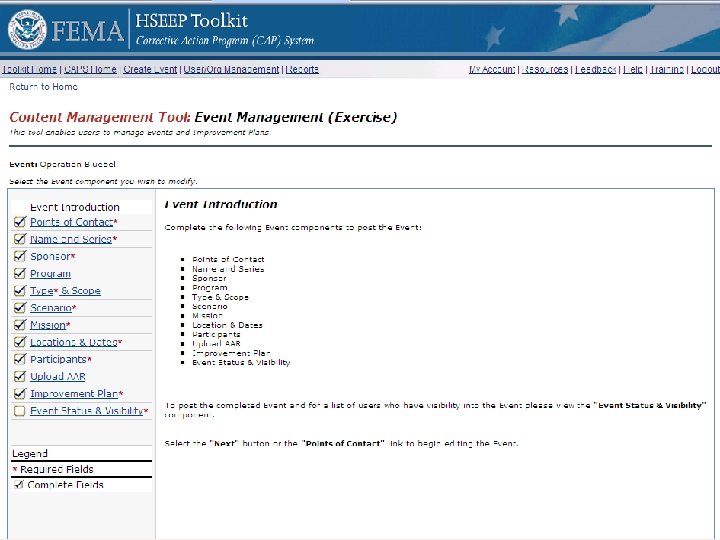
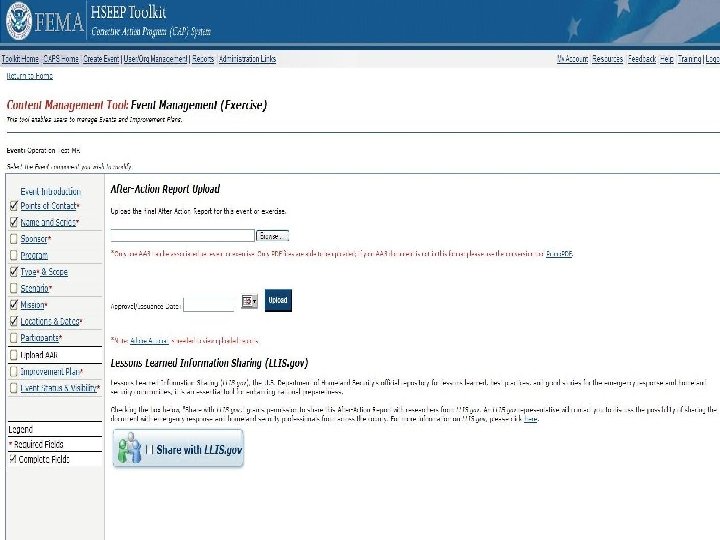
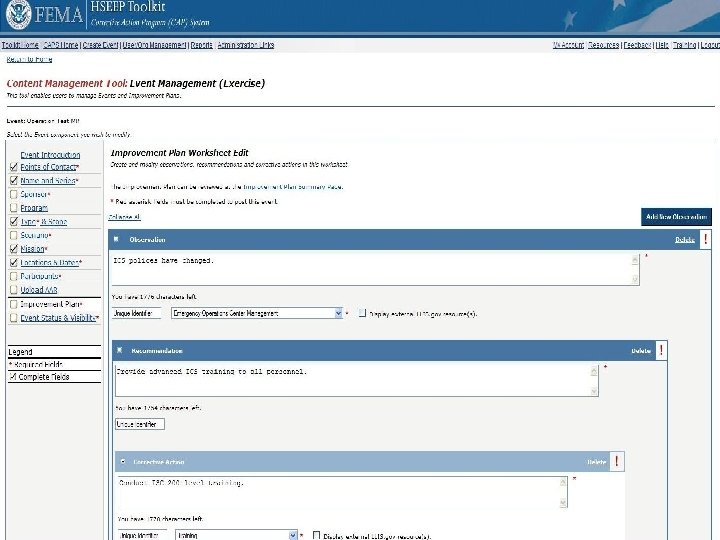
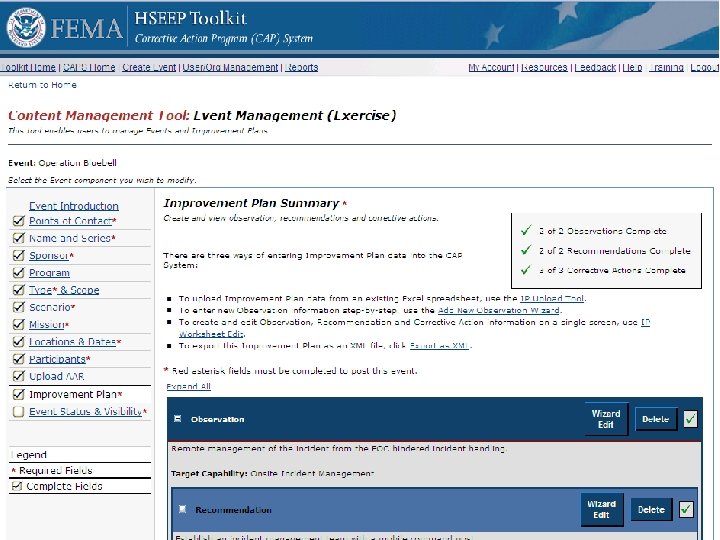
Lesson 1 Review § In this lesson, we have discussed: REVIEW Creating events in the CAP System. Entering event overview information and uploading your AAR. Sharing your AAR with LLIS. gov analysts. The three methods of inputting IP data—Wizard, Worksheet Edit, and IP Upload. Posting events.
CAP System Lesson 2 Tracking the Corrective Action Implementation
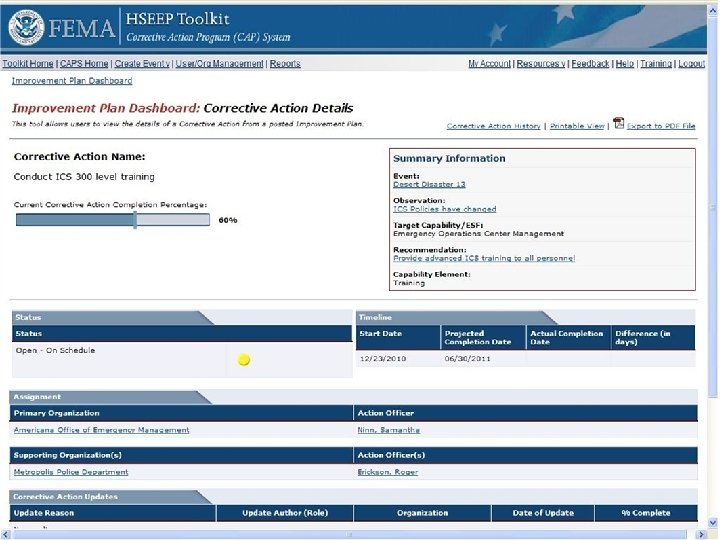
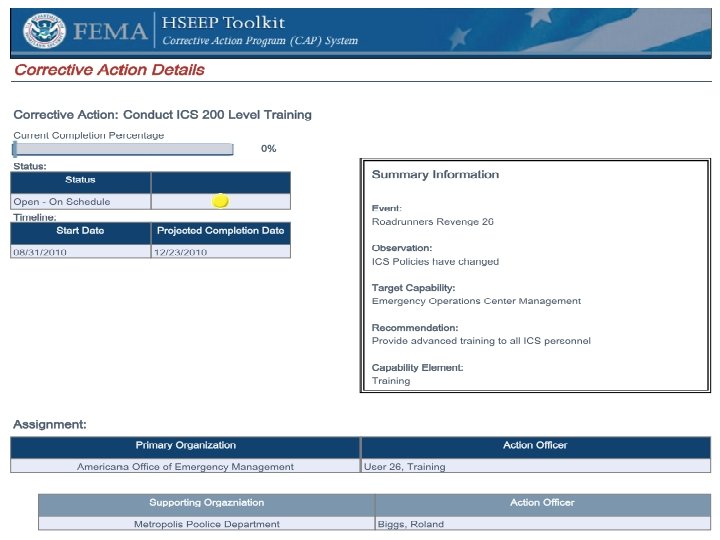
Lesson 2 Review § In this lesson, we have discussed: REVIEW Using the IP Dashboard and Corrective Action Details pages. Updating corrective actions to track implementation. Exporting the IP and individual corrective actions to PDF files.
CAP System Lesson 3 CAP System Reporting and Analysis Tools
Lesson 3 Review § In this lesson, we have discussed: REVIEW Using the CAP System to run reports. Using report results to determine priorities for future exercises, training, and budgeting.
Play the CAP System (Updating Corrective Actions) Demonstration Video
HSEEP Toolkit Workshop Wrap-Up
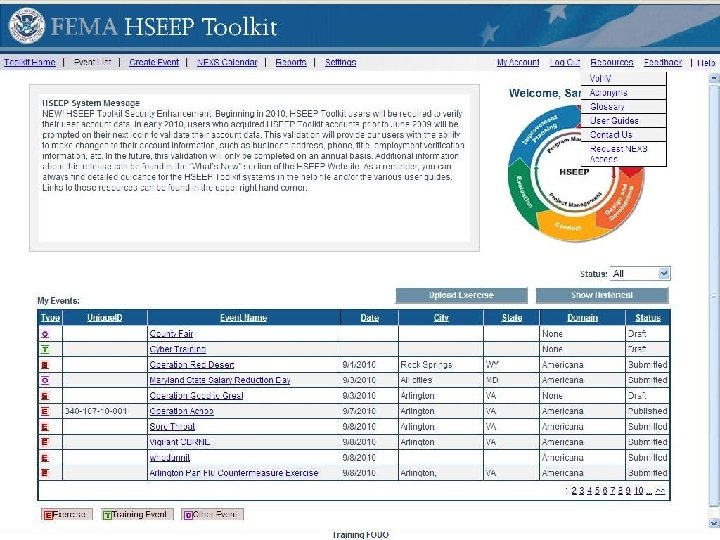
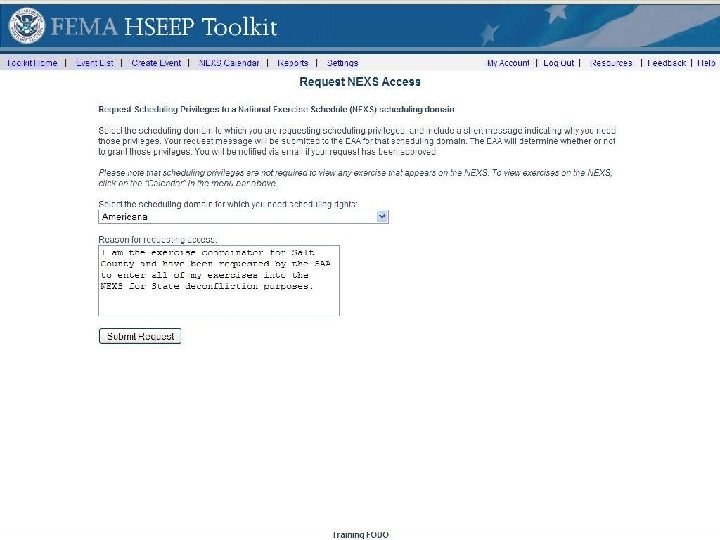
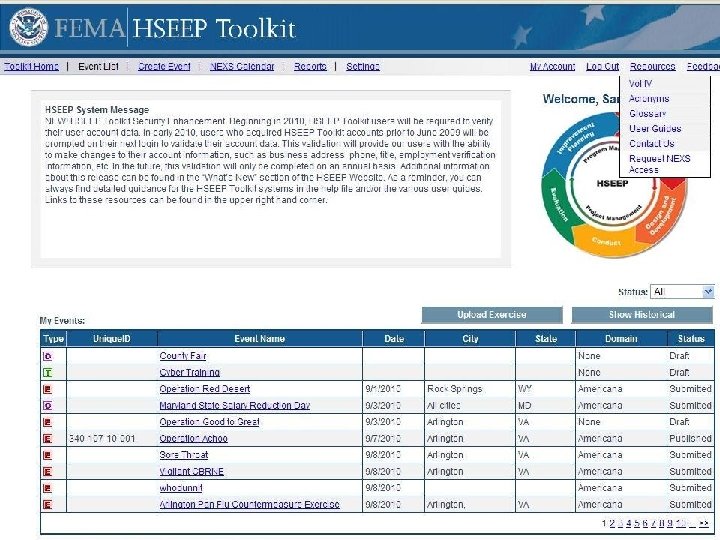
NEXS System/DDS Training Resources § Resources menu provides access to: § HSEEP Library § Acronyms list § Glossary § User Guides § Contact Us page § Request NEXS Scheduling Access
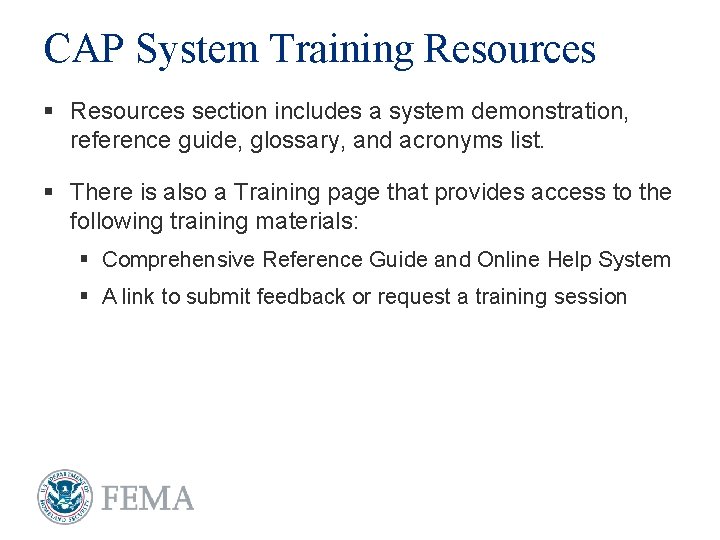
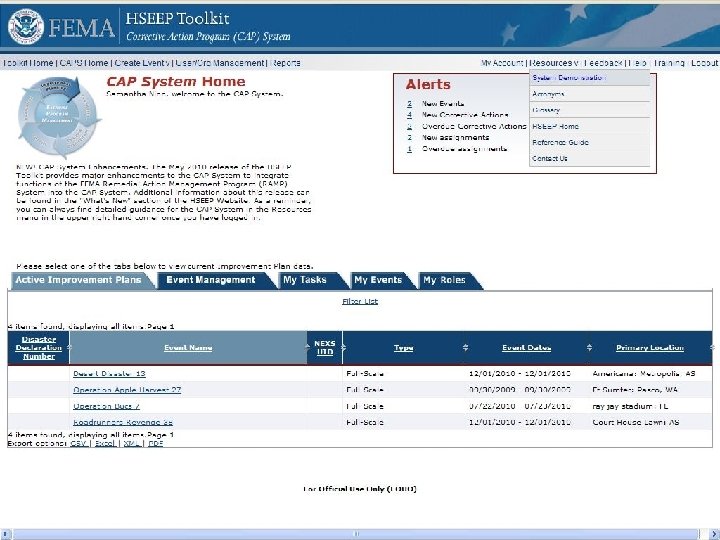
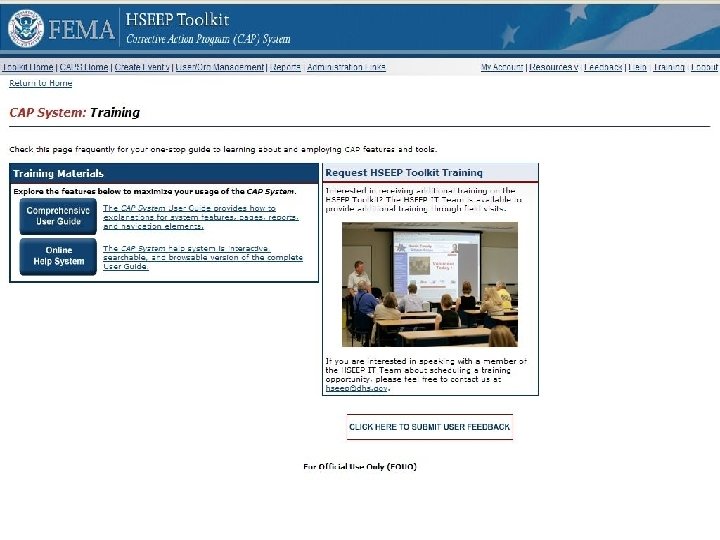
CAP System Training Resources § Resources section includes a system demonstration, reference guide, glossary, and acronyms list. § There is also a Training page that provides access to the following training materials: § Comprehensive Reference Guide and Online Help System § A link to submit feedback or request a training session
CAP System Resources Menu
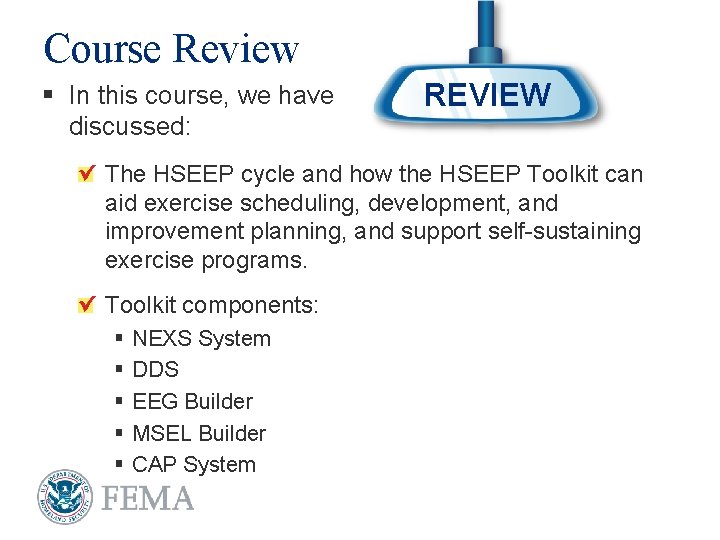
Course Review § In this course, we have discussed: REVIEW The HSEEP cycle and how the HSEEP Toolkit can aid exercise scheduling, development, and improvement planning, and support self-sustaining exercise programs. Toolkit components: § § § NEXS System DDS EEG Builder MSEL Builder CAP System