
Home Activate Account Attach Bank Account Automate Transfer
Home Activate Account Attach Bank Account Automate Transfer New User Guide Learning how to use your Nx. Pay Account 1. Activate your account 2. Attach a bank account 3. Set up an automatic transfer (Enable Sweep To) IMPORTANT NOTE • Activating your account will take approximately 10 minutes. • You must complete your account activation in one session. If you leave the system prior to completing your activation, you will need to request a new account activation email from the employer that created your account. • Activating your account, attaching a bank account and setting up an automatic transfer will take approximately 20 -25 minutes. Nx. Pay
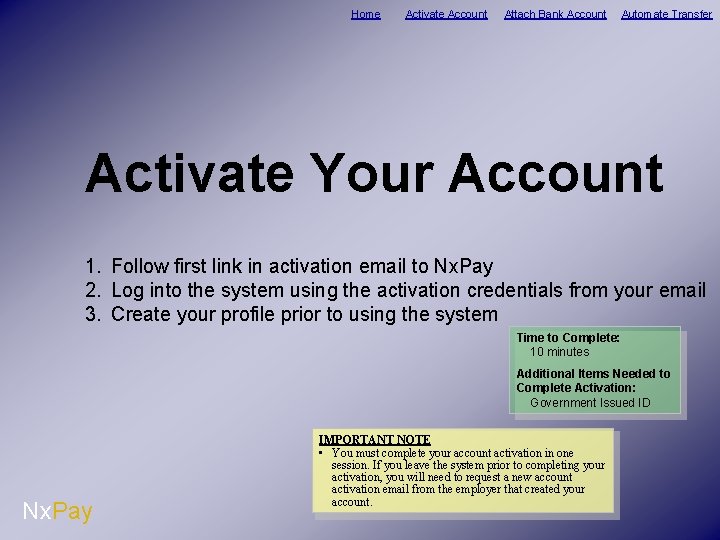
Home Activate Account Attach Bank Account Automate Transfer Activate Your Account 1. Follow first link in activation email to Nx. Pay 2. Log into the system using the activation credentials from your email 3. Create your profile prior to using the system Time to Complete: 10 minutes Additional Items Needed to Complete Activation: Government Issued ID Nx. Pay IMPORTANT NOTE • You must complete your account activation in one session. If you leave the system prior to completing your activation, you will need to request a new account activation email from the employer that created your account.
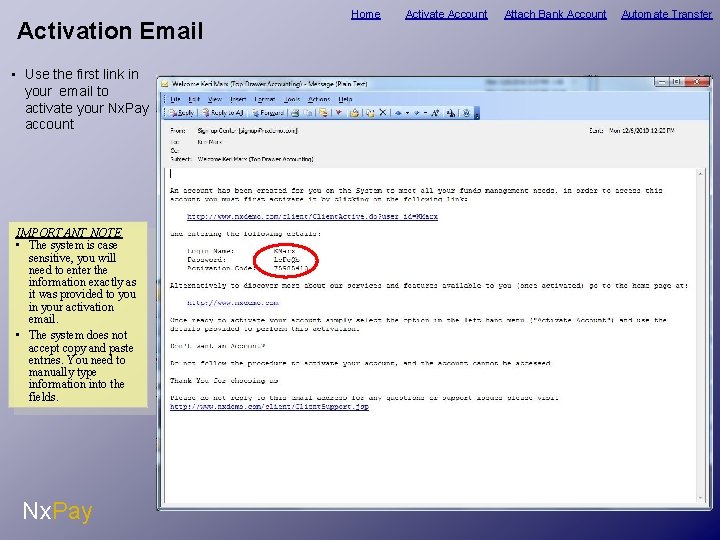
Activation Email • Use the first link in your email to activate your Nx. Pay account IMPORTANT NOTE • The system is case sensitive, you will need to enter the information exactly as it was provided to you in your activation email. • The system does not accept copy and paste entries. You need to manually type information into the fields. Nx. Pay Home Activate Account Attach Bank Account Automate Transfer
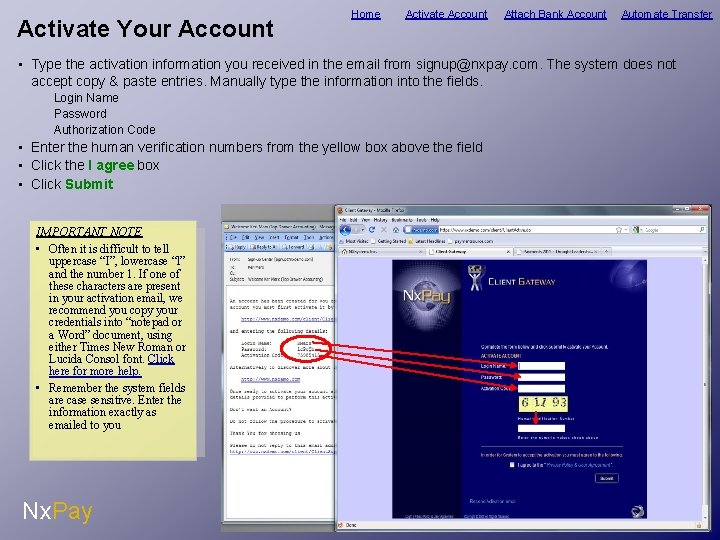
Activate Your Account Home Activate Account Attach Bank Account Automate Transfer • Type the activation information you received in the email from signup@nxpay. com. The system does not accept copy & paste entries. Manually type the information into the fields. Login Name Password Authorization Code • Enter the human verification numbers from the yellow box above the field • Click the I agree box • Click Submit IMPORTANT NOTE • Often it is difficult to tell uppercase “I”, lowercase “l” and the number 1. If one of these characters are present in your activation email, we recommend you copy your credentials into “notepad or a Word” document, using either Times New Roman or Lucida Consol font. Click here for more help. • Remember the system fields are case sensitive. Enter the information exactly as emailed to you Nx. Pay
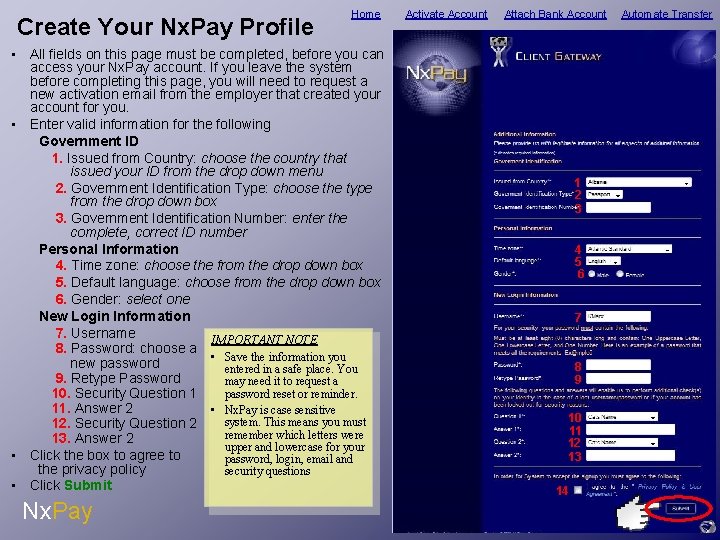
Create Your Nx. Pay Profile Home • All fields on this page must be completed, before you can access your Nx. Pay account. If you leave the system before completing this page, you will need to request a new activation email from the employer that created your account for you. • Enter valid information for the following Government ID 1. Issued from Country: choose the country that issued your ID from the drop down menu 2. Government Identification Type: choose the type from the drop down box 3. Government Identification Number: enter the complete, correct ID number Personal Information 4. Time zone: choose the from the drop down box 5. Default language: choose from the drop down box 6. Gender: select one New Login Information 7. Username IMPORTANT NOTE 8. Password: choose a • Save the information you new password entered in a safe place. You 9. Retype Password may need it to request a password reset or reminder. 10. Security Question 1 11. Answer 2 • Nx. Pay is case sensitive system. This means you must 12. Security Question 2 remember which letters were 13. Answer 2 upper and lowercase for your • Click the box to agree to password, login, email and the privacy policy security questions • Click Submit Nx. Pay Activate Account Attach Bank Account 1 2 3 4 5 6 7 8 9 10 11 12 13 14 Automate Transfer
Home Activate Account Attach Bank Account Automate Transfer Attach a Bank Account 1. 2. 3. 4. Click Bank Accounts Choose add a Bank Account Select the country your Bank is located Enter your banking information Time to Complete: 10 minutes Nx. Pay Additional Items Needed to Attach Bank Account: Bank information: Bank Account Number Bank Account Type Routing or Bank Code Bank Address
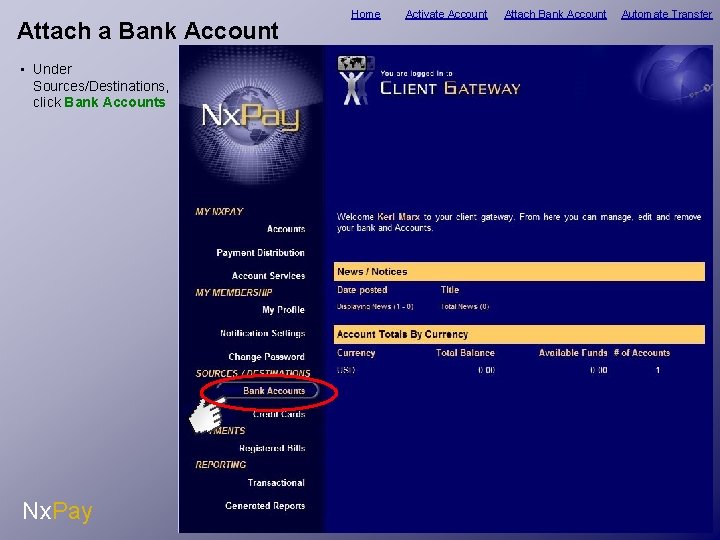
Attach a Bank Account • Under Sources/Destinations, click Bank Accounts Nx. Pay Home Activate Account Attach Bank Account Automate Transfer
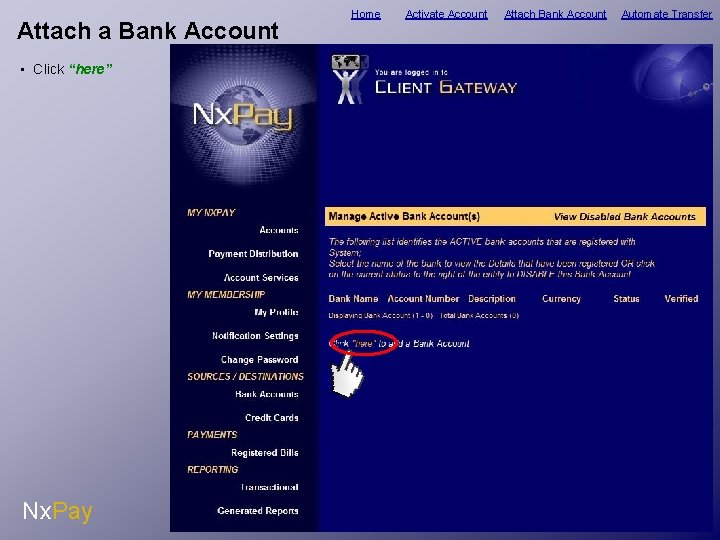
Attach a Bank Account • Click “here” Nx. Pay Home Activate Account Attach Bank Account Automate Transfer
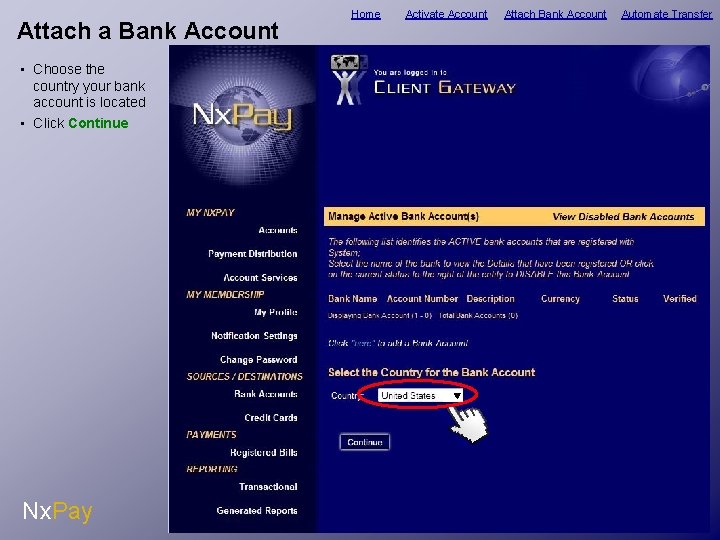
Attach a Bank Account • Choose the country your bank account is located • Click Continue Nx. Pay Home Activate Account Attach Bank Account Automate Transfer
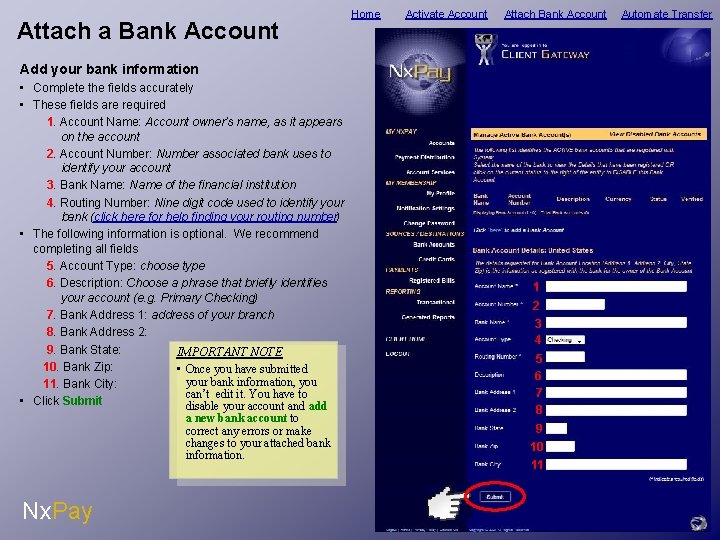
Attach a Bank Account Home Activate Account Attach Bank Account Add your bank information • Complete the fields accurately • These fields are required 1. Account Name: Account owner’s name, as it appears on the account 2. Account Number: Number associated bank uses to identify your account 3. Bank Name: Name of the financial institution 4. Routing Number: Nine digit code used to identify your bank (click here for help finding your routing number) • The following information is optional. We recommend completing all fields 5. Account Type: choose type 6. Description: Choose a phrase that briefly identifies your account (e. g. Primary Checking) 7. Bank Address 1: address of your branch 8. Bank Address 2: 9. Bank State: IMPORTANT NOTE 10. Bank Zip: • Once you have submitted your bank information, you 11. Bank City: can’t edit it. You have to • Click Submit disable your account and add a new bank account to correct any errors or make changes to your attached bank information. Nx. Pay 1 2 3 4 5 6 7 8 9 10 11 Automate Transfer
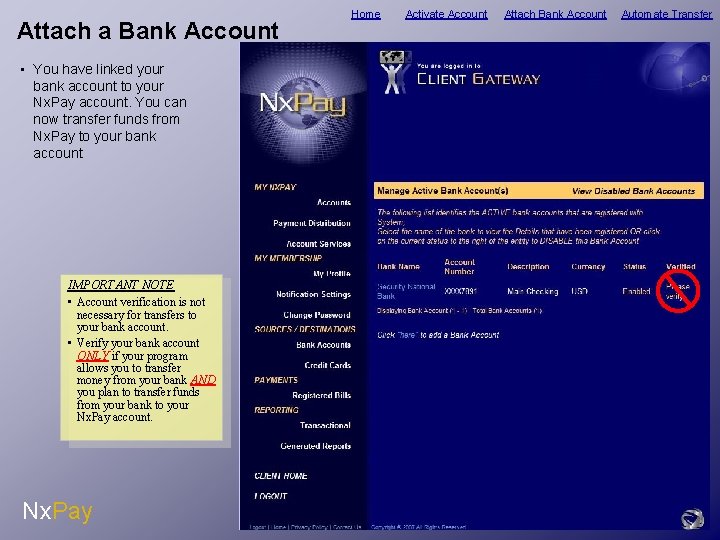
Attach a Bank Account • You have linked your bank account to your Nx. Pay account. You can now transfer funds from Nx. Pay to your bank account IMPORTANT NOTE • Account verification is not necessary for transfers to your bank account. • Verify your bank account ONLY if your program allows you to transfer money from your bank AND you plan to transfer funds from your bank to your Nx. Pay account. Nx. Pay Home Activate Account Attach Bank Account Automate Transfer

Home Activate Account Attach Bank Account Automate Transfer Set Up Automatic Transfer (Enable Sweep-To) 1. 2. 3. 4. Choose the Account Select the account you want an automatic transfer Click on Enable Sweep-To Complete the Convert Purse to Sweep-To fields Time to Complete: 5 minutes No Additional Items Needed to Set Up Nx. Pay
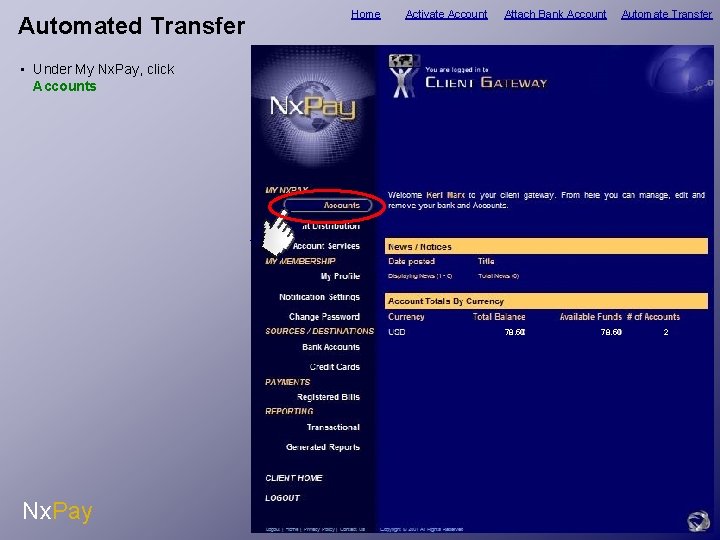
Home Automated Transfer Activate Account Attach Bank Account Automate Transfer • Under My Nx. Pay, click Accounts ount 78. 50 Nx. Pay 78. 50 2
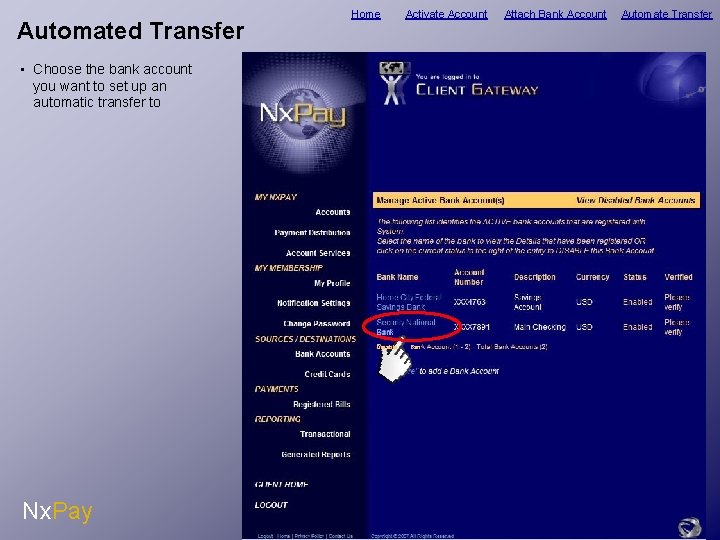
Automated Transfer Home Activate Account • Choose the bank account you want to set up an automatic transfer to Bank Disable Nx. Pay Ban Attach Bank Account Automate Transfer
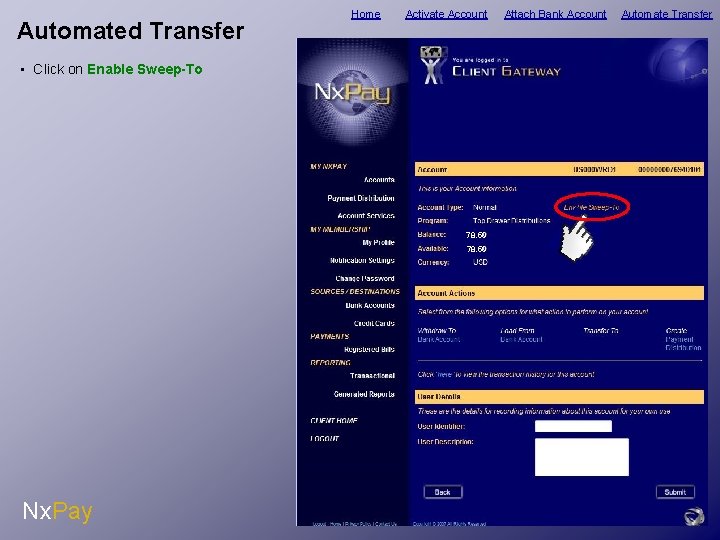
Automated Transfer Home Activate Account • Click on Enable Sweep-To 78. 50 Nx. Pay Attach Bank Account Automate Transfer
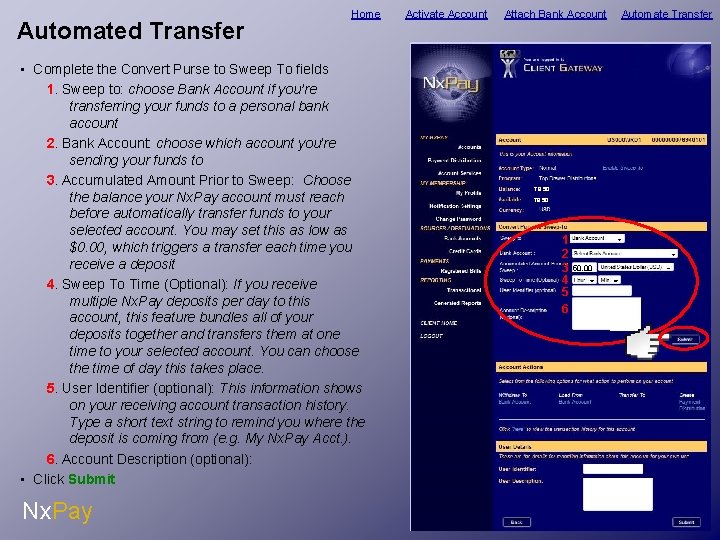
Automated Transfer Home • Complete the Convert Purse to Sweep To fields 1. Sweep to: choose Bank Account if you’re transferring your funds to a personal bank account 2. Bank Account: choose which account you’re sending your funds to 3. Accumulated Amount Prior to Sweep: Choose the balance your Nx. Pay account must reach before automatically transfer funds to your selected account. You may set this as low as $0. 00, which triggers a transfer each time you receive a deposit 4. Sweep To Time (Optional): If you receive multiple Nx. Pay deposits per day to this account, this feature bundles all of your deposits together and transfers them at one time to your selected account. You can choose the time of day this takes place. 5. User Identifier (optional): This information shows on your receiving account transaction history. Type a short text string to remind you where the deposit is coming from (e. g. My Nx. Pay Acct. ). 6. Account Description (optional): • Click Submit Nx. Pay Activate Account Attach Bank Account 78. 50 1 2 3 4 5 6 50. 00 Automate Transfer
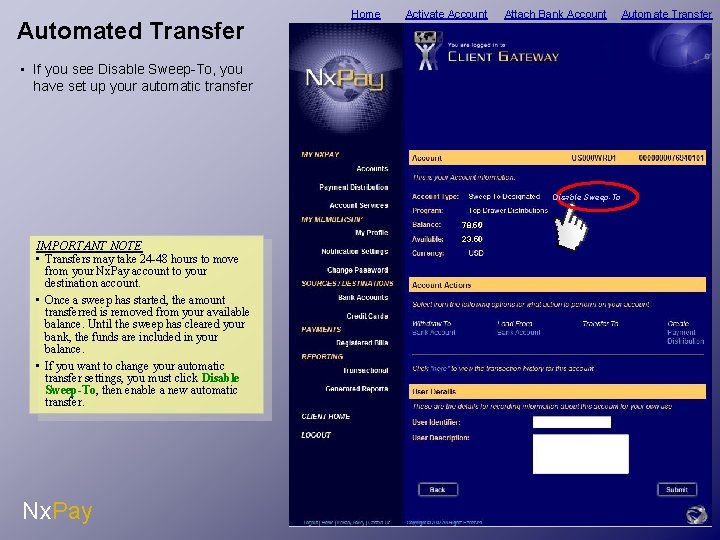
Automated Transfer Home Activate Account Attach Bank Account • If you see Disable Sweep-To, you have set up your automatic transfer Disable Dis Sweep-To 78. 50 IMPORTANT NOTE • Transfers may take 24 -48 hours to move from your Nx. Pay account to your destination account. • Once a sweep has started, the amount transferred is removed from your available balance. Until the sweep has cleared your bank, the funds are included in your balance. • If you want to change your automatic transfer settings, you must click Disable Sweep-To, then enable a new automatic transfer. Nx. Pay 23. 50 Automate Transfer
Home Activate Account Attach Bank Account Need Additional Help? If you have any additional problems activating your account, attaching a bank account or setting up a transfer, please email Nx. Pay Customer Support support@nxsystemsinc. com. Nx. Pay Automate Transfer
- Slides: 18