
HOD Installation on IBM ZOS Steps to configure
HOD Installation on IBM Z/OS
Steps to configure HOD in Z/OS using Administrative mode • Pre-requisites • HOD installation using Installation manager • Web server Configuration
Pre-requisites 1. Ensure that IBM Installation Manager V 1. 8. 3 or higher is installed and it must be installed in the Administrator mode. 2. Installation is performed by a user with administrator or root privileges. 3. A supported version of HTTP server (for example, IBM HTTP Server or Apache server) is installed on the system. Note: From HOD 14. 0. 2 we start supporting embedded webserver which is packed along with HOD.
Before Installing HOD on IBM Z/OS Ø Installation of Host On-Demand on IBM Z/OS platforms is supported through the console mode of Installation Manager. Ø The GUI mode of installation is not available on IBM Z/OS. Ø To begin the installation, you need to perform the following tasks: 1. Copy the Host On-Demand zip files to the IBM Z/OS from FTP (File Transfer Protocol) or by any regular means and Extract the zip file. 2. Open the Installation Manager and configure a repository by providing the complete path to the disk. Tag. inf file that is in the Host On-Demand disk.
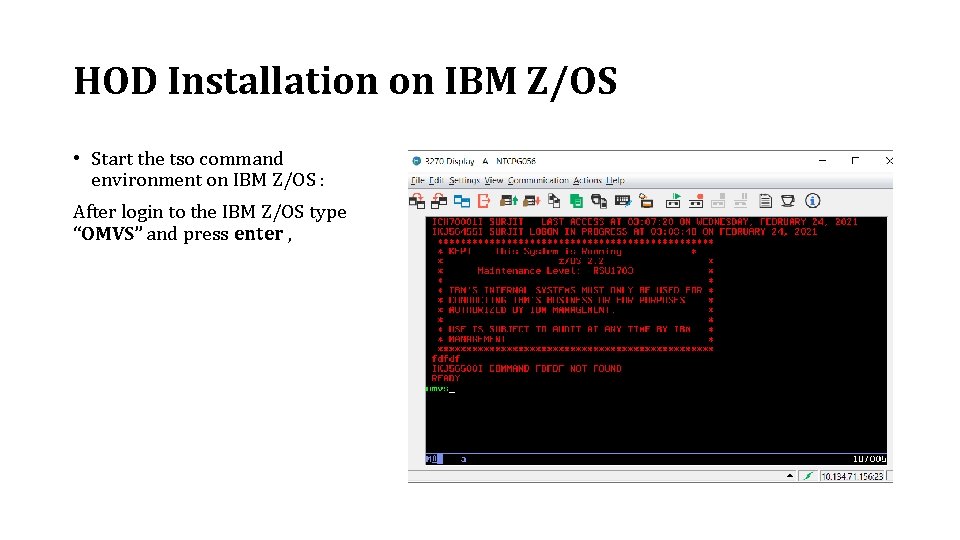
HOD Installation on IBM Z/OS • Start the tso command environment on IBM Z/OS : After login to the IBM Z/OS type “OMVS” and press enter ,
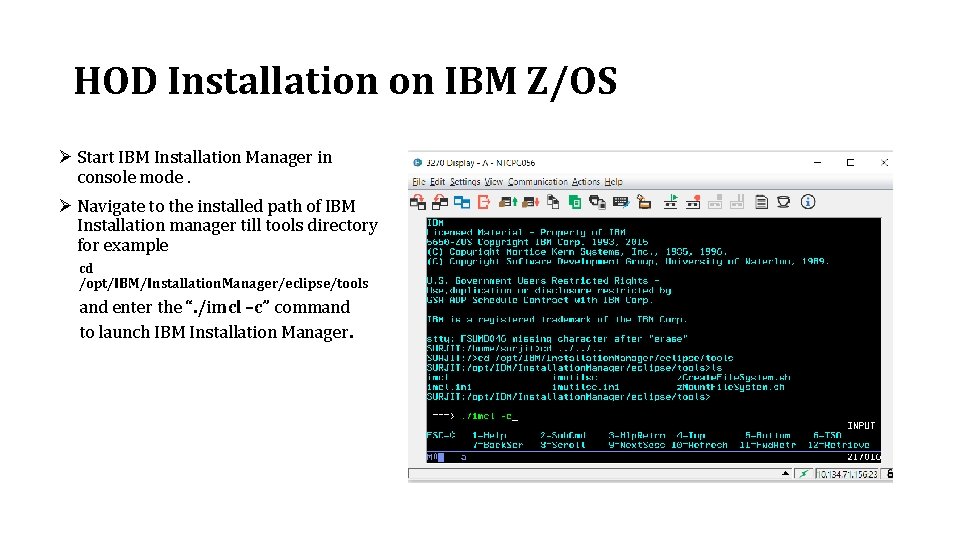
HOD Installation on IBM Z/OS Ø Start IBM Installation Manager in console mode. Ø Navigate to the installed path of IBM Installation manager till tools directory for example cd /opt/IBM/Installation. Manager/eclipse/tools and enter the “. /imcl –c” command to launch IBM Installation Manager.
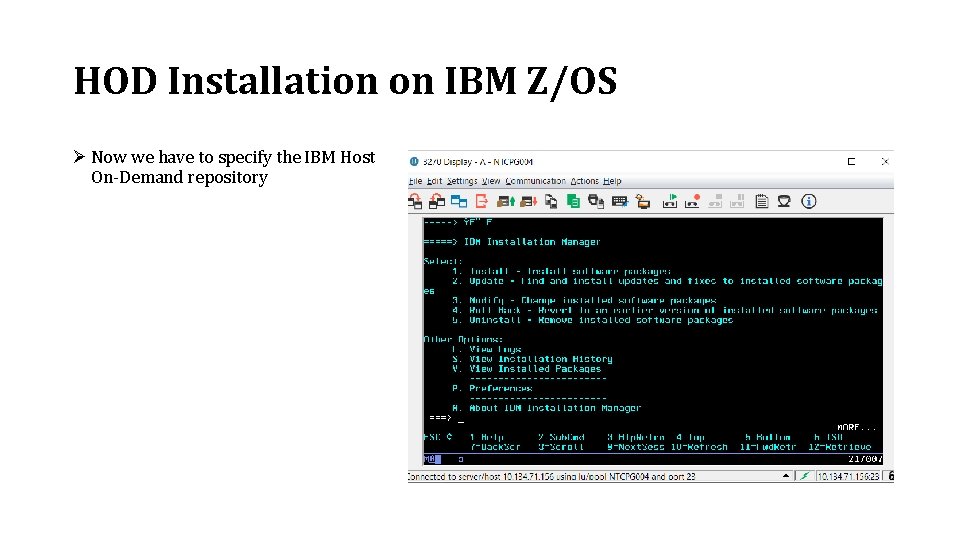
HOD Installation on IBM Z/OS Ø Now we have to specify the IBM Host On-Demand repository
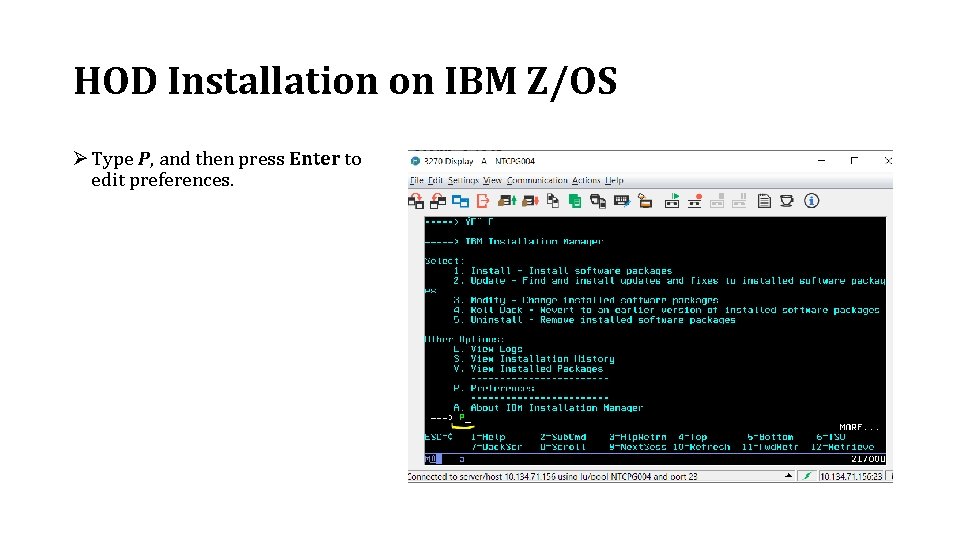
HOD Installation on IBM Z/OS Ø Type P, and then press Enter to edit preferences.
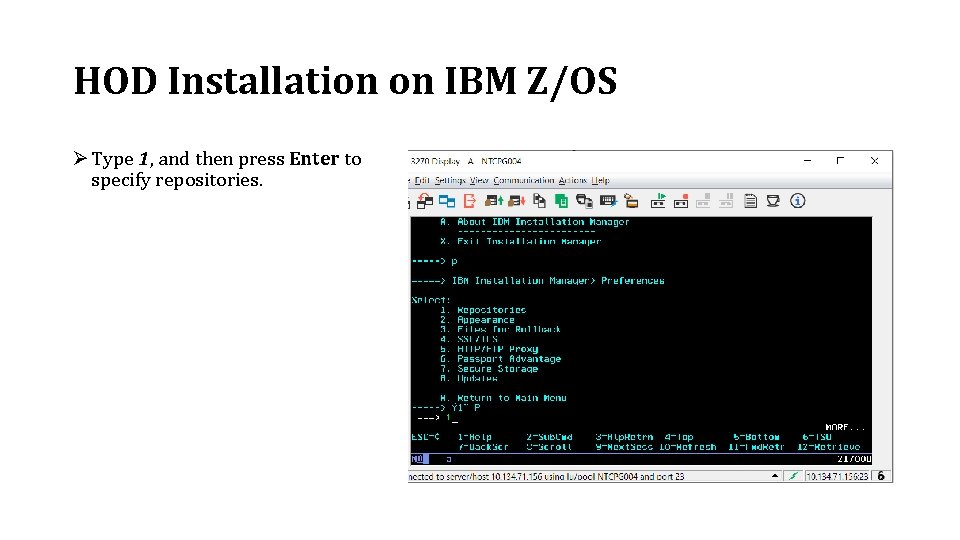
HOD Installation on IBM Z/OS Ø Type 1, and then press Enter to specify repositories.
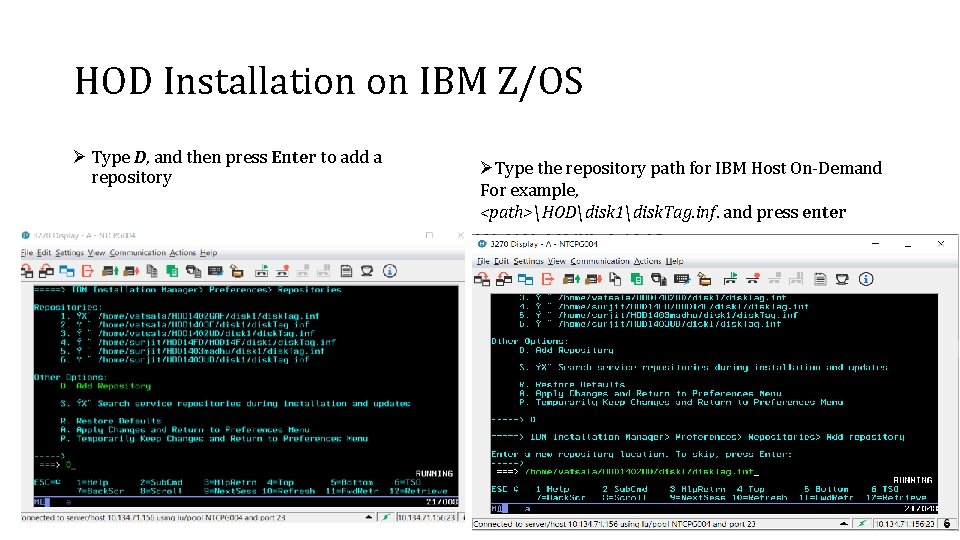
HOD Installation on IBM Z/OS Ø Type D, and then press Enter to add a repository ØType the repository path for IBM Host On-Demand For example, <path>HODdisk 1disk. Tag. inf. and press enter
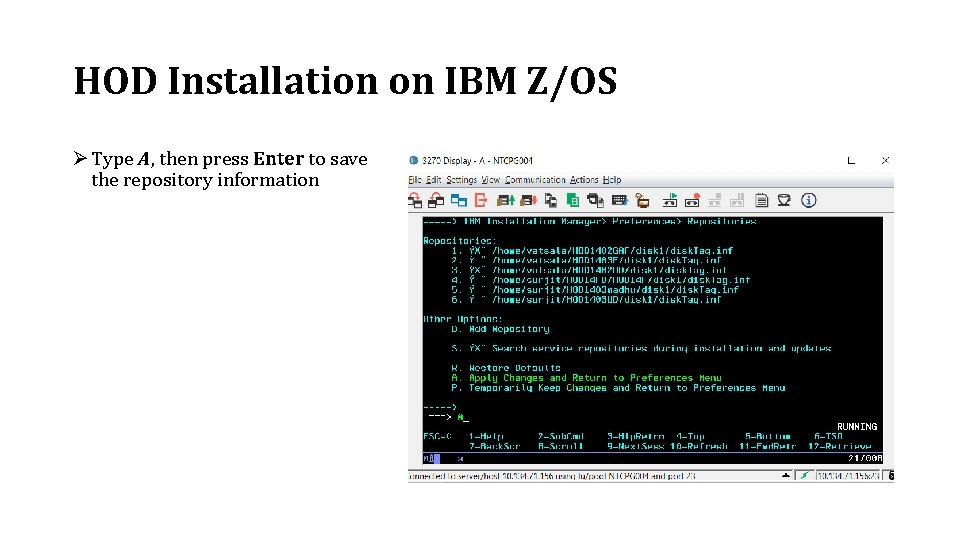
HOD Installation on IBM Z/OS Ø Type A, then press Enter to save the repository information
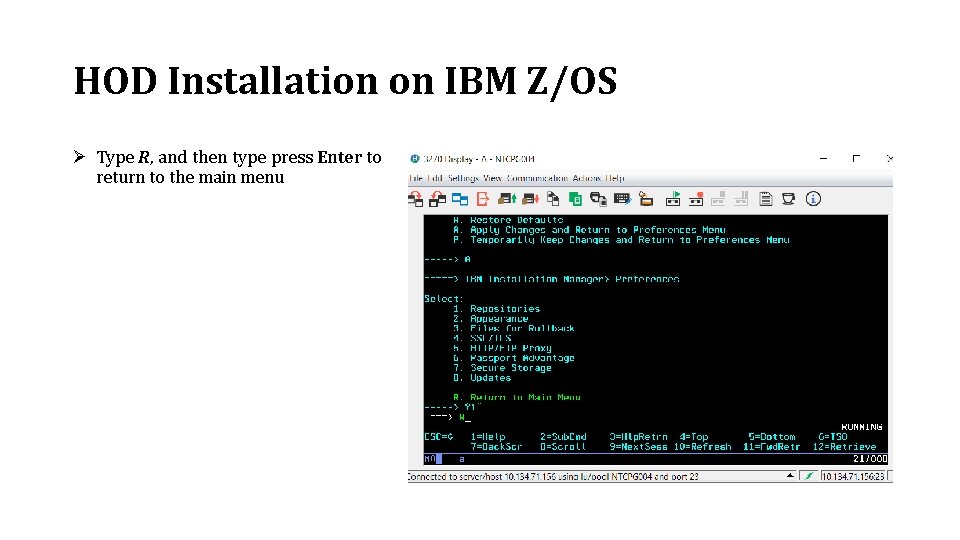
HOD Installation on IBM Z/OS Ø Type R, and then type press Enter to return to the main menu

HOD Installation on IBM Z/OS Ø Type 1 to install / 2 to Update from the main menu Ø On the panel to select packages to install/Update, type the appropriate number to select the Host On-Demand package
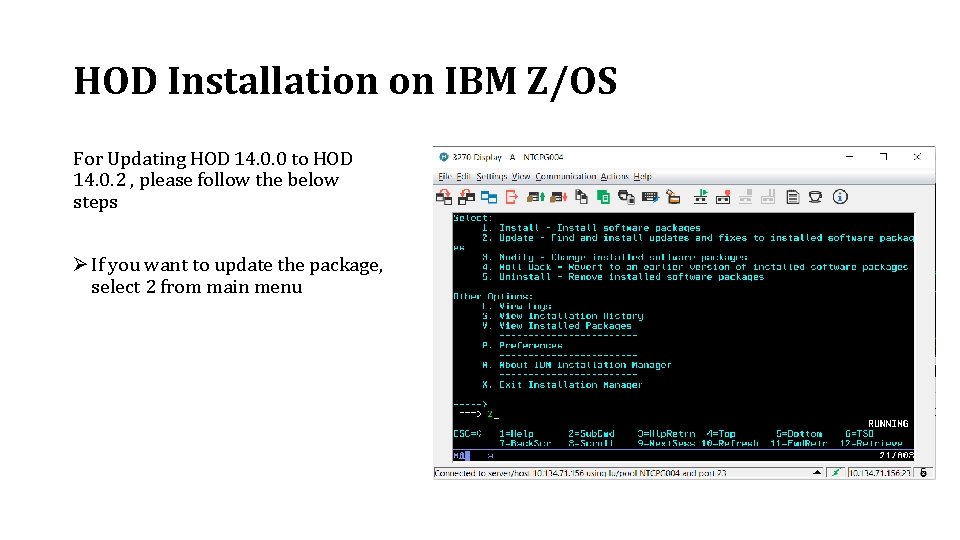
HOD Installation on IBM Z/OS For Updating HOD 14. 0. 0 to HOD 14. 0. 2 , please follow the below steps Ø If you want to update the package, select 2 from main menu
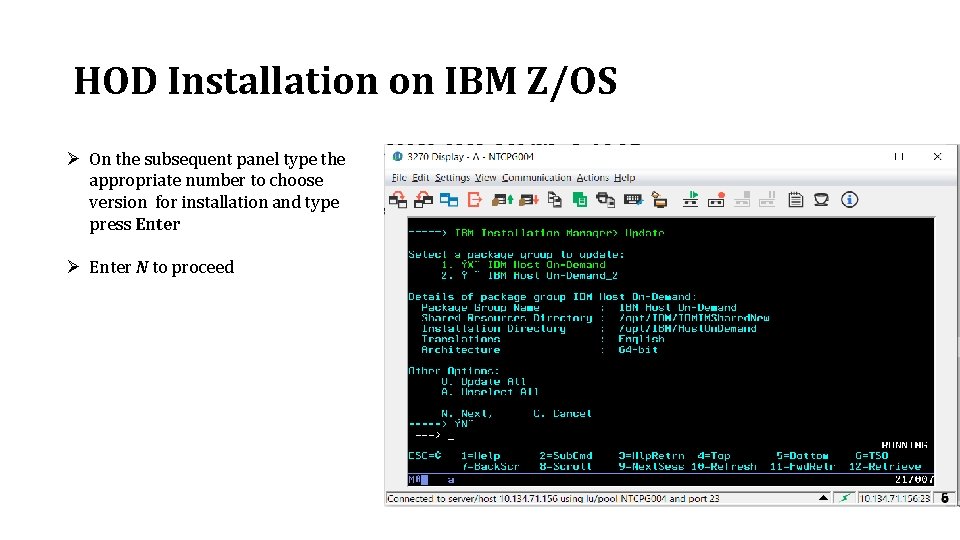
HOD Installation on IBM Z/OS Ø On the subsequent panel type the appropriate number to choose version for installation and type press Enter Ø Enter N to proceed
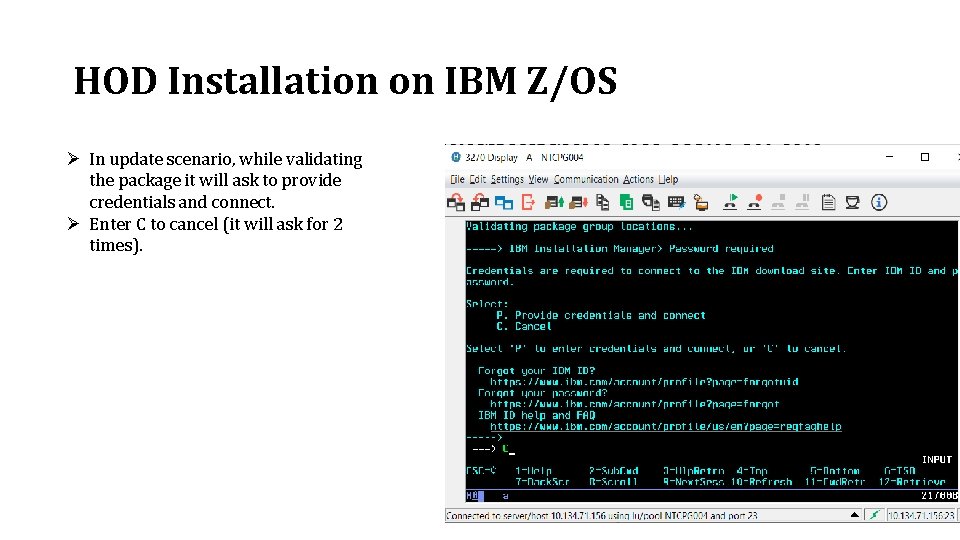
HOD Installation on IBM Z/OS Ø In update scenario, while validating the package it will ask to provide credentials and connect. Ø Enter C to cancel (it will ask for 2 times).
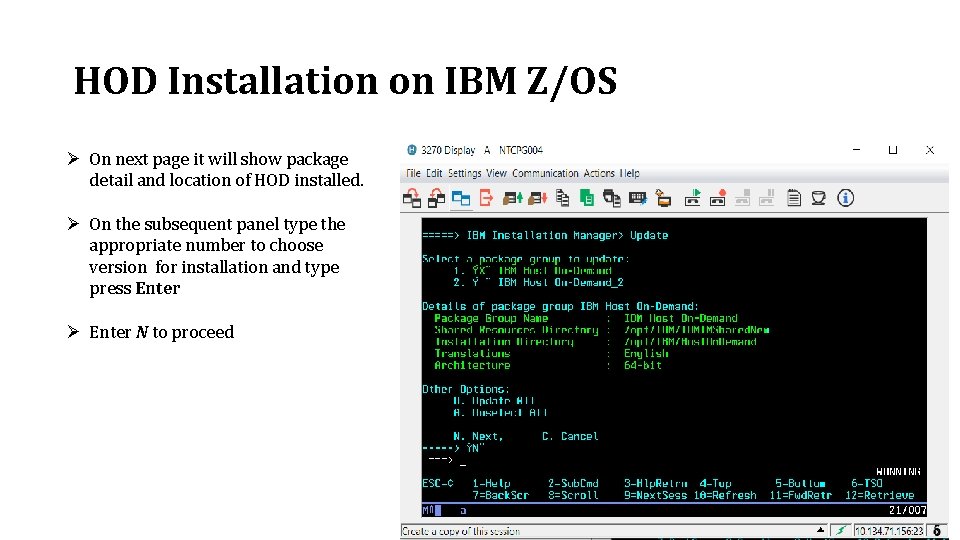
HOD Installation on IBM Z/OS Ø On next page it will show package detail and location of HOD installed. Ø On the subsequent panel type the appropriate number to choose version for installation and type press Enter Ø Enter N to proceed
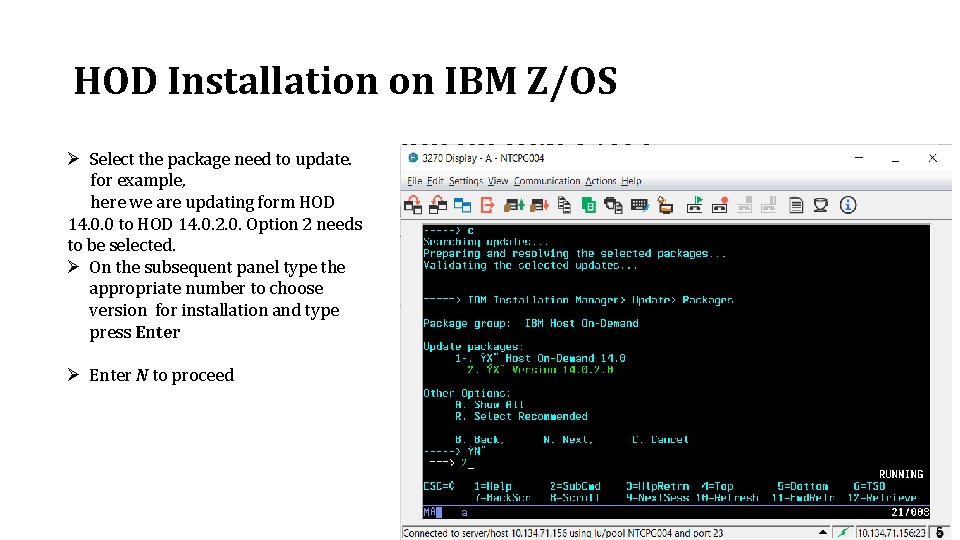
HOD Installation on IBM Z/OS Ø Select the package need to update. for example, here we are updating form HOD 14. 0. 0 to HOD 14. 0. 2. 0. Option 2 needs to be selected. Ø On the subsequent panel type the appropriate number to choose version for installation and type press Enter Ø Enter N to proceed
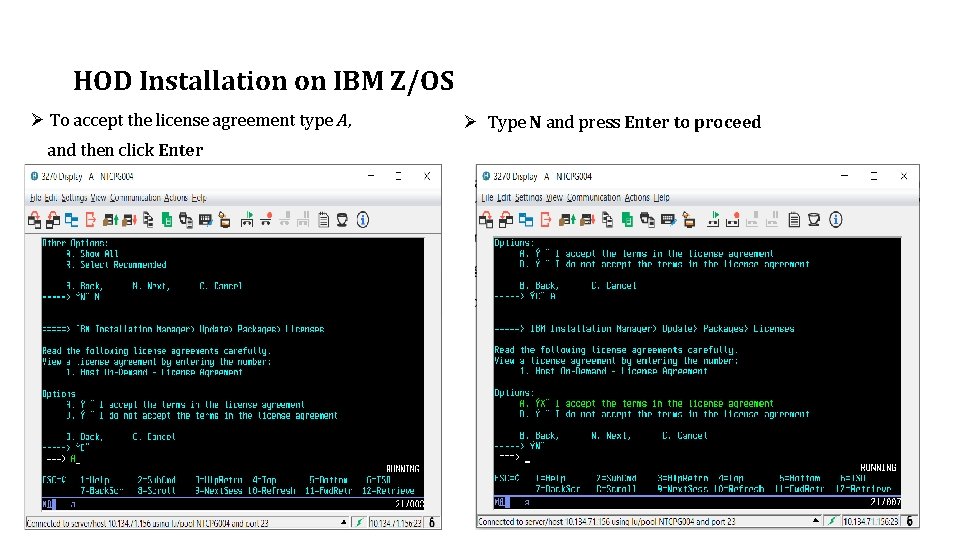
HOD Installation on IBM Z/OS Ø To accept the license agreement type A, and then click Enter Ø Type N and press Enter to proceed
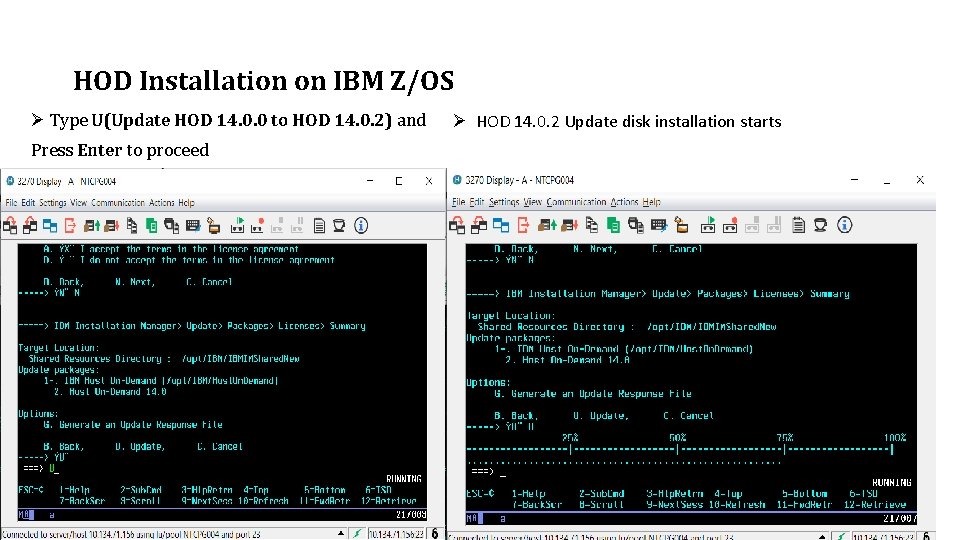
HOD Installation on IBM Z/OS Ø Type U(Update HOD 14. 0. 0 to HOD 14. 0. 2) and Press Enter to proceed Ø HOD 14. 0. 2 Update disk installation starts
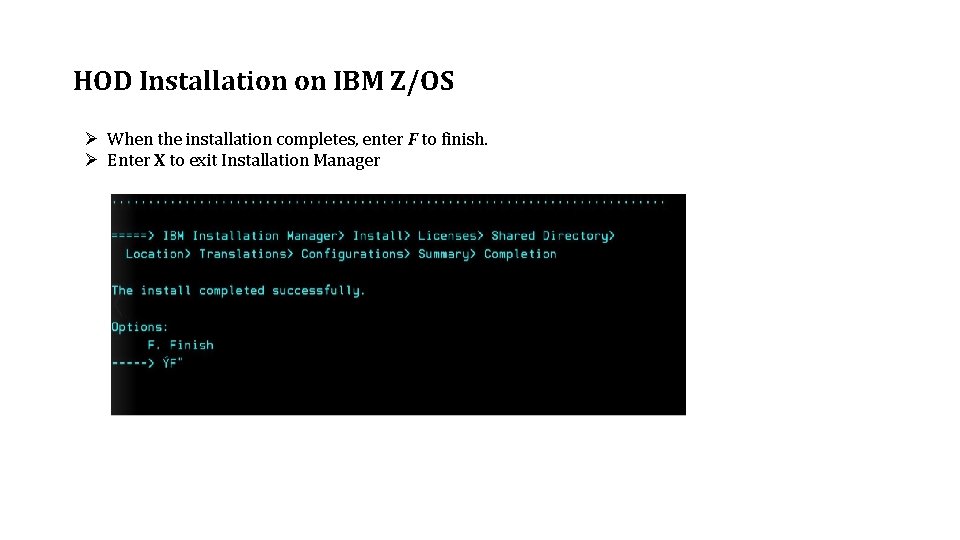
HOD Installation on IBM Z/OS Ø When the installation completes, enter F to finish. Ø Enter X to exit Installation Manager
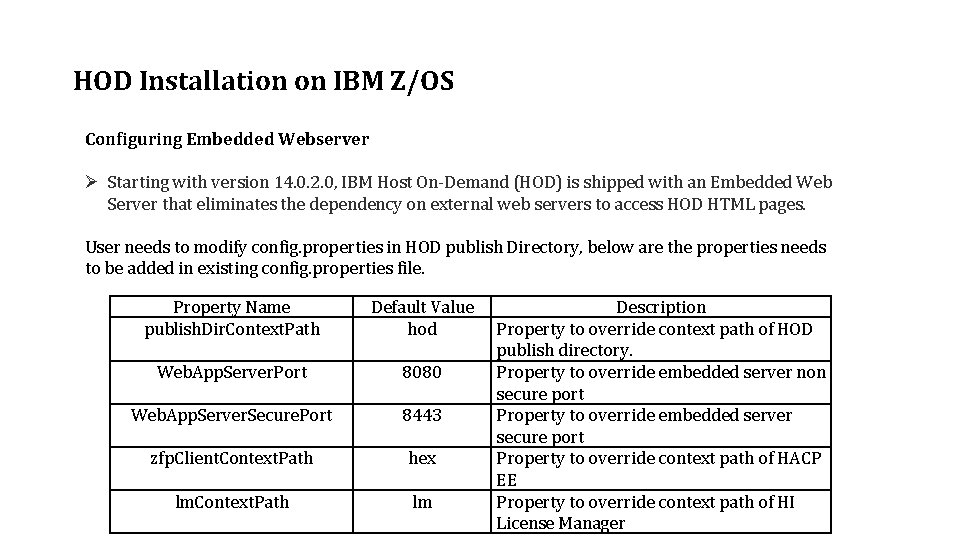
HOD Installation on IBM Z/OS Configuring Embedded Webserver Ø Starting with version 14. 0. 2. 0, IBM Host On-Demand (HOD) is shipped with an Embedded Web Server that eliminates the dependency on external web servers to access HOD HTML pages. User needs to modify config. properties in HOD publish Directory, below are the properties needs to be added in existing config. properties file. Property Name publish. Dir. Context. Path Default Value hod Web. App. Server. Port 8080 Web. App. Server. Secure. Port 8443 zfp. Client. Context. Path hex lm. Context. Path lm Description Property to override context path of HOD publish directory. Property to override embedded server non secure port Property to override embedded server secure port Property to override context path of HACP EE Property to override context path of HI License Manager
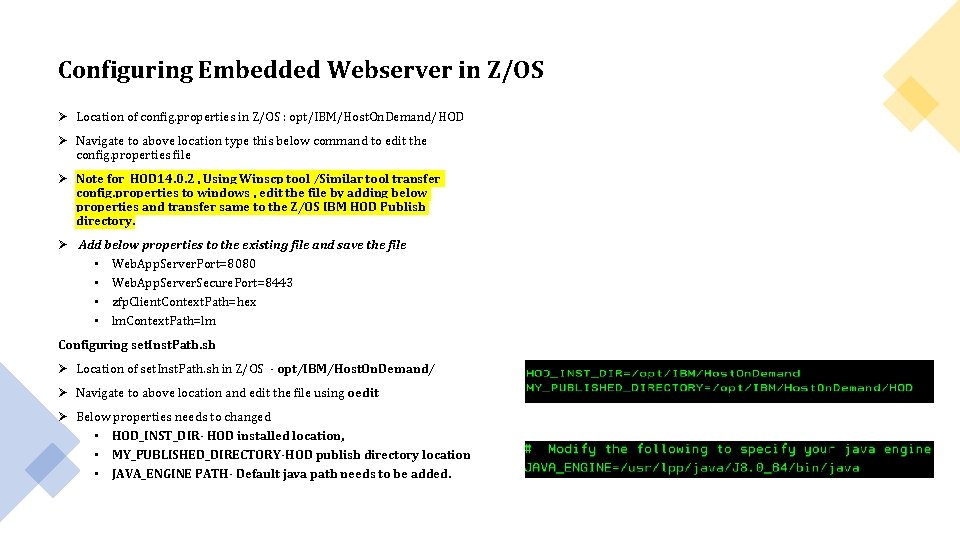
Configuring Embedded Webserver in Z/OS Ø Location of config. properties in Z/OS : opt/IBM/Host. On. Demand/HOD Ø Navigate to above location type this below command to edit the config. properties file Ø Note for HOD 14. 0. 2 , Using Winscp tool /Similar tool transfer config. properties to windows , edit the file by adding below properties and transfer same to the Z/OS IBM HOD Publish directory. Ø Add below properties to the existing file and save the file • Web. App. Server. Port=8080 • Web. App. Server. Secure. Port=8443 • zfp. Client. Context. Path=hex • lm. Context. Path=lm Configuring set. Inst. Path. sh Ø Location of set. Inst. Path. sh in Z/OS - opt/IBM/Host. On. Demand/ Ø Navigate to above location and edit the file using oedit Ø Below properties needs to changed • HOD_INST_DIR- HOD installed location, • MY_PUBLISHED_DIRECTORY-HOD publish directory location • JAVA_ENGINE PATH- Default java path needs to be added.
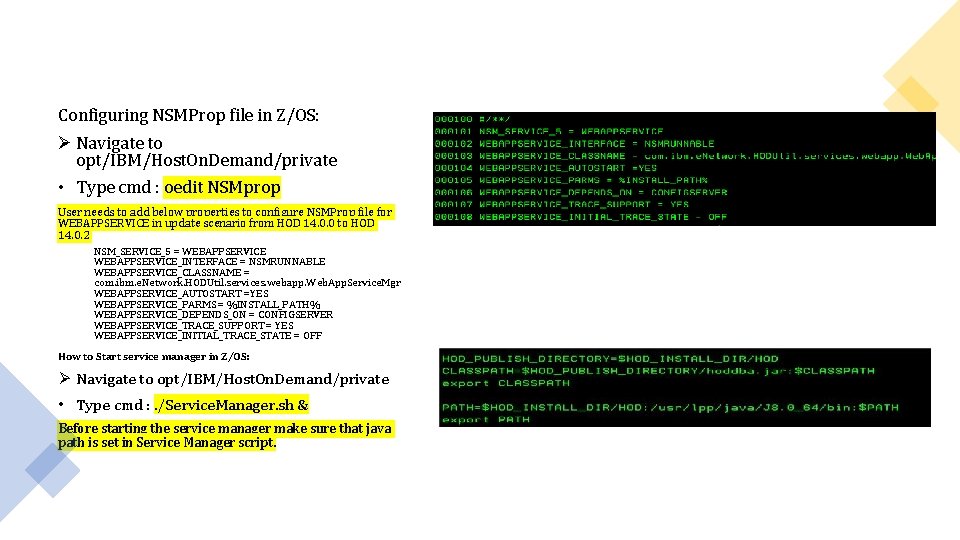
Configuring NSMProp file in Z/OS: Ø Navigate to opt/IBM/Host. On. Demand/private • Type cmd : oedit NSMprop User needs to add below properties to configure NSMProp file for WEBAPPSERVICE in update scenario from HOD 14. 0. 0 to HOD 14. 0. 2 NSM_SERVICE_5 = WEBAPPSERVICE_INTERFACE = NSMRUNNABLE WEBAPPSERVICE_CLASSNAME = com. ibm. e. Network. HODUtil. services. webapp. Web. App. Service. Mgr WEBAPPSERVICE_AUTOSTART =YES WEBAPPSERVICE_PARMS = %INSTALL_PATH% WEBAPPSERVICE_DEPENDS_ON = CONFIGSERVER WEBAPPSERVICE_TRACE_SUPPORT = YES WEBAPPSERVICE_INITIAL_TRACE_STATE = OFF How to Start service manager in Z/OS: Ø Navigate to opt/IBM/Host. On. Demand/private • Type cmd : . /Service. Manager. sh & Before starting the service manager make sure that java path is set in Service Manager script.
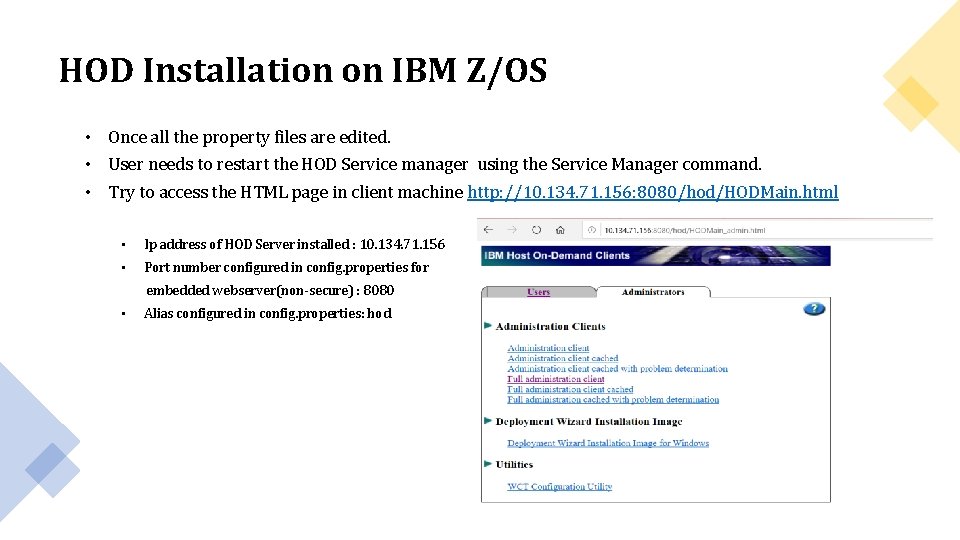
HOD Installation on IBM Z/OS • Once all the property files are edited. • User needs to restart the HOD Service manager using the Service Manager command. • Try to access the HTML page in client machine http: //10. 134. 71. 156: 8080/hod/HODMain. html • Ip address of HOD Server installed : 10. 134. 71. 156 • Port number configured in config. properties for embedded webserver(non-secure) : 8080 • Alias configured in config. properties: hod
More Information Ø For more information on Host On-Demand Installation please go through below link https: //www. ibm. com/support/knowledgecenter/en/SSS 9 FA_14. 0. 0/com. ibm. hod. doc/readme/rea dme. html Ø For more information on Embedded Webserver configuration please go through below link https: //www. ibm. com/support/pages/support-embedded-web-server-hod-v 14020
- Slides: 26